How to Create a Free Digital Signature Online (Transparent Background, No Adobe)
How to Create a Free Digital Signature Online (Transparent Background, No Adobe)
The "Print-Sign-Scan" era is officially over.
We’ve all been there: a client sends a contract, or HR sends an onboarding form. To sign it, you have to find a printer, wait for it to warm up, sign the paper with a pen, find a scanner (or use a phone scanning app), and then email the file back. It’s a twenty-minute task for a two-second action.
In today’s digital-first world, your signature needs to be as mobile as you are. A professional digital signature allows you to sign contracts, approve invoices, and authorize legal documents in seconds, directly on your computer or smartphone.
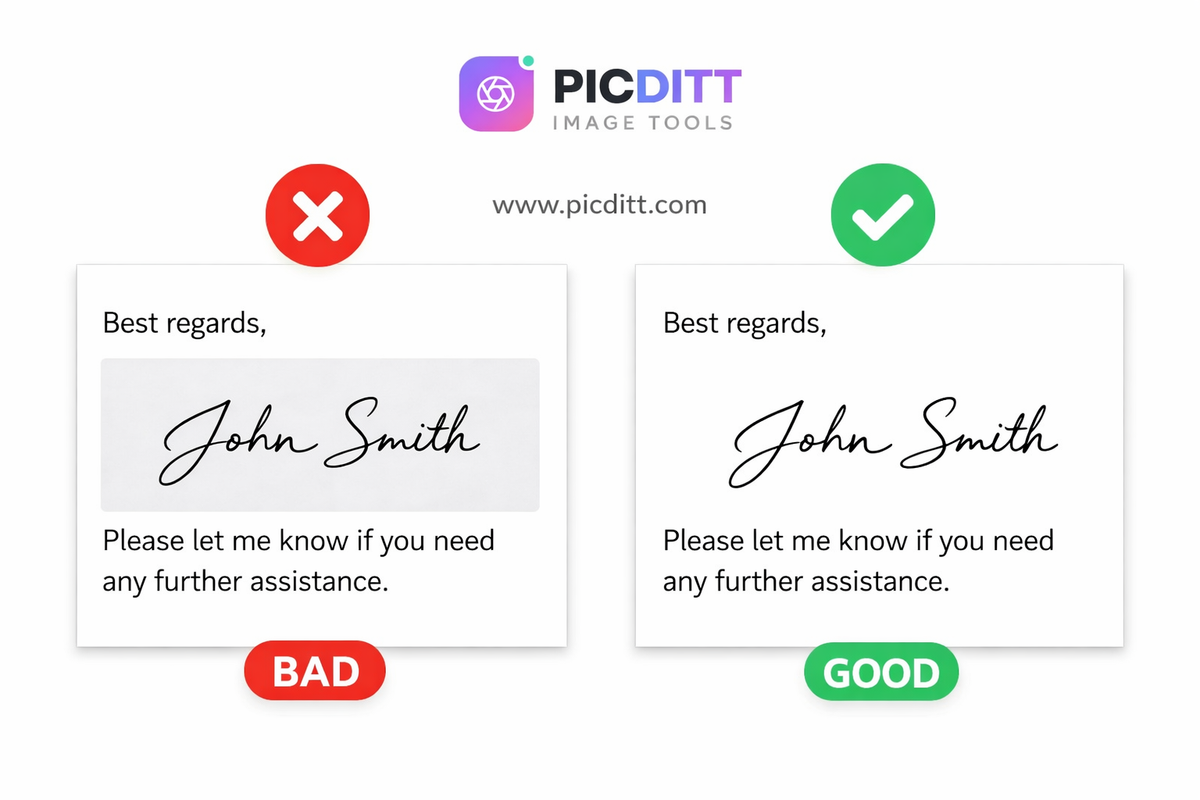
But not all digital signatures are created equal. If you simply take a photo of a signature on paper, it often has a gray background that looks unprofessional when pasted onto a white document. You need a transparent signature that looks like it was written directly on the page.
In this guide, we’ll explore the world of electronic signatures, explain the difference between formats, and show you how to use the free Picditt Digital Signature Pad to create a high-resolution, transparent signature in seconds—without Adobe, without sign-ups, and with 100% privacy.
What is a Digital Signature (and Why Do You Need One)?
A digital signature is an electronic representation of your handwritten signature. It serves as a visual marker of intent and authorization on digital content.
The Shift to a Paperless Workflow
Beyond just saving time, adopting a digital signature is a core part of moving to a paperless workflow. Organizations that use electronic signing see a 80% reduction in document turnaround time. For individuals, it means being able to handle official business from a coffee shop, an airport, or your home office without needing heavy office equipment.
Common Use Cases
You can use a digital signature in almost every area of professional and personal life:
- Business Contracts: Authorize agreements and proposals instantly.
- Legal Documents: Sign affidavits and official correspondence.
- Real Estate: Handle lease agreements and rental applications remotely.
- Employment: Sign offer letters and NDAs.
- Creative Work: Use your signature as a watermark on photography or digital art.
Understanding File Formats: Why PNG is King
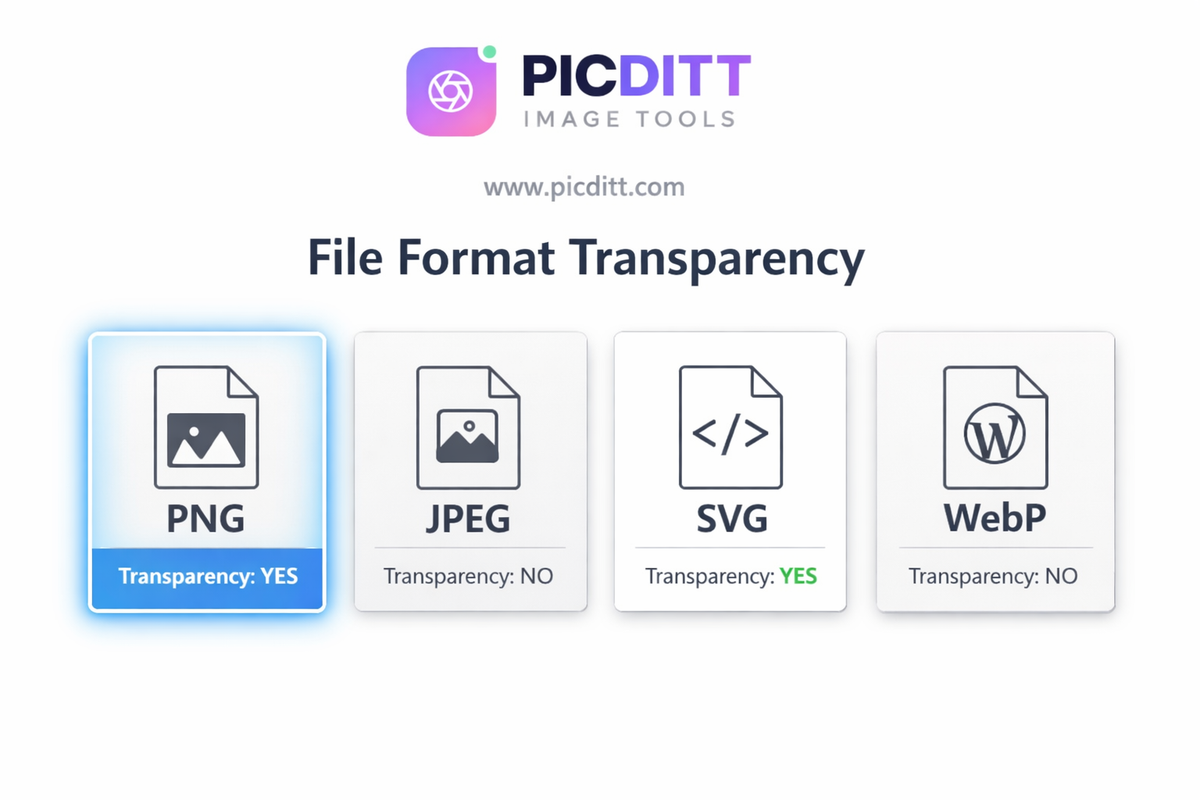
When you create a digital signature, the file format you choose determines how it will look on your documents. The Picditt Signature Pad offers four formats, but they serve different purposes.
Format
Transparency
Quality
Best Use Case
PNG
✅ Yes
High
The Gold Standard. Best for PDFs and Word docs.
SVG
✅ Yes
Infinite
Scalable graphics and high-end design work.
WebP
✅ Yes
High
Modern web applications and ultra-small file sizes.
JPEG
❌ No
Medium
Quick email attachments where a white background is fine.
The Importance of Transparency
PNG and SVG are the only formats that support transparency. When you save a signature as a transparent PNG, the "empty" space around the ink is removed. When you place this file on a document, you can even overlap it slightly with text or lines, and it will look exactly like a real pen-on-paper signature.
How to Create Your Signature with Picditt (Step-by-Step)
The Picditt Digital Signature Pad is designed to be intuitive. You don't need to register an account or pay a fee. Here is how to create a professional signature in four simple steps.
Step 1: Choose Your Method
When you land on the Signature tool, you have three options:
- Draw: Use your mouse, trackpad, or finger (on mobile) to draw naturally.
- Type: Enter your name and choose from various handwriting-style fonts.
- Upload: Upload a photo of a physical signature, and our tool will help you digitize it.
Step 2: Create and Refine
If drawing, we recommend using a stylus or a touch-screen device for the most natural "ink" flow. The tool uses an advanced smoothing algorithm that removes the "shaky" look often associated with using a computer mouse.
Step 3: Customize the Style
You aren't stuck with basic black ink.
- Pen Color: Choose a classic navy blue (often preferred for legal documents to prove it's an original) or standard black.
- Pen Size: Adjust the thickness (1px to 10px). A 3px line usually provides the best balance of readability and elegance.
- Background: Ensure "Transparent" is selected.
Step 4: Export at High Resolution
This is a "Pro" feature offered for free on Picditt. When downloading, choose the "Size: Large (2x or 3x)" option.
- Why? Most signatures look fine on screen but appear pixelated when printed on a high-quality printer. Exporting at 2x or 3x ensures your signature stays crisp and sharp even on printed physical documents.
Privacy: Why Local Processing Matters
Most online signature makers ask you to upload your data to their servers. Think about that for a moment: Your signature is a highly sensitive piece of personal data.
If a website stores your signature on their server, and that server is breached, your signature is now in the hands of bad actors who can use it for forgery.
Picditt handles this differently:
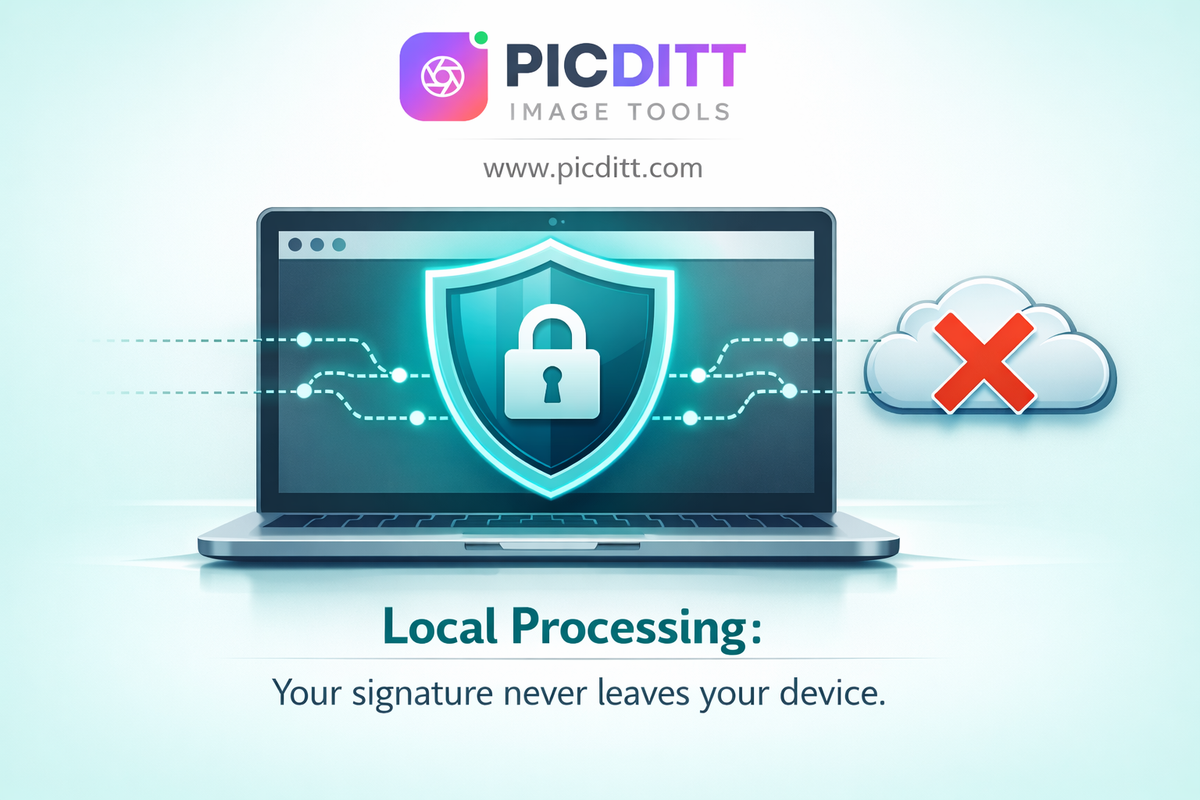
Our Digital Signature Pad is 100% browser-based. When you draw on the canvas, that data exists only in your computer's temporary memory (RAM). It is never sent to our servers. When you click "Download," the file is generated locally on your device.
This is the only truly secure way to create a digital signature online.
Pro Tips for a More Authentic Digital Signature
- The "Blue Ink" Trick: In many legal and banking circles, signing in blue ink is a tradition to distinguish an original document from a black-and-white photocopy. Use a dark navy blue in our color picker to give your digital documents that "original" feel.
- Continuous Motion: When drawing with a mouse, try not to lift the "pen" (the mouse button) too often. Continuous motions create smoother curves in the digital rendering.
- Use Mobile for Drawing: If you find it hard to sign with a mouse, open the Signature Pad on your iPhone or Android. Signing with your finger or a stylus on a glass screen feels much more natural.
- Save Your Master Copy: Once you create a signature you love, save the PNG file in a secure folder (like a password-protected cloud drive). You can then "Paste" this image into any document for years to come.
Frequently Asked Questions
Is a digital signature legally binding?
In many countries, including the US (ESIGN Act), UK, and EU (eIDAS), electronic signatures are legally recognized for most business and personal transactions. However, for specific high-stakes documents like wills or sworn affidavits, check your local jurisdiction's requirements.
How do I add my signature to a PDF?
Once you download your transparent PNG from Picditt, open your PDF in a tool like Picditt's PDF Editor or even standard macOS Preview/Adobe Reader. Use the "Add Image" function, select your signature file, and place it on the line.
Can I create a signature on my phone?
Yes. The Picditt Signature Pad is fully responsive. You can draw your signature using your finger on any smartphone or tablet and download the file directly to your photo library.
Why is my signature appearing with a black background in my gallery?
This is a common confusion! Transparent PNGs often look like they have a black or checkered background when viewed in a phone's photo gallery because the "empty" space is being filled by the app's background color. Once you paste it into a white Word doc or PDF, the background will disappear.
Final Thoughts: Sign Smarter, Not Harder
Your time is too valuable to spend it looking for a printer. Creating a professional, transparent digital signature is a one-time task that will save you hours of frustration every year.
By using the Picditt Digital Signature Pad, you get a high-resolution, professional-grade result with the peace of mind that comes from knowing your data never leaves your device.
Ready to go paperless? Create your professional digital signature now →
Ready to Try It Yourself?
Use this tool for free — no signup, no download, no watermarks.
Open Free ToolYou Might Also Like
Don't Let People Steal Your Photos: The Ultimate Free Watermarking Guide
Your photos are being stolen right now — downloaded, reposted, and used without your permission on social media, websites, and marketplaces across the internet. This ultimate guide covers everything you need to know about watermarking: why photo theft is rampant, the psychology of effective watermarks, every watermark type explained, exact opacity and placement recommendations, and a complete step-by-step guide to the free Picditt Watermark Tool that processes everything in your browser with zero server uploads.
Read More →
How to Convert Any Image to Excel Free — The Complete OCR Guide (Tables, Receipts, Invoices)
Stop manually retyping data from photos, screenshots, and scanned documents. This complete guide shows you how to convert any image — tables, receipts, invoices, printed documents, screenshots — into a fully editable Excel spreadsheet using free AI-powered OCR that processes everything locally in your browser with zero server uploads and complete privacy.
Read More →
AI Old Photo Restorer & Colorizer: How to Bring Faded Family Photos Back to Life
Old family photos fade, scratch, and lose their color over time—but they don't have to stay that way. Learn how to use PicDitt's free AI Old Photo Restorer & Colorizer to remove damage, enhance details, and add realistic color to black & white images, all directly in your browser.
Read More →