How to Convert Any Image to Excel Free — The Complete OCR Guide (Tables, Receipts, Invoices)
How to Convert Any Image to Excel Free — The Complete OCR Guide (Tables, Receipts, Invoices)
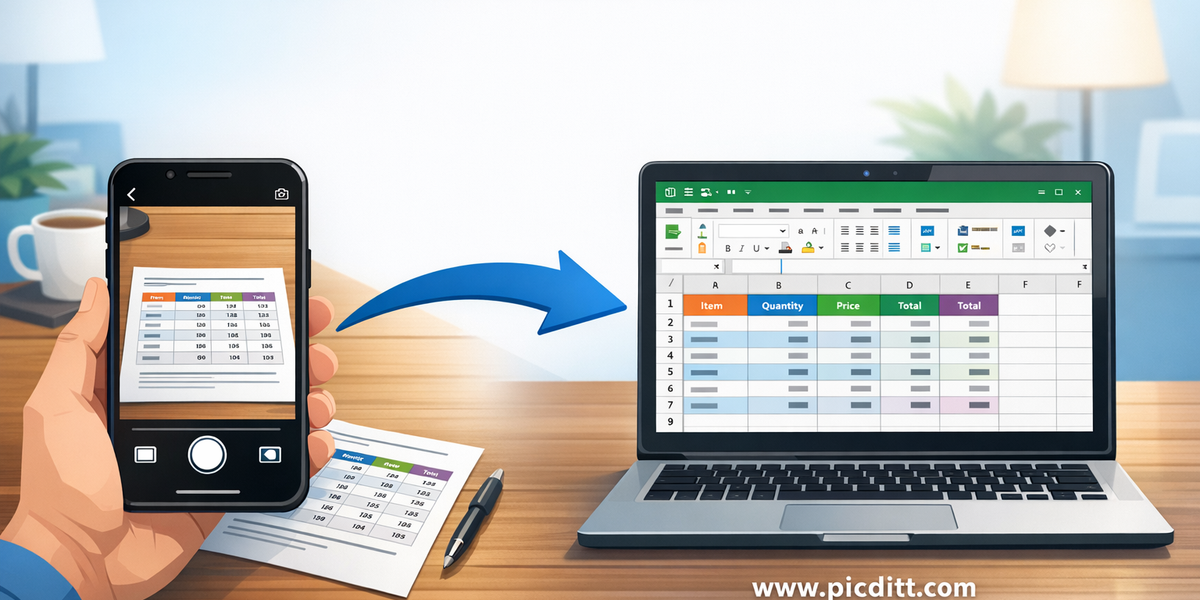
You have a table. It is in a photo.
Maybe it is a receipt from a business trip you need to enter into your expense report. Maybe it is a printed financial statement from a client who does not have a digital version. Maybe it is a screenshot of a web table that does not let you copy the data. Maybe it is a page from a textbook with research data you need for analysis. Maybe it is a stack of invoices photographed on your desk.
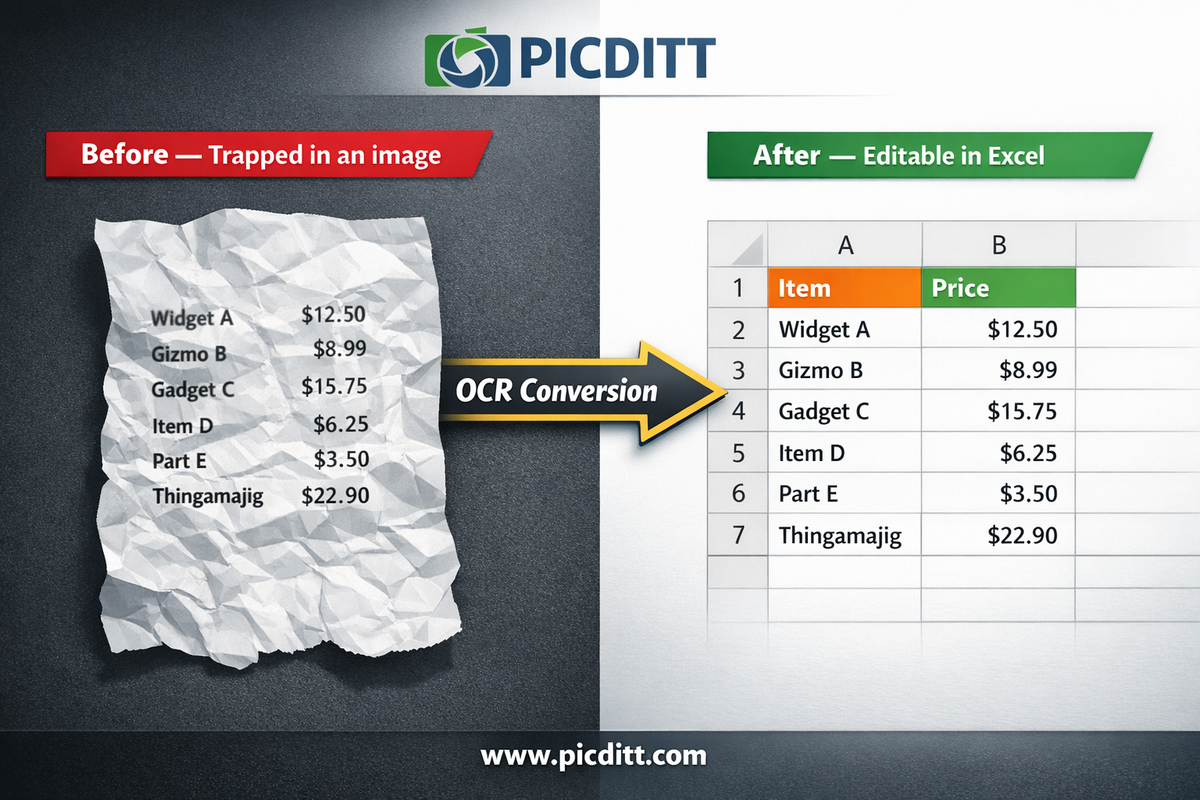
Whatever the source, the problem is the same: the data is trapped inside an image and you need it in a spreadsheet.
The traditional solution is manual retyping — a slow, error-prone, mind-numbing process that can take hours for large tables. A smarter solution is OCR.
OCR (Optical Character Recognition) is technology that reads text from images automatically, the same way your eyes do, and converts it into editable digital text. Combined with intelligent table detection, it can transform a photo of a spreadsheet into an actual spreadsheet — complete with rows, columns, and all the data in the right cells.
This complete guide explains how OCR works, when to use it, what makes a good image-to-Excel conversion, and how to use the free Picditt Image to Excel Converter to convert any image into an editable Excel file in three steps — with complete privacy, no server upload, and no cost.
What Is OCR and How Does It Actually Work?
OCR stands for Optical Character Recognition. It is a technology that analyzes images containing text, identifies individual characters, words, and their spatial relationships, and converts this visual information into machine-readable, editable text.
The history of OCR stretches back decades — it was originally developed to help automate mail sorting and document digitization. Today, OCR is embedded in smartphones (Google Lens, Apple Live Text), document scanners, and specialized tools like the Picditt Image to Excel Converter.
How Modern OCR Processes an Image
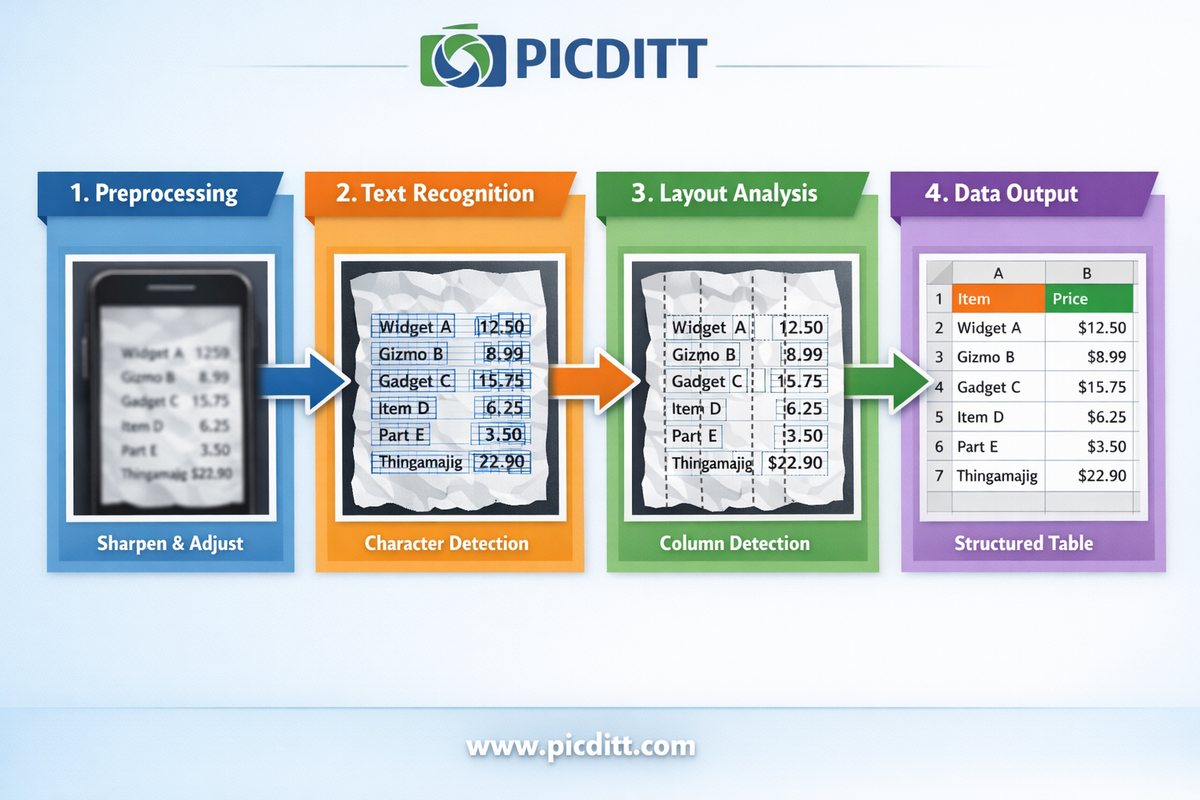
Modern OCR is far more sophisticated than simple character matching. Here is what happens inside the engine when you submit an image:
Stage 1 — Image Preprocessing
Before attempting to read any text, the OCR engine prepares the image for optimal recognition. This includes:
- Upscaling low-resolution images to improve character definition
- Applying adaptive contrast adjustment to make text stand out from backgrounds
- Removing colored backgrounds that can confuse character recognition
- Sharpening text edges to improve recognition accuracy
- Correcting skew (rotating slightly tilted images back to horizontal)
- Reducing noise and artifacts from phone cameras or scanners
This preprocessing stage is critical — even a poor-quality photo can yield accurate OCR results when preprocessing is done well.
Stage 2 — Character Recognition
The preprocessed image is analyzed region by region. The OCR engine identifies text regions and applies pattern recognition to identify individual characters. Modern OCR engines use machine learning models trained on millions of text samples across multiple fonts, sizes, and styles.
Stage 3 — Layout Analysis
For spreadsheet conversion specifically, layout analysis is just as important as character recognition. The engine analyzes the spatial positioning of recognized text to determine column boundaries, row separations, and cell groupings. This is what allows OCR to reconstruct a table structure rather than just producing a flat stream of text.
Stage 4 — Output Structuring
The recognized characters and detected layout are combined to create structured data — rows and columns that correspond to the original table structure in the image. This structured data is then formatted as an Excel or CSV file.
The Technology Behind Picditt's OCR
The Picditt Image to Excel Converter is powered by Tesseract.js, the JavaScript port of Tesseract — one of the most accurate open-source OCR engines available, originally developed by HP and now maintained by Google.
Tesseract.js runs inside your browser using WebAssembly (WASM) technology, which allows the OCR engine to execute at near-native speed directly on your device. This is what makes local, private OCR processing possible — the engine runs on your hardware, not on a remote server.
When to Use Image to Excel Conversion
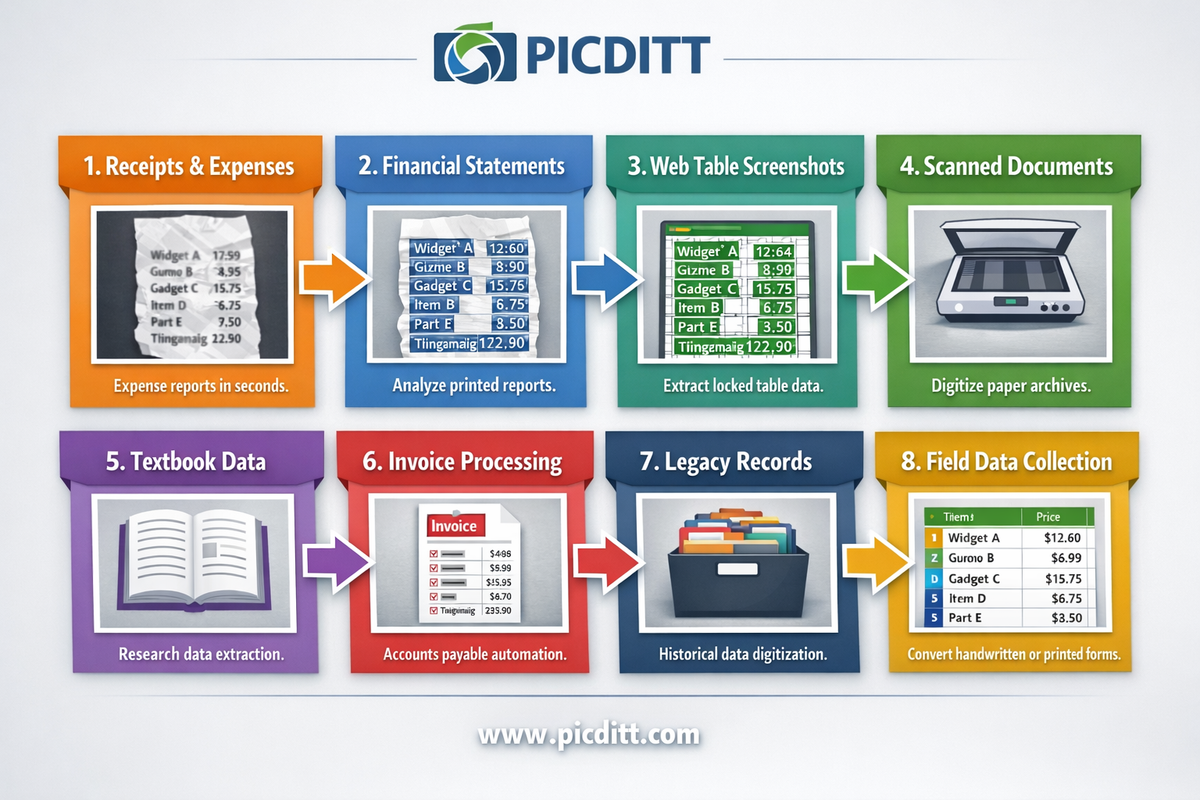
Image-to-Excel OCR is the right tool in a surprisingly wide range of everyday situations. Here are the most common and highest-value use cases.
Receipts and Expense Reports
Business travelers, freelancers, and employees with expense accounts deal with paper receipts constantly. Converting receipt photos to Excel rows — with date, vendor, category, and amount in separate columns — transforms what would be a manual data entry session into a seconds-long process.
For accountants processing client receipts, the time savings are even more dramatic. A stack of 50 receipts that would take an hour to manually enter can be processed in minutes using OCR.
Best results for receipts: Photograph the receipt on a flat, well-lit surface. Ensure the paper is not crumpled and the text is horizontal. Good lighting without harsh shadows is the single most important factor.
Printed Financial Statements and Reports
Banks, investment firms, and older financial systems still produce paper statements and PDF reports that cannot be directly exported to Excel. When clients provide printed financial statements for analysis, OCR eliminates the retyping barrier.
Financial tables are particularly well-suited to OCR because they typically use clean, consistent formatting — regular column widths, clear separators, and standardized number formats that OCR engines handle accurately.
Screenshots of Web Tables
Many websites display data in tables that cannot be selected and copied. The table renders visually but the text is locked behind JavaScript rendering, image-based display, or copy protection. Taking a screenshot and running OCR extracts the data in seconds.
This is particularly useful for:
- Price comparison tables from competitor websites
- Research data from academic papers in PDF or web format
- Sports statistics, financial data, and other structured web content
- Tables in webinar slides or online presentations
Scanned Paper Documents
Offices, libraries, archives, and research institutions frequently work with scanned paper documents. When these scans contain tabular data — inventory lists, historical records, survey results, laboratory data — OCR converts them to editable, analyzable spreadsheets.
Textbook and Publication Data
Students and researchers frequently need data from textbook tables, journal articles, and publication figures for analysis. Rather than manually transcribing data from a textbook into a spreadsheet, a photo and OCR conversion handles it instantly.
Invoice Processing for Accounts Payable
Businesses receive paper and PDF invoices that need to be entered into accounting systems. OCR extraction of invoice line items — product codes, descriptions, quantities, unit prices, totals — dramatically reduces the manual data entry burden in accounts payable workflows.
Legacy Data Digitization
Organizations with historical paper records — inventory logs, sales ledgers, membership lists, medical records — face significant digitization challenges. OCR provides a scalable path to converting these physical records into searchable, analyzable digital databases.
Introducing the Picditt Image to Excel Converter
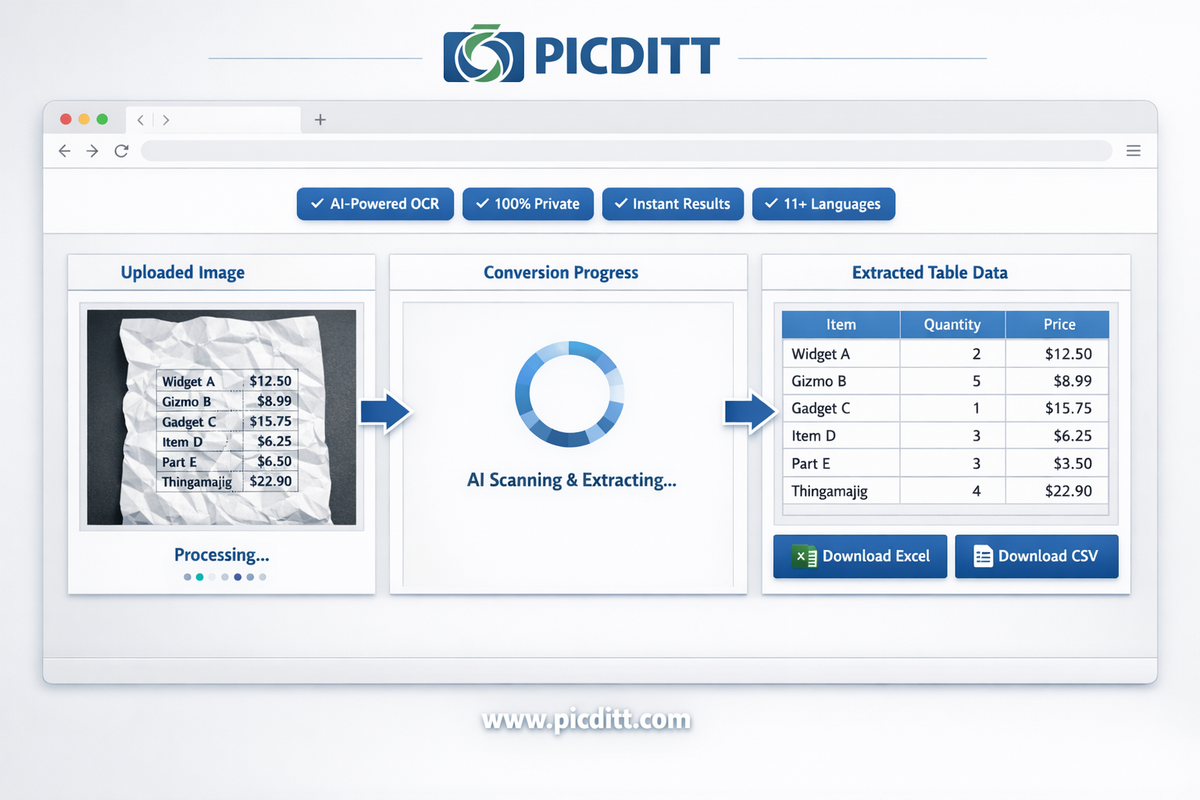
The Picditt Image to Excel Converter is a free, browser-based OCR tool that converts photos, screenshots, and scanned documents into editable Excel spreadsheets — using AI-powered local processing that never uploads your images to any server.
Why Local Processing Matters Especially for OCR
The images you convert with an OCR tool are often among your most sensitive documents:
- Bank statements and financial records
- Invoices with client billing information
- Business data with confidential figures
- Medical documents with patient information
- Legal records with sensitive personal data
Using an OCR service that uploads your images to a remote server means sending these sensitive documents to someone else's computer for processing. Most users never consider this risk.
The Picditt converter runs the entire OCR process — image preprocessing, character recognition, table detection, and Excel generation — inside your browser using WebAssembly. Your image is loaded into browser memory and never transmitted to any server. This makes it appropriate for the most sensitive documents you would ever need to convert.
Key Features
Smart Image Enhancement
Before OCR processing begins, the tool automatically adjusts contrast, removes colored backgrounds, sharpens text, and upscales low-resolution images. This preprocessing significantly improves accuracy with imperfect photos — smartphone photos, slightly blurry images, and documents with colored backgrounds all benefit substantially.
Intelligent Table Detection
Beyond just reading text, the tool analyzes spatial positioning to detect column boundaries using spacing analysis. This reconstructs the original table structure so data lands in the correct columns rather than flowing as unstructured text.
Multi-Language Support
Supports 11+ languages including English, Spanish, French, German, Chinese (Simplified and Traditional), Japanese, Korean, Arabic, Russian, Portuguese, and Italian. Switch language settings for documents not in English.
Built-in Editor
After OCR extraction, review and edit the data directly in your browser before downloading. Correct any recognition errors, add or remove rows and columns, and ensure accuracy before export.
Multiple Export Formats
Download as Microsoft Excel (.xlsx) for use in Excel, or as CSV for compatibility with Google Sheets, LibreOffice Calc, Apple Numbers, and any other spreadsheet application.
No Limits
Convert as many images as you need with no daily quotas, no file count limits, and no subscription required. Completely free forever.
Technical Specifications
Specification
Details
Supported Input Formats
JPG, JPEG, PNG, WebP, HEIC, BMP, GIF, TIFF
Output Formats
Excel (.xlsx), CSV
OCR Engine
Tesseract.js (WebAssembly)
Languages Supported
11+ including English, Spanish, Chinese, Japanese, Arabic
Image Enhancement
Automatic preprocessing (contrast, sharpening, upscaling)
Table Detection
Intelligent column boundary analysis
Processing Location
100% browser-based (client-side)
Privacy
Images never uploaded to any server
Built-in Editor
Yes — review and edit before download
Cost
Free forever, no limits
Registration
None required
Step-by-Step Guide: Converting an Image to Excel
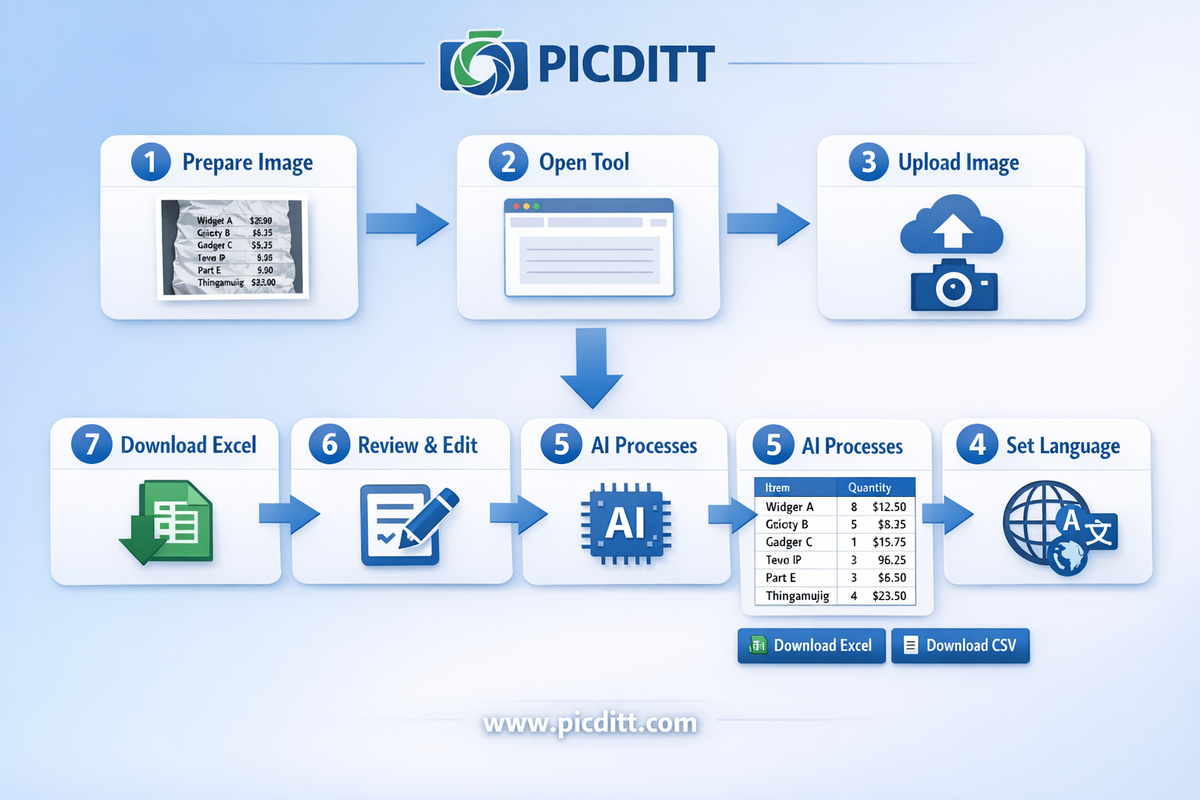
Here is the complete process from image to finished spreadsheet.
Step 1: Prepare Your Image
The quality of your image directly determines OCR accuracy. A few simple preparation steps make a significant difference:
For phone photos of physical documents:
- Place the document on a flat, dark, non-reflective surface
- Use good ambient lighting — natural daylight works well, avoid harsh direct sunlight that creates glare
- Hold your phone directly above the document (not at an angle)
- Ensure the entire document is within the frame with a small border
- Check that the text is horizontal — OCR accuracy drops significantly with rotated text
- Take multiple photos if unsure and use the sharpest one
For screenshots:
- Capture at the highest available resolution
- Ensure the full table is visible in the screenshot
- Avoid screenshots that cut off column headers or row data
For scanned documents:
- Scan at 300 DPI minimum for OCR accuracy
- Use black and white scanning for text documents when possible
- Ensure pages are flat against the scanner glass
Step 2: Open the Tool
Visit https://picditt.com/conversion/image-to-excel in any modern browser. Works on desktop, laptop, tablet, and mobile. No account, no installation required.
Step 3: Upload Your Image
Click "Choose Image" or drag and drop your image file onto the upload area. Supported formats include JPG, JPEG, PNG, WebP, HEIC, BMP, GIF, and TIFF.
The tool accepts images from any source — phone camera roll, desktop files, screenshots, or scanned document exports.
Step 4: Configure Language (If Needed)
If your document contains non-English text, open Advanced Settings and select the appropriate language. The tool supports 11+ languages and selecting the correct language significantly improves recognition accuracy for non-Latin scripts.
For English documents, the default settings work optimally without any adjustment.
Step 5: Let AI Process Your Image
Click to start the conversion. The tool automatically:
- Enhances your image — adjusting contrast, removing backgrounds, sharpening text
- Scans the enhanced image using the Tesseract.js OCR engine
- Detects column boundaries and table structure
- Structures the recognized text into rows and columns
- Presents the extracted data in an editable table
Processing typically completes within a few seconds for standard document photos. Larger images or complex tables may take slightly longer — all processing happens locally so speed depends on your device.
Step 6: Review and Edit the Extracted Data
This step is important and frequently skipped. Before downloading, carefully review the extracted data in the browser editor:
Check these specifically:
- Are all columns correctly separated? (Common issue: merged columns when spacing is ambiguous)
- Are numbers accurate? (OCR can occasionally confuse 0/O, 1/l, 5/S in certain fonts)
- Are all rows present? (Ensure no rows were missed, especially at image edges)
- Are headers correctly identified?
- Are currency symbols and decimal points correctly recognized?
Use the built-in editor to:
- Correct any misread characters
- Split incorrectly merged columns
- Add missing rows if any were skipped
- Adjust column headers
Step 7: Download Your Excel File
Click "Download Excel" to save as .xlsx format, or "Download CSV" for a plain text version compatible with any spreadsheet application.
Your file downloads instantly to your device. Open in Microsoft Excel, Google Sheets, Apple Numbers, or LibreOffice Calc — the data is immediately ready for analysis, sorting, filtering, and formulas.
Tips for Maximum OCR Accuracy
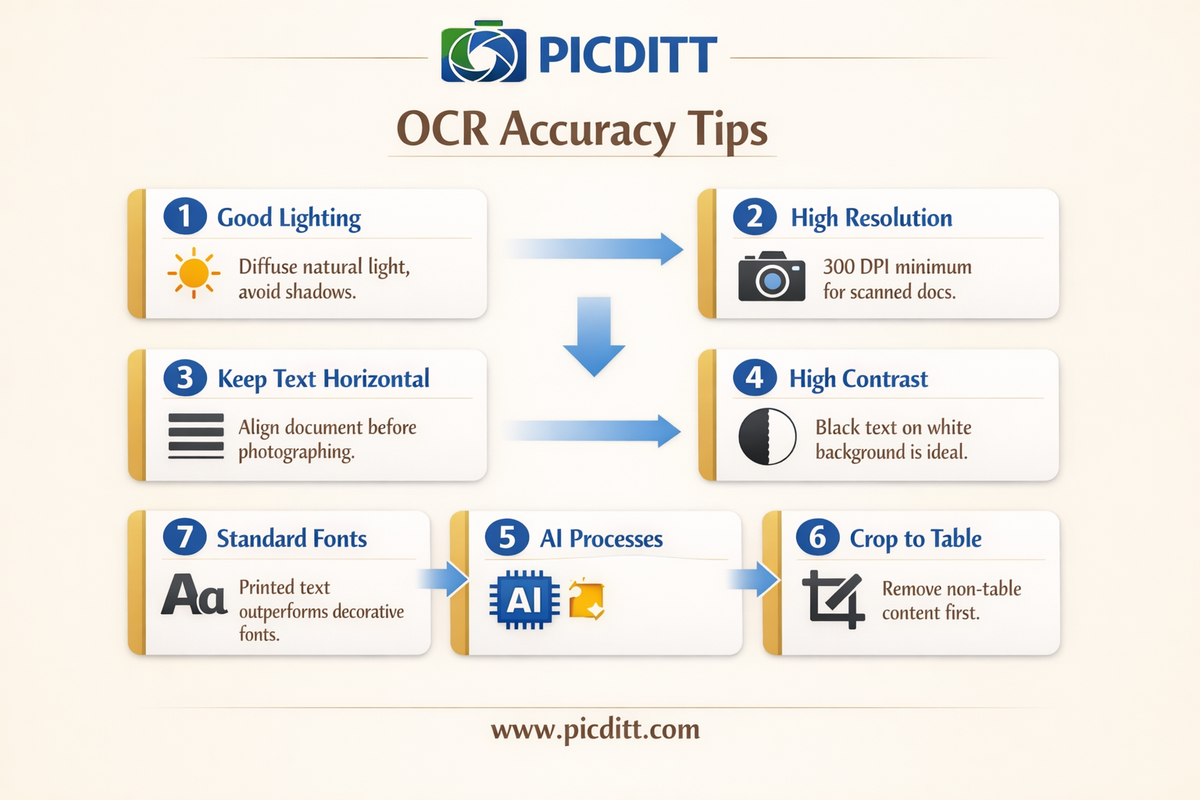
OCR accuracy is not fixed — it varies significantly based on image quality and document characteristics. These tips will help you get the most accurate results from every conversion.
Tip 1: Lighting Is Everything
The single most impactful factor in OCR accuracy for phone photos is lighting. Poor lighting creates shadows, uneven contrast, and blurry areas that OCR engines struggle with.
Best lighting:
- Diffuse natural light from a window (not direct sunlight)
- Multiple light sources to eliminate shadows
- Position lights at 45-degree angles to the document to avoid glare
Avoid:
- Single overhead lighting that creates harsh shadows
- Direct flash from your phone (creates glare and washed-out text)
- Dim or yellow-tinted lighting
Tip 2: Resolution Matters More Than You Think
OCR accuracy improves significantly with higher resolution images. For scanned documents, 300 DPI is the minimum recommended resolution. For phone photos, use the highest resolution setting available.
The tool automatically upscales low-resolution images as part of preprocessing, but starting with a higher resolution image always produces better results.
Tip 3: Keep Text Horizontal
OCR engines are optimized for horizontal text. Even a slight rotation of 5-10 degrees can reduce accuracy. When photographing physical documents:
- Align the document with the edges of your phone screen
- Use a flat surface as a reference for alignment
- Check your photo before submitting — rotate it if needed
Tip 4: Simple Fonts Work Better Than Decorative Ones
Standard printed fonts — Times New Roman, Arial, Helvetica, Calibri — achieve near-perfect OCR accuracy. Decorative, cursive, or highly stylized fonts are more challenging.
For handwritten text, OCR accuracy is significantly lower than for printed text. The tool works best with clearly printed documents.
Tip 5: High Contrast Between Text and Background
Black text on white paper is ideal. When documents have colored backgrounds, low-contrast text, or colored text on colored backgrounds, the smart image enhancement preprocessing helps — but starting with high contrast always produces better results.
Tip 6: Crop to the Table Before Processing
If your image contains significant non-table content — headers, footers, logos, sidebar text — cropping to show only the relevant table before processing can improve accuracy. This reduces the area the OCR engine needs to analyze and minimizes the chance of non-table text interfering with column detection.
OCR vs Manual Data Entry: The Real Cost Comparison
Many people still default to manual data entry for converting images to spreadsheets. Understanding the real cost comparison makes the case for OCR clearly.
Time Cost
Document Type
Manual Entry Time
OCR Conversion Time
Simple 10-row receipt
3–5 minutes
10–15 seconds
50-row inventory list
20–30 minutes
30–45 seconds
200-row financial table
90–120 minutes
1–2 minutes
500-row data export
4–6 hours
3–5 minutes
Error Rate
Manual data entry has a documented error rate of approximately 1% for experienced data entry professionals — meaning 1 error per 100 entries. For a 200-row, 5-column table (1000 cells), this translates to approximately 10 errors per session.
OCR error rates for high-quality images of standard printed text are typically below 0.1% — one-tenth the error rate of experienced human data entry. For important financial or analytical data, OCR accuracy can actually exceed manual entry accuracy.
The Hidden Costs of Manual Entry
Beyond time and errors, manual data entry has hidden costs:
- Employee time that could be directed to higher-value work
- Error correction time when mistakes are discovered later
- Mental fatigue and the cognitive cost of tedious repetitive tasks
- Delayed workflows when data entry becomes a bottleneck
For businesses processing regular volumes of image-based data, OCR is not just more convenient — it is economically necessary.
Common OCR Challenges and How to Handle Them
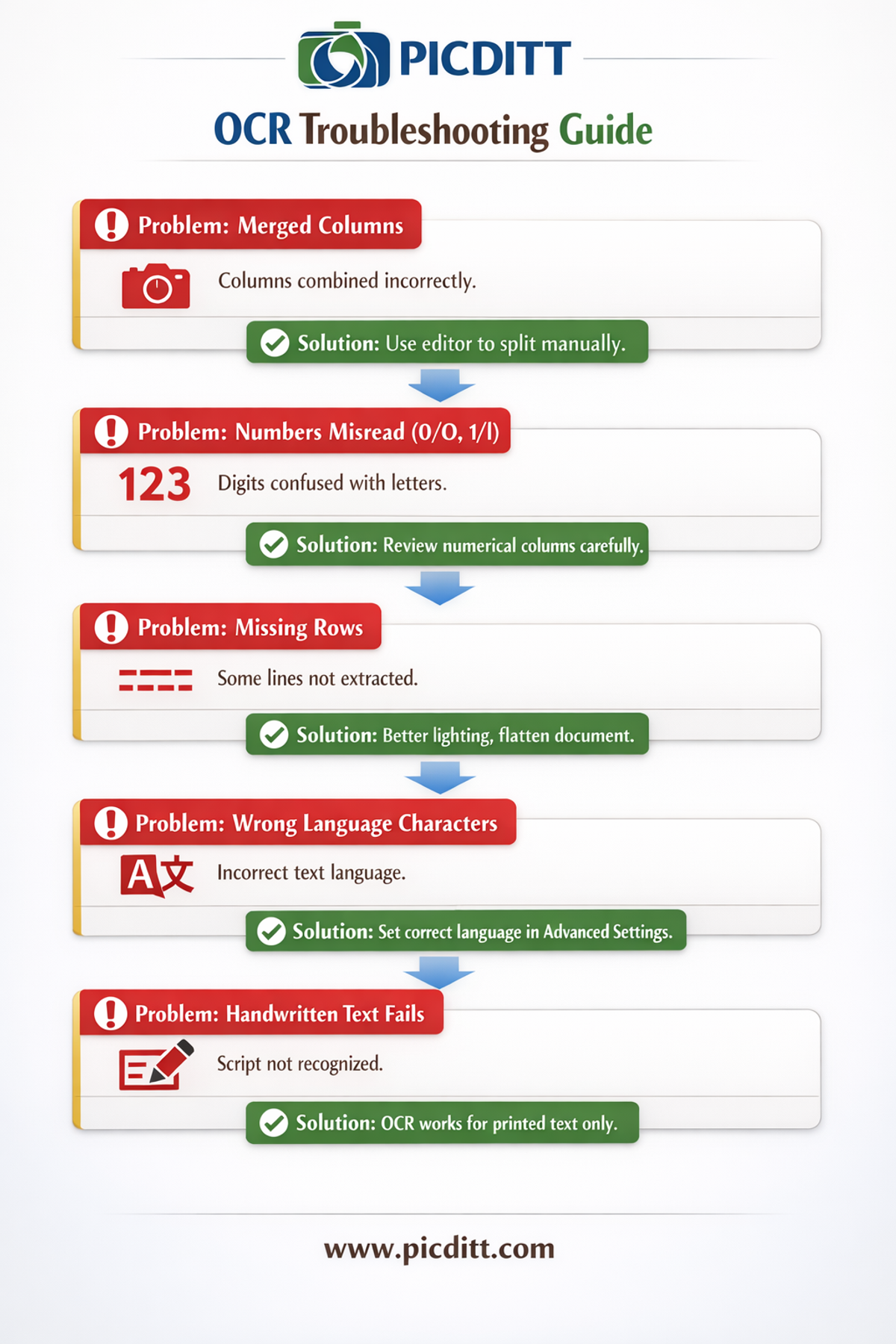
Challenge: Merged Columns
Symptom: Data from two columns appears in one column, or columns are not correctly separated.
Cause: When column spacing is ambiguous or narrow, the OCR engine may not correctly detect all column boundaries.
Solution: Use the built-in editor to manually split merged columns. If this is a recurring issue with a specific document type, try cropping to isolate individual columns and processing them separately, or increase image contrast before processing.
Challenge: Numbers Misread
Symptom: The digit 0 appears as O, the digit 1 appears as l, or 5 appears as S.
Cause: Character similarity confuses the OCR engine in certain fonts or at lower resolutions.
Solution: Review all numerical columns carefully in the editor and correct any misread digits before downloading. For financial documents, always verify that totals match expected values as a quick accuracy check.
Challenge: Missing Rows
Symptom: The extracted table has fewer rows than the original document.
Cause: Rows near the edges of the image, rows with very light text, or rows partially hidden by fold lines or shadows may not be detected.
Solution: Ensure the full table is visible within the image with clear margins. Reshoot the photo with better lighting or flatter document positioning if rows near edges are consistently missed.
Challenge: Language Characters Not Recognized
Symptom: Non-English characters appear as incorrect symbols or question marks.
Cause: The OCR engine is set to the wrong language.
Solution: In Advanced Settings, select the correct language for your document before processing. For documents containing multiple languages, select the primary language of the document.
Challenge: Handwritten Text Not Recognized
Symptom: Handwritten portions of the document produce garbled or empty output.
Cause: Tesseract.js, like most OCR engines, is optimized for printed text. Handwriting recognition is a significantly more complex problem requiring specialized models.
Solution: For documents with mixed printed and handwritten content, OCR will accurately extract printed sections. Handwritten sections will need manual entry. Consider using a specialized handwriting recognition service for documents that are primarily handwritten.
Frequently Asked Questions
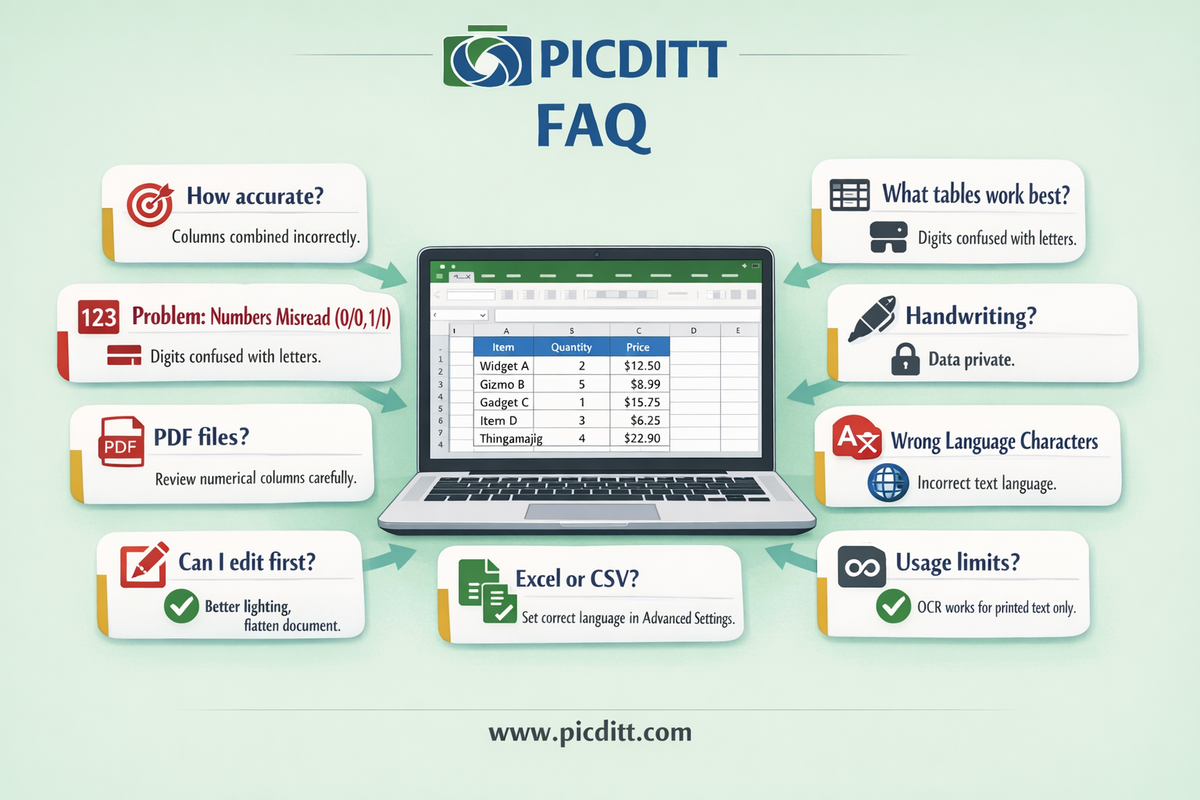
How accurate is image-to-Excel OCR conversion?
For high-quality images of standard printed text in supported languages, accuracy typically exceeds 99%. Accuracy decreases with low-resolution images, poor lighting, unusual fonts, rotated text, and handwriting. The built-in editor allows you to review and correct any recognition errors before downloading, so even imperfect OCR results can be refined to 100% accuracy before export.
What types of tables does the converter handle best?
The converter works best with clearly defined tabular structures — rows and columns with visible separators, consistent spacing, and printed text. Simple tables from receipts, invoices, financial statements, and printed reports typically yield excellent results. Complex tables with merged cells, nested tables, or irregular layouts may require more editing after extraction.
Can it convert handwritten tables to Excel?
The tool is optimized for printed text. Handwriting recognition is significantly less accurate because handwriting varies enormously between individuals. Neatly written block letters may be partially recognized, but cursive and casual handwriting typically produces poor results. For primarily handwritten documents, manual data entry or specialized handwriting recognition tools are more appropriate.
Does it work with PDF files?
The tool accepts image files — JPG, PNG, WebP, HEIC, BMP, GIF, and TIFF. PDF files are not directly supported as input. To convert a PDF table to Excel, take a screenshot of the PDF page or export the PDF page as an image, then use that image as your input. Alternatively, the Picditt PDF to Excel tool directly handles PDF input.
Is my data private when using this tool?
Yes, completely. The OCR engine (Tesseract.js) runs inside your browser using WebAssembly. Your image is loaded into browser memory and processed entirely on your device — it never transmits to any server. You can verify this by opening your browser's network inspector and confirming no image data is transmitted during processing. This makes the tool safe for sensitive documents including financial statements, medical records, and confidential business data.
What languages does the OCR support?
The tool supports 11+ languages including English, Spanish, French, German, Italian, Portuguese, Chinese (Simplified and Traditional), Japanese, Korean, Arabic, and Russian. Select the correct language in Advanced Settings for documents not in English. For optimal accuracy, select the primary language of the document.
Can I edit the extracted data before downloading?
Yes. After OCR extraction, the data appears in an editable table directly in your browser. You can correct any recognition errors, add or delete rows and columns, rename headers, and adjust any values before downloading. This review step is important for ensuring the final spreadsheet is completely accurate.
What is the difference between Excel (.xlsx) and CSV export?
Excel (.xlsx) format preserves column structure, allows for formatting, and opens directly in Microsoft Excel with full spreadsheet functionality. CSV (Comma-Separated Values) is a plain text format that works with any spreadsheet application including Google Sheets, LibreOffice Calc, and Apple Numbers, and is ideal for importing into databases or other software systems. For most use cases, Excel (.xlsx) is recommended.
Is there a limit on how many images I can convert?
No. There are no daily limits, file count limits, or usage restrictions. Convert as many images as you need completely free, with no registration or subscription required.
Why does local OCR processing take longer than server-based alternatives?
Local processing speed depends on your device's processor and available memory. Modern computers and phones handle typical document conversions in seconds. Complex images or very large files may take slightly longer than server-based alternatives that use powerful dedicated hardware. However, local processing eliminates upload and download time, and the privacy benefit of local processing significantly outweighs any small speed difference for sensitive documents.
Final Thoughts: Stop Retyping, Start Converting
Manual data entry from images is one of the most persistent time wasters in modern data work. Every minute spent retyping a printed table into Excel is a minute that could be spent analyzing the data, presenting insights, or working on something that actually requires human judgment.
OCR technology has reached a level of accuracy and accessibility where there is simply no good reason to retype structured data from images. The Picditt Image to Excel Converter brings this technology to anyone with a browser — no installation, no subscription, no upload risk, no cost.
Upload a photo. Let AI extract the data. Review and download. Done in seconds.
Whether you are an accountant processing receipt stacks, a researcher extracting publication data, a student digitizing textbook tables, or a business owner handling invoice processing — this tool eliminates the manual data entry step entirely.
Your time is worth more than retyping.
Convert Your First Image to Excel Free →
Ready to Try It Yourself?
Use this tool for free — no signup, no download, no watermarks.
Open Free ToolYou Might Also Like
How to Compress Images to an Exact File Size: The Complete Guide to Target Compression
Need your image to be exactly 500KB for a government form or under 25MB for Gmail? Learn how to compress any image to a precise file size using PicDitt's free Target Compression tool—without guessing quality settings or losing more quality than necessary.
Read More →
How to Convert Image to Word Online (Free OCR Tool) – Step-by-Step Guide
Learn how to convert images, scanned documents, and photos of text into fully editable Word files using PicDitt’s free, browser-based Image to Word OCR tool. This step-by-step guide covers how OCR works, how to use the tool, and how to get the best accuracy.
Read More →
How to Convert PDF to High-Resolution JPG, PNG, or WebP Instantly
Need to post a PDF on social media or embed it on a website? Learn how to instantly convert your PDF documents into high-quality JPG, PNG, or WebP images using Picditt's free online converter. All processing happens securely in your browser — your files never leave your device.
Read More →