How to Convert Image to Word Online (Free OCR Tool) – Step-by-Step Guide
What Is OCR (Optical Character Recognition)?
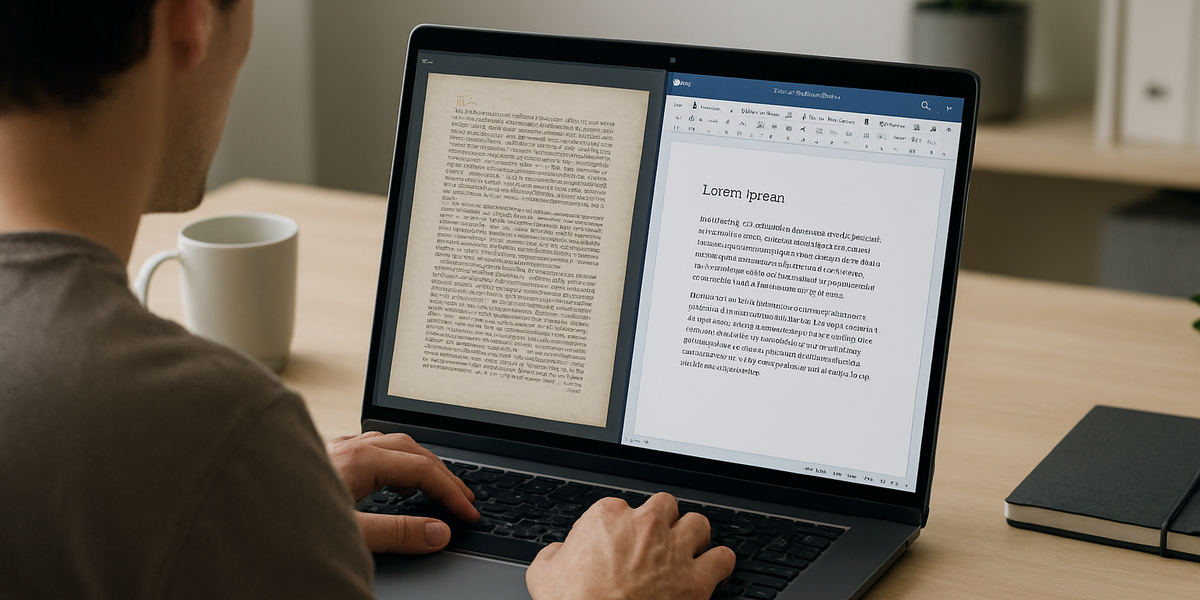
Optical Character Recognition (OCR) is the technology that makes it possible to turn text inside an image into real, selectable text that you can edit on your computer.
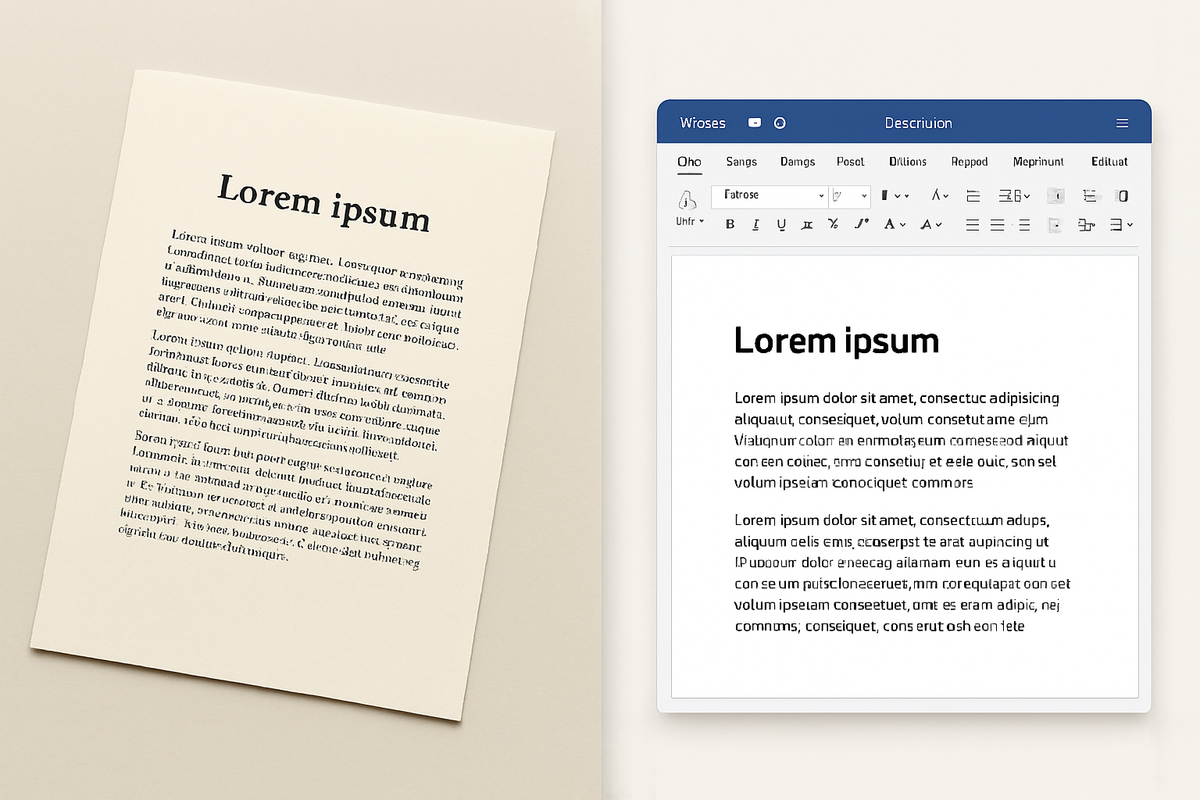
Converting scanned images into editable Word documents using OCR
Simple explanation
When you upload a picture of a page (for example, a JPG of lecture notes), your computer only sees pixels: light and dark areas, shapes, and colors.
An OCR engine analyzes those shapes and tries to recognize:
- Where lines of text start and end
- Where each character (letter, number, punctuation) is
- Which characters they most likely represent
Then it outputs normal digital text, like this sentence you’re reading now.
That text can then be:
- Saved inside a Word document (.docx)
- Copied into email or chat
- Indexed so you can search inside it
Why OCR is important today
OCR has become essential because:
- We still rely heavily on paper documents (contracts, forms, invoices, letters)
- Many devices create images, not editable text (scanners, phone cameras, screenshots)
- People want to digitize old documents and make them searchable and editable
Without OCR, you’d have to retype everything manually, which is:
- Slow
- Error-prone
- Frustrating for long documents
With OCR, a photo to Word converter can handle this in seconds.
Real-world examples of OCR
Here are a few everyday situations where OCR is used:
- Students:
Take a photo of a textbook page, then use OCR online for students to convert it into a Word file and quote it properly in an essay. - Businesses & offices:
Convert scanned contracts or letters into editable Word documents to update them without recreating them from scratch. - Freelancers & bookkeepers:
Turn images of receipts or invoices into text so totals and line items can be copied into spreadsheets. - Researchers & academics:
Digitize old scanned articles or archival documents and run text analysis or keyword search across them.
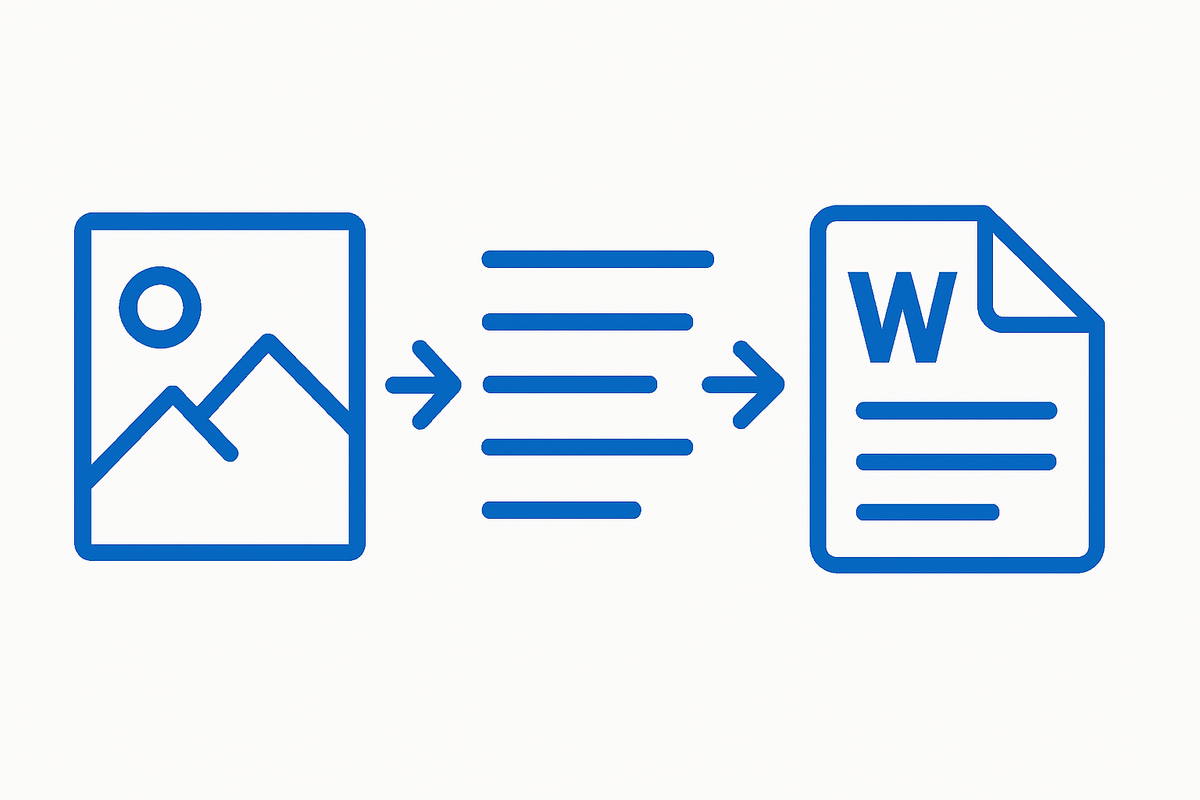
How OCR technology extracts text from images
How the PicDitt Image to Word Tool Works
The PicDitt Image to Word OCR tool is built to be simple, fast, and accessible from any modern browser.
You can try it here:
👉 https://picditt.com/conversion/image-to-word
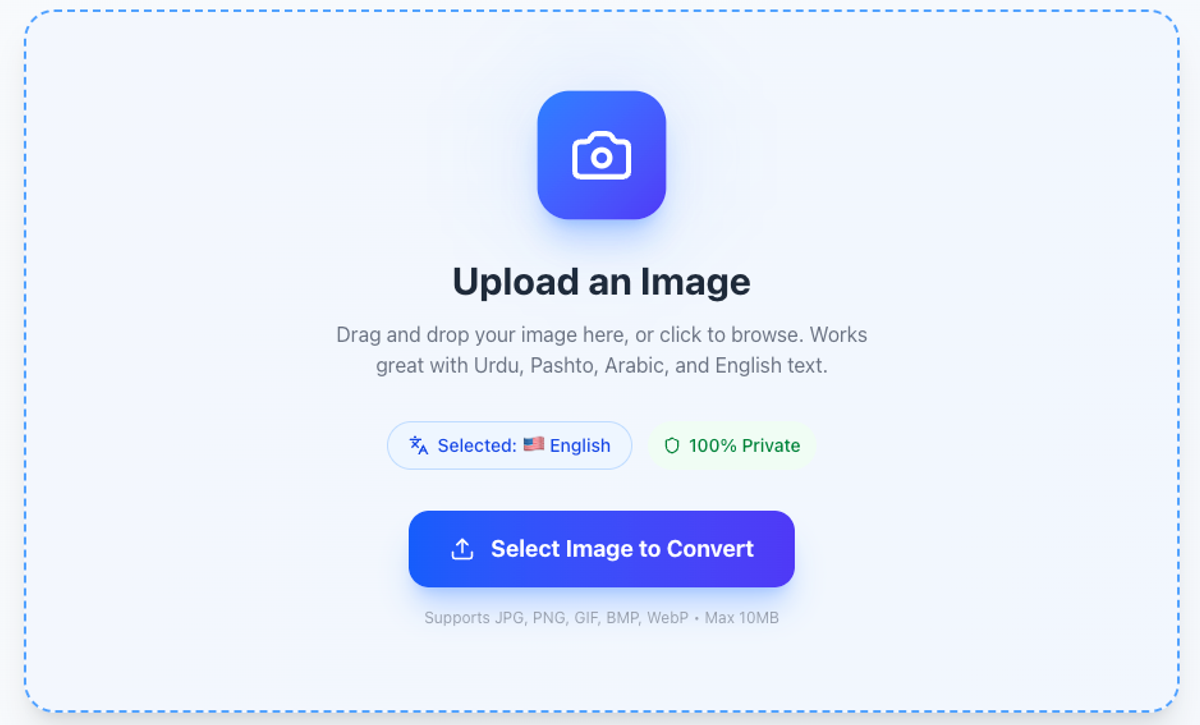
PicDitt’s free Image to Word OCR tool interface
Key characteristics
- Browser-based:
Everything runs directly in your web browser. There’s no software to install and no plugins required. - No registration:
You don’t need an account or login. Just open the page, upload your image, and convert. - Free to use:
PicDitt’s image to text converter is offered as a free online OCR tool, so it’s ideal for students, freelancers, and casual use. - Privacy-friendly design:
PicDitt is built as a privacy-conscious set of tools. Files are processed only for conversion; there’s no need to create a profile, and your documents are not kept indefinitely. (Always refer to PicDitt’s Privacy Policy for the latest details.)
Suggested screenshot for this section
PicDitt’s free Image to Word OCR tool interface
Supported Image Formats
PicDitt’s photo to Word converter is designed to work with the most common types of image files you’ll encounter:
- JPG / JPEG – Photos from phones and cameras
- PNG – Screenshots and digital images
- HEIC – Photos from newer iPhones
- BMP – Older bitmap images
- Scanned photos – Images produced by flatbed scanners or scanning apps
Best quality recommendations
To get the best OCR results when you convert an image to Word document:
- Use images with good resolution (avoid tiny, low-quality photos)
- Make sure text is sharp, not pixelated or heavily compressed
- Prefer scans or photos where the document fills most of the frame
We’ll cover more detailed accuracy tips later in this guide.
Step-by-Step: Convert Image to Word Using PicDitt
In this section, you’ll learn exactly how to use PicDitt’s image to Word OCR tool from start to finish.
Tool link (keep this open in another tab):
👉 https://picditt.com/conversion/image-to-word
Step 1 – Upload Your Image
- Open the PicDitt Image to Word page.
- Look for the upload area or “Choose File” / “Upload Image” button.
- Click it and select your image file (JPG, PNG, HEIC, BMP, or scanned photo).
- Wait for the image to load in the tool interface.
Tips for this step:
- If the text is on paper, use your phone camera to take a straight, well-lit photo.
- Ensure the entire page or section you need is visible.
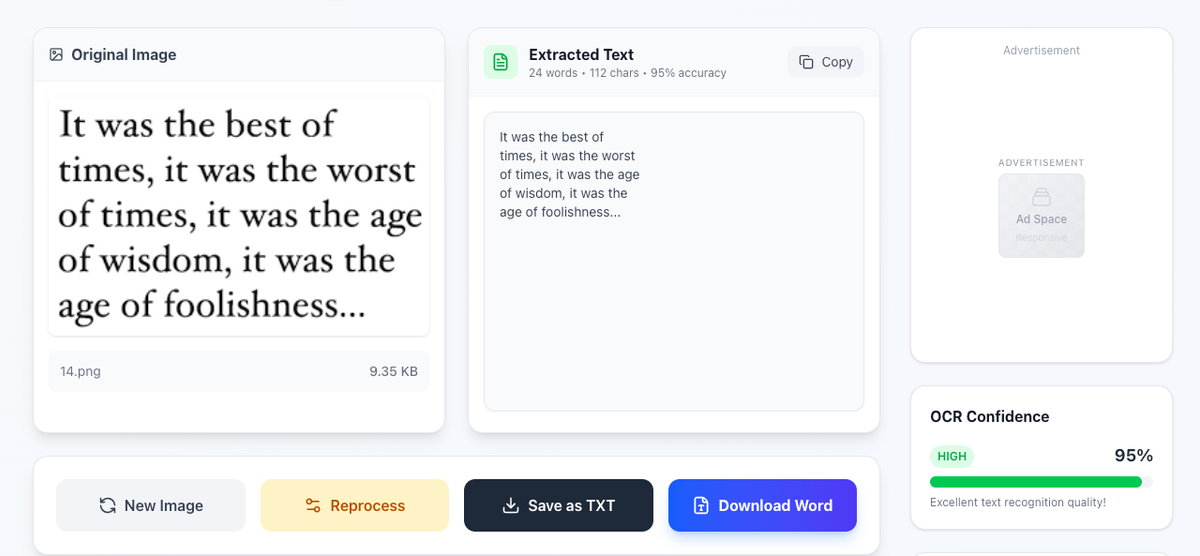
Uploading an image for OCR processing
Step 2 – OCR Processing & Preview
Once your image is uploaded:
- The tool will start analyzing the image and running OCR in the background.
- After a short moment, you should see a preview of either:
- The recognized text, or
- A status message indicating the OCR process is complete.
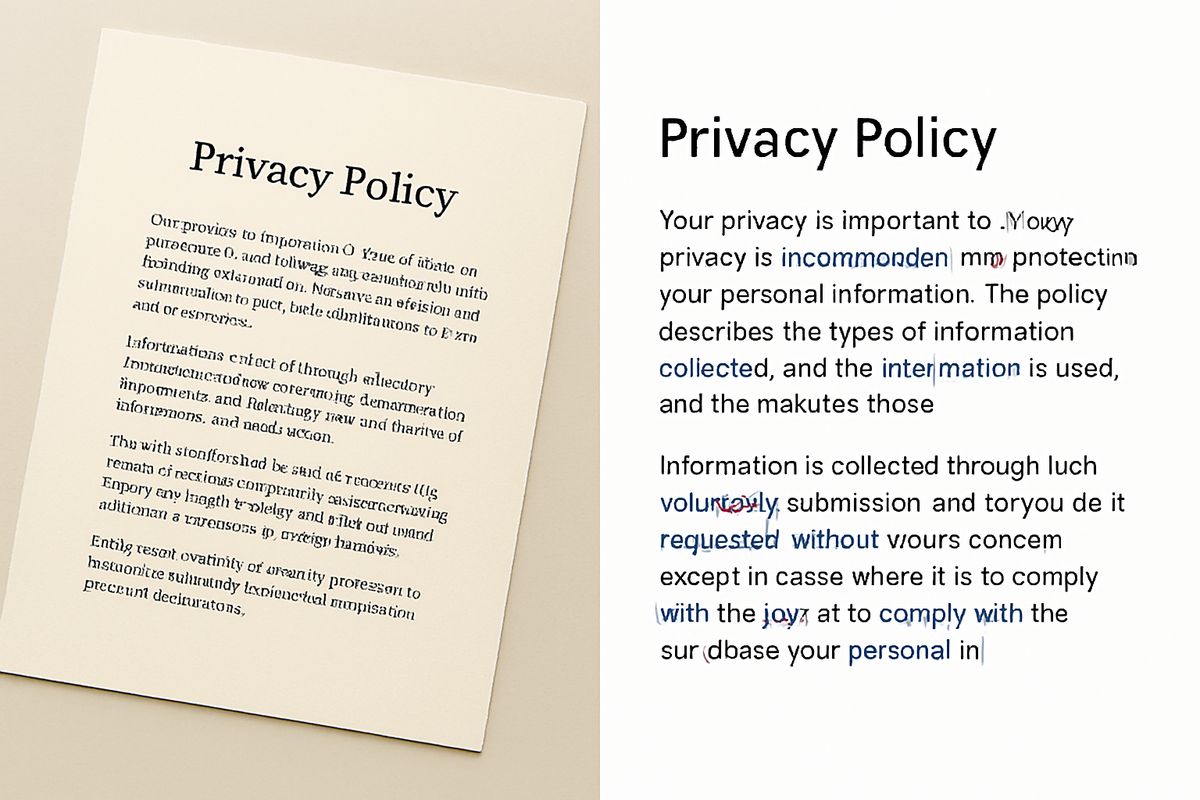
- Check the recognized text if a preview is shown:
- Scan for obvious errors, like misread letters (e.g., “O” instead of “0”).
- Look for missing lines or paragraphs.
This preview step is useful to decide whether:
- The image quality is good enough, or
- You should retake the photo or rescan the document for better results.
Step 3 – Download the Word File
Once you’re satisfied with the OCR result:
- Look for the Download or “Download Word” / “Download .docx” button.
- Click it to download your editable Word document.
- Open the file in Microsoft Word, Google Docs (after upload), or any compatible word processor.
- Make any necessary edits:
- Fix minor recognition errors (if any)
- Adjust formatting (headings, bullet points, spacing)
- Add your own notes or comments
That’s it—you’ve successfully used a free online OCR tool to convert your image to a Word document.
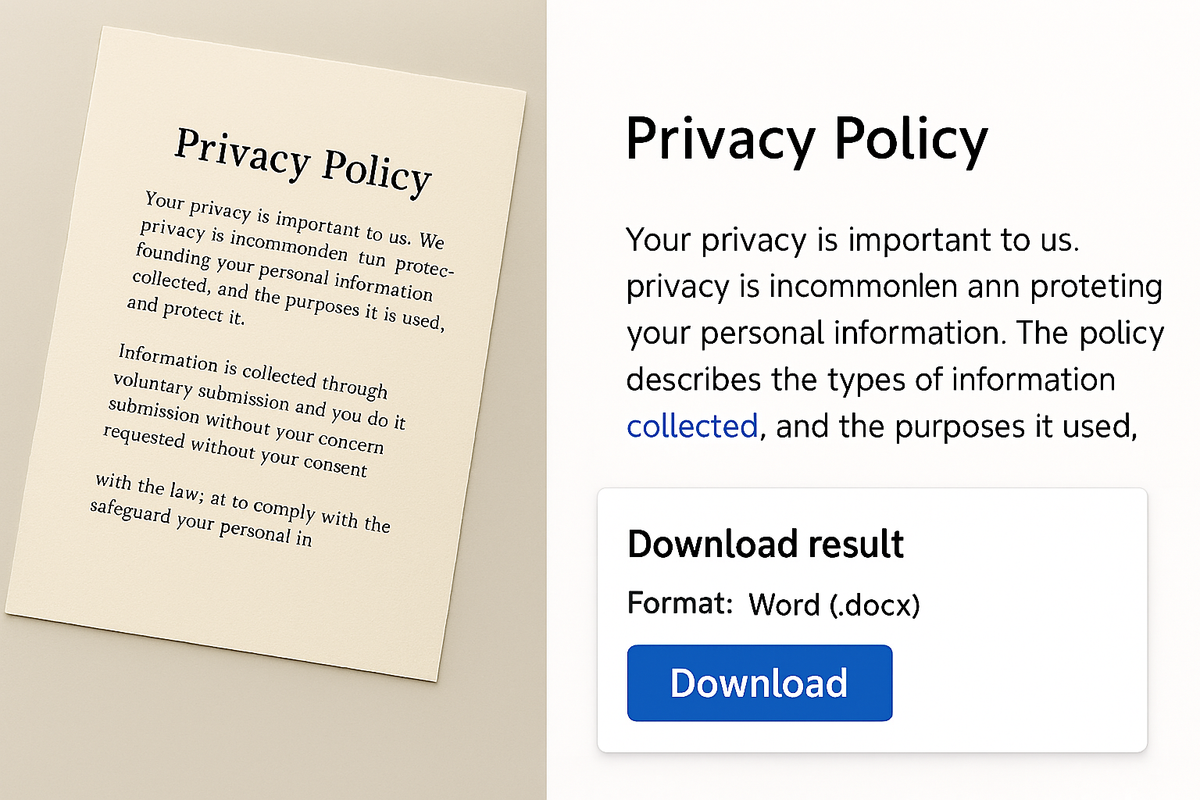
Downloading the editable Word document
Who Should Use Image to Word OCR?
PicDitt’s image to Word OCR is useful in many everyday workflows.
1. Students
- Take photos of lecture slides, whiteboards, or textbook pages
- Convert handouts or printed notes into Word so you can reorganize, highlight, and summarize
- Use OCR online for students to quickly quote text in essays and reports
2. Businesses & offices
- Convert scanned contracts, letters, and forms into editable documents
- Digitize paper archives and make them searchable
- Extract text from printed reports or brochures for reuse
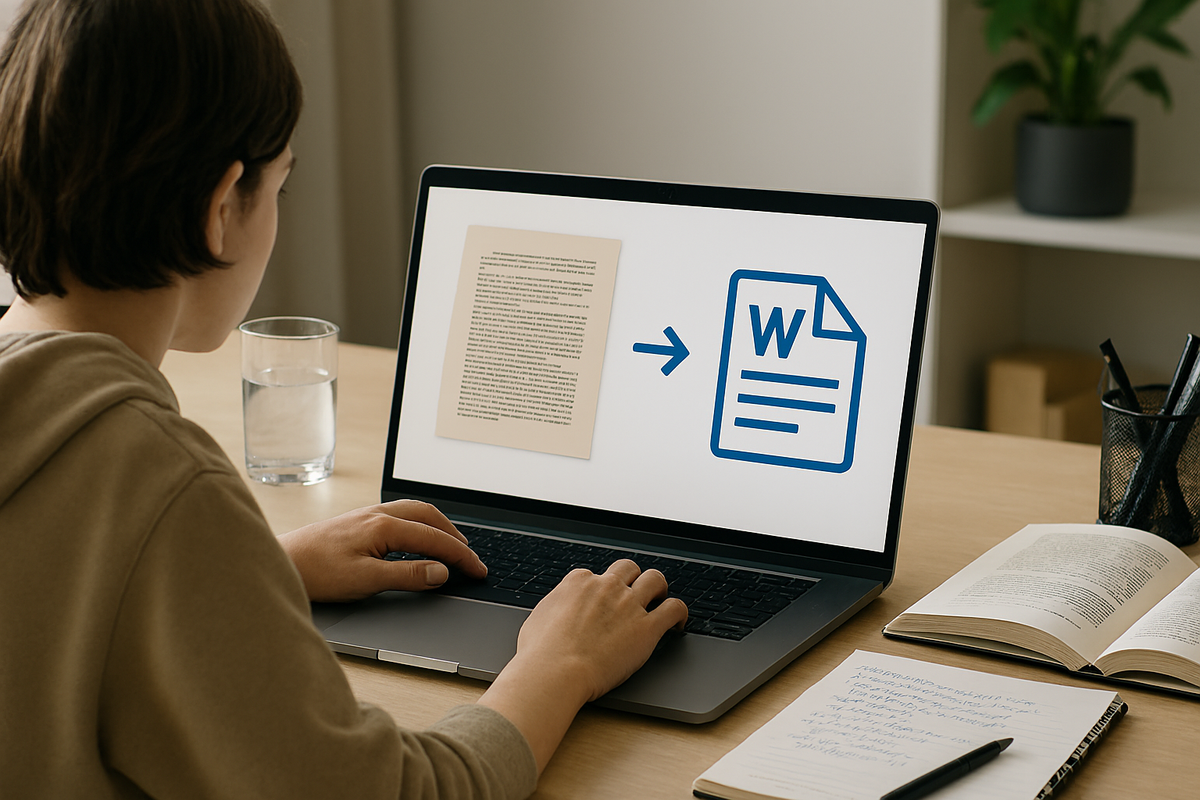
Students converting handwritten or scanned notes to Word
3. Freelancers & remote workers
- Turn receipts and invoices into text you can copy into spreadsheets or accounting tools
- Reuse content from printed briefs or client documents without retyping
- Prepare editable drafts from scans or photos sent by clients
4. Researchers & academics
- Digitize old articles, papers, and archival documents
- Make research notes searchable by converting images into text
- Combine content from multiple sources into a single Word file for analysis
Tips to Get the Best OCR Accuracy
OCR quality depends heavily on the quality of your image. Use these practical tips to improve recognition results.
1. Ensure image clarity
- Use a high-resolution photo or scan
- Avoid zooming in too much; move the camera closer instead
- Make sure the text is sharp, not blurry or grainy
2. Fix lighting issues
- Avoid strong shadows falling across the text
- Don’t photograph glossy pages under harsh light (this creates glare)
- Prefer natural light or evenly lit indoor lighting
- If possible, lay the document flat under a lamp with minimal reflection
3. Keep the document straight
- Align the document so it’s as straight as possible in the frame
- Avoid angled or skewed photos where text lines run diagonally
- Use your phone’s grid lines to keep edges horizontal or vertical
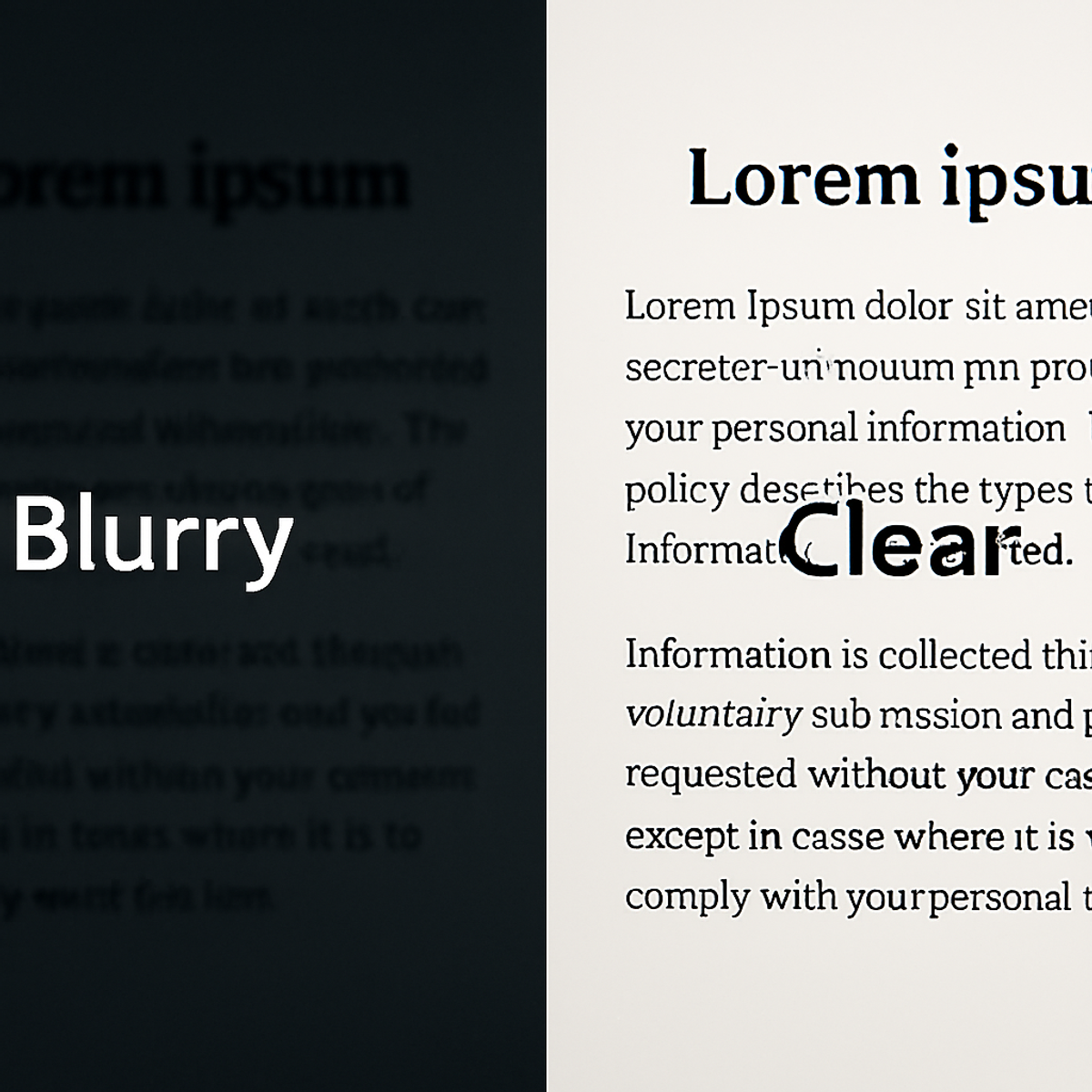
Clear images produce more accurate OCR results
4. Use readable fonts
- OCR works best with printed text and clear fonts
- Decorative or very small fonts may reduce accuracy
- For printed documents, standard fonts like Times New Roman, Arial, Calibri tend to work best
5. Crop out unnecessary elements (if possible)
Before uploading, consider cropping the image so it contains mainly:
- The text area
- Minimal background or irrelevant images
This helps the image to text converter focus on what matters.
Common OCR Problems & How to Fix Them
Even with good tools, OCR isn’t perfect. Here are common issues and what you can do about them.
Problem 1 – Blurry or low-quality scans
Symptoms:
- Large parts of text are missing or unreadable
- Many characters appear as random symbols
Fixes:
- Retake the photo with a steadier hand or rest the phone on a stable surface
- Increase lighting and get closer to the document
- If available, use a scanner app or hardware scanner instead of a quick snapshot
Problem 2 – Incorrect characters
Symptoms:
- Characters like “O” and “0”, “I” and “1”, or “rn” and “m” get mixed up
- Punctuation marks look wrong or missing
Fixes:
- Use a higher resolution image
- Zoom in slightly so characters are larger and clearer
- After converting, carefully proofread and correct small errors in Word
Problem 3 – Skewed or rotated images
Symptoms:
- Lines of text run diagonally or are curved
- OCR output has jumbled word order or missing parts
Fixes:
- Place the document flat and keep the camera parallel to it
- Rotate the image so text is upright before uploading
- Re-scan or retake the photo from directly above
Problem 4 – Complex layouts
Symptoms:
- Columns merge into each other
- Tables and multi-column layouts convert into jumbled paragraphs
Fixes:
- If possible, crop and convert one column or section at a time
- After conversion, use Word to manually reformat into tables or columns
- For very complex layouts, expect to do some manual cleanup
Problem 5 – Handwriting
Symptoms:
- Handwritten notes are misread or not recognized at all
Fixes:
- OCR is far more accurate with printed text than handwriting
- If the handwriting is very neat and regular, you may get partial results
- For messy or fast handwriting, you’ll likely need to manually type key parts
Is PicDitt Image to Word Safe and Private?
When dealing with documents, privacy matters. PicDitt’s tools, including the Image to Word converter, are designed with user privacy in mind.
Key points:
- Browser-based processing:
You access the tool via your web browser; there’s no software download or installation. - No account required:
You can convert images to Word without logging in or creating an account. - No permanent storage of your documents:
Files are processed only for the purpose of conversion. They are not kept indefinitely or tied to a personal profile.
For full and up-to-date details, always review the Privacy Policy and Terms of Use on PicDitt’s website. If you handle sensitive or confidential documents, this is a good practice with any online tool.
Frequently Asked Questions (FAQ)
1. Is the PicDitt Image to Word tool free?
Yes. PicDitt offers its Image to Word OCR as a free online OCR tool. You can upload your image, run the conversion, and download the Word document without paying or creating an account.
2. How accurate is the OCR?
Accuracy depends mainly on:
- Image quality and resolution
- Clarity of the text
- Font type and size
With clear, well-lit images of printed text, you can expect high accuracy. Blurry, dark, or skewed photos will reduce accuracy and may require more manual correction afterward.
3. Can it read handwriting?
The tool is optimized for printed text. It may recognize some very neat handwriting, but results are less reliable than with printed fonts. For rough or cursive handwriting, you may still need to type the content manually.
4. Which file formats are supported?
PicDitt’s image to text converter accepts common image formats such as:
- JPG / JPEG
- PNG
- HEIC
- BMP
If your document is in another format, you can often first screenshot or export it as an image, then upload that image for OCR.
5. Are my files uploaded to a server?
The tool processes your files for conversion. PicDitt is designed to be privacy-conscious, and files are not kept permanently or attached to a personal account. For exact handling details, check the Privacy Policy on picditt.com.
6. Do I need to install any software?
No. PicDitt’s photo to Word converter is entirely browser-based. Just open the link, upload your image, and convert. It works on Windows, macOS, Linux, Chromebooks, and many mobile browsers, as long as you have internet access.
7. Can I use the converted text in other tools?
Yes. Once you convert image to Word document and download the .docx file, you can:
- Open it in Microsoft Word
- Upload to Google Docs
- Copy-paste the text into emails, reports, presentations, or any other apps you use
8. Is this suitable for students and academic work?
Absolutely. This tool is ideal for OCR online for students:
- Convert textbook pages into editable notes
- Extract quotes for essays or research papers
- Turn printed handouts into digital, searchable documents
Just remember to cite your sources properly and respect copyright rules.
Conclusion
Turning an image into an editable Word document doesn’t have to be difficult or expensive. With PicDitt’s Image to Word OCR tool, you can:
- Quickly convert scanned pages, photos of documents, and screenshots into real text
- Edit, format, and reuse that text in Word or Google Docs
- Avoid the time and frustration of retyping long documents
Because it’s free, browser-based, and privacy-conscious, PicDitt is a practical choice for students, professionals, freelancers, and researchers who regularly work with image-based documents.
You can start right now:
👉 Try the PicDitt Image to Word tool: https://picditt.com/conversion/image-to-word
Use it responsibly, respect document privacy, and always ensure you have the right to digitize and reuse the content you’re converting.
You Might Also Like
Screenshot Editor – Edit, Annotate & Share Screenshots Like a Pro
Edit screenshots instantly with PicDitt's free online screenshot editor. Add text, arrows, shapes, blur sensitive info, crop, and export in PNG, JPEG, or WebP. No signup required.
Read More →
Magic Eraser Online: How to Remove Unwanted Objects from Photos with AI
Photobombers, power lines, watermarks, blemishes—every photo has something you wish wasn't there. Learn how to use PicDitt's free Magic Eraser to brush over any unwanted object and watch AI remove it seamlessly, all directly in your browser with complete privacy.
Read More →
How to Compress Images to an Exact File Size: The Complete Guide to Target Compression
Need your image to be exactly 500KB for a government form or under 25MB for Gmail? Learn how to compress any image to a precise file size using PicDitt's free Target Compression tool—without guessing quality settings or losing more quality than necessary.
Read More →