How to Compress Images to an Exact File Size: The Complete Guide to Target Compression
How to Compress Images to an Exact File Size: The Complete Guide to Target Compression
You've filled out a forty-minute online application. Passport details, personal information, employment history—everything typed perfectly. You're on the final step. Upload your photo.
You click upload. Select the image from your phone.
And then you see it:
"File size must be less than 200KB."
Your photo is 3.2MB.
So you go find some random online compressor. You slide the quality down. Download. Check the size. 847KB. Still too big. Slide the quality down more. Download again. 156KB. Now it's under the limit but your face looks like a watercolor painting left in the rain.
There has to be a better way, right?
There is.
Instead of guessing quality percentages and checking file sizes over and over, what if you could just tell the tool: "Make this image exactly 200KB" — and it figured out the rest?
That's exactly what PicDitt's free Compress to Target Size tool does. At https://picditt.com/compress/target-compression, you enter the file size you need — 100KB, 500KB, 2MB, whatever — and the tool automatically finds the best compression quality to hit that exact target while preserving as much image quality as possible.
No guessing. No repeated downloads. No watercolor faces.
Let me walk you through how it works, when you need it, and why it's genuinely one of the most practical image tools you'll ever bookmark.
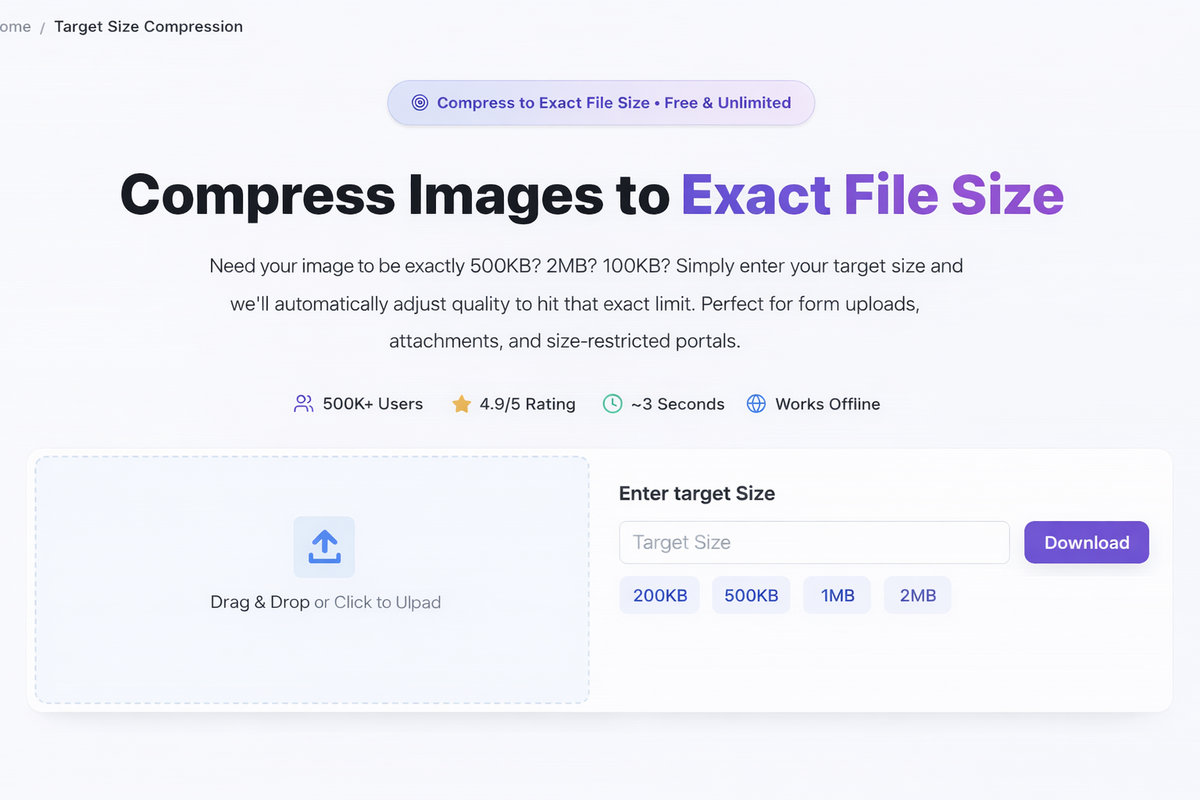
Screenshot of PicDitt's Compress to Target Size tool showing upload area, target file size input, preset size buttons, and download option.
The Problem with Traditional Image Compression
Before we dive into the solution, let's talk about why normal compression is so frustrating.
The Guessing Game
Most compression tools work like this:
- Upload your image
- Set a "quality" percentage (like 80%, 60%, 40%)
- Download the result
- Check if the file size meets your requirement
- If not, go back to step 2 and try a different percentage
- Repeat until you accidentally get close to the right size
This trial-and-error approach has two major problems:
Problem 1: You're guessing. There's no direct relationship between quality percentage and final file size that's easy to predict. An 80% quality setting on a 4MB photo might produce a 600KB file. The same 80% on a different 4MB photo might produce a 1.2MB file. It depends on the image content — photos with lots of detail compress differently than photos with large flat areas.
Problem 2: You might compress too much. When you're trying to hit a strict limit (like 200KB for a government form), the temptation is to set quality very low "just to be safe." But that destroys image quality unnecessarily. Maybe 65% quality would have hit 200KB perfectly, but you set it to 30% because you were frustrated — and now your photo looks terrible.
What You Actually Want
What you really want is simple:
"Make this file exactly X kilobytes, and keep the quality as high as possible while doing it."
That's target compression. You specify the destination. The tool figures out the route.
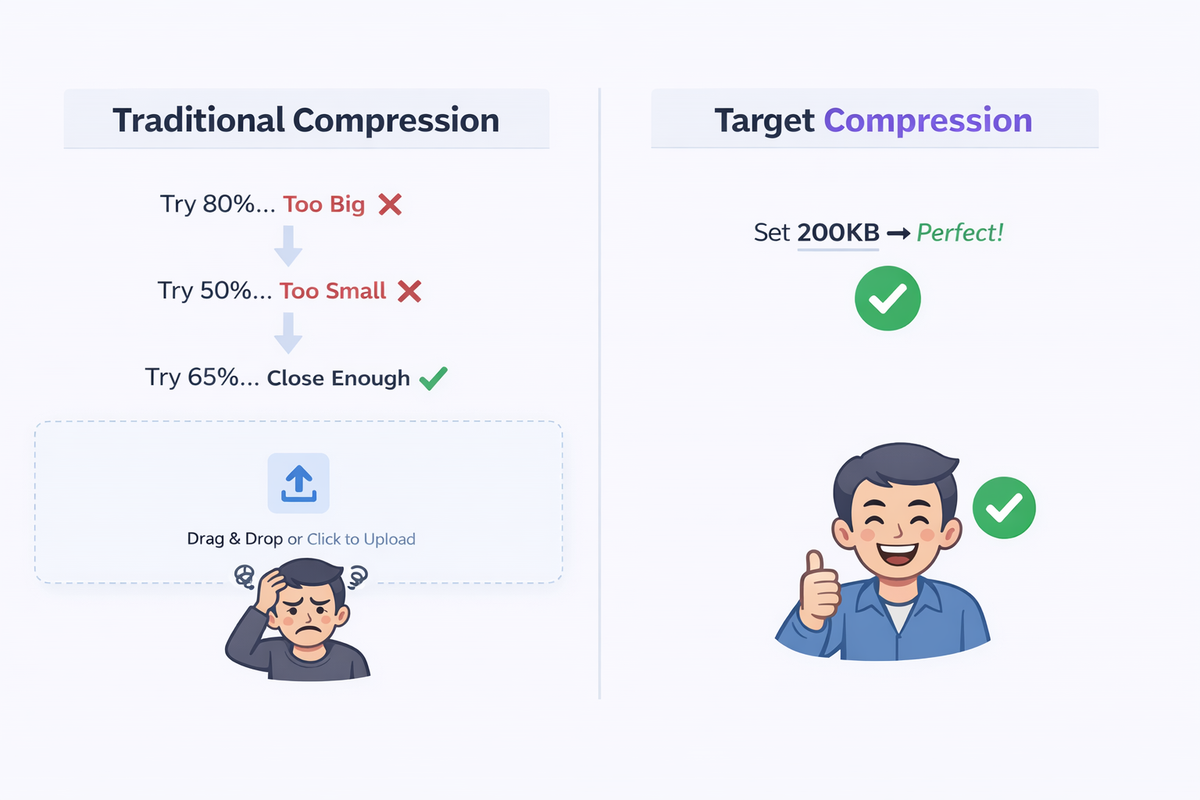
Comparison showing traditional compression requiring multiple guessing attempts on the left versus target compression where you enter the desired size once and get the result on the right.
How Target Compression Works
The concept behind target compression is elegantly simple, even though the technology behind it is sophisticated.
The Process
When you upload an image and specify a target file size, the tool:
- Analyzes your image — Measures current dimensions, file size, color complexity, and content type.
- Calculates optimal compression — Using intelligent algorithms, it determines what quality level will produce a file closest to your target size.
- Iterates precisely — If the first calculation doesn't hit the target exactly, it fine-tunes automatically—adjusting by tiny increments until the output matches your specification.
- Maximizes quality — The goal isn't just to hit the target size. It's to hit the target size at the highest possible quality. If your target is 200KB and the tool can deliver 198KB at 72% quality, it won't compress to 150KB at 45% quality.
All of this happens in seconds, entirely in your browser.
Why "Maximum Quality at Target Size" Matters
This is the key difference between target compression and simply dragging a quality slider down.
When you manually set quality to a low number, you might achieve your size target — but you're probably compressing more than necessary. Target compression finds the sweet spot: the exact quality level where file size meets your requirement and image quality is as high as it can possibly be within that constraint.
It's the difference between:
- ❌ "I need this under 200KB, so I'll set quality to 20% to be safe" → 87KB, terrible quality
- ✅ "I need this at 200KB" → 198KB, best possible quality at that size
Step-by-Step: How to Use PicDitt's Target Compression Tool
The process takes about 30 seconds.
Step 1: Open the Tool
Visit:
https://picditt.com/compress/target-compression
You'll see a clean interface with an upload area and target size options.
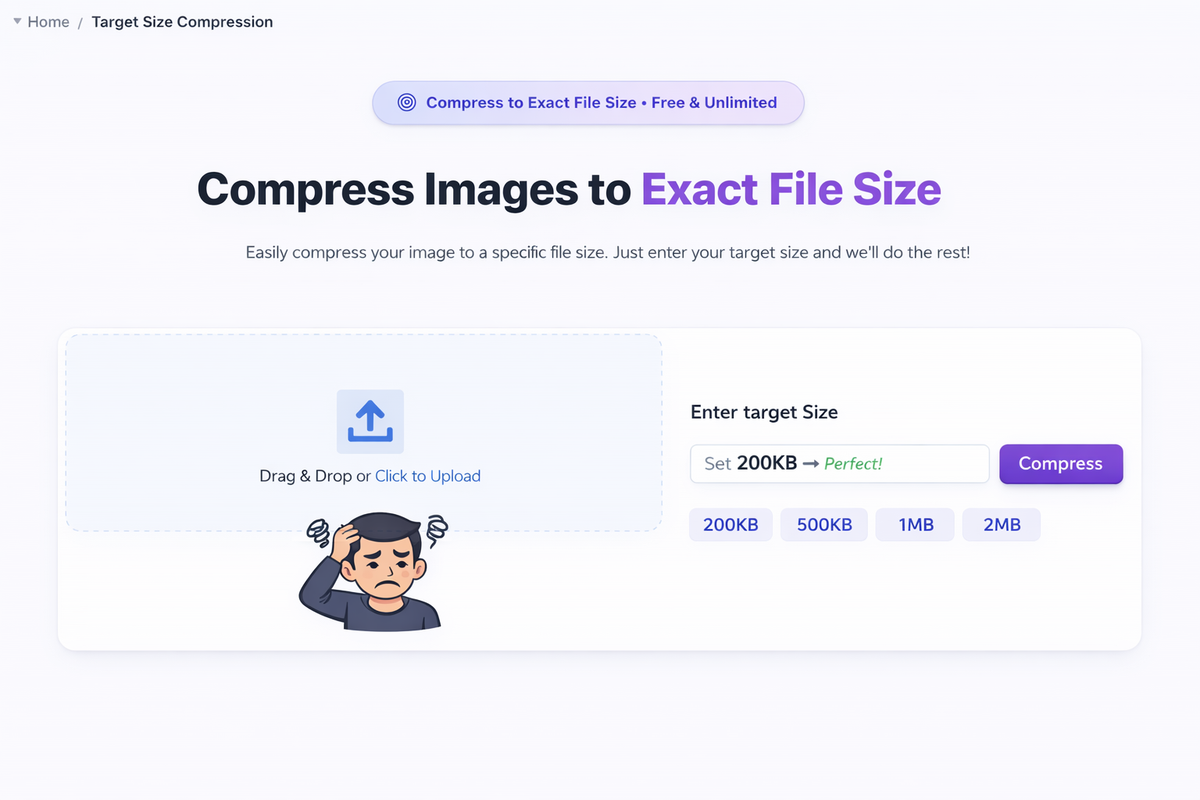
PicDitt Target Compression tool showing empty upload screen with drag-and-drop area and target size preset options.
Step 2: Upload Your Image
Drag and drop your image or click to browse. The tool supports:
- JPG / JPEG
- PNG
- WebP
For best results, start with the highest quality version of your image. It's always better to compress down from a high-quality source than to re-compress an already compressed file.
Step 3: Set Your Target Size
This is the magic step. You have two options:
Option A: Use a Preset
Click one of the common preset buttons:
- 100KB (government forms, passport photos)
- 200KB (visa applications, ID uploads)
- 500KB (general form uploads)
- 1MB (website images)
- 2MB (high-quality uploads)
- 5MB (email attachments)
Option B: Enter a Custom Size
Type any specific size you need. If a portal says "maximum 350KB," just type 350KB.
Step 4: Let the Tool Auto-Optimize
Click the compress button. The tool automatically:
- Analyzes your image
- Calculates the optimal quality level
- Compresses to your exact target
- Preserves maximum quality within that size limit
This usually takes just a few seconds.
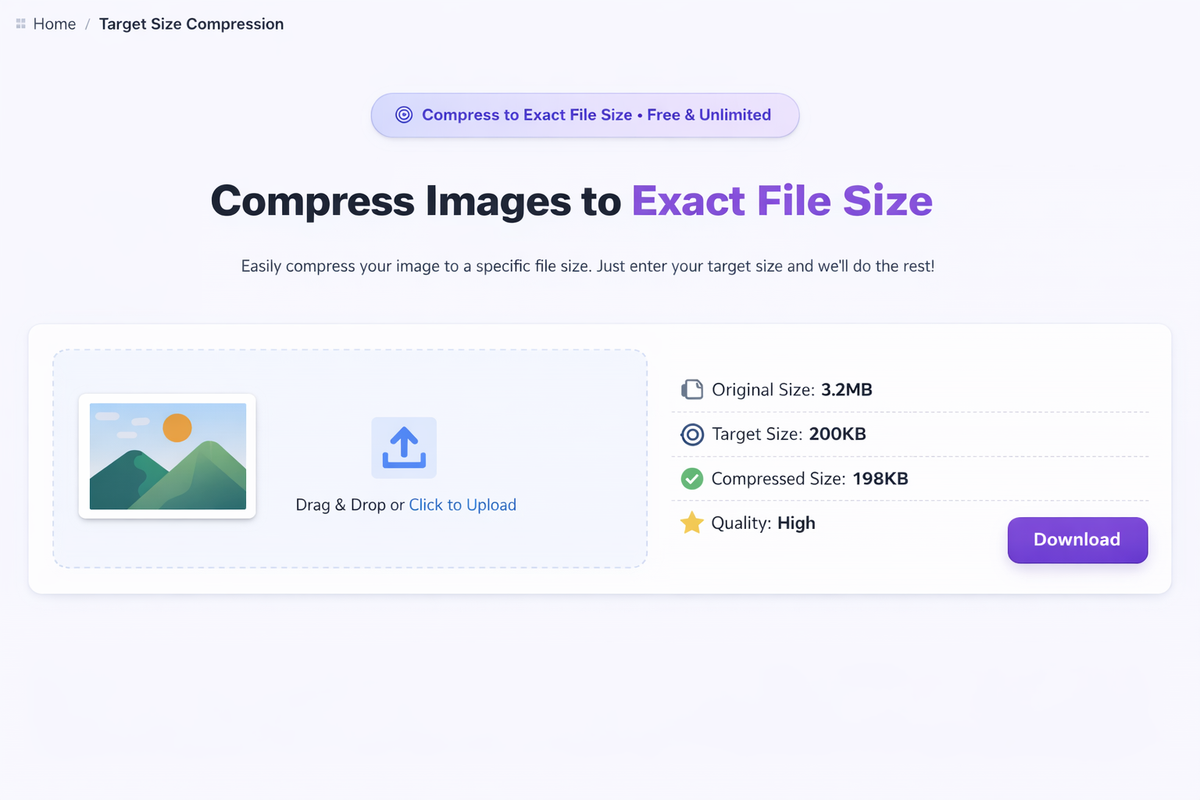
PicDitt Target Compression result showing original 3.2MB image compressed to 198KB target with quality level displayed and download button.
Step 5: Download Your Perfectly-Sized Image
Click download. The compressed image saves to your device, ready to upload wherever you need it.
No watermarks. No signup. No re-trying with different settings.
Real-World Scenarios Where You Need Exact File Sizes
Target compression isn't a nice-to-have feature. It solves real, frustrating problems that millions of people face every day.
Government Forms and Portals
This is probably the most common and most stressful use case. Government websites are notorious for strict file size limits:
- Passport applications: Photo must be 20-200KB
- Visa applications: Supporting documents under 500KB each
- National ID submissions: Photos between 50-100KB
- Tax document uploads: Images under 1MB
- License renewals: Photos under 200KB
These portals rarely give helpful error messages. They just say "file too large" and leave you to figure it out. Target compression eliminates the guessing entirely.
Email Attachments
Every email service has attachment limits:
Email Service
Attachment Limit
Gmail
25 MB
Outlook / Hotmail
20 MB
Yahoo Mail
25 MB
Corporate email
Often 10-15 MB
Some organizations
As low as 5 MB
When you need to email multiple photos—say, insurance claim images, property photos, or event pictures—quickly compressing each to fit within the limit saves enormous time.
Job Applications
Online job portals often require:
- Profile photos under 100-500KB
- Portfolio images under 1-2MB each
- ID or certification scans under specific limits
When you're applying for jobs under pressure, the last thing you need is to fight with file sizes. Enter your target, compress, upload, done.
Website and CMS Uploads
Content management systems, online stores, and website builders often have upload limits:
- WordPress media uploads
- Shopify product images
- Wix and Squarespace uploads
- Social media profile and cover photos
Keeping images within platform limits while maintaining quality is exactly what target compression was designed for.
Online Banking and Insurance Forms
Financial institutions require document uploads for:
- Loan applications (ID photos, income proof)
- Insurance claims (damage photos, receipts)
- Account verification (selfie with ID)
These forms almost always have strict size limits, and the consequences of not being able to upload (delayed applications, rejected claims) can be significant.
WhatsApp, Instagram, and Social Media
Even messaging apps have limits:
- WhatsApp image sharing: 16MB
- Instagram uploads: varies but quality drops with large files
- App submission screenshots: platform-specific limits
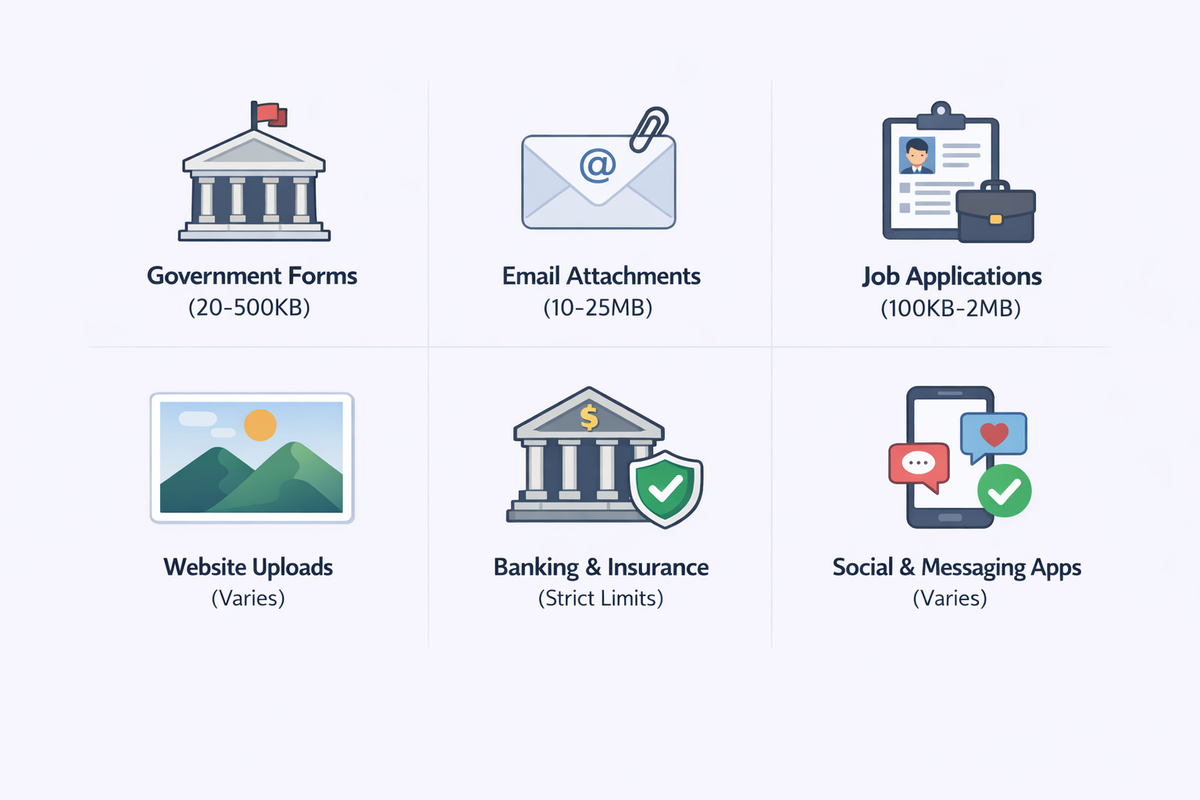
Grid showing six target compression use cases: government forms, email attachments, job applications, website uploads, banking and insurance, and social media apps, each with typical file size limits.
Common File Size Limits You Should Know
Bookmark this reference. You'll need it more often than you think.
Platform / Use Case
Typical Size Limit
Passport photo (online application)
20-200 KB
Visa application photo
100-500 KB
Government ID upload
50-500 KB
Gmail attachment
25 MB
Outlook attachment
20 MB
Corporate email
5-15 MB
WhatsApp image
16 MB
Job portal profile photo
100-500 KB
WordPress media upload
Varies (often 2-10 MB)
Shopify product image
20 MB (but smaller is faster)
Insurance claim photo
1-5 MB
Bank verification selfie
200KB-2MB
Pro Tips for Better Target Compression Results
These tips help you get the best quality at your target size.
Tip 1: Start with the Highest Quality Source
Always compress from your original, full-quality image. Re-compressing an already compressed image produces worse results because you're degrading quality that's already been lost.
If you have both the original camera file and a previously compressed version, always use the original.
Tip 2: Resize Before Compressing
If your image is 4000×3000 pixels but you're uploading it to a form that displays it at 400×300 pixels, resize first and then compress. A smaller-dimension image will look better at the same file size than a large-dimension image compressed aggressively.
Example:
- 4000×3000 compressed to 200KB → quality suffers significantly
- Resize to 1000×750 first, then compress to 200KB → much better quality
Tip 3: Use JPEG for Photos, PNG for Graphics
- JPEG compresses photographs much more efficiently. Natural images with gradients, skin tones, and scenery compress well in JPEG.
- PNG is better for graphics, logos, screenshots, and images with text or sharp edges.
If you're compressing a photo for a form upload, JPEG will almost always give you better quality at the same file size.
Tip 4: Check Dimension Requirements Too
Many forms specify both file size AND dimensions:
"Photo must be 200KB maximum, 600×600 pixels"
Make sure you check for dimension requirements as well. PicDitt's other tools (like the Zoom & Resize tool) can help with dimensions before you compress to target size.
Tip 5: Don't Compress More Than Necessary
If a form says "maximum 500KB" and your image is already 450KB, you don't need to compress at all. Only use target compression when your file actually exceeds the limit.
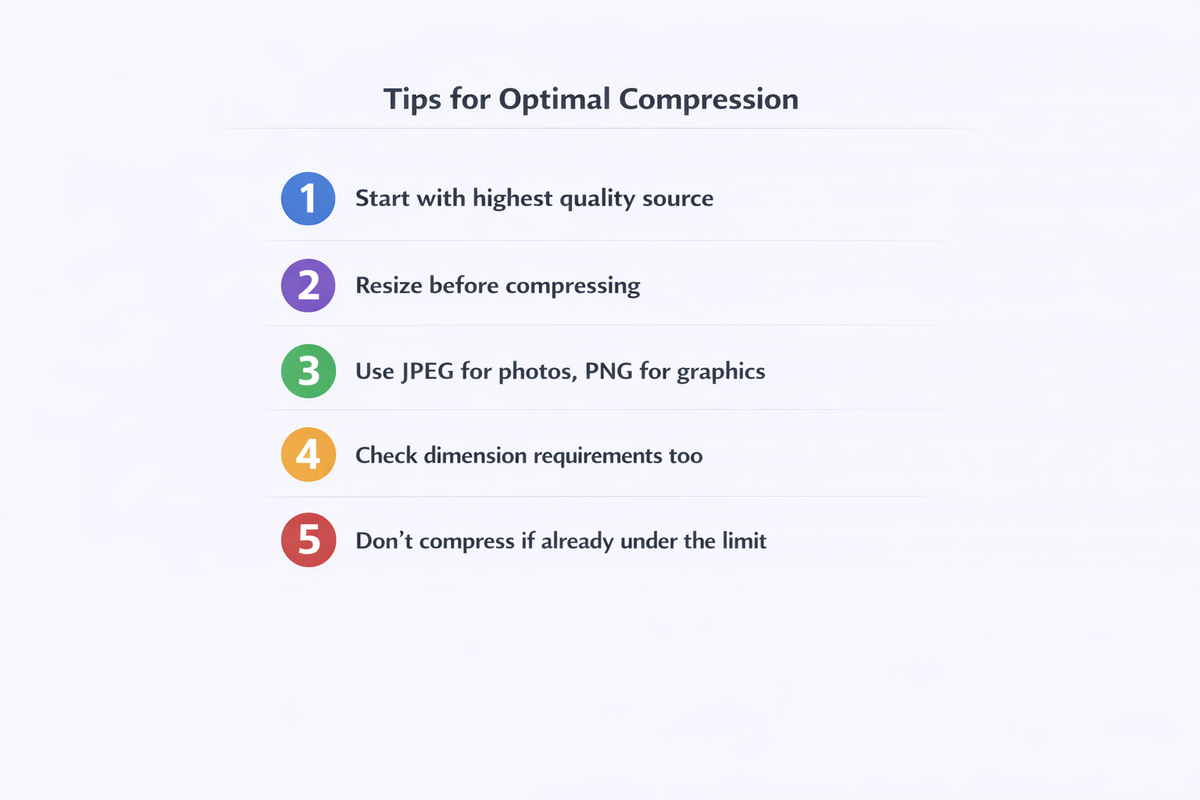
Five pro tips for target compression: start with highest quality, resize before compressing, use JPEG for photos, check dimension requirements, and don't compress unnecessarily.
Why PicDitt's Target Compression Tool Stands Out
Precision Sizing
Most compressors make you guess quality percentages. PicDitt lets you specify the exact output size you need. The tool does the math, not you.
Maximum Quality at Target Size
The tool doesn't just compress blindly. It finds the optimal balance — the highest possible image quality that fits within your size requirement. You get the best looking image that meets your limit.
100% Browser-Based (Complete Privacy)
This matters especially for sensitive documents like passport photos, ID scans, bank verification selfies, and visa application images.
Your files are never uploaded to any server. All processing happens locally in your browser. When you close the tab, the data is gone — only your downloaded file remains on your device.
For government documents and personal identification photos, this privacy guarantee is crucial.
Lightning Fast
The auto-optimization process typically completes in seconds. No waiting for server-side processing, no upload delays, no download queues.
Completely Free
No account required. No subscription. No watermarks. No "premium" tier that unlocks the feature you actually need. Full functionality, completely free.
Frequently Asked Questions
What file formats are supported?
The tool supports JPG, JPEG, PNG, and WebP images.
Can I compress to any custom size?
Yes. You can use the preset buttons (100KB, 200KB, 500KB, 1MB, etc.) or enter any custom target size you need.
Will my image look bad after compression?
The tool maximizes quality at your target size. If your target is reasonable relative to the original (for example, compressing a 3MB photo to 500KB), the result will look very good. Compressing a 3MB photo to 20KB will necessarily lose more quality because the compression is more aggressive.
Is this tool safe for passport and ID photos?
Yes. Your images are processed entirely in your browser and never uploaded to any server. This makes it safe for sensitive personal documents like passport photos, ID scans, and visa application images.
What's the difference between this and a regular compressor?
A regular compressor lets you set quality (like 80% or 60%) and you get whatever file size results from that setting. Target compression lets you set the file size and the tool automatically finds the right quality to achieve it. You control the output size, not the quality percentage.
Does it work on mobile?
Yes. The tool runs in your browser and works on both phones and desktop computers. No app download needed.
Can I also resize (change dimensions) with this tool?
This tool focuses specifically on file size compression. If you also need to change image dimensions (width/height), use PicDitt's Zoom & Resize tool at https://picditt.com/social/zoom-image first, then compress to your target size.
FAQ summary graphic for PicDitt's Target Compression tool highlighting custom size targeting, maximum quality preservation, browser-based privacy, and free access with no watermarks.
Stop Guessing. Start Targeting.
File size limits are everywhere. Government forms. Email clients. Job portals. Banking apps. Social media platforms. And they're not going away.
Every time you encounter one, you have two choices: spend ten minutes playing the quality-slider guessing game, or spend ten seconds telling a tool exactly what size you need.
PicDitt's free Compress to Target Size tool at:
https://picditt.com/compress/target-compression
does one thing and does it exceptionally well — it compresses your image to the exact file size you specify, at the highest quality possible within that limit.
No guessing. No repeated attempts. No unnecessarily destroyed quality. No privacy concerns.
Just enter your target, click compress, and download your perfectly-sized image.
The next time a form tells you "maximum 200KB," you'll have the answer in seconds.
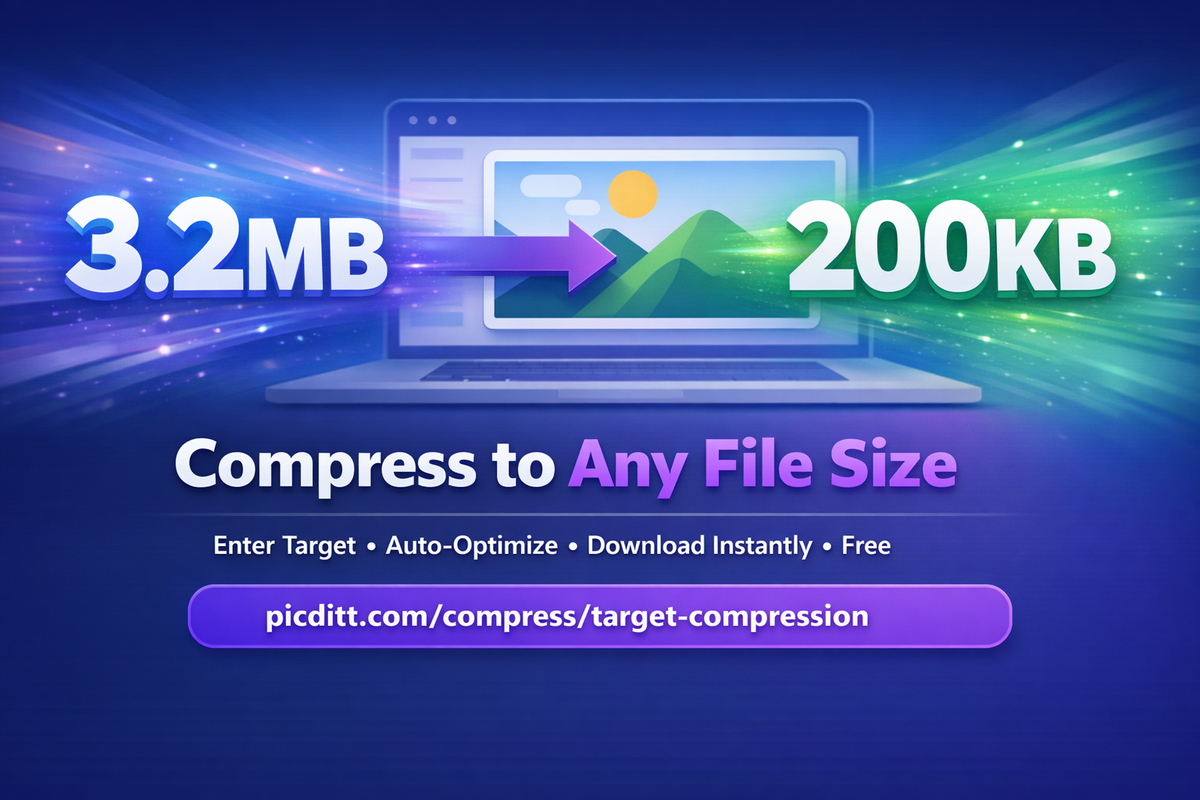
Call-to-action banner inviting readers to compress images to any target file size using PicDitt's free tool, showing a 3.2MB to 200KB transformation.
You Might Also Like
Screenshot Editor – Edit, Annotate & Share Screenshots Like a Pro
Edit screenshots instantly with PicDitt's free online screenshot editor. Add text, arrows, shapes, blur sensitive info, crop, and export in PNG, JPEG, or WebP. No signup required.
Read More →
Magic Eraser Online: How to Remove Unwanted Objects from Photos with AI
Photobombers, power lines, watermarks, blemishes—every photo has something you wish wasn't there. Learn how to use PicDitt's free Magic Eraser to brush over any unwanted object and watch AI remove it seamlessly, all directly in your browser with complete privacy.
Read More →
Batch Image Processing Made Simple: Resize, Compress, Convert & Rename Hundreds of Photos at Once
Manually editing hundreds of images one by one is a waste of your time. Learn how to use PicDitt's free Batch Image Processing tool to resize, compress, convert, and rename entire photo collections in minutes—all directly in your browser with complete privacy.
Read More →