Magic Eraser Online: How to Remove Unwanted Objects from Photos with AI
Magic Eraser Online: How to Remove Unwanted Objects from Photos with AI
You know that feeling.
You're looking at a photo you took on vacation. The lighting is perfect. The composition is great. You look fantastic. The ancient temple behind you is majestic and golden in the afternoon sun.
And then there's the guy in the neon green tank top standing right next to the pillar, staring at his phone.
Or maybe it's a family portrait where everything is perfect—except for the power line cutting across the sky behind everyone's head. Or a product photo for your online store where a random coffee mug is sitting in the background. Or a selfie that would be your best profile picture ever if it weren't for that one pimple on your chin.
Every photographer—professional or amateur—has experienced the frustration of an almost-perfect photo ruined by something that shouldn't be there.
In the past, removing unwanted objects from a photo meant hours in Photoshop with the clone stamp tool, carefully sampling and painting over the offending element pixel by pixel. It required real skill, patience, and expensive software. Most people simply accepted the photobomber, the power line, or the blemish, because fixing it was too much trouble.
That's no longer the case.
PicDitt's free Magic Eraser at https://picditt.com/editing/magic-eraser uses AI-powered neural networks to remove anything you don't want in your photos. Just brush over the object, click erase, and the AI intelligently fills in the area with matching textures, colors, and patterns from the surrounding content.
No Photoshop skills. No subscription fees. No uploading your private photos to a server.
Let me show you exactly how it works and how to get the best results.
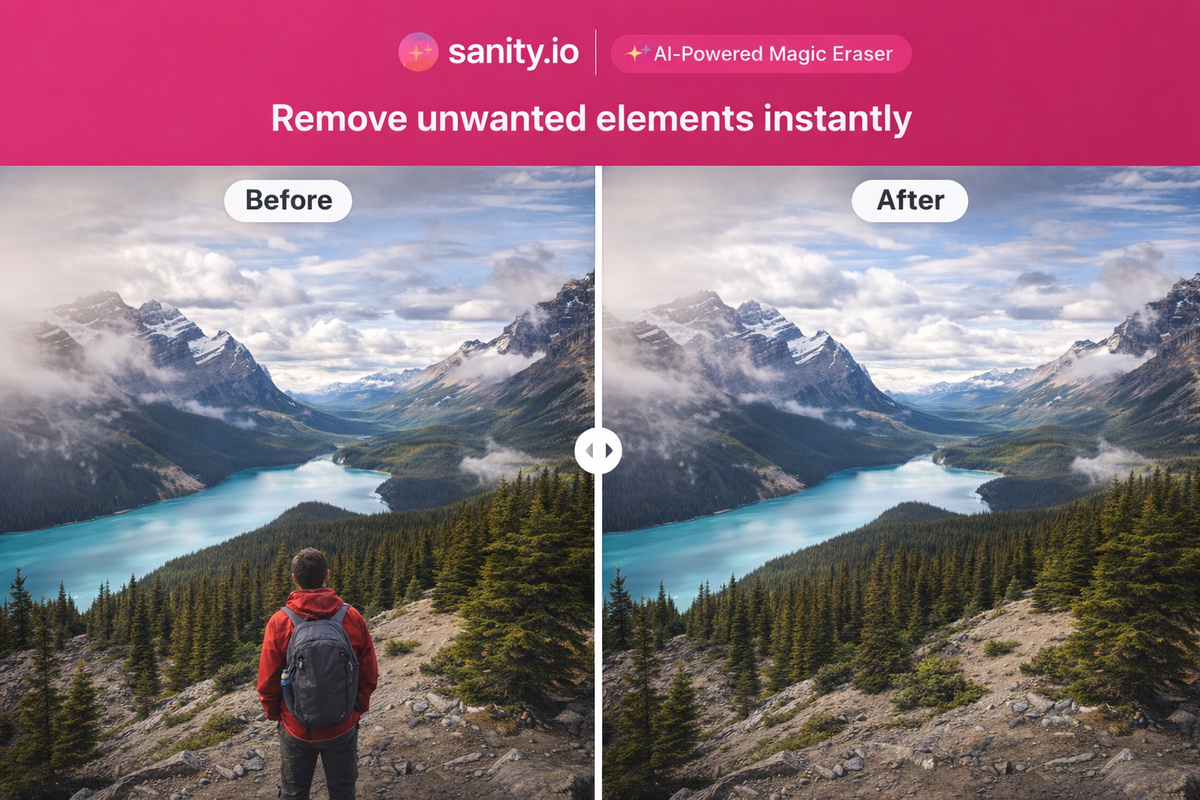
Before-and-after comparison showing a scenic photo with an unwanted person on the left and the same photo with the person cleanly removed by AI Magic Eraser on the right.
What Is a Magic Eraser?
A Magic Eraser is an AI-powered editing tool that lets you remove objects from photos by simply painting over them with a brush.
Unlike traditional editing methods that require you to manually clone and blend pixels, a Magic Eraser uses neural networks trained on millions of images to understand what should be behind the object you're removing. It then generates appropriate fill content—matching textures, colors, lighting, and patterns—so the edit looks natural and seamless.
Think of it like telling the AI: "See this person standing here? Pretend they were never there. What would the wall behind them look like?" And the AI figures it out.
How It Differs from Clone Stamp / Manual Editing
Feature
Clone Stamp (Manual)
Magic Eraser (AI)
Skill required
High — takes practice
None — just brush and click
Time per edit
Minutes to hours
Seconds
Quality of fill
Depends on your skill
AI generates intelligent fill
Software needed
Photoshop, GIMP, etc.
Browser — nothing to install
Cost
Often expensive software
Free
The Magic Eraser doesn't replace professional retouching for complex commercial work. But for everyday photo cleanup — removing a photobomber, erasing a power line, cleaning up a blemish — it delivers results that would have required professional software and skills just a few years ago.
What Can You Remove with Magic Eraser?
The short answer: almost anything that doesn't belong.
People and Photobombers
The most common use case. Strangers walking through your carefully framed shot, someone's elbow intruding from the edge of the frame, or even a specific person you'd rather not have in the photo anymore.
Text and Watermarks
Remove overlaid text, date stamps from old cameras, or watermarks from reference images. The AI fills in what was behind the text.
Power Lines and Poles
Landscape and architecture photographers know the frustration of beautiful scenery crossed by utility lines. The Magic Eraser can cleanly remove these thin but distracting elements.
Vehicles
A parked car in front of a building you're photographing. A bike leaning against the wall of your storefront. Traffic passing through an otherwise empty street scene.
Trash and Debris
Beach photos with litter. Street scenes with garbage. Event photos with abandoned cups and plates. Clean them up in seconds.
Skin Blemishes
Acne, temporary scars, spots, and other skin imperfections. Works great for portrait touch-ups and profile photos.
Logos and Branding
Remove brand logos from clothing in photos, stickers on products, or branding elements that distract from the subject.
Any Distracting Object
If it doesn't belong in your photo and it's taking attention away from your subject, the Magic Eraser can likely remove it.
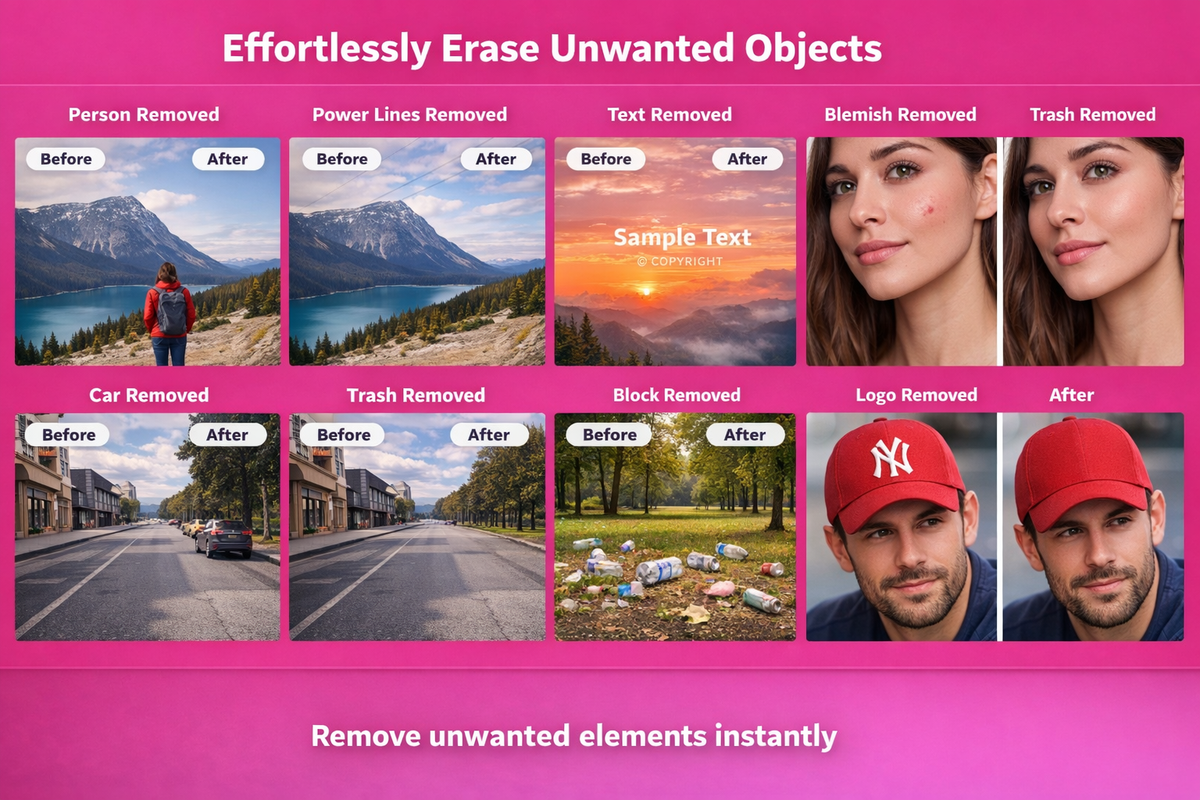
Grid showing eight before-and-after examples of objects removed with Magic Eraser: person, power line, watermark, blemish, vehicle, trash, logo, and stray object.
How to Use PicDitt's Magic Eraser: Step-by-Step Tutorial
The entire process takes under a minute for most edits. Here's exactly how to do it.
Step 1: Open the Tool
Visit:
https://picditt.com/editing/magic-eraser
You'll see a clean interface with an upload area and brush tools.
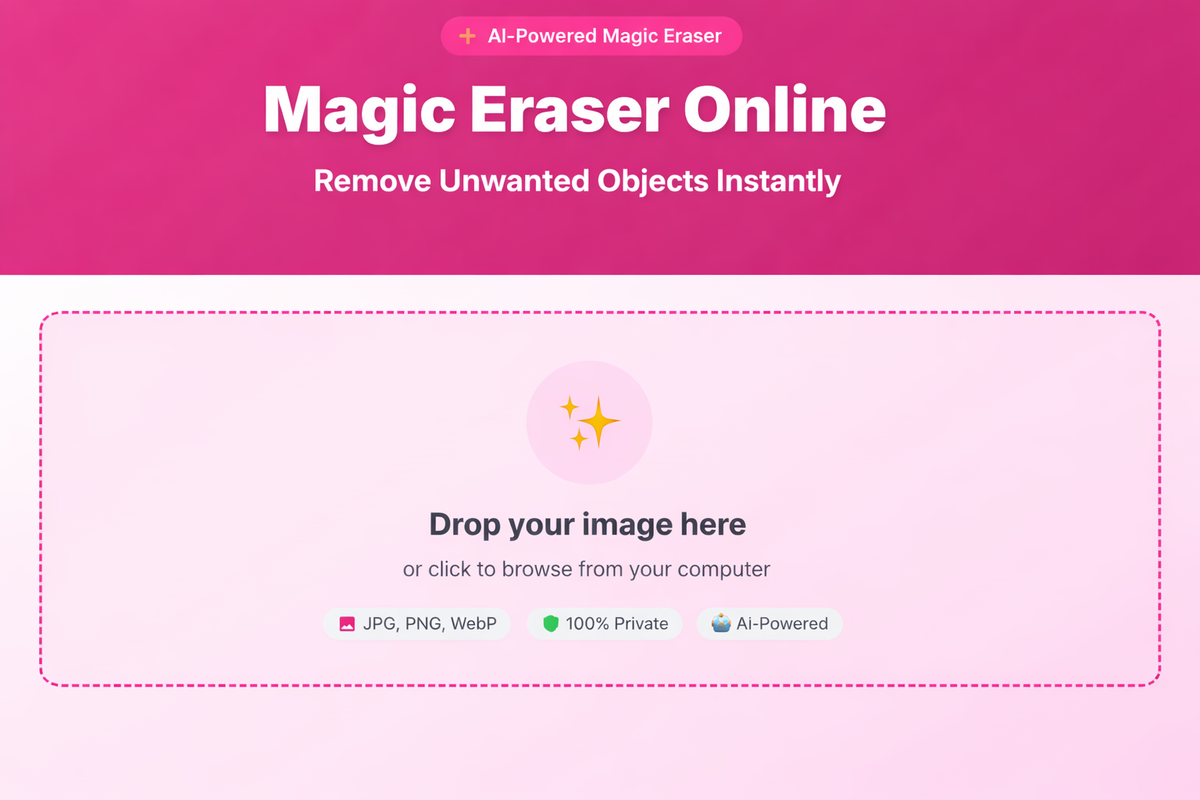
PicDitt Magic Eraser tool showing the empty upload screen with drag-and-drop area for loading images.
Step 2: Upload Your Photo
Drag and drop your image or click to browse. Supported formats include:
- JPG / JPEG
- PNG
- WebP
- GIF
- BMP
- TIFF
Select the photo that has the object you want to remove.
Step 3: Adjust Your Brush Settings
Before painting, configure your brush for the best results:
Brush Size (5px to 100px):
- Small brush (5-20px): For fine details like blemishes, thin wires, small text
- Medium brush (20-50px): For most objects like people, signs, animals
- Large brush (50-100px): For large objects like vehicles, big areas of clutter
Brush Shape:
- Round: Best for most objects and organic shapes
- Square: Better for straight edges and rectangular objects
General rule: Use a brush slightly larger than the object you're removing. This ensures you cover the edges and any shadows completely.
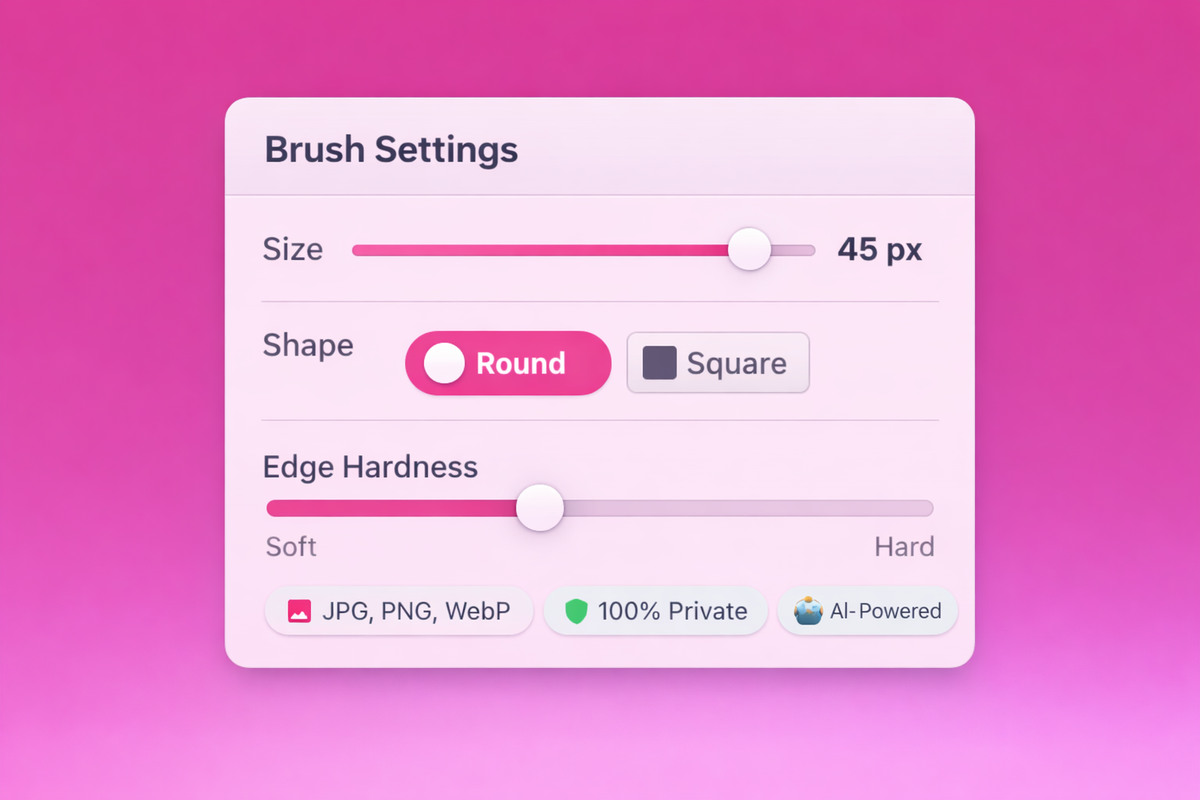
Magic Eraser brush settings panel showing adjustable brush size slider from 5px to 100px, round and square shape options, and edge hardness controls.
Step 4: Brush Over the Object You Want to Remove
Now comes the fun part.
Using your mouse (or finger on mobile), paint over the object you want to remove. As you brush, you'll see a colored mask overlay showing exactly what area you've selected.
Important tips while brushing:
- Cover the entire object — Don't leave gaps. Include shadows and reflections too.
- Stay slightly outside the edges — A small buffer around the object helps the AI create a cleaner fill.
- Don't over-paint — Only cover what needs to be removed. Painting over too much surrounding area can affect the fill quality.
If you make a mistake, use the Undo button to go back. The tool supports full undo/redo history.
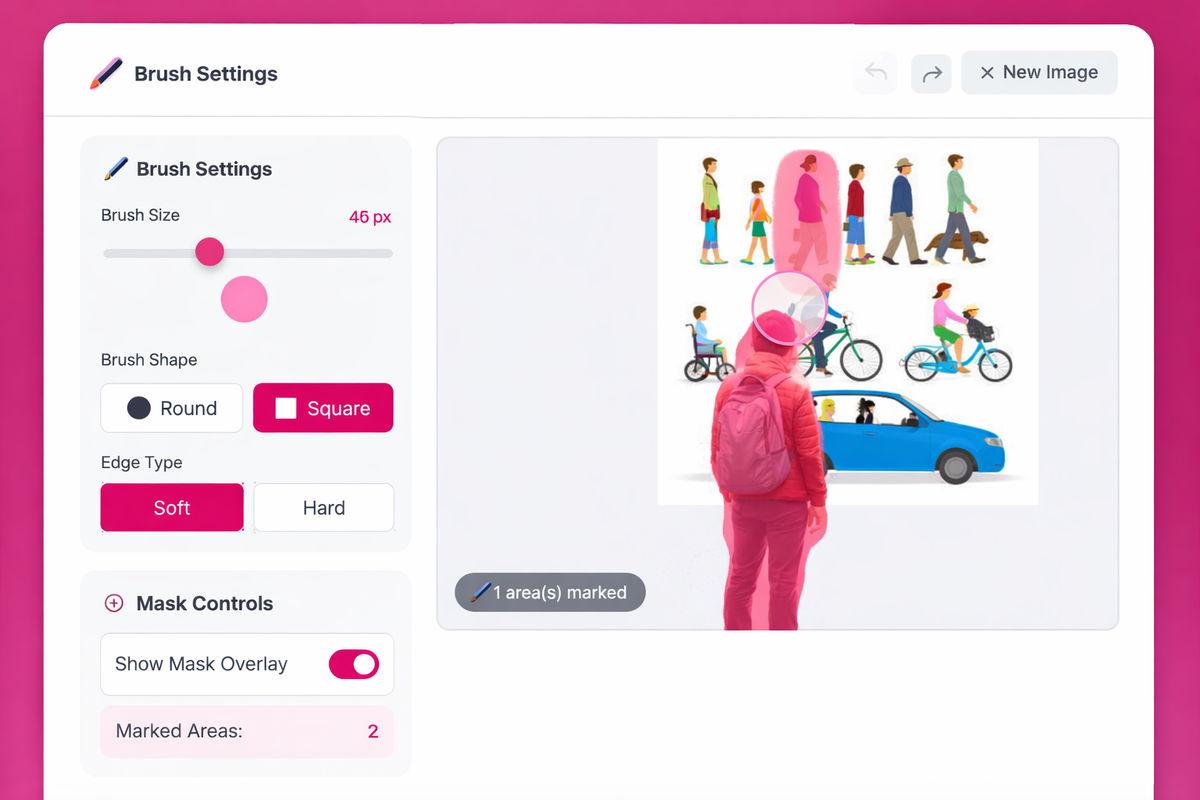
Magic Eraser tool showing a user brushing over an unwanted person in a photo with the pink/red mask overlay visible covering the area selected for removal.
Step 5: Click Erase and Watch the Magic
Hit the Erase button (or similar action button). The AI will:
- Analyze the selected area and its surroundings
- Understand the context (what textures, colors, and patterns should be there)
- Generate fill content that matches the surrounding area
- Replace the selected area with the generated fill
This typically takes just a few seconds.
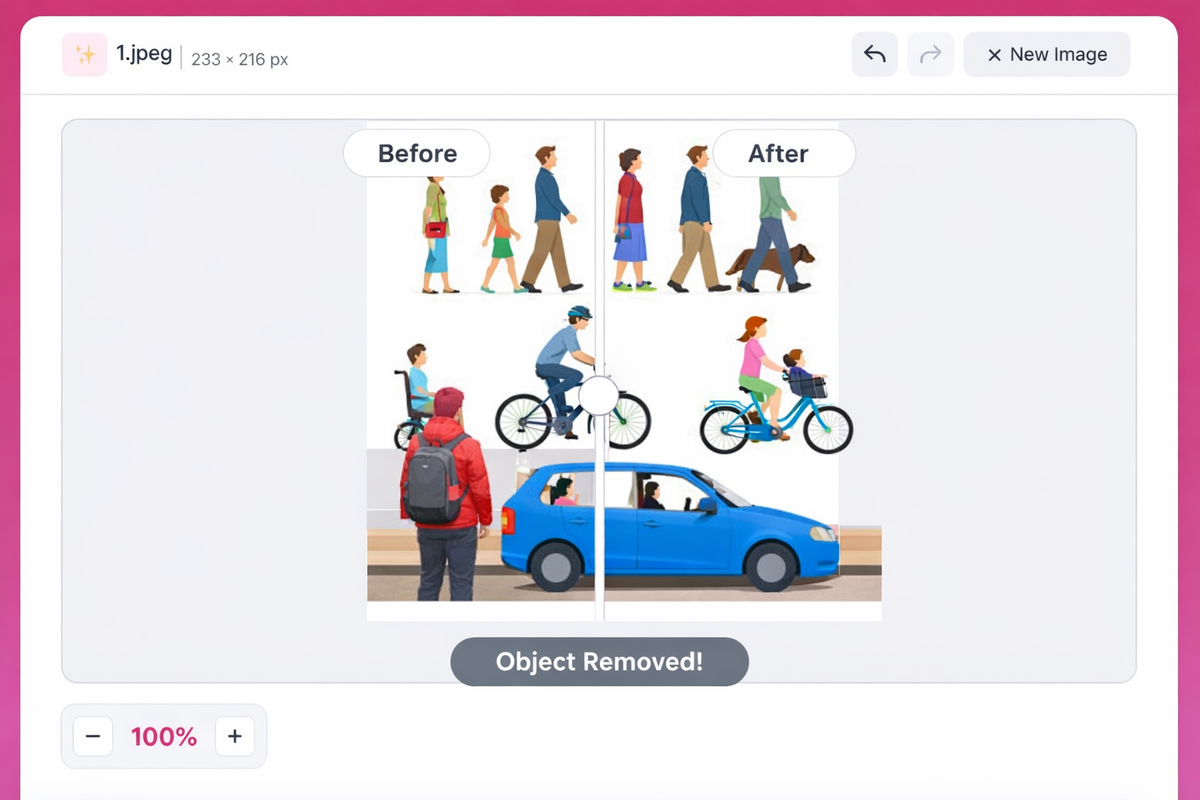
Magic Eraser result showing the unwanted person completely removed from the photo with the background seamlessly filled in by AI, with before-after comparison slider visible.
Step 6: Compare Before and After
Use the before/after comparison slider to drag back and forth between the original and edited versions. This helps you:
- Verify the removal looks natural
- Check for any remaining artifacts
- Decide if another pass is needed
If you're not satisfied with the result, you can:
- Undo and try again with a different brush size
- Add more brush strokes to cover areas you missed
- Process again for a potentially different AI fill
Step 7: Download Your Edited Photo
When you're happy with the result:
- Click Download
- The image saves as a high-quality PNG (lossless)
- No watermarks are added
- The file is ready to use, share, or print
Real-World Use Cases
The Magic Eraser isn't just a fun toy. It solves genuine problems for different types of users.
Travel Photography
You woke up at dawn to photograph the Eiffel Tower with nobody around. But there's always that one person. The Magic Eraser lets you get the clean landmark shot you wanted, even when reality doesn't cooperate.
E-Commerce and Product Photography
Product photos need to be clean and professional. Remove background distractions, unwanted labels, or imperfections from product images to create listings that build buyer confidence.
Real Estate Photography
Property photos look better without the current owner's personal items, clutter, or random objects. Clean up listing images to help potential buyers see the space, not the stuff.
Professional Portraits and Headshots
Remove minor skin blemishes, stray hairs, or background distractions from professional headshots. Quick touch-ups that would otherwise require expensive editing software.
Social Media Content
Perfect your Instagram, TikTok, and Facebook photos. Remove anything that distracts from your subject — trash on the ground, an awkward sign, someone's arm at the edge of the frame.
Creative and Design Projects
Clean up reference images, remove distracting elements from backgrounds before adding text overlays, or prepare images for graphic design work.
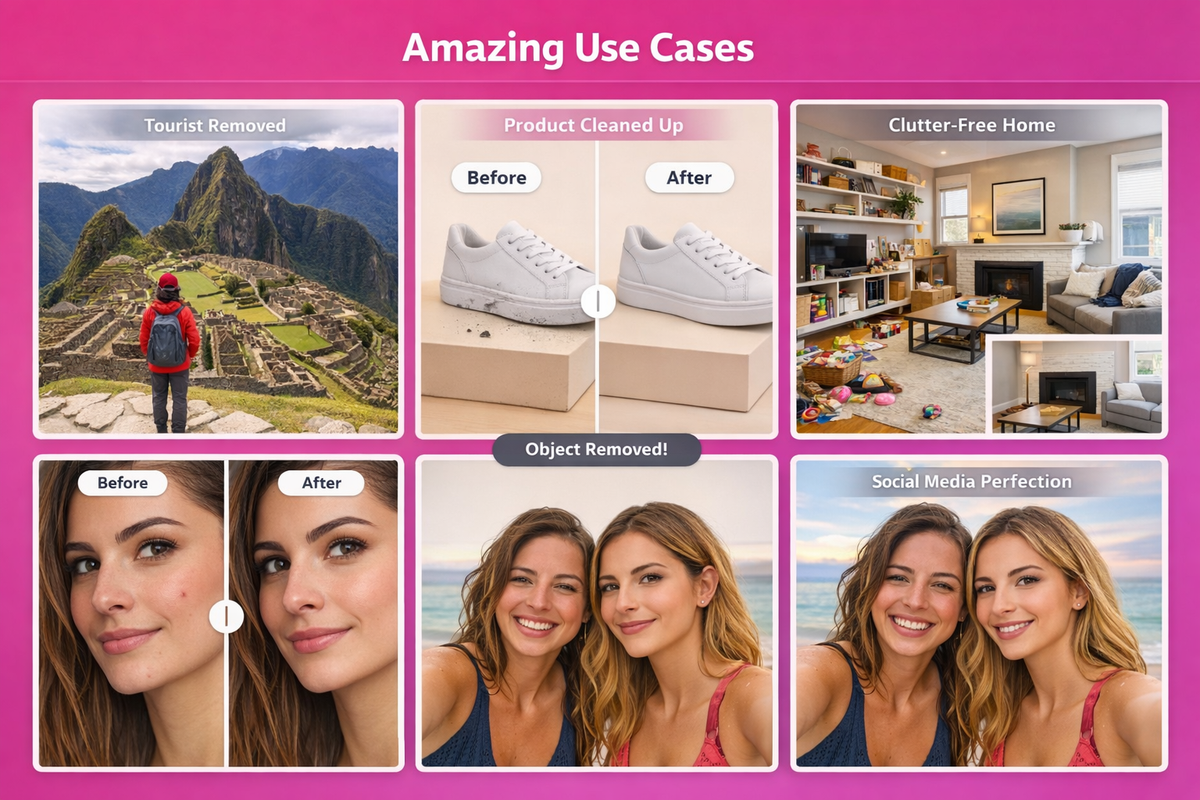
Collage showing Magic Eraser use cases: tourist removed from travel photo, product image cleaned up, real estate clutter removed, portrait blemish fixed, and social media photo perfected.
Tips for Getting the Best Results
AI-powered removal is impressive, but a few smart practices can significantly improve your results.
Tip 1: Cover the Complete Object Including Shadows
This is the most important tip. When brushing, don't just cover the object itself — also cover its shadow and reflection. Leaving a shadow behind after removing the object is the most common giveaway that something was edited.
Tip 2: Use the Right Brush Size
Too small and you'll miss edges, leaving visible remnants. Too large and you'll unnecessarily affect surrounding areas, making the fill harder for the AI. Slightly larger than the object is the sweet spot.
Tip 3: Works Best with Consistent Backgrounds
The AI performs best when the area surrounding the removed object has consistent textures and patterns. Removing a person standing in front of a plain wall or uniform grass will look more seamless than removing someone standing at the intersection of three different textures.
For complex backgrounds, you might need multiple passes — erase once, check the result, then touch up any remaining artifacts with a second pass.
Tip 4: Zoom In for Detailed Work
Use the zoom controls to get closer to the object you're removing. This helps you make more precise brush strokes, especially for:
- Small objects (blemishes, small text)
- Objects near important elements you want to keep
- Fine details that need careful selection
Tip 5: Always Use the Before/After Compare
Before downloading, always drag the comparison slider back and forth. What looks good zoomed in might show issues when you see the full image, or vice versa. The compare feature catches problems before you commit to the edit.
Tip 6: Try Multiple Passes for Complex Removals
If the first erasure isn't perfect, don't give up:
- Remove the main object first
- Check the result
- If there are remaining artifacts, brush over just those artifacts
- Erase again — the AI often does better on smaller cleanup passes
Privacy and Security
Old family photos, personal selfies, professional headshots, client work — many of the photos you'd use a Magic Eraser on are private and sensitive.
PicDitt's Magic Eraser processes everything directly in your browser using client-side AI technology:
- Your photos are never uploaded to any server
- No images are stored anywhere
- No data is shared with third parties
- When you close the tab, the processing data is gone
This is especially important if you're editing:
- Personal photos you'd rather keep private
- Client work under confidentiality agreements
- Professional portraits of other people
- Photos containing identifying information
The AI model runs locally on your device using your browser's processing power. Only the downloaded result file exists after you're done.
Technical Details
For those who want to know the specifics:
Specification
Details
Supported Input Formats
JPG, PNG, WebP, GIF, BMP, TIFF
Output Format
High-quality PNG (lossless)
AI Technology
Neural network with content-aware inpainting
Brush Size Range
5px to 100px (adjustable)
Brush Shapes
Round and Square with soft/hard edges
Processing
100% client-side (browser-based)
Privacy
No server uploads, complete privacy
Device Support
Desktop, tablet, and mobile browsers
Frequently Asked Questions
Is the Magic Eraser free?
Yes. Completely free with no subscriptions, no watermarks, and no hidden fees.
Do I need to install any software?
No. The tool runs entirely in your web browser. No app or software download is required. It works on desktop, tablet, and mobile devices.
Are my photos uploaded to a server?
No. All AI processing happens locally in your browser. Your images never leave your device, ensuring complete privacy.
Can I remove multiple objects from the same photo?
Yes. After removing one object, you can brush over another area and erase again. You can make as many edits as you want before downloading.
What if the removal doesn't look perfect?
Use the undo function and try again with a different brush size or coverage area. You can also make multiple passes — remove the main object first, then do a second pass to clean up any remaining artifacts.
Does it work on complex backgrounds?
It works best when the background around the removed object has consistent patterns. Complex backgrounds (where multiple different textures meet behind the object) may require multiple passes for the cleanest result.
What format does it save in?
All edited images are saved as high-quality PNG files with lossless compression, preserving maximum quality.
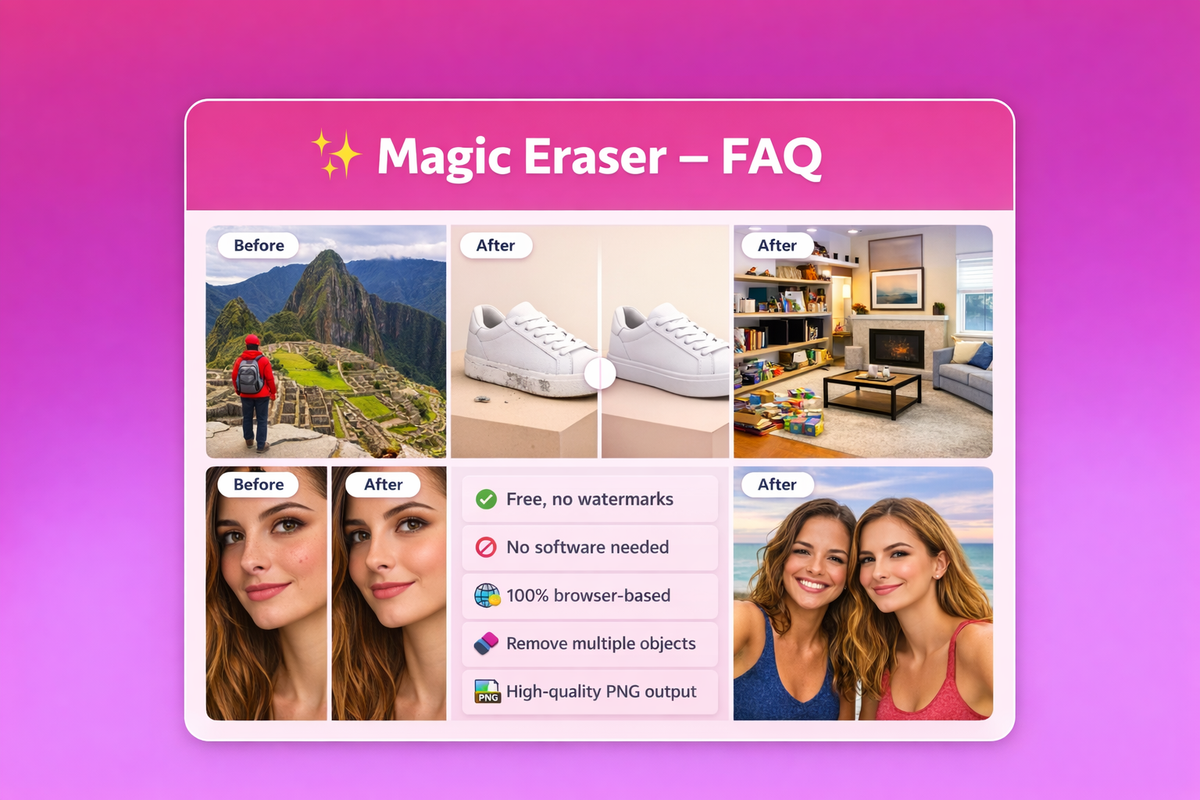
FAQ summary graphic for PicDitt's Magic Eraser tool highlighting that it's free with no watermarks, requires no software, processes in-browser, supports multiple removals, and exports high-quality PNG.
Your Photos Deserve to Look the Way You Remember the Moment
Every photo captures a moment that mattered to you. But reality isn't always as clean as memory. There's always a stranger in the background, a piece of trash on the ground, a wire cutting through the sky, or a blemish that showed up at the worst possible time.
PicDitt's free Magic Eraser at:
https://picditt.com/editing/magic-eraser
lets you clean up those imperfections in seconds. Brush over what doesn't belong, let the AI fill in what should be there, and download a photo that matches how you actually remember the moment.
No Photoshop expertise. No expensive subscriptions. No privacy concerns.
Just brush, erase, and let the magic happen.
Call-to-action banner inviting readers to erase unwanted objects from photos using PicDitt's free AI Magic Eraser tool.
You Might Also Like

Screenshot Editor – Edit, Annotate & Share Screenshots Like a Pro
Edit screenshots instantly with PicDitt's free online screenshot editor. Add text, arrows, shapes, blur sensitive info, crop, and export in PNG, JPEG, or WebP. No signup required.
Read More →
How to Compress Images to an Exact File Size: The Complete Guide to Target Compression
Need your image to be exactly 500KB for a government form or under 25MB for Gmail? Learn how to compress any image to a precise file size using PicDitt's free Target Compression tool—without guessing quality settings or losing more quality than necessary.
Read More →
Batch Image Processing Made Simple: Resize, Compress, Convert & Rename Hundreds of Photos at Once
Manually editing hundreds of images one by one is a waste of your time. Learn how to use PicDitt's free Batch Image Processing tool to resize, compress, convert, and rename entire photo collections in minutes—all directly in your browser with complete privacy.
Read More →