Screenshot Editor – Edit, Annotate & Share Screenshots Like a Pro
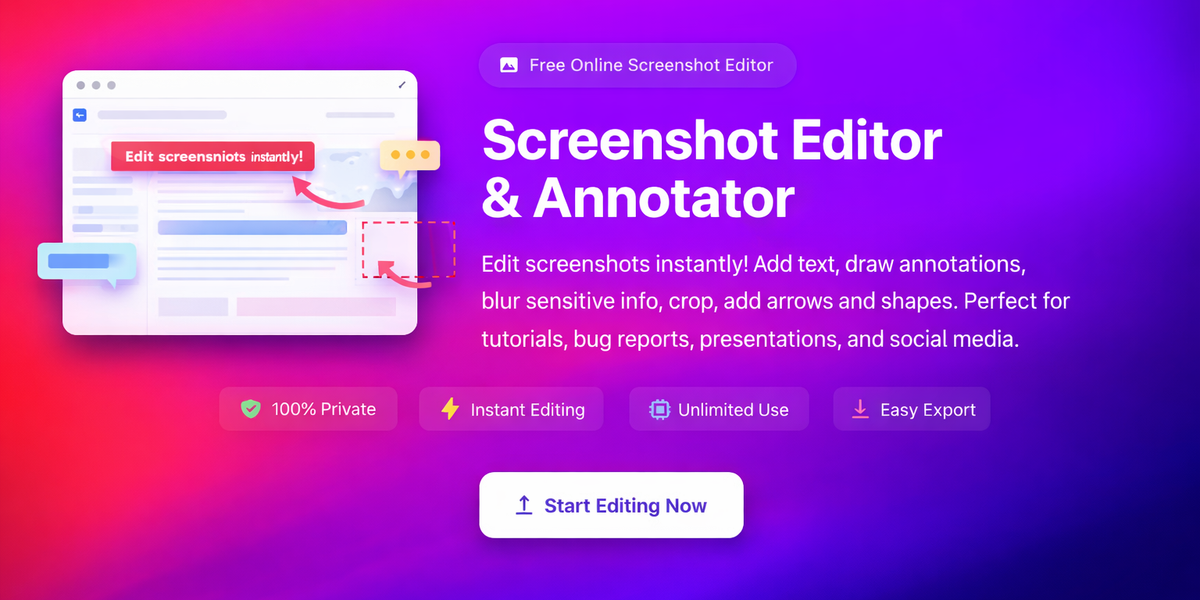
Screenshot Editor: Edit, Annotate & Share Your Screenshots Like a Pro
Screenshots have quietly become one of the most powerful communication tools in the digital age. From walking a colleague through a software setup to filing a bug report, from building a tutorial for your blog to hiding sensitive information before sharing a screen grab on social media — the humble screenshot does a lot of heavy lifting every single day.
But here's the truth: a raw, unedited screenshot rarely gets the job done. It's cluttered, unfocused, and often exposes information you didn't intend to share. That's exactly why you need a dedicated screenshot editor.
In this guide, we'll walk you through everything you need to know about editing screenshots effectively — and introduce you to a free, powerful, browser-based tool that makes the entire process effortless: PicDitt Screenshot Editor.
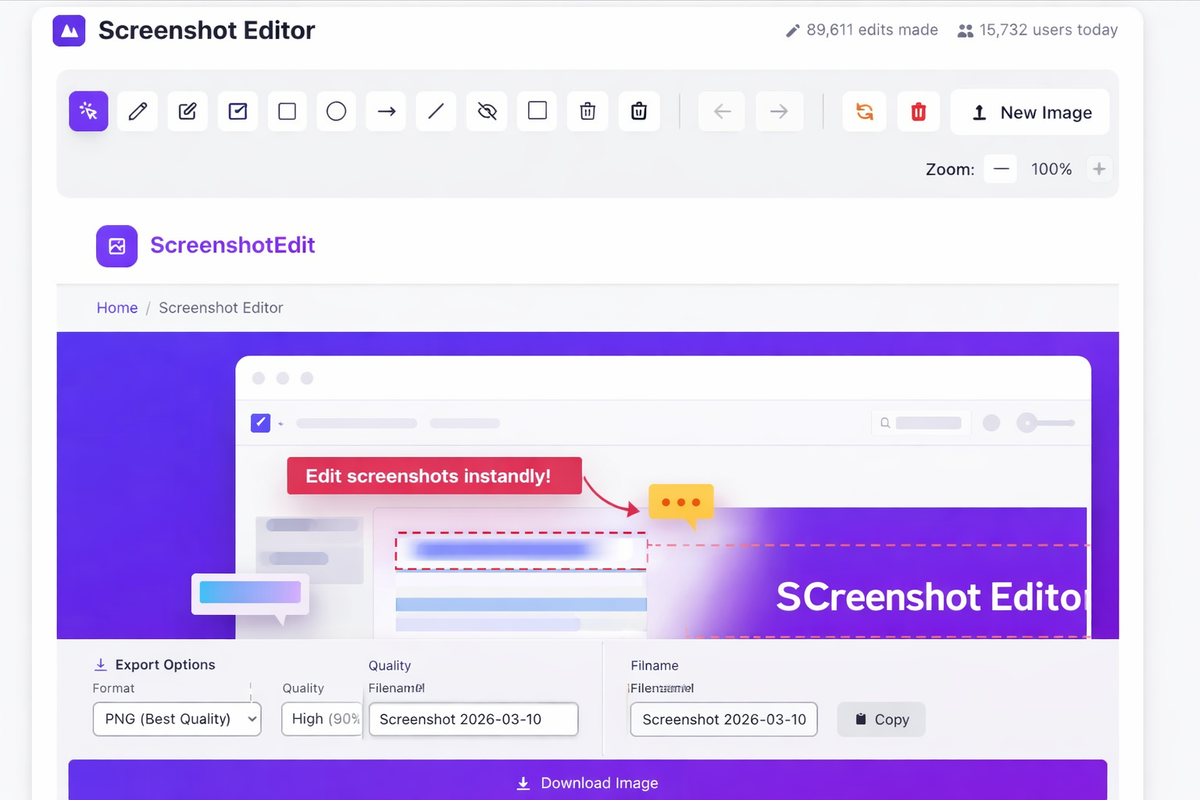
PicDitt Screenshot Editor interface with annotation tools and a sample screenshot being edited
What Is a Screenshot Editor?
A screenshot editor is a specialized image editing tool built for one purpose: to help you modify, annotate, and enhance screen captures quickly and efficiently.
Unlike heavyweight image editors such as Photoshop or GIMP, a screenshot editor focuses on the tools you actually need for documentation and communication:
- Text overlays for labels and instructions
- Arrows and shapes to direct attention
- Blur and redaction to hide sensitive data
- Cropping to remove distractions
- Export options for different formats and platforms
The PicDitt Screenshot Editor is a web-based tool that runs entirely in your browser. There's nothing to download, no account to create, and — critically — your images never leave your device. All processing happens locally using JavaScript, which means complete privacy for every screenshot you edit.
Why Do You Need a Screenshot Editor?
If you've ever spent five minutes typing out a paragraph to explain something that a single annotated screenshot could show in two seconds, you already know the answer.
Here's why a screenshot editor is essential in 2025:
1. Clear, Instant Communication
An arrow pointing to a button is worth a thousand words. Annotated screenshots eliminate ambiguity and reduce back-and-forth in emails, Slack threads, and project management tools.
2. Professionalism
Raw screenshots — with notification bars, cluttered desktops, and open tabs you forgot about — look sloppy. A quick crop and a few clean annotations transform a messy grab into a polished visual.
3. Privacy & Security
Screenshots frequently capture sensitive information by accident: email addresses, passwords, financial data, personal messages. A blur or redaction tool is non-negotiable.
4. Better Content
Bloggers, YouTubers, educators, and marketers use annotated screenshots constantly in tutorials, reviews, how-to articles, and social media posts. Clean visuals drive engagement.
5. Faster Bug Reporting
Developers and QA teams rely on annotated screenshots to communicate exactly where and how a bug occurs — saving hours of guesswork.
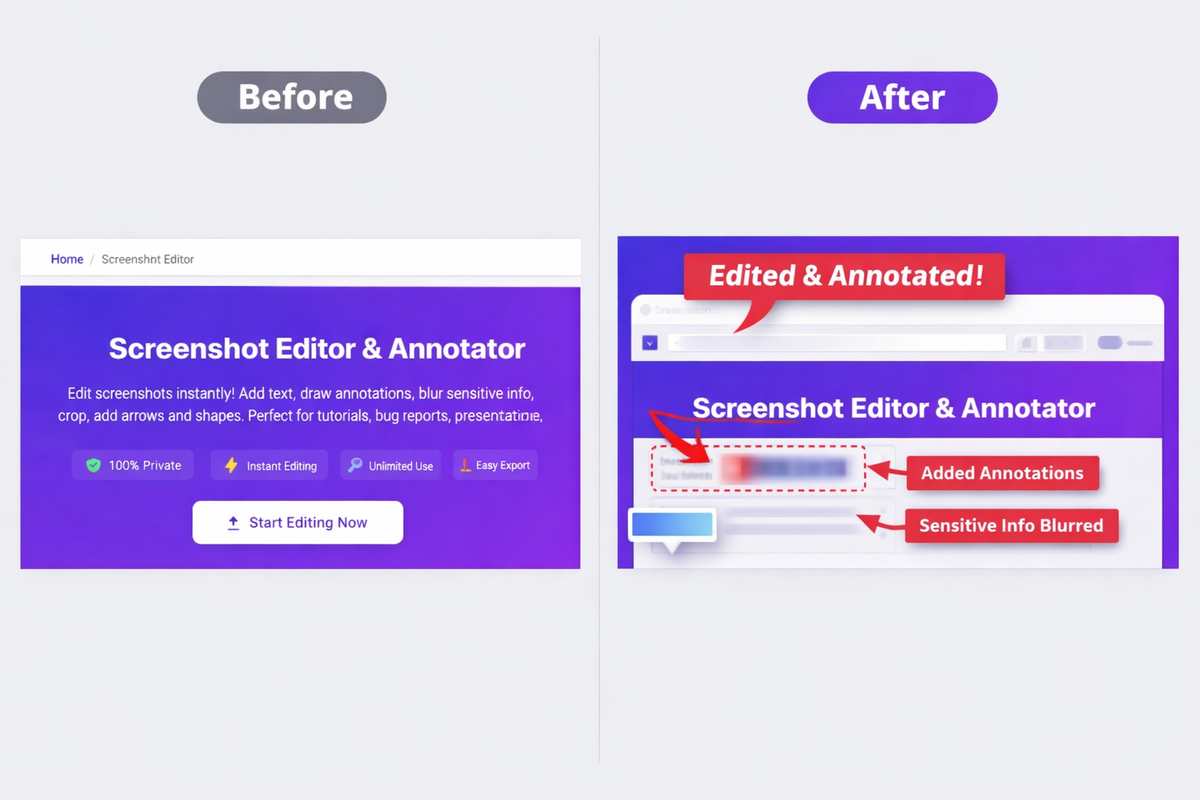
Before and after screenshot editing comparison – raw screenshot vs annotated and edited version
How PicDitt Screenshot Editor Works
The PicDitt Screenshot Editor is designed for speed and simplicity. You can go from raw screenshot to polished, annotated image in under a minute. Here's the process:
Step 1: Upload Your Image
Drag and drop your screenshot onto the editor — or click to browse and select a file. The tool supports PNG, JPEG, WebP, GIF, BMP, and even HEIC formats, with files up to 50 MB in size.
Step 2: Select Your Tool
Choose from the toolbar: pen, highlighter, text, arrows, shapes, blur, crop, and more. Every tool is adjustable — change colors, sizes, fonts, and opacity to match your needs.
Step 3: Make Your Edits
Draw freehand annotations, add text callouts, blur out sensitive areas, draw arrows to key elements, drop shapes around important sections, and crop away the clutter.
Step 4: Export
Download your finished image in PNG, JPEG, or WebP format with adjustable quality settings. That's it — no watermarks, no signup, no cost.
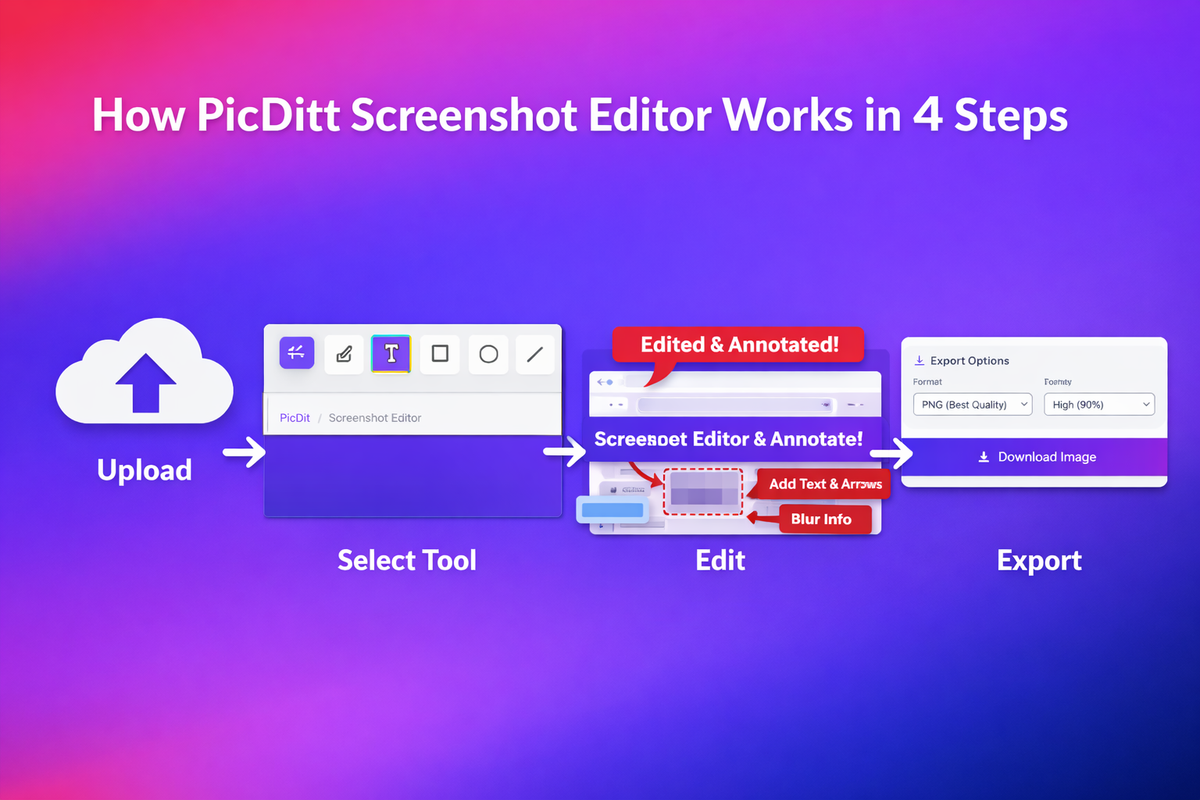
How PicDitt Screenshot Editor works in 4 steps – Upload, Select Tool, Edit, Export
Powerful Editing Features
Let's take a closer look at what the PicDitt Screenshot Editor offers:
✏️ Drawing Tools
Freehand pen and highlighter tools with adjustable size and color. Perfect for circling elements, underlining text, or drawing attention to specific areas of your screenshot.
🔤 Text Annotations
Add custom text anywhere on your image. Choose from multiple fonts, sizes, colors, and styling options (bold, italic). Ideal for labeling buttons, adding instructions, or creating numbered steps.
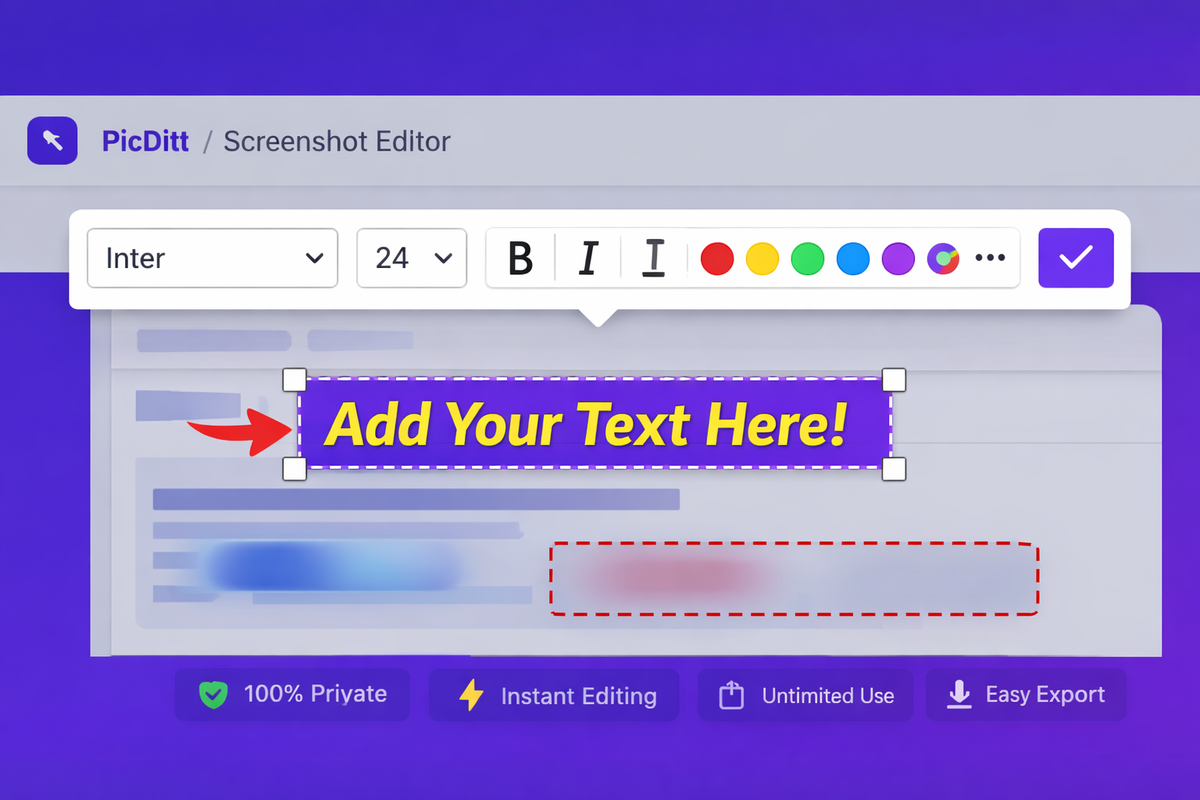
Adding text annotations to a screenshot using PicDitt Screenshot Editor
🔒 Blur & Redact
This is one of the most important features. Use the blur tool to obscure sensitive information — email addresses, passwords, phone numbers, financial data — or use solid color redaction for complete coverage.
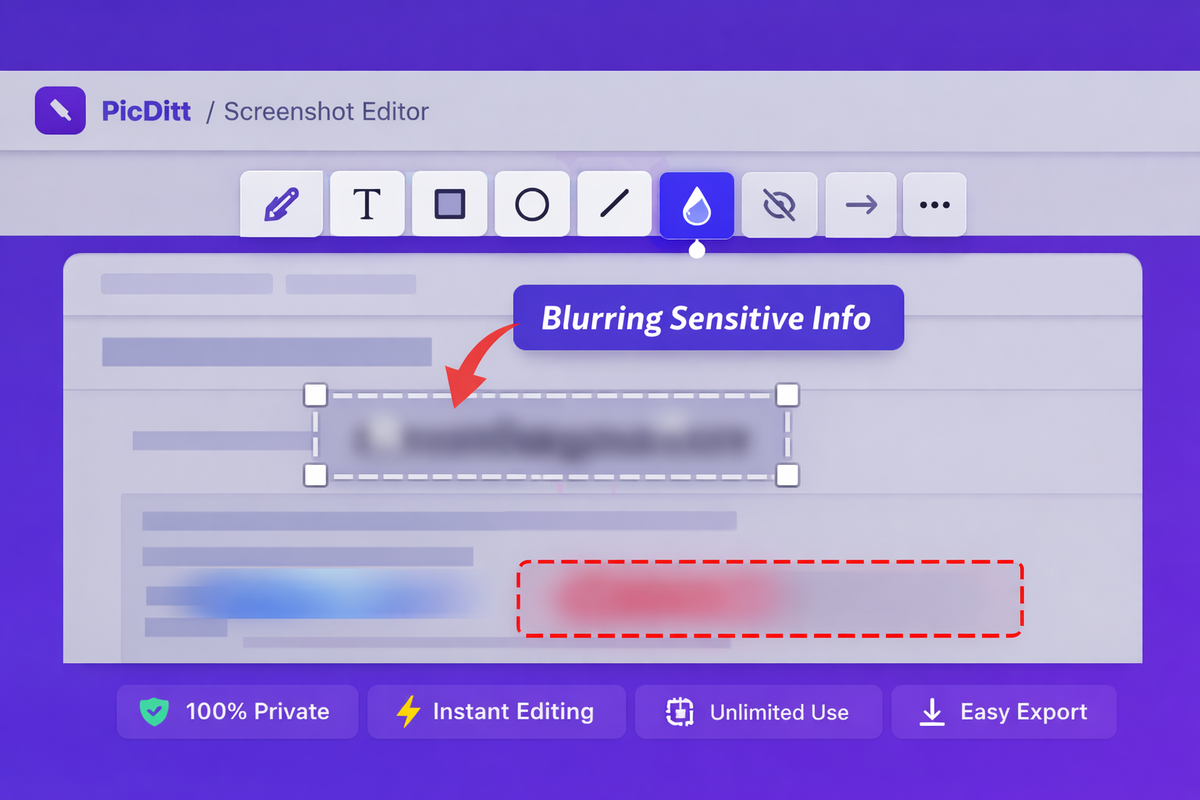
Blurring sensitive information in a screenshot using PicDitt's blur tool
➡️ Shapes & Arrows
Add rectangles, circles, arrows, and lines to highlight specific areas. Arrows are especially valuable for tutorials — they show the user exactly where to look or click.
✂️ Crop Tool
Remove unnecessary borders, taskbars, and irrelevant parts of the screen. The crop tool lets you focus the viewer's attention on exactly what matters.
📤 Multiple Export Formats
Export in the format that suits your use case:
Format
Best For
Key Benefit
PNG
Screenshots with text, tutorials
Lossless compression, crisp edges
JPEG
Sharing via email or chat
Smaller file size
WebP
Web publishing
Excellent compression + quality
Pro Tips for Better Screenshot Editing
Getting the most out of your screenshot editor comes down to a few best practices. Here are expert tips that will elevate your edits:
🔹 Use the Blur tool for sensitive info — Always check for visible emails, passwords, personal data, or confidential information before sharing.
🔹 Arrows + text = perfect tutorials — Combine arrow annotations with short text labels for maximum clarity in documentation and how-to content.
🔹 Export as PNG for text-heavy screenshots — PNG preserves the sharpness of text far better than JPEG, which can introduce compression artifacts around letters.
🔹 Use Ctrl+Z freely — Made a mistake? Hit undo (or use the Undo button). PicDitt supports unlimited undo/redo steps, so experiment without fear.
🔹 Crop aggressively — Remove everything that doesn't serve your message. A tightly cropped screenshot is always more impactful.
🔹 Use consistent colors — Stick to one or two annotation colors throughout a document or tutorial. Red for attention, blue for information is a classic combination.
🔹 Number your steps — For sequential tutorials, use numbered text annotations (1, 2, 3…) to guide readers through the process logically.
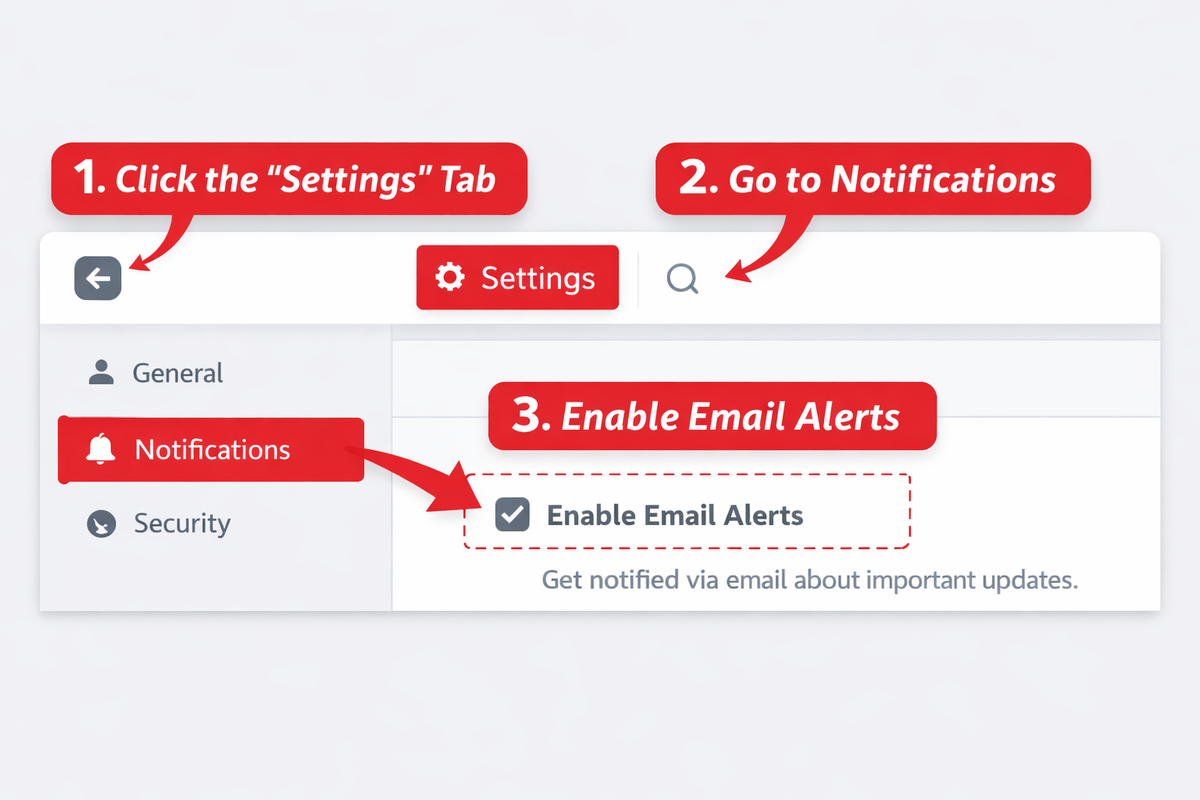
Example of a well-annotated tutorial screenshot with numbered steps, arrows, and text labels
Common Use Cases
The PicDitt Screenshot Editor is designed for a wide range of real-world applications:
📚 Software Tutorials & Documentation
Create clear, step-by-step guides with numbered annotations, arrows pointing to buttons, and highlighted menu items. Perfect for knowledge bases, help centers, and onboarding docs.
🐛 Bug Reports
Document software issues with precision. Annotate exactly where the problem occurs — developers will thank you for clear, visual bug reports instead of vague descriptions.
🎓 Training & Education
Build visual training materials for employees, students, or customers. Annotated screenshots make complex software interfaces simple to understand.
📊 Presentations
Enhance your slide decks with annotated screenshots that draw attention to key features, data points, or UI elements.
📱 Social Media
Create engaging visual content by adding text overlays, highlights, and annotations to screenshots before posting on Twitter, LinkedIn, Instagram, or Pinterest.
🛠️ Customer Support
Guide customers through troubleshooting steps with annotated visuals that show exactly what to click, toggle, or configure. Reduce support ticket resolution time dramatically.
⚖️ Legal & Compliance
Capture digital evidence while properly redacting sensitive personal information using the blur and redaction tools.
Why Choose PicDitt Over Other Screenshot Editors?
There are many screenshot editing tools available — Snagit, ShareX, Greenshot, Lightshot, Markup Hero. So why choose PicDitt?
Feature
PicDitt
Many Alternatives
Price
100% Free forever
Free tiers with limits, or paid
Account Required
No
Often yes
Software Installation
None — browser-based
Usually required
Watermarks
Never
Some add watermarks on free plans
Privacy
All processing is local — images never leave your device
Many upload to cloud servers
Cross-Platform
Any device with a browser (Windows, Mac, Linux, iOS, Android)
Often platform-specific
Always Updated
Automatic — always the latest version
Manual updates required
Export Formats
PNG, JPEG, WebP
Varies
The combination of zero cost, complete privacy, no installation, no account, and no watermarks makes PicDitt a standout choice for anyone who needs to edit screenshots regularly.
Technical Specifications
For the power users, here's a quick spec sheet:
Specification
Details
Supported Input Formats
PNG, JPEG, WebP, GIF, BMP, HEIC
Export Formats
PNG, JPEG, WebP
Maximum File Size
50 MB
Processing
Client-side (your browser)
Undo/Redo History
Unlimited steps
Mobile Support
Fully responsive, touch-enabled
Cost
Free — no premium tiers
Registration
Not required
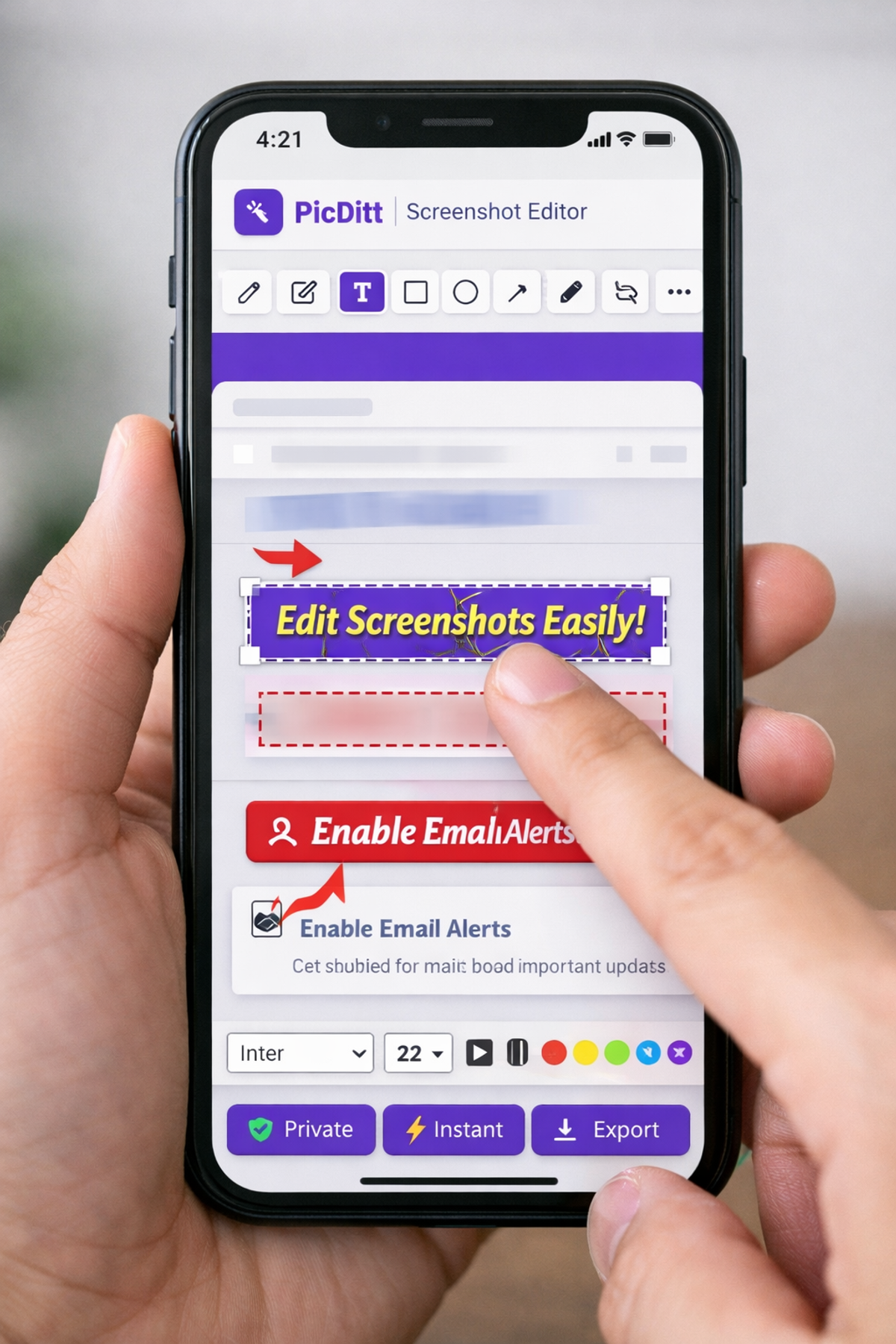
PicDitt Screenshot Editor on mobile — fully responsive and touch-enabled
Start Editing Your Screenshots Today
Screenshots are one of the most underappreciated tools in digital communication. When edited well — cropped, annotated, and cleaned up — they save time, reduce confusion, and make you look professional.
The PicDitt Screenshot Editor gives you everything you need to turn raw screen captures into polished, powerful visuals:
✅ Completely free — forever
✅ No signup or account needed
✅ No software to install
✅ No watermarks on exports
✅ Total privacy — images never leave your device
✅ Works on any device with a browser
Stop sharing messy, unedited screenshots. Start editing like a pro.
👉 Try PicDitt Screenshot Editor now — it's free
Edit your screenshots for free with PicDitt – no signup required – try now
You Might Also Like
Magic Eraser Online: How to Remove Unwanted Objects from Photos with AI
Photobombers, power lines, watermarks, blemishes—every photo has something you wish wasn't there. Learn how to use PicDitt's free Magic Eraser to brush over any unwanted object and watch AI remove it seamlessly, all directly in your browser with complete privacy.
Read More →
How to Compress Images to an Exact File Size: The Complete Guide to Target Compression
Need your image to be exactly 500KB for a government form or under 25MB for Gmail? Learn how to compress any image to a precise file size using PicDitt's free Target Compression tool—without guessing quality settings or losing more quality than necessary.
Read More →
Batch Image Processing Made Simple: Resize, Compress, Convert & Rename Hundreds of Photos at Once
Manually editing hundreds of images one by one is a waste of your time. Learn how to use PicDitt's free Batch Image Processing tool to resize, compress, convert, and rename entire photo collections in minutes—all directly in your browser with complete privacy.
Read More →