Batch Image Processing Made Simple: Resize, Compress, Convert & Rename Hundreds of Photos at Once
Batch Image Processing Made Simple: Resize, Compress, Convert & Rename Hundreds of Photos at Once
Let me describe a scenario you've probably lived through.
You've got 200 product photos that need to be resized to 1080×1080 for your online store. Or maybe you just got back from a trip with 500 pictures on your camera, and you need them compressed small enough to email to your family. Or perhaps you're a real estate agent with 30 property walkthroughs worth of photos that all need consistent naming before uploading to listing platforms.
So you open your photo editor. You resize the first image. Export. Open the second image. Resize. Export. Open the third. Resize. Export.
By the tenth photo, you're questioning your life choices. By the fiftieth, you're googling "how to process multiple images at once." By the hundredth—well, most people never get to the hundredth because they give up or lose their minds somewhere around photo number sixty-three.
Here's the thing: you should never have to do the same edit to hundreds of images one at a time. That's what batch processing exists for.
And PicDitt offers a free Batch Image Processing tool at https://picditt.com/compress/batch-image-processing that lets you resize, compress, convert, and rename entire collections of images simultaneously—right in your browser. No software to install. No files uploaded to any server. No limits on how many images you process.
Upload your whole folder. Set your options once. Click one button. Download everything in a ZIP.
That's it. What used to take hours now takes minutes.
Let me walk you through how it works, who it's for, and how to get professional results without the professional price tag.
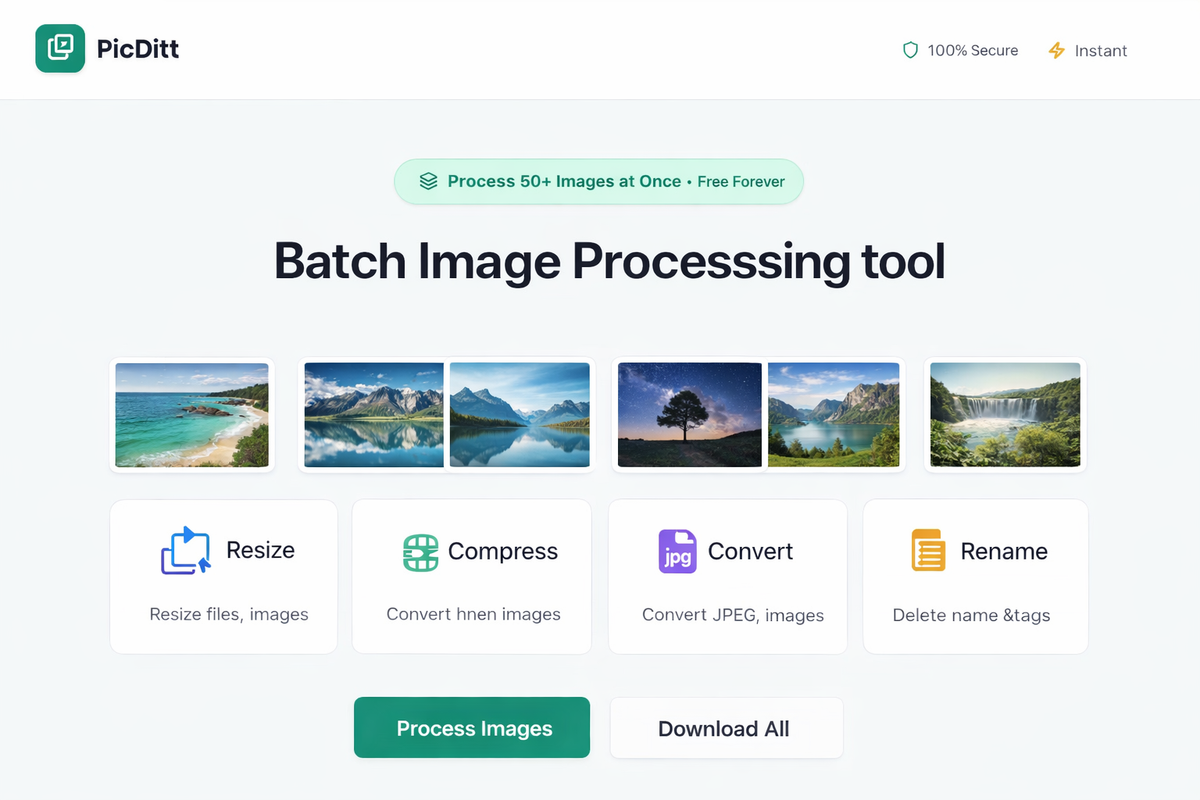
Screenshot of PicDitt's Batch Image Processing tool with multiple images loaded, showing resize, compress, convert, and rename options with process and download buttons.
What Is Batch Image Processing?
Batch image processing is exactly what it sounds like: applying the same edits or transformations to multiple images at the same time instead of doing them one by one.
Think of it like a factory assembly line for photos. Instead of hand-crafting each image individually, you set up the process once—resize to this size, compress to this quality, convert to this format, name them this way—and then every image runs through the same pipeline automatically.
The result is identical: every image gets the same treatment, every time, with zero variation and zero manual repetition.
What Can You Batch Process?
With PicDitt's tool, you can batch:
- Resize – Scale by percentage, set exact pixel dimensions, or use popular presets
- Compress – Reduce file sizes while controlling quality
- Convert – Change formats between JPG, PNG, and WebP
- Rename – Add prefixes, suffixes, sequential numbers, or replace text in filenames
You can do any one of these operations alone, or combine them all in a single batch. Resize AND compress AND convert AND rename—all at once, all in one click.
Why Batch Processing Matters (The Math of Manual Editing)
Let's do some quick math to see why this matters.
Say you need to resize and compress 200 images. Manually, each image takes about 30-45 seconds:
- Open file → 5 seconds
- Resize → 5 seconds
- Adjust quality/export settings → 10 seconds
- Save/export → 5 seconds
- Close and move to next → 5 seconds
That's roughly 30 seconds per image, assuming you don't make any mistakes or get distracted. For 200 images:
200 × 30 seconds = 6,000 seconds = 100 minutes = over 1.5 hours
Of mind-numbing, repetitive, identical work.
With batch processing:
- Upload all 200 images → 30 seconds
- Set options once → 30 seconds
- Click process → processing takes 1-3 minutes
- Download ZIP → 10 seconds
Total: about 4-5 minutes.
That's not a small improvement. That's going from 100 minutes to 5 minutes. You get 95 minutes of your life back. For a single batch.
If you do this regularly—weekly product uploads, monthly photo galleries, ongoing content creation—batch processing saves you hundreds of hours per year.
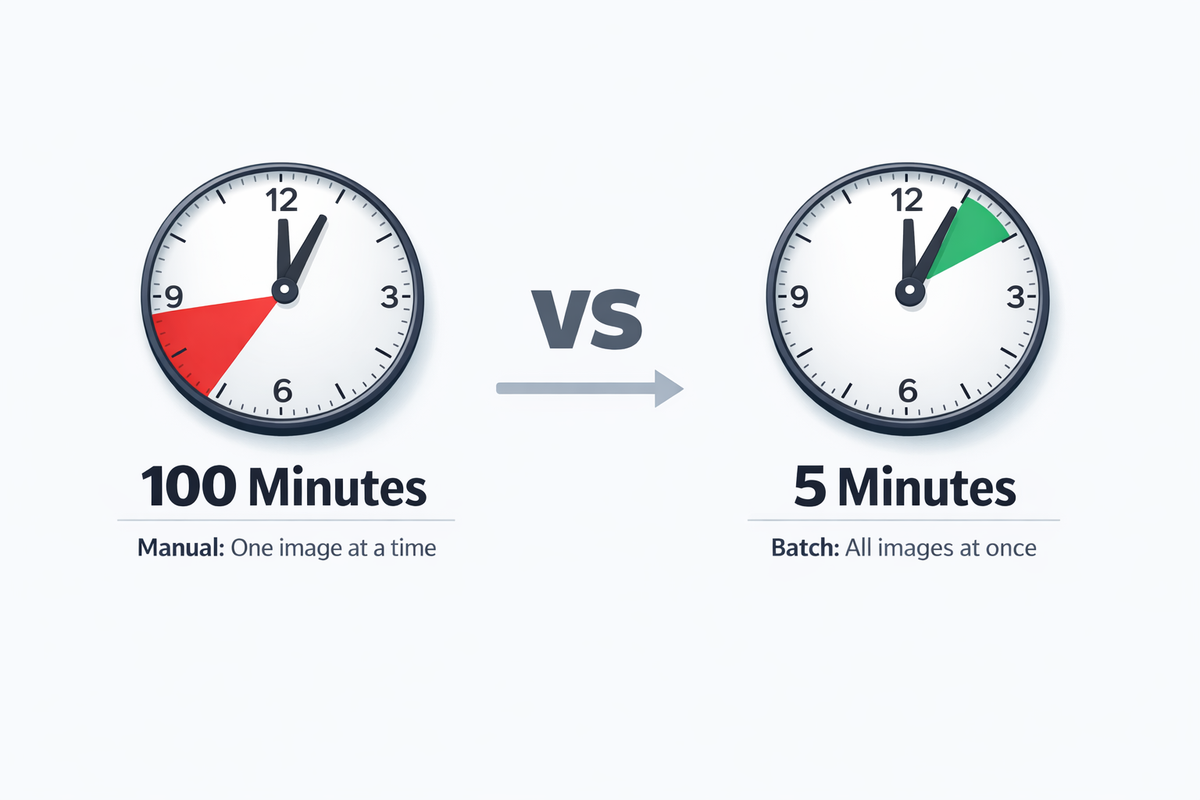
Time comparison showing manual image editing taking 100 minutes for 200 images versus batch processing taking only 5 minutes for the same 200 images.
Who Uses Batch Image Processing?
This isn't a niche tool for tech experts. Batch processing saves time for a surprisingly wide range of people.
Photographers
Wedding photographers, event photographers, and portrait photographers routinely deal with thousands of images per shoot. They need to:
- Resize for web galleries and client previews
- Compress for email delivery
- Rename with consistent conventions (Wedding_Smith_001, Wedding_Smith_002...)
- Convert to web-friendly formats
Without batch processing, post-production becomes a second full-time job.
E-Commerce Sellers
Online store owners on Amazon, Etsy, Shopify, or eBay need product images that are:
- Consistently sized (platform requirements vary)
- Compressed for fast page loading (speed affects sales and SEO)
- Named descriptively (for organization and search optimization)
When you're managing hundreds or thousands of product listings, manual editing is simply not feasible.
Marketing Teams
Marketing professionals prepare assets for:
- Social media posts across multiple platforms
- Email campaigns with embedded images
- Website banners and blog images
- Digital ads in various sizes
Each platform has different size requirements. Batch processing with presets makes multi-platform preparation painless.
Students and Educators
Students often need to:
- Compress images to meet assignment upload size limits
- Resize project photos for presentations
- Standardize images for group projects or portfolios
Teachers and professors preparing course materials face similar challenges with lecture slides, handouts, and online course content.
Real Estate Professionals
Property photographers and real estate agents process hundreds of listing photos that need:
- Consistent sizing for MLS platforms
- Compression for fast-loading listings
- Organized naming (Property_123_Kitchen_01, Property_123_Kitchen_02...)
App Developers
Mobile and web developers need images at multiple sizes for different screen densities and resolutions. Batch processing generates all required sizes from a single source image.
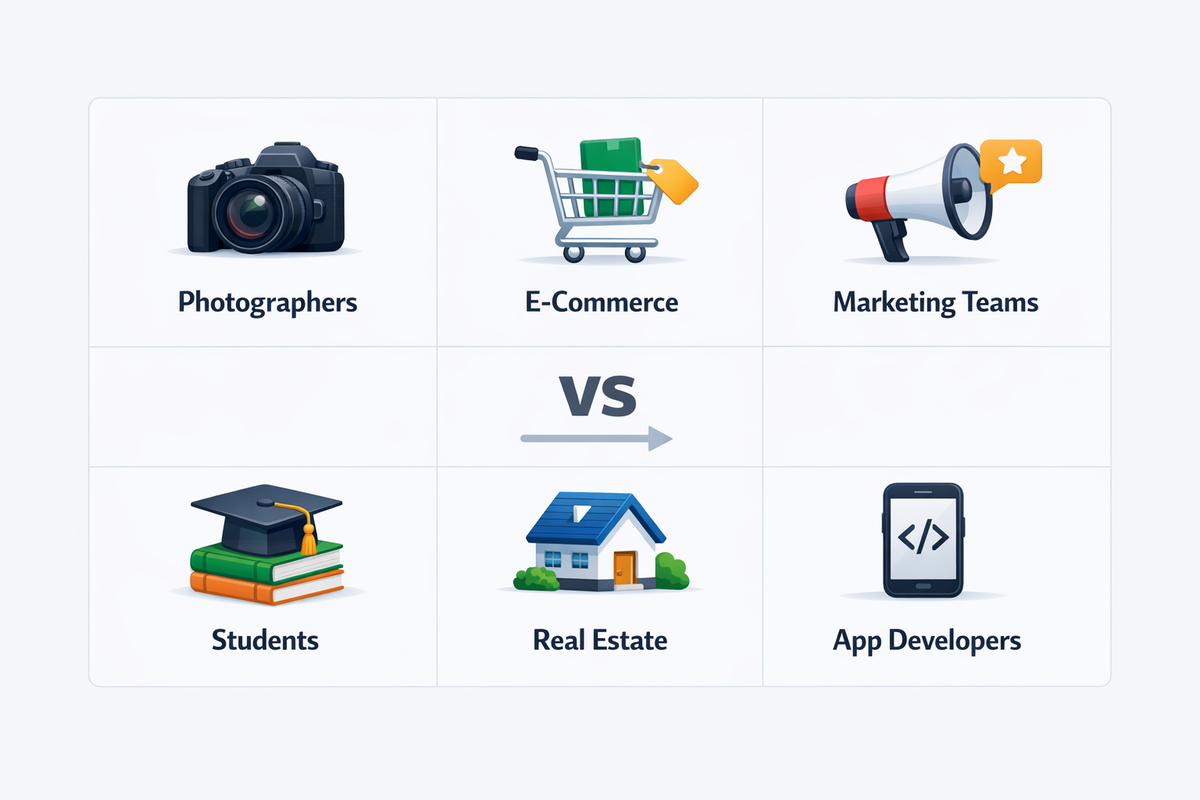
Grid showing six batch image processing use cases with icons: photographers, e-commerce sellers, marketing teams, students, real estate professionals, and app developers.
How PicDitt's Batch Processor Works
The tool follows a simple four-step workflow. Here's the detailed walkthrough.
Step 1: Upload Your Images
Visit:
https://picditt.com/compress/batch-image-processing
Drag and drop your images into the upload area, or click to browse and select files. You can upload 50+ images at once on most devices. Modern computers can handle 100-200 smoothly.
Supported formats: JPG, JPEG, PNG, WebP, GIF, BMP.
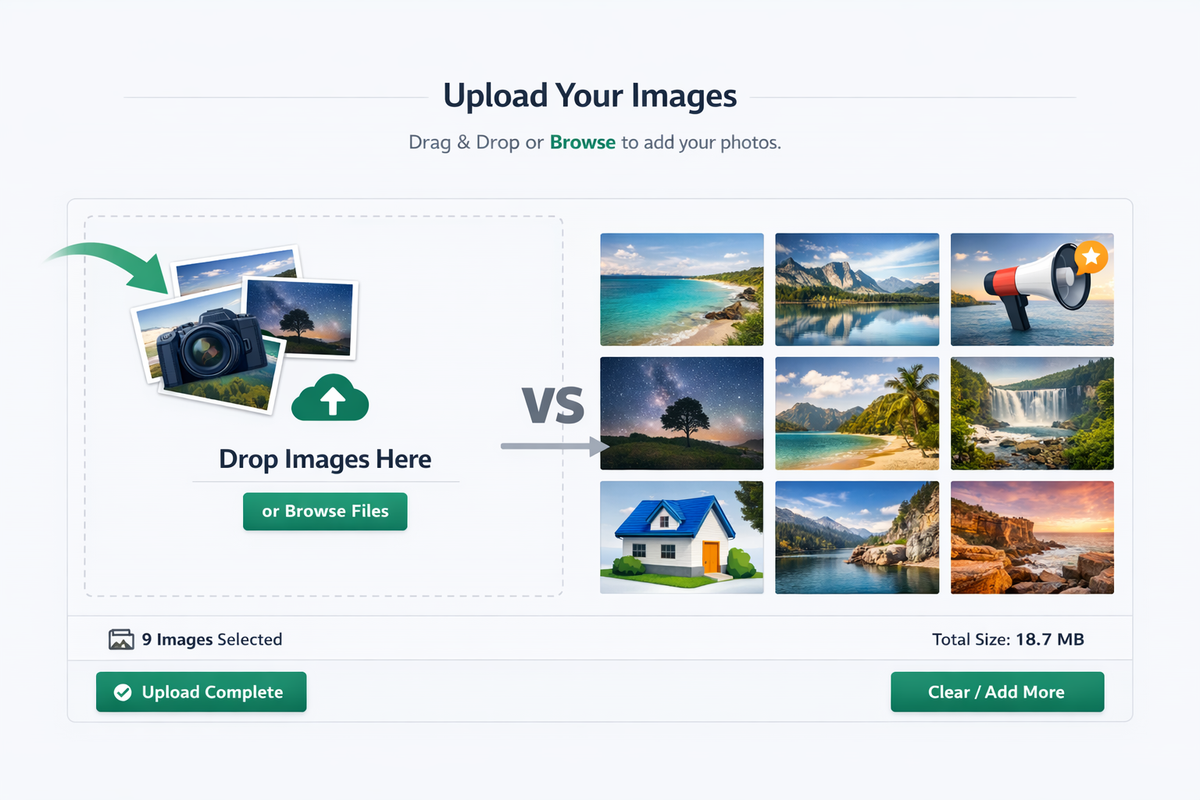
PicDitt Batch Image Processing tool showing multiple images uploaded with file thumbnails visible and drag-and-drop upload area.
Step 2: Configure Your Options
This is where you tell the tool what to do with your images. You have four main categories:
Resize Options
Choose how to resize:
- By Percentage: Enter 50% to halve all images, 200% to double them
- By Exact Pixels: Set width and/or height (aspect ratio lock prevents distortion)
- By Presets: Pick from popular sizes:
- Instagram Post (1080×1080)
- YouTube Thumbnail (1280×720)
- Facebook Cover (820×312)
- And many more
Compression Settings
Control the balance between file size and quality:
- 90-100% – Maximum quality, larger files (best for print/archive)
- 70-80% – Excellent balance (recommended for web)
- 50-70% – Significant compression (good for thumbnails, emails)
- Below 50% – Heavy compression (quality loss becomes visible)
For most web use, 80% quality delivers files that look virtually identical to the original but are significantly smaller.
Format Conversion
Standardize your image formats:
- JPG – Universal compatibility, great for photos
- PNG – Lossless quality, supports transparency
- WebP – Best compression for web, modern browser support
Convert mixed collections (some JPG, some PNG, some random formats) into a single consistent format.
Batch Renaming
Organize filenames automatically:
- Add Prefix: "2024_vacation_" + original name
- Add Suffix: original name + "_compressed"
- Sequential Numbering: image_001, image_002, image_003...
- Find & Replace: Replace specific text in filenames
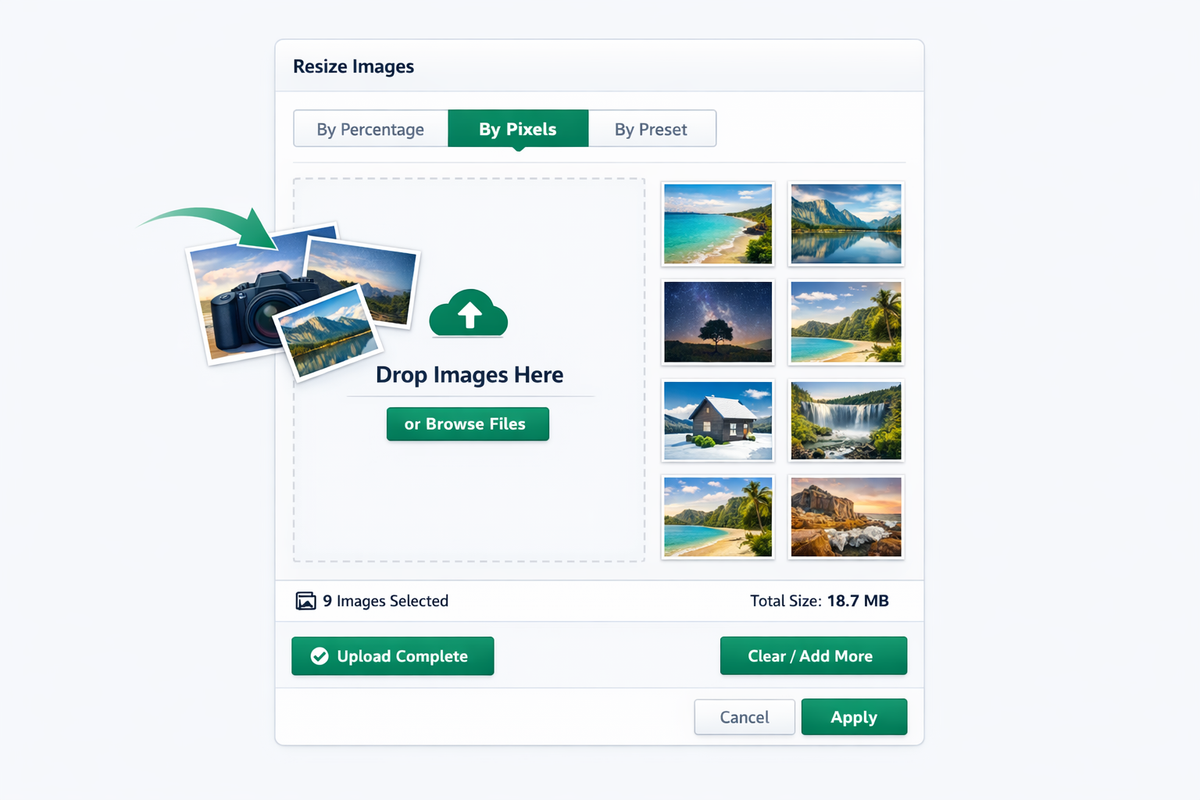
PicDitt Batch Image Processing configuration panel showing resize options with percentage and pixel inputs, compression quality slider, format conversion dropdown, and batch rename fields.
Step 3: Process All Images
Click the Process button. The tool processes every uploaded image with your chosen settings simultaneously.
Processing happens entirely in your browser using WebAssembly technology:
- No uploads to any server – your files stay on your device
- Parallel processing – multiple images handled at once for speed
- Progress tracking – see how many images have been processed
On a modern computer, 100 images typically process in under a minute.
Step 4: Download as ZIP
Once processing is complete, click Download ZIP. All your processed images are bundled into a single ZIP file, ready to unzip and use.
No need to download files one by one. One click, one ZIP, all your images—resized, compressed, converted, and renamed—ready to go.
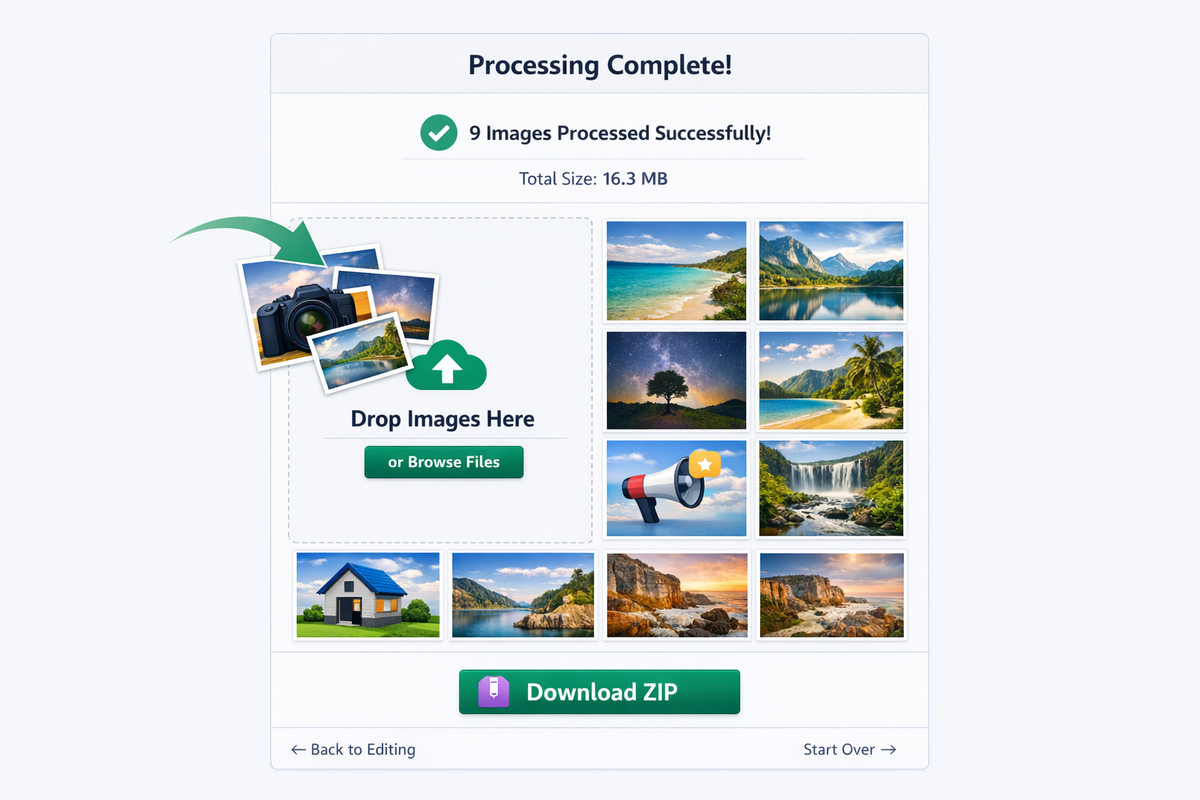
PicDitt Batch Image Processing tool showing processing complete status with all images processed and a Download ZIP button ready for one-click download.
Key Features That Make This Tool Stand Out
Unlimited Batch Size
There's no artificial cap on how many images you can process. The only limit is your device's available memory. Most modern computers handle 100-200 images per batch easily. For larger collections, process in chunks.
100% Browser-Based (Complete Privacy)
This is critical: your images never leave your device.
Unlike cloud-based batch processors that upload your files to remote servers, PicDitt processes everything locally in your browser. This means:
- Complete privacy for sensitive images (client work, personal photos, proprietary content)
- No upload/download wait times – processing starts immediately
- Works without continuous internet once the page has loaded
For businesses handling confidential product images, or anyone who values privacy, this browser-based approach is a significant advantage.
Smart Presets
Instead of memorizing platform dimensions, use built-in presets:
Platform
Preset Size
Instagram Post
1080×1080
Instagram Story
1080×1920
YouTube Thumbnail
1280×720
Facebook Cover
820×312
Twitter Header
1500×500
LinkedIn Banner
1584×396
Select a preset, and every image in your batch gets resized to those exact dimensions.
Quality Control
The compression slider gives you precise control. For most web images, 80% quality provides the sweet spot—visually indistinguishable from the original but often 60-70% smaller in file size.
Pro Tips for Better Batch Processing
These practical tips will help you get the most out of batch processing, whether you're new to it or already experienced.
Tip 1: Always Test with a Small Batch First
Before processing 500 images, test your settings on 5-10 representative samples. Check the output for:
- Correct dimensions
- Acceptable quality level
- Proper naming format
- Right file format
It's much easier to adjust settings on a small test batch than to reprocess hundreds of files.
Tip 2: Use WebP for Web Performance
If your images are destined for a website, WebP format offers the best compression with minimal quality loss. WebP files are typically 25-35% smaller than equivalent JPG files. All modern browsers support it.
Tip 3: Target the Right Quality for Your Purpose
Purpose
Recommended Quality
Web thumbnails
60-70%
Website full images
75-85%
Social media posts
80-90%
Email attachments
70-80%
Print/archive
95-100%
Tip 4: Keep Your Originals
Always process copies, not originals. Keep your high-resolution source files safe. You can always reprocess from the originals with different settings later—you can't recover quality that's already been compressed away.
Tip 5: Use Consistent Naming Conventions
Good file naming saves future headaches. Examples:
product_SKU123_front_01.jpgwedding_smith_ceremony_001.jpglisting_456elm_kitchen_01.jpg
Batch rename makes this effortless across hundreds of files.
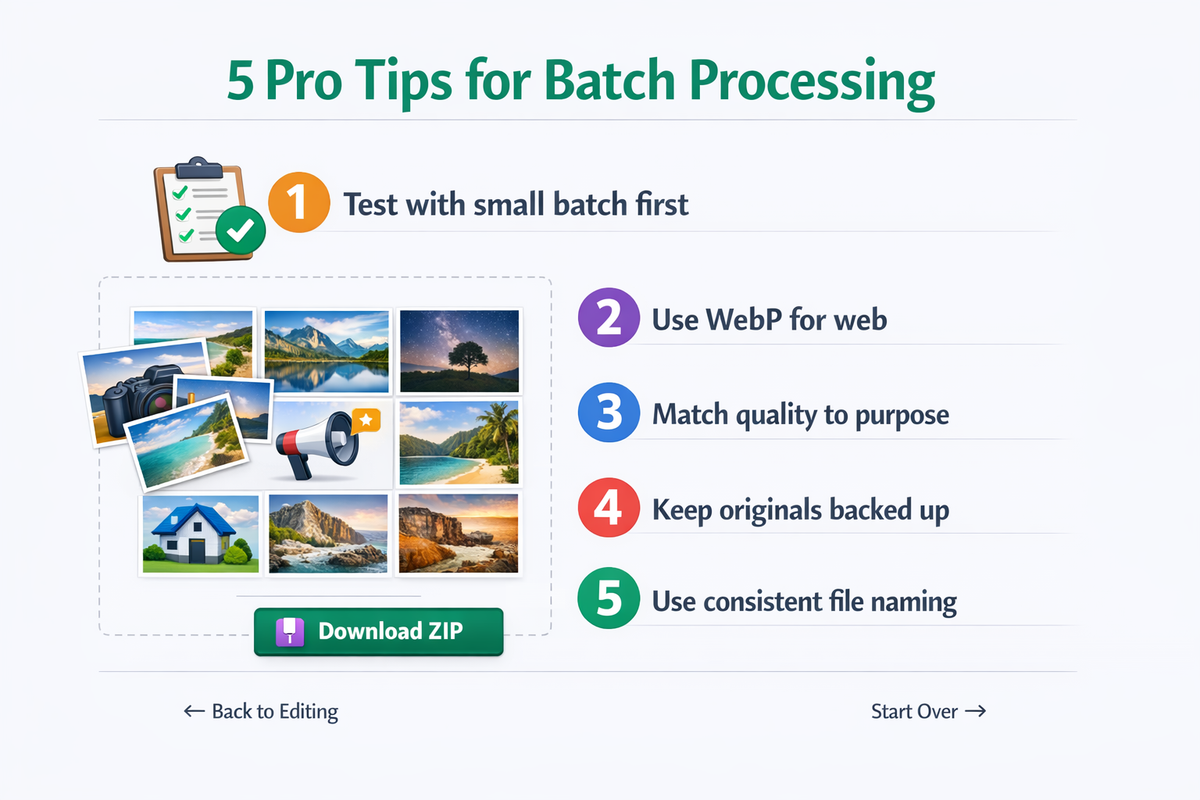
Five pro tips for batch image processing: test small batches first, use WebP for web, match quality to purpose, keep originals, and use consistent file naming.
Common Batch Processing Scenarios (Practical Examples)
Let's walk through a few real scenarios to show how batch processing solves actual problems.
Scenario 1: Wedding Photographer Delivering Client Gallery
Situation: 800 edited photos in high-res TIFF/JPG. Client needs a web gallery plus a download package.
Batch steps:
- Upload all 800 images
- Resize to 2000px wide (for web viewing)
- Compress to 85% JPG quality
- Rename with "Smith_Wedding_001" convention
- Download ZIP and deliver
Time saved: Hours of manual resizing and renaming.
Scenario 2: Shopify Store Adding 150 New Products
Situation: Supplier sent 150 product images in mixed sizes and formats.
Batch steps:
- Upload all 150 images
- Resize to 1080×1080 (Shopify square)
- Convert all to WebP
- Compress to 80% quality
- Rename with product SKU prefix
- Download and upload to Shopify
Time saved: An entire afternoon of individual editing.
Scenario 3: Student Submitting a Research Portfolio
Situation: 40 high-res research images that exceed the upload limit for course submission.
Batch steps:
- Upload all 40 images
- Resize to 1200px wide
- Compress to 75% quality (reduces file size dramatically)
- Download ZIP under the submission size limit
Time saved: An hour of manual compressing and resizing.
Frequently Asked Questions
Is the Batch Image Processing tool free?
Yes. Completely free with no watermarks, no limits on the number of images, and no account required.
Are my images uploaded to a server?
No. All processing happens locally in your browser. Your images never leave your device, ensuring complete privacy.
How many images can I process at once?
There's no hard limit, but it depends on your device. Most modern computers handle 100-200 images smoothly. For very large batches (500+), process in chunks of 50-100 for best performance.
Can I resize and compress at the same time?
Yes. You can combine resize, compress, convert, and rename operations in a single batch. All selected operations apply to every image.
What output formats are available?
JPG, PNG, and WebP. You can convert mixed-format collections into a single consistent format.
What happens if I close the browser tab?
Since processing happens in your browser, closing the tab stops the process. Make sure to download your ZIP before closing. Your original files on your device are unaffected.
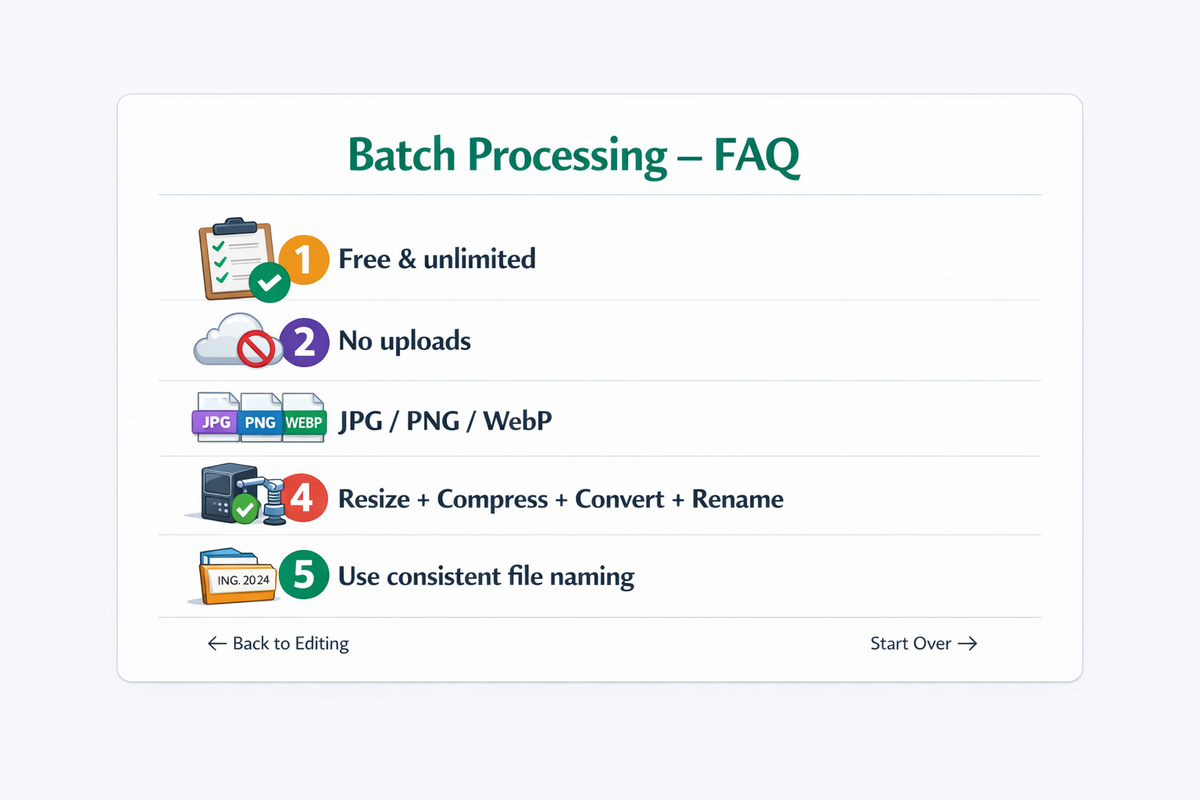
FAQ summary graphic for PicDitt's Batch Image Processing tool highlighting that it's free and unlimited, processes locally with no uploads, supports JPG PNG and WebP, and combines resize compress convert and rename operations.
Stop Editing Images One at a Time
If you're still manually opening, editing, and saving images individually, you're spending time you'll never get back on work a computer can do in seconds.
Whether you're a photographer processing thousands of wedding shots, an e-commerce seller managing product catalogs, a marketing team preparing multi-platform campaigns, or a student trying to meet an upload limit—batch processing transforms a tedious chore into a quick, painless step.
PicDitt's free Batch Image Processing tool at:
https://picditt.com/compress/batch-image-processing
gives you everything you need:
- Resize by percentage, pixels, or presets
- Compress with fine-tuned quality control
- Convert between JPG, PNG, and WebP
- Rename with prefixes, suffixes, and sequential numbering
- Process hundreds of images in your browser with complete privacy
- Download everything in a single ZIP
Your time is too valuable for repetitive work. Let batch processing handle it.
Call-to-action banner inviting readers to process images in bulk using PicDitt's free Batch Image Processing tool, with text showing Resize, Compress, Convert, Rename, Free.
You Might Also Like
Screenshot Editor – Edit, Annotate & Share Screenshots Like a Pro
Edit screenshots instantly with PicDitt's free online screenshot editor. Add text, arrows, shapes, blur sensitive info, crop, and export in PNG, JPEG, or WebP. No signup required.
Read More →
Magic Eraser Online: How to Remove Unwanted Objects from Photos with AI
Photobombers, power lines, watermarks, blemishes—every photo has something you wish wasn't there. Learn how to use PicDitt's free Magic Eraser to brush over any unwanted object and watch AI remove it seamlessly, all directly in your browser with complete privacy.
Read More →
How to Compress Images to an Exact File Size: The Complete Guide to Target Compression
Need your image to be exactly 500KB for a government form or under 25MB for Gmail? Learn how to compress any image to a precise file size using PicDitt's free Target Compression tool—without guessing quality settings or losing more quality than necessary.
Read More →