How to Convert PDF to High-Resolution JPG, PNG, or WebP Instantly
How to Convert PDF to High-Resolution JPG, PNG, or WebP Instantly
You have a beautifully designed PDF presentation, a stunning infographic, or a crucial page from a report that you need to share. You want to post it on Instagram, embed it in a blog post, or send it in a WhatsApp message.
But when you try to upload it, you hit a wall. Instagram does not accept PDFs. Your website CMS requires an image file. WhatsApp sends it as a downloadable file rather than a visible picture.
PDFs (Portable Document Format) are the global standard for professional documents because they lock formatting in place. But that exact strength is what makes them terrible for social media, web design, and quick visual sharing. To make your PDF content truly accessible and shareable, you need to transform it into universally accepted image formats.
In this comprehensive guide, you will learn exactly how to extract pages from your PDFs and turn them into high-resolution JPG, PNG, or WebP images using Picditt's free PDF to Image Converter. We will cover which format to choose, how to get the highest possible resolution, and how to do it all with 100% data privacy.
Why Can't I Just Share the PDF?
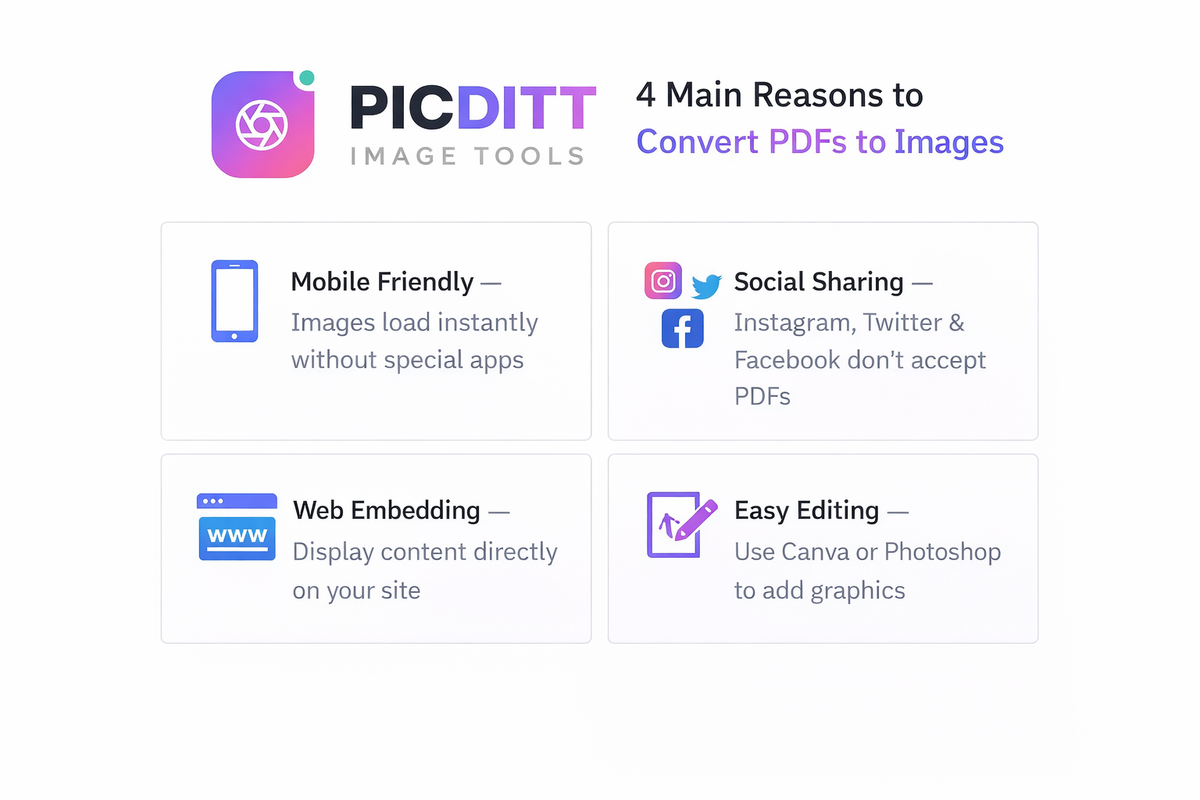
If a PDF looks exactly how you want it to look, why go through the trouble of converting it to an image? There are four major reasons why images are vastly superior for digital sharing:
1. Social Media Compatibility
This is the number one reason people convert PDFs to images. Visual platforms like Instagram, Pinterest, TikTok, Twitter/X, and Facebook do not accept PDF uploads for visual posts. If you want to share a slide from your PDF presentation on LinkedIn, or an infographic from your PDF report on Instagram, you must convert it to an image first.
2. Immediate Visibility (Zero Friction)
When you email or message a PDF to someone, they receive a file attachment. They have to click it, download it, and open it in a separate PDF viewer app. When you send an image (JPG/PNG), it displays immediately in the body of the email or message. Images remove the "friction" of clicking and downloading.
3. Mobile Friendliness
While most modern smartphones can open PDFs, they are often clunky to read. Users have to pinch, zoom, and scroll horizontally. Images, on the other hand, load instantly and interact perfectly with mobile photo galleries and web browsers.
4. Easy Editing and Remixing
Once you convert a PDF page to an image, you unlock a world of creative possibilities. You can upload that image into Canva or Photoshop, add text overlays, apply filters, or incorporate it into a larger design. (If you just need to crop it for social media, you can use Picditt's Image Cropper).
How to Convert PDF to Image (Step-by-Step)
Converting your PDF documents into high-quality images takes only a few seconds. Picditt's PDF to Image tool gives you professional-grade controls without requiring any software installation.
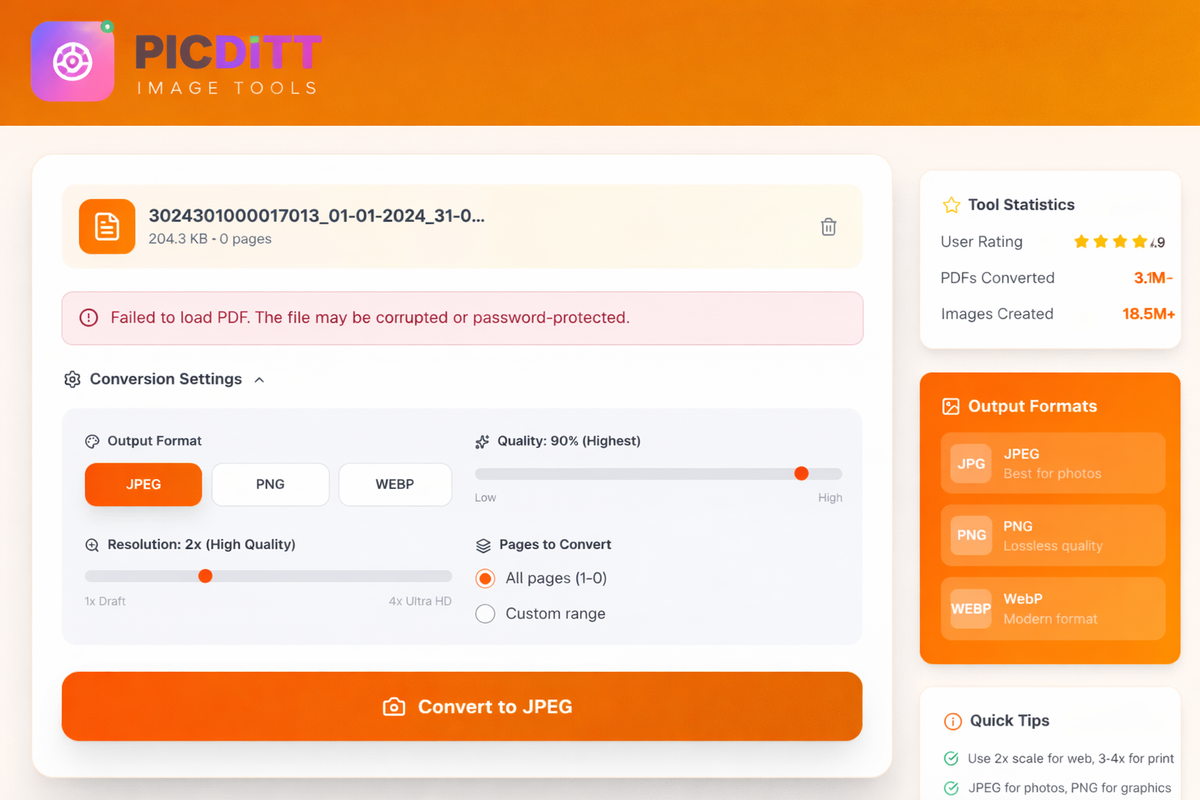
Step 1: Upload Your PDF Document
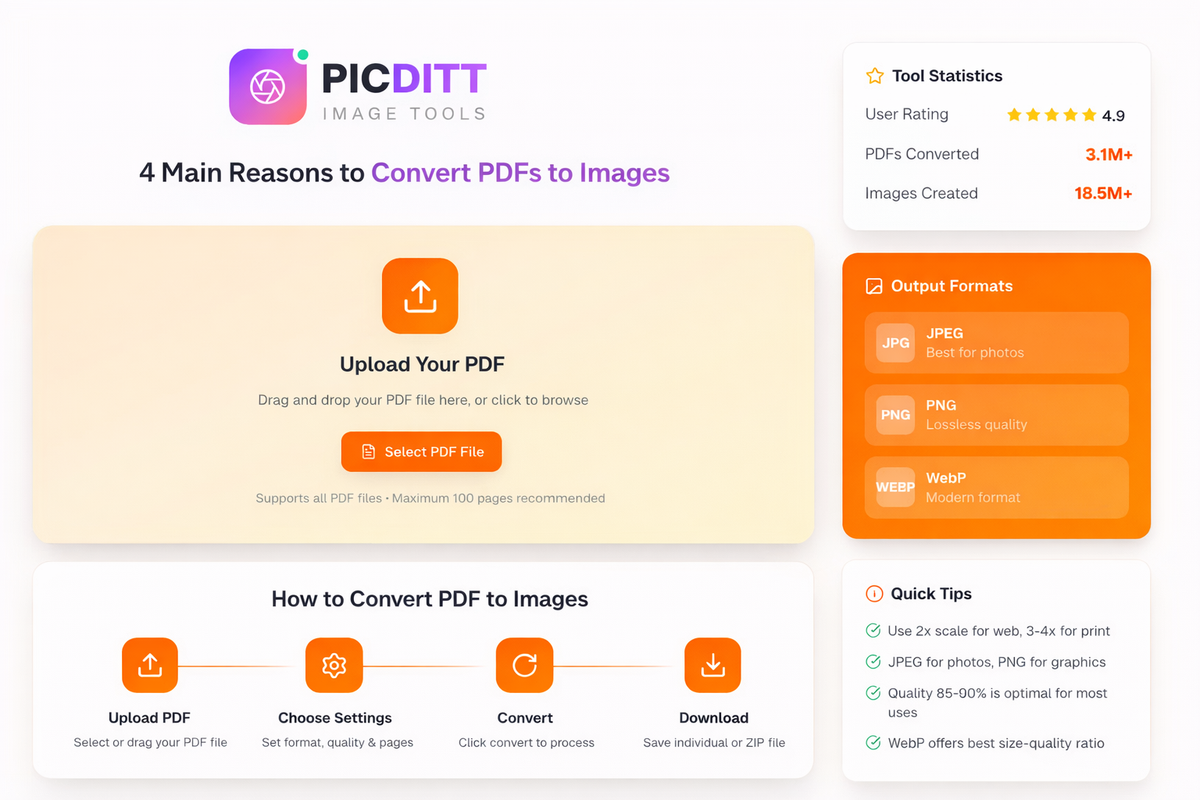
Go to https://picditt.com/pdf-tools/pdf-to-image in any web browser. Drag and drop your PDF file onto the upload area, or click to browse your computer. The tool handles files of any size, though documents under 100 pages are recommended for the fastest processing.
Step 2: Select Specific Pages (Optional)
If you uploaded a 50-page report but only need the chart on page 12, you don't have to convert the whole document. Use the Page Selection tool to specify exactly which pages you want. You can type single pages ("12"), ranges ("5-10"), or a combination ("1, 5-10, 12"). This saves processing time and storage space.
Step 3: Choose Your Format and Quality
This is where you control the output.
- Format: Choose between JPG, PNG, or WebP (see the detailed guide below to choose the right one).
- Quality: For JPG and WebP, adjust the quality slider. 85-90% is the optimal sweet spot for balancing file size and visual quality.
- Scale/Resolution: Choose how large and sharp you want the final image to be (1x to 4x).
Step 4: Convert and Download
Click the convert button. Because Picditt processes everything locally in your browser, the conversion starts instantly.
When it finishes, you have two options:
- Download Individual Images: Click the download icon next to specific pages.
- Download ZIP: If you converted multiple pages, click the ZIP button to download all your new images in one convenient, organized folder.
JPG vs. PNG vs. WebP: Which Format Should You Choose?
One of the biggest mistakes people make when converting PDFs is choosing the wrong image format. The format you choose dramatically impacts both the visual quality (especially of text) and the file size.
Here is exactly when to use each format:
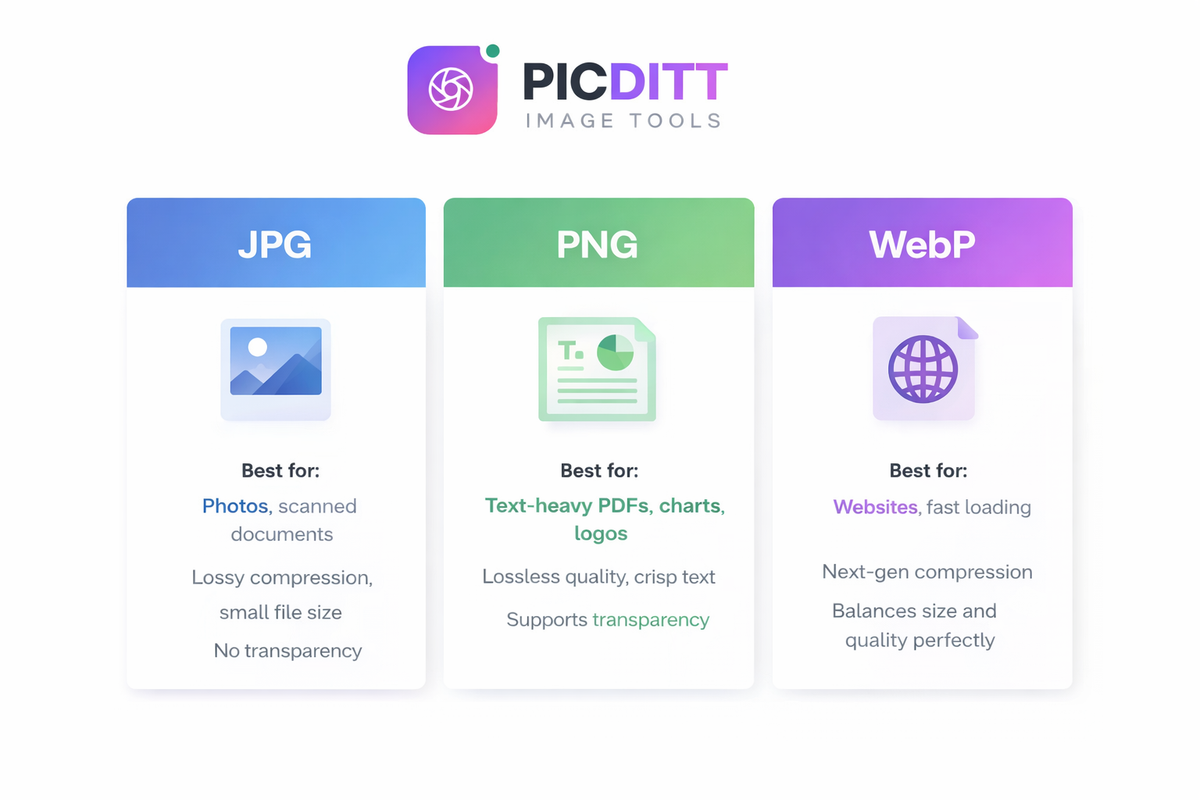
JPG (JPEG)
JPG is the most universally recognized image format in the world. It uses "lossy compression," meaning it sacrifices a tiny bit of data to create significantly smaller file sizes.
- Best for: PDFs that are primarily photographs, scanned paper documents, or complex images with millions of colors.
- Avoid for: PDFs with a lot of crisp, small text, line art, or architectural drawings (JPG compression can make text look slightly "fuzzy" or artifacted).
- Transparency: JPG does not support transparent backgrounds.
PNG
PNG uses "lossless compression," meaning it preserves every single pixel perfectly without any quality loss. It produces incredibly sharp, crisp lines.
- Best for: PDFs that are text-heavy, containing charts, graphs, logos, infographics, flat colors, or vector illustrations.
- Avoid for: PDFs that are just full-page photographs (the resulting PNG file will be unnecessarily massive).
- Transparency: PNG supports transparent backgrounds (though most standard PDF pages have a solid white background by default).
WebP
WebP is a modern image format developed by Google. It provides superior compression, offering images that look identical to JPGs and PNGs but at file sizes that are 25% to 35% smaller.
- Best for: Images you intend to upload directly to a website, blog, or web application.
- The Catch: While all modern web browsers support WebP, some older desktop software and certain legacy social media schedulers might not recognize the format yet.
The Golden Rule: If your PDF is mostly text and charts, use PNG. If your PDF is mostly photographs, use JPG.
Understanding Resolution and Scale Settings
When you convert a PDF to an image, you are transforming vector data (which scales infinitely without losing quality) into raster data (pixels). The "Scale" setting determines how many pixels are used to draw your image. Getting this right is critical.
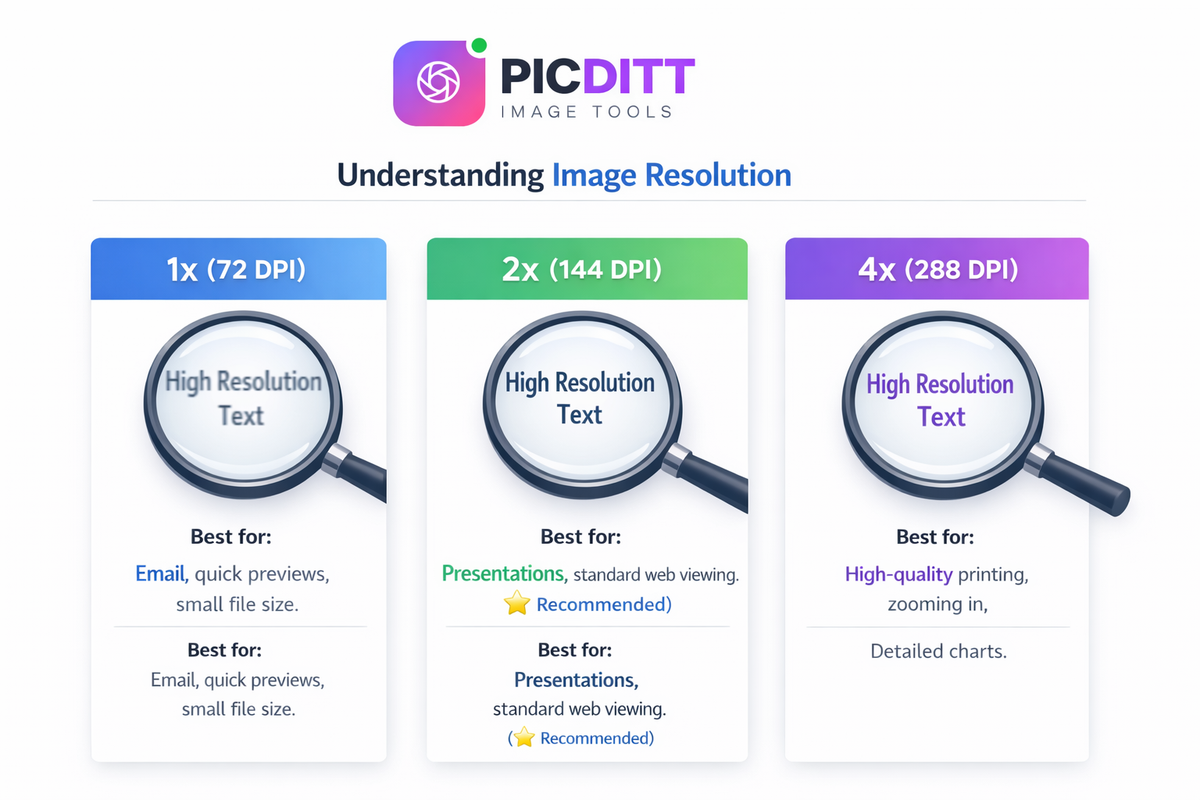
Picditt's converter offers scaling from 1x to 4x. Here is what that means in practical terms:
1x Scale (Standard Resolution - approx. 72 DPI)
This creates an image where the pixel dimensions roughly match the point dimensions of the PDF.
- Use case: Quick email attachments, internal sharing, or when you need the absolute smallest file size possible.
- Warning: Small text may appear slightly blurry or pixelated on modern high-resolution screens.
2x Scale (High Resolution - approx. 144 DPI) ⭐ Recommended
This doubles the pixel density. The resulting image is twice as large and significantly sharper.
- Use case: Social media posts (Instagram, LinkedIn), embedding in blog posts, digital presentations, and general web use.
- Why it's recommended: It provides excellent sharpness for text and charts while keeping the file size manageable for web uploads.
3x and 4x Scale (Ultra-High Resolution - approx. 216-288 DPI)
This creates massive, crystal-clear images that capture every microscopic detail of the original PDF.
- Use case: Professional printing (brochures, posters), images where users will need to zoom in heavily (architectural blueprints, complex data maps), or extracting assets for high-end graphic design.
- Warning: File sizes will be very large, especially if converting multiple pages to PNG format.
If you extract an image at 1x scale and realize it is too blurry, you can always use Picditt's AI Image Upscaler to enhance the resolution later, but it is always better to extract at a higher scale (2x or 3x) right from the start.
The Privacy Advantage: Why Browser-Based Conversion Matters
If you Google "convert PDF to JPG," you will find hundreds of free tools. But almost all of them share a massive, hidden flaw: they upload your documents to their servers.
Think about the PDFs you handle daily: financial reports, legal contracts, employee records, proprietary pitch decks, or unreleased product catalogs. When you use a standard online converter, you are uploading those confidential documents to a server owned by a company you know nothing about.
Even if they promise to delete the file "within 24 hours," your data has still left your control.
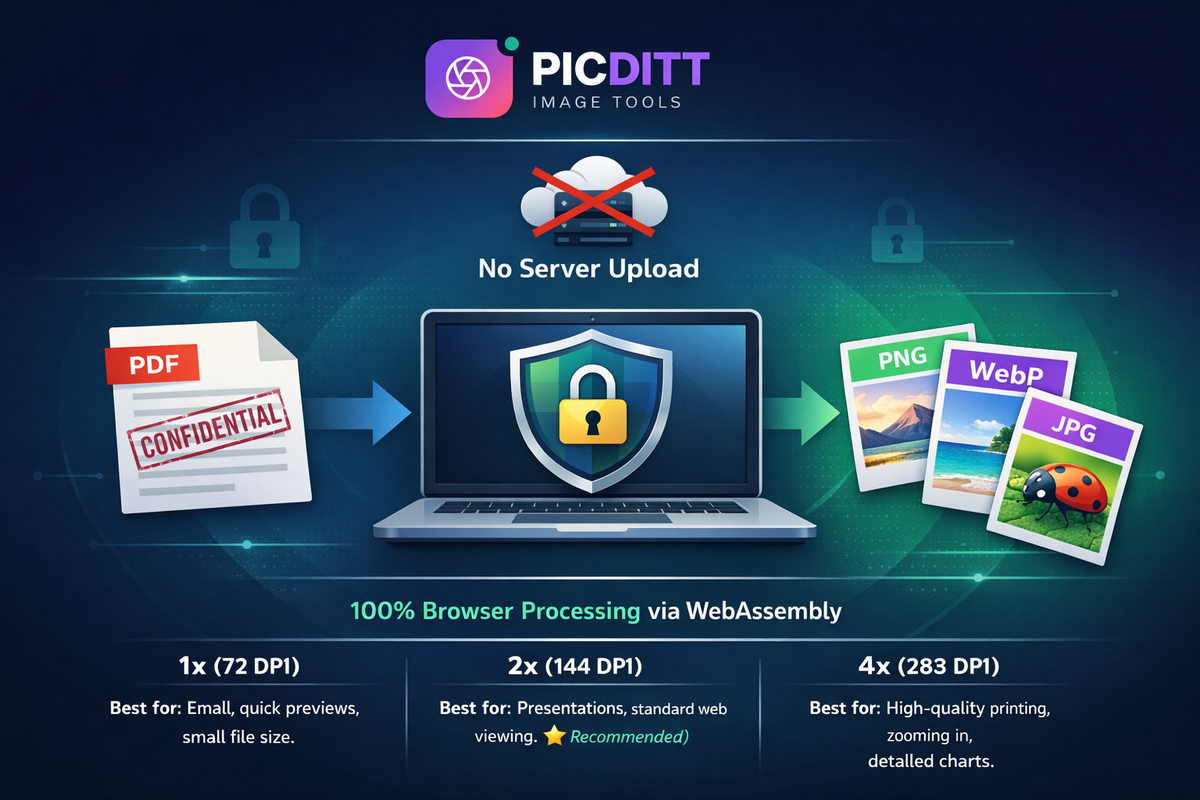
Picditt's PDF to Image Converter eliminates this risk entirely through WebAssembly technology.
When you use Picditt, the conversion engine is downloaded to your web browser. When you drag and drop your PDF, the entire conversion process happens locally on your own computer's processor.
- ✅ No server uploads: Your PDF never leaves your device.
- ✅ No data collection: We cannot see, read, or store your documents.
- ✅ Lightning fast: You don't have to wait for a 50MB PDF to upload to a server, or wait in a server queue. The conversion happens at the speed of your own computer's hardware.
- ✅ Offline capability: Once the page has loaded in your browser, you could turn off your Wi-Fi and the converter would still work perfectly.
This makes Picditt safe and compliant for legal, medical, financial, and enterprise-level document conversion.
Popular Industry Use Cases
Converting PDF pages to high-resolution images is a daily requirement across numerous professions:
📱 Social Media Managers
You have a beautiful 10-page PDF report. You use the PDF to Image converter to turn those 10 pages into 10 high-res JPGs. You then upload those 10 JPGs to Instagram or LinkedIn as a highly engaging "carousel" post. (Pro tip: Use the Image Cropper to ensure they are the perfect 4:5 ratio for Instagram).
🛍️ E-Commerce Sellers
Manufacturers often send product catalogs and spec sheets as PDFs. E-commerce managers convert these PDF pages into crisp PNGs to upload directly to Amazon, Shopify, or eBay product image galleries where customers can easily swipe through them.
👨🏫 Educators and Course Creators
Teachers convert PDF textbook pages, worksheets, and syllabus documents into images to embed directly into online learning management systems (LMS) like Canvas or Blackboard, ensuring students see the content immediately without having to download attachments.
📈 Marketing and Sales Teams
Sales reps convert their PDF pitch decks into images to embed in email newsletters or proposal follow-ups. Instead of a text link saying "Click here to view our proposal," the client sees the actual stunning visuals of the deck right in their email client.
What to Do With Your Images After Conversion
Extracting the images from your PDF is often just step one. Picditt offers a full suite of free, browser-based tools to help you perfect those images for their final destination:
- Need to post it on Instagram? Use the Image Cropper to get the exact social media dimensions, or the Instagram Grid Maker to split a large PDF infographic across multiple Instagram posts.
- Is the file size too large for a website upload? Run the extracted images through the Image Compressor to reduce the file size by up to 80% without losing visual quality.
- Need to add a watermark or branding? Use the Add Logo/Text tool to brand your images before sharing them publicly.
- Extracting data, not just visuals? If you are trying to get data out of a PDF table, don't convert it to an image! Use the PDF to Excel Smart Extractor instead.
Frequently Asked Questions (FAQ)
Is it better to convert a PDF to JPG or PNG?
It depends on the content of the PDF. If the PDF contains mostly text, charts, logos, and graphics, PNG is better because it uses lossless compression to keep text edges crisp and sharp. If the PDF is primarily a photograph or a scanned paper document, JPG is better because it will create a much smaller file size with virtually unnoticeable quality loss.
How do I convert a PDF to an image for free?
Use Picditt's PDF to Image converter. Simply drag and drop your PDF file into the browser, select your desired format (JPG, PNG, or WebP), set your quality and resolution scale, and click convert. The tool is 100% free with no hidden fees or watermarks.
Why do my converted images look blurry?
If your converted images look blurry or pixelated when you zoom in, your scale/resolution setting was too low. When converting, change the "Scale" setting from 1x to 2x or 3x. This increases the pixel density (DPI) of the output image, making text and graphics significantly sharper.
Can I convert just one specific page of a 100-page PDF?
Yes! You do not need to convert the entire document. In the Picditt converter settings, use the "Page Selection" input. You can type a single page number (e.g., "42"), a range (e.g., "10-15"), or a combination (e.g., "1, 5, 10-15"). Only those specific pages will be converted to images.
Is it safe to upload confidential PDFs to this converter?
Absolutely. Picditt is uniquely secure because it uses WebAssembly to process the PDF entirely inside your local web browser. Your confidential document is never uploaded to our servers, and no data is transmitted over the internet during the conversion process. It is 100% private.
Can I convert multiple PDF pages into one single long image?
Currently, the standard PDF to Image converter transforms each PDF page into its own individual image file. If you need to combine them vertically after conversion, you can use Picditt's Join Images tool to stitch the individual exported pages together into one seamless graphic.
Will the converted images have a watermark?
No. Picditt provides professional-grade tools for free. Your exported JPG, PNG, or WebP images will be completely clean and exactly match the original PDF page without any promotional watermarks added.
What is WebP and should I use it?
WebP is a modern image format created by Google that provides superior compression compared to JPG and PNG. It produces high-quality images at significantly smaller file sizes. You should use WebP if your primary goal is to upload the images to a website or blog, as it will make your web pages load much faster.
Can I convert a PDF to an image on my iPhone or Android?
Yes. Because Picditt's tools are entirely browser-based, you don't need to download an app. Just open Safari or Chrome on your mobile device, navigate to the PDF to Image tool, and select a PDF from your phone's files app.
How do I extract just the photos embedded inside a PDF?
This tool converts the entire page of a PDF into an image. If you only want a specific photo that is embedded inside the PDF page, convert the page to a high-resolution PNG first, and then use the Image Cropper to cut out just the specific photo you need.
Conclusion
PDFs are incredible for preserving document formatting, but they are rigid, hard to share on social media, and difficult to embed natively into web content.
Converting your PDF pages into high-resolution JPG, PNG, or WebP images solves all of these problems instantly, turning locked documents into versatile, shareable visual assets.
With Picditt's free PDF to Image Converter, you get professional-level control over your document conversions:
- ✅ Choose your format: JPG, PNG, or modern WebP
- ✅ Control the quality: 1x to 4x scale for crystal-clear text
- ✅ Save time: Convert entire documents or specific page ranges
- ✅ Lightning fast: Harness your own device's hardware for instant processing
- ✅ 100% Private: Zero server uploads, total data security
- ✅ Completely Free: No watermarks, no software installation, no sign-ups
Stop sending bulky PDF attachments that your clients have to download. Transform your documents into beautiful, instantly viewable images today.
Ready to Try It Yourself?
Use this tool for free — no signup, no download, no watermarks.
Open Free ToolYou Might Also Like
PDF to Excel Smart Data Extraction: Convert PDF Tables to Editable Spreadsheets
Extracting data from PDF tables shouldn't mean hours of manual typing. Learn how to instantly convert static PDF documents into dynamic, editable Microsoft Excel spreadsheets using Picditt's smart PDF to Excel converter. Features advanced table detection, OCR for scanned documents, and perfect formatting preservation.
Read More →
Why Won't My iPhone Photos Open? How to Convert HEIC to JPG Instantly
Struggling to open iPhone photos on your PC? Learn what HEIC is, why it causes problems, and how to convert HEIC to JPG instantly using Picditt's free online converter — no uploads, no installs, 100% private.
Read More →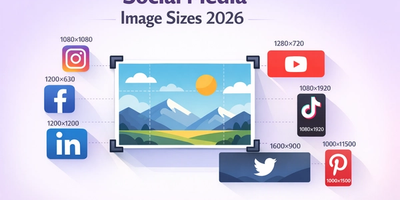
The Complete Guide to Social Media Image Sizes: How to Crop Photos for Every Platform in 2026
Stop guessing social media image sizes! This complete guide covers the exact dimensions for Instagram, Facebook, YouTube, TikTok, LinkedIn, Twitter/X, Pinterest, and more — plus how to crop your photos perfectly using Picditt's free online image cropper with one-click presets.
Read More →