PDF to Excel Smart Data Extraction: Convert PDF Tables to Editable Spreadsheets
PDF to Excel Smart Data Extraction: Convert PDF Tables to Editable Spreadsheets
You have just received a 50-page financial report, a massive inventory list, or a detailed research study. The data is exactly what you need. The formatting looks perfect. The only problem? It is a PDF file.
PDFs (Portable Document Format) are fantastic for sharing documents because they look exactly the same on every device, printer, and operating system. They lock content into place so nothing shifts or breaks. But that exact strength becomes a massive headache when you actually need to use the data inside them.
When you try to copy and paste a table from a PDF into Excel, you know exactly what happens: the columns collapse, the rows merge, the headers disappear, and you are left with a single, unreadable column of mashed-together text.
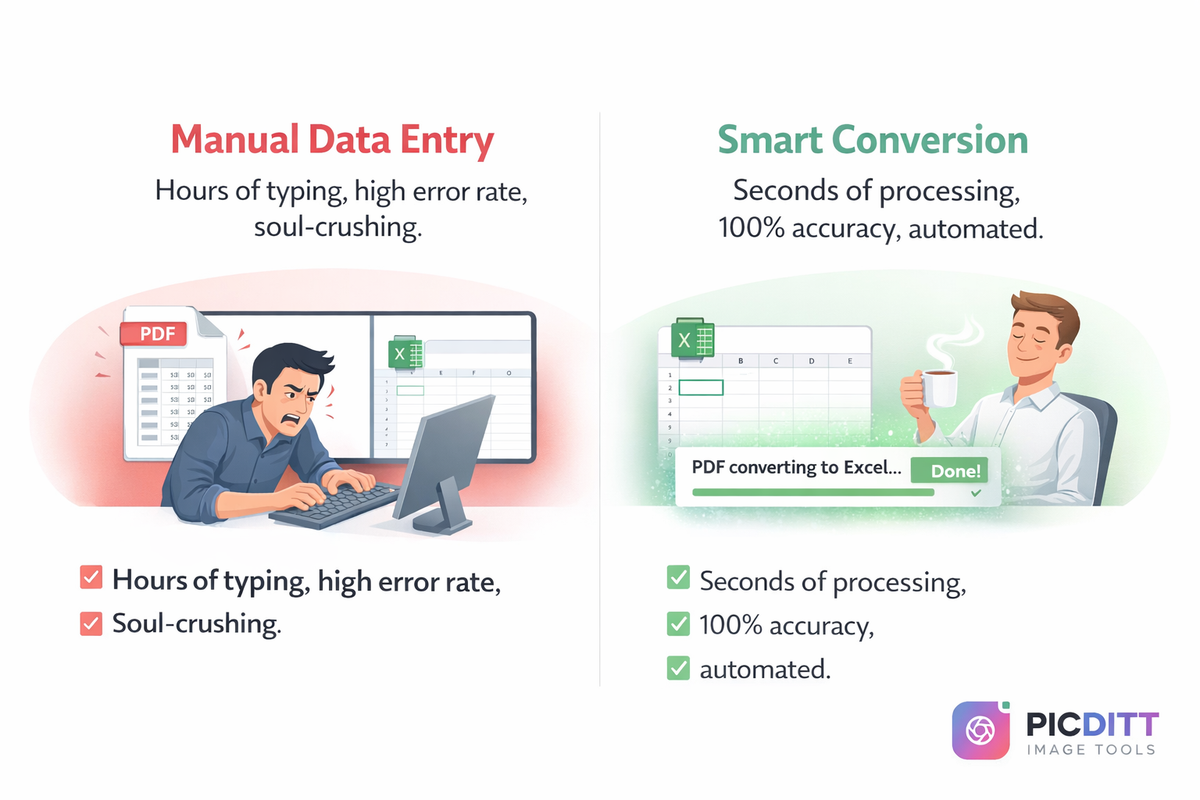
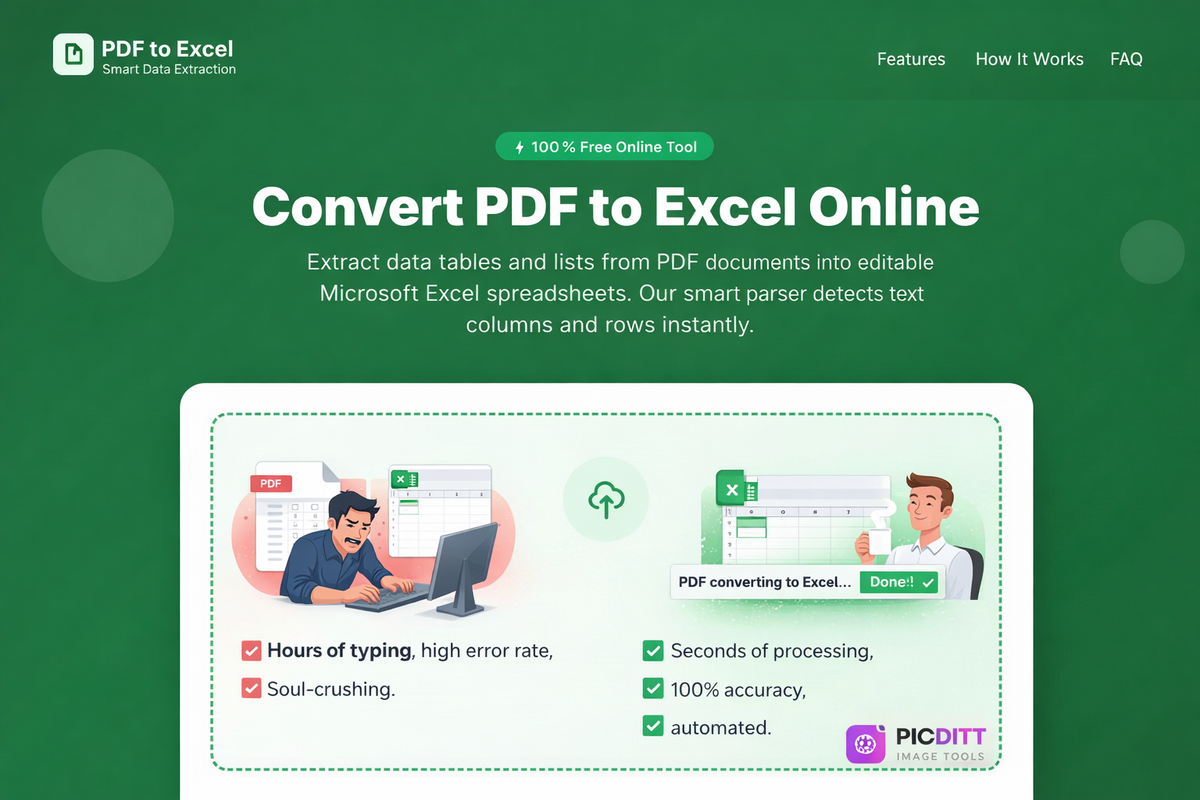
The traditional solution? Spending hours manually retyping numbers from one screen to another — a process that is not only soul-crushingly tedious but also highly prone to human error.
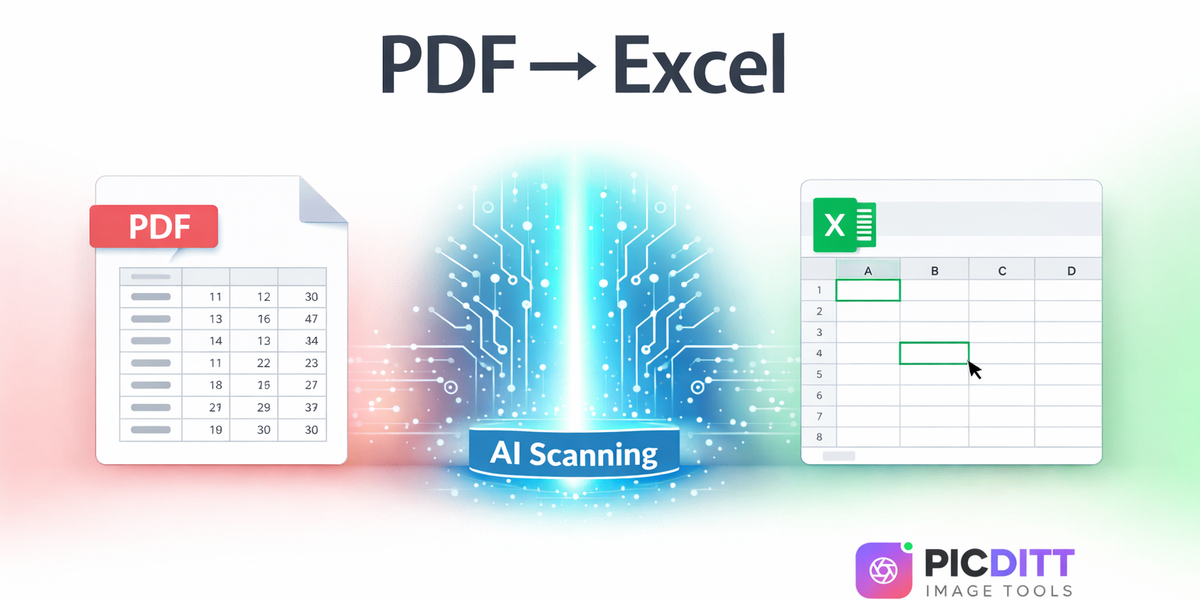
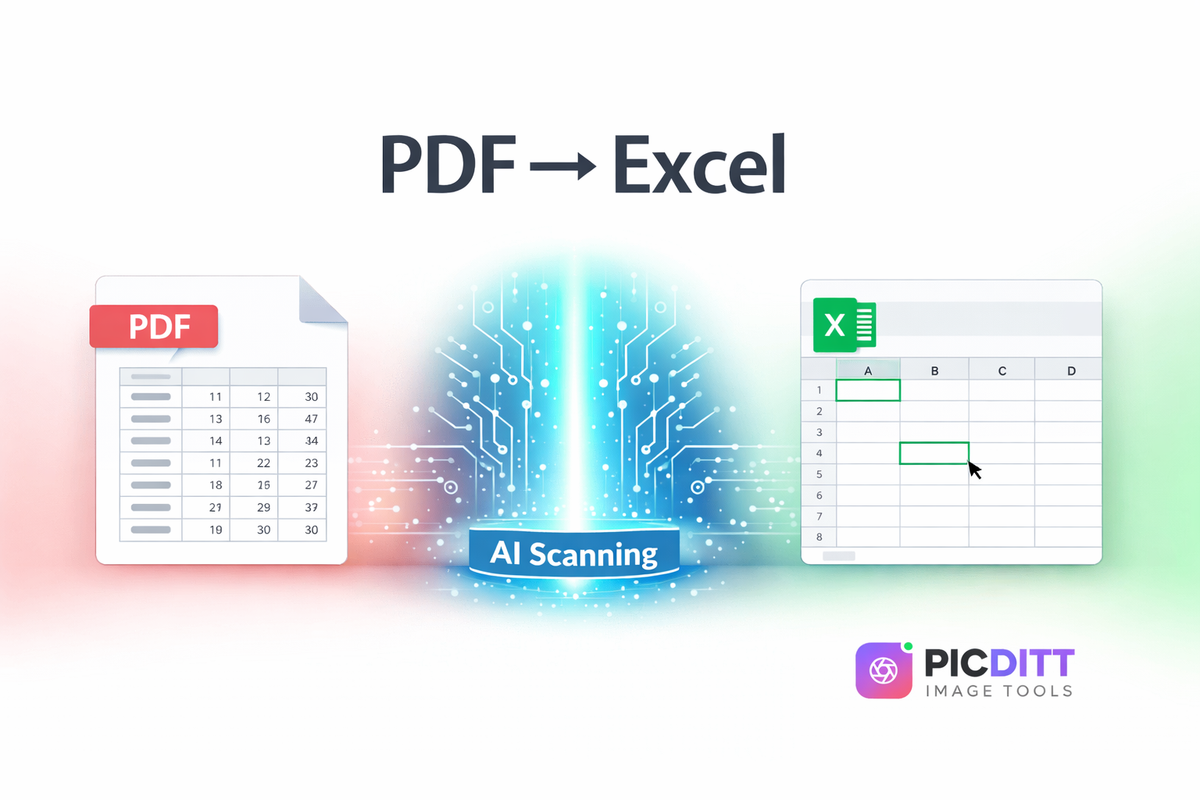
There is a better way. Picditt's PDF to Excel Converter uses advanced data extraction algorithms and Optical Character Recognition (OCR) to instantly transform static PDF tables into dynamic, fully editable Microsoft Excel spreadsheets. In this guide, you will learn how this technology works, what it preserves, and how to get perfect spreadsheet conversions every time.
The Problem with PDF Data
To understand why PDF to Excel conversion is such a critical tool, you have to understand how PDFs are built.
Unlike an Excel file, which structures data logically into defined cells, columns, and rows, a PDF is essentially a digital piece of paper. To a PDF, a "table" does not exist as a structured database. A PDF simply sees lines drawn on a page, and text placed at specific X and Y coordinates on that page.
When you try to highlight and copy a table from a PDF, your computer does not know it is a table. It just grabs all the text it can find in that area and dumps it onto your clipboard. When you paste it into Excel, all that visual structure is lost.
The Cost of Manual Data Entry
When copy-pasting fails, most professionals resort to manual data entry. The costs of this are staggering:
- Time waste: Retyping a 10-page financial statement can take hours of focused work.
- Human error: Even the best typists make mistakes. A single misplaced decimal point or transposed number in a financial report or scientific dataset can ruin an entire analysis.
- Lost productivity: Highly paid analysts, accountants, and researchers spend their time doing robotic data entry instead of actually analyzing the data.
How Smart PDF to Excel Conversion Works
Picditt's PDF to Excel Converter solves this problem by using "smart extraction" algorithms that act like a human eye reading the document.
When you upload a PDF, the tool does not just look for text. It analyzes the visual layout of the page. It looks for:
- Horizontal and vertical lines that indicate table borders
- The spacing and alignment of text that suggest columns and rows
- Distinct formatting that indicates headers or total rows
Once it maps out the structure of the tables, it carefully extracts the text and places it into the exact corresponding cells in a newly generated .xlsx file. The result is an Excel spreadsheet that mirrors the layout of the original PDF, ready for formulas, sorting, and pivot tables.
What Gets Preserved During Conversion?
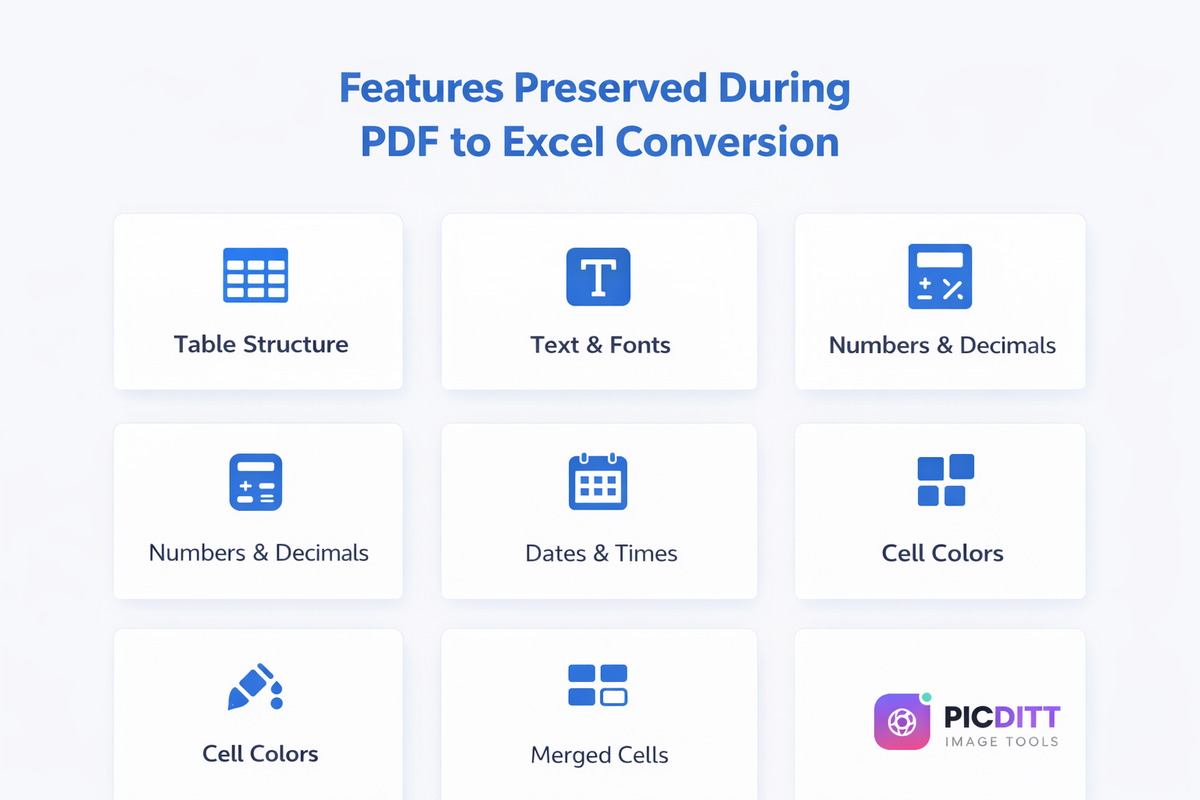
A high-quality converter does more than just dump text into a grid. Picditt's extraction engine is designed to preserve the integrity of your document's formatting. When you convert a PDF to Excel, here is what stays intact:
1. Table Structure and Layout
The exact arrangement of rows and columns is maintained. If your PDF has three tables on a page, your Excel file will have three distinctly separated tables.
2. Merged Cells and Spans
Complex tables often use merged cells for category headers (e.g., a "Q1" header spanning across three columns for Jan, Feb, and Mar). The converter recognizes these spans and recreates the merged cells in Excel.
3. Text Content and Formatting
Fonts, text sizes, bolding, and italics are preserved. This makes the resulting spreadsheet visually recognizable and easy to navigate immediately.
4. Numerical Precision and Currencies
Numbers, decimals, and currency symbols ($, €, £) are extracted accurately. Most importantly, the tool formats them as actual numbers in Excel, not just text strings, so you can immediately sum columns or apply formulas.
5. Date and Time Formats
The system recognizes common date formats and ensures they import into Excel as properly formatted dates, allowing for chronological sorting.
6. Cell Background Colors and Borders
If your PDF table has a gray background for the header row and thick borders for the totals row, those visual cues are replicated in the Excel output.
Native vs. Scanned PDFs: How OCR Technology Works
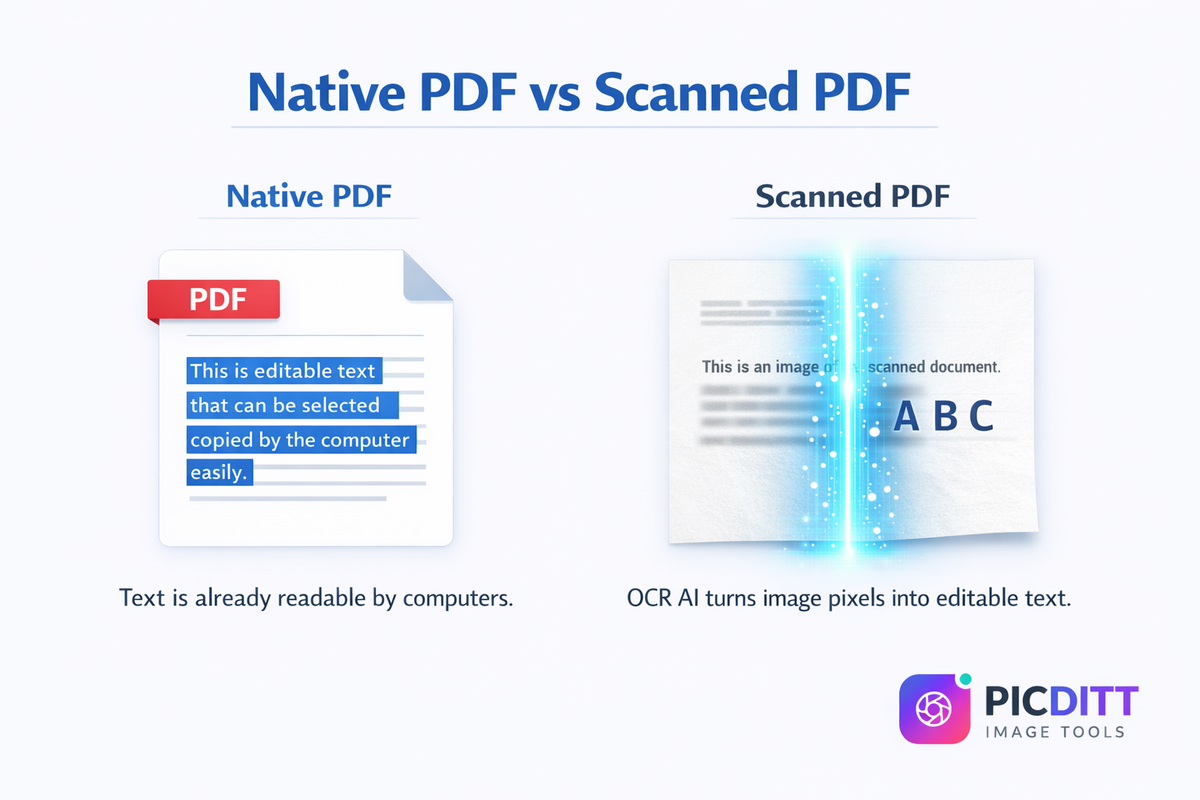
There are two completely different types of PDFs in the world, and a good converter must be able to handle both.
Native PDFs (Digitally Created)
These are PDFs created directly from software like Word, Excel, or specialized reporting systems. The text inside these PDFs is digital — you can highlight it with your mouse. Converting native PDFs to Excel is highly accurate and very fast because the text data is already there; the converter just needs to figure out the table structure.
Scanned PDFs (Images)
These are physical documents (like paper invoices or printed bank statements) that were put through a scanner or photographed. To a computer, a scanned PDF is just a flat image. There is no digital text to highlight.
To convert a scanned PDF to Excel, Picditt utilizes advanced Optical Character Recognition (OCR).
OCR acts as an artificial intelligence "reader." It scans the pixels of the image, recognizes the shapes of letters and numbers, and converts those pixels back into digital, editable text. It then applies the table-recognition algorithms to place that newly recognized text into Excel cells.
Picditt's OCR engine supports over 100 languages, including complex CJK (Chinese, Japanese, Korean) characters, ensuring accurate data extraction regardless of the document's origin.
How to Convert PDF to Excel (Step-by-Step)
Extracting your data takes only a few seconds. Here is how to use the tool:
Step 1: Upload Your PDF Document
Go to the Picditt PDF to Excel Converter. Drag and drop your PDF file onto the upload area, or click to browse your computer. The tool supports files up to 100MB in size.
Step 2: Automatic Processing
Once uploaded, the tool automatically begins analyzing your document. It detects whether the file is native or scanned, applies OCR if necessary, identifies table boundaries, and maps the data to spreadsheet cells. For most documents, this takes an average of 5-10 seconds per page.
Step 3: Download Your Spreadsheet
Once processing is complete, simply click to download your new file. You can choose to export it as an .xlsx (modern Excel), .xls (legacy Excel), or .csv (plain text data) file depending on your needs.
Step 4: Analyze Your Data
Open your new file in Microsoft Excel, Google Sheets, or Apple Numbers. Your data is now fully unlocked. You can write formulas, create pivot tables, generate charts, and integrate the numbers into your existing business reports.
Who Needs PDF to Excel Conversion?
This tool is a massive time-saver across dozens of industries:
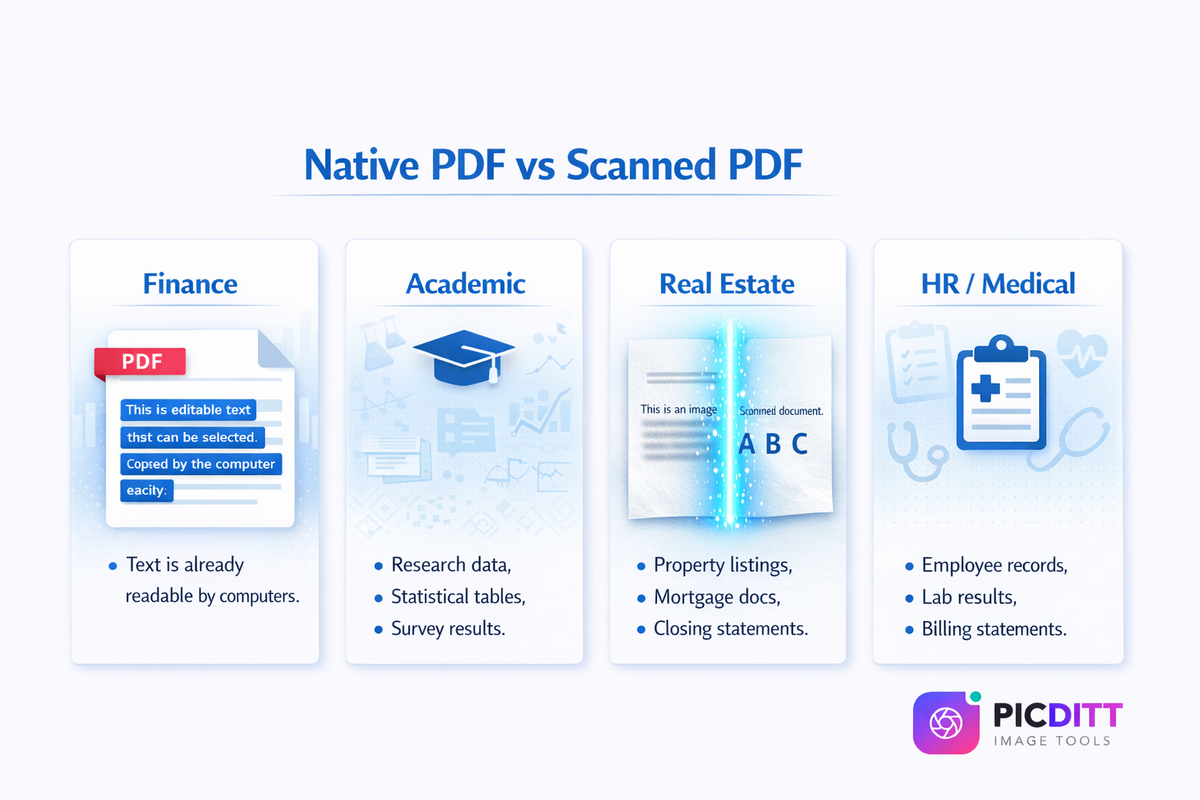
💼 Finance and Accounting
Accountants deal with PDF bank statements, vendor invoices, purchase orders, and corporate financial reports daily. Converting these to Excel allows for immediate reconciliation, auditing, and budget forecasting without manual typing.
🎓 Academic Research
Researchers constantly pull data from published academic journals and government reports (which are almost exclusively published as PDFs). Extracting statistical tables into Excel allows for independent analysis and data visualization.
⚖️ Legal Professionals
Lawyers processing discovery documents, contract schedules, and financial exhibits use PDF to Excel conversion to organize case facts, calculate damages, and search through massive datasets.
🏥 Medical and Healthcare
Healthcare administrators convert PDF patient logs, lab results, and medical billing statements into organized spreadsheets for clinic management and compliance reporting.
🏢 Human Resources
HR teams extract data from PDF resumes, performance reviews, and payroll reports to build tracking databases and employee management systems.
🏠 Real Estate
Realtors and mortgage brokers process property listings, appraisal reports, and complex closing statements containing vital financial tables.
Security: Is It Safe to Upload PDF Documents?
When dealing with bank statements, legal documents, and corporate reports, security is paramount. You cannot simply upload sensitive financial data to any random website.
Picditt's PDF to Excel converter is built with bank-level security protocols:
- Encrypted Transfer: All files are transferred using 256-bit AES SSL/TLS encryption. Your data cannot be intercepted while being uploaded or downloaded.
- Automatic Deletion: All uploaded PDFs and converted Excel files are automatically and permanently deleted from our servers within 2 hours of processing.
- No Data Mining: We do not read, analyze, or mine the contents of your documents for any purpose other than executing the conversion you requested.
- Privacy First: We do not share or sell document data to third parties.
For users handling highly confidential data, you can have complete peace of mind knowing your files are processed securely and destroyed immediately.
Pro Tips for the Best Conversion Results
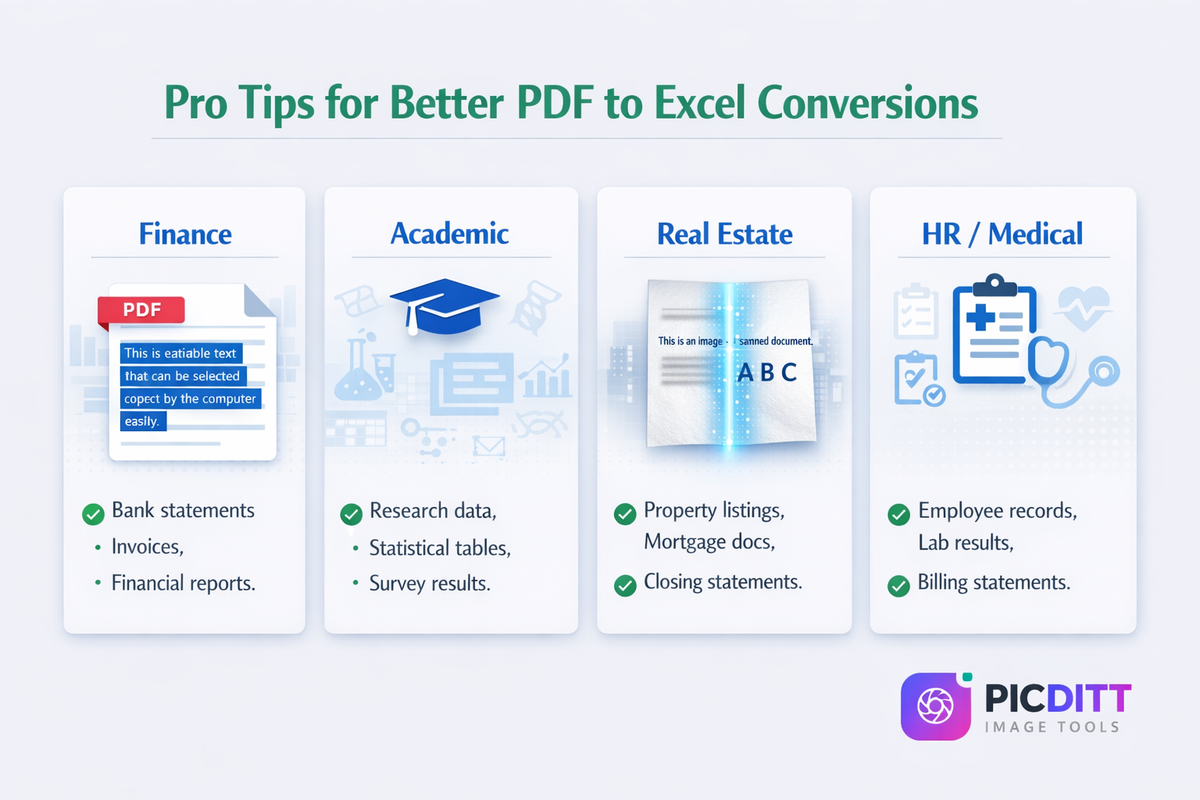
While our smart extraction algorithms are highly advanced, the quality of your output depends heavily on the quality of your input. Follow these tips for 100% accuracy:
1. Use High-Quality Source Files
Whenever possible, use native, digitally created PDFs rather than scans. If you must use a scanned document, ensure the scan is high quality, straight, and well-lit. A resolution of 300 DPI (Dots Per Inch) is the minimum recommended for highly accurate OCR extraction.
2. Avoid Crooked Scans
If you are scanning a paper document, make sure it is perfectly aligned on the scanner bed. If the text and table lines are slanted, the algorithm has a much harder time identifying columns and rows.
3. Check Table Boundaries
Some highly complex or poorly designed PDFs don't use visible lines to separate data. The algorithm uses spacing to guess the columns, but it isn't magic. Always visually inspect the resulting Excel file to ensure complex, borderless tables were parsed correctly.
4. Split Massive Documents
If you have a 500-page PDF but only need the tables on pages 45-50, do not convert the whole document. Use Picditt's Split PDF Tool to extract just those 5 pages first, then convert that smaller file to Excel. This saves immense processing time and makes the resulting spreadsheet much cleaner.
5. Always Verify Critical Data
Technology is amazing, but it is not flawless. If you are converting a PDF bank statement for a critical tax audit, or pulling data for a major corporate presentation, always verify the key totals. A quick SUM() formula at the bottom of your new Excel column checked against the total printed on the PDF ensures 100% data integrity.
Other Essential Picditt Tools for Data Management
Converting PDF to Excel is just one part of modern data workflow. If you handle documents regularly, bookmark these other free Picditt tools:
- Excel Print Fixer — The perfect companion tool. Once you have edited your new Excel data, use this tool to perfectly format it for printing or exporting back to PDF.
- XLSX to CSV Converter — Need to import your newly extracted data into a database or CRM? Convert your Excel file to universal CSV format securely.
- Image to Excel OCR — If your data is trapped in a screenshot or JPEG instead of a PDF, use this tool to extract tables directly from images.
- Merge PDF — Combine multiple PDF reports into a single file before converting.
- PDF to Image — Extract individual pages of a PDF into high-quality JPG or PNG files.
Frequently Asked Questions (FAQ)
Can I convert a PDF to Excel for free?
Yes, Picditt's PDF to Excel Converter is 100% free to use. You can upload your PDF document, process it, and download the resulting Excel spreadsheet without any hidden fees or software installations.
Will the formatting of my PDF table be preserved?
Yes. Our smart extraction algorithms are designed to preserve the structural integrity of your data. Rows, columns, merged cells, fonts, background colors, and borders are replicated in the Excel output to match the original PDF as closely as possible.
Does the converter work with scanned PDFs?
Yes. If your PDF is a scanned image of a paper document, the converter will automatically apply Optical Character Recognition (OCR) technology to read the text in the image and extract the data into Excel cells. For best results, ensure the scan is high quality (300 DPI) and not crooked.
Are my sensitive financial documents safe?
Absolutely. Security is our top priority. Files are transferred using 256-bit SSL encryption, and all uploaded documents and converted Excel files are automatically and permanently deleted from our servers within 2 hours. We do not view, mine, or store your data.
Can I convert just one specific page of a large PDF?
If you upload a large PDF, the tool will attempt to convert all pages containing data. If you only want specific pages, the best approach is to use the Split PDF Tool to isolate the pages you need, and then upload that smaller PDF to the Excel converter.
Why did my PDF convert into one single column in Excel?
This occasionally happens with poorly formatted PDFs that lack clear table structures or visible borders. If the algorithm cannot identify columns based on spacing, it defaults to placing text in a single column. You can usually fix this by using Excel's "Text to Columns" feature to manually separate the data.
Do I need Microsoft Excel installed to use this tool?
No. The conversion process happens entirely online. However, to open, view, and edit the .xlsx file you download, you will need a spreadsheet program like Microsoft Excel, Google Sheets, Apple Numbers, or LibreOffice Calc.
What is the maximum file size I can upload?
Free users can upload PDF files up to 100MB in size. This is more than sufficient for the vast majority of text and table-heavy documents, which are typically under 5MB.
Does the tool support different languages?
Yes. The text extraction and OCR engines support over 100 languages, including languages with special accents (Spanish, French, German) and complex character sets (Chinese, Japanese, Korean).
Can I convert an Excel file back to a PDF?
Yes. Once you have manipulated your extracted data in Excel, you can use Picditt's Excel Print Fixer to auto-format your spreadsheet and export it as a clean, perfectly aligned PDF document.
Conclusion
Data locked inside a PDF document is essentially useless. It cannot be sorted, filtered, calculated, or analyzed. For decades, professionals have wasted countless hours manually retyping this data — risking errors and losing valuable productivity.
Picditt's PDF to Excel Smart Data Extraction tool bridges the gap between static documents and dynamic analysis:
- ✅ Instant Extraction: Turn hours of typing into seconds of processing.
- ✅ High Accuracy: Maintain table structures, merged cells, and formatting.
- ✅ OCR Technology: Extract data even from scanned paper documents.
- ✅ Bank-Level Security: Encrypted transfers and automatic file deletion.
- ✅ 100% Free: No software to install, no subscriptions required.
Stop retyping data. Upload your PDF, click convert, and get back to actually analyzing your numbers.
Try Picditt's Free PDF to Excel Converter →
Ready to Try It Yourself?
Use this tool for free — no signup, no download, no watermarks.
Open Free ToolYou Might Also Like
Secure XLSX to CSV Conversion Online — No Upload, No Data Leak
Need to convert an Excel spreadsheet to CSV format? Picditt's free XLSX to CSV converter processes everything locally in your browser — your files never leave your device. Support for multiple sheets, custom delimiters, data preview, and instant download. Zero privacy risk.
Read More →
Stop Struggling with Excel Print Settings: How to Fix and Export Spreadsheets to Perfect PDF
Tired of Excel cutting off columns, splitting data across pages, or printing text too small to read? Picditt's free Excel Print Fixer automatically detects and fixes all common printing problems, then exports your spreadsheet to a perfectly formatted PDF — all in your browser, 100% private.
Read More →