Stop Struggling with Excel Print Settings: How to Fix and Export Spreadsheets to Perfect PDF
Stop Struggling with Excel Print Settings: How to Fix and Export Spreadsheets to Perfect PDF
You have spent hours building the perfect spreadsheet. The data is organized, the formulas are working, and everything looks great on your screen. Then you hit Ctrl + P to print it, and disaster strikes.
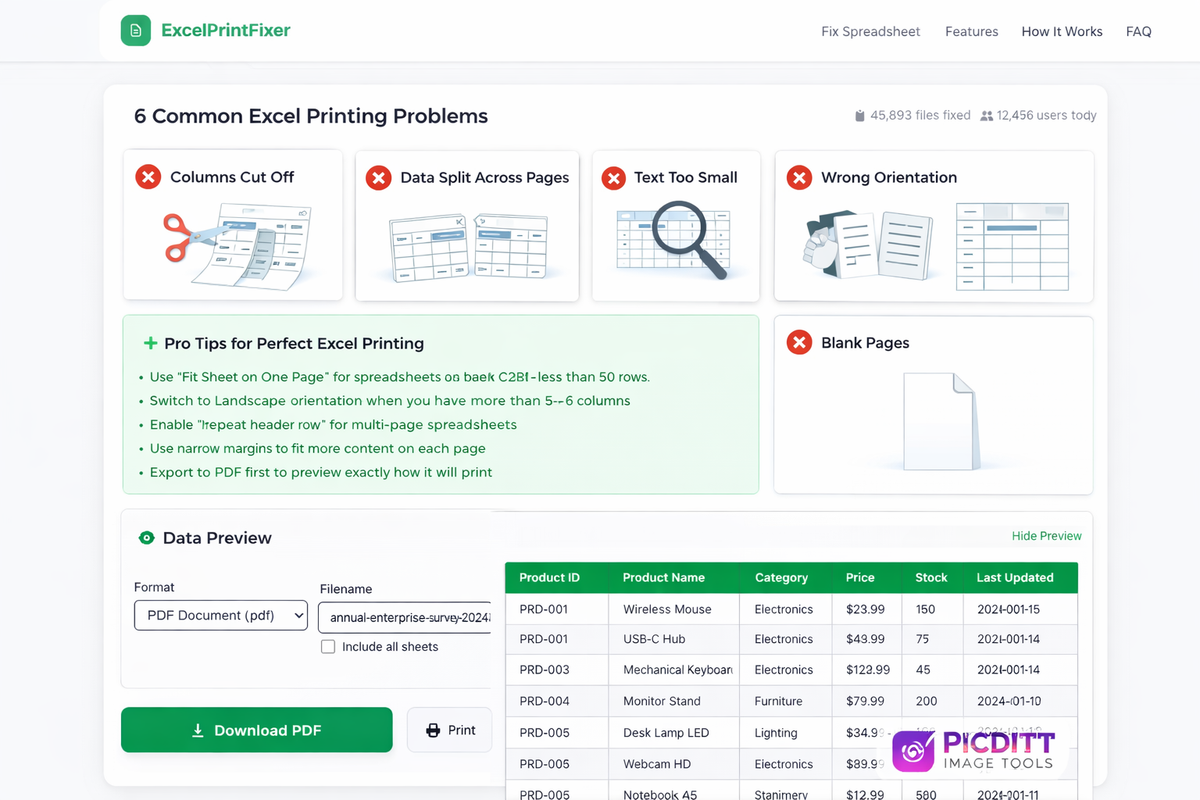
Columns are cut off. Data is awkwardly split across multiple pages. The text is so small it needs a magnifying glass to read. Half your headers are missing, and somehow there are three blank pages at the end.
Sound familiar? You are not alone. Printing in Excel shouldn't be complicated, but it is. You hit Ctrl+P, and suddenly your carefully formatted spreadsheet becomes an unreadable mess across 14 pages with missing headers and cut-off columns.1 This is one of the most universal frustrations in the working world — and it has been driving people crazy for decades.
The problem is that Excel's print settings are buried in multiple menus, scattered across different tabs, and require you to juggle orientation, scaling, margins, print areas, page breaks, and headers simultaneously. One of the primary reasons for columns being cut off during printing is improper page setup. Excel's default print area settings and margin configurations may not accommodate the entire width of your data, especially if your spreadsheet contains numerous columns.
In this complete guide, you will learn exactly why Excel printing is so problematic, what each print setting actually does, and most importantly — how to fix all these problems instantly using Picditt's free Excel Print Fixer. One click. Perfect PDF. No more wasted paper.
Why Does Excel Make Printing So Difficult?
Before we get into the solution, it is important to understand why Excel printing goes wrong so often. This is not about user error — it is a fundamental design limitation that has plagued spreadsheet software for years.
The Screen vs. Paper Problem
Your computer screen and a sheet of paper are completely different things. Your monitor can scroll infinitely in any direction. A piece of paper cannot. When Excel tries to translate your unlimited screen space onto a fixed 8.5 x 11 inch (or A4) page, something has to give.
Excel does its best to guess how to divide your data across pages, but its default settings almost always get it wrong — especially for spreadsheets with more than 5-6 columns.
The Hidden Settings Problem
Several factors contribute to this problem: Page Layout and Margins — improper page setup with narrow margins can cause data to be squeezed, leading to text being cut off. Column Widths and Row Heights — if columns or rows are too narrow or short, content may spill over the page boundary or be truncated. Scaling and Print Area Settings — inappropriate scaling options or a misconfigured print area can lead to data being scaled improperly or omitted. Print Settings and Orientation — using the wrong page orientation can affect how data fits on the page. Cell Formatting and Text Wrapping — excessively long unwrapped text in cells can extend beyond cell boundaries, causing clipping or cutoff. Hidden or Broken Content — hidden rows/columns or merged cells that aren't configured properly can disrupt normal printing.
That is six different categories of settings you need to get right — simultaneously — for a single printout. No wonder it goes wrong so often.
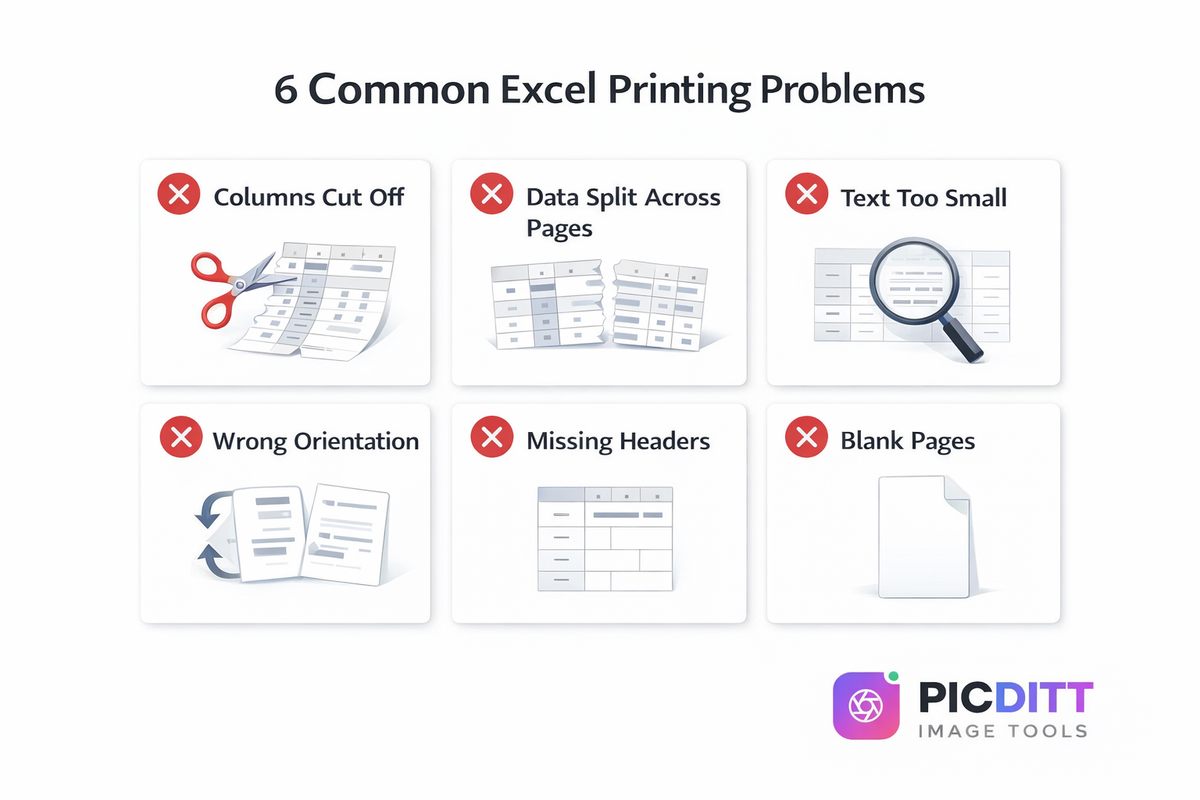
The 8 Most Common Excel Printing Problems (And Why They Happen)
Let us break down each problem you are likely encountering so you understand what is going wrong:
1. Columns Cut Off on the Right Side
This is the single most common Excel printing complaint. Your spreadsheet has 8 or 10 columns, but when you print it, only the first 5 or 6 appear. The rest are either completely missing or pushed to a second page by themselves.
Why it happens: Your spreadsheet's total column width exceeds the printable width of the paper in the current orientation. Excel's default portrait mode only offers about 6.5 inches of printable width on Letter-size paper.
2. Data Awkwardly Split Across Pages
Instead of keeping related data together, Excel splits rows or columns at random points between pages. You end up with page 1 showing the first half of a table and page 2 showing the rest, with no context on either page.
Why it happens: Excel will insert page breaks automatically, but they often land in terrible places — like splitting a category across two pages.
3. Text Too Small to Read
You tried "Fit Sheet on One Page," and technically everything fits — but the text is so tiny that no human could actually read it. This defeats the entire purpose of printing.
Why it happens: The "Fit to Page" scaling shrinks everything proportionally. If your spreadsheet is very large, it can shrink text down to 4-5 point font, which is virtually unreadable.
4. Wrong Orientation (Portrait vs. Landscape)
Wide spreadsheets print in portrait mode (vertical), cutting off columns that would easily fit if the page were turned sideways.
Why it happens: Excel defaults to portrait orientation. By default, Excel is set to print in Portrait orientation (taller than it is wide). If your spreadsheet has many columns, it's naturally wider than it is tall.
5. Missing Headers on Page 2 and Beyond
Your first page looks fine, but page 2 is just a wall of numbers with no column headers. Readers have no idea what any of the data means.
Why it happens: If your spreadsheet prints on multiple pages, repeating headers is non-negotiable. Without it, page 2 becomes unreadable — your readers won't know what each column represents.
6. Blank Pages Printing
You expected 3 pages but got 5 — with two completely blank pages mixed in. This wastes paper and looks unprofessional.
Why it happens: There is often invisible content (a space, a formatting mark, or accidental data) in cells far outside your intended print area. Excel sees these cells as part of the content and creates extra pages for them.
7. Print Preview Looks Different from Actual Print
Everything looks perfect in Print Preview, but the actual printed page comes out differently — with shifted margins, different font sizes, or different page breaks.
Why it happens: Excel print preview and printer can sometimes be out of sync. Even when working in "Page Layout" mode, documents may not print as they appear, with rows extending over into other pages.
8. Gridlines Not Printing
Your spreadsheet has clear cell borders on screen, but they disappear completely when printed, making the data hard to read.
Why it happens: By default, Excel does not show the worksheet gridlines when you preview or print a sheet, even if the gridlines are visible on the sheet. You have to manually enable gridline printing — a setting most people do not even know exists.
The Traditional Way to Fix Excel Printing (The Hard Way)
If you want to fix these problems manually in Excel, here is what you would need to do for every single spreadsheet:
Step 1: Check and Change Orientation
Go to Page Layout → Orientation → Landscape (for wide spreadsheets).
Step 2: Adjust Margins
Go to Page Layout → Margins → Narrow (or Custom Margins for more control).
Step 3: Set the Print Area
Select your data range, then go to Page Layout → Print Area → Set Print Area.
Step 4: Configure Scaling
Go to Page Layout → Scale to Fit and set Width to 1 page. Alternatively, in Print Preview, choose "Fit All Columns on One Page."
Step 5: Set Repeating Headers
Go to Page Layout → Print Titles → Rows to Repeat at Top and select your header row.
Step 6: Adjust Page Breaks
Go to View → Page Break Preview and manually drag the blue lines to where you want pages to break.
Step 7: Enable Gridlines
Go to Page Layout → Sheet Options → Gridlines → Print and check the box.
Step 8: Preview and Adjust
Press Ctrl + P to preview, then go back and adjust anything that still looks wrong. Repeat as needed.
That is 8 separate steps, spread across 4 different Excel tabs, with at least 3-4 rounds of trial and error. For a single spreadsheet. And you have to do this every time you print a different file.
There has to be a better way. And there is.
The Easy Way: Fix Everything in One Click with Picditt
Picditt's Excel Print Fixer eliminates all of this frustration by automatically detecting and fixing every common printing problem with a single click. Upload your spreadsheet, click Auto-Fix, and export a perfectly formatted PDF — done.
Here is exactly how to use it:
Step 1: Open the Excel Print Fixer
Go to https://picditt.com/conversion/excel-print-fixer in any web browser. You will see a clean upload area ready for your file.
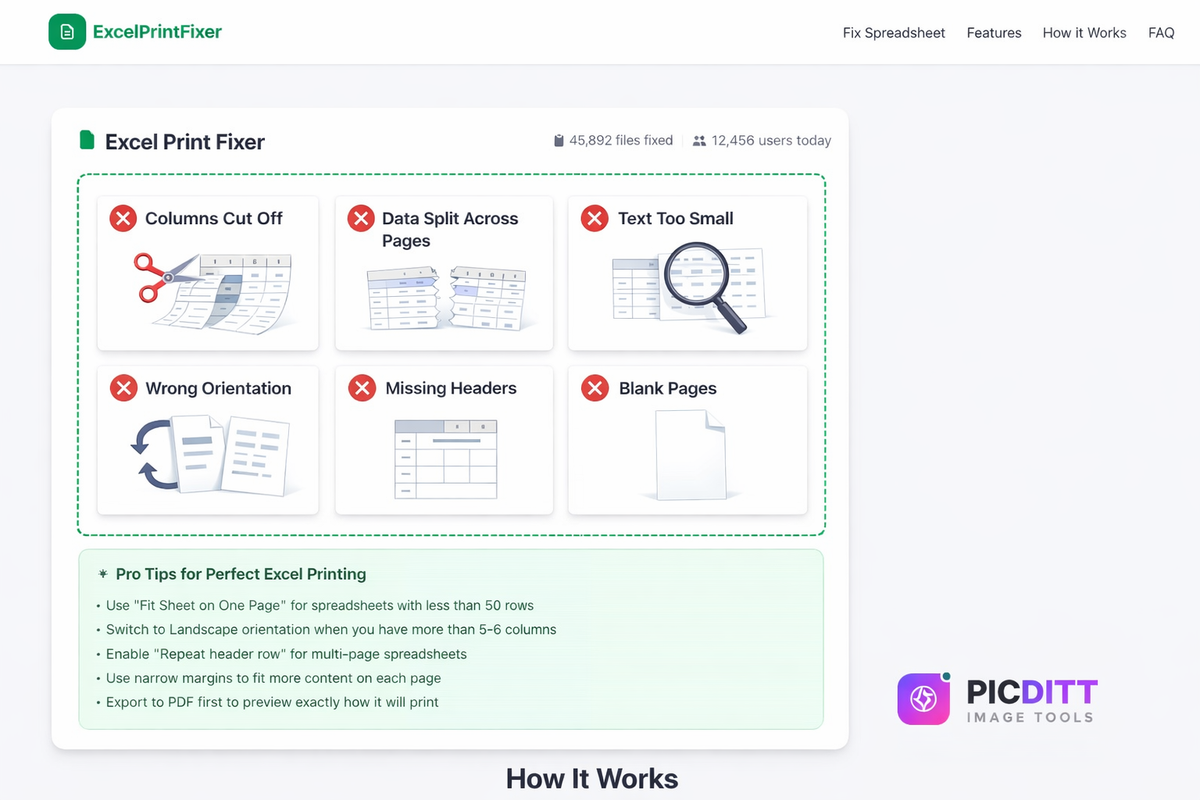
Step 2: Upload Your Spreadsheet
Drag and drop your Excel file onto the upload area, or click to browse and select it. The tool supports:
- .xlsx (Excel 2007 and later)
- .xls (Excel 97-2003)
- .csv (Comma-separated values)
Files up to 50MB are supported, which covers virtually any spreadsheet you will ever need to print.
Step 3: Click Auto-Fix
This is where the magic happens. Click the Auto-Fix button and the tool will automatically:
- ✅ Detect the optimal orientation (portrait or landscape) based on your data's shape
- ✅ Auto-fit all column widths so no text is cut off or truncated
- ✅ Scale content to fit the page while maintaining readability
- ✅ Set proper margins to maximize printable area
- ✅ Configure page breaks at logical points in your data
- ✅ Enable repeating headers for multi-page spreadsheets
- ✅ Remove blank pages caused by invisible content
All of this happens instantly — no waiting, no server processing, no trial and error.
Step 4: Customize (Optional)
After Auto-Fix, you can fine-tune any setting if needed:
- Orientation: Switch between portrait and landscape
- Scaling: Adjust from 10% to 400%
- Margins: Choose from preset or custom margin sizes
- Paper size: Select A4, Letter, Legal, or A3
- Gridlines: Toggle cell borders on or off
Step 5: Preview and Export
The live preview shows you exactly how your spreadsheet will look on paper — no surprises. When you are satisfied, click Export to PDF and download your perfectly formatted document.
What Does the Auto-Fix Actually Do?
Let us look at what happens behind the scenes when you click that one button:
Problem Detected
Auto-Fix Applied
Spreadsheet wider than page
Switches to landscape orientation
Columns too wide or narrow
Auto-fits all column widths to content
Content overflows page
Scales to fit while keeping text readable
Excessive white space
Applies narrow margins
Headers only on page 1
Enables repeat header row on all pages
Awkward page breaks
Recalculates logical break points
Hidden blank content
Removes empty pages
Gridlines invisible
Enables printable gridlines
The result is a spreadsheet that looks like it was formatted by an Excel expert — without you touching a single setting.
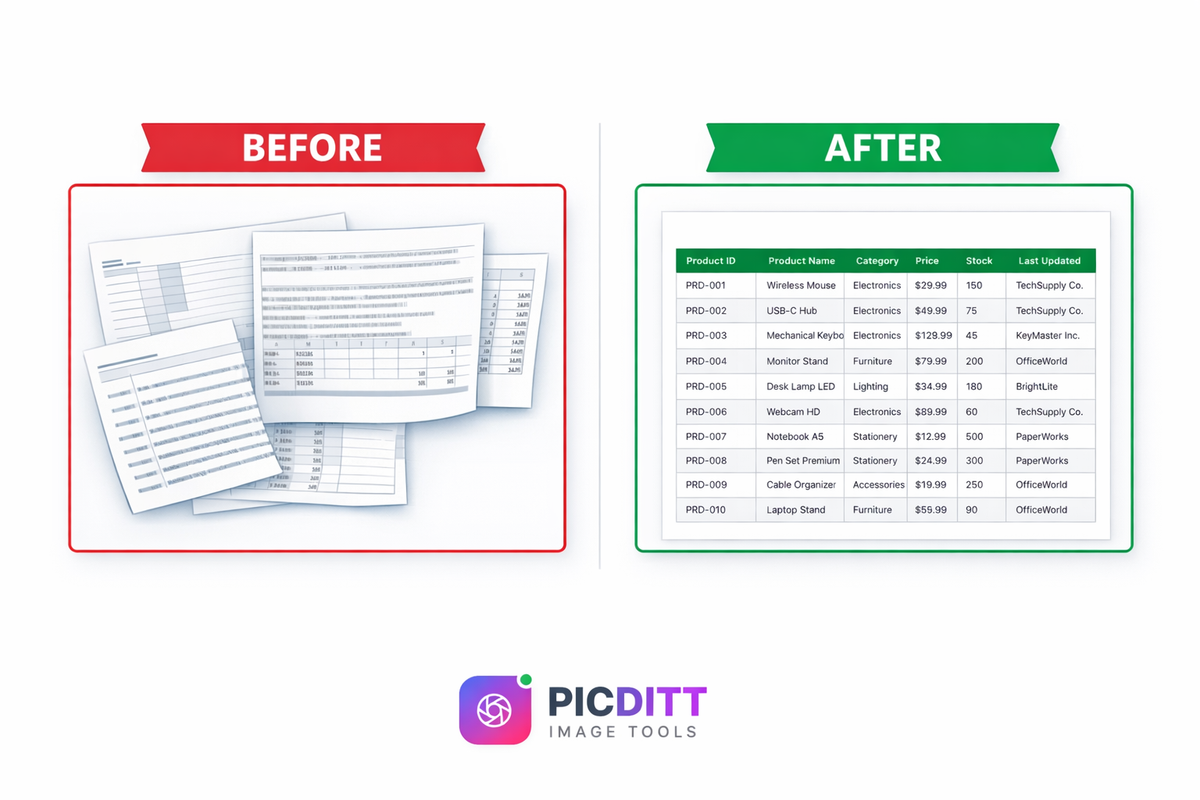
Why Export to PDF Instead of Printing Directly?
You might wonder: why not just fix the settings and print directly from Excel? Here are five compelling reasons to export to PDF first:
1. What You See Is What You Get
PDFs look exactly the same on every device, every printer, and every operating system. Sometimes, Excel prints differently than it appears on-screen. With PDF, there are no surprises.
2. Easy to Share
Need to email a printable spreadsheet to a colleague, client, or manager? A PDF is universally readable — the recipient does not need Excel installed, and the formatting will never shift.
3. Professional Appearance
PDFs look polished and professional. They cannot be accidentally edited, and they print consistently on any printer.
4. Archive and Record Keeping
PDFs are the standard format for business records, invoices, reports, and official documents. Converting your spreadsheet to PDF creates a permanent, unalterable record.
5. No Printer Driver Issues
Printer driver incompatibilities are a common cause of Excel printing problems. By exporting to PDF first, you bypass the direct Excel-to-printer pathway entirely, eliminating an entire category of potential issues.
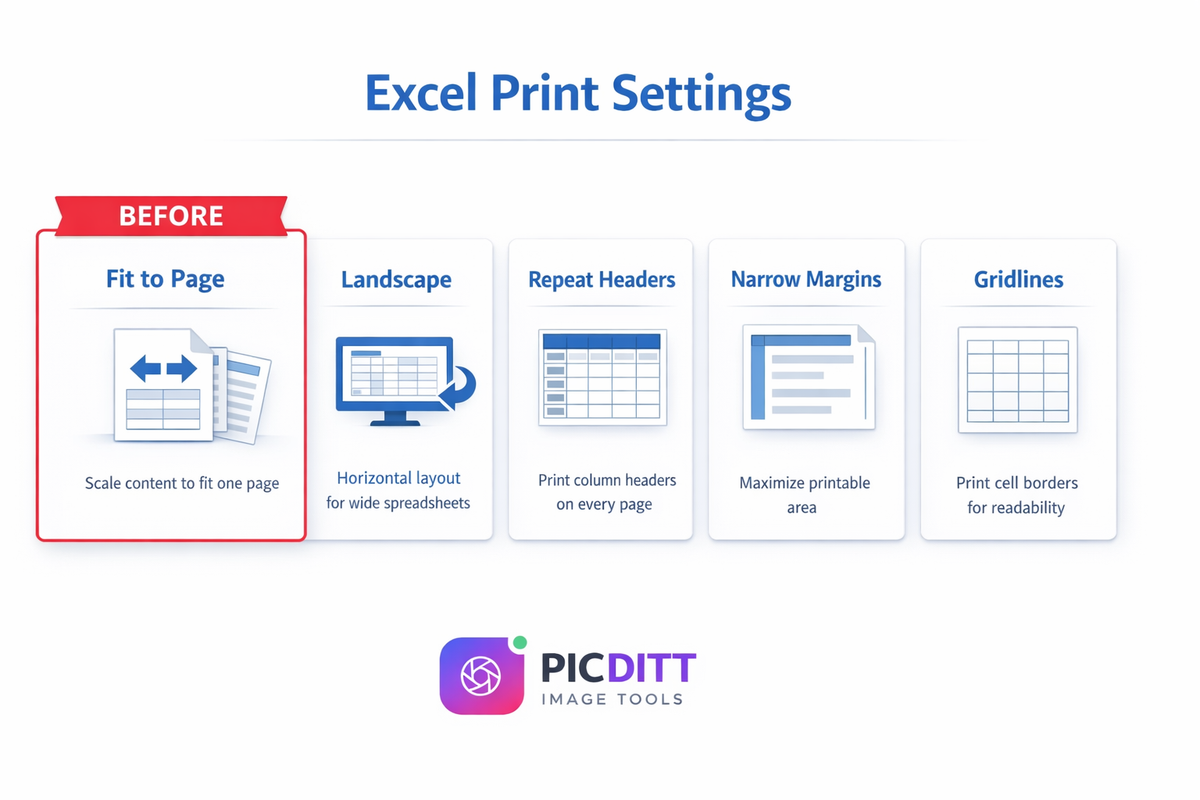
Understanding Excel Print Settings (So You Never Get Confused Again)
Even though Picditt's Auto-Fix handles everything for you, understanding what each setting does will make you more confident with spreadsheets in general:
Fit to Page
Scales your entire spreadsheet to fit on a single printed page. Best for small to medium spreadsheets with fewer than 50 rows. For larger spreadsheets, it can make text too small to read.
Landscape Orientation
Rotates the page horizontally, giving you about 3 extra inches of width. Essential for spreadsheets with 6 or more columns. This single change fixes the majority of "columns cut off" problems.
Repeat Headers (Print Titles)
Prints your column header row at the top of every page — not just the first page. Absolutely critical for any spreadsheet that spans multiple pages. Without it, readers on page 2 have no idea what the numbers mean.
Narrow Margins
Reduces the white space around the edges of the page, giving your data more room to fit. Standard margins use about 1.5 inches on each side; narrow margins use about 0.75 inches. That extra space can be the difference between fitting on one page and spilling onto two.
Gridlines
The visible cell borders that make spreadsheet data readable. Excel does not print them by default — you have to explicitly enable gridline printing. Without gridlines, a printed spreadsheet is just a wall of disconnected numbers.
Print Area
Defines exactly which cells should be printed. If your print area is set incorrectly (or not set at all), Excel might print cells you do not want — including blank ones far outside your data range.
Page Breaks
Control where one page ends and the next begins. Excel's automatic page breaks are often poorly placed. Manual page breaks let you ensure that related data stays together on the same page.
Is It Safe to Upload My Spreadsheets?
This is a critical question, especially if your spreadsheets contain sensitive business data, financial figures, client information, or personal records.
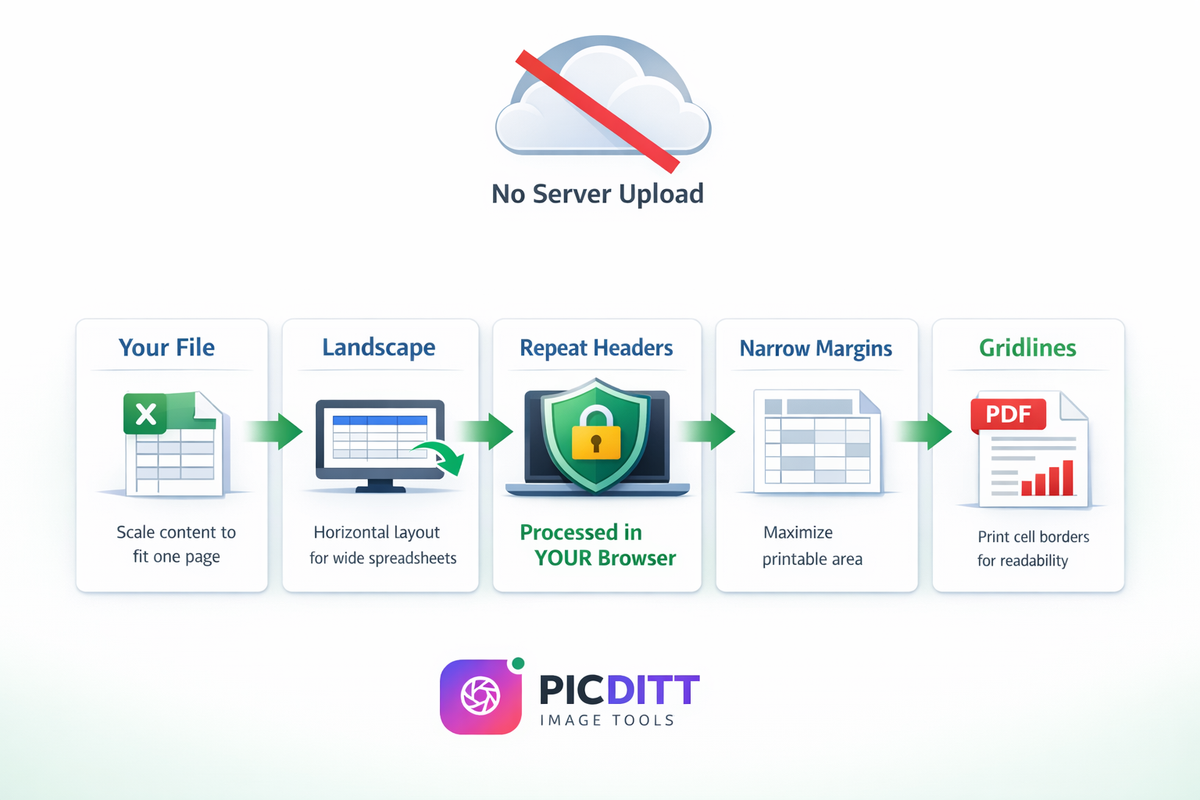
Here is the important distinction: Picditt's Excel Print Fixer processes everything locally in your web browser. Your file never leaves your device. It is not uploaded to any server, cloud, or third party.
This means it is safe for:
- 📊 Financial reports with sensitive revenue data
- 👥 Employee records with personal information
- 💰 Invoice and billing spreadsheets with client details
- 📈 Business analytics with proprietary data
- 🏥 Healthcare data that requires privacy compliance
- 🎓 Academic records and grade sheets
The tool uses your computer's own processing power through advanced browser-based technology. When you close the tab, your data is gone — it was never stored anywhere.
Who Needs the Excel Print Fixer?
This tool is not just for people who are "bad at Excel." It is for anyone who values their time:
👔 Office Workers and Administrators
You print spreadsheets daily — attendance sheets, inventory lists, schedules, contact directories. Every minute spent fighting with print settings is a minute wasted.
📊 Accountants and Financial Professionals
Financial reports, balance sheets, budgets, and invoices must look perfect on paper. Misaligned columns or missing data on a printed financial report is not just annoying — it can cause real business problems.
👩🏫 Teachers and Educators
Grade sheets, student rosters, lesson plans, and assignment trackers all live in Excel. Printing them for meetings, parent conferences, or classroom use should not require a PhD in page setup.
📈 Managers and Team Leaders
Project timelines, KPI dashboards, team schedules, and performance reports need to be shared in meetings. A clean PDF export is faster and more professional than passing around a laptop.
🏠 Small Business Owners
Product lists, pricing sheets, order forms, and customer databases. You are busy running your business — you should not be debugging Excel print settings.
🎓 Students
Research data tables, lab results, assignment submissions, and study schedules. Your professor wants a clean printout, not a mess of cut-off columns.
Pro Tips for Better Excel Printing
Even with Picditt's Auto-Fix handling the heavy lifting, these tips will help you create better spreadsheets from the start:
Tip 1: Keep Column Widths Reasonable
Avoid extremely wide columns. If a column contains long text, consider using Excel's "Wrap Text" feature instead of making the column wider. This keeps your spreadsheet narrower and easier to fit on a printed page.
Tip 2: Use "Fit Sheet on One Page" Only for Small Spreadsheets
This setting works great for spreadsheets with fewer than 50 rows and 8 columns. Beyond that, the text becomes too small. For larger spreadsheets, use "Fit All Columns on One Page" instead, which allows multiple pages vertically while keeping all columns on one page horizontally.
Tip 3: Switch to Landscape for Wide Spreadsheets
If your spreadsheet has more than 5-6 columns, landscape orientation should be your first move. It provides about 40% more horizontal space.
Tip 4: Enable "Repeat Header Row" for Multi-Page Spreadsheets
If your printout spans more than one page, always enable repeating headers. Without them, anyone reading page 2 or beyond will have no context for the numbers they are seeing.
Tip 5: Always Export to PDF Before Printing
Even if you are going to print from your own computer, export to PDF first. This lets you see exactly what will come out of the printer, and you can catch any issues before wasting paper.
Tip 6: Use Picditt for Quick Fixes
When you receive a spreadsheet from someone else and need to print it quickly, do not waste time figuring out their print settings. Upload it to Picditt's Excel Print Fixer, click Auto-Fix, and export a perfect PDF in seconds.
Picditt Excel Print Fixer vs. Manual Excel Settings
Feature
Picditt Excel Print Fixer
Manual Excel Settings
Time to fix
5 seconds (one click)
10-30 minutes (trial and error)
Expertise needed
None
Intermediate Excel knowledge
Auto-detect problems
✅ Yes
❌ No — you must find issues yourself
Auto-fix problems
✅ Yes
❌ No — you must fix each one manually
Live preview
✅ Built-in
✅ Print Preview (limited)
PDF export
✅ One-click
⚠️ Requires "Print to PDF" workaround
Works with any file
✅ .xlsx, .xls, .csv
✅ Excel files only
No software needed
✅ Browser-based
❌ Requires Microsoft Excel
Privacy
✅ 100% local processing
✅ Local (on your computer)
Free
✅ Completely free
⚠️ Requires Excel license
Other Picditt Tools You Might Find Useful
If you work with spreadsheets, you probably also work with images, PDFs, and documents. Here are some other free Picditt tools that complement the Excel Print Fixer:
- Image to Excel OCR — Extract data from images (screenshots, photos of tables) directly into Excel format
- Image to Word OCR — Convert images containing text into editable Word documents
- CSV to XLSX Converter — Convert CSV files to proper Excel format with formatting
- XLSX to CSV Converter — Convert Excel files to CSV for data import/export
- Text to Excel — Turn messy text data into organized Excel spreadsheets
- Merge PDF — Combine multiple PDF files into one document
- Split PDF — Extract specific pages from PDF files
- PDF to Image — Convert PDF pages to high-quality images
All tools process locally in your browser with complete privacy.
Frequently Asked Questions (FAQ)
Why does Excel cut off columns when printing?
Excel cuts off columns when your spreadsheet's total width exceeds the printable area of the paper in the current orientation. The default portrait orientation on Letter or A4 paper only provides about 6.5 inches of printable width. If your columns exceed this, the overflow gets pushed to a second page or cut off entirely. The quickest fix is switching to landscape orientation, reducing margins, or using Picditt's Excel Print Fixer to auto-optimize all settings.
How do I fit an entire Excel spreadsheet on one page?
In Excel, go to File → Print, then under Scaling choose "Fit Sheet on One Page." However, for large spreadsheets this can make text unreadable. A better approach is to use Picditt's Excel Print Fixer, which automatically finds the optimal balance between fitting content on fewer pages while keeping text readable.
How do I print Excel with gridlines?
By default, Excel does not print gridlines even if they are visible on screen. To enable them, go to Page Layout → Sheet Options → Gridlines → Print and check the box. In Picditt's Excel Print Fixer, you can toggle gridlines on with a single click.
How do I repeat headers on every page when printing in Excel?
Go to Page Layout → Print Titles, then set "Rows to repeat at top" to your header row (e.g., $1:$1). This ensures column headers appear on every printed page. Picditt's Auto-Fix enables this automatically for multi-page spreadsheets.
Can I fix Excel printing problems without Microsoft Excel installed?
Yes. Picditt's Excel Print Fixer works entirely in your web browser. You do not need Microsoft Excel, Google Sheets, or any other spreadsheet software installed. Simply upload your .xlsx, .xls, or .csv file and the tool handles everything.
Is it safe to upload my spreadsheets to Picditt?
Absolutely. Picditt's Excel Print Fixer processes everything locally in your browser. Your file is never uploaded to any server. It never leaves your device. This makes it safe for sensitive business data, financial records, and personal information.
What file formats does the Excel Print Fixer support?
The tool supports .xlsx (modern Excel), .xls (legacy Excel 97-2003), and .csv (comma-separated values) files. It also works with files exported from Google Sheets, LibreOffice Calc, and Numbers. The maximum file size is 50MB.
Can I adjust the settings after Auto-Fix?
Yes. After clicking Auto-Fix, you can manually fine-tune any setting including orientation, scaling (10% to 400%), margins, paper size (A4, Letter, Legal, A3), gridlines, and more. The live preview updates in real-time so you can see exactly how changes affect the output.
How do I export my fixed spreadsheet to PDF?
After uploading and fixing your spreadsheet, simply click the "Export to PDF" button. Your perfectly formatted PDF will download instantly. You can then print it or share it via email — the formatting will look exactly the same on any device.
Does this tool work on Mac, Windows, and Chromebook?
Yes. Since it runs in your web browser, it works on any operating system — Windows, Mac, Linux, Chromebook, and even tablets. Any modern browser (Chrome, Firefox, Safari, Edge) is supported.
Conclusion
Excel printing problems have frustrated millions of people for decades. Columns get cut off, data splits across pages in the worst possible places, headers disappear, and text shrinks to unreadable sizes. The traditional solution — manually adjusting 8 different settings across 4 different tabs through 3-4 rounds of trial and error — wastes time that you could spend on actual work.
Picditt's free Excel Print Fixer solves this problem permanently:
- ✅ One-click Auto-Fix detects and resolves all common print issues
- ✅ Live Preview shows exactly how your spreadsheet will look
- ✅ Perfect PDF export for consistent, professional results
- ✅ 100% private — your files never leave your device
- ✅ Free forever — no limits, no sign-up, no watermarks
- ✅ Works anywhere — any browser, any device, any operating system
Stop wasting paper on test prints. Stop Googling "why does Excel cut off my columns" every time you need to print. Stop spending 30 minutes on settings that should take 5 seconds.
Upload your spreadsheet, click Auto-Fix, and export a perfect PDF. It really is that simple.
Ready to Try It Yourself?
Use this tool for free — no signup, no download, no watermarks.
Open Free ToolYou Might Also Like
How to Convert Image to Word Online (Free OCR Tool) – Step-by-Step Guide
Learn how to convert images, scanned documents, and photos of text into fully editable Word files using PicDitt’s free, browser-based Image to Word OCR tool. This step-by-step guide covers how OCR works, how to use the tool, and how to get the best accuracy.
Read More →
How to Compress Images to Any Size Online Free — The Complete Guide
Learn how to compress images to any file size online for free. Reduce JPEG, PNG, and WebP photos for email, websites, forms, and social media — without losing visible quality. No signup required.
Read More →
AI Old Photo Restorer & Colorizer: How to Bring Faded Family Photos Back to Life
Old family photos fade, scratch, and lose their color over time—but they don't have to stay that way. Learn how to use PicDitt's free AI Old Photo Restorer & Colorizer to remove damage, enhance details, and add realistic color to black & white images, all directly in your browser.
Read More →