AI Old Photo Restorer & Colorizer: How to Bring Faded Family Photos Back to Life
AI Old Photo Restorer & Colorizer: How to Bring Faded Family Photos Back to Life
Somewhere in your house—maybe in a shoebox under the bed, a dusty album in the attic, or a folder on an old USB drive—there are photographs that mean more to you than almost anything else you own.
Your grandparents on their wedding day. Your mother as a child, squinting into the sun on a beach you've never been to. A great uncle you never met, standing stiffly in a black-and-white portrait from a world that no longer exists.
These photos are irreplaceable. There's no going back to reshoot them. No second take. No backup in the cloud. They exist in one place, and that place is usually fragile.
Paper yellows. Colors fade. Scratches appear. Edges tear. Water stains creep in. And slowly, the faces in those photos become harder to see, the details harder to make out, until the image that once captured a vivid moment becomes a washed-out ghost of itself.
For a long time, restoring old photos meant hiring a professional retoucher—someone skilled in Photoshop who could spend hours carefully removing damage, adjusting contrast, and painting color back into monochrome faces. It worked, but it was expensive, slow, and not something most people could access for a shoebox full of old prints.
That's changed.
AI can now do in seconds what used to take a trained editor hours. And PicDitt's free AI Old Photo Restorer & Colorizer at https://picditt.com/editing/old-photo-restorer puts that technology directly in your browser—no software to install, no account to create, no fees to pay, and no watermarks on your results.
Let me show you how it works, what it can do, and how to get the most out of it for your own family photos and vintage images.
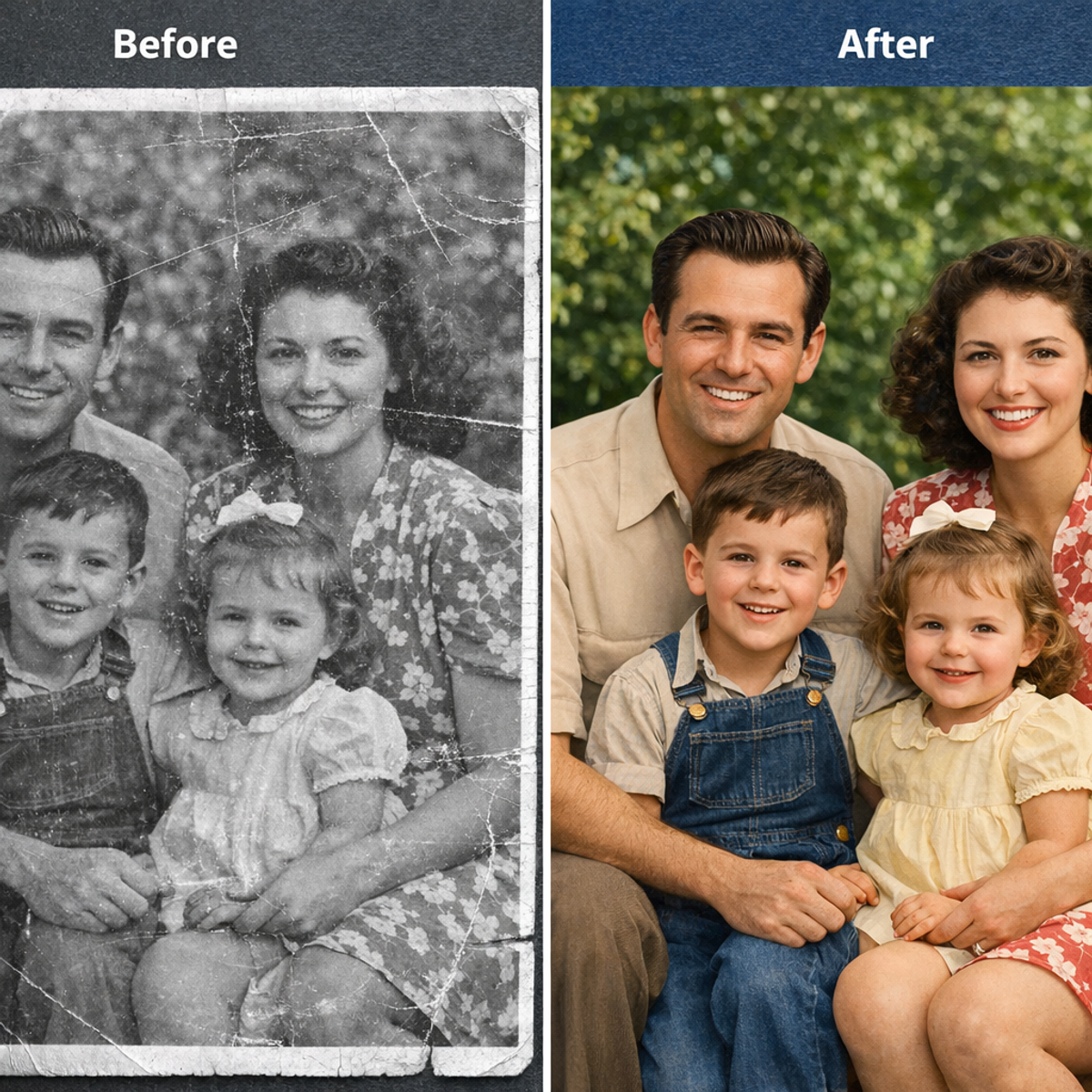
Side-by-side comparison of a faded, scratched old black and white family photograph on the left and the same photo restored and colorized by AI on the right, showing removed scratches, enhanced detail, and realistic added color.
What Happens to Photos Over Time
Before we talk about fixing old photos, it helps to understand what's actually going wrong with them. Knowing the types of damage helps you choose the right restoration settings.
Fading
This is the most common issue. Over decades, the dyes and chemicals in photographic prints break down. Colors lose their vibrancy. Black-and-white photos lose contrast, turning into flat, grayish images where shadows and highlights blend together.
Even photos stored carefully will fade eventually. Photos exposed to light, heat, or humidity fade much faster.
Scratches and Physical Damage
Every time a photo is handled, it risks getting scratched. Stacking photos on top of each other, sliding them in and out of albums, or storing them loosely in drawers creates fine scratches and scuff marks across the surface.
More severe damage includes tears, creases from folding, and areas where the emulsion (the image layer) has flaked off entirely.
Yellowing and Discoloration
The paper and chemicals in old prints react with air and light over time, causing yellowing. This is especially noticeable on the borders and lighter areas of photos. Some photos develop brown or orange stains from chemical breakdown.
Noise and Grain
When old prints are scanned, the scanner often picks up paper texture, dust, and grain from the original film. This creates digital noise that makes the scanned image look rough and speckled, especially in smooth areas like skin or sky.
Water and Moisture Damage
Water stains leave distinctive rings and blotches. In severe cases, moisture causes photos to stick together, and separating them can rip the image layer.
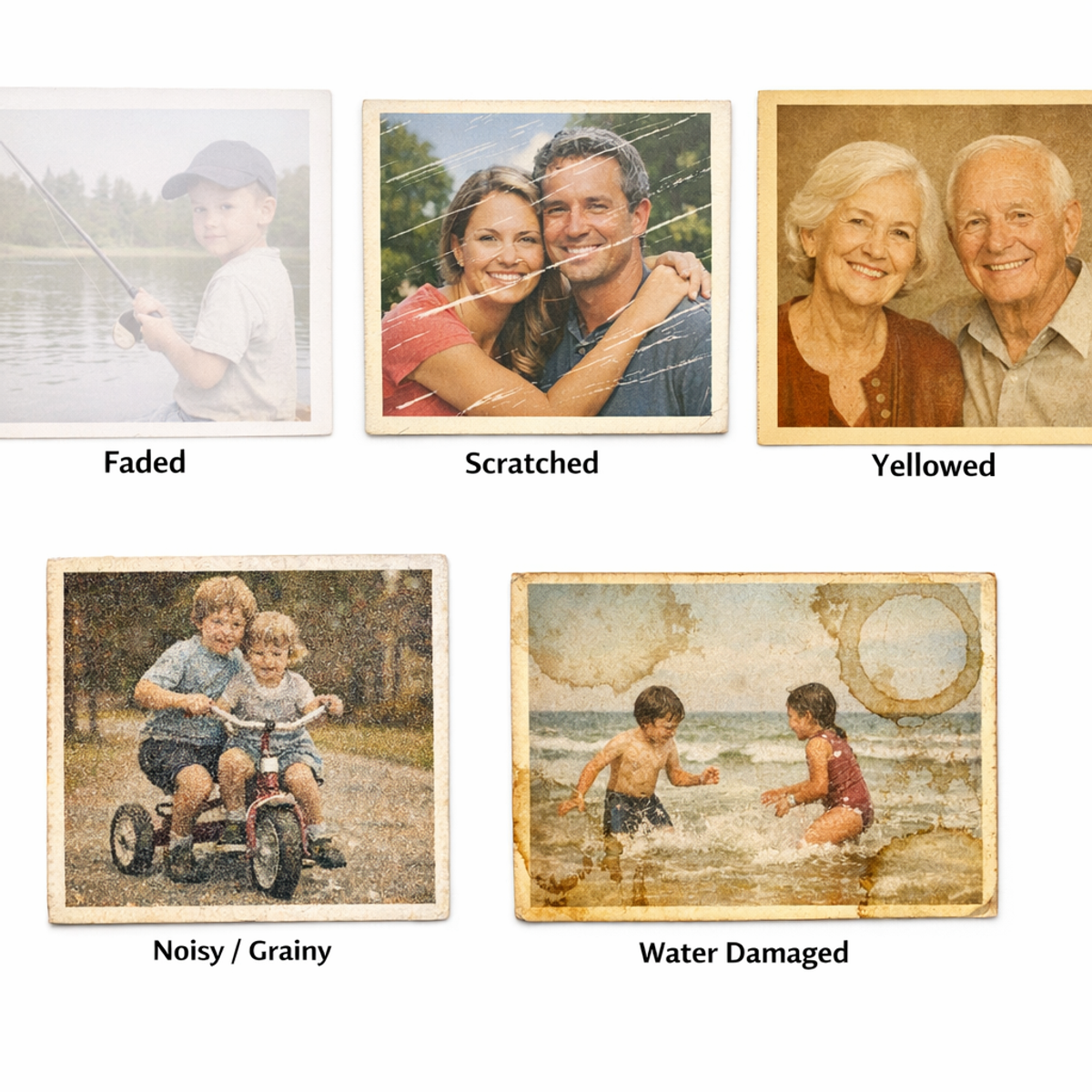
Five examples of common old photo damage: faded contrast, surface scratches, yellowing discoloration, grain and noise from scanning, and water stain damage.
How AI Photo Restoration Works
Traditional photo restoration requires a skilled editor to manually:
- Clone clean areas over scratches
- Paint in missing detail
- Adjust curves and levels for contrast
- Carefully add color to grayscale images
This is painstaking, time-consuming work. A single complex restoration could take hours.
AI restoration takes a fundamentally different approach.
Trained on Millions of Examples
AI restoration models are trained on massive datasets of damaged and clean photo pairs. The neural network learns patterns:
- What does a scratch look like vs. a real image feature?
- What should skin tone look like under faded contrast?
- What colors are realistic for grass, sky, clothing, and hair?
- How should detail appear when enhanced from a soft, blurry original?
When you upload your old photo, the AI doesn't follow manual rules. It recognizes damage patterns it's seen millions of times and applies the corrections it has learned produce the best results.
Multiple Fixes in One Pass
The beauty of AI restoration is that it handles multiple problems simultaneously. In a single processing pass, it can:
- Detect and remove scratches
- Enhance contrast and exposure
- Reduce noise and grain
- Sharpen blurred details
- Add realistic color to black & white images
What would take a human editor multiple rounds of careful editing, the AI accomplishes in seconds.
What PicDitt's AI Old Photo Restorer Can Do
PicDitt's tool at https://picditt.com/editing/old-photo-restorer includes a comprehensive set of restoration features. Here's what each one does and when to use it.
Colorize Photo
Transforms black & white or sepia photographs into full-color images. The AI predicts what colors should be present based on the content—blue sky, green grass, natural skin tones, period-appropriate clothing colors.
When to use it:
- Black & white family portraits
- Historical photographs
- Sepia-toned vintage images
- Any monochrome photo you want to see in color
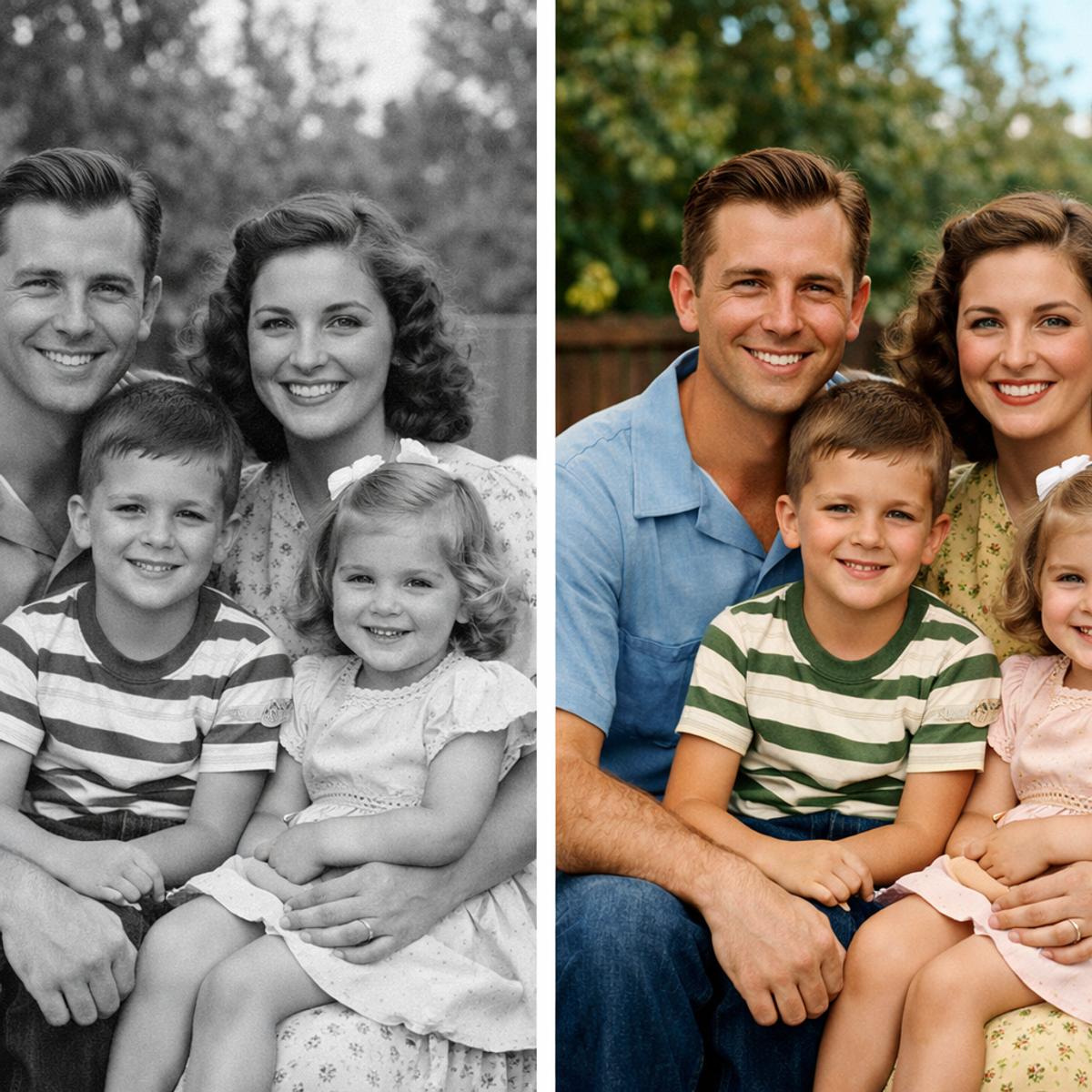
Before-and-after showing a black and white portrait on the left and the same portrait with AI-added realistic color on the right, including natural skin tones and colored clothing.
Remove Scratches
Identifies and removes scratches, dust spots, scuff marks, and other surface damage while preserving the important details underneath.
When to use it:
- Photos with visible scratch lines
- Scanned prints with dust spots
- Images with minor tears or surface wear
Enhance Details
Sharpens soft or slightly blurry images, bringing out facial features, text, textures, and fine details that have become obscured over time.
When to use it:
- Soft or slightly out-of-focus photos
- Scans that appear less sharp than the original print
- Photos where facial features are hard to distinguish
Auto Contrast
Automatically adjusts the tonal range of the image—deepening shadows, brightening highlights, and spreading the midtones for a more dynamic, vivid result.
When to use it:
- Flat, low-contrast images
- Photos where everything looks gray or muddy
- Images that have lost their tonal range due to fading
Reduce Fading
Specifically targets the color and tonal loss that comes from decades of aging. Restores vibrancy to washed-out colors and brings back depth to faded prints.
When to use it:
- Color photos from the 60s, 70s, and 80s that have lost saturation
- Prints that have been displayed in sunlight
- Any image where colors appear significantly weaker than they should
Fine-Tuning Controls
Beyond the AI presets, you can manually adjust:
- Noise Reduction – Control how aggressively grain is removed
- Brightness Boost – Lighten dark or underexposed images
- Color Saturation – Increase or decrease color intensity
- Sharpness – Adjust edge definition for crisper or softer results
These sliders let you fine-tune the AI's output to match your personal preference.
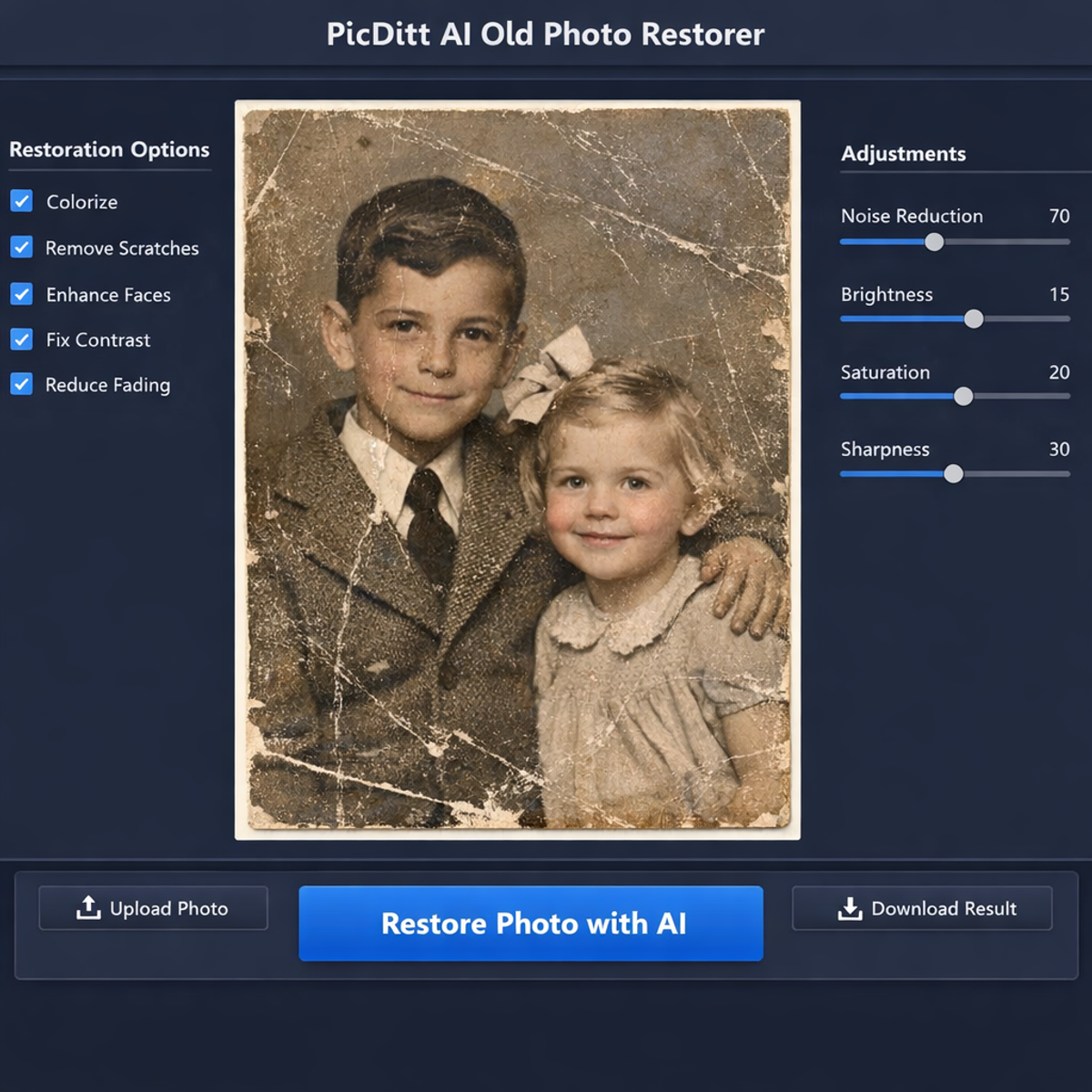
Screenshot of PicDitt's AI Old Photo Restorer showing an old photograph loaded with restoration option toggles and adjustment sliders for noise reduction, brightness, saturation, and sharpness.
Step-by-Step: How to Restore Your Old Photo
The entire process takes about a minute once you get the hang of it.
Step 1: Open the Tool
Visit:
https://picditt.com/editing/old-photo-restorer
You'll see a clean upload area and restoration options.

PicDitt AI Old Photo Restorer showing the empty upload screen with drag-and-drop area and supported format information.
Step 2: Upload Your Old Photo
Either drag and drop your scanned photo or click to browse. The tool supports:
- JPG
- PNG
- WebP
- Maximum file size: 10 MB
Scanning tip: If you're scanning a physical print, use at least 300 DPI for best results. Higher resolution gives the AI more detail to work with.
Step 3: Choose Your Restoration Options
Toggle on the features you need:
- ✅ Colorize Photo – If it's black & white or sepia
- ✅ Remove Scratches – If there's visible surface damage
- ✅ Enhance Details – If the image is soft or blurry
- ✅ Auto Contrast – If the image looks flat or muddy
- ✅ Reduce Fading – If colors have washed out
You can enable multiple options at once. The AI handles them together.
Step 4: Adjust the Sliders
Fine-tune to your preference:
- Noise Reduction: Start at 50% and adjust. Higher values smooth more grain but may soften details.
- Brightness Boost: Use if the photo is too dark. 20-40% is usually enough.
- Color Saturation: Increase for more vivid colors. Be careful not to overdo it—oversaturated images look unnatural.
- Sharpness: Increase for crisper edges. Too much can create harsh-looking artifacts.
Step 5: Click "Restore Photo with AI"
Hit the restore button. The AI will process your image directly in your browser. This typically takes a few seconds depending on image size and your device.
Step 6: Compare Before and After
Use the before/after comparison slider to see exactly what changed. Check key areas:
- Faces: Are features clearer?
- Scratches: Have they been removed cleanly?
- Colors: Do they look natural and realistic?
- Overall: Does the image feel revived without looking artificial?
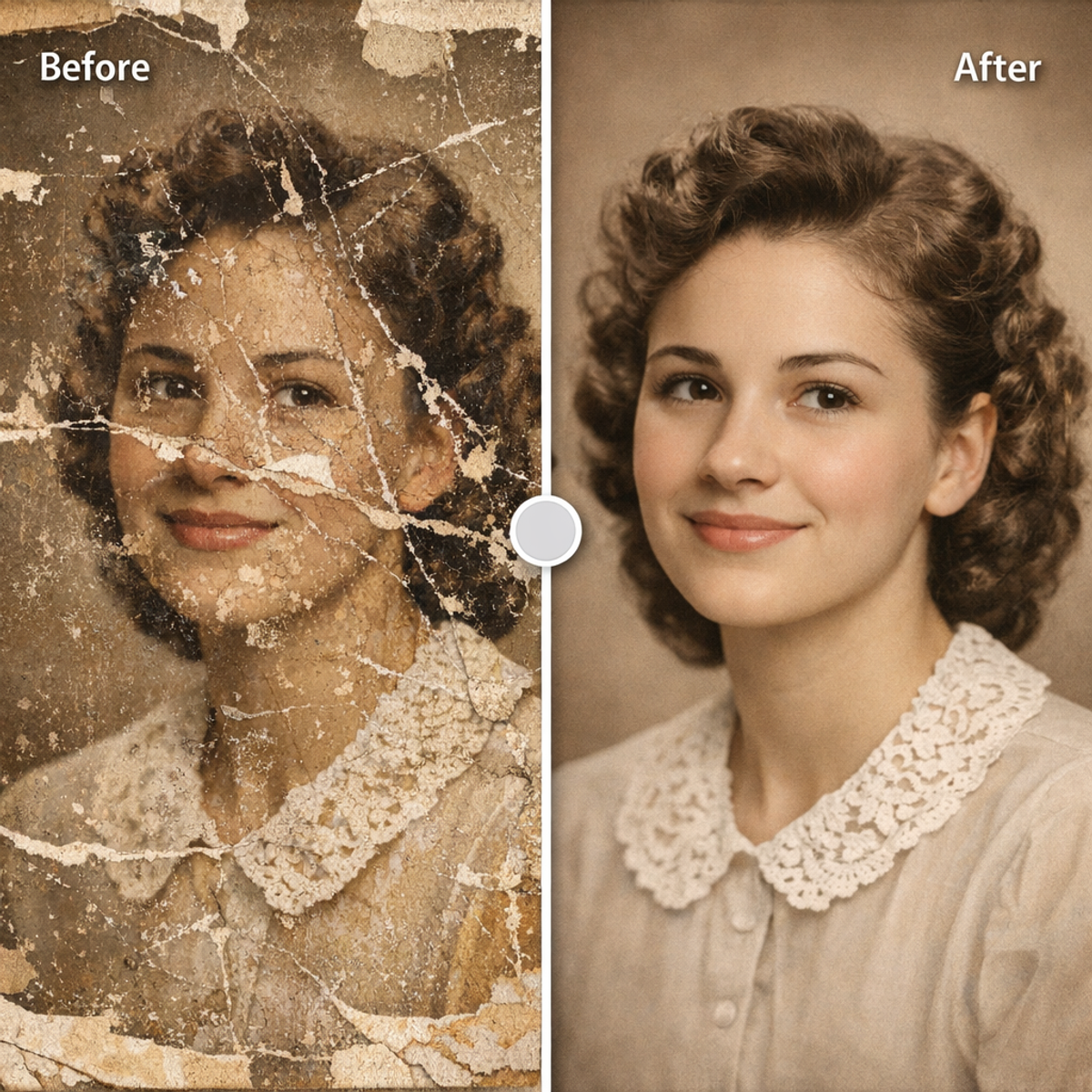
Before-and-after comparison slider in PicDitt's AI Photo Restorer showing the original faded scratched photo on the left and the AI-restored enhanced version on the right.
Step 7: Download Your Restored Photo
When you're satisfied:
- Click Download
- The restored image saves to your device in full resolution
- No watermarks are added
- The file is ready to print, share, or archive
Who Benefits from AI Photo Restoration?
This tool isn't just for hobbyists. Here are real scenarios where it genuinely helps.
Family Historians and Genealogy Enthusiasts
If you're building a family tree or genealogy project, old photographs are crucial. But many ancestral photos are small, faded, and damaged. AI restoration can:
- Reveal facial features obscured by age
- Add color to help younger generations connect with their heritage
- Create printable versions for family reunions, memory books, or framed displays
Anyone Preserving Family Memories
You don't need to be a genealogist. Most families have old photos that deserve better than sitting in a deteriorating shoebox. Restoring them is a meaningful way to honor the people and moments they captured.
Historians and Archivists
Historical photographs document places, events, and people that no longer exist. Restoration makes these images more accessible and more impactful for educational and archival purposes.
Social Media Sharing
"Throwback Thursday" posts hit different when the photo actually looks good. Restored and colorized vintage photos generate genuine engagement because they feel alive rather than ancient.
Memorial and Tribute Projects
Creating memorial slideshows, tribute videos, or framed prints for funerals, anniversaries, or milestone birthdays is deeply personal work. Restored photos make these projects more beautiful and meaningful.
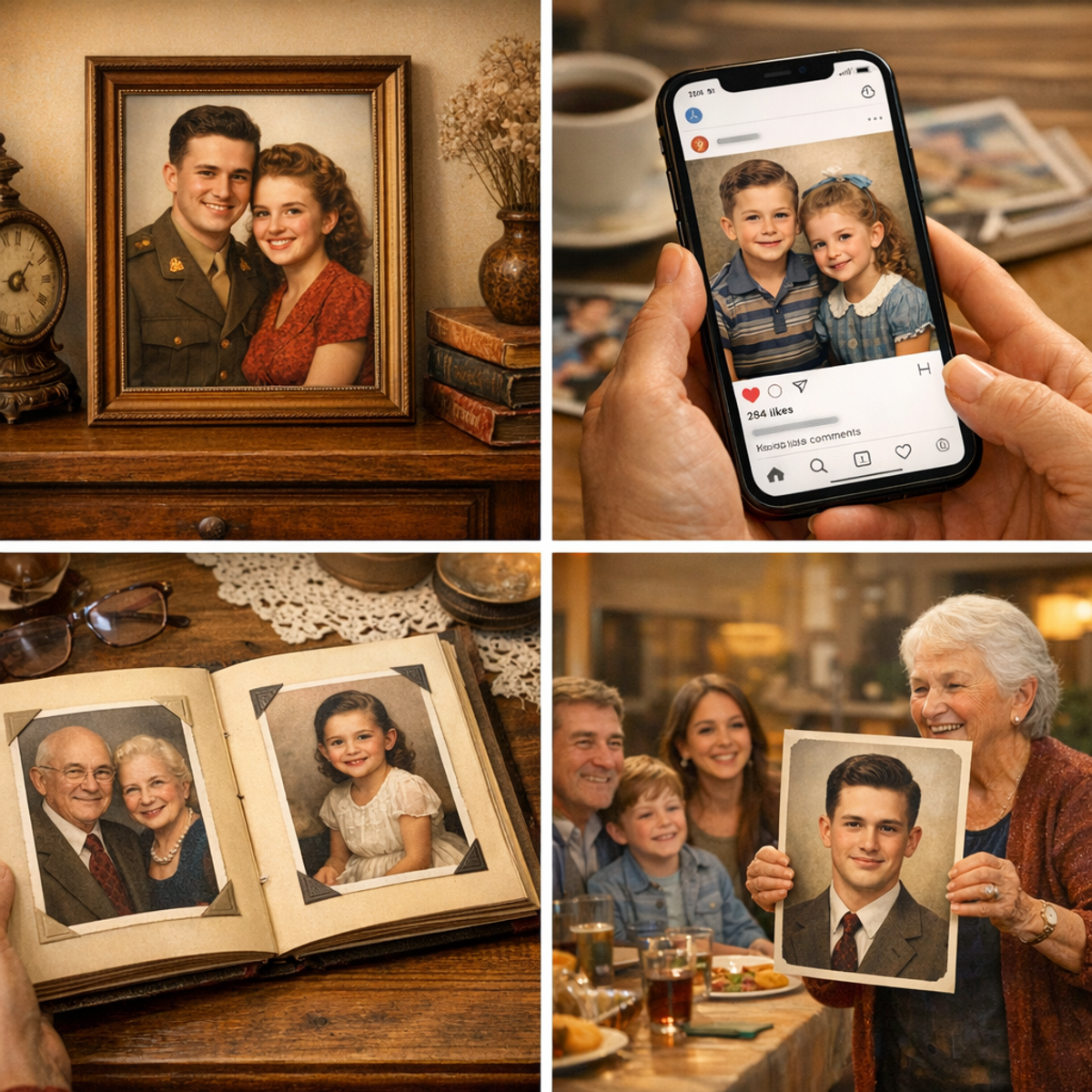
Collage showing restored old photos used in different contexts: framed on a shelf, shared on social media via phone, displayed in a family album, and shown at a family gathering.
Tips for Getting the Best Restoration Results
AI does the heavy lifting, but a few smart choices on your end can significantly improve the output.
Scan at High Resolution
If you're digitizing physical prints, scan at 300 DPI minimum—ideally 600 DPI for small or heavily damaged prints. More pixels give the AI more information to work with.
Clean the Photo Before Scanning
Gently remove loose dust or debris from the surface before scanning. This prevents the scanner from capturing unnecessary particles that the AI then has to work around.
Start with Less, Then Add More
Begin with fewer restoration options and milder slider settings. You can always increase intensity. But over-processing—too much sharpening, too much saturation, too much noise reduction—can make photos look artificial.
Compare Frequently
Use the before/after slider after each adjustment. This helps you catch the point where "enhanced" crosses into "overdone."
Save the Original Scan Separately
Always keep an untouched copy of your original scan. Restore copies, not originals. If you want to try different settings later, you'll need that original file.
Try Colorization Selectively
Colorization is impressive but not always what you want. Some photos look more powerful and authentic in black & white. Try it both ways and decide which version tells the better story.
Complete Privacy: Your Photos Stay Yours
Old family photos are deeply personal. You probably don't want them sitting on someone else's server.
PicDitt's AI Photo Restorer processes everything directly in your browser. Your images are:
- Never uploaded to any server
- Never stored in any database
- Never shared with third parties
- Never used for AI training or any other purpose
The AI runs locally on your device using browser-based technology. When you close the tab, the processing is gone. Only the file you downloaded remains—on your device, under your control.
This is especially important for sensitive family photographs, historical images with personal context, or any content you simply want to keep private.
Frequently Asked Questions
Is the AI Photo Restorer free?
Yes. Completely free with no registration, no subscription, and no watermarks on your restored images.
Does it work on color photos too, or just black & white?
It works on both. For color photos, use features like scratch removal, fading reduction, contrast enhancement, and detail sharpening. For black & white photos, you can additionally enable the colorization feature.
How realistic is the AI colorization?
The AI applies colors based on patterns learned from millions of images. Results are generally natural-looking—realistic skin tones, plausible clothing colors, blue skies, green grass. However, the AI is making educated guesses. Specific colors (like the exact shade of a dress) may not match reality, since the AI doesn't know what colors were actually present.
Will it fix severely damaged photos?
The AI handles moderate damage well—scratches, fading, noise, and minor tears. Severely damaged photos (large missing areas, extreme water damage, heavily torn images) may show limited improvement. The AI works best when most of the image information is still present.
Are my photos uploaded to a server?
No. Everything processes locally in your browser. Your photos never leave your device.
What file formats are supported?
JPG, PNG, and WebP. Maximum file size is 10 MB.
Does it work on mobile phones?
Yes. The tool is browser-based and works on both mobile and desktop devices. Processing may be slightly slower on older phones due to the AI computations running locally.
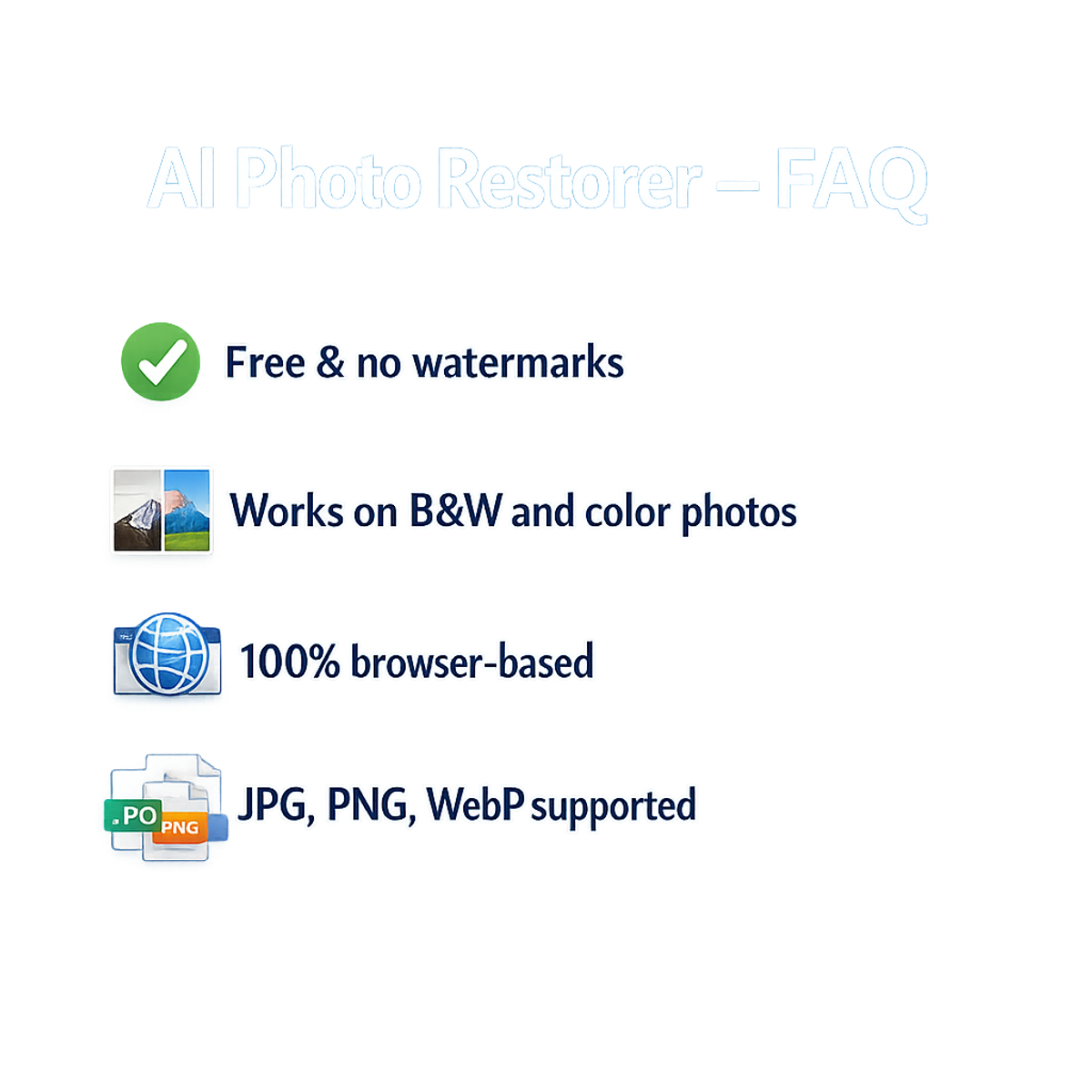
FAQ summary graphic for PicDitt's AI Old Photo Restorer highlighting that it's free with no watermarks, works on both black and white and color photos, is 100% browser-based, and supports JPG, PNG, and WebP formats.
Every Old Photo Has a Story Worth Seeing Clearly
The people in your old photographs lived full, vivid lives. They laughed at dinner tables, held hands on first dates, stood nervously for formal portraits, and smiled at cameras that captured moments they hoped would last.
Those moments did last—in the photos that survived. But time has dimmed them. Faded the colors, scratched the surfaces, blurred the faces.
PicDitt's free AI Old Photo Restorer & Colorizer at:
https://picditt.com/editing/old-photo-restorer
can't turn back time. But it can peel away the damage that time has done and let those moments shine again—sharper, clearer, and even in color if the originals never had it.
No Photoshop skills required. No expensive restoration services. No privacy risks from uploading personal photos to unknown servers.
Just your old photo, a browser, and a few seconds of AI processing.
The memories are already there. They just need a little help being seen again.
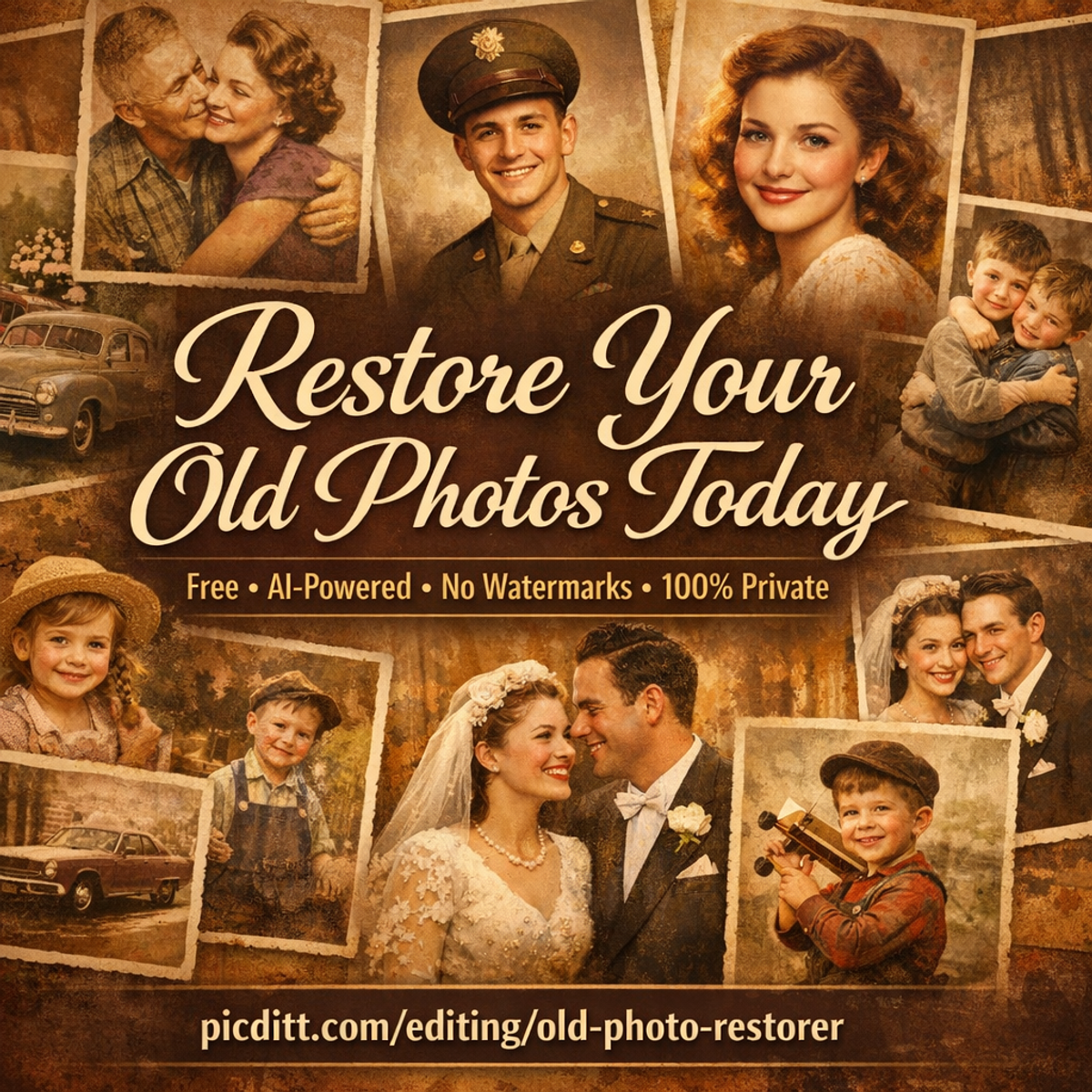
Call-to-action banner inviting readers to restore their old photos using PicDitt's free AI Old Photo Restorer and Colorizer, with restored vintage photos in the background.
You Might Also Like

Screenshot Editor – Edit, Annotate & Share Screenshots Like a Pro
Edit screenshots instantly with PicDitt's free online screenshot editor. Add text, arrows, shapes, blur sensitive info, crop, and export in PNG, JPEG, or WebP. No signup required.
Read More →
Magic Eraser Online: How to Remove Unwanted Objects from Photos with AI
Photobombers, power lines, watermarks, blemishes—every photo has something you wish wasn't there. Learn how to use PicDitt's free Magic Eraser to brush over any unwanted object and watch AI remove it seamlessly, all directly in your browser with complete privacy.
Read More →
How to Compress Images to an Exact File Size: The Complete Guide to Target Compression
Need your image to be exactly 500KB for a government form or under 25MB for Gmail? Learn how to compress any image to a precise file size using PicDitt's free Target Compression tool—without guessing quality settings or losing more quality than necessary.
Read More →