Why Won't My iPhone Photos Open? How to Convert HEIC to JPG Instantly
Why Won't My iPhone Photos Open? How to Convert HEIC to JPG Instantly
You just transferred photos from your iPhone to your Windows PC, double-clicked one to open it, and suddenly you see an error: "Can't open this file because the format is currently unsupported or the file is corrupted."
Sound familiar? You are not alone. Millions of iPhone users around the world face this exact problem every single day. The photos look perfect on your iPhone, but the moment you try to open them on a Windows computer, an Android phone, or upload them to a website, they simply refuse to work.
The culprit? A file format called HEIC.
In this complete guide, you will learn exactly what HEIC is, why your iPhone uses it, why it causes so many problems, and most importantly — how to convert HEIC to JPG instantly for free using Picditt's Universal Image Converter. No software to install, no files uploaded to any server, and it works right in your browser.
What Is HEIC and Why Does Your iPhone Use It?
HEIC stands for High Efficiency Image Coding. It is a modern image format that Apple adopted as the default photo format starting with iOS 11 in 2017. When you take a photo with your iPhone, it is saved as a .heic file instead of the traditional .jpg file.
But why did Apple make this change? The answer comes down to storage space and image quality.
The Advantages of HEIC
- 50% smaller file size — HEIC files are roughly half the size of equivalent JPG files while maintaining the same visual quality. This means you can store twice as many photos on your iPhone.
- 16-bit color depth — HEIC supports a wider color range than JPG's 8-bit, which means more accurate and vibrant colors in your photos.
- Multiple images in one file — HEIC can store image sequences, bursts, and even Live Photos in a single file.
- Non-destructive editing — Edits like rotations and crops can be stored without permanently altering the original image data.
The Big Problem with HEIC
Despite its technical advantages, HEIC has one massive drawback: compatibility. While HEIC works perfectly within Apple's ecosystem (iPhone, iPad, Mac), it is not universally supported across all platforms and software.
Here are the most common situations where HEIC causes problems:
- Windows 10 and older cannot open HEIC files without installing additional extensions from the Microsoft Store
- Many websites do not accept HEIC uploads (including some social media platforms, job application portals, and email attachment viewers)
- Older photo editing software like older versions of Photoshop, GIMP, or Paint cannot read HEIC files
- Android devices may have limited or inconsistent HEIC support
- Printing services typically require JPG or PNG format
This is exactly why so many people search for "why won't my iPhone photos open" — they are running into the HEIC compatibility wall.
Common Error Messages When HEIC Files Won't Open
If you have ever tried to open an iPhone photo on a Windows PC, you might have seen one of these frustrating error messages:
- "Can't open this file because the format is currently unsupported or the file is corrupted" — This is the most common error on Windows 10 when trying to open HEIC files.
- "This file format is not supported" — Appears in older photo viewers and editors.
- "Windows Photo Viewer can't display this picture" — The classic Windows photo viewer does not support HEIC at all.
- "Upload failed: unsupported file type" — Many websites reject HEIC when you try to upload photos.
The good news? Your photos are not corrupted. They are perfectly fine — they just need to be converted to a universally compatible format like JPG.
How to Stop Your iPhone from Saving Photos as HEIC
Before we get into converting existing HEIC photos, here is a quick tip to prevent the problem in the future. You can change your iPhone's camera settings to save new photos as JPG instead of HEIC:
- Open Settings on your iPhone
- Scroll down and tap Camera
- Tap Formats
- Select "Most Compatible" instead of "High Efficiency"
That's it! Your iPhone will now save all new photos in JPG format.
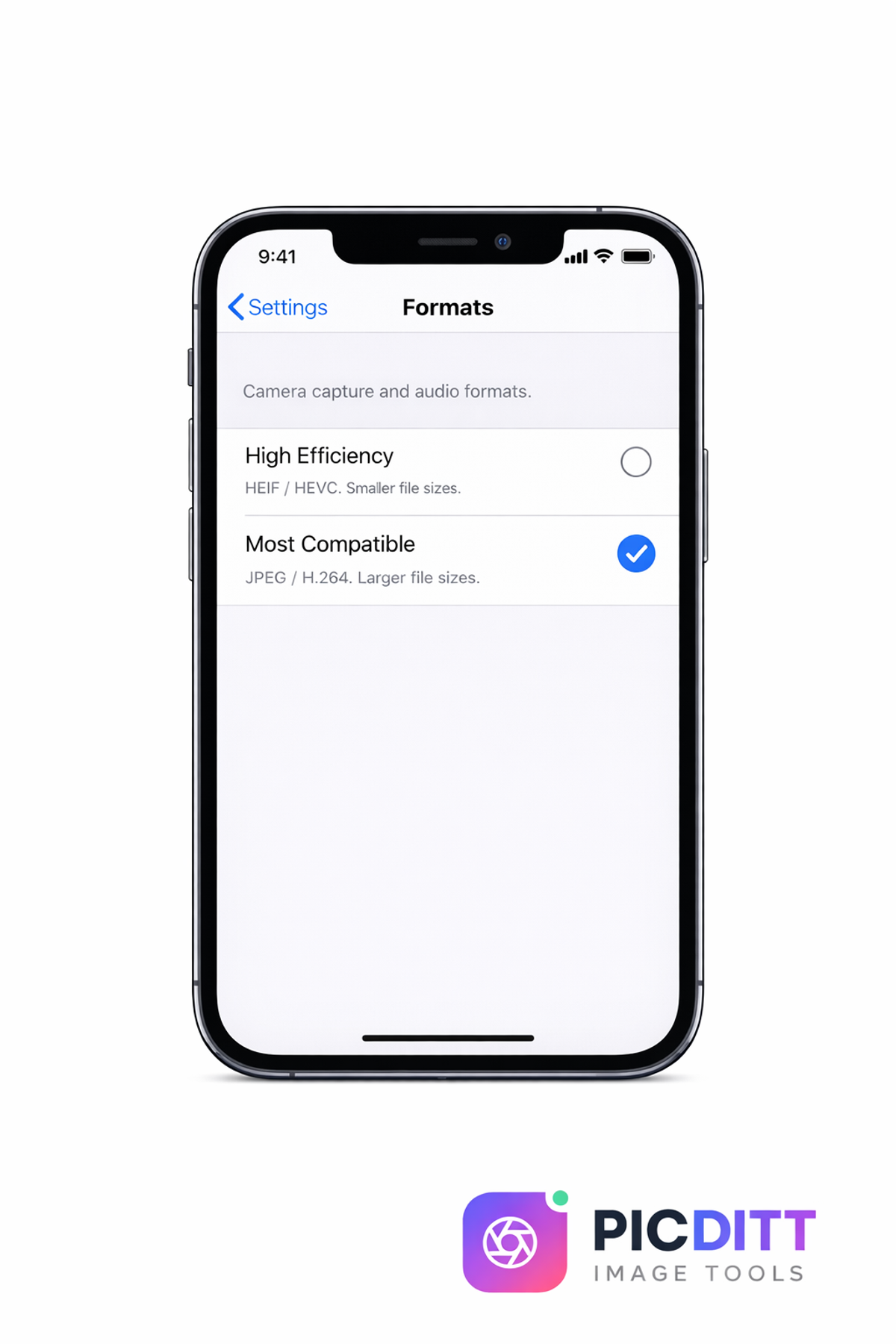
⚠️ Important: Switching to "Most Compatible" means your photos will take up more storage space on your iPhone (roughly twice as much). If storage is a concern, a better approach is to keep shooting in HEIC and simply convert to JPG when you need to share or use photos on other devices. That is where Picditt's converter becomes incredibly useful.
Step-by-Step: How to Convert HEIC to JPG Using Picditt (Free & Private)
Converting HEIC to JPG does not require expensive software or complicated steps. With Picditt's Universal Image Converter, the entire process takes less than 10 seconds and happens entirely in your browser.
Here is exactly how to do it:
Step 1: Open the Picditt Image Converter
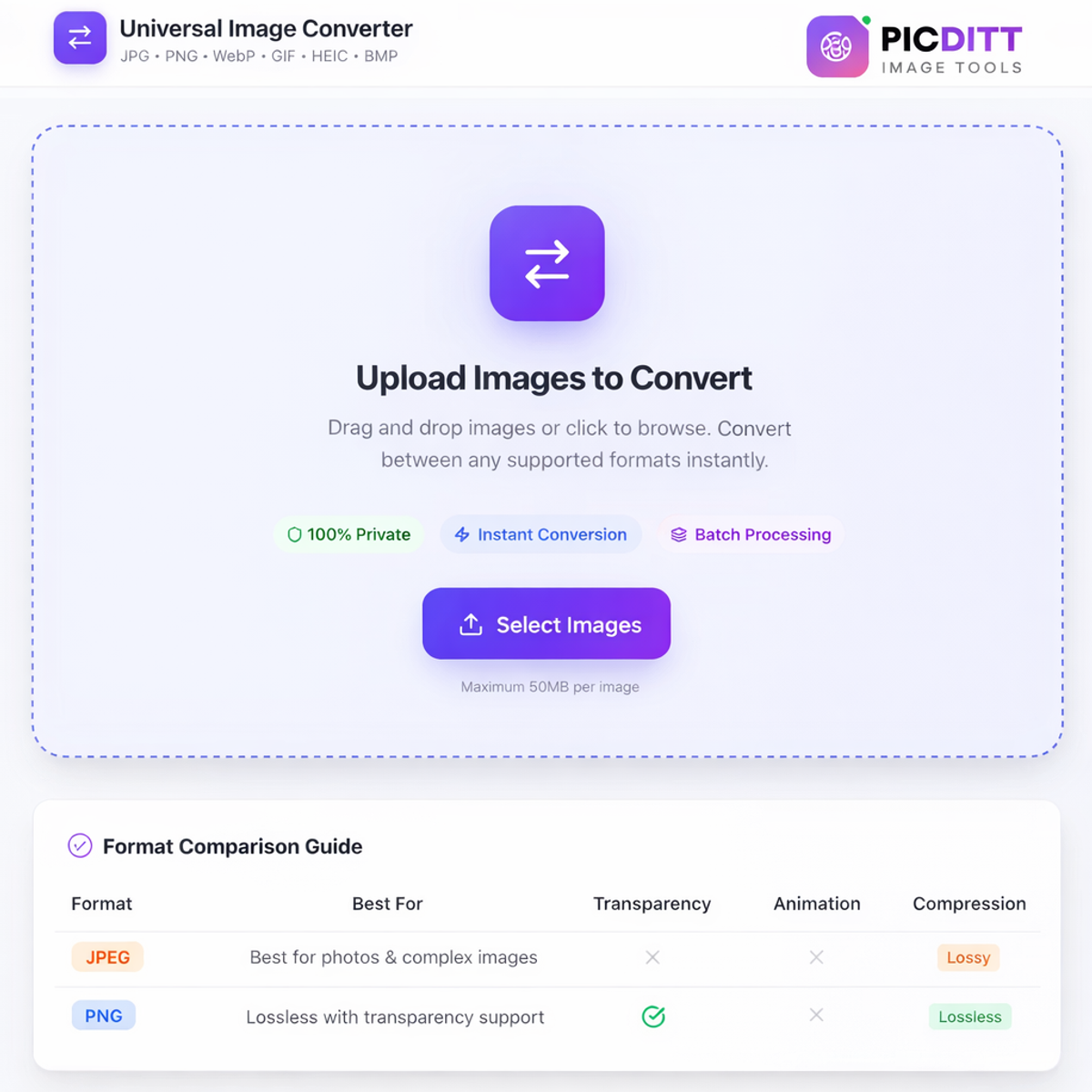
Go to https://picditt.com/conversion in any web browser (Chrome, Firefox, Safari, Edge — it works on all of them). You will see a clean, simple upload area.
Step 2: Upload Your HEIC Photos
You have two options:
- Drag and drop your HEIC files directly onto the upload area
- Click "Select Images" to browse and select files from your computer
You can upload multiple HEIC files at once — the batch processing feature lets you convert many photos simultaneously. Each file can be up to 50MB in size.
Step 3: Choose JPG as the Output Format
Select JPG from the format options at the top. You can also adjust the output quality slider — we recommend 85-95% for the best balance between file size and image quality.
Step 4: Download Your Converted Photos
Your photos are converted instantly — no waiting, no loading bars, no server processing. You can:
- Download individual photos one by one
- Download all photos as a ZIP file for convenience
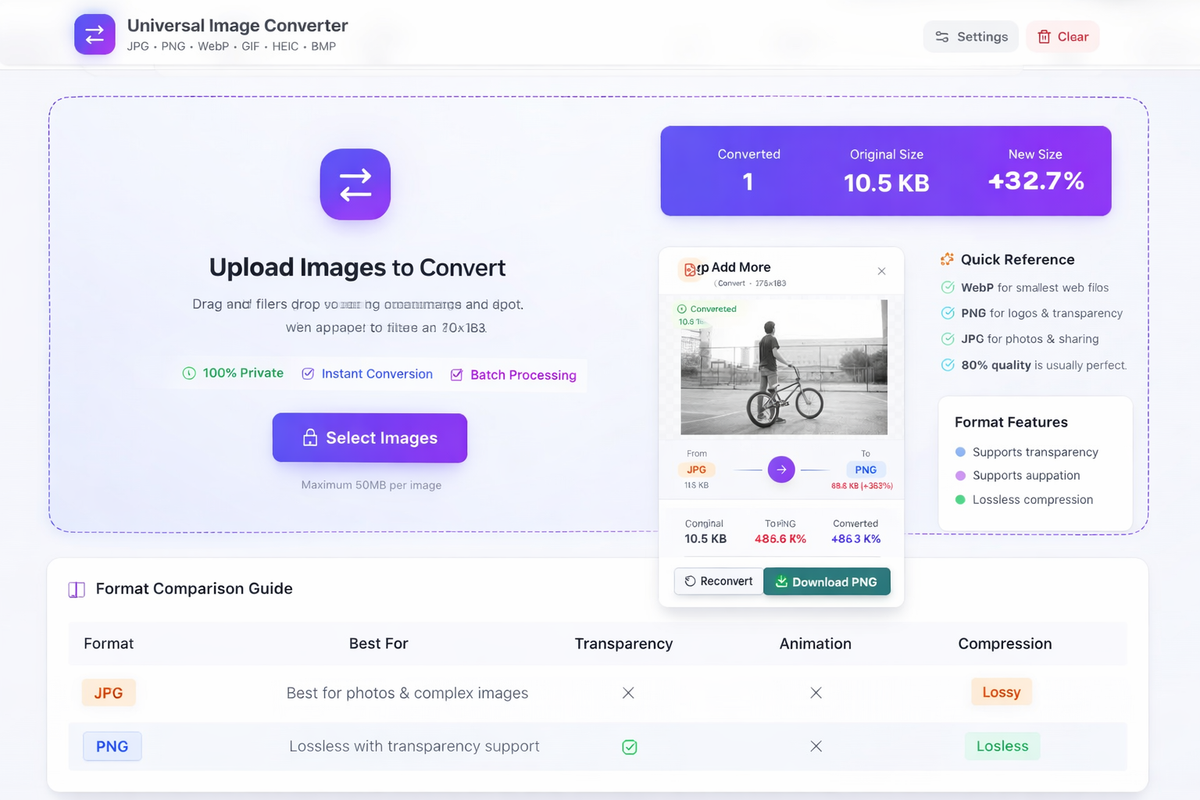
That's it! Your HEIC photos are now JPG files that work everywhere — Windows, Android, any website, any photo editor, any printer.
Why Use Picditt Instead of Other HEIC Converters?
There are many HEIC to JPG converters online, so why choose Picditt? Here are the key differences:
🔒 100% Private — Your Photos Never Leave Your Device
This is the biggest advantage of Picditt over virtually every other online converter. Most online tools upload your photos to their servers for processing. This means your private photos — family pictures, personal documents, sensitive images — pass through someone else's computer.
Picditt is different. All conversion happens directly in your web browser using advanced technology. Your HEIC files are never uploaded to any server. They never leave your device. This makes Picditt the safest option for converting personal photos.
⚡ Instant Conversion — No Waiting
Because processing happens locally in your browser, there is no upload time and no server queue. Click convert, and your JPG files are ready in seconds. Other online tools often make you wait minutes for uploads and server-side processing.
📦 Batch Processing — Convert Many Files at Once
Need to convert 20, 30, or 50 HEIC photos? No problem. Upload them all at once and convert them in a single batch. Download them individually or grab everything as a ZIP file.
🎛️ Quality Control
Fine-tune the output quality from 1% to 100% using the quality slider. This gives you precise control over the balance between image quality and file size. Most other free converters do not offer this level of control.
💰 Completely Free — No Limits, No Watermarks
There are no file limits, no daily conversion caps, no watermarks, and no hidden fees. Convert as many photos as you need, as often as you want.
Is It Safe to Convert HEIC to JPG Online?
This is one of the most important questions people ask, and rightfully so. Your photos are personal — family moments, children's pictures, private documents. You should be careful about where you upload them.
Here is the truth about most online converters: they upload your photos to their servers. While reputable services claim to delete your files after processing, you are still trusting a third party with your private images.
With Picditt, this concern disappears completely. The conversion uses browser-based processing powered by advanced web technologies. Your images are processed using your computer's own processor and memory. No data is transmitted, no files are uploaded, and Picditt's servers never see your photos.
This makes it safe for converting:
- Personal and family photos
- Business documents and screenshots
- Passport and ID photos
- Client photos (for photographers)
- Any sensitive images
HEIC vs JPG vs PNG vs WebP: Which Format Should You Use?
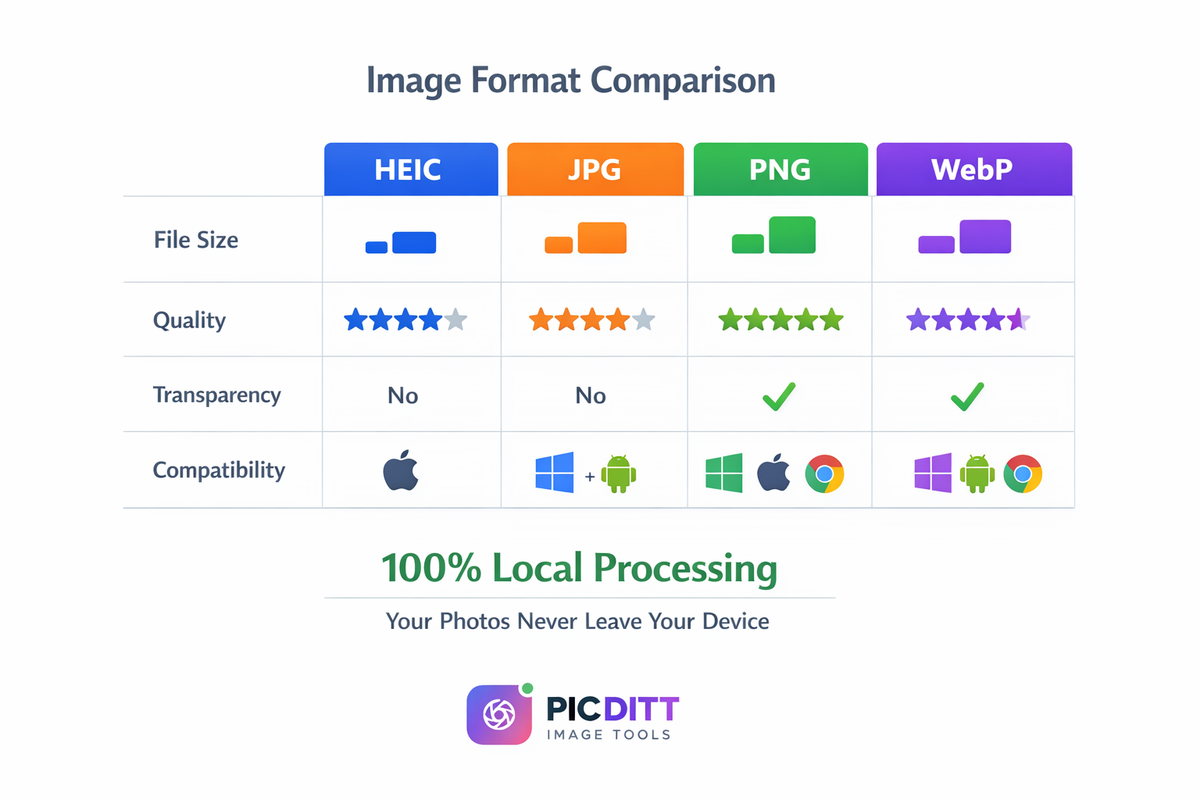
Now that you understand HEIC, it helps to know when to use different image formats. Here is a quick comparison:
JPG (JPEG)
- Best for: Photographs, complex images with many colors
- Compression: Lossy (small file size, slight quality reduction)
- Transparency: No
- Compatibility: Universal — works everywhere
- When to use: Sharing photos via email, social media, websites, printing
PNG
- Best for: Graphics, logos, images requiring transparency
- Compression: Lossless (larger file size, perfect quality)
- Transparency: Yes
- When to use: Logos, graphics with text, screenshots, images needing transparent backgrounds
WebP
- Best for: Web images (developed by Google)
- Compression: Both lossy and lossless (25-35% smaller than JPG)
- Transparency: Yes
- When to use: Website images for faster page loading
HEIC
- Best for: iPhone photo storage
- Compression: Advanced (50% smaller than JPG)
- Transparency: No
- When to use: Keep on iPhone for storage savings, convert to JPG when sharing
Bottom line: For maximum compatibility and everyday use, JPG is the safest choice. When you need transparency, use PNG. For websites, WebP is optimal. And HEIC is great for saving space on your iPhone — just convert it when needed.
You can convert between all of these formats using Picditt's Universal Image Converter — not just HEIC to JPG, but also PNG to JPG, JPG to WebP, WebP to PNG, and more.
Other Methods to Convert HEIC to JPG
While Picditt is the fastest and most private option, here are some other methods you might encounter:
Method 1: Windows HEIF Image Extensions
If you are on Windows 10 or 11, you can install the free "HEIF Image Extensions" from the Microsoft Store. This allows Windows to open HEIC files natively without conversion. However, this only lets you view them — if you need to upload a JPG somewhere, you still need to convert.
Method 2: Mac Preview App
On a Mac, HEIC files open natively. To convert to JPG:
- Open the HEIC file in Preview
- Click File → Export
- Choose JPEG as the format
- Click Save
This works but is slow for multiple files and only available on Mac.
Method 3: iPhone Email/AirDrop Trick
When you email or AirDrop a HEIC photo from your iPhone, it is automatically converted to JPG in many cases. However, this is unreliable and not practical for batch conversion.
Method 4: Desktop Software
Programs like iMazing Converter offer batch HEIC conversion but require downloading and installing software. For occasional conversions, a browser-based tool like Picditt is more convenient.
Why Picditt Is the Best Option
Feature
Picditt
Windows Extensions
Mac Preview
Desktop Software
No install needed
✅
❌
❌
❌
Batch conversion
✅
❌
❌
✅
Quality control
✅
❌
✅
✅
100% private
✅
✅
✅
✅
Works on any device
✅
❌ Windows only
❌ Mac only
❌
Free
✅
✅
✅
Some paid
Common HEIC Conversion Scenarios
Here are the most common situations where you will need to convert HEIC to JPG:
📧 Emailing Photos to Non-Apple Users
When you attach HEIC photos to an email going to someone on Windows or Android, they may not be able to open them. Convert to JPG first for guaranteed compatibility.
📄 Uploading to Websites and Forms
Job applications, government portals, e-commerce listings, and many websites only accept JPG or PNG uploads. HEIC will be rejected.
🖨️ Printing Photos
Most photo printing services (online and in-store) require JPG format. HEIC files will either be rejected or may not print correctly.
📱 Sharing with Android Users
While Android 9+ has some HEIC support, it is inconsistent. Converting to JPG ensures anyone can view your photos regardless of their device.
💻 Using Older Software
If you use photo editing software that does not support HEIC, you will need JPG files to edit, crop, or enhance your images. After editing, you can use Picditt to compress your images to reduce file size or crop them for social media.
Pro Tips for Managing iPhone Photos
Here are some expert tips to avoid HEIC headaches in the future:
Tip 1: Use "Automatic" Transfer Setting on iPhone
Go to Settings → Photos → Transfer to Mac or PC and select "Automatic." This tells your iPhone to automatically convert HEIC to JPG when transferring to a PC. However, this does not always work reliably.
Tip 2: Keep Shooting in HEIC
Despite the compatibility issues, HEIC is genuinely a better format for storage. Keep shooting in HEIC to save space on your iPhone, and convert to JPG only when needed using Picditt.
Tip 3: Batch Convert Before Transferring
Before moving a large batch of photos to your PC, convert them all to JPG at once using Picditt's batch processing feature. This saves time and ensures every photo works on your computer.
Tip 4: Check Your Photo Format When Uploading
Before uploading photos to websites, check the file extension. If it ends in .heic or .HEIC, convert it to .jpg first. This prevents failed uploads and frustrating error messages.
Tip 5: Optimize After Converting
After converting HEIC to JPG, your photos might be larger than necessary. Use Picditt's Image Compressor to reduce the file size without visible quality loss — perfect for email attachments and web uploads.
Frequently Asked Questions (FAQ)
What is a HEIC file?
HEIC (High Efficiency Image Coding) is a modern image format used by Apple iPhones since iOS 11 (2017). It produces photos that are approximately 50% smaller than JPG while maintaining similar quality. However, HEIC is not universally compatible with Windows PCs, Android devices, and many websites.
Why can't I open iPhone photos on my Windows PC?
The most common reason is that your iPhone saves photos in HEIC format, which older versions of Windows and many applications do not support natively. The error message "format is currently unsupported or the file is corrupted" is almost always caused by this format incompatibility, not actual file corruption.
How do I convert HEIC to JPG for free?
The easiest way is to use Picditt's free online converter. Simply upload your HEIC files, select JPG as the output format, and download your converted photos. It works in any browser, processes files locally for complete privacy, and supports batch conversion.
Does converting HEIC to JPG reduce quality?
There can be a very slight reduction in quality since JPG uses lossy compression. However, for everyday use — sharing, printing, uploading — the difference is virtually unnoticeable. Using Picditt's quality slider set to 90-95% produces JPG files that are visually identical to the original HEIC.
Can I convert multiple HEIC files to JPG at once?
Yes! Picditt supports batch conversion. You can upload multiple HEIC files simultaneously and convert them all to JPG in one click. Download them individually or as a ZIP file.
Is it safe to convert HEIC to JPG online?
It depends on the tool. Most online converters upload your photos to their servers, which poses privacy risks. Picditt is different — all processing happens locally in your browser. Your photos never leave your device, making it the safest option available.
How do I stop my iPhone from taking HEIC photos?
Go to Settings → Camera → Formats and select "Most Compatible." Your iPhone will now save photos in JPG format. Note that this will use more storage space since JPG files are larger than HEIC.
Can I convert HEIC to PNG or WebP instead of JPG?
Yes! Picditt's Universal Image Converter supports conversion between JPG, PNG, WebP, GIF, HEIC, and BMP. So you can convert HEIC to any of these formats based on your needs.
Do HEIC files work on Windows 11?
Windows 11 has improved HEIC support compared to Windows 10. You can install the free "HEIF Image Extensions" from the Microsoft Store to view HEIC files. However, many third-party applications on Windows still do not support HEIC, so conversion to JPG remains useful.
Why are my iPhone photos .HEIC instead of .JPG?
By default, iPhones running iOS 11 or later save photos in HEIC format because it is more storage-efficient. Apple chose HEIC as the default to help users save space while maintaining photo quality. You can change this in your camera settings as described above.
Conclusion
The "iPhone photos won't open" problem frustrates millions of people, but the solution is simple. HEIC is a great format for your iPhone, but when you need your photos to work everywhere — on Windows, Android, websites, printers, or any other platform — JPG is the universal answer.
Picditt's free Universal Image Converter makes the conversion effortless:
- ✅ Instant — Convert in seconds, not minutes
- ✅ Private — Your photos never leave your device
- ✅ Free — No limits, no watermarks, no sign-up
- ✅ Batch processing — Convert dozens of photos at once
- ✅ Quality control — Choose your preferred output quality
Stop fighting with unsupported file formats. Convert your HEIC photos to JPG today and make them work everywhere.
Try Picditt's Free HEIC to JPG Converter →
Ready to Try It Yourself?
Use this tool for free — no signup, no download, no watermarks.
Open Free ToolYou Might Also Like
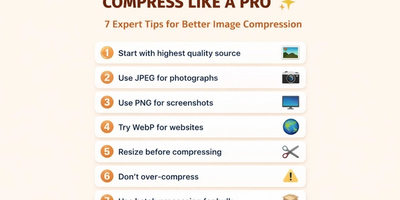
Free Universal Image Converter — Change Any Image Format Online Instantly
Convert images between any format — JPG, PNG, WebP, GIF, HEIC, and BMP — completely free. Batch convert multiple files, adjust quality settings, and download instantly. All processing happens in your browser for complete privacy.
Read More →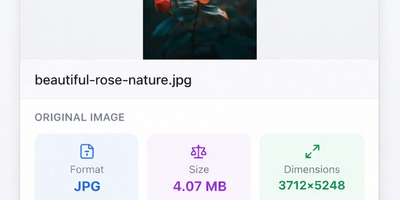
How to Compress Images to Any Size Online Free — The Complete Guide
Learn how to compress images to any file size online for free. Reduce JPEG, PNG, and WebP photos for email, websites, forms, and social media — without losing visible quality. No signup required.
Read More →
How to Convert Image to Word Online (Free OCR Tool) – Step-by-Step Guide
Learn how to convert images, scanned documents, and photos of text into fully editable Word files using PicDitt’s free, browser-based Image to Word OCR tool. This step-by-step guide covers how OCR works, how to use the tool, and how to get the best accuracy.
Read More →