Free Universal Image Converter — Change Any Image Format Online Instantly
Every image on your computer, phone, or website exists in a specific format — JPEG, PNG, WebP, GIF, BMP, or HEIC. Each format has its own strengths and weaknesses. A photograph looks best as JPEG. A logo with a transparent background needs PNG. A website image loads fastest as WebP. An iPhone photo saves as HEIC but won't open on a Windows computer.
The problem? You constantly need to switch between these formats. Your client wants JPG but you have PNG. Your website needs WebP but your designer delivered JPEG. Your iPhone photos are HEIC but your printer needs BMP. Sound familiar?
That's exactly what the PicDitt Universal Image Converter solves. Convert any image to any format — instantly, for free, and without your files ever leaving your device. No signup, no watermarks, no limits.
In this guide, you'll learn everything about image format conversion — which format to use when, how to convert between them, and pro tips for getting the best results every time.
What Is an Image Format Converter?
An image format converter is a tool that transforms an image from one file format to another. For example, converting a PNG file to JPEG, or a HEIC file to PNG.
Every image format stores visual data differently. Some formats prioritize small file sizes by compressing the image data — this is called lossy compression, and JPEG is the most common example. Other formats prioritize perfect quality by preserving every single pixel — this is called lossless compression, and PNG is the best known example.
When you convert between formats, the converter reads the pixel data from the original file and re-encodes it in the new format. The PicDitt Image Converter does this entirely in your browser using JavaScript — your images are never uploaded to any server, making the process both instant and completely private.
Understanding Image Formats — Which One Should You Use?
Choosing the right format before converting can save you time and produce much better results. Here's everything you need to know about each format:
JPEG (JPG) — Best for Photographs
JPEG is the most widely used image format in the world. It uses lossy compression, which means it removes some image data to achieve dramatically smaller file sizes. For photographs and complex images with lots of colors and gradients, JPEG compression is nearly invisible at moderate quality levels.
Best for: Photographs, product images, social media posts, email attachments
Not ideal for: Logos, text-heavy images, screenshots, images needing transparency
PNG — Best for Graphics and Transparency
PNG uses lossless compression — no image data is ever lost. This makes it perfect for graphics, logos, screenshots, and any image with text. PNG also supports transparent backgrounds, which is essential for logos and overlays.
Best for: Logos, screenshots, graphics, images with text, transparent backgrounds
Not ideal for: Large photographs (file sizes will be very large)
WebP — Best for Websites
WebP is a modern format developed by Google that offers the best of both worlds. It supports lossy and lossless compression, transparency, and even animation. WebP files are typically 25-35% smaller than equivalent JPEG files with the same visual quality. If your images are going on a website, WebP is almost always the best choice.
Best for: Website images, web apps, any online use
Not ideal for: Print materials, older software that doesn't support WebP
GIF — Best for Simple Animations
GIF is most famous for animated images — the short looping clips you see everywhere on social media and messaging apps. However, GIF is limited to 256 colors, which means it produces poor results for photographs. For static images, JPEG or PNG are almost always better choices.
Best for: Simple animations, reaction images, icons with few colors
Not ideal for: Photographs, high-quality graphics
HEIC — Apple's Modern Format
HEIC (High Efficiency Image Container) is the default photo format on iPhones and iPads. It offers excellent compression — similar quality to JPEG at roughly half the file size. The downside is compatibility: most Windows computers, Android devices, and web platforms don't support HEIC natively. Converting HEIC to JPEG or PNG is one of the most common conversion tasks.
Best for: iPhone/iPad storage
Not ideal for: Sharing with non-Apple users, web publishing, printing
BMP — Uncompressed Original
BMP (Bitmap) is an uncompressed format that stores every pixel without any compression. This means perfect quality but extremely large file sizes. BMP is rarely used today except in specialized applications. Converting BMP to JPEG or PNG will dramatically reduce file size with minimal visible quality loss.
Best for: Archival, specialized software requirements
Not ideal for: Almost everything else — too large for practical use
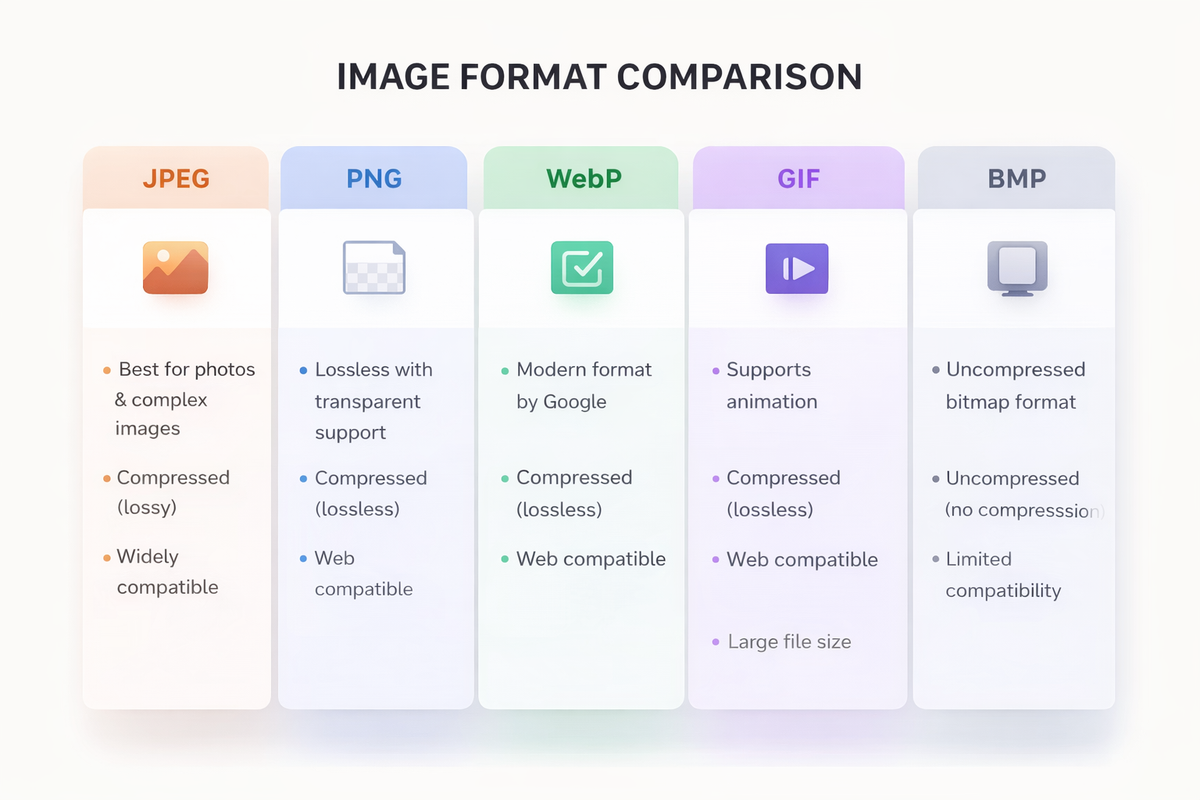
Format Comparison at a Glance
Format
Best For
Transparency
Animation
Compression
Typical Size
JPEG
Photos and complex images
❌
❌
Lossy
Small
PNG
Graphics, logos, screenshots
✅
❌
Lossless
Medium-Large
WebP
Website images
✅
✅
Both
Very Small
GIF
Simple animations
✅
✅
Lossy
Varies
HEIC
iPhone photos
❌
❌
Lossy
Very Small
BMP
Uncompressed archival
❌
❌
None
Very Large
How to Convert Images with PicDitt — Step by Step
Converting images with PicDitt takes just a few clicks. Here's the complete walkthrough:
Step 1 — Open the Image Converter
Go to the PicDitt Universal Image Converter. The tool loads instantly in your browser — no software to download, no account to create.
Try PicDitt Image Converter Free → https://picditt.com/conversion
Step 2 — Upload Your Images
Drag and drop your images onto the upload area, or click to browse and select files from your device. You can upload a single image or multiple images for batch conversion. The tool supports JPEG, PNG, WebP, GIF, HEIC, and BMP input formats.
Step 3 — Choose Your Output Format
Select the format you want to convert to. You'll see all available options — JPG, PNG, WebP, GIF, and BMP. If you choose a lossy format like JPEG or WebP, you can also adjust the quality slider from 1 to 100 to find the perfect balance between file size and visual quality.
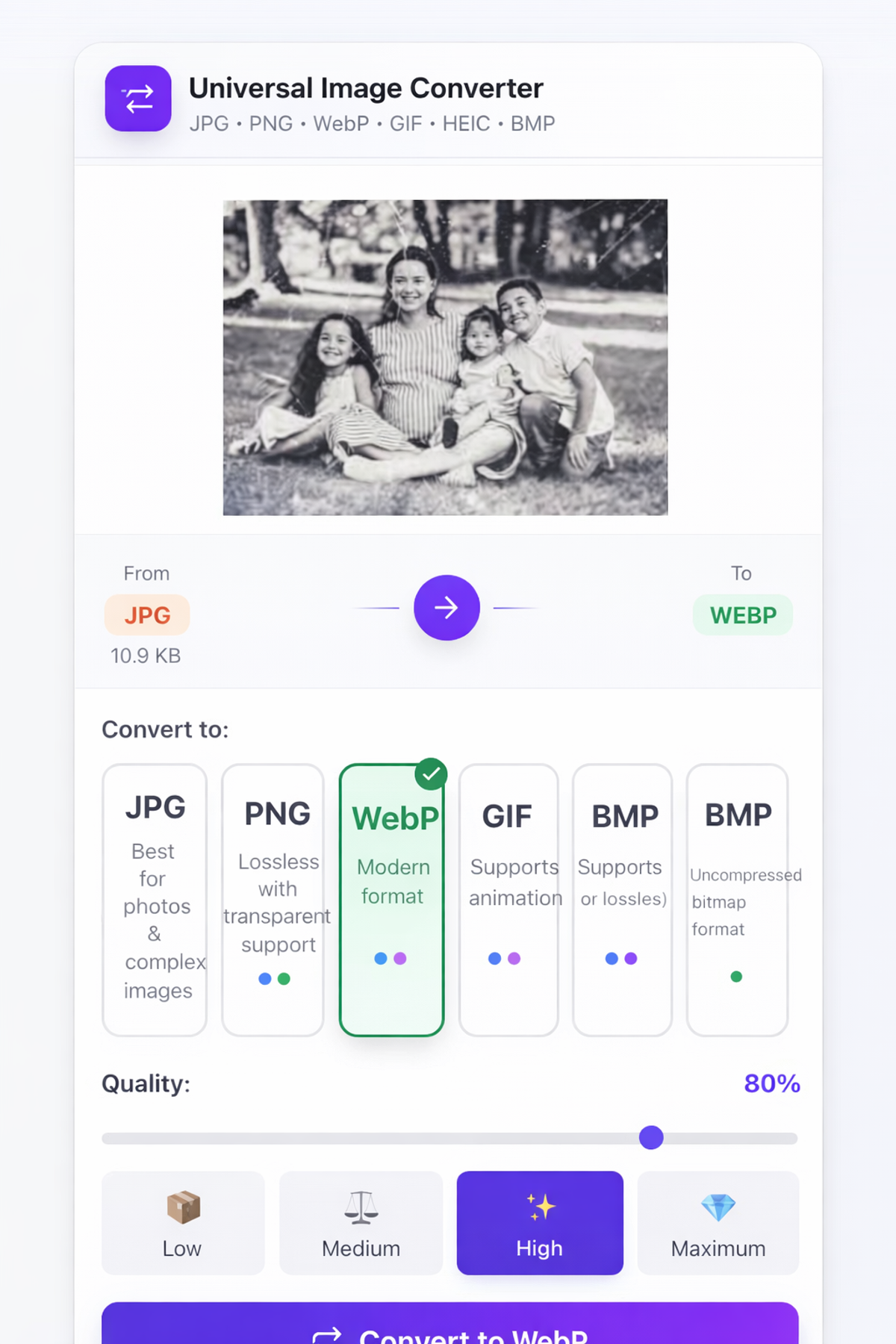
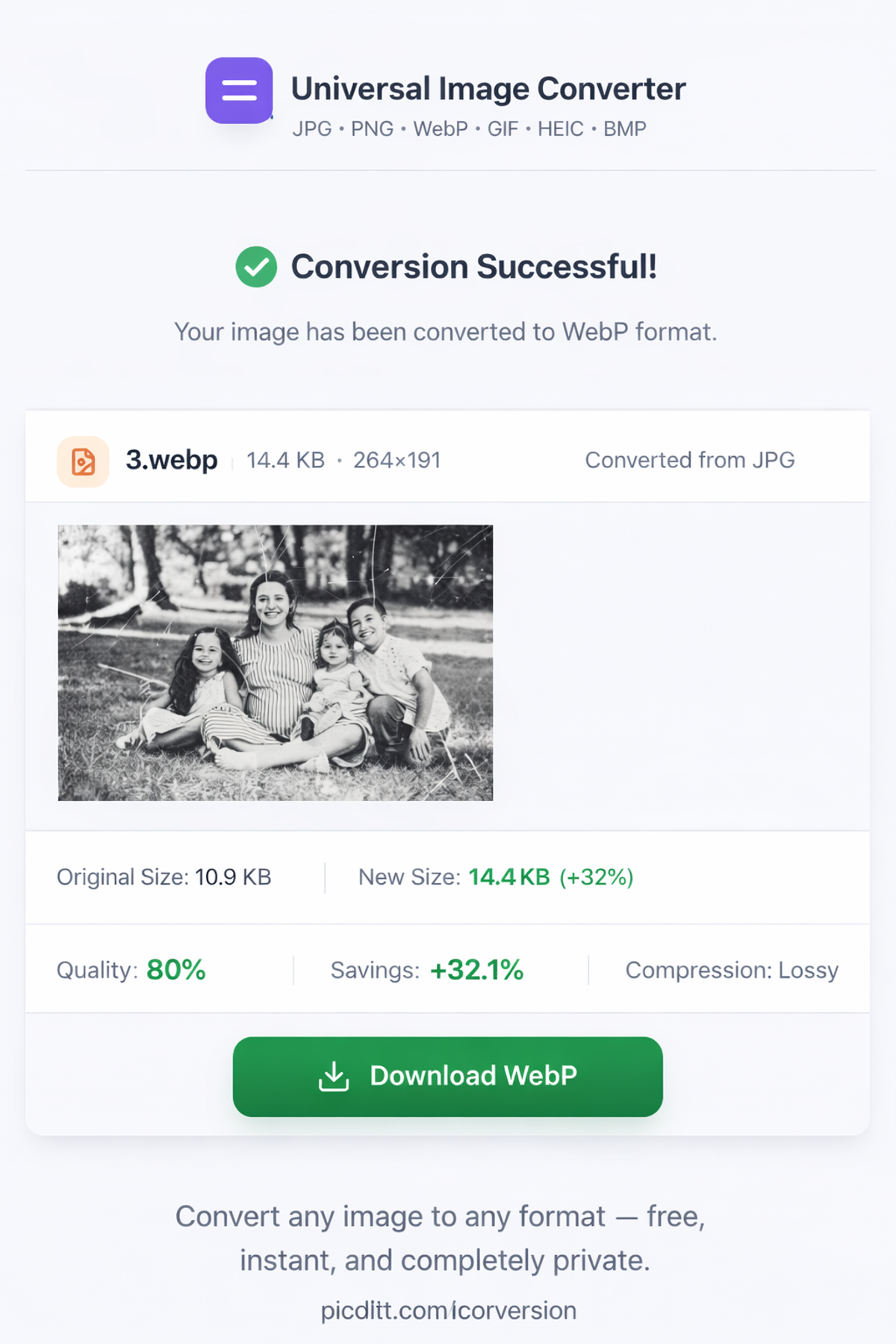
Step 4 — Download Your Converted Images
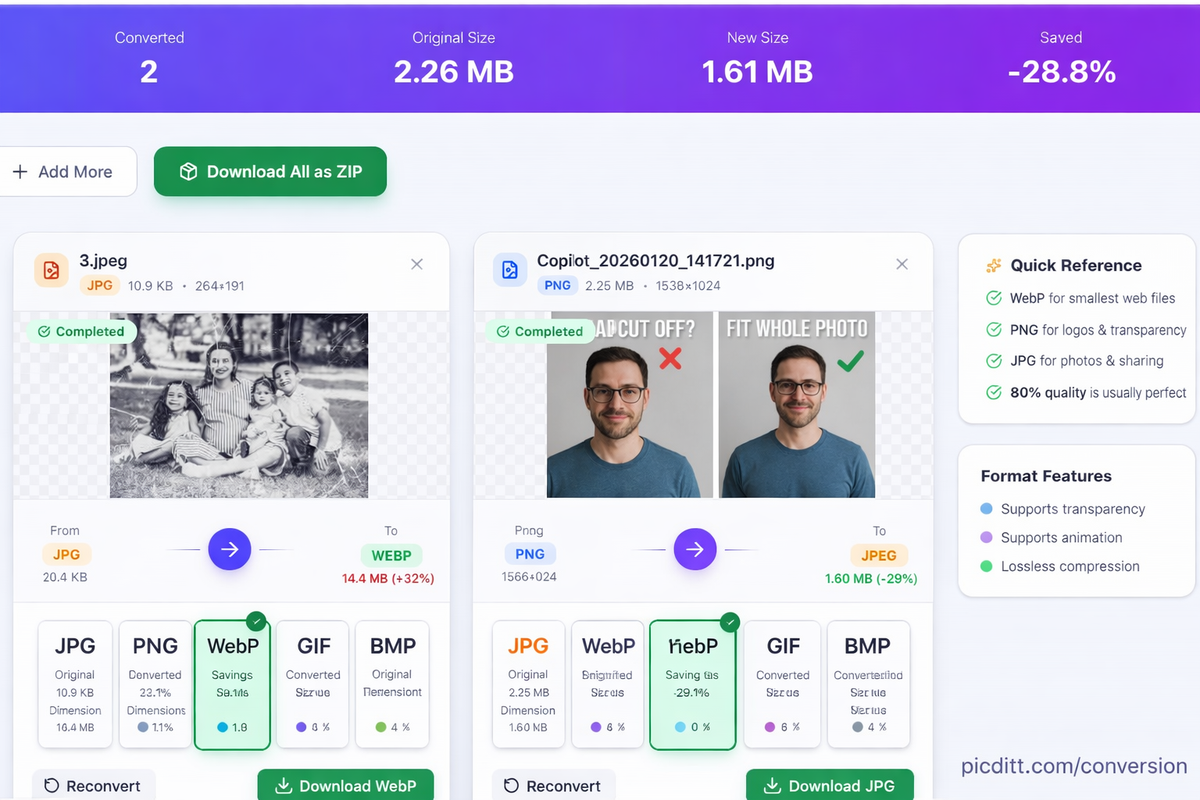
Click the convert button. Your images are processed instantly — right in your browser with no server upload. You'll see a preview of each converted image along with the new file size. Download each image individually, or download all converted images as a ZIP file if you processed a batch.
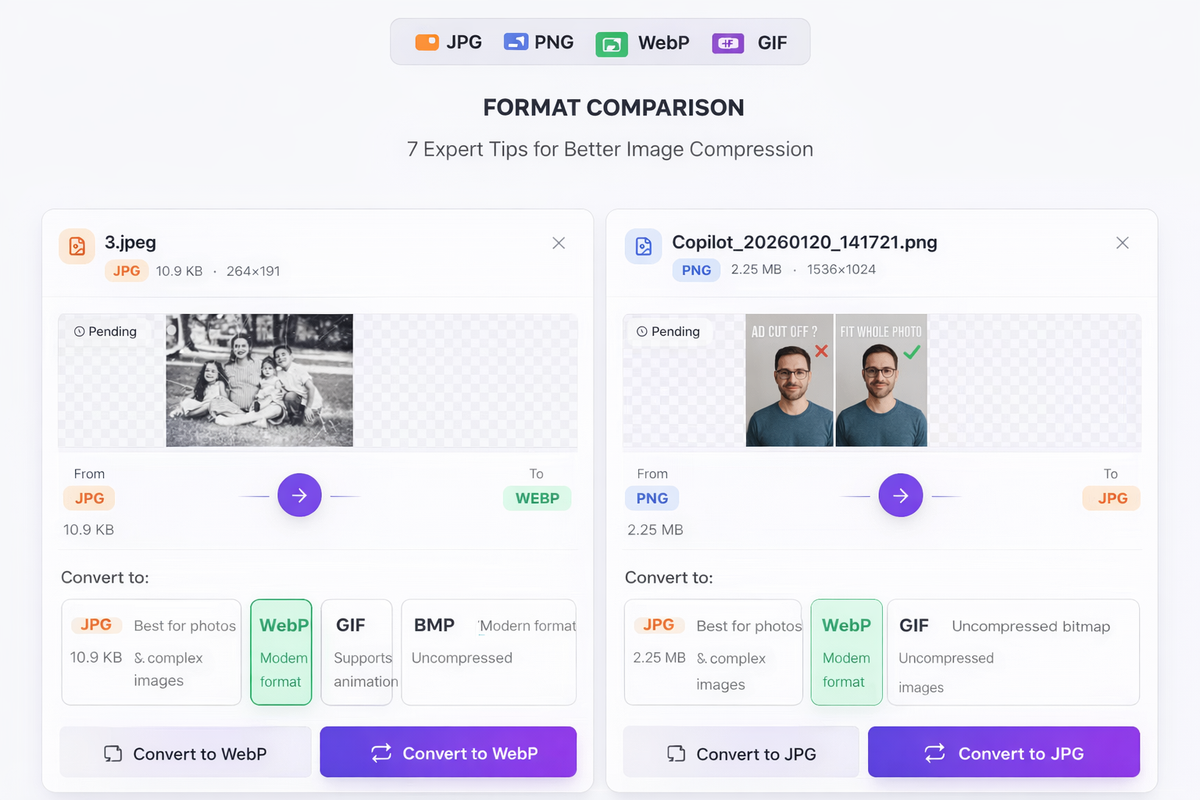
Common Conversion Scenarios
Here are the most frequent conversion tasks and when you'd need them:
📱 HEIC to JPG — iPhone Photos to Universal Format
This is probably the most common conversion need today. Every iPhone saves photos in HEIC format by default. When you try to share these photos with Windows users, upload them to certain websites, or use them in older software, they simply won't open. Converting HEIC to JPG makes your iPhone photos compatible with everything.
🖼️ PNG to JPG — Reduce File Size
PNG files are significantly larger than JPG files, especially for photographs. If you have a PNG photo and don't need transparency, converting to JPG can reduce the file size by 60-80% with minimal visible quality loss. This is especially useful for email attachments and website images.
🌐 JPG to WebP — Optimize for Web
If you're building or managing a website, converting your JPG images to WebP format is one of the easiest ways to improve page speed. WebP files are 25-35% smaller than equivalent JPGs with the same visual quality. Google specifically recommends WebP for web use, and it's supported by all modern browsers.
🎨 PNG to WebP — Smaller Files with Transparency
Need transparent images on your website? WebP supports transparency just like PNG but at much smaller file sizes. Converting PNG logos, icons, and graphics to WebP can significantly reduce your website's loading time without losing transparency.
📄 Any Format to PNG — Preserve Quality for Editing
If you need to edit an image in photo editing software, converting to PNG first ensures you're working with lossless quality. Every edit on a JPEG file adds more compression artifacts, but PNG preserves perfect quality no matter how many times you save.
📧 Any Format to JPG — Universal Compatibility
When in doubt, convert to JPG. It's the most universally supported image format — every device, every application, every website, and every printer can handle JPG files. If you need maximum compatibility, JPG is your safest choice.
Key Features of PicDitt Image Converter
Feature
What It Does
Why It Matters
Universal Conversion
Convert between JPG, PNG, WebP, GIF, HEIC, BMP
One tool for all formats
Batch Processing
Convert multiple images at once
Save time with bulk conversions
Quality Control
Adjust output quality from 1-100%
Perfect balance of size and clarity
Instant Processing
Converts in your browser instantly
No waiting for server uploads
Live Preview
See converted images before downloading
Verify results before saving
ZIP Download
Download all converted images in one ZIP
Convenient for batch conversions
Format Detection
Automatically detects input format
No manual configuration needed
100% Private
All processing happens locally
Your images never leave your device
Pro Tips for Better Image Conversion
🔹 Match the format to the purpose. Don't just convert everything to JPG. Use JPEG for photos, PNG for screenshots and logos, WebP for websites. Choosing the right format from the start saves time and produces better results.
🔹 Use quality 80-85% for JPEG. When converting to JPEG, a quality setting of 80-85 gives you the best balance between file size and visual quality. Most people cannot see any difference between 85% and 100%, but the file size is dramatically smaller.
🔹 Keep a PNG master copy. Before converting images for different purposes, save a high-quality PNG master copy. You can always convert from PNG to any other format later without losing quality.
🔹 Convert HEIC immediately after transferring from iPhone. Don't wait until you need the photos. When you transfer iPhone photos to your computer, batch convert them all to JPG immediately. This saves frustration later when you discover a photo won't open.
🔹 Use WebP for everything on your website. If your website still uses JPG and PNG images, convert them all to WebP. The file size savings add up quickly — a website with 50 images could save several megabytes, dramatically improving load time. After converting, you might also want to compress the images further for even smaller sizes.
Compress Images → https://picditt.com/compress
🔹 Test transparency before converting. If your original image has a transparent background (common with logos and icons), make sure your target format supports transparency. JPG and BMP do NOT support transparency — only PNG, WebP, and GIF do. Converting a transparent PNG to JPG will replace the transparent areas with white or black.
🔹 Use batch conversion for consistency. When you need to convert an entire folder of images to the same format, use PicDitt's batch feature. This ensures consistent quality settings across all images and saves enormous amounts of time compared to converting one by one.
H2: Why Choose PicDitt Over Other Image Converters?
There are many image converters available online. Here's what makes PicDitt different:
Feature
PicDitt
CloudConvert
Convertio
Online-Convert
Price
Free forever
Limited free
Limited free
Limited free
Privacy
100% local
Server upload
Server upload
Server upload
Batch conversion
✅ Unlimited
✅ Limited
✅ 2 files free
✅ Limited
Signup required
❌ Never
✅ For batch
✅ For large files
❌ No
Watermarks
❌ Never
❌ No
❌ No
❌ No
Speed
Instant (browser)
Depends on upload
Depends on upload
Depends on upload
HEIC support
✅ Yes
✅ Yes
✅ Yes
✅ Yes
Quality control
✅ 1-100% slider
✅ Yes
✅ Yes
✅ Yes
Key advantage: PicDitt processes everything locally in your browser. Your images are never uploaded to any server. This means instant conversion with zero privacy risk — no other major converter offers this combination.
Related Tools You Might Need
After converting your images, you might also find these PicDitt tools helpful:
Image Compressor — Converted your images but they're still too large? Compress them to a specific KB or MB file size while maintaining visual quality. Perfect for email attachments, web uploads, and meeting strict file size requirements.
Compress Images to Any Size → https://picditt.com/compress
Batch Image Processing — Need to convert, compress, resize, and rename hundreds of images at once? The batch processor handles it all in a single workflow — saving hours of manual work.
Batch Image Processing → https://picditt.com/compress/batch-image-processing
Crop and Resize — Need to change image dimensions after converting? Crop out unnecessary parts or resize to specific pixel dimensions for any platform.
Crop Image → https://picditt.com/crop
Image to Word (OCR) — Need to extract text from an image instead of converting the format? The OCR tool reads text from screenshots, photos of documents, and scanned pages — converting it to editable Word documents.
Image to Word OCR → https://picditt.com/conversion/image-to-word
Frequently Asked Questions
Is PicDitt Image Converter really free?
Yes, completely free with absolutely no hidden costs. There are no premium tiers, no per-image charges, no daily conversion limits, and no watermarks added to your converted images. You can convert unlimited images forever at zero cost.
Are my images safe when I convert them?
Your images never leave your device. All conversion processing happens locally in your web browser using JavaScript. PicDitt's servers never see, receive, store, or have access to your images. This makes it one of the safest image converters available — perfect for sensitive photos, confidential documents, and private images.
Can I convert HEIC photos from my iPhone?
Yes. HEIC to JPG conversion is one of the most popular features. Simply upload your iPhone HEIC photos and convert them to JPG, PNG, or WebP format for universal compatibility. You can batch convert an entire album of iPhone photos in seconds.
What's the best format for website images?
WebP is the best format for website images in 2025. It offers 25-35% smaller file sizes compared to JPEG at the same visual quality, and it supports transparency like PNG. All modern browsers support WebP. Converting your website images from JPG or PNG to WebP is one of the easiest ways to improve page speed and SEO.
Can I convert multiple images at once?
Yes. PicDitt supports batch conversion — upload multiple images, select your target format, and convert them all simultaneously. You can download each converted image individually or download everything as a single ZIP file for convenience.
Will I lose image quality when converting?
It depends on the formats involved. Converting between lossless formats like PNG to BMP preserves perfect quality. Converting from a lossless format to a lossy format like PNG to JPG involves some quality reduction, but at quality settings of 80% or higher, the difference is invisible to most people. Converting from lossy to lossy like JPG to WebP at high quality settings also produces excellent results.
Conclusion
Image format conversion is one of those tasks that seems simple but comes up constantly — every time you receive an iPhone photo that won't open, every time a website needs WebP instead of JPG, every time a client asks for PNG instead of JPEG.
The PicDitt Universal Image Converter handles all of these scenarios instantly. Support for every major format, batch processing, quality control, live preview, and complete privacy — all in a free tool that runs directly in your browser.
Stop wrestling with incompatible image formats. Convert them in seconds and move on with your work.
Try PicDitt Image Converter now — it's free, instant, and private.
Convert Your Images Free → https://picditt.com/conversion
Ready to Try It Yourself?
Use this tool for free — no signup, no download, no watermarks.
Open Free ToolYou Might Also Like
How to Convert Image to Word Online (Free OCR Tool) – Step-by-Step Guide
Learn how to convert images, scanned documents, and photos of text into fully editable Word files using PicDitt’s free, browser-based Image to Word OCR tool. This step-by-step guide covers how OCR works, how to use the tool, and how to get the best accuracy.
Read More →
How to Compress Images to Any Size Online Free — The Complete Guide
Learn how to compress images to any file size online for free. Reduce JPEG, PNG, and WebP photos for email, websites, forms, and social media — without losing visible quality. No signup required.
Read More →
Batch Image Processing Made Simple: Resize, Compress, Convert & Rename Hundreds of Photos at Once
Manually editing hundreds of images one by one is a waste of your time. Learn how to use PicDitt's free Batch Image Processing tool to resize, compress, convert, and rename entire photo collections in minutes—all directly in your browser with complete privacy.
Read More →