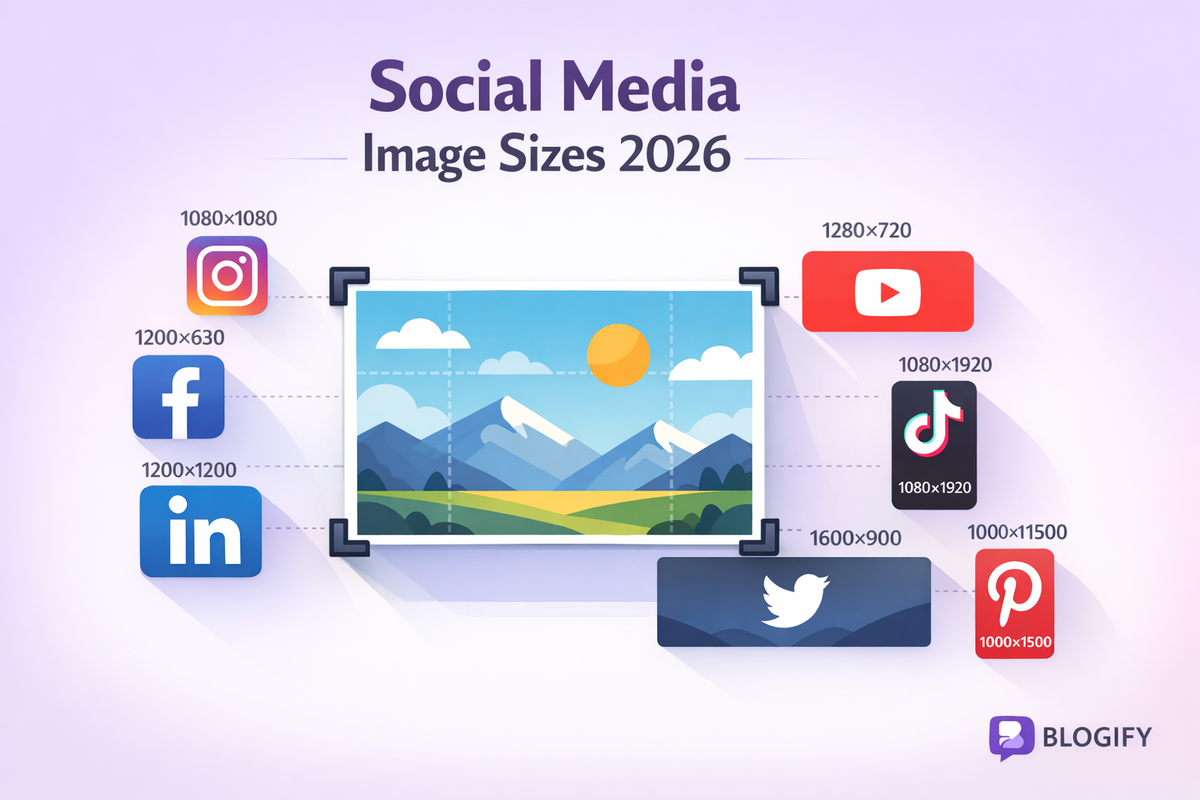
The Complete Guide to Social Media Image Sizes: How to Crop Photos for Every Platform in 2026
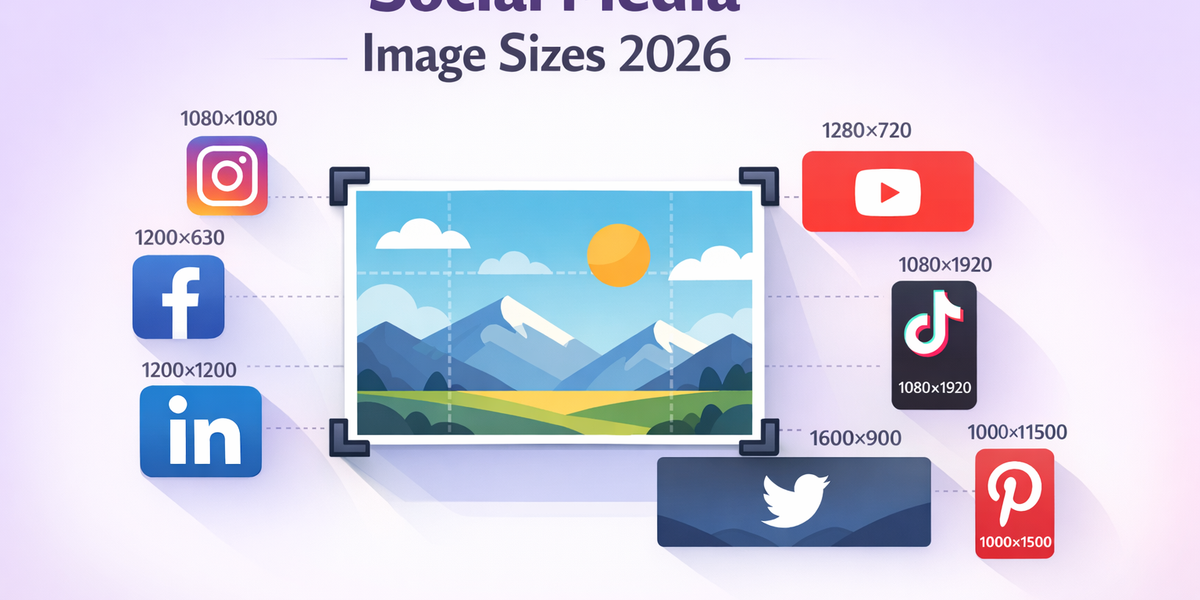
The Complete Guide to Social Media Image Sizes: How to Crop Photos for Every Platform in 2026
You took the perfect photo. Great lighting, perfect composition, everyone is smiling. You open Instagram, tap the upload button, and... Instagram cuts off everyone's heads. Or squishes the photo into an awkward crop. Or adds those ugly black bars on the sides.
Every social media platform has its own specific image dimensions, and using the wrong size means your carefully composed photo will be automatically cropped, stretched, compressed, or displayed with black borders. The result? Photos that look amateur and unprofessional — even when the original image was stunning.
The frustrating part? Every platform uses different sizes. What works perfectly on Instagram looks terrible on Facebook. Your YouTube thumbnail dimensions are completely different from your LinkedIn banner. And do not even get started on TikTok and Pinterest — they each have their own unique requirements.
In this complete guide, you will learn the exact image dimensions for every major social media platform in 2026, understand how aspect ratios work, and discover how to crop your photos perfectly using Picditt's free Image Cropper — with one-click presets that take all the guesswork out of the process.
Why Social Media Image Sizes Matter More Than You Think
Before diving into specific dimensions, let us understand why getting image sizes right is so important:
Visual Quality
When you upload an image that does not match a platform's required dimensions, the platform will automatically resize, crop, or compress it. This almost always reduces quality. An image that looks sharp on your phone can appear blurry, pixelated, or distorted once the platform processes it.
First Impressions
Research consistently shows that social media posts with properly sized, high-quality images receive significantly more engagement — more likes, comments, shares, and clicks. A blurry or poorly cropped profile picture or banner image makes your entire account look unprofessional.
Content Visibility
Many platforms use algorithms that favor properly formatted content. Images that match the recommended dimensions display more prominently in feeds, search results, and explore pages. Poorly sized images may be deprioritized or displayed less prominently.
Brand Consistency
If you manage a business or personal brand, consistent and professional-looking images across all platforms build trust and recognition. Mismatched, poorly cropped images undermine your brand credibility.
Understanding Aspect Ratios: The Key to Perfect Crops
Before we get into specific platform sizes, you need to understand aspect ratios — they are the foundation of image cropping.
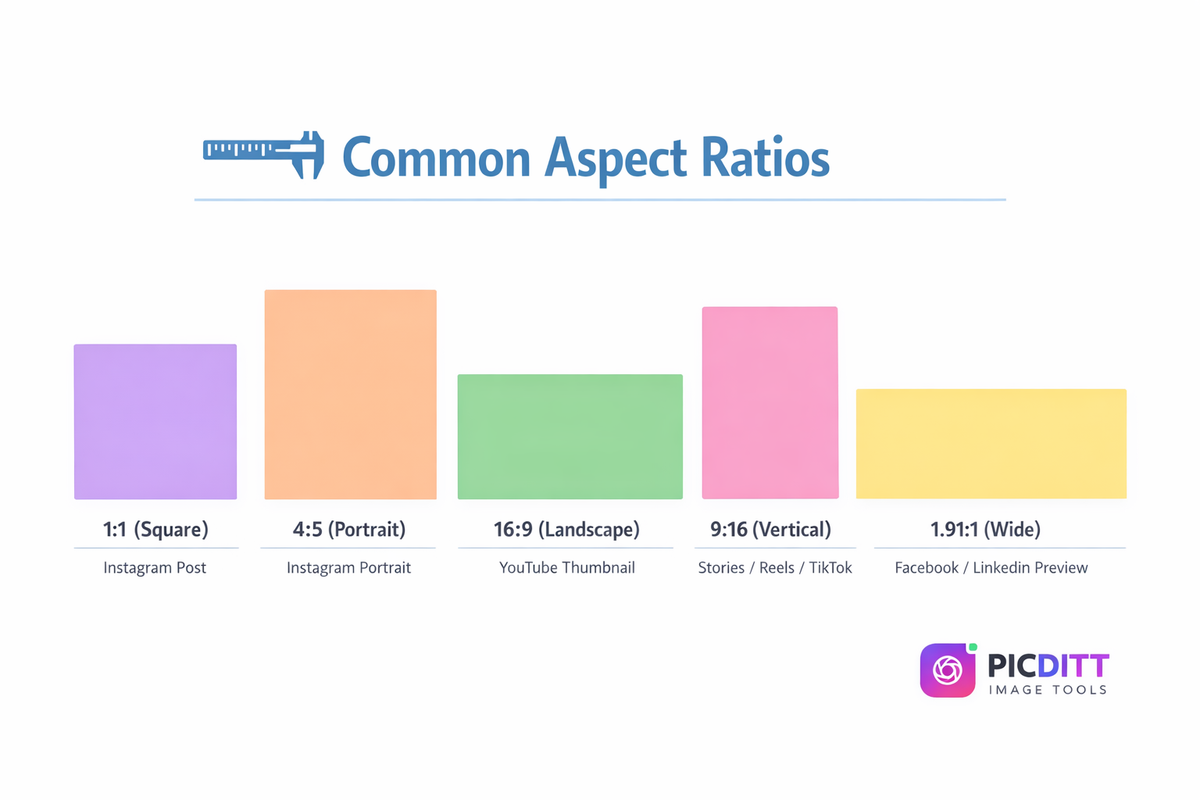
An aspect ratio describes the proportional relationship between an image's width and height. Here are the most important ones for social media:
1:1 (Square)
- Width and height are equal
- Used for: Instagram feed posts, Facebook profile pictures, most profile avatars
- Example: 1080 x 1080 pixels
4:5 (Portrait)
- Slightly taller than wide
- Used for: Instagram portrait posts (takes up more screen space in the feed)
- Example: 1080 x 1350 pixels
16:9 (Landscape/Widescreen)
- Standard widescreen format
- Used for: YouTube thumbnails, YouTube banners, Twitter/X posts, presentation slides
- Example: 1280 x 720 pixels
9:16 (Vertical/Portrait Full-Screen)
- Tall, full-screen vertical format
- Used for: Instagram Stories, Instagram Reels, TikTok videos, YouTube Shorts, Snapchat
- Example: 1080 x 1920 pixels
1.91:1 (Wide Landscape)
- Wider than standard landscape
- Used for: Facebook link previews, LinkedIn link previews, Twitter/X cards
- Example: 1200 x 628 pixels
The beauty of understanding aspect ratios is that you can use them across multiple platforms. A 1:1 crop works for Instagram posts, Facebook profile pictures, and most avatar formats. A 9:16 crop works for Instagram Stories, TikTok, and YouTube Shorts.
Picditt's Image Cropper includes all of these aspect ratios as one-click presets — you do not need to remember any numbers.
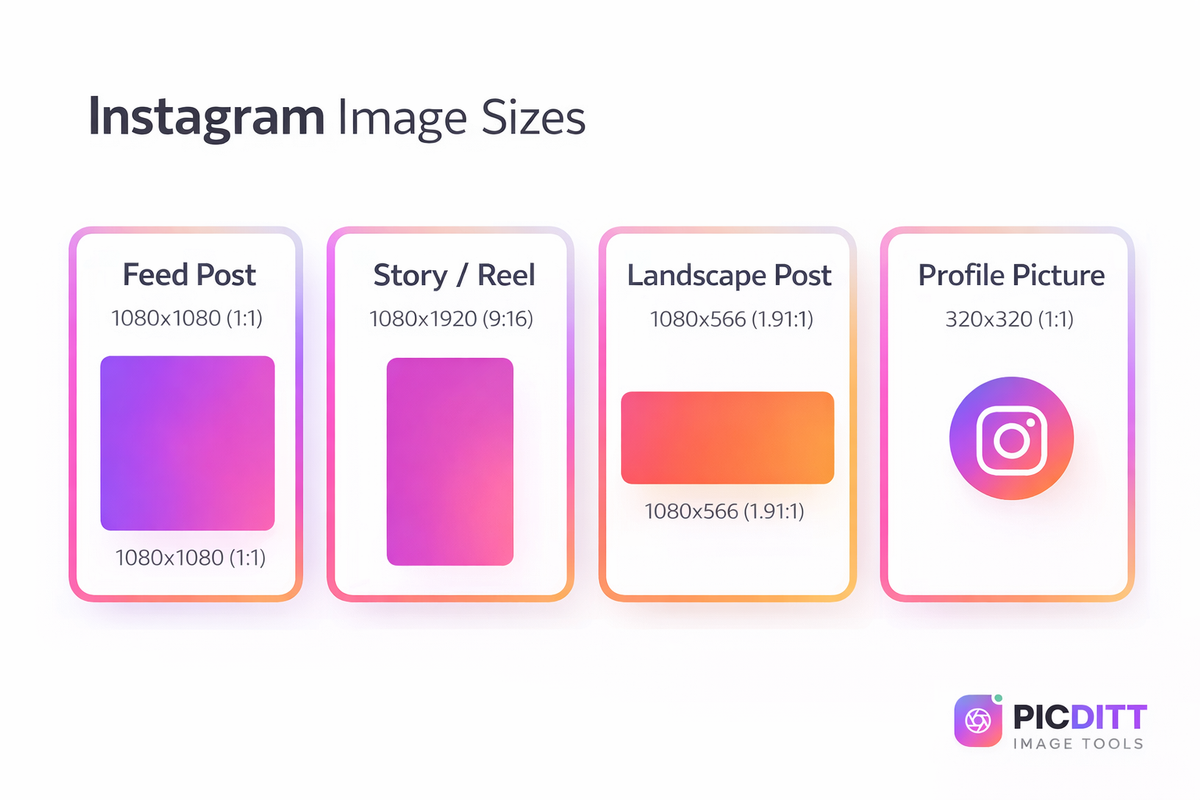
Instagram Image Sizes (Complete Guide)
Instagram is the most visually demanding platform, with multiple image formats depending on where your content appears.
Instagram Feed Post (Square)
- Size: 1080 x 1080 pixels
- Aspect Ratio: 1:1
- When to use: Standard feed posts, product photos, quotes, announcements
This is the classic Instagram format. Square images display perfectly in the feed grid and look clean on your profile page. This is still the most commonly used format for feed posts.
Instagram Feed Post (Portrait)
- Size: 1080 x 1350 pixels
- Aspect Ratio: 4:5
- When to use: When you want to take up MORE space in the feed
Portrait posts are taller than square posts, which means they take up more vertical space in someone's feed as they scroll. This makes them harder to scroll past, increasing the chance of engagement. Many professional social media managers prefer 4:5 over 1:1 for this exact reason.
Instagram Feed Post (Landscape)
- Size: 1080 x 566 pixels
- Aspect Ratio: 1.91:1
- When to use: Panoramic shots, wide landscapes, group photos
Landscape posts are less common on Instagram because they take up less vertical space in the feed. However, they work well for wide scenic shots and situations where a square crop would cut out important elements.
Instagram Story and Reel
- Size: 1080 x 1920 pixels
- Aspect Ratio: 9:16
- When to use: Stories, Reels, full-screen vertical content
Stories and Reels fill the entire phone screen vertically. Always use 9:16 for these formats to avoid black bars on the top and bottom. Keep important text and elements within the central "safe zone" — about 250 pixels from the top and bottom — to avoid being covered by the username bar or swipe-up elements.
Instagram Profile Picture
- Size: 320 x 320 pixels
- Aspect Ratio: 1:1
- When to use: Your account profile picture (displayed as a circle)
While displayed as a circle, Instagram stores profile pictures as squares. Make sure your face or logo is centered within the square so nothing important gets cropped by the circular mask. You can use Picditt's Circle Crop tool for a perfect circular preview before uploading.
Facebook Image Sizes
Facebook uses more image formats than almost any other platform, with different sizes for posts, covers, profiles, ads, events, and groups.
Facebook Feed Post
- Size: 1200 x 630 pixels
- Aspect Ratio: 1.91:1
- When to use: Standard shared posts with images, link previews
This is the optimal size for images shared in the Facebook News Feed. It provides a good balance between visibility and quality. Images larger than this will be compressed by Facebook.
Facebook Cover Photo
- Size: 820 x 312 pixels
- Aspect Ratio: ~2.63:1
- When to use: Your profile or page banner image
Facebook cover photos display differently on desktop and mobile. On desktop, the full 820 x 312 is visible. On mobile, it gets cropped to approximately 640 x 360. Keep critical elements (text, logos, faces) in the center to ensure they are visible on both devices.
Facebook Profile Picture
- Size: 170 x 170 pixels (displays at 176 x 176 on desktop)
- Aspect Ratio: 1:1
- When to use: Personal or page profile picture (displayed as circle)
Like Instagram, Facebook displays profile pictures as circles. Upload a square image with the subject centered.
Facebook Event Cover
- Size: 1200 x 628 pixels
- Aspect Ratio: 1.91:1
- When to use: Event cover images
Facebook Group Cover
- Size: 1640 x 856 pixels
- Aspect Ratio: 1.91:1
- When to use: Group banner images
YouTube Image Sizes
YouTube has specific requirements for thumbnails and channel banners — two of the most important visual elements for growing a channel.
YouTube Thumbnail
- Size: 1280 x 720 pixels
- Aspect Ratio: 16:9
- When to use: Video thumbnail previews
Thumbnails are arguably the most important visual element on YouTube. A compelling thumbnail directly impacts whether someone clicks on your video. Use bold text, expressive faces, and high contrast colors. Keep text large enough to read on mobile screens.
For creating perfect YouTube thumbnails with safe zone guides, check out our detailed guide on YouTube Banner Maker with Safe Zone Guides.
YouTube Channel Banner
- Size: 2560 x 1440 pixels
- Aspect Ratio: 16:9
- When to use: Channel banner displayed at the top of your channel page
This is a tricky one because YouTube displays the banner differently across devices. The full 2560 x 1440 is visible on TV screens. On desktop, only the central 1546 x 423 area is visible. On mobile, it is even smaller. Always design your banner with the critical content (channel name, logo, tagline) in the center "safe zone."
You can use Picditt's YouTube Banner tool to design banners with built-in safe zone guides.
YouTube Profile Picture
- Size: 800 x 800 pixels
- Aspect Ratio: 1:1
- When to use: Channel avatar (displayed as circle)
Twitter/X Image Sizes
Twitter/X Feed Post
- Size: 1600 x 900 pixels
- Aspect Ratio: 16:9
- When to use: Image posts in the feed
Twitter/X supports multiple aspect ratios, but 16:9 is the most universally displayed without cropping. You can also use 1:1 (square) or 4:3, but 16:9 takes up the most space in the feed.
Twitter/X Header Image
- Size: 1500 x 500 pixels
- Aspect Ratio: 3:1
- When to use: Profile banner at the top of your profile
Similar to Facebook covers, Twitter headers display differently on desktop and mobile. Keep important elements centered.
Twitter/X Profile Picture
- Size: 400 x 400 pixels
- Aspect Ratio: 1:1
- When to use: Account avatar (displayed as circle)
LinkedIn Image Sizes
LinkedIn Feed Post
- Size: 1200 x 627 pixels
- Aspect Ratio: 1.91:1
- When to use: Shared posts with images
LinkedIn Cover Photo
- Size: 1128 x 191 pixels
- Aspect Ratio: ~5.9:1
- When to use: Personal profile banner
LinkedIn's cover photo is unusually wide and narrow compared to other platforms. Make sure text and key elements are horizontally centered.
LinkedIn Company Page Cover
- Size: 1128 x 191 pixels
- Aspect Ratio: ~5.9:1
- When to use: Company page banner
LinkedIn Profile Picture
- Size: 400 x 400 pixels
- Aspect Ratio: 1:1
- When to use: Personal or company avatar
For tips on getting your profile picture perfect without cropping, check out our guide on how to zoom and resize photos for social media profiles.
TikTok Image Sizes
TikTok Video/Cover
- Size: 1080 x 1920 pixels
- Aspect Ratio: 9:16
- When to use: Video covers, full-screen content
TikTok is exclusively a vertical video platform. All visual content should be in 9:16 vertical format to fill the entire screen.
TikTok Profile Picture
- Size: 200 x 200 pixels
- Aspect Ratio: 1:1
- When to use: Account avatar (displayed as circle)
Pinterest Image Sizes
Pinterest Pin
- Size: 1000 x 1500 pixels
- Aspect Ratio: 2:3
- When to use: Standard pins
Pinterest is unique because it favors tall, vertical images. The 2:3 ratio is optimal — pins taller than this may get cut off in the feed.
Pinterest Board Cover
- Size: 600 x 600 pixels
- Aspect Ratio: 1:1
- When to use: Board cover thumbnails
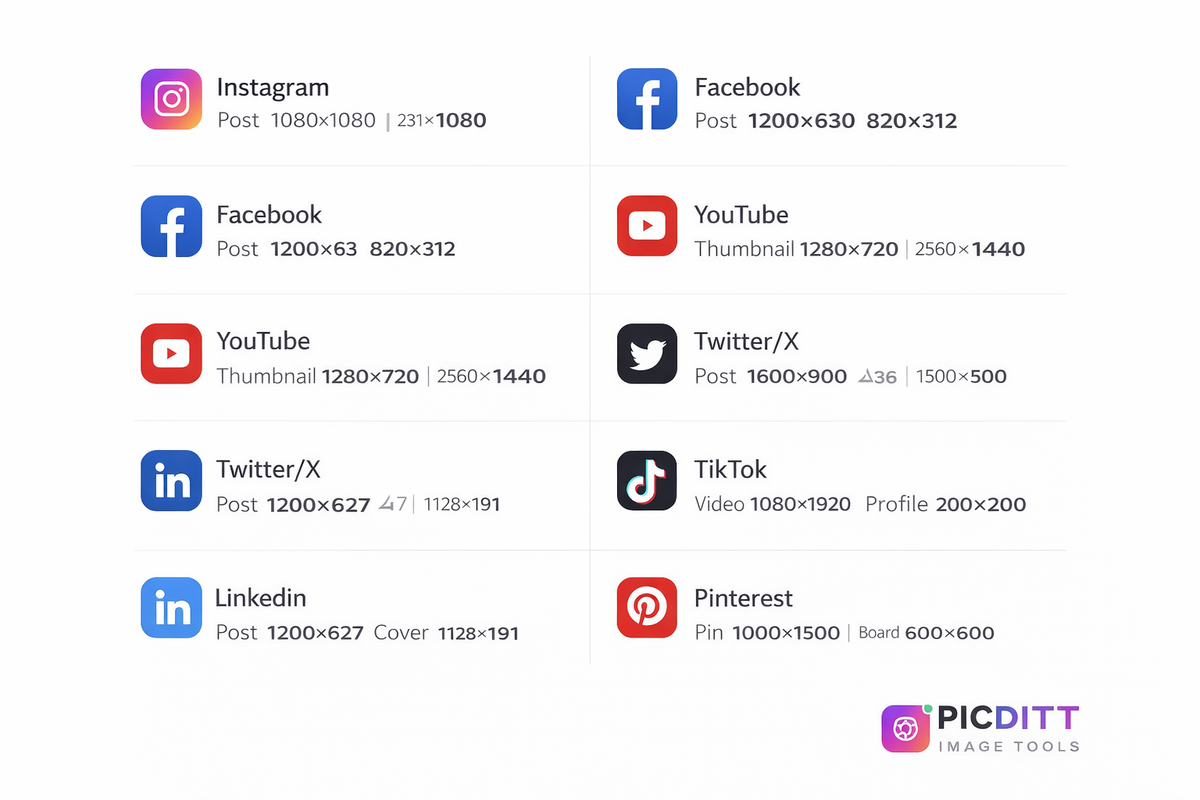
Complete Social Media Image Size Cheat Sheet for 2026
Here is your complete reference table with every dimension you will ever need:
Platform
Type
Size (pixels)
Aspect Ratio
Feed Post (Square)
1080 x 1080
1:1
Feed Post (Portrait)
1080 x 1350
4:5
Feed Post (Landscape)
1080 x 566
1.91:1
Story / Reel
1080 x 1920
9:16
Profile Picture
320 x 320
1:1
Feed Post
1200 x 630
1.91:1
Cover Photo
820 x 312
2.63:1
Profile Picture
170 x 170
1:1
Event Cover
1200 x 628
1.91:1
YouTube
Thumbnail
1280 x 720
16:9
YouTube
Channel Banner
2560 x 1440
16:9
YouTube
Profile Picture
800 x 800
1:1
Twitter/X
Feed Post
1600 x 900
16:9
Twitter/X
Header
1500 x 500
3:1
Twitter/X
Profile Picture
400 x 400
1:1
Feed Post
1200 x 627
1.91:1
Cover Photo
1128 x 191
5.9:1
Profile Picture
400 x 400
1:1
TikTok
Video / Cover
1080 x 1920
9:16
TikTok
Profile Picture
200 x 200
1:1
Standard Pin
1000 x 1500
2:3
Board Cover
600 x 600
1:1
How to Crop Your Photos for Any Platform Using Picditt
Now that you know the exact sizes, let us get your photos cropped perfectly. Picditt's free Image Cropper makes this incredibly easy with one-click social media presets.
Step 1: Open the Picditt Image Cropper
Go to https://picditt.com/crop in any web browser. The tool works on desktop, tablet, and mobile — Chrome, Firefox, Safari, Edge, and more.
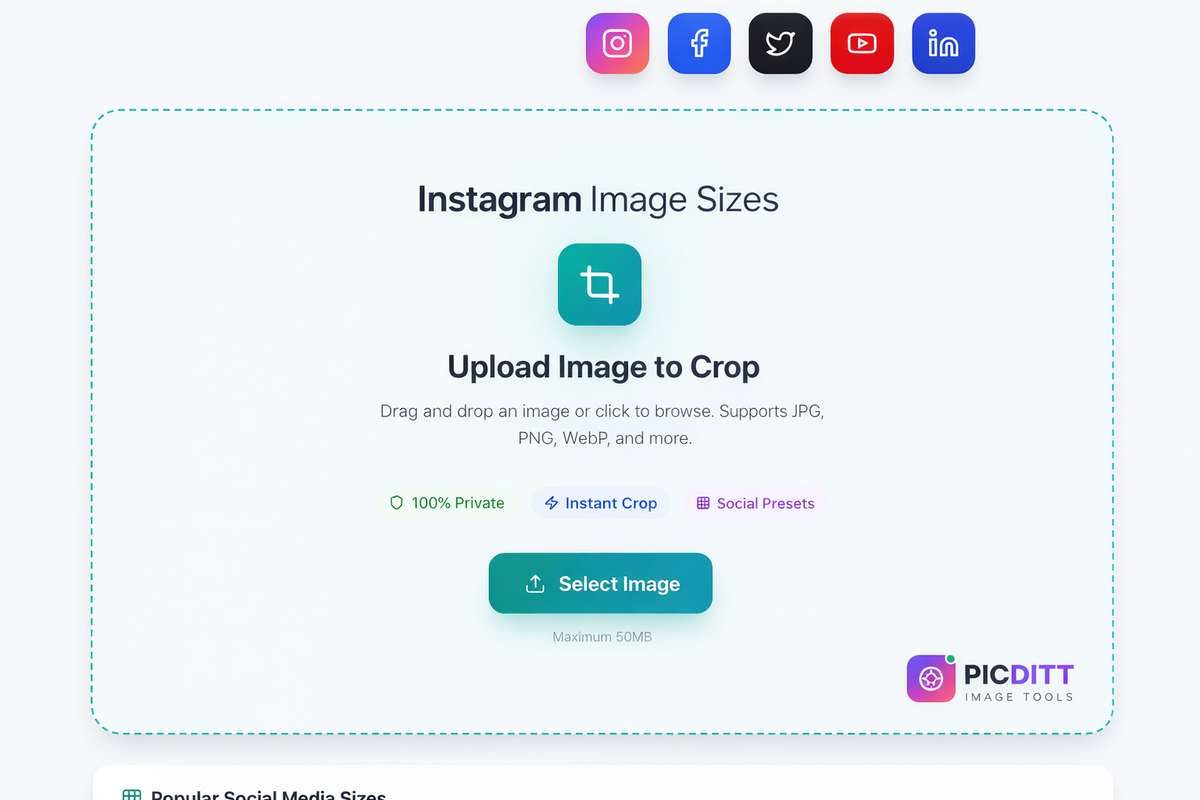
Step 2: Upload Your Image
Drag and drop your photo onto the upload area, or click to browse and select it from your device. The tool supports JPG, PNG, WebP, and other common image formats up to 50MB.
Step 3: Choose a Social Media Preset or Custom Size
This is where Picditt shines. Instead of manually entering dimensions, simply click the preset for your target platform:
- Instagram Post → Automatically sets 1080 x 1080 (1:1)
- Instagram Story → Automatically sets 1080 x 1920 (9:16)
- Facebook Cover → Automatically sets 820 x 312
- YouTube Thumbnail → Automatically sets 1280 x 720 (16:9)
- LinkedIn Post → Automatically sets 1200 x 627
- TikTok → Automatically sets 1080 x 1920 (9:16)
- Pinterest Pin → Automatically sets 1000 x 1500 (2:3)
- Custom → Enter any dimensions you need
You can also lock specific aspect ratios (1:1, 4:3, 16:9, 9:16) and resize freely within that ratio.
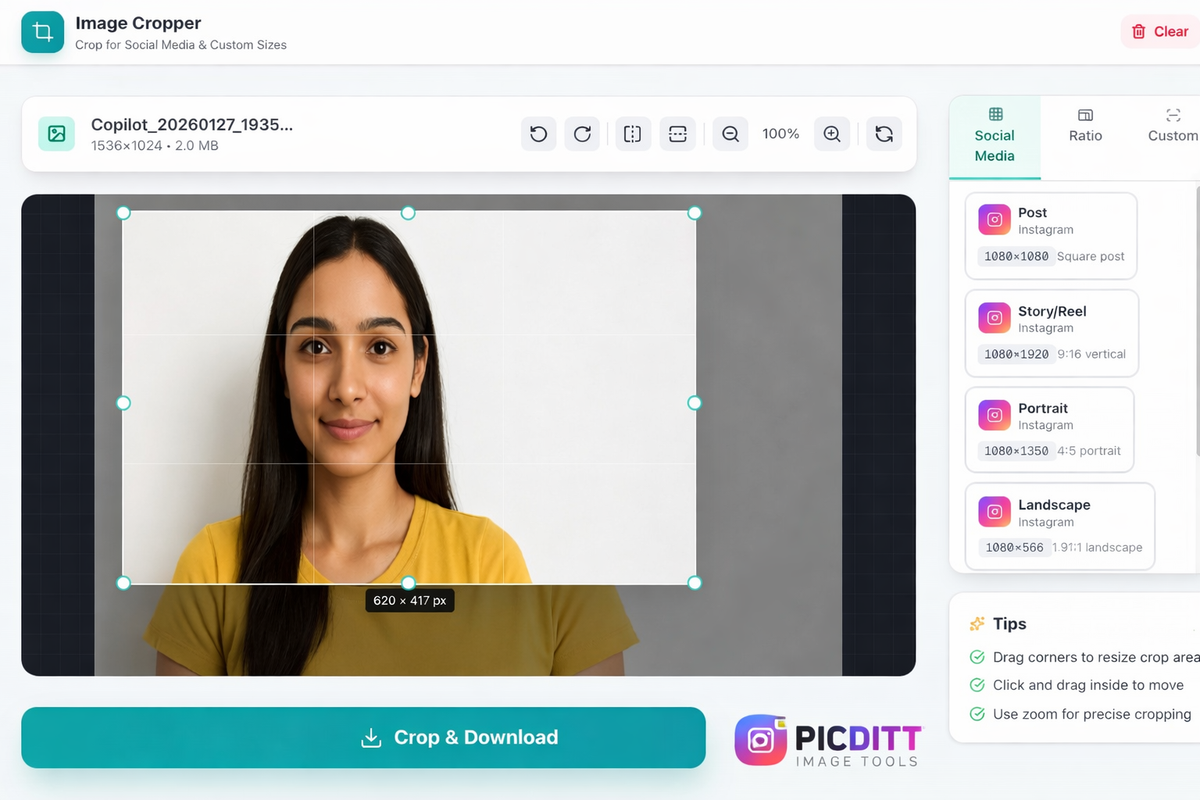
Step 4: Position and Adjust Your Crop
Use the intuitive drag controls to position the crop area over the best part of your photo. The live preview updates in real-time so you see exactly what your final image will look like.
Additional tools available:
- Zoom in/out for precise framing
- Rotate 90° left or right
- Flip horizontally or vertically
Step 5: Download Your Cropped Image
Click download and your perfectly cropped image is ready instantly. No waiting for server processing — everything happens locally in your browser.
Is It Safe to Crop Images Online?
When you search for "crop image online," you find dozens of tools. But here is the uncomfortable truth about most of them: they upload your photos to their servers for processing.
This means your personal photos — selfies, family pictures, business content, client photos — are sitting on a third-party server. You have no control over how long they are stored or who might access them.
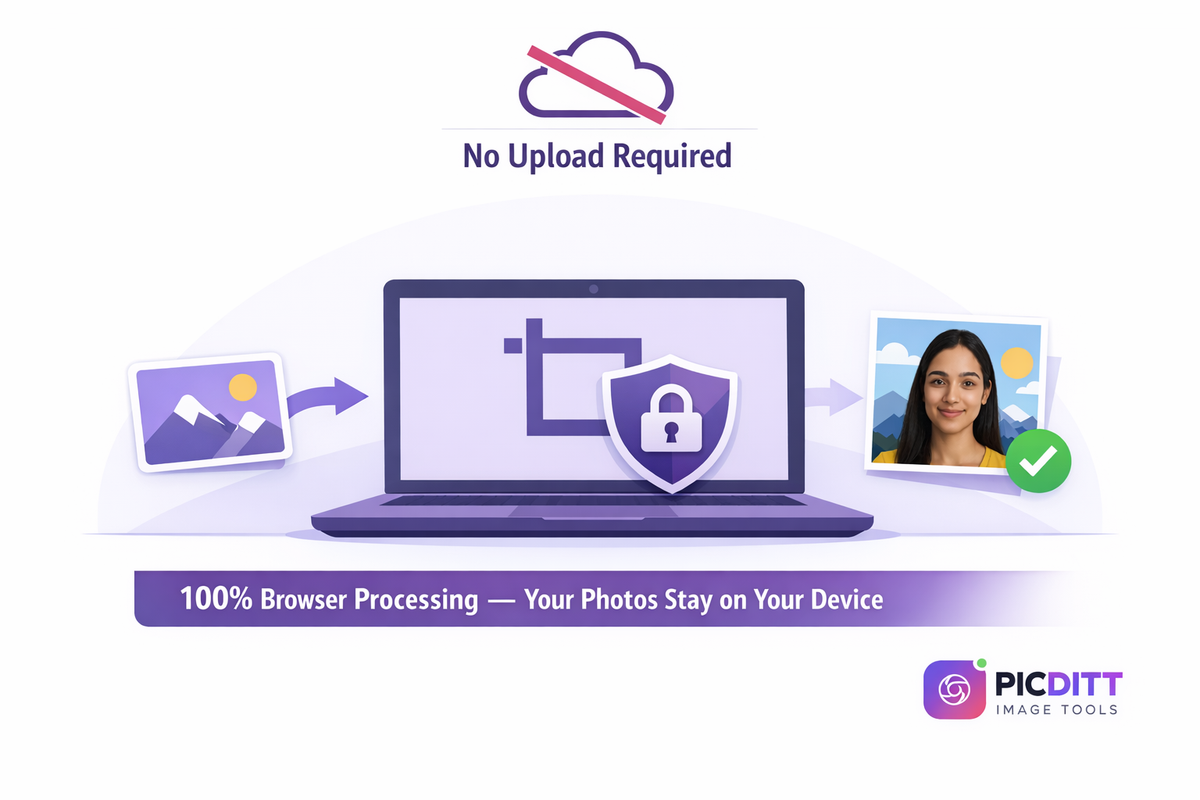
Picditt's Image Cropper is fundamentally different. All cropping happens locally in your web browser using your device's own processor. Your images are never uploaded to any server. They never leave your device. When you close the tab, there is no trace of your photos anywhere except on your own computer.
This makes it safe for:
- 📸 Personal and family photos
- 💼 Professional headshots and portraits
- 🏢 Business and brand content
- 👤 Client photos (for photographers and designers)
- 🪪 ID and passport photos
Pro Tips for Better Social Media Image Cropping
Tip 1: Always Start with the Highest Resolution Photo
Start with the largest, highest quality version of your photo before cropping. Cropping removes pixels, so starting with a larger image ensures your final crop still has enough resolution to look sharp on screen.
Tip 2: Use the Rule of Thirds
When positioning your crop, imagine the image divided into a 3x3 grid. Place the main subject at one of the four points where the grid lines intersect. This creates a more visually appealing composition than centering everything.
Tip 3: Leave Space for Text Overlays
If you plan to add text to your social media image (like quotes, announcements, or call-to-action text), leave empty space in the crop for the text. Do not crop so tightly that there is no room for additional elements.
Tip 4: Consider Mobile First
Over 80% of social media browsing happens on mobile phones. Always check how your cropped image will look on a small screen. Text should be large enough to read, and the main subject should be clearly visible even at a small size.
Tip 5: Use Portrait (4:5) for Instagram Feed Posts
While 1:1 square is the classic Instagram format, 4:5 portrait posts take up more vertical screen space in the feed. This means followers spend more time looking at your post as they scroll, increasing the chances of engagement. Switch from 1:1 to 4:5 for better performance.
Tip 6: Crop Multiple Versions for Cross-Platform Posting
If you are posting the same photo to multiple platforms, crop it in different sizes for each one. A single photo might need:
- 1:1 square for Instagram
- 16:9 landscape for Twitter/X
- 2:3 vertical for Pinterest
- 1.91:1 wide for LinkedIn
Use Picditt's presets to create all versions from the same source image in seconds.
Tip 7: Do Not Forget About Profile Pictures
Profile pictures are often overlooked, but they appear everywhere — next to every comment, every post, every message. Make sure your profile photo looks good when cropped to a circle and displayed at a very small size. Simple, high-contrast images with faces work best.
Tip 8: Compress After Cropping
After cropping your image to the perfect size, the file might still be larger than necessary. Use Picditt's Image Compressor to reduce the file size without visible quality loss. Smaller files upload faster and platforms handle them better.
Common Mistakes When Cropping for Social Media
Mistake 1: Using the Same Image Size Everywhere
Each platform has different optimal dimensions. A YouTube thumbnail (1280x720) will not look great as an Instagram post (1080x1080). Always crop specifically for each platform.
Mistake 2: Cropping Too Tightly
Leaving no breathing room around the subject makes images feel claustrophobic. Give your subject some space within the frame, especially for profile pictures and product photos.
Mistake 3: Ignoring the Safe Zone
Many platforms overlay UI elements on top of images — Instagram puts the username and like button over Stories, YouTube puts the timestamp on thumbnails, and Facebook puts text over parts of cover photos. Always keep critical content away from the edges.
Mistake 4: Not Checking Mobile Preview
An image that looks perfect on your desktop monitor might have critical elements cut off on mobile. Always verify your cropped images look good on a phone screen.
Mistake 5: Using Low-Resolution Source Images
If your original image is only 500x500 pixels, cropping it to 1080x1080 will require upscaling, which makes it blurry. Always start with the highest resolution available. If you need to upscale, use Picditt's AI Image Upscaler first.
Other Picditt Tools for Social Media Content Creation
Building a strong social media presence requires more than just cropping. Here are other free Picditt tools that complement the Image Cropper:
- Instagram No-Crop Editor — Post full photos on Instagram without cropping by adding stylish borders and backgrounds
- Instagram Grid Maker — Split one image into 3, 6, or 9 posts for a stunning Instagram grid layout
- WhatsApp DP Resizer — Resize photos perfectly for WhatsApp profile pictures without losing quality
- YouTube Banner Maker — Design YouTube channel banners with built-in safe zone guides
- Circle Crop — Crop images into perfect circles for profile pictures
- Image Compressor — Reduce file size after cropping without visible quality loss
- Background Remover — Remove backgrounds from photos for clean product images and profile pictures
- AI Image Upscaler — Upscale low-resolution images before cropping for sharper results
- Add Logo/Text — Add watermarks, logos, or text overlays to your social media images
All tools process locally in your browser with complete privacy.
Frequently Asked Questions (FAQ)
What size should I crop my photo for Instagram?
For a standard Instagram feed post, crop to 1080 x 1080 pixels (1:1 square). For a portrait post that takes up more feed space, use 1080 x 1350 pixels (4:5). For Instagram Stories and Reels, use 1080 x 1920 pixels (9:16 vertical). You can crop to all of these sizes instantly using Picditt's Image Cropper with one-click presets.
What is the best image size for a YouTube thumbnail?
YouTube thumbnails should be 1280 x 720 pixels with a 16:9 aspect ratio. This is the standard for all YouTube videos. Use bold text, expressive faces, and high-contrast colors for maximum click-through rate. The minimum width is 640 pixels.
What size should a Facebook cover photo be?
Facebook cover photos should be 820 x 312 pixels. However, the photo displays differently on desktop and mobile, so keep important elements (text, logos, faces) in the center of the image to ensure they are visible on all devices.
How do I crop an image for multiple social media platforms at once?
The fastest way is to use Picditt's Image Cropper. Upload your original photo once, then use the platform presets to create different crops for each platform — Instagram, Facebook, YouTube, LinkedIn, etc. Each crop takes seconds and you can download all versions.
What is an aspect ratio and why does it matter for social media?
An aspect ratio is the proportional relationship between an image's width and height. Common ratios include 1:1 (square), 16:9 (widescreen), 9:16 (vertical), and 4:5 (portrait). Using the correct aspect ratio ensures your image displays properly on each platform without unwanted cropping, stretching, or black bars.
Is it safe to crop images online?
It depends on the tool. Most online croppers upload your photo to their servers, which creates privacy risks. Picditt is different — all cropping happens locally in your browser. Your images never leave your device, making it completely safe for personal photos, professional headshots, and business content.
Can I crop images on my phone?
Yes. Picditt's Image Cropper works in any mobile browser — Safari, Chrome, Firefox. Simply visit the tool, upload a photo from your camera roll, choose a preset, and download. No app installation needed.
What happens if I upload an image that is too small?
If your original image is smaller than the target crop size, the result may appear blurry or pixelated. Always start with the highest resolution photo available. If you need to upscale a small image first, use Picditt's AI Image Upscaler to increase the resolution before cropping.
What image formats does the cropper support?
Picditt's Image Cropper supports all major image formats including JPG, PNG, WebP, and more. The maximum file size is 50MB per image. You can upload any common image format and crop it for any social media platform.
How do I crop a circular profile picture?
Most social media profile pictures are displayed as circles but uploaded as squares. Crop your image to a 1:1 square with the subject centered, and the platform will apply the circular mask. For a perfect preview, use Picditt's Circle Crop tool which shows exactly how your circular profile picture will look.
Conclusion
Getting your social media image sizes right is not optional — it is the difference between looking professional and looking amateur. Every platform has specific requirements, and using the wrong dimensions results in blurry, stretched, or awkwardly cropped images that hurt your engagement and brand perception.
The good news? You no longer need to memorize dozens of dimensions or manually calculate aspect ratios. Picditt's free Image Cropper handles everything with one-click presets:
- ✅ One-click presets for Instagram, Facebook, YouTube, Twitter/X, LinkedIn, TikTok, Pinterest, and more
- ✅ Aspect ratio lock for perfect proportions every time
- ✅ Drag-and-drop positioning with intuitive controls
- ✅ Live preview so you see exactly what you will get
- ✅ Rotate, flip, and zoom for precise adjustments
- ✅ 100% private — your photos never leave your device
- ✅ Instant download — no server processing or waiting
- ✅ Free forever — no limits, no watermarks, no sign-up
Bookmark the social media image size cheat sheet in this article for quick reference, and use Picditt's Image Cropper whenever you need to resize a photo for any platform.
Try Picditt's Free Image Cropper →
Ready to Try It Yourself?
Use this tool for free — no signup, no download, no watermarks.
Open Free Tool