Stop Excel From Ruining Your CSV Data: The Ultimate CSV to XLSX Conversion Guide
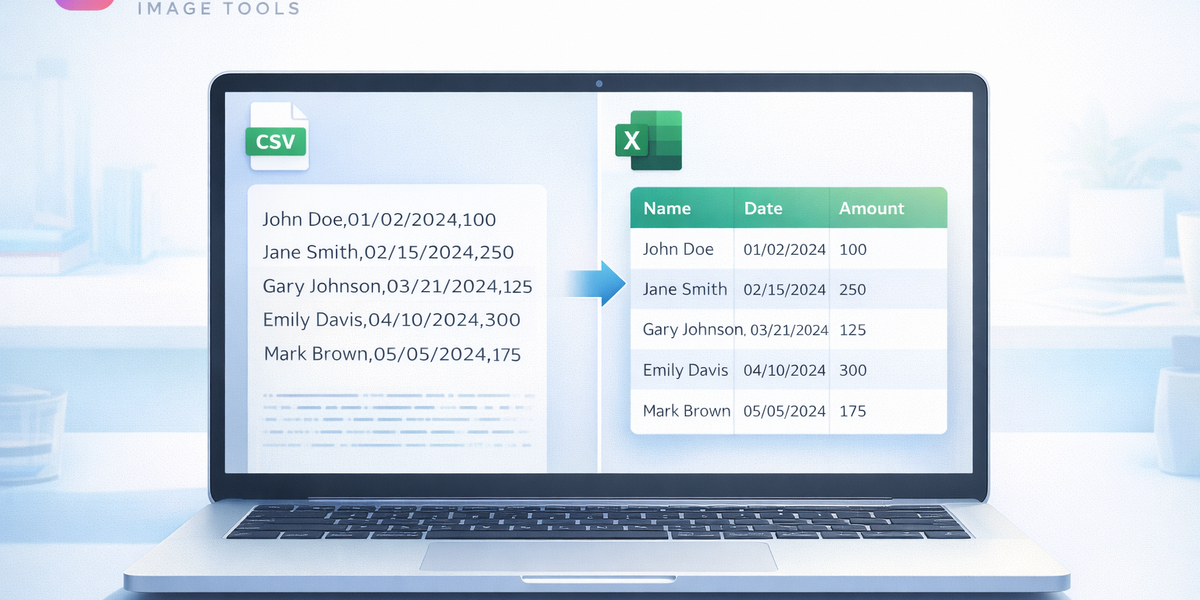
Stop Excel From Ruining Your CSV Data: The Ultimate CSV to XLSX Conversion Guide
You exported a perfectly clean CSV file. Every column was in order. The dates were formatted correctly. The leading zeros on your product codes were intact. The customer names with accented characters looked fine.
Then you opened it in Excel.
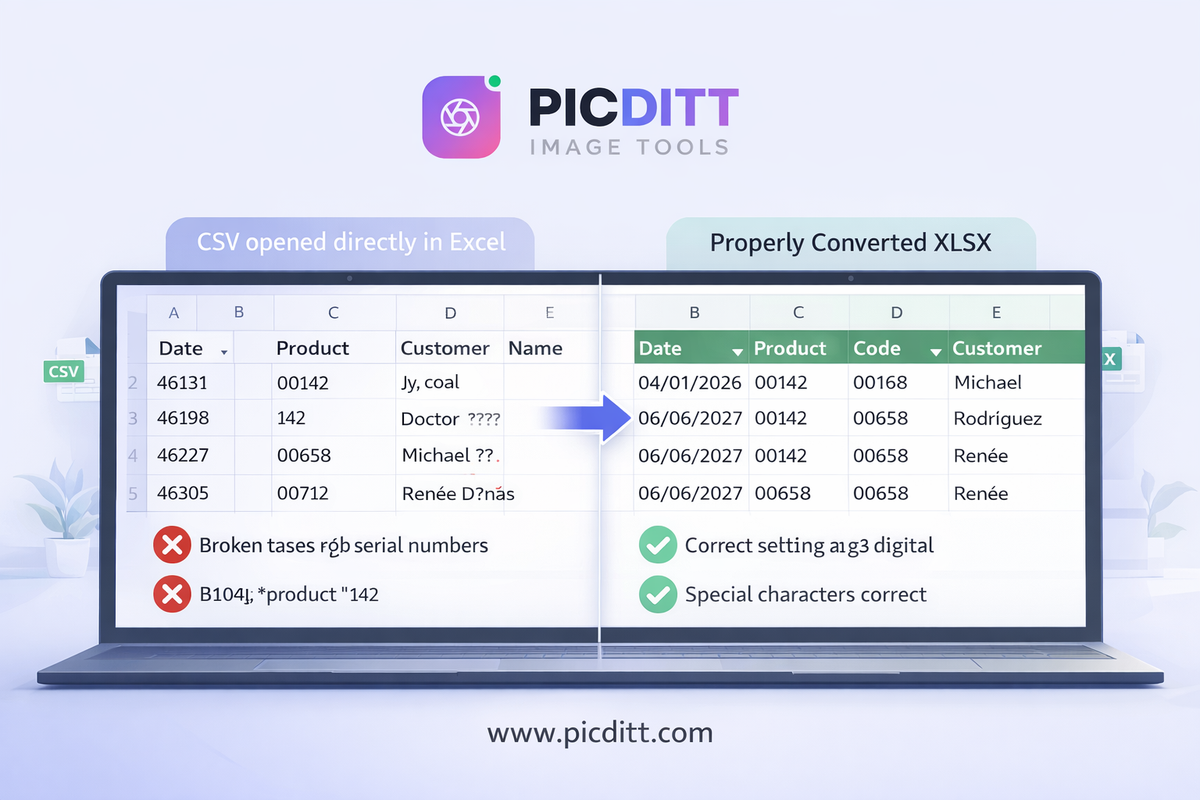
Suddenly your dates are five-digit numbers. Your product codes lost their leading zeros. The customer name "José García" is now "Jos? Garc?a." Your carefully prepared data looks like it went through a blender.
This is one of the most frustrating experiences in everyday data work — and it happens to millions of people every single day. The good news is that it's completely preventable, entirely fixable, and once you understand why it happens, you'll never lose data to a bad CSV-to-Excel conversion again.
This complete guide explains everything: what CSV files actually are, exactly why Excel mangled your data, how to fix every common problem, and how to use the free Picditt CSV to Excel Converter to convert any CSV file to a perfectly formatted XLSX spreadsheet instantly — without uploading your data to any server.
What Is a CSV File and Why Does Excel Struggle With It?
The CSV Format Explained
CSV stands for Comma-Separated Values. It is one of the simplest and most universal data formats in existence — a plain text file where each line represents one row of data and values within each row are separated by a delimiter character, most commonly a comma.
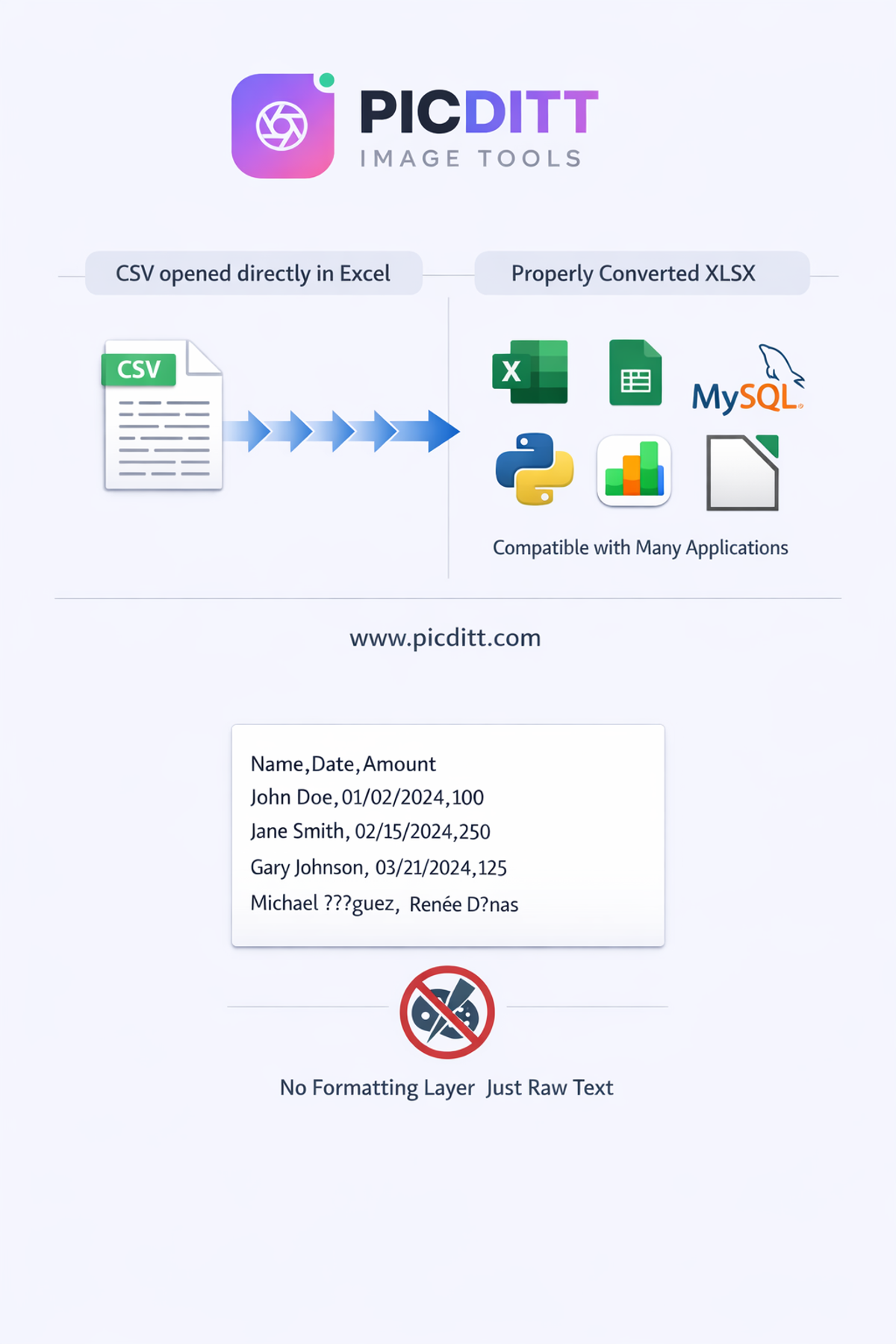
Here is what a typical CSV file actually looks like when you open it in a plain text editor:
textName,Date,Product Code,Price,City
José García,2026-01-15,00142,29.99,São Paulo
Li Wei,2026-02-03,00087,149.50,Beijing
Anna Müller,2026-03-22,00231,74.25,München
Simple, clean, readable. Every value is exactly where it should be.
Now open that same file by double-clicking it on a Windows computer with Excel installed, and here is what you might see:
textName | Date | Product Code | Price | City
Jos? Garc?a | 46031 | 142 | 29.99 | S?o Paulo
Li Wei | 45961 | 87 | 149.5 | Beijing
Anna M?ller | 46111 | 231 | 74.25 | M?nchen
Three separate disasters in one operation. The question marks replaced accented characters. The dates became meaningless numbers. The leading zeros on product codes vanished entirely.
Why CSV Is Universal But Limited
CSV's simplicity is both its greatest strength and its fundamental limitation. Because it's plain text with no formatting codes, it works across every operating system, every programming language, every database system, and every spreadsheet application on Earth. It has been a standard data exchange format for decades precisely because of this universality.
But that same simplicity means CSV has no way to specify:
- What data type each column contains
- How numbers should be formatted
- What character encoding the file uses
- Whether a number with leading zeros should be treated as text or as a number
- How dates should be interpreted
When you open a CSV in Excel, Excel has to make all of these decisions itself — and it often makes the wrong ones.
The 6 Ways Excel Destroys Your CSV Data
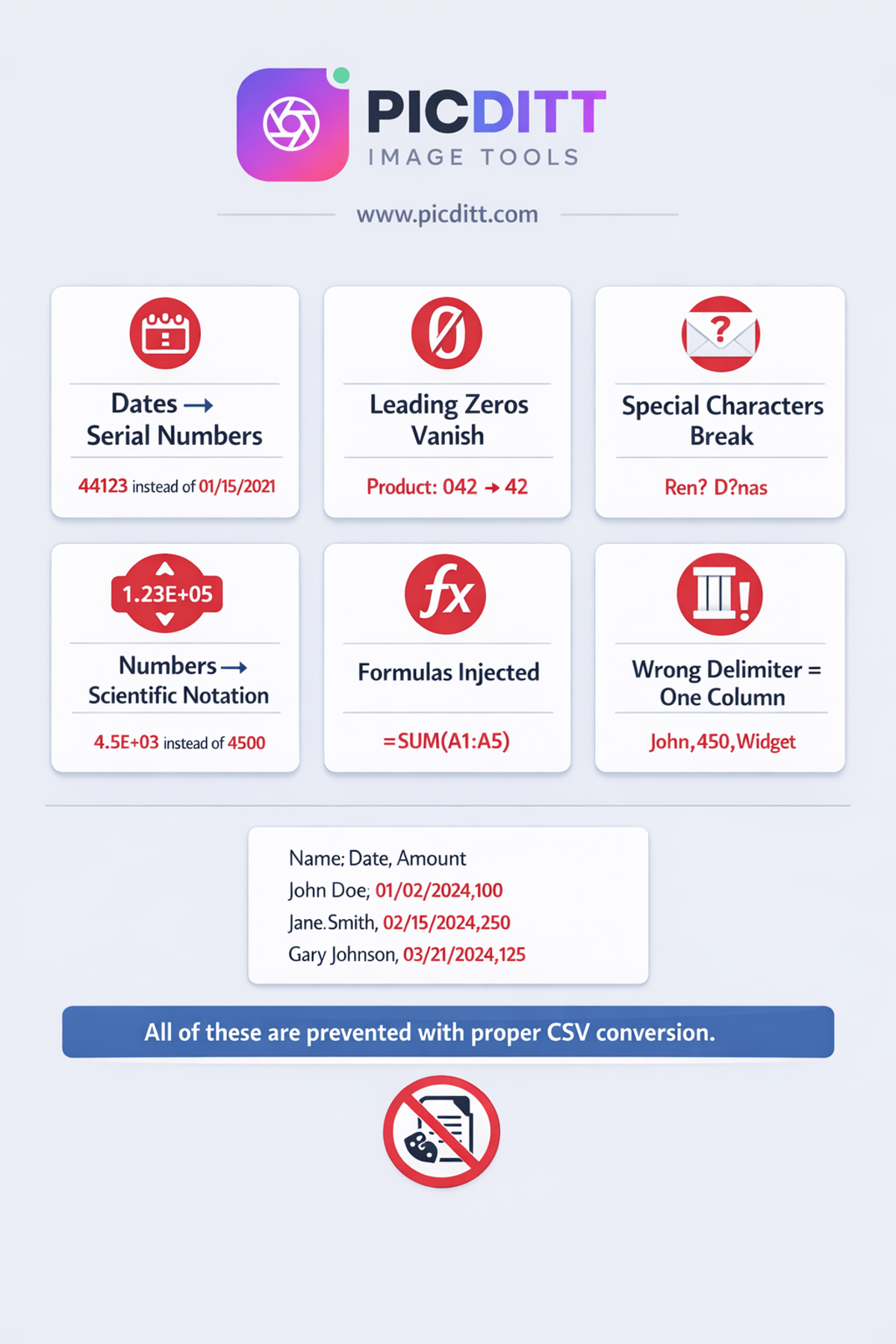
Understanding exactly why Excel mangles CSV data is the first step to preventing it permanently. Here are the six most common disasters and the technical reason each one happens.
Problem 1: Dates Converted to Serial Numbers
What you see: Your date 2026-01-15 becomes 46031 or a similar five-digit number.
Why it happens: Excel stores all dates internally as serial numbers — the number of days since January 1, 1900. When Excel reads a CSV and encounters a value that looks like a date to its parser, it converts it to this internal serial number. If the column isn't then formatted as a date type, you see the raw number instead of the date.
Different date formats in your CSV can cause inconsistent results. 2026-01-15 (ISO format), 15/01/2026 (European format), and 01/15/2026 (US format) may be interpreted differently depending on your regional Excel settings — some get converted correctly, others don't get recognized as dates at all and appear as text.
Impact: Any date-based calculations, sorting, or filtering becomes impossible or produces wrong results. Timelines, age calculations, and date comparisons are all broken.
Problem 2: Leading Zeros Disappear
What you see: Your product code 00142 becomes 142. Your ZIP code 07302 becomes 7302. Your employee ID 0089 becomes 89.
Why it happens: When Excel reads a value from a CSV that consists entirely of digits, it automatically converts it to a number data type. Numbers don't have leading zeros — mathematically, 00142 and 142 are identical values. Excel is technically correct from a mathematical standpoint, but completely wrong from a data standpoint when those digits are identifiers rather than quantities.
Impact: Product codes, ZIP codes, phone numbers, employee IDs, bank account numbers, and any other numeric identifiers that rely on leading zeros become incorrect and potentially dangerous — imagine a financial system where account numbers lose their leading zeros.
Problem 3: Special Characters and Accented Letters Break
What you see: José García becomes Jos? Garc?a. São Paulo becomes S?o Paulo. München becomes M?nchen. Arabic, Chinese, Japanese, Korean, Cyrillic, or Hebrew characters become garbled nonsense or question marks.
Why it happens: This is a character encoding mismatch. Text files use encoding systems that define how characters are stored as binary data. UTF-8 is the modern universal standard that supports every character in every language. But Excel, particularly on Windows, often defaults to opening CSV files using the system's regional encoding (such as Windows-1252 for Western European languages) rather than UTF-8.
When a UTF-8 encoded CSV is opened with Windows-1252 encoding, any character outside the basic ASCII range — which includes virtually all accented letters, non-Latin scripts, and many special symbols — is misread and displayed as a question mark or garbled character.
Impact: International data — customer names, addresses, city names, product descriptions in multiple languages — becomes corrupted and unreliable. For businesses handling international data, this can be a serious operational problem.
Problem 4: Large Numbers Converted to Scientific Notation
What you see: Your order number 123456789012 becomes 1.23457E+11. Your barcode 9780345391803 becomes 9.78035E+12.
Why it happens: Excel has a maximum of 15 significant digits for number precision. Any number longer than 15 digits gets rounded and displayed in scientific notation. Long numeric identifiers — barcodes, ISBNs, phone numbers with country codes, national ID numbers — frequently exceed this limit.
Impact: Long numeric identifiers become unreadable and lose precision. Barcodes can't be scanned from the value shown. ISBNs become incorrect. The last digits of phone numbers are lost.
Problem 5: Formulas Treated as Data (or Vice Versa)
What you see: Your CSV contains a value like =SUM(A1:A10) as a text label, but Excel interprets it as a formula and executes it. Or Excel treats actual formula strings as text.
Why it happens: CSV files store everything as plain text — there is no distinction between a value that happens to start with = and an intentional formula. Excel sees any value beginning with =, +, -, or @ as a potential formula and may attempt to execute it.
Impact: Beyond the incorrect display, this creates a security concern. Specially crafted CSV files can inject formulas that execute when opened — a known attack vector called CSV injection or formula injection.
Problem 6: Delimiter Confusion
What you see: All your data appears in a single column instead of being spread across multiple columns. Or your columns are split incorrectly with values appearing in wrong columns.
Why it happens: Not all CSV files use commas as their delimiter. Many European countries use semicolons (;) because commas are used as decimal separators in those regions. Tab-separated files (TSV) use tab characters. Some systems use pipe characters (|) or other custom delimiters. When Excel assumes the wrong delimiter, the entire column structure collapses.
Impact: Data becomes completely unusable until the import is redone with the correct delimiter specified.
Introducing the Picditt CSV to Excel Converter
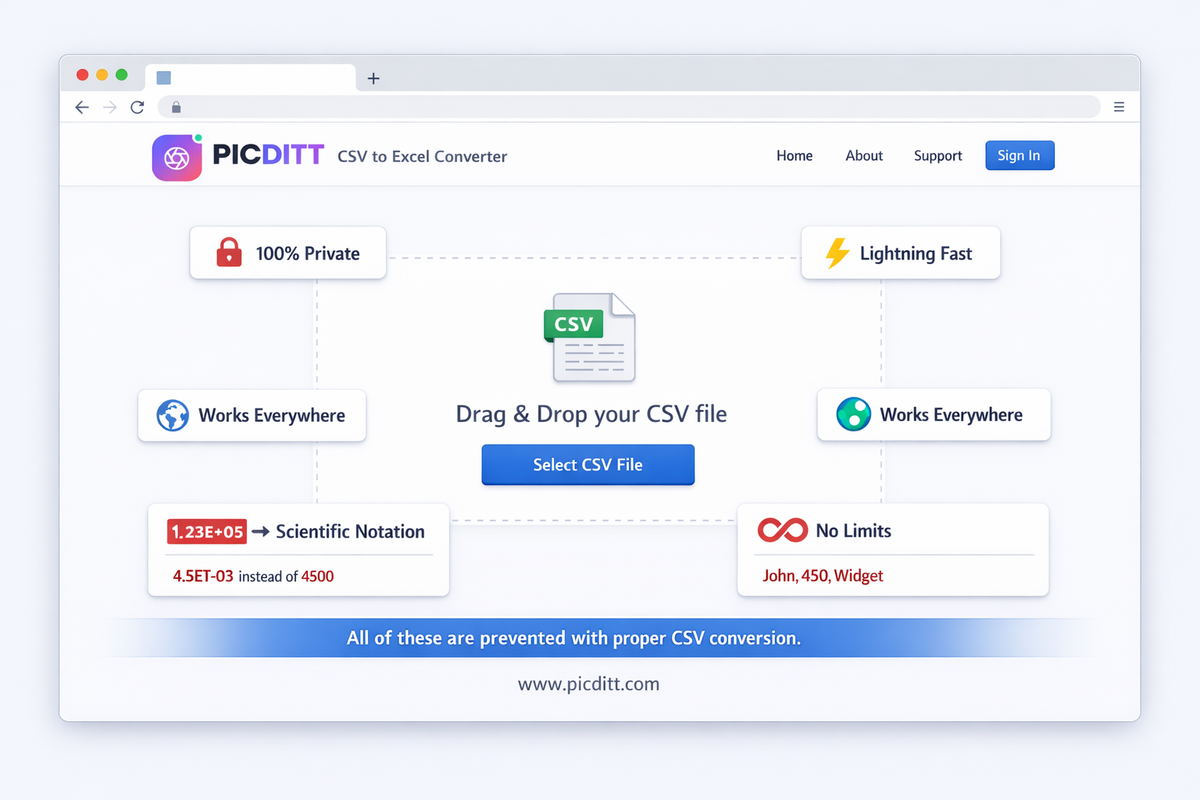
The Picditt CSV to Excel Converter is a free, browser-based tool that converts any CSV file to a properly formatted XLSX spreadsheet — handling every one of the six problems described above — without ever uploading your data to any server.
Why Privacy Matters Enormously for CSV Data
This point deserves special emphasis. CSV files frequently contain sensitive information:
- Customer databases with names, addresses, email addresses, and phone numbers
- Financial records with transaction amounts, account numbers, and payment details
- Employee records with salaries, personal information, and HR data
- Medical records with patient information subject to HIPAA regulations
- Business intelligence with sales figures, pricing, and competitive information
Using an online converter that uploads your CSV to a remote server means sending all of this sensitive data to someone else's computer. Many free online converters store uploaded files on their servers for hours, days, or indefinitely.
The Picditt converter processes everything 100% within your browser using JavaScript and WebAssembly. Your CSV file is read from your device into your browser's local memory, converted entirely on your device, and the resulting XLSX file is saved directly to your device. No data is ever transmitted anywhere.
This makes it safe for GDPR-compliant data handling, HIPAA-regulated medical data, confidential business records, and any other sensitive information that cannot be sent to third-party servers.
Key Features
Automatic Delimiter Detection
The tool intelligently identifies whether your CSV uses commas, semicolons, tabs, pipes, or any other delimiter — and handles it correctly without requiring any configuration from you.
Character Encoding Support
Full support for UTF-8, ASCII, Latin-1, and other common encodings. International characters — accented letters, non-Latin scripts, special symbols — are preserved correctly in the output XLSX.
Data Type Preservation
The converter intelligently handles numeric identifiers with leading zeros, preserving them as text rather than converting them to numbers. Dates are formatted correctly based on detection of your date format.
Large File Handling
Handles CSV files up to 50 MB containing millions of rows and hundreds of columns without performance issues. Browser-based processing means no server-side file size limits or timeouts.
Universal Compatibility
Output XLSX files are compatible with Microsoft Excel (all versions), Google Sheets, Apple Numbers, LibreOffice Calc, and all other spreadsheet applications.
Works Offline
After the page loads, the converter functions without an internet connection — ideal for processing sensitive files in secure, air-gapped environments.
Technical Specifications
Specification
Details
Input Format
CSV (.csv files up to 50 MB)
Output Format
Excel XLSX (.xlsx)
Delimiter Support
Comma, semicolon, tab, pipe, custom
Encoding Support
UTF-8, ASCII, Latin-1, Unicode
Maximum File Size
50 MB per file
Processing Location
100% browser-based (client-side)
Data Privacy
Files never uploaded to any server
Browser Support
Chrome, Firefox, Edge, Safari, Opera
Device Support
Windows, macOS, Linux, iOS, Android
Cost
Free forever, no limits
Registration
None required
Offline Support
Yes, after initial page load
Step-by-Step Guide: How to Convert CSV to XLSX
Here is the complete process from start to finish.
Step 1: Prepare Your CSV File
Before converting, a few quick checks can prevent issues:
- Verify the file extension — make sure your file ends in
.csv - Check the file size — files up to 50 MB are supported
- Note your delimiter — do you know if it uses commas, semicolons, or tabs? (The tool auto-detects, but good to know)
- Identify any sensitive data — this tool keeps it private, but it's good practice to know what you're working with
Step 2: Open the Tool
Visit https://picditt.com/misc/csv-to-xlsx in any modern browser on any device. No account, no sign-up, no loading spinner for server initialization.
Step 3: Upload Your CSV File
Either:
- Drag and drop your CSV file directly onto the upload area
- Click "Select CSV File" to browse your device and select the file
The tool immediately begins processing. For most CSV files, conversion completes in under one second.
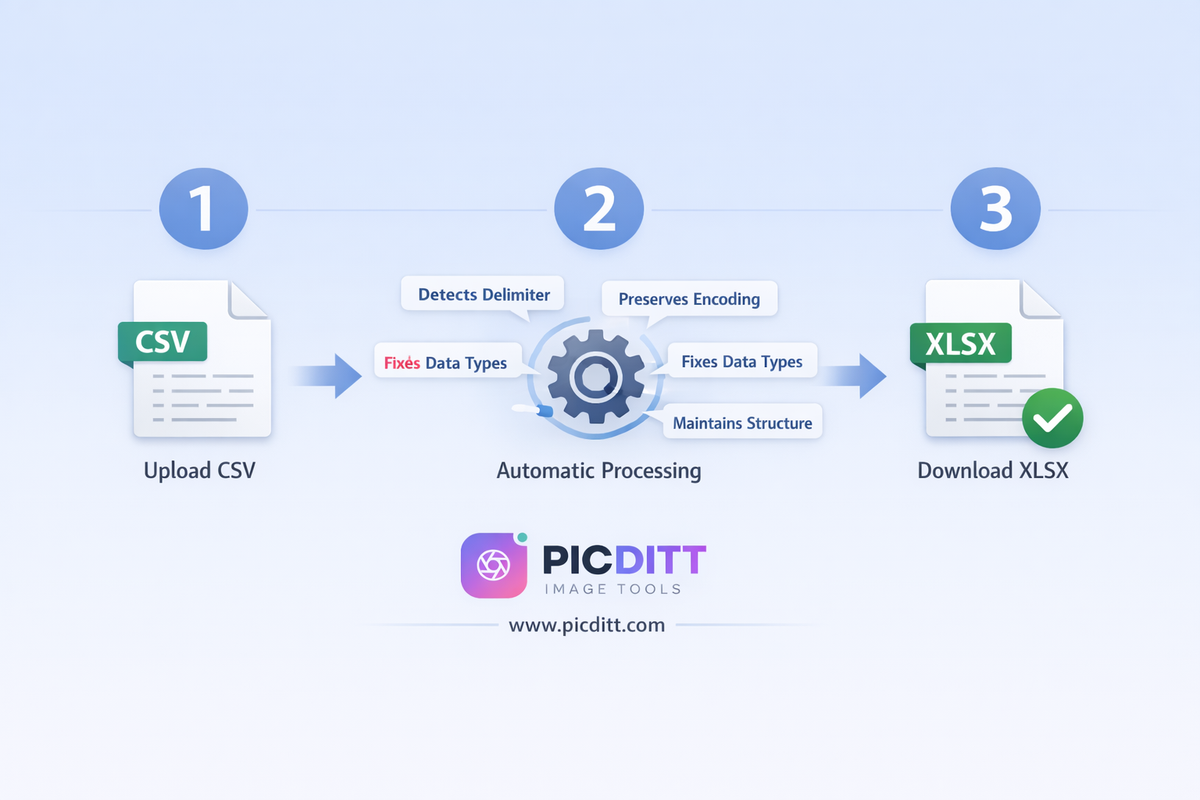
Step 4: Automatic Processing
The tool automatically:
- Detects your delimiter type (comma, semicolon, tab, pipe)
- Identifies character encoding and preserves special characters
- Detects column structure and applies appropriate widths
- Handles data types to prevent leading zero loss and date conversion issues
- Preserves all data relationships and row/column structure
No configuration required. No settings to adjust. No checkboxes to select.
Step 5: Download Your XLSX File
Click "Download XLSX" and your converted Excel file saves directly to your device. Open it in Excel, Google Sheets, Numbers, or any other spreadsheet application — your data will be exactly as it was in the CSV, properly formatted and ready to use.
CSV vs XLSX: When to Use Each Format
Understanding when to use CSV versus XLSX makes you a more effective data professional. They serve different purposes and have distinct strengths.
When CSV Is the Right Choice
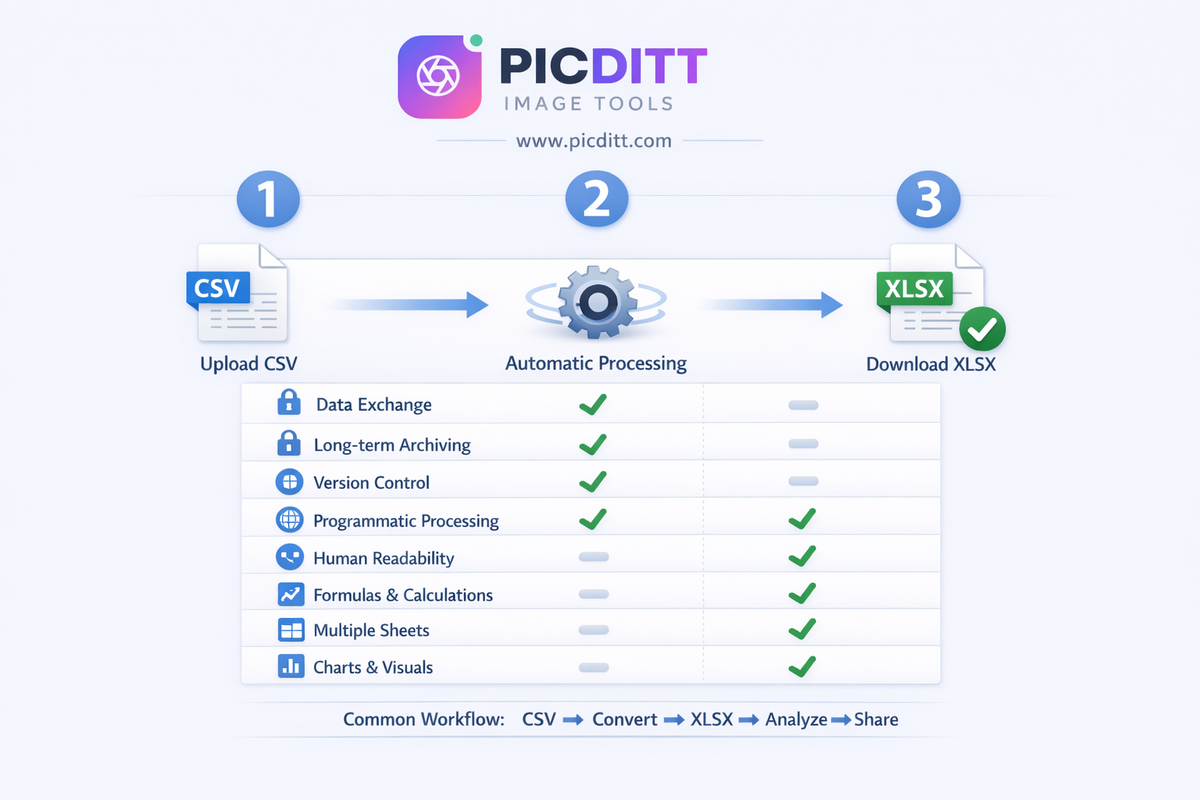
Data exchange between systems
CSV is the universal language of data exchange. If you're moving data between a database and an application, between two different software systems, or sharing data with a developer or data analyst, CSV is almost always the correct format. Every system that handles data can read and write CSV.
Long-term archiving
CSV files are plain text — they'll be readable in any text editor in 50 years regardless of what software exists then. XLSX files depend on software that can interpret the Office Open XML format. For archiving raw data, CSV is more future-proof.
Version control
Because CSV is plain text, it works naturally with version control systems like Git. Changes between versions are human-readable as text diffs. XLSX files are binary and not suited for version control.
Programmatic processing
If data will be processed by code — Python scripts, R analysis, SQL imports, ETL pipelines — CSV is almost always preferable. Every programming language has native CSV parsing libraries. XLSX requires additional dependencies.
Sharing with non-Excel users
Not everyone has Microsoft Excel. Not everyone can open XLSX files. CSV opens in any text editor, any spreadsheet application, and any browser.
When XLSX Is the Right Choice
Human readability and presentation
When people will look at the data directly, XLSX is vastly superior. Formatting, colors, proper column widths, frozen header rows, and font styling make data dramatically easier to read and understand.
Formulas and calculations
If you need to perform calculations, create running totals, apply financial functions, or build any kind of computational logic into the spreadsheet, XLSX is required. CSV cannot store formulas.
Multiple related datasets
XLSX files can contain multiple sheets within one file. Related datasets — monthly reports, regional breakdowns, summary and detail views — can coexist in one organized file. CSV is always a single flat dataset.
Charts and visualizations
Data visualization within the file requires XLSX. Bar charts, line graphs, pie charts, and all other Excel visualizations live in XLSX files, not CSV.
Data validation and integrity
Drop-down lists, input restrictions, data validation rules, and cell protection are XLSX features that help maintain data integrity when multiple people are entering data.
Sharing with business stakeholders
Executives, managers, and business stakeholders expect spreadsheets, not raw text files. XLSX is the professional format for business reporting.
The Common Workflow
In most professional data workflows, CSV and XLSX work together:
textSource System → Export as CSV → Convert to XLSX →
Format and Analyze → Share with Stakeholders →
Export back to CSV for next system
The Picditt CSV to XLSX converter handles the critical middle step — converting raw exported data into a workable, properly formatted Excel file ready for analysis and sharing.
Common CSV Problems and How to Fix Them
Beyond the six Excel disasters described earlier, here are additional problems you may encounter and their solutions.
Problem: CSV File Won't Open at All
Symptoms: File appears blank, shows an error, or Excel refuses to open it.
Possible causes and fixes:
- File is actually not a CSV — open in a text editor (Notepad, TextEdit) to verify it contains comma-separated text
- File uses an unexpected extension — some systems export
.txtfiles that are actually CSV formatted. Rename to.csvbefore converting. - File is corrupted — if the source export can be repeated, regenerate the file. Otherwise, a text editor can sometimes reveal and fix corruption near the end of a file.
- File is actually Excel format — some systems mistakenly name XLSX files with a
.csvextension. Open in a text editor to check if the first characters arePK(which indicates a ZIP-based format like XLSX).
Problem: Data Appears in One Column Only
Symptoms: All data is in column A, with each row showing the full CSV line as text.
Cause: Excel used the wrong delimiter assumption.
Fix with the Picditt tool: The converter automatically detects the correct delimiter. Upload your CSV and it will identify whether it's comma, semicolon, tab, or pipe delimited and split columns correctly.
Fix manually in Excel: Use Data → Text to Columns → Delimited → choose your delimiter.
Problem: Numbers Are Rounded or Truncated
Symptoms: 9780345391803 becomes 9780345391800 (last digits changed).
Cause: Excel's 15 significant digit precision limit. Long numbers beyond 15 digits lose precision.
Fix: These values must be treated as text, not numbers. The Picditt converter handles this for known identifier columns, but for custom data you can prefix values with an apostrophe in the CSV source or use Excel's Text Import Wizard with the column type set to Text.
Problem: Time Zones and UTC Offsets Are Lost
Symptoms: 2026-01-15T14:23:05+05:00 becomes just 14:23:05 or loses the UTC offset entirely.
Cause: Excel's date-time format doesn't natively support timezone information. It stores date-times as local time serial numbers.
Fix: Store timezone information in a separate text column in your CSV if it's critical to retain. Include the original UTC offset as a text value alongside the parsed local time.
Problem: Currency Symbols Cause Column Misalignment
Symptoms: Values like $1,234.56 end up in the wrong column or split incorrectly.
Cause: Commas within quoted values should be handled by CSV quoting rules (values containing commas are wrapped in double quotes). Malformed CSV files that don't properly quote these values cause misalignment.
Fix: The Picditt converter correctly handles RFC 4180 CSV quoting rules. If your source CSV is malformed, the most reliable fix is to regenerate it from the source system with proper quoting.
Pro Tips for Working With CSV Files
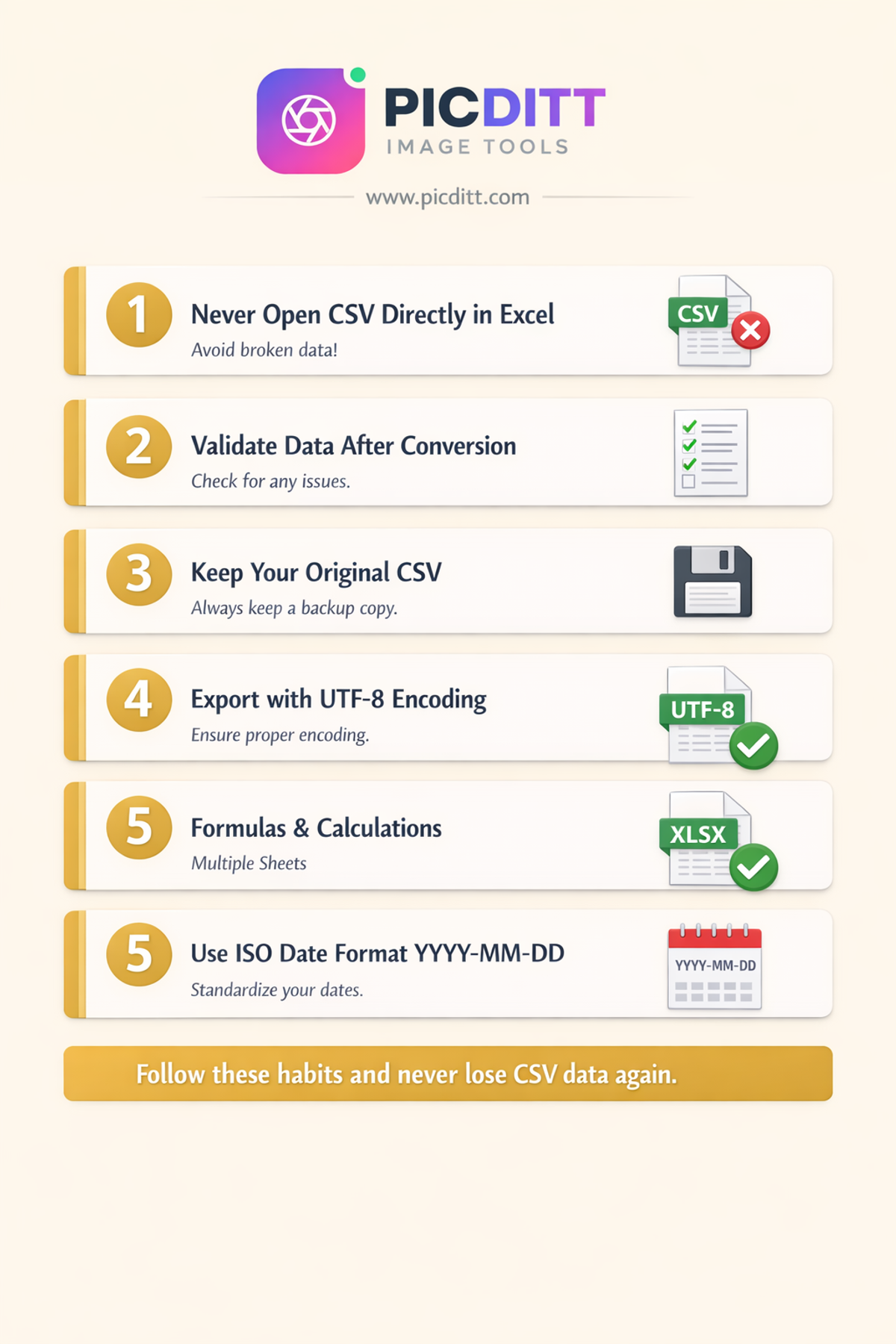
Tip 1: Always Open CSV Files Through a Converter, Never Directly
The single most important habit change you can make is to stop double-clicking CSV files to open them in Excel. Double-clicking uses Excel's automatic detection which causes all six of the data disasters described earlier. Always use a dedicated converter like the Picditt tool, or use Excel's Data → From Text/CSV import wizard where you can specify encoding, delimiter, and column data types manually.
Tip 2: Validate Your Data After Conversion
After converting, spot-check these specific fields:
- Dates — do they show as dates (not numbers)?
- Numeric identifiers — are leading zeros present?
- International names and addresses — are special characters correct?
- Long numbers — are all digits present and correct?
- Row count — does the XLSX have the same number of rows as the CSV?
Tip 3: Keep the Original CSV
After converting to XLSX, keep your original CSV file. The XLSX is your working file for analysis and presentation. The CSV is your source of truth — clean, universally compatible, and easily re-convertible if anything goes wrong with the XLSX version.
Tip 4: Specify UTF-8 at Export Time
When exporting CSV from a database, application, or other system, always specify UTF-8 encoding if you have the option. UTF-8 encodes every character in every language correctly. This prevents character encoding issues before the file is even created, making conversion cleaner and more reliable.
Tip 5: Use Consistent Date Formats in Your Source Data
If you control the CSV source, use ISO 8601 date format (YYYY-MM-DD) throughout. This format is unambiguous across all regional settings and is correctly interpreted by virtually every system. Mixed date formats within a single column are a common source of conversion errors.
Use Cases: Who Needs CSV to XLSX Conversion
Data Analysts and Business Intelligence Professionals
Data analysts regularly receive data exports from databases, APIs, and reporting systems in CSV format. Converting to XLSX is the first step in any data analysis workflow — it enables pivot tables, chart creation, formula application, and the rich formatting needed for professional reporting. The Picditt converter's privacy guarantee is particularly important here, as analytics data frequently contains confidential business metrics.
E-Commerce and Retail Businesses
Online stores export order histories, inventory lists, customer databases, and product catalogs as CSV files from platforms like Shopify, WooCommerce, Magento, and Amazon Seller Central. Converting these to XLSX enables better inventory management, order tracking, revenue analysis, and supplier communication in a professional spreadsheet format.
Human Resources and Payroll
HR systems export employee records, payroll data, attendance records, and performance data as CSV. These files contain highly sensitive personal information — exactly the type of data that should never be uploaded to a third-party server. The browser-based processing of the Picditt converter makes it suitable for handling this sensitive HR data.
Healthcare and Medical Administration
Medical practices, hospitals, and healthcare administrators work with patient data, appointment records, and billing information in CSV format exported from electronic health record (EHR) systems. HIPAA regulations strictly govern how patient data can be handled — using a converter that keeps all data on the local device is essential for compliance.
Financial Services and Accounting
Bank statement exports, transaction logs, accounting software exports, and financial reporting data all commonly use CSV format. Financial data requires absolute precision — the leading zero, date, and number handling of a proper converter is critical to ensure account numbers, dates, and financial figures remain exactly correct.
Marketing and CRM Teams
Customer relationship management (CRM) systems export contact lists, campaign results, lead databases, and customer segments as CSV. Converting these to XLSX enables list segmentation analysis, campaign performance calculation, and professional reporting for management.
Frequently Asked Questions
Why does Excel change my dates to numbers when I open a CSV?
Excel stores all dates internally as serial numbers — the number of days since January 1, 1900. When it reads a date value from a CSV, it converts it to this internal format. If the column is not then formatted as a date type, you see the raw serial number. Using a dedicated CSV to XLSX converter like the Picditt tool handles date detection and formatting correctly during conversion.
Is it safe to convert CSV files containing sensitive data online?
It depends entirely on how the tool processes your data. Tools that upload your CSV to a remote server are not safe for sensitive data. The Picditt CSV to Excel converter processes everything 100% within your browser — your file is never uploaded to any server. All conversion happens locally on your device, making it safe for customer data, financial records, employee information, and any other sensitive content.
Why do leading zeros disappear when I open a CSV in Excel?
Excel automatically converts values containing only digits to number format. Numbers don't have leading zeros mathematically, so Excel removes them. Product codes, ZIP codes, phone numbers, and employee IDs that look like numbers but should be treated as text lose their leading zeros this way. A proper converter treats these values as text rather than numbers, preserving every digit.
Can this tool convert large CSV files with millions of rows?
Yes. The Picditt converter supports CSV files up to 50 MB, which can contain hundreds of thousands to millions of rows depending on how many columns your data has. Because processing happens in your browser using optimized JavaScript and WebAssembly, there are no server-side timeout limitations that commonly affect online tools with large files.
What delimiters does the converter support?
The tool automatically detects and supports comma (,), semicolon (;), tab (\t), and pipe (|) delimiters. It also correctly handles the RFC 4180 CSV standard including quoted values that contain delimiter characters or newlines within the value. No manual delimiter selection is required.
Will the converted XLSX work in Google Sheets and Apple Numbers?
Yes. The XLSX format (Office Open XML) is an international standard supported by all major spreadsheet applications including Microsoft Excel (all versions from 2007 onward), Google Sheets, Apple Numbers, LibreOffice Calc, and OpenOffice Calc.
Can I convert multiple CSV files at once?
Currently the tool processes one CSV file at a time. For batch conversion needs, you can open multiple browser tabs and process files in parallel, which is often faster than waiting for sequential server-based processing anyway since everything runs locally.
Does the tool preserve special characters and international text?
Yes. The converter fully supports UTF-8 encoding which covers every character in every language including accented Latin characters (é, ü, ñ), Cyrillic, Arabic, Hebrew, Chinese, Japanese, Korean, and all other Unicode character sets. International names, addresses, and descriptions are preserved exactly as they appear in your source CSV.
What happens if my CSV file is malformed or has inconsistent formatting?
The tool uses a robust CSV parser that handles common real-world CSV issues including inconsistent quoting, varying line endings (Windows CRLF vs Unix LF), trailing commas, and rows with different numbers of columns. For severely malformed files, the parser does its best to extract usable data, though the source CSV should ideally be regenerated from the original system if possible.
Is there a cost or usage limit?
No. The Picditt CSV to Excel converter is completely free forever with no daily limits, no file count limits, no registration required, and no watermarks on converted files. There are no premium tiers or paid features — every capability is available to every user at no cost.
Final Thoughts: Never Lose CSV Data to Excel Again
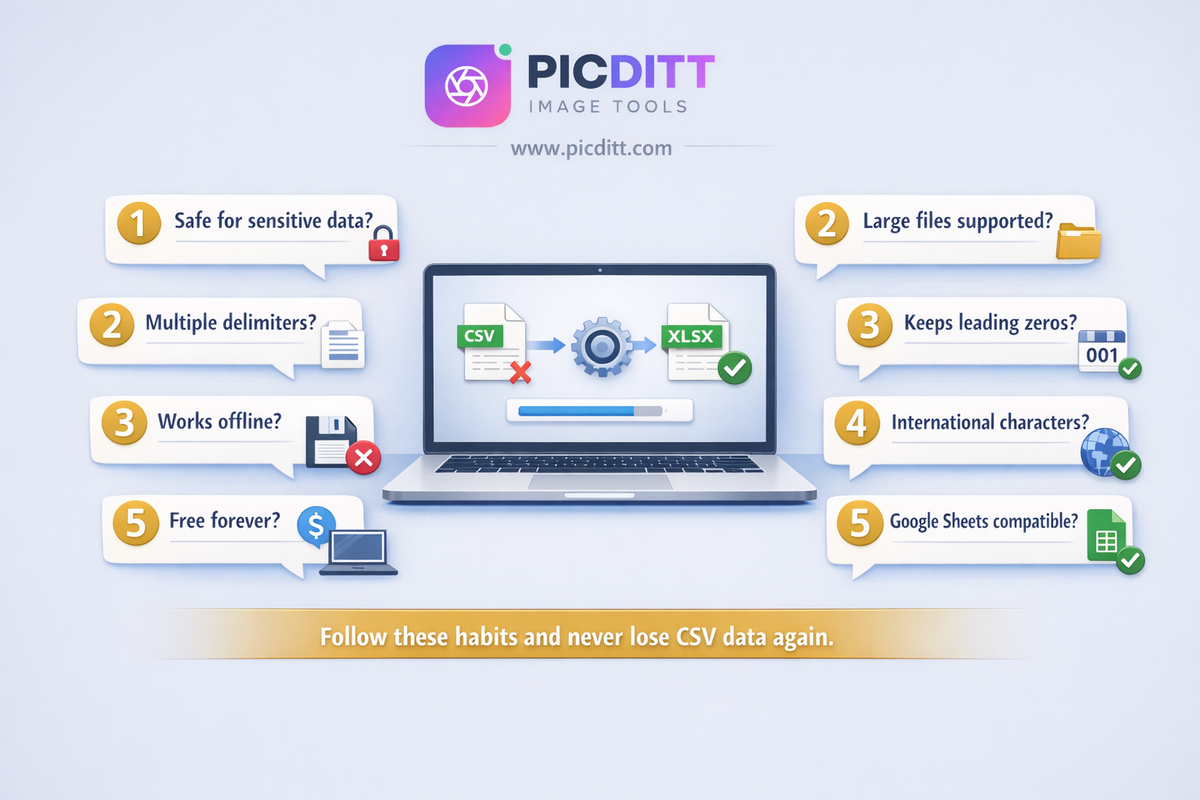
Excel's habit of mangling CSV data when you open files directly is one of the most persistent frustrations in everyday data work. Dates becoming serial numbers, leading zeros disappearing, special characters breaking, numbers converting to scientific notation — these problems cost time, create errors, and can have real consequences when the data involved is financial, medical, or customer-critical.
The solution is straightforward: never open a CSV file directly in Excel by double-clicking it. Always use a proper converter that handles encoding, delimiter detection, data types, and formatting correctly before the file is ever touched by Excel.
The free Picditt CSV to Excel Converter does exactly this — in one second, for any CSV file, with complete privacy, at no cost. Your data stays on your device, your formatting stays intact, and your spreadsheet is ready to use the moment you open it.
Your data is too important to let Excel guess at it.
Convert Your CSV to Excel Free — No Upload Required →
Ready to Try It Yourself?
Use this tool for free — no signup, no download, no watermarks.
Open Free ToolYou Might Also Like
How to Convert PDF to High-Resolution JPG, PNG, or WebP Instantly
Need to post a PDF on social media or embed it on a website? Learn how to instantly convert your PDF documents into high-quality JPG, PNG, or WebP images using Picditt's free online converter. All processing happens securely in your browser — your files never leave your device.
Read More →
PDF to Excel Smart Data Extraction: Convert PDF Tables to Editable Spreadsheets
Extracting data from PDF tables shouldn't mean hours of manual typing. Learn how to instantly convert static PDF documents into dynamic, editable Microsoft Excel spreadsheets using Picditt's smart PDF to Excel converter. Features advanced table detection, OCR for scanned documents, and perfect formatting preservation.
Read More →
Secure XLSX to CSV Conversion Online — No Upload, No Data Leak
Need to convert an Excel spreadsheet to CSV format? Picditt's free XLSX to CSV converter processes everything locally in your browser — your files never leave your device. Support for multiple sheets, custom delimiters, data preview, and instant download. Zero privacy risk.
Read More →