Create a Transparent Background Digital Signature for Free (No Signup Needed)
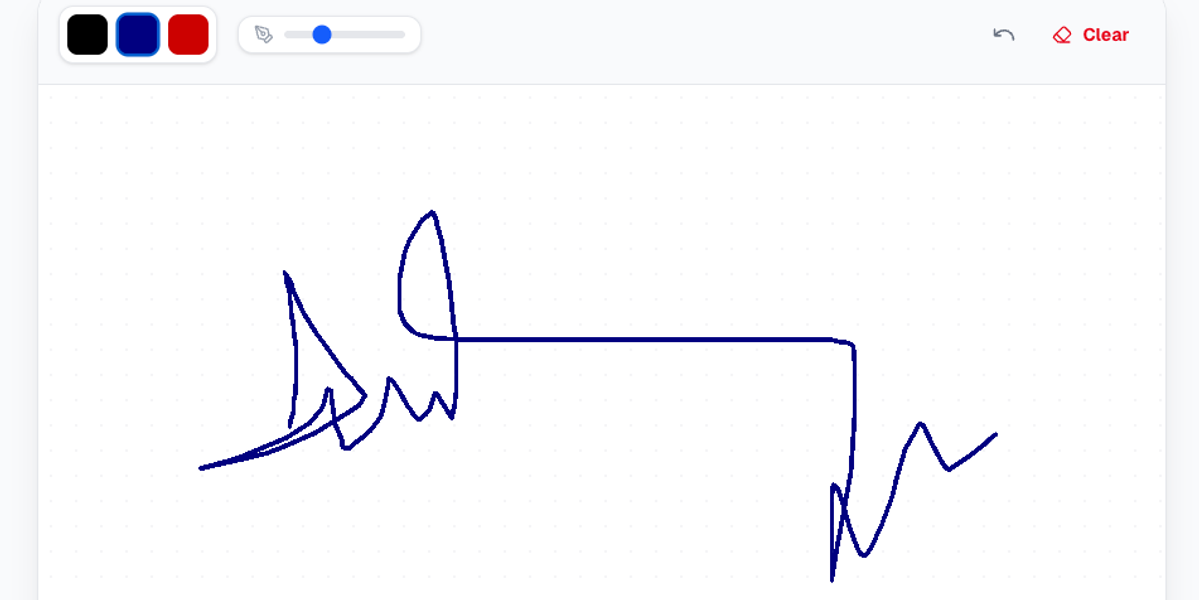
Create a Transparent Background Digital Signature for Free (No Signup Needed)
Introduction
In today’s fast-paced digital world, the need for quick, secure, and professional document handling has never been greater. Whether you're signing business contracts, filling out forms, or sending official emails, having a digital signature is no longer optional—it’s essential.
Traditionally, signing documents meant printing, signing by hand, scanning, and then sending them back. This process is not only time-consuming but also inefficient in a modern workflow.
That’s where digital signature tools come in.
With tools like SignaturePad Digital Signature Pad, you can create a transparent background signature in seconds—without downloading software, creating an account, or paying any fees.
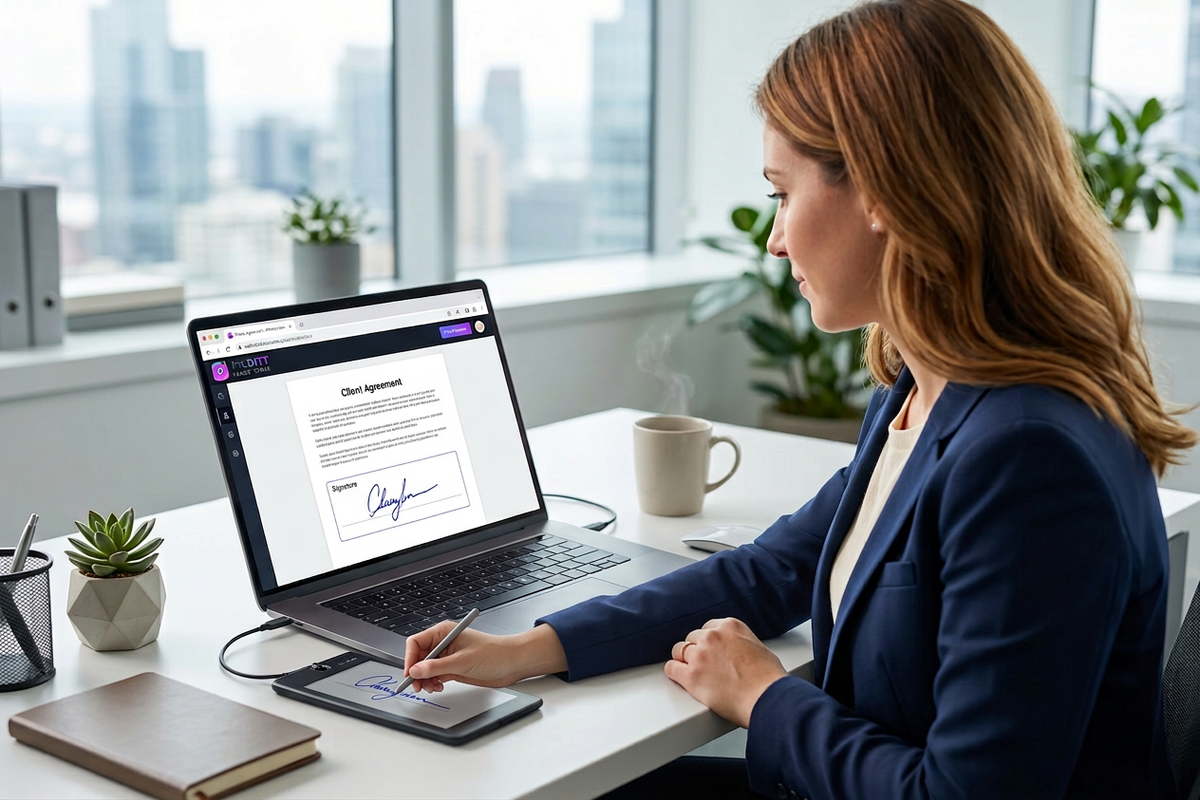
In this comprehensive guide, you’ll learn everything you need to know about creating a transparent digital signature online, why it matters, and how to use it professionally.
What is a Digital Signature?
A digital signature is an electronic version of your handwritten signature that can be used to sign digital documents, emails, contracts, and forms.
Unlike typed names, a digital signature visually represents your identity and adds authenticity to your documents.
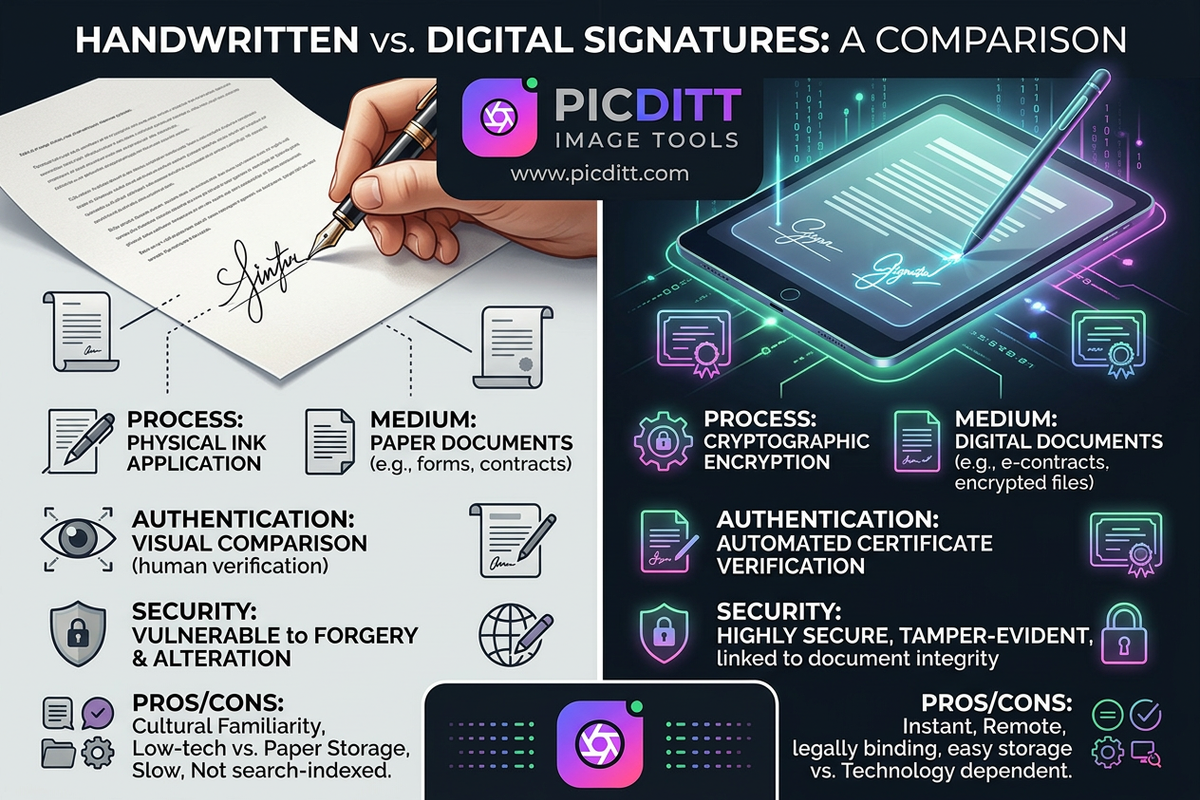
Key Benefits of Digital Signatures
- Saves time (no printing/scanning)
- Works across all devices
- Easy to reuse
- Professional appearance
- Environment-friendly
Why Transparent Background Matters
One of the most important features of a digital signature is background transparency.
What is a Transparent Signature?
A transparent signature is an image (usually PNG) that has no background, allowing it to blend seamlessly into any document.
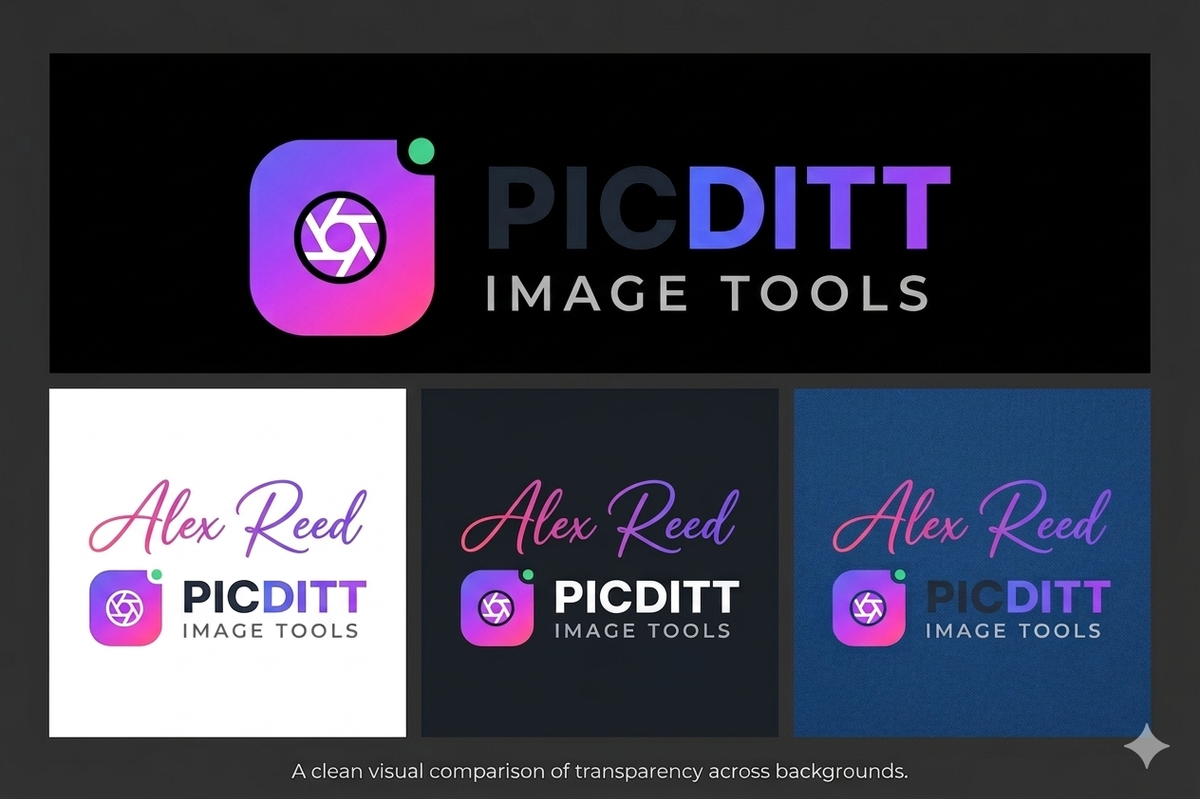
Why You Need It
- Looks clean on PDFs and documents
- Works on any background color
- Perfect for professional use
- Ideal for overlays in designs
Without transparency, your signature may appear with a white box, making it look unprofessional.
Free Online Signature Maker (No Signup Required)
The SignaturePad Digital Signature Pad is a powerful, browser-based tool that allows you to create signatures instantly.
Key Highlights
- 100% free
- No registration required
- Unlimited usage
- Instant download
- Transparent PNG export
- Works on mobile & desktop
You can access the tool here:
👉 https://picditt.com/misc/signature
How to Create a Transparent Digital Signature Online
Creating your signature is simple and takes less than a minute.
Step-by-Step Guide
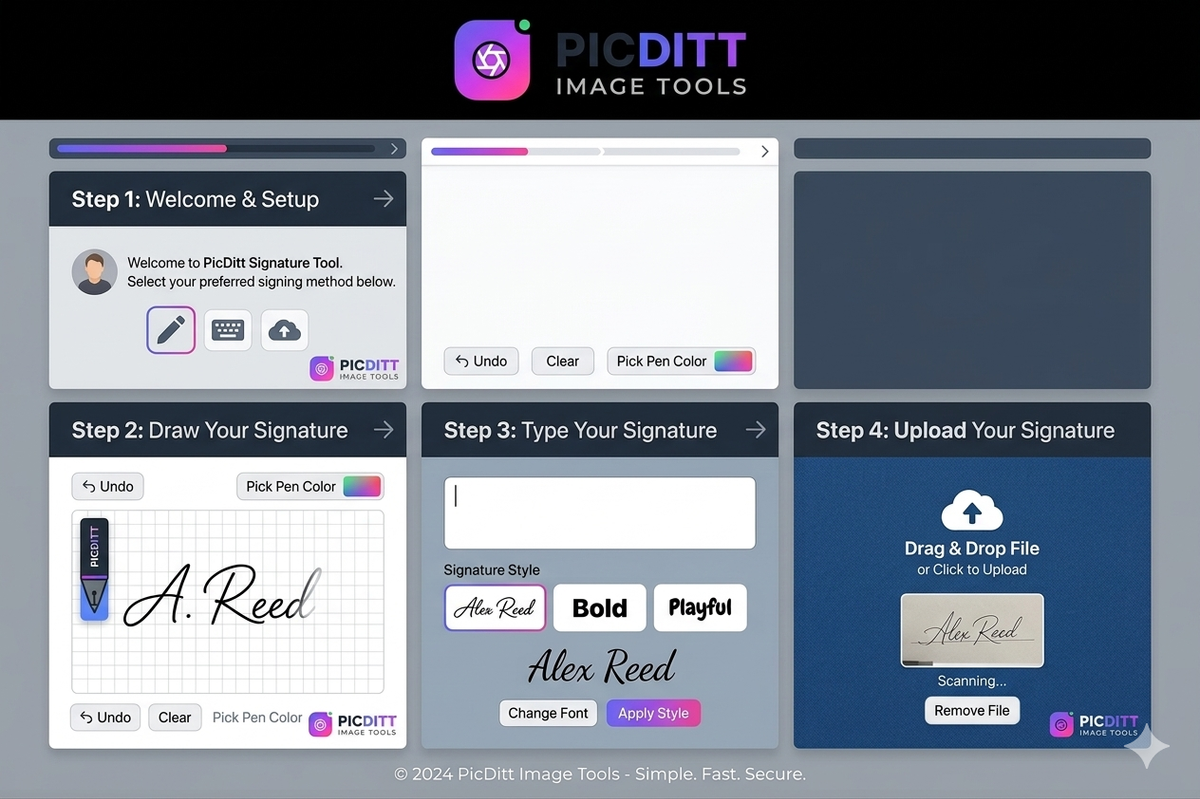
Step 1: Open the Signature Tool
Visit the SignaturePad tool in your browser. No installation needed.
Step 2: Choose Your Method
You can create a signature in three ways:
Draw Mode
- Use your mouse, finger, or stylus
- Best for natural signatures
Type Mode
- Type your name
- Choose handwriting-style fonts
Upload Mode
- Upload an existing signature image
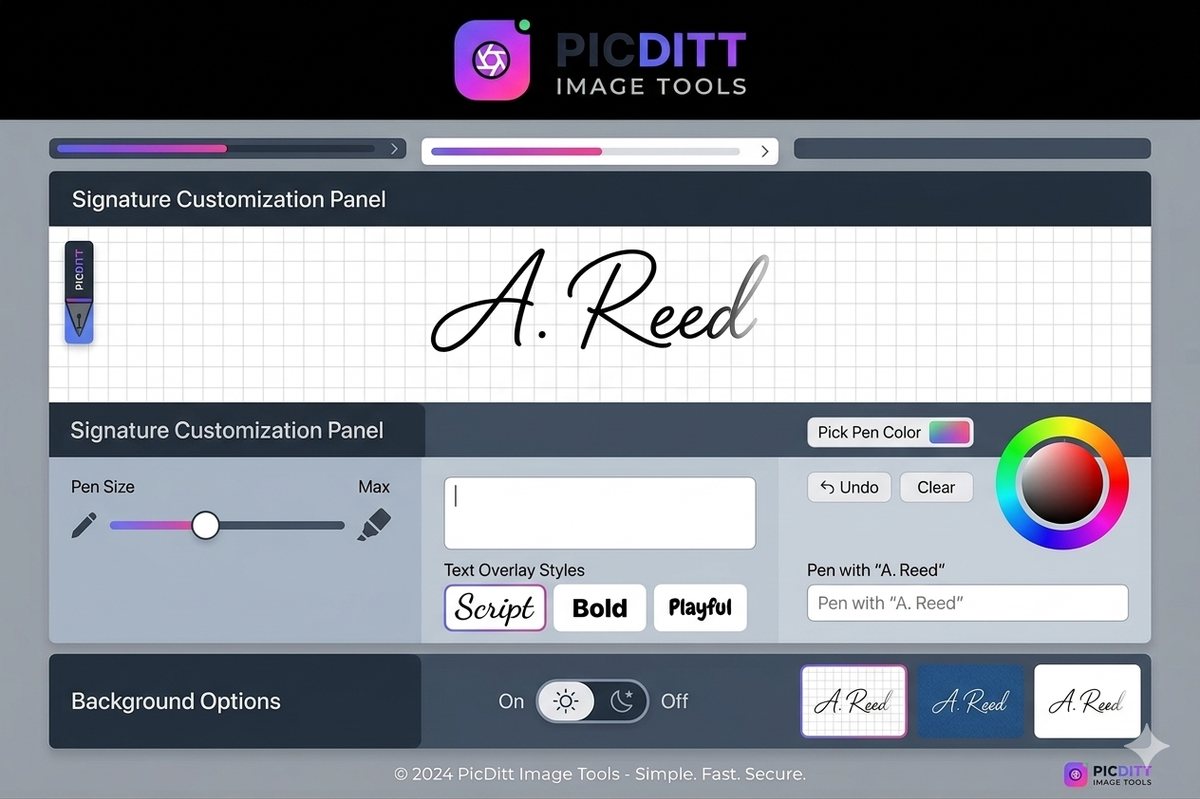
Step 3: Customize Your Signature
You can adjust:
- Pen color
- Pen size
- Background (choose transparent)
- Signature style
Step 4: Select Export Options
Choose:
- Format: PNG (recommended for transparency)
- Quality: High (90%+)
- Size: 2x or 3x for better resolution
Step 5: Download Your Signature
Click download and your transparent signature is ready to use anywhere.
Features of SignaturePad Digital Signature Pad
1. Smooth Drawing Experience
The tool uses advanced smoothing technology to create natural-looking strokes.
2. Transparent Background Export
Export signatures without any background for professional use.
3. Multiple Formats Supported
- PNG
- JPEG
- WebP
- SVG
4. 100% Privacy
Everything happens inside your browser. Your signature is never uploaded or stored.
5. Unlimited Usage
Create as many signatures as you want—no limits.
Popular Use Cases for Digital Signatures
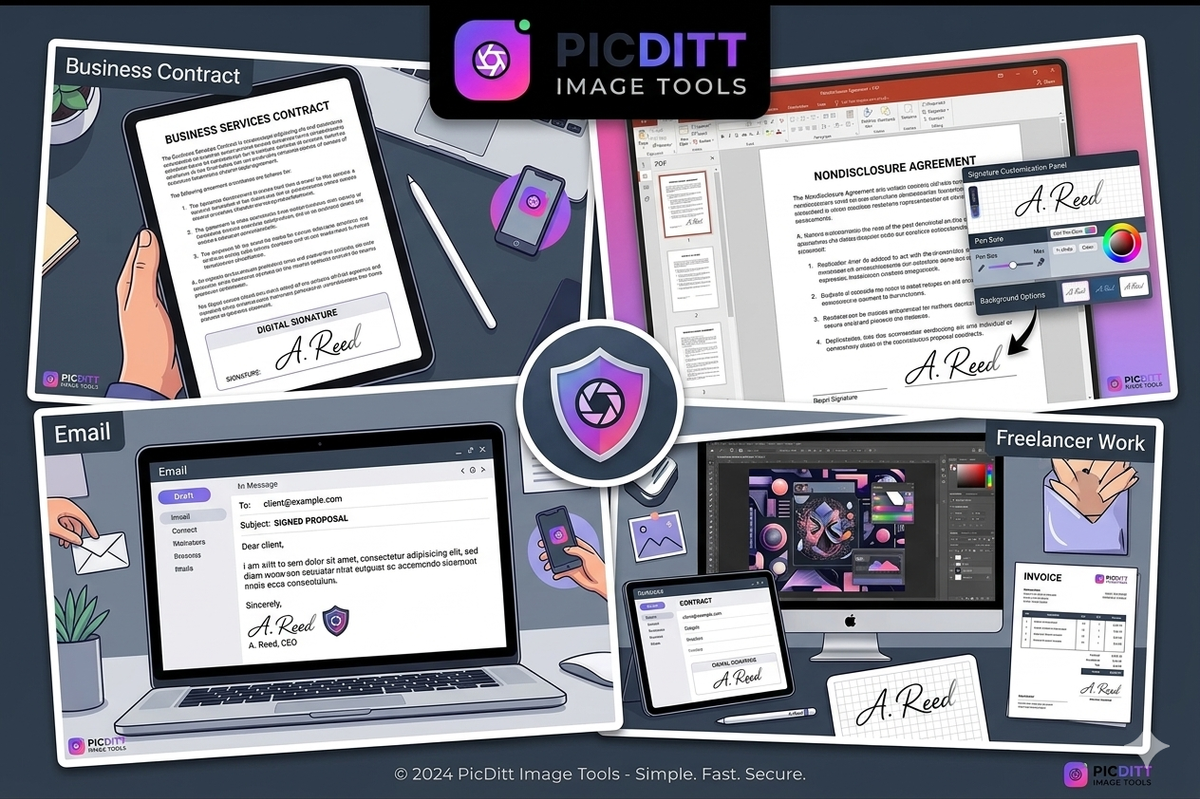
Business & Contracts
Sign agreements instantly without printing documents.
Email Signatures
Add a personal touch to professional emails.
PDF Signing
Insert your signature into PDFs easily.
Freelancing
Sign invoices, proposals, and contracts.
Academic Documents
Sign applications and forms quickly.
Creative Work
Use signatures as watermarks for artwork and photography.
Best Format for Digital Signatures
Choosing the right format is important.
PNG (Recommended)
- Supports transparency
- Best for documents
- Medium file size
JPEG
- No transparency
- Smaller size
- Not ideal for professional use
WebP
- Smaller file size
- Supports transparency
- Good for web use
SVG
- Scalable without losing quality
- Best for design work
Why Use a Browser-Based Signature Tool?
Traditional methods are outdated and inefficient.
Problems with Offline Tools
- Require installation
- Take storage space
- Often expensive
- Not mobile-friendly
Benefits of Online Tools
- No downloads
- Works everywhere
- Fast and lightweight
- Always accessible
Pro Tips for Creating a Professional Signature
Use a Stylus
A stylus provides better control and smoother lines.
Keep It Simple
Avoid overly complex signatures.
Maintain Consistency
Use the same signature across all documents.
Choose the Right Size
Use 2x or 3x resolution for high-quality output.
Avoid Over-editing
Natural signatures look more authentic.
Common Mistakes to Avoid
- Using non-transparent background
- Creating low-resolution signatures
- Overcomplicating the design
- Using inconsistent styles
- Exporting in the wrong format
Security and Privacy
One of the biggest concerns with digital tools is privacy.
Why This Tool is Safe
- No data upload
- No cloud storage
- No login required
- Fully browser-based
Your signature remains on your device at all times.
How Digital Signatures Improve Workflow
Using digital signatures can significantly boost productivity.
Benefits
- Faster document processing
- Reduced paperwork
- Remote accessibility
- Improved professionalism
Advanced Features That Make a Difference
Custom Colors
Choose any color that suits your branding.
Adjustable Pen Size
Control thickness for better appearance.
Grid Option
Helps align your signature.
High-Resolution Export
Perfect for printing and professional use.
Real-World Workflow Example
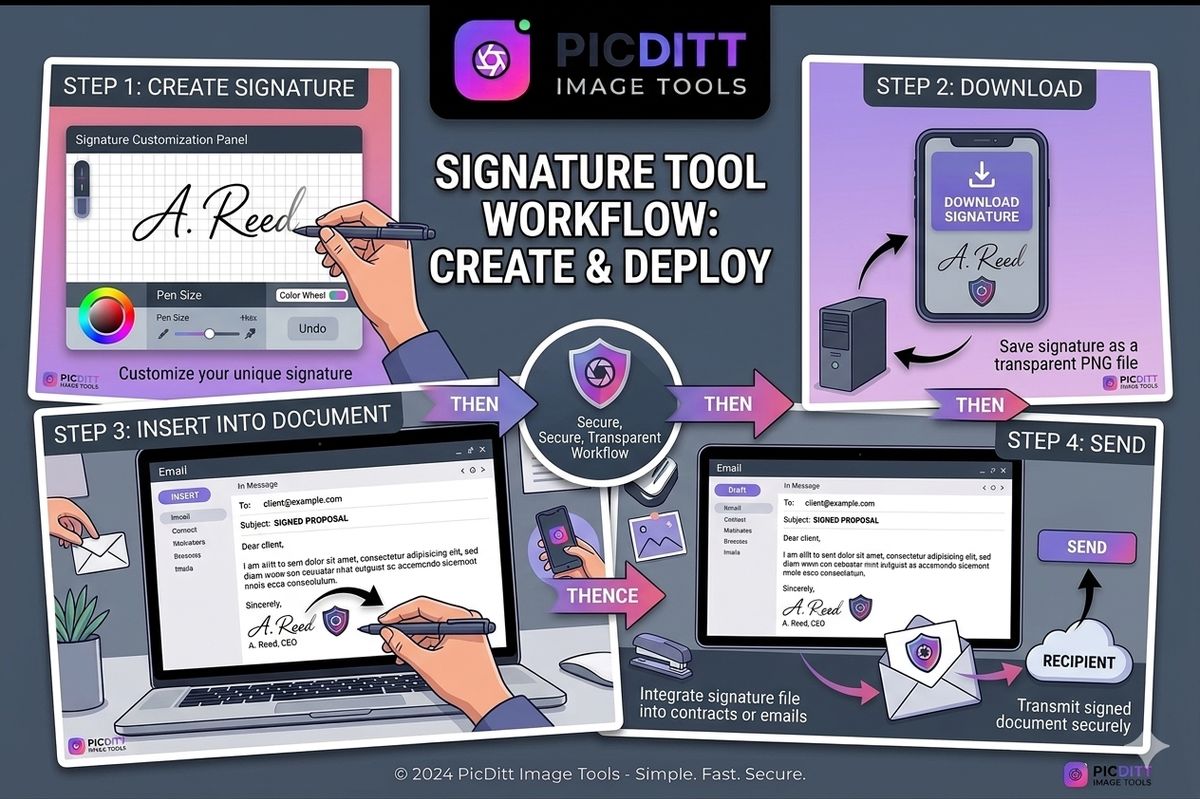
Here’s how professionals use digital signatures:
- Create signature
- Download transparent PNG
- Insert into PDF or document
- Send instantly
No printing. No scanning. No delays.
FAQs
Is the digital signature tool free?
Yes, it is completely free with no hidden charges.
Do I need to create an account?
No, you can use the tool without signup.
Is my signature محفوظ (safe)?
Yes, your signature is processed locally in your browser and never stored.
What format should I use?
PNG is the best option for transparency and quality.
Can I use it on mobile?
Yes, it works on smartphones, tablets, and desktops.
Can I use it for legal documents?
Yes, for most use cases. However, check legal requirements in your region.
Conclusion
Creating a professional digital signature no longer requires expensive software or complicated processes.
With SignaturePad Digital Signature Pad, you can generate a clean, transparent signature in seconds—completely free and without any signup.
Whether you're a business professional, freelancer, student, or designer, this tool gives you everything you need to sign documents quickly and efficiently.
Start using digital signatures today and streamline your workflow like never before.
Ready to Try It Yourself?
Use this tool for free — no signup, no download, no watermarks.
Open Free ToolYou Might Also Like
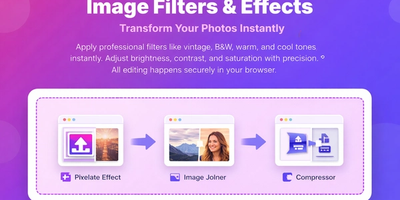
Make Your Photos Pop: Free Aesthetic Filters Online (A VSCO Alternative)
Enhance your photos instantly with free online filters. Apply effects, adjust colors, and download high-quality images in seconds.
Read More →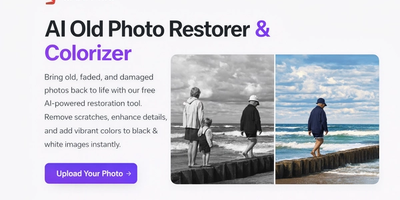
AI Old Photo Restorer & Colorizer: How to Bring Faded Family Photos Back to Life
Old family photos fade, scratch, and lose their color over time—but they don't have to stay that way. Learn how to use PicDitt's free AI Old Photo Restorer & Colorizer to remove damage, enhance details, and add realistic color to black & white images, all directly in your browser.
Read More →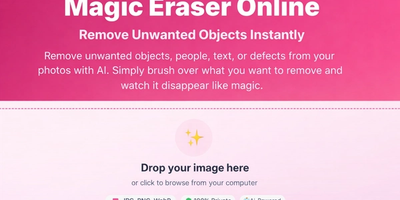
Magic Eraser Online: How to Remove Unwanted Objects from Photos with AI
Photobombers, power lines, watermarks, blemishes—every photo has something you wish wasn't there. Learn how to use PicDitt's free Magic Eraser to brush over any unwanted object and watch AI remove it seamlessly, all directly in your browser with complete privacy.
Read More →