How to Create Before & After Comparison Photos for Free (Side-by-Side Online)
How to Create Before & After Comparison Photos for Free (Side-by-Side Online)
A before and after photo is worth a thousand words of explanation.
No matter what transformation you're showcasing — a home renovation, a fitness journey, a haircut, a garden makeover, a product improvement, a design revision — placing the before and after images side by side creates an immediate, undeniable visual impact that text and individual photos simply cannot match.
The problem is that creating these comparison images has historically required photo editing software. Open Photoshop or GIMP, create a new canvas at the right dimensions, import both images, resize them to match, position them side by side, add labels, export at the right quality settings. Fifteen minutes minimum for something that should take fifteen seconds.
It should take fifteen seconds.
This complete guide covers everything about creating before and after comparison photos — why they're so effective, every use case where they deliver maximum impact, and exactly how to use the free Picditt Join Images tool to create professional side-by-side comparisons, collages, grids, and stacked images instantly, with complete privacy and no watermarks.
Why Before & After Photos Are So Psychologically Powerful
Before we get into the how, understanding the why makes you better at using this format strategically.
The Science of Visual Comparison
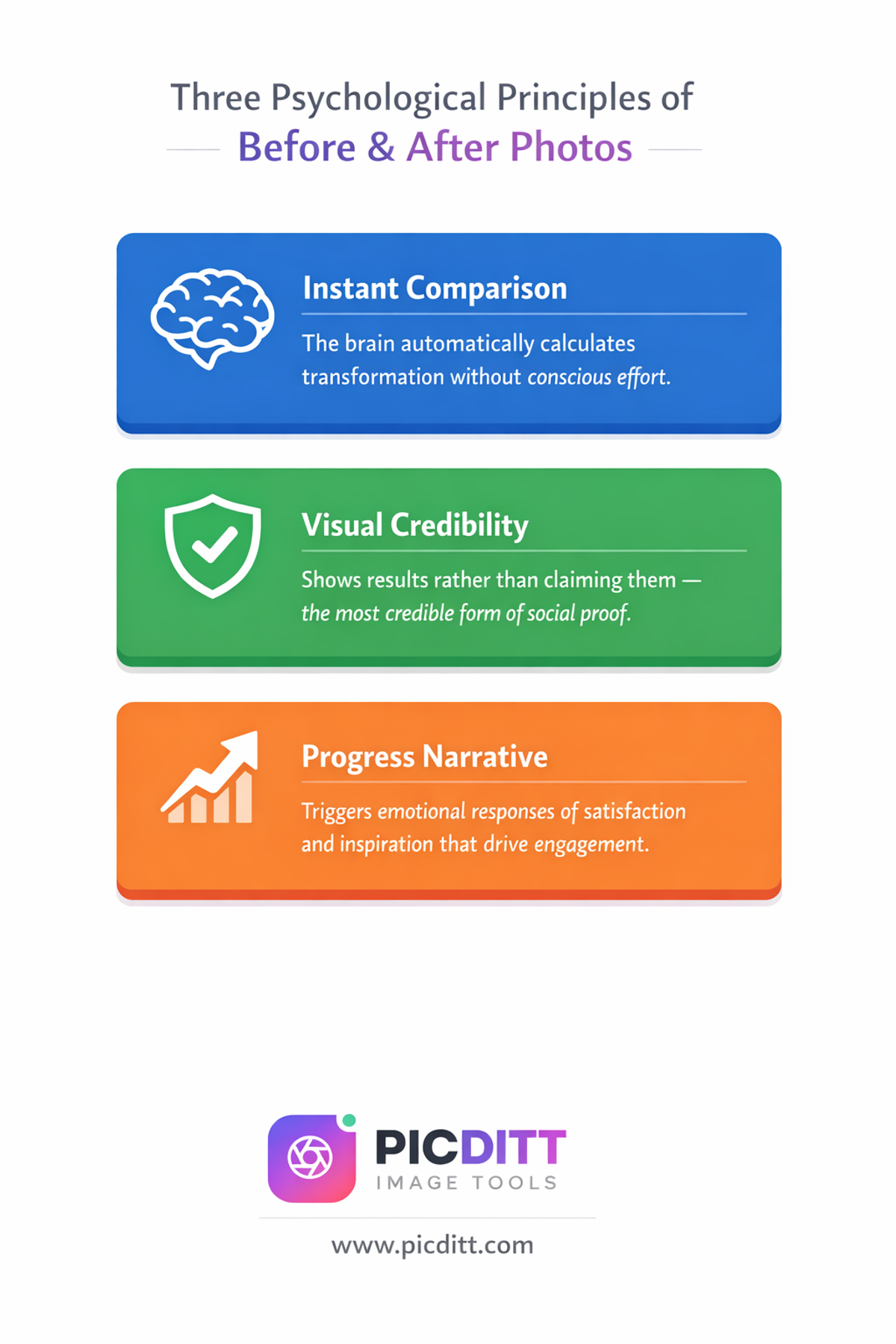
Human brains are comparison machines. We instinctively evaluate things relative to a reference point rather than in absolute terms. A before and after photo leverages this hardwired cognitive tendency — the brain immediately and automatically calculates the difference between the two states, quantifying the transformation without any conscious effort from the viewer.
This is why before and after content consistently outperforms content showing only the "after" state. Showing only the result requires the viewer to imagine the starting point, which demands cognitive effort. Showing both eliminates that effort and makes the transformation instantly comprehensible and emotionally resonant.
Social Proof at Its Most Visceral
Before and after photos are the most credible form of visual social proof. They show, rather than tell. They demonstrate a real-world result rather than making a claim about one. For businesses and creators, this credibility is extraordinarily valuable — a well-executed before and after transformation photo can communicate weeks of written testimonials in a single glance.
The Progress Narrative
There is a deeply satisfying psychological response to seeing progress documented visually. This applies to the creator showing their work and the audience viewing it. When someone sees a fitness transformation, a business seeing a design improvement, or a homeowner seeing a renovation result, the emotional response — satisfaction, inspiration, desire to achieve something similar — drives engagement, sharing, and action.
This is why before and after content drives some of the highest engagement rates on every social media platform. It tells a story, demonstrates value, and creates an emotional response simultaneously.
10 High-Impact Use Cases for Before & After Comparison Photos
1. Fitness and Health Transformations
The fitness industry runs on before and after photos. Body transformations, muscle gain, weight loss journeys, yoga progress, athletic performance improvements — these comparisons are the most compelling content a fitness professional, personal trainer, or health brand can share.
For personal trainers and gyms, client transformation photos are direct evidence of results. For individuals documenting their journey, the comparison creates accountability and motivation. For fitness brands, transformation content drives purchases more effectively than any other content type.
Best layout: Side-by-side horizontal comparison with matching lighting and pose for maximum visual impact.
2. Home Renovation and Interior Design
Real estate agents, interior designers, contractors, and DIY homeowners all benefit enormously from renovation comparisons. The transformation from a dated, worn space to a fresh, modern one is visually dramatic — and the comparison photo makes the extent of the transformation immediately apparent in a way that words never could.
For contractors, before and after portfolios are their primary marketing asset. For DIY creators on YouTube, Instagram, and TikTok, renovation reveals are some of the highest-performing content formats on every platform.
Best layout: Side-by-side horizontal with matching camera angle and lighting conditions in both photos.
3. Beauty, Hair, and Skincare
Haircut reveals, color transformations, skincare progress, makeup tutorials, eyebrow shaping, nail art before and after — the beauty industry is one of the largest consumers of comparison photo content.
For beauty professionals, before and after photos demonstrate skill and build client confidence. For skincare brands, product result comparisons communicate effectiveness. For beauty creators, transformation content drives the highest engagement and follower growth.
Best layout: Side-by-side horizontal. For skincare, ensure identical lighting, angle, and distance in both photos for credibility.
4. Real Estate and Property
Real estate listings with comparison photos — showing properties before and after staging, renovation, or landscaping — generate significantly more interest than listings without them. Property development companies use before and after comparisons to demonstrate the value they add to properties.
Virtual staging companies use side-by-side comparisons to show empty rooms transformed with digital furniture. Renovation investors use them to document value creation. Property managers use them to show apartment improvements between tenants.
Best layout: Horizontal side-by-side or vertical stack depending on the orientation of the property photos.
5. Graphic Design and Creative Work
Designers use before and after comparisons to present redesign work, logo evolution, UI/UX improvements, and creative revisions to clients. A side-by-side showing the old version and the new version communicates the designer's thinking and value more clearly than any verbal explanation.
For design agencies, comparison portfolios showcase creative improvement and strategic thinking. For freelancers, before and after case studies are the most compelling portfolio format.
Best layout: Side-by-side horizontal with labels identifying the old and new versions.
6. E-Commerce Product Photography
Product sellers use before and after comparisons to show products in use, demonstrate cleaning or restoration products, show assembly, or compare product conditions. Amazon sellers, Etsy creators, and Shopify store owners all use comparison images to increase purchase confidence.
Cleaning product brands, furniture restoration companies, and clothing care brands particularly rely on dramatic before and after comparisons to communicate product effectiveness.
Best layout: Side-by-side horizontal with clean white or neutral background matching between shots.
7. Garden and Outdoor Spaces
Landscaping companies, garden designers, and gardening enthusiasts document seasonal transformations, planting progress, and garden renovations through before and after photos. The contrast between an overgrown, neglected garden and a beautifully landscaped space is visually compelling.
For landscaping businesses, transformation comparisons are their most effective marketing material. For gardening content creators, seasonal progress photos generate consistent engagement throughout the growing year.
Best layout: Horizontal side-by-side from the same vantage point, ideally at the same time of day for consistent lighting.
8. Digital Art and Illustration Progress
Artists and illustrators share work-in-progress comparisons showing rough sketches versus finished artwork, early drafts versus final illustrations, or style evolution over months and years. These comparison posts perform exceptionally well in creative communities.
For digital artists on Instagram, DeviantArt, and ArtStation, before and after progress posts typically generate significantly higher engagement than finished work alone, because they offer insight into the creative process.
Best layout: Side-by-side for sketch-to-final comparisons. Vertical stack for multiple progress stages.
9. Education and Tutorial Content
Teachers, trainers, and content creators use before and after comparisons to demonstrate correct versus incorrect techniques, show improvement through practice, or illustrate the result of following a tutorial. The comparison format makes learning outcomes visually concrete.
For YouTube tutorial creators, the before and after comparison in the thumbnail is often the decisive factor in click-through rate. The promise of a visible transformation motivates viewers to watch.
Best layout: Side-by-side with clear labels for educational content. Grid layout for multi-step tutorials.
10. Photo Editing and Retouching
Photographers and retouchers showcase their editing skills through before and after comparisons showing RAW files versus edited versions, unretouched versus retouched portraits, or basic edits versus advanced compositing.
For photography businesses, editing before and after posts demonstrate the value of professional retouching. For photography educators, they illustrate editing techniques and their impact.
Best layout: Horizontal side-by-side with matching crop and composition.
Introducing the Picditt Join Images Tool
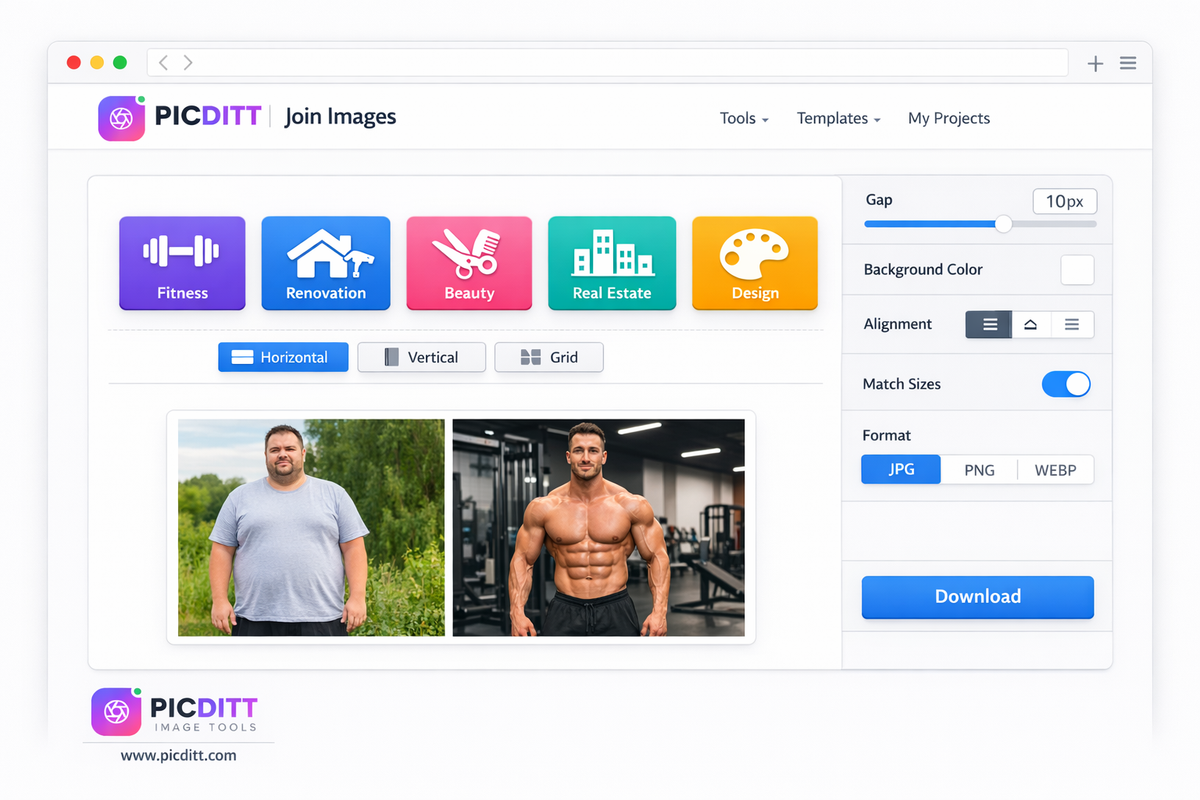
The Picditt Join Images tool is a free, browser-based image combining tool that creates side-by-side comparisons, vertical stacks, grid collages, and any other multi-image layout — with full customization, instant processing, and complete privacy.
Three Core Layout Types
Horizontal (Side by Side)
Place images left to right in a single row. This is the classic before and after layout — both images visible simultaneously for immediate visual comparison. Also works for product variant comparisons, panoramic stitching, and dual-view showcases.
Vertical (Stacked)
Stack images top to bottom in a single column. Perfect for creating long-form visual content — step-by-step tutorials, Instagram story compilations, multiple-stage progress documentation, and long screenshots that capture entire webpage views.
Grid (Rows and Columns)
Arrange images in a structured grid with 2 to 6 columns. Ideal for photo collages, product galleries, multiple comparison pairs, and any content where several images need to be presented together in an organized visual layout.
Quick Templates for Instant Results
The tool includes six one-click templates that pre-configure everything for common use cases:
Template
Layout
Best For
Before/After
2-image horizontal
Transformations, comparisons
Triptych
3-image horizontal
Art showcases, progress stages
Story Stack
Vertical stack
Instagram stories, tutorials
2×2 Grid
4-image grid
Product variants, event photos
3×3 Grid
9-image grid
Instagram grid preview, galleries
Photo Strip
Horizontal strip
Contact sheets, timeline views
Comprehensive Customization Options
Adjustable Spacing
Set the gap between images from 0 to 100 pixels. Zero gap creates a seamless edge-to-edge join. A 5–10 pixel gap with a matching background creates a clean, professional separation.
Background Colors
Choose any background color using the full color picker. White for clean professional looks. Black for dramatic presentations. Transparent for PNG output that works on any background. Brand colors for consistent marketing materials.
Image Borders
Add optional borders around individual images with custom colors and widths. Borders create visual definition between images and add a polished, designed feel.
Alignment Options
Choose Start, Center, or End alignment for images that differ in size. Center alignment is most common for before and after work — it positions images symmetrically.
Size Matching
Automatically match all images to the same width or height before joining. This is essential for before and after photos where the two images may have been taken at different distances or with different crops.
Drag and Drop Reordering
After uploading, simply drag image thumbnails to rearrange the order. Change the sequence without re-uploading.
Output Format and Quality
Export as PNG (lossless, supports transparency), JPG (compressed, smaller file size), or WebP (modern format with excellent compression). Quality control from 10% to 100%.
Technical Specifications
Specification
Details
Input Formats
JPG, JPEG, PNG, WebP, GIF, BMP
Output Formats
PNG, JPG, WebP
Maximum Images
Unlimited (device memory dependent)
Layout Options
Horizontal, Vertical, Grid (2–6 columns)
Gap Range
0 to 100 pixels
Quality Control
10% to 100%
Processing
100% client-side (browser-based)
Privacy
No server uploads, complete privacy
Cost
Free forever, no watermarks
Registration
None required
Step-by-Step Guide: Creating a Before & After Comparison Photo
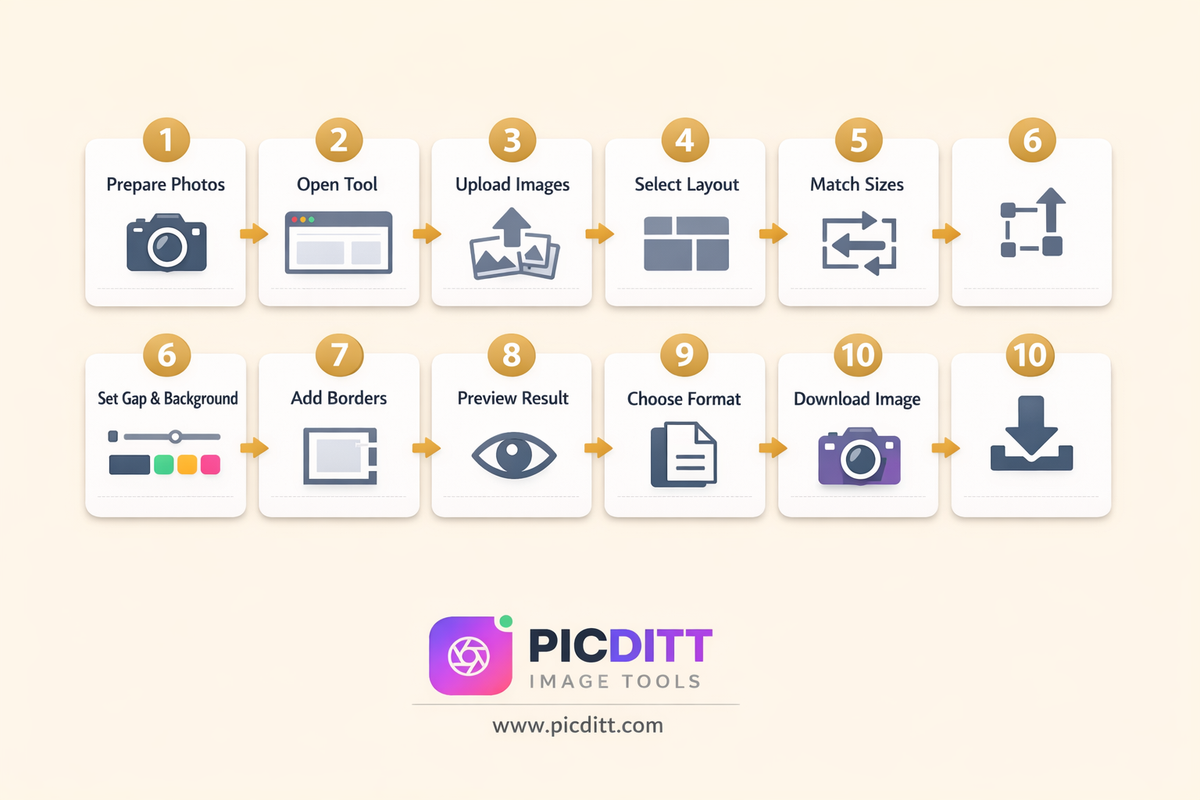
Here is the complete process for creating a professional before and after comparison image.
Step 1: Prepare Your Photos
Before opening the tool, a few preparation steps make a significant difference in the final quality:
Match your shooting conditions as closely as possible:
- Same camera angle and distance in both photos
- Similar lighting conditions (both indoors with artificial light, or both in natural light)
- Same framing — the subject should occupy similar positions in both frames
Crop and prepare your photos:
If your before and after photos were taken at different distances or with different framing, crop them in your device's photo editor first so the subject appears at similar sizes and positions. This makes the comparison much more impactful.
Check orientation:
Confirm both photos are the same orientation — both landscape or both portrait. Mixing orientations in a side-by-side comparison creates an awkward asymmetry.
Step 2: Open the Tool
Visit https://picditt.com/misc/join-images in any modern browser. Works on desktop, laptop, tablet, and smartphone. No installation, no account creation, instant ready-to-use.
Step 3: Upload Your Images
Either drag and drop both images onto the upload area simultaneously, or click to browse and select both files. The tool accepts JPG, JPEG, PNG, WebP, GIF, and BMP files.
For a basic before and after: Upload just two images — the before and the after.
For a multi-stage progress comparison: Upload as many images as you need — the tool supports unlimited images.
After uploading, your images appear as thumbnails with drag handles. Confirm the order is correct — for before and after content, the before image should be on the left (first) and the after image on the right (second).
Step 4: Select Your Layout
For a classic side-by-side before and after comparison, click "Horizontal" or simply click the "Before/After" quick template, which pre-configures everything for a two-image side-by-side layout.
For a vertical stack (before on top, after below), click "Vertical".
For multiple comparison pairs or a gallery of transformations, click "Grid" and set your column count.
Step 5: Enable Size Matching
This is the most important setting for before and after photos. If your two images have different dimensions (very common when photos are taken at different times, with different cameras, or at different distances), enable "Match Width" or "Match Height".
- Match Width — resizes all images to the same width, letting height vary. Best for side-by-side horizontal layouts.
- Match Height — resizes all images to the same height, letting width vary. Best for vertical stack layouts.
Size matching ensures your images align cleanly without awkward size disparities.
Step 6: Customize Spacing and Background
Gap setting:
- 0 pixels — images touch edge to edge, creating a seamless merge effect
- 5–10 pixels — a subtle professional separation between images
- 20+ pixels — a clear visual division between images, often used with contrasting background colors
Background color:
Choose white for a clean editorial look, black for a dramatic presentation, or any color that complements your images. For transparent output, select PNG as your format.
Step 7: Add Borders (Optional)
For a more polished, designed appearance, enable borders around each image. A thin border (2–4 pixels) in white, gray, or a brand color creates visual definition and a professional finish.
Step 8: Preview and Adjust
The tool shows a real-time preview of your joined image as you adjust settings. Check:
- Do the images align correctly?
- Is the gap appropriate?
- Does the background color work with your images?
- Is the size matching producing the visual balance you want?
Adjust any settings until the preview looks exactly right.
Step 9: Choose Output Format and Quality
PNG — choose for images containing text overlays, graphics, or when you need transparency. Lossless quality, larger file size.
JPG — choose for photographs without transparency. Smaller file size, excellent for social media sharing. Set quality to 85–95% for the best balance.
WebP — choose for web use where file size matters. Best compression at equivalent quality.
Step 10: Download Your Comparison Image
Click "Download" and your joined image saves instantly to your device. No watermark. No email required. Ready to share immediately.
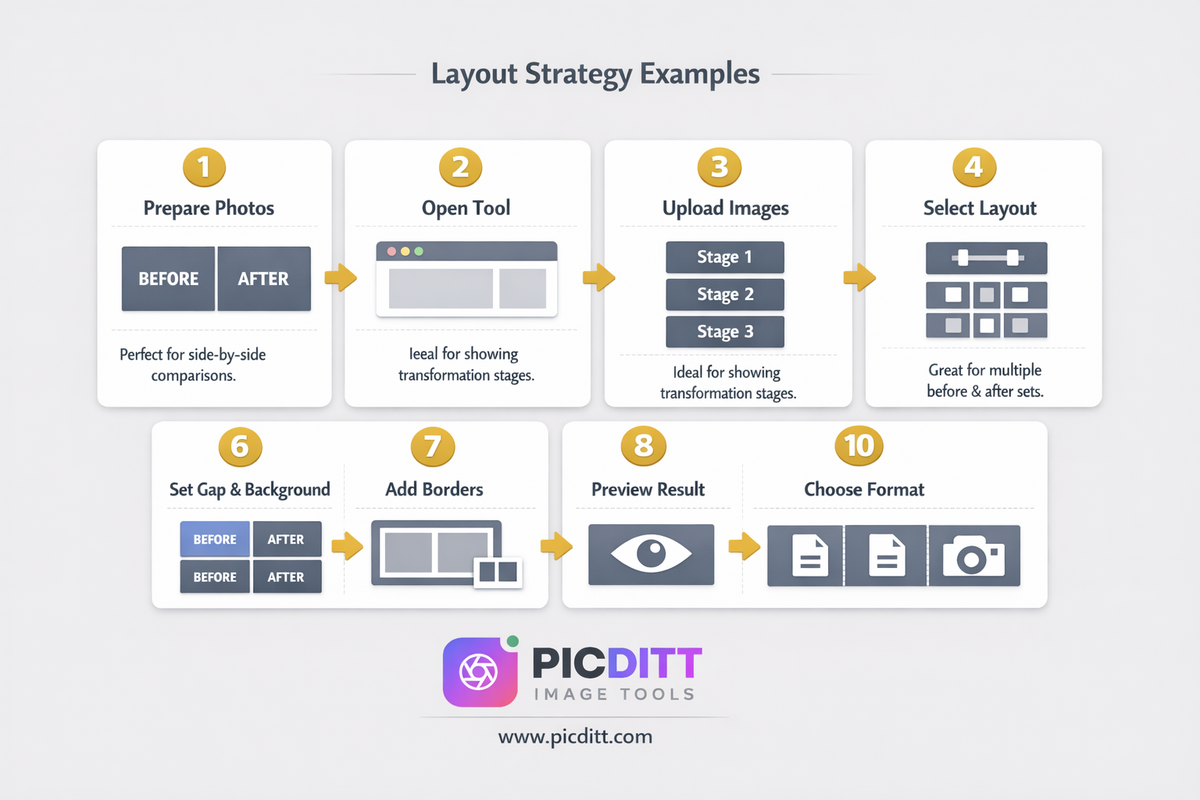
Layout Strategies for Different Content Types
Before & After: The Classic Horizontal Split
The horizontal side-by-side is the universally recognized before and after format. When viewers see two images placed side by side, they instinctively understand they're looking at a comparison. No labels are strictly necessary, though adding "Before" and "After" text in your image editing app before combining removes any possible ambiguity.
Best practices for horizontal before and after:
- Ensure both images have similar dimensions before joining — use the tool's Match Width function
- Use a gap of 5–15 pixels for clean visual separation
- Keep background neutral — white or light gray works best for most content
- For maximum impact, make sure the images are the same aspect ratio
Progress Documentation: The Vertical Stack
For documenting progress over time — fitness journeys, plant growth, renovation stages, skill development — vertical stacking creates a natural timeline that reads top to bottom. Three to five vertical stages tell a compelling progress story.
Best practices for vertical progress stacks:
- Use consistent framing across all progress photos — same distance, same angle
- Add subtle spacing between images (10–20 pixels)
- Use Match Height to ensure all images appear at the same scale
- Consider adding date or stage labels to each image before combining
Multi-Comparison: The Grid Layout
When you have multiple before and after pairs — showing several clients' results, multiple product variations, or different aspects of the same transformation — a grid layout organizes them professionally.
Best practices for comparison grids:
- Use an even number of columns (2 or 4) so before and after pairs align horizontally
- Apply consistent sizing to all images before creating the grid
- Use thin borders to separate individual comparison pairs visually
- Keep spacing consistent throughout the grid
Panoramic Joins: Edge-to-Edge Horizontal
For creating panoramic images from multiple overlapping photos, or for joining wide-scene photos that were taken in sections, edge-to-edge horizontal joining with zero gap creates a seamless panoramic effect.
Best practices for panoramic joins:
- Use photos with overlapping content at their edges for natural seams
- Set gap to 0 for seamless joining
- Match height to ensure all sections align perfectly
- Use PNG output for lossless quality on detailed panoramas
Best Practices for Impressive Comparison Photos
Match Your Shooting Conditions
The most common mistake in before and after photography is inconsistent shooting conditions. When the lighting, angle, distance, or background differs significantly between before and after, viewers' attention goes to the inconsistency rather than the transformation. They question the comparison rather than being impressed by the result.
For maximum impact:
- Same camera angle — shoot from the exact same position and height
- Same lighting source — both in window light, both in the same room lighting, or both outdoors
- Same distance — the subject should occupy the same proportion of the frame
- Same background — where possible, keep the background consistent between shots
- Same time of day — for outdoor content, matching the sun angle creates consistent lighting
Tell the Complete Story
The before photo is half the story. Make it count. A dramatic before makes the after more impressive. An unflattering starting point makes the transformation more powerful. Don't sanitize the before too much — authentic starting points create more credible and relatable comparisons.
Label Clearly When Necessary
For complex transformations where it might not be immediately obvious which side is before and which is after, or for educational content where the comparison requires context, add labels. Simple "Before" and "After" text overlaid on each image — added in your device's photo editor before combining — removes any ambiguity and increases content clarity.
Consider Your Platform
Different platforms have different optimal formats for comparison content:
Platform
Best Format
Best Layout
Instagram Feed
Square (1:1)
Side-by-side horizontal
Instagram Stories
Portrait (9:16)
Vertical stack
Portrait (2:3)
Vertical stack or grid
Landscape (1.91:1)
Horizontal side-by-side
Twitter/X
Landscape (16:9)
Horizontal side-by-side
YouTube Thumbnail
Landscape (16:9)
Side-by-side with labels
Frequently Asked Questions
How do I make a before and after photo side by side for free?
Visit the free Picditt Join Images tool, upload your before image and after image, click the "Before/After" quick template or select the Horizontal layout, enable size matching, adjust spacing and background to your preference, and click Download. The entire process takes under two minutes with no software, no watermark, no signup, and no cost.
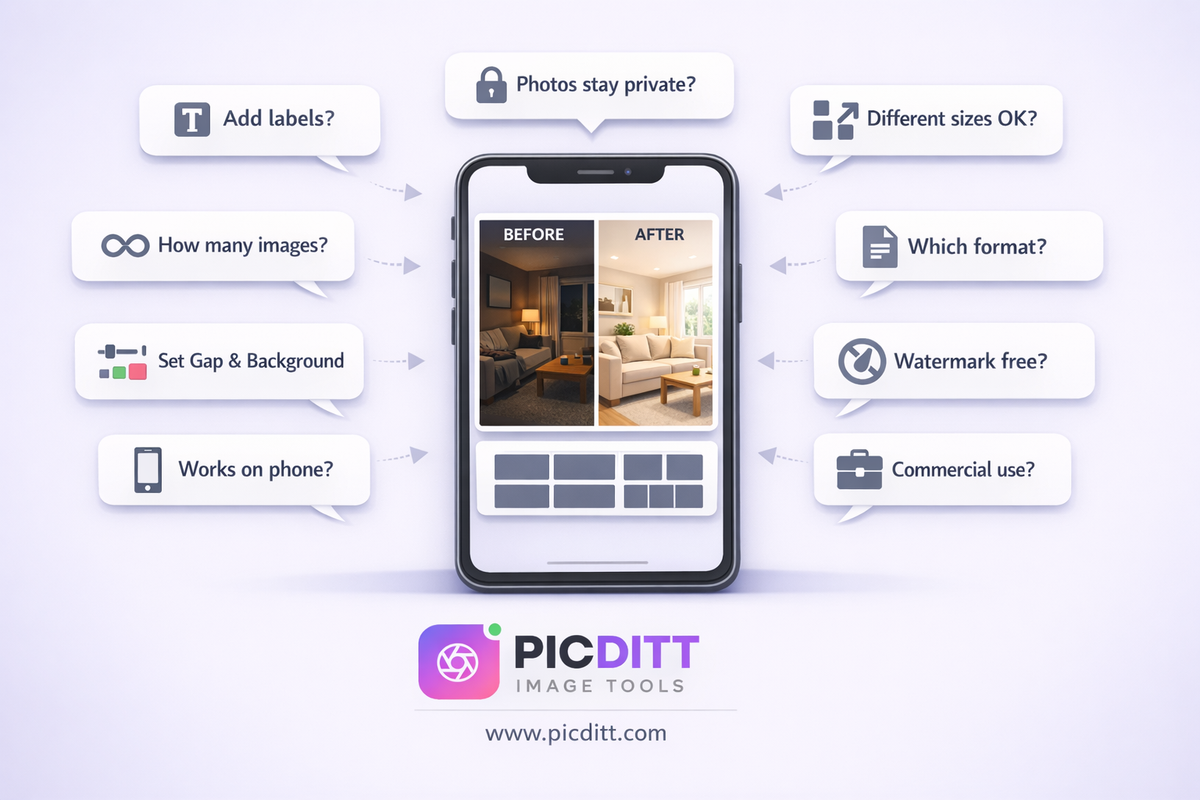
Can I add "Before" and "After" text labels to my comparison image?
The Join Images tool combines your photos into a single image. To add text labels, add them to each individual photo in your device's photo editor (iPhone Photos, Google Photos, or any basic editing app) before uploading to the join tool. Alternatively, after downloading the joined image, open it in any photo editor and add text labels.
Do my photos get uploaded to a server?
No. All processing happens 100% within your browser using client-side JavaScript. Your images are loaded into your browser's local memory and never transmitted to any external server. This is important for any sensitive content — before and after medical photos, personal fitness images, client property photos, or confidential design work all remain completely private.
What if my before and after photos are different sizes?
Enable the Match Width or Match Height option in the tool. This automatically resizes all uploaded images to the same width or height before joining, ensuring clean alignment in the final comparison image regardless of the original size differences.
How many images can I combine at once?
The tool supports unlimited images, bounded only by your device's available memory. You can combine 2, 5, 10, or 50+ images in a single joined output. For very large numbers of high-resolution images, modern computers and phones have sufficient memory to handle dozens of images simultaneously.
What output format should I use?
For photographs without transparency, choose JPG at 85–95% quality — it produces the smallest file size with excellent visual quality, ideal for social media sharing. For images with text overlays, graphics, or transparent backgrounds, choose PNG for lossless quality. For web use where file size is a priority, choose WebP for the best balance of quality and compression.
Can I create a 3-image or 4-image comparison?
Yes. Upload all your images, select Grid layout, and set your column count. For a 3-image horizontal comparison (triptych), use the Triptych quick template or select 3 columns in horizontal layout. For 4 images in a 2×2 grid, use the 2×2 Grid template.
Can I use this tool on my phone?
Yes. The tool is fully mobile-responsive and works in any modern browser on iOS and Android devices. You can upload photos directly from your camera roll, configure settings using touch controls, and download the joined image directly to your photo library.
Is there a watermark on downloaded images?
No. The Picditt Join Images tool adds no watermark to any output image. Your downloaded comparison photo is clean, watermark-free, and ready to share anywhere.
Can I create comparison images for commercial use?
Yes. There are no restrictions on how you use images created with this tool. Commercial use — for marketing, client deliverables, product listings, real estate, e-commerce, or any other business purpose — is fully permitted.
Final Thoughts: Show the Transformation, Not Just the Result
A before photo alone tells nothing. An after photo alone proves nothing. Together, they tell a complete story of change, effort, improvement, and transformation — and that story is one of the most powerful forms of visual communication available.
Whether you're a fitness professional documenting client results, a contractor showcasing renovation work, a designer presenting redesign concepts, a beauty professional showing transformation skills, or simply someone who wants to document and share a personal journey, the before and after comparison photo is your most powerful visual tool.
The free Picditt Join Images tool makes creating these comparisons effortless — horizontal side-by-side, vertical stacks, multi-image grids, and every customization option you need to make your comparison images look professionally designed rather than quickly assembled.
No software. No watermark. No signup. No upload to any server. Just your images, combined beautifully, ready to share in under two minutes.
Your transformations deserve to be seen in full. Show both sides of the story.
Create Your Before & After Comparison Free →
Ready to Try It Yourself?
Use this tool for free — no signup, no download, no watermarks.
Open Free ToolYou Might Also Like
Turn Messy Text Lists into Excel Spreadsheets in Seconds (No More Column A Chaos)
Copying text data into Excel manually — row by row, column by column — is one of the biggest time wasters in everyday data work. This complete guide shows you how to instantly convert any messy text list, CSV export, log file, or delimited data into a perfectly formatted Excel spreadsheet using a free, 100% private, browser-based tool that supports 7 delimiters, live preview, column configuration, and instant XLSX download.
Read More →
How to Convert Images to PDF Online Free — The Complete Guide
Convert any image to a professional PDF document for free. Combine multiple photos, customize page size, adjust margins, set orientation, and download instantly. All processing happens in your browser — your images never leave your device.
Read More →
How to Split a PDF into Separate Pages Free Online (No Upload)
Got a massive 100-page PDF but only need three pages? Don't send the whole file! Learn how to easily split, extract, and separate PDF pages into individual files or a new, smaller document. Picditt's free online PDF Splitter works entirely in your browser with zero server uploads, guaranteeing 100% privacy for your sensitive documents.
Read More →