How to Convert Images to PDF Online Free — The Complete Guide
Every day, millions of people need to combine photos into a single document. A student compiling research screenshots for a thesis submission. A real estate agent creating a property brochure from listing photos. A freelancer building a portfolio to send to a potential client. A business owner archiving receipts and invoices at the end of the month.
The common thread? They all need to convert images into PDF format — the universal standard for document sharing that works perfectly on every device, every operating system, and every platform.
But here's the frustration most people face: the "free" tools they find online are anything but free. They slap watermarks on your PDFs, limit you to 3 images, demand you create an account, or — worst of all — upload your private photos to their servers where you have no idea what happens to them.
The PicDitt Image to PDF Converter eliminates every one of these frustrations. Convert unlimited images to professional PDF documents with custom page sizes, margins, orientation, and image fitting options — completely free, with no watermarks, no signup, and no uploads. Everything processes right in your browser, meaning your images never leave your device.
In this complete guide, you'll learn everything about image-to-PDF conversion — why you need it, how to do it step by step, customization options, pro tips for perfect results, and answers to the most common questions.
What Is Image to PDF Conversion?
Image to PDF conversion is the process of transforming digital photographs, screenshots, scanned documents, or any other image files into the Portable Document Format — more commonly known as PDF. This conversion lets you combine one or multiple images into a single, professional, universally compatible document.
PDF was developed by Adobe in 1993 and has since become the global standard for document sharing. The reason is simple — a PDF looks exactly the same on every device, every operating system, and every screen. Whether someone opens your PDF on a Windows laptop, an iPhone, an Android tablet, or a Linux desktop, the formatting, layout, and image quality remain identical.
When you convert images to PDF, you gain several important advantages. Your images become part of a structured document that can be easily shared as a single file rather than a folder of loose images. The PDF format supports compression, which can reduce overall file size while maintaining visual quality. And perhaps most importantly, PDFs are universally accepted — by employers, universities, government agencies, printing services, and virtually every organization on the planet.
The PicDitt Image to PDF Converter goes beyond basic conversion by offering professional-grade customization. You can choose from multiple page sizes, set custom margins, select portrait or landscape orientation, control how images fit on each page, rotate individual images, and reorder pages by dragging and dropping — all processed locally in your browser for complete privacy.
Why Convert Images to PDF?
You might wonder — why not just share the images directly? Here are the real-world reasons why PDF conversion is essential:
1. Universal Compatibility
Send a folder of 20 HEIC photos to someone with a Windows computer and they might not be able to open a single one. Send those same photos as a PDF and they'll open perfectly on any device, any operating system, any email client. PDF is the one format that truly works everywhere. If your images are in an uncommon format, you can convert them to standard formats first using our free image converter.
Free Image Converter → https://picditt.com/conversion
2. Professional Document Presentation
Loose image files look unprofessional. A neatly organized PDF with consistent page sizes, proper margins, and sequential page numbers looks polished and intentional. Whether you're submitting a portfolio, sharing property photos, or presenting research findings, a PDF communicates professionalism.
3. Combine Multiple Files Into One
Instead of attaching 15 separate images to an email — which often hits file size limits and overwhelms the recipient — you can combine them into a single PDF document. One attachment, one download, everything organized in order.
4. Document Security
PDF supports security features that images don't. You can restrict printing, prevent editing, and add password protection to sensitive documents. This is particularly important for contracts, legal documents, medical records, and financial paperwork.
5. Print-Ready Quality
PDFs maintain exact dimensions and quality for professional printing. When you send a PDF to a print shop, what you see on screen is exactly what gets printed — consistent margins, correct sizing, and full image quality. No surprises.
6. Smaller File Size
A PDF containing 20 compressed images is often significantly smaller than the 20 original image files combined. Smart compression reduces file size while maintaining visual quality, making PDFs easier to email, upload, and store.
How to Convert Images to PDF with PicDitt — Step by Step
Converting images to PDF with PicDitt takes less than a minute, even for large batches of photos. Here's exactly how to do it:
Step 1 — Open the Image to PDF Converter
Go to the PicDitt Image to PDF Converter. The tool loads instantly in your browser — no software to download, no account to create, no plugins to install.
Try PicDitt Image to PDF Converter Free → https://picditt.com/pdf-tools
Step 2 — Upload Your Images
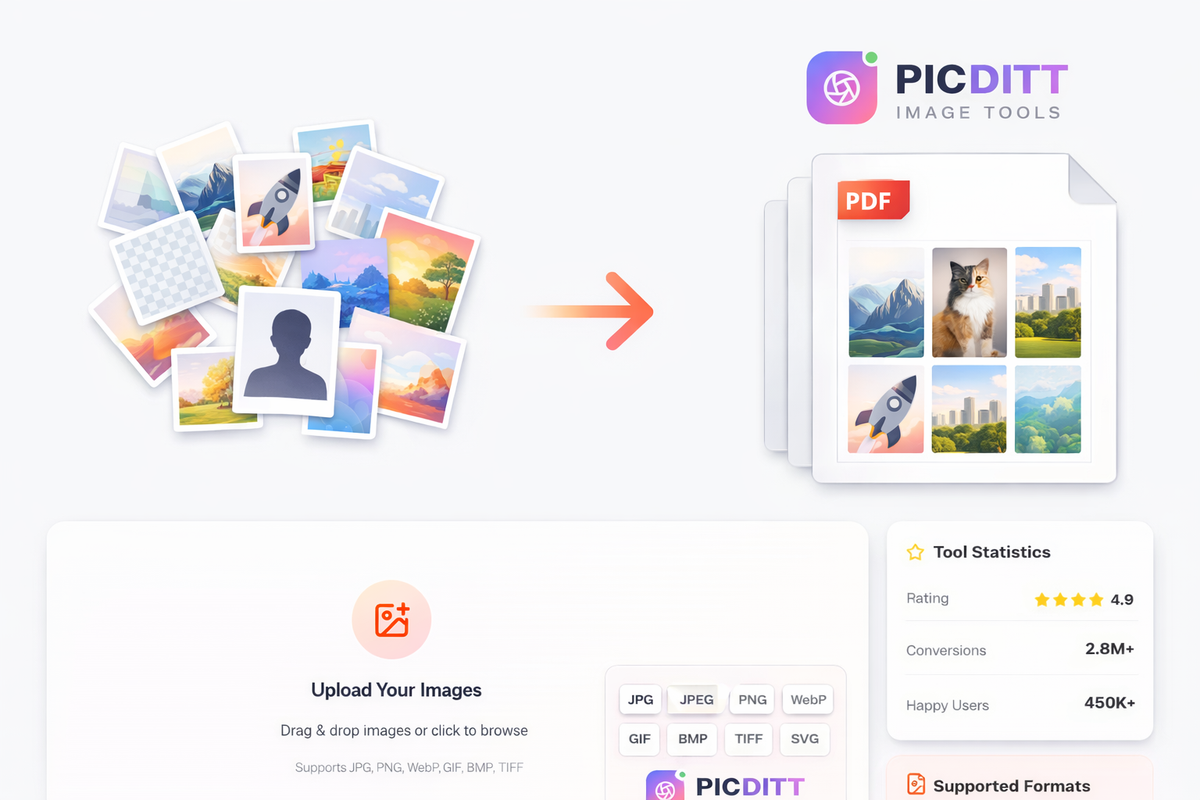
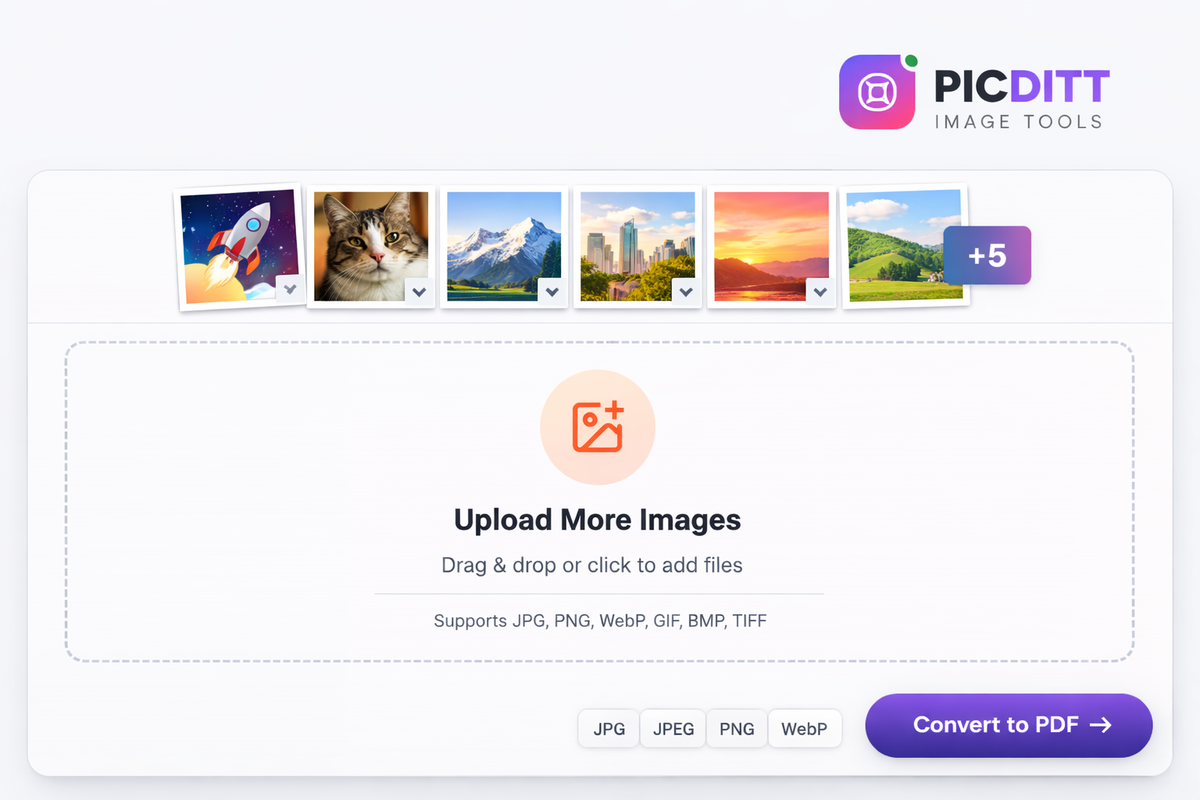
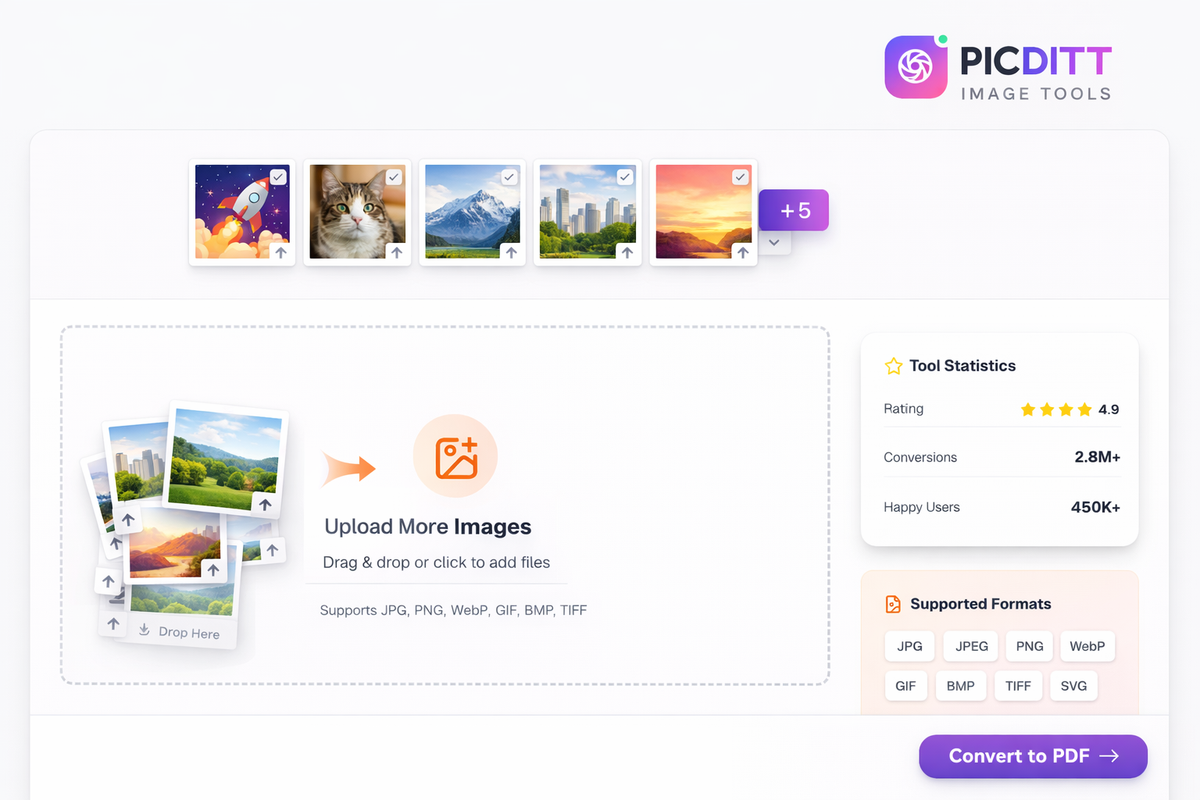
Drag and drop your images onto the upload area, or click to browse and select files from your device. You can upload as many images as you want — there's no limit. The tool supports JPG, JPEG, PNG, WebP, GIF, BMP, TIFF, and SVG formats.
Step 3 — Arrange the Page Order
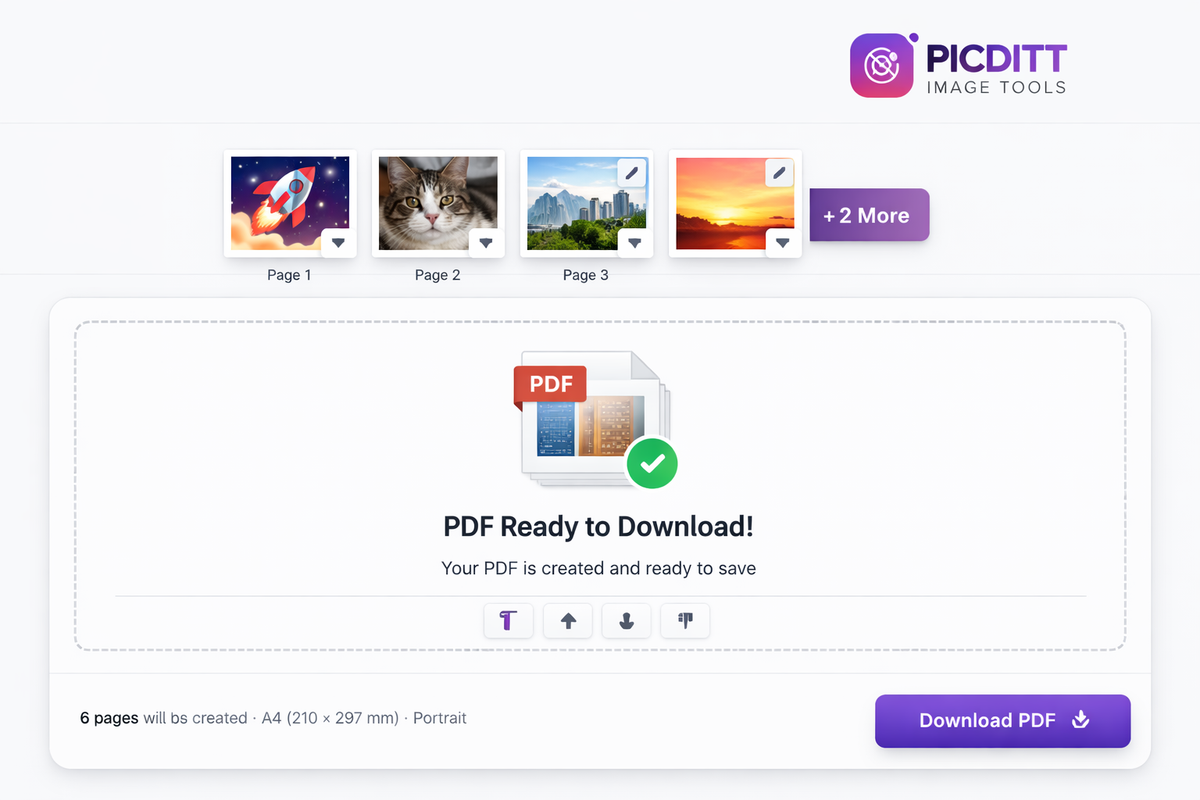
Once your images are uploaded, you'll see them as thumbnails. Drag and drop to rearrange them in your preferred order, or use the arrow buttons to move images up and down. Each image becomes one page in your final PDF. You can also rotate individual images by 90-degree increments if any photos are sideways.
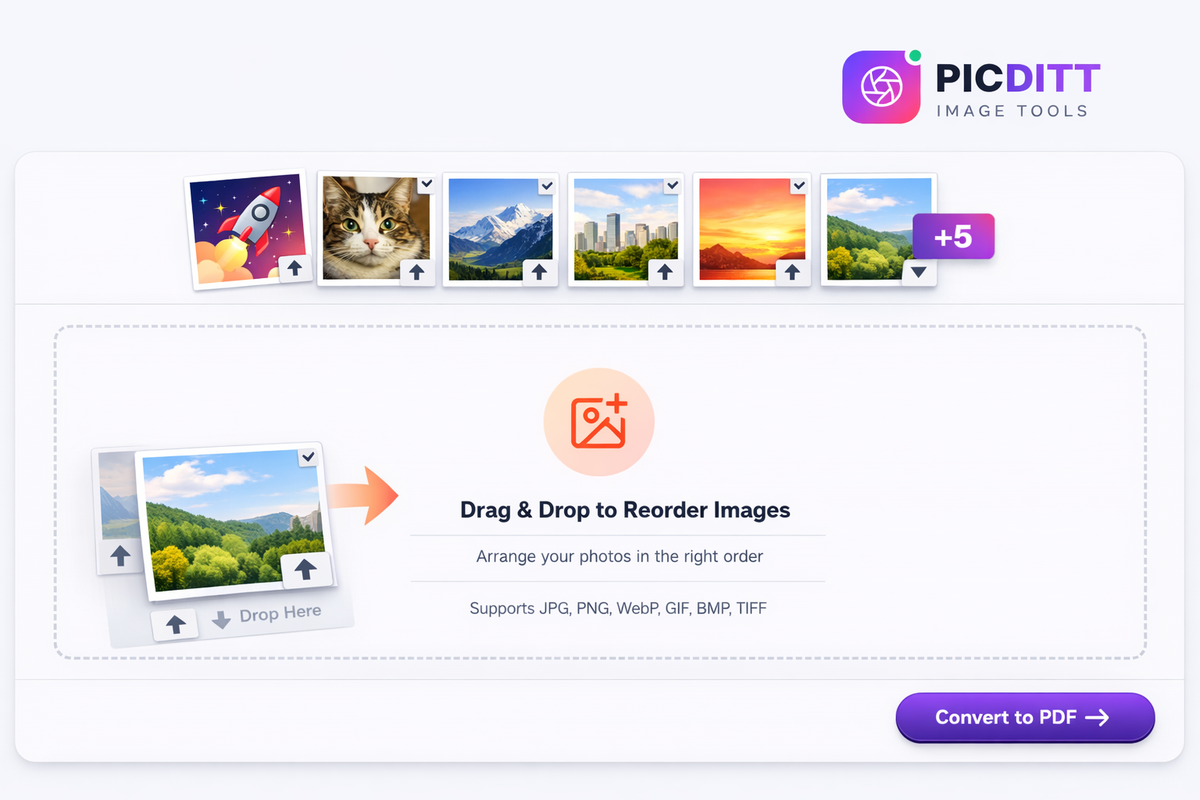
Step 4 — Customize Your PDF Settings
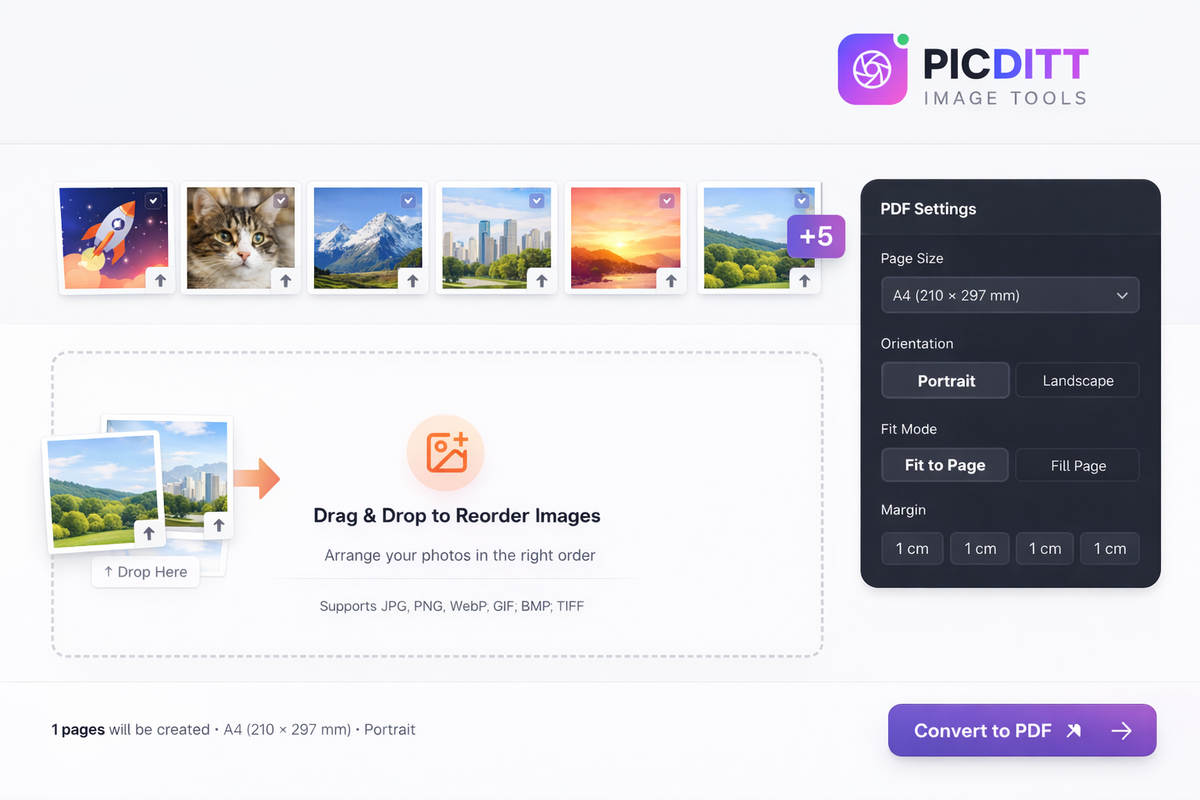
This is where PicDitt stands out from basic converters. You have full control over your PDF's appearance:
Page Size — Choose from A4, A3, A5, Letter, Legal, or photo-specific sizes like 4x6 and 5x7 inches. A4 is the international standard and works for most documents. Letter is the US standard.
Orientation — Select portrait (vertical) for standard documents or landscape (horizontal) for wide photos and presentations.
Image Fit Mode — Choose how your images fit on each page:
- Fit (recommended) — Maintains the image's aspect ratio with no cropping
- Fill — Crops the image to fill the entire page
- Stretch — Scales the image to exactly fit page dimensions
Margins — Add professional margins around your images. Choose from no margins for edge-to-edge printing, small margins for minimal whitespace, medium for standard document appearance, or large margins for binding.
Step 5 — Create and Download Your PDF
Click the create button. Your PDF generates instantly — right in your browser with no server upload. The file downloads automatically to your device. Open it in any PDF viewer to verify everything looks perfect.
Key Features of PicDitt Image to PDF Converter
Feature
What It Does
Why It Matters
Unlimited Images
Add as many images as you need
No artificial limits on page count
Multiple Page Sizes
A3, A4, A5, Letter, Legal, photo sizes
Match the right size to your purpose
Drag-and-Drop Reordering
Rearrange pages by dragging thumbnails
Organize your document visually
Image Rotation
Rotate individual images by 90° increments
Fix sideways photos without external tools
Fit, Fill, and Stretch Modes
Control how images appear on each page
Perfect presentation every time
Custom Margins
None, small, medium, or large margins
Professional document appearance
Portrait and Landscape
Choose orientation per document
Flexibility for different content types
100% Browser-Based
All processing happens locally
Your images never leave your device
No Watermarks
Clean, professional output
Unlike most "free" converters
Instant Processing
PDFs generate in seconds
No waiting in queues
Common Use Cases for Image to PDF
📄 Document Digitization
You have a stack of paper receipts, contracts, or important documents. You photograph each one with your phone. Now you need to combine them into a single organized PDF for your records, your accountant, or your insurance company. Upload all the photos, arrange them in order, and create a clean PDF archive in seconds.
📸 Photography Portfolios
You're a photographer applying for a gallery show, a freelance gig, or a photography program. You need to present your best work in a professional format. Select your top 15-20 images, arrange them in your preferred sequence, choose a photo-friendly page size, and create a stunning portfolio PDF that showcases your work beautifully.
🎓 Academic Submissions
Your professor requires research materials submitted as a single PDF — charts, diagrams, screenshots, and reference images all compiled together. Upload everything, arrange it logically, add proper margins, and submit a clean, organized document.
🏠 Real Estate Listings
You're a real estate agent who just photographed a property. You need to send the listing photos to potential buyers in a professional format. Combine all property photos into a single PDF brochure — living room, kitchen, bedrooms, bathrooms, exterior, and neighborhood shots all in one organized document.
🛒 Product Catalogs
You run an online store and need to create a printable product catalog for a trade show, wholesale buyer, or offline presentation. Convert your product images into a professional PDF catalog with consistent sizing and clean margins.
📱 Mobile Photo Documents
You photographed a whiteboard during a meeting, a page from a textbook, a business card, and handwritten notes. Instead of sending four separate images, combine them into one organized PDF and share it with your team instantly.
Pro Tips for Perfect PDF Results
Getting the most out of your image-to-PDF conversion comes down to a few best practices:
🔹 Use high-resolution images for print. If your PDF will be printed, start with images that are at least 150 DPI (dots per inch). Low-resolution images look fine on screen but appear pixelated and blurry when printed. Photos from modern smartphones are typically high enough resolution for printing.
🔹 Match page size to purpose. Use A4 or Letter for standard documents, reports, and forms. Use photo sizes (4x6, 5x7) for photo albums and prints. Use A3 for large-format presentations or posters.
🔹 Use "Fit" mode for most situations. Fit mode preserves your image's original proportions without cropping. This ensures nothing important is cut off. Use Fill mode only when you specifically want edge-to-edge images and don't mind some cropping.
🔹 Add margins for professional documents. A PDF with no margins looks like a raw photo dump. Adding medium margins gives your document a polished, professional appearance — especially important for portfolios, reports, and any document you're sharing with clients or employers.
🔹 Add larger margins for binding. If you plan to print and bind your PDF (in a folder, binder, or book), use large margins on the binding edge. This prevents images from being hidden inside the binding.
🔹 Organize images before uploading. While PicDitt lets you reorder images after uploading, it's faster to rename your files in order (01.jpg, 02.jpg, etc.) before uploading. This saves time arranging pages in the converter.
🔹 Rotate sideways images in the converter. Don't open a separate editor just to rotate one sideways photo. PicDitt's built-in rotation lets you fix orientation directly in the converter before creating your PDF.
🔹 Compress images before converting for smaller PDFs. If your final PDF needs to be small — for email attachments or upload limits — compress your images first to reduce file size.
Compress Images → https://picditt.com/compress
Why Choose PicDitt Over Other Image to PDF Converters?
Feature
PicDitt
ILovePDF
SmallPDF
Adobe Acrobat
Price
Free forever
Free (limited)
Free (2/day)
Paid subscription
Privacy
100% local
Server upload
Server upload
Desktop or cloud
Watermarks
Never
No
Yes (free plan)
No
Page count limit
Unlimited
25 pages free
Limited free
Unlimited
Custom page sizes
✅ Multiple options
✅ Limited
✅ Limited
✅ Full control
Image reordering
✅ Drag and drop
✅ Yes
✅ Yes
✅ Yes
Image rotation
✅ Built-in
❌ No
❌ No
✅ Yes
Signup required
Never
For batch
For batch
Yes
Margin control
✅ 4 options
❌ No
❌ No
✅ Yes
Format support
8 formats
Limited
Limited
Most formats
Key advantage: PicDitt is the only free image-to-PDF converter that offers unlimited pages, custom margins, image rotation, drag-and-drop reordering, multiple fit modes, AND complete privacy — all without signup, watermarks, or file uploads.
Understanding PDF Page Size Options
Choosing the right page size matters more than most people realize. Here's when to use each option:
Page Size
Dimensions
Best For
A4
210 x 297 mm
International standard documents, reports, portfolios
Letter
8.5 x 11 inches
US standard documents, reports, forms
Legal
8.5 x 14 inches
Legal documents, contracts
A3
297 x 420 mm
Large presentations, posters, detailed images
A5
148 x 210 mm
Booklets, small catalogs, handouts
4x6 inches
102 x 152 mm
Standard photo prints, photo albums
5x7 inches
127 x 178 mm
Larger photo prints, greeting cards
Related Tools You Might Need
After creating your PDF, you might also find these PicDitt tools helpful:
Merge PDF — Already have multiple PDF files that need to be combined into one? The PDF merger handles that instantly — drag, drop, and merge.
Merge PDF Files → https://picditt.com/pdf-tools/merge-pdf
Split PDF — Need to extract specific pages from a PDF? The PDF splitter lets you pull out individual pages or page ranges from any PDF document.
Split PDF Files → https://picditt.com/pdf-tools/split-pdf
PDF to Image — Need the reverse? Convert PDF pages back into individual JPG or PNG images for editing, sharing, or using in presentations.
PDF to Image → https://picditt.com/pdf-tools/pdf-to-image
Image Compressor — Your source images too large? Compress them before converting to PDF for a smaller final file size that's easier to email and share.
Compress Images → https://picditt.com/compress
Crop Image — Need to crop unnecessary parts of your images before adding them to a PDF? The crop tool lets you trim to exact dimensions.
Crop Image → https://picditt.com/crop
Frequently Asked Questions
Is PicDitt Image to PDF Converter really free?
Yes, completely free with no hidden costs whatsoever. There are no premium tiers, no per-document charges, no daily limits, no page count restrictions, and no watermarks on your PDFs. You can convert unlimited images to unlimited PDFs forever at zero cost. Every feature — custom page sizes, margins, rotation, reordering — is available to everyone for free.
Are my images safe? Do you upload them to servers?
Your images never leave your device. This is the single most important difference between PicDitt and most other online PDF converters. Other tools upload your images to their servers for processing — meaning a third party has access to your photos, documents, and private files. PicDitt processes everything locally in your browser using advanced WebAssembly technology. No data is uploaded, stored, logged, or transmitted. When you close the tab, everything is gone from memory.
What image formats are supported?
PicDitt supports JPG, JPEG, PNG, WebP, GIF, BMP, TIFF, and SVG. This covers virtually every image format you'll encounter — from standard phone photos to professional scans to web graphics. If you have images in an unsupported format, convert them first with our free image converter.
Free Image Converter → https://picditt.com/conversion
Is there a limit on how many images I can convert?
No. You can add as many images as you want to a single PDF. The only practical limitation is your device's available memory — for most modern devices, this means you can comfortably handle hundreds of images in a single PDF.
Can I control the order of pages in my PDF?
Yes. After uploading your images, you can drag and drop thumbnails to rearrange them in any order. You can also use arrow buttons to move individual images up or down in the sequence. The order you set is exactly the order pages appear in your final PDF.
Can I rotate images that are sideways?
Yes. PicDitt includes built-in rotation that lets you rotate individual images by 90-degree increments directly in the converter. No need to open a separate editing tool just to fix a sideways photo.
What page sizes are available?
PicDitt offers A3, A4, A5, Letter, Legal, and photo-specific sizes including 4x6 inches and 5x7 inches. A4 is the most commonly used size worldwide and works for most purposes. Letter is the US standard. Photo sizes are perfect for creating printable photo albums.
Does it work on mobile phones?
Yes. PicDitt's Image to PDF Converter is fully responsive and works on iPhones, Android phones, iPads, and tablets. You can photograph documents or receipts with your phone and immediately convert them to PDF — no need to transfer files to a computer first.
Conclusion
Image-to-PDF conversion is one of those everyday tasks that should be simple but rarely is — most tools either watermark your documents, limit your pages, demand an account, or upload your private photos to unknown servers.
The PicDitt Image to PDF Converter does exactly what you need with zero friction. Unlimited images, custom page sizes, professional margins, drag-and-drop reordering, built-in rotation, multiple fit modes — and complete privacy because nothing ever leaves your device.
Whether you're digitizing documents, building a portfolio, creating a property brochure, compiling academic research, or simply combining vacation photos into a shareable album, PicDitt makes it effortless.
Stop settling for limited, watermarked, privacy-invasive PDF converters. Convert your images to professional PDFs in seconds — free, instant, and completely private.
Try PicDitt Image to PDF Converter now — it's free and your files stay private.
Convert Images to PDF Free → https://picditt.com/pdf-tools
Ready to Try It Yourself?
Use this tool for free — no signup, no download, no watermarks.
Open Free Tool