How to Split a PDF into Separate Pages Free Online (No Upload)
How to Split a PDF into Separate Pages Free Online (No Upload)
You are reviewing a massive 150-page corporate report, but you only need to send the three-page financial summary to your boss. Or you have a 50-page legal contract, but you only need the client to sign page 42.
What do most people do in this situation? They attach the entire 150-page document to an email and write: "Please see pages 42-44."
This is a terrible practice. Not only is it frustrating for the recipient who has to hunt for the relevant information, but it also creates massive file sizes that clog up email inboxes. More importantly, it is a serious security risk — you are likely oversharing confidential information that the recipient has no business seeing.
The professional solution is to extract only the pages you need and send a clean, targeted document.
In this comprehensive guide, you will learn how to instantly separate, extract, and split PDF pages using Picditt's free online PDF Splitter. Best of all, we will show you how to do this with 100% data privacy, ensuring your sensitive documents never leave your device.
The Problem with Massive PDFs
PDFs (Portable Document Format) are designed to bundle text, images, and formatting into one cohesive package. While this is great for archiving, it creates major friction in daily business workflows.
1. The Oversharing Security Risk
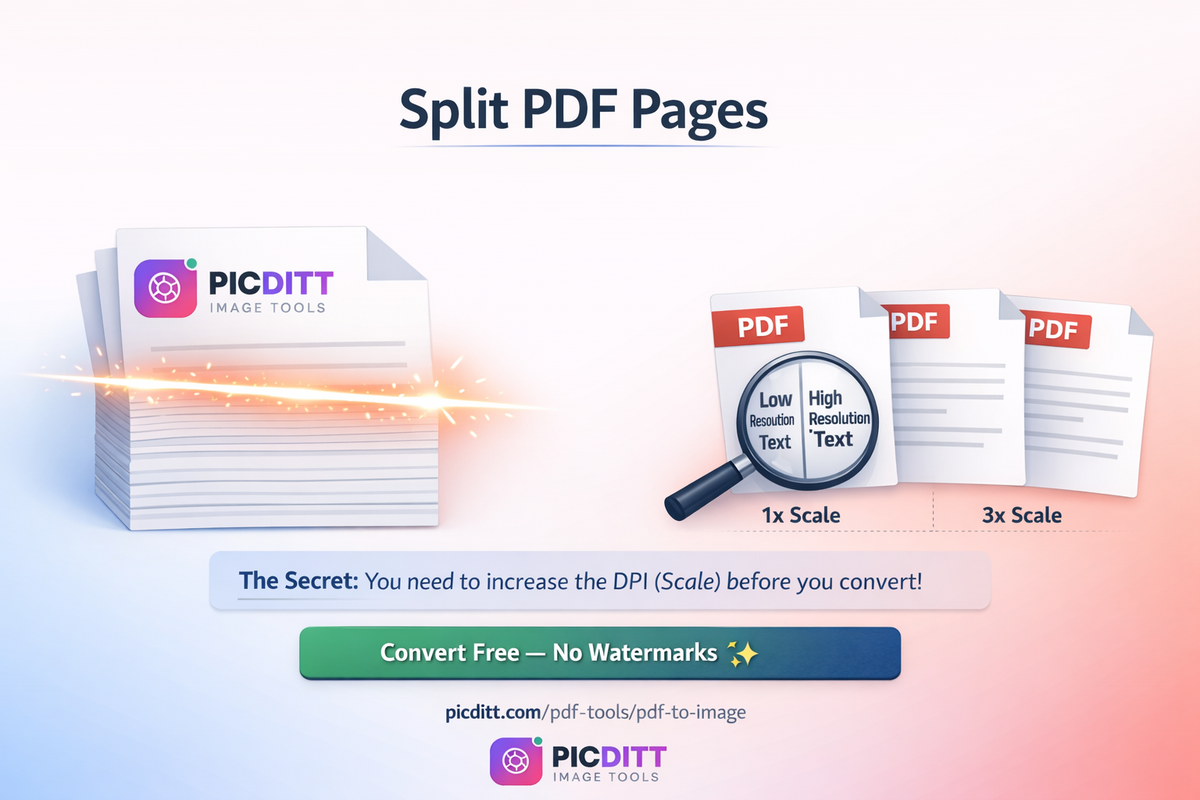
If you send a 50-page vendor contract to a contractor just so they can view the 2-page project scope, you have just given them access to 48 pages of proprietary legal terms, pricing structures, and internal policies. Data oversharing is a leading cause of corporate information leaks. Extracting just the necessary pages is a basic security best practice.
2. Email Attachment Limits
Most email providers (like Gmail and Outlook) cap attachments at 25MB. A high-resolution, 100-page PDF presentation will easily exceed this limit, forcing you to use clunky cloud storage links just to share a few slides.
3. Recipient Friction
When a client or colleague opens a massive PDF on their mobile phone, finding a specific page is incredibly frustrating. By sending a targeted, extracted document, you remove friction and ensure they look exactly at what you want them to see.
How to Split a PDF into Separate Pages (Step-by-Step)
Extracting pages from a massive document shouldn't require expensive software subscriptions like Adobe Acrobat. Picditt's PDF Splitter makes the process visual, intuitive, and takes less than 10 seconds.
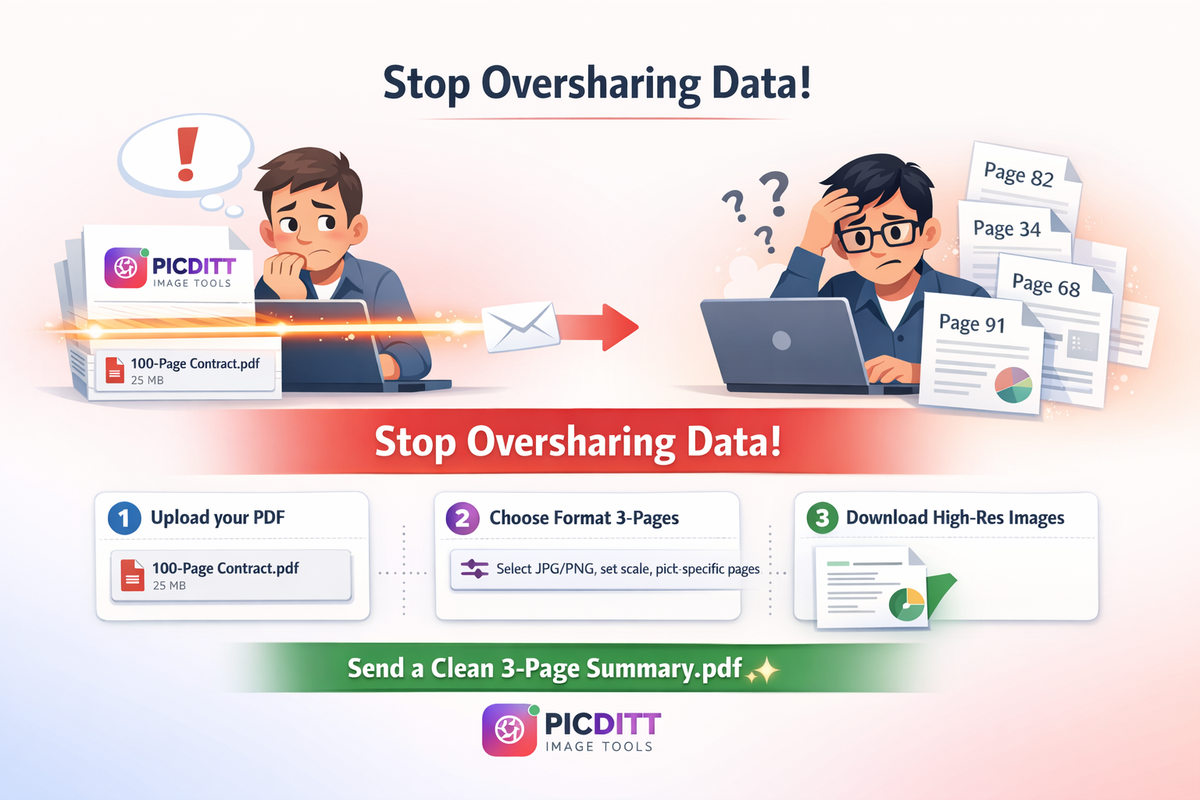
Step 1: Upload Your PDF Document
Go to https://picditt.com/pdf-tools/split-pdf in any web browser. Drag and drop your large PDF file onto the upload area, or click to browse your computer.
Note: There is no file size limit! Because the tool runs on your device's memory, you can upload massive documents instantly without waiting for a server upload.
Step 2: Choose Your Extraction Method
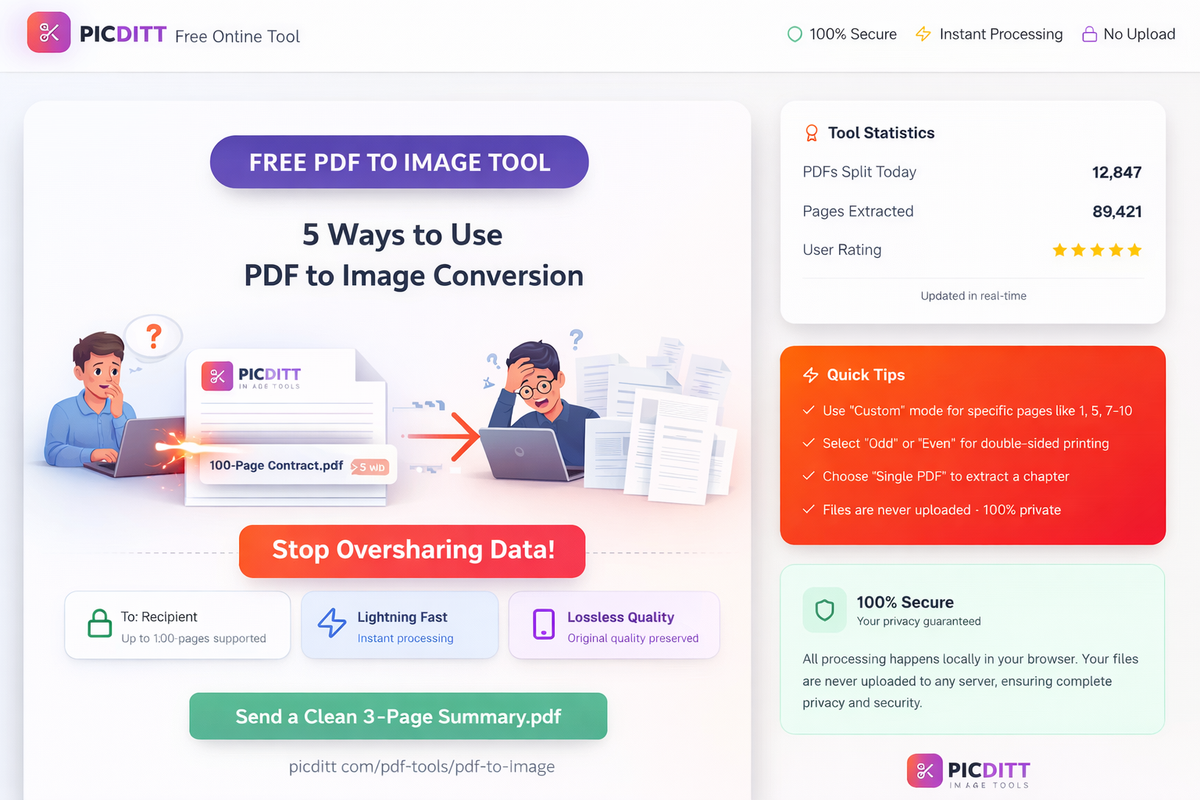
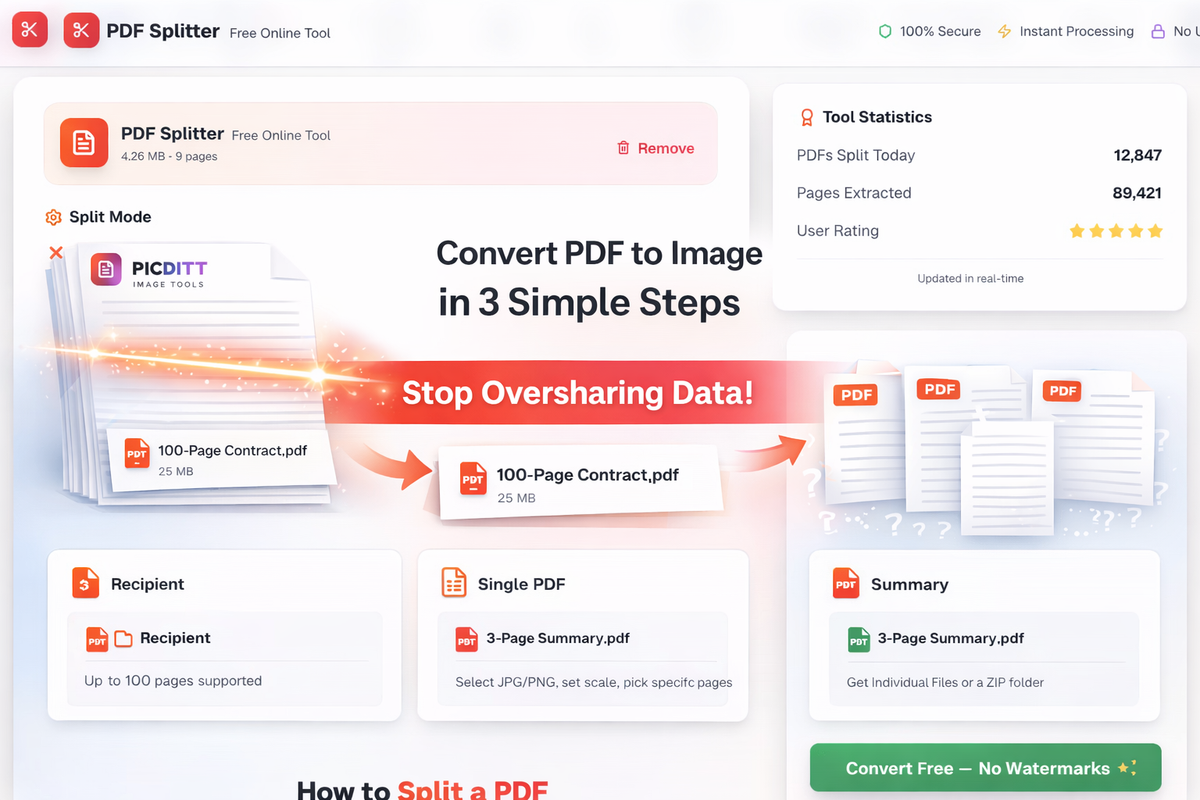
Once your PDF loads, Picditt renders a visual thumbnail of every single page in your document. You now have several ways to tell the tool which pages you want to extract (detailed in the next section).
For most users, simply clicking the visual thumbnails of the pages you want is the easiest method.
Step 3: Choose Your Output Format
Before hitting convert, you need to decide how you want your extracted pages delivered. You have two options:
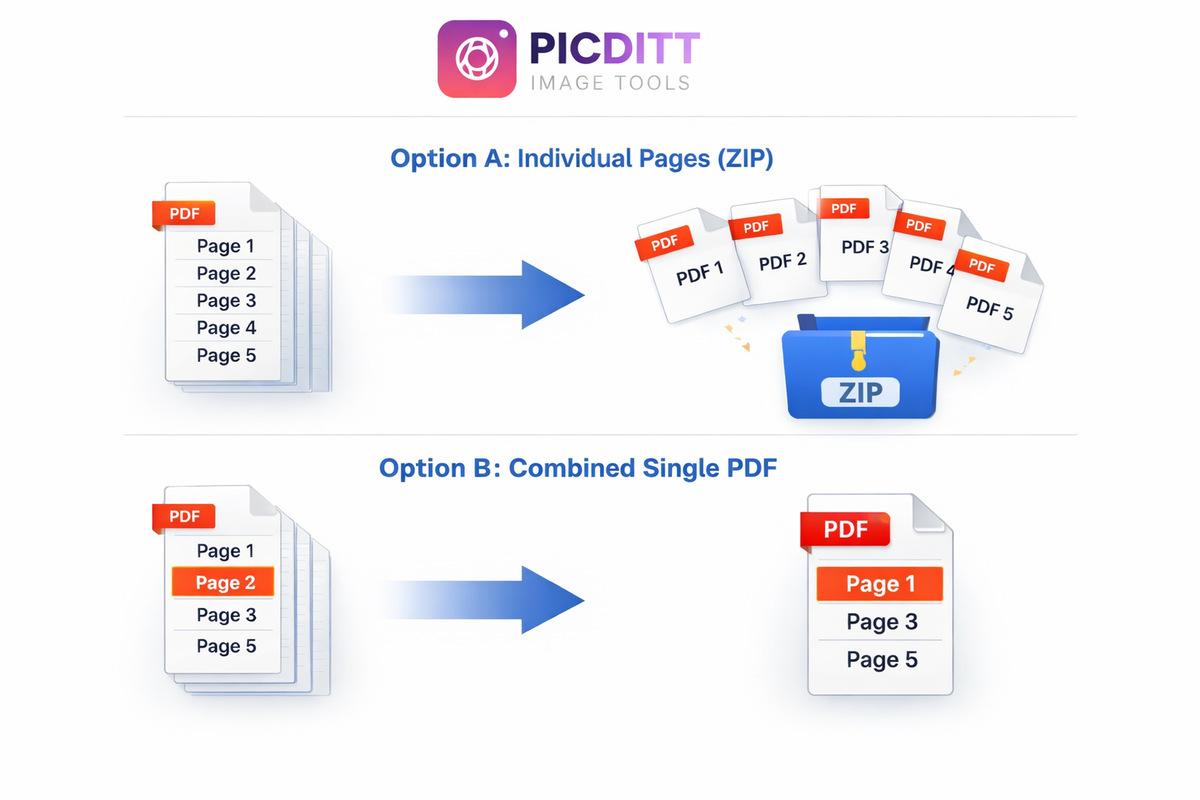
- Individual PDFs: If you selected 5 pages, you will download a ZIP folder containing 5 separate, single-page PDF files.
- Combined Single PDF: If you selected 5 pages, the tool will merge those specific pages together into one new, clean 5-page document.
Step 4: Extract and Download
Click the download button. The extraction happens instantly. Your original document remains completely untouched and unmodified, while your new extracted pages download directly to your computer.
Understanding the 4 Extraction Modes
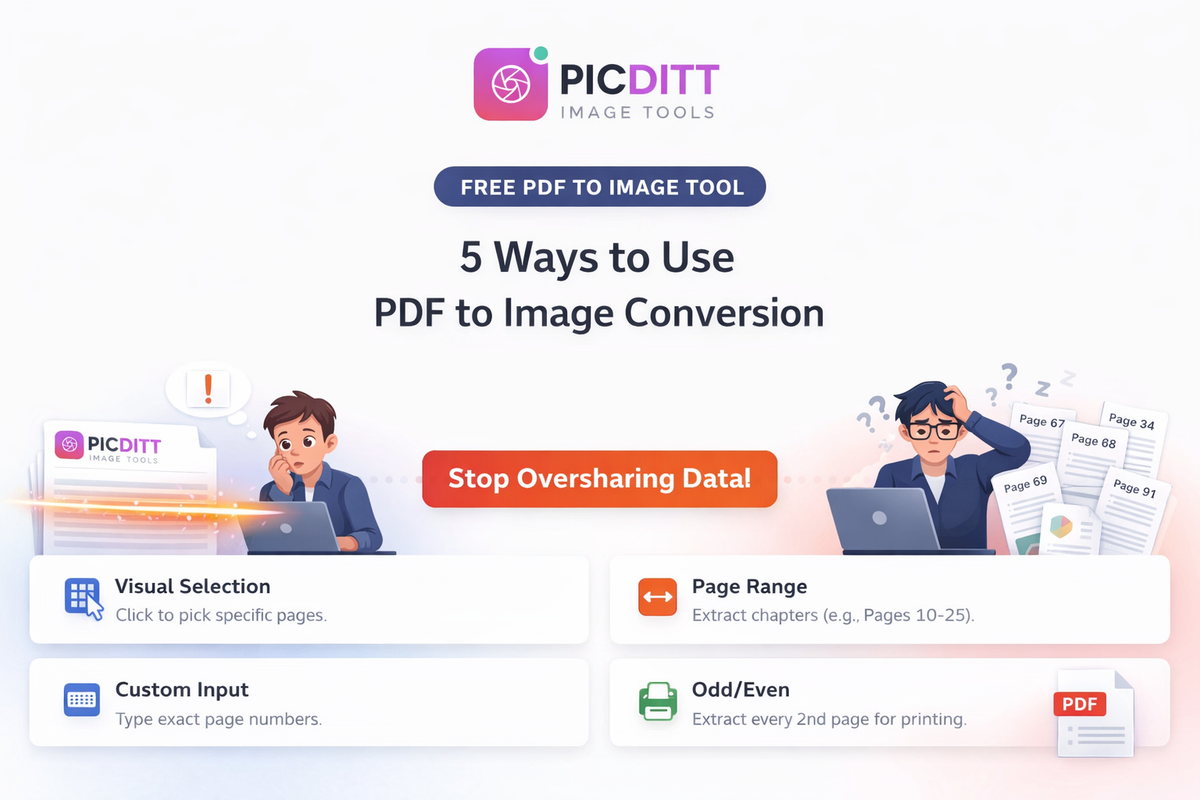
Picditt offers four different ways to select pages, designed for different workflows:
1. Visual Page Selection (Best for random pages)
You will see a grid of thumbnails representing your document. Simply click on the pages you want to extract. They will highlight to show they are selected. This is perfect when you need random pages (like page 3, page 12, and page 14) and want to visually verify the content before extracting.
2. Page Range Mode (Best for chapters/sections)
If you are extracting a long, continuous section of a book or report, clicking 50 individual thumbnails is tedious. Use the Range mode to simply type "Start Page: 15" and "End Page: 65". The tool will instantly select that entire block.
3. Custom Input Mode (Best for power users)
If you know exactly which page numbers you need without looking at them, use the Custom Input box. You can type combinations like: "1, 3, 5-10, 15". The tool will parse your text and select exactly those pages instantly.
4. Odd/Even Extraction (Best for printing)
If you are preparing a document for double-sided printing, or need to separate a scanned book where facing pages were scanned together, you can use the quick-select buttons to instantly highlight all Odd pages (1, 3, 5) or all Even pages (2, 4, 6).
Output Options: Individual Files vs. Single PDF
Understanding which output option to choose will save you a lot of time.
Option A: Individual Files (Batch Export)
When you choose this option, every page you selected becomes its own independent file.
- Example: You select pages 1, 2, and 3. You download a ZIP file containing
page_1.pdf,page_2.pdf, andpage_3.pdf. - When to use this: You are extracting 10 different invoices from a single monthly billing PDF, and need to attach each invoice to a different client's email.
Option B: Combined Single PDF
When you choose this option, the pages you selected are stitched together into a brand new document.
- Example: You select pages 1, 2, and 3. You download a single file called
extracted_document.pdfthat is exactly 3 pages long. - When to use this: You are extracting a specific chapter from a textbook to share with a study group, or pulling a specific schedule out of a massive legal contract to send to a client.
The Privacy Factor: Why Browser-Based Splitting is Critical
When you search for "split PDF online," you will find dozens of free tools. But almost all of them share a massive, hidden flaw: they require you to upload your document to their servers.
Think about the PDFs you are trying to split: legal contracts, medical records, financial statements, or proprietary business reports. When you use a standard online splitter, you are uploading those confidential documents to a server owned by a company you know nothing about.
Even if they promise to delete the file "within 2 hours," your data has still left your control. It has crossed the internet, sat on a server, and been processed remotely.
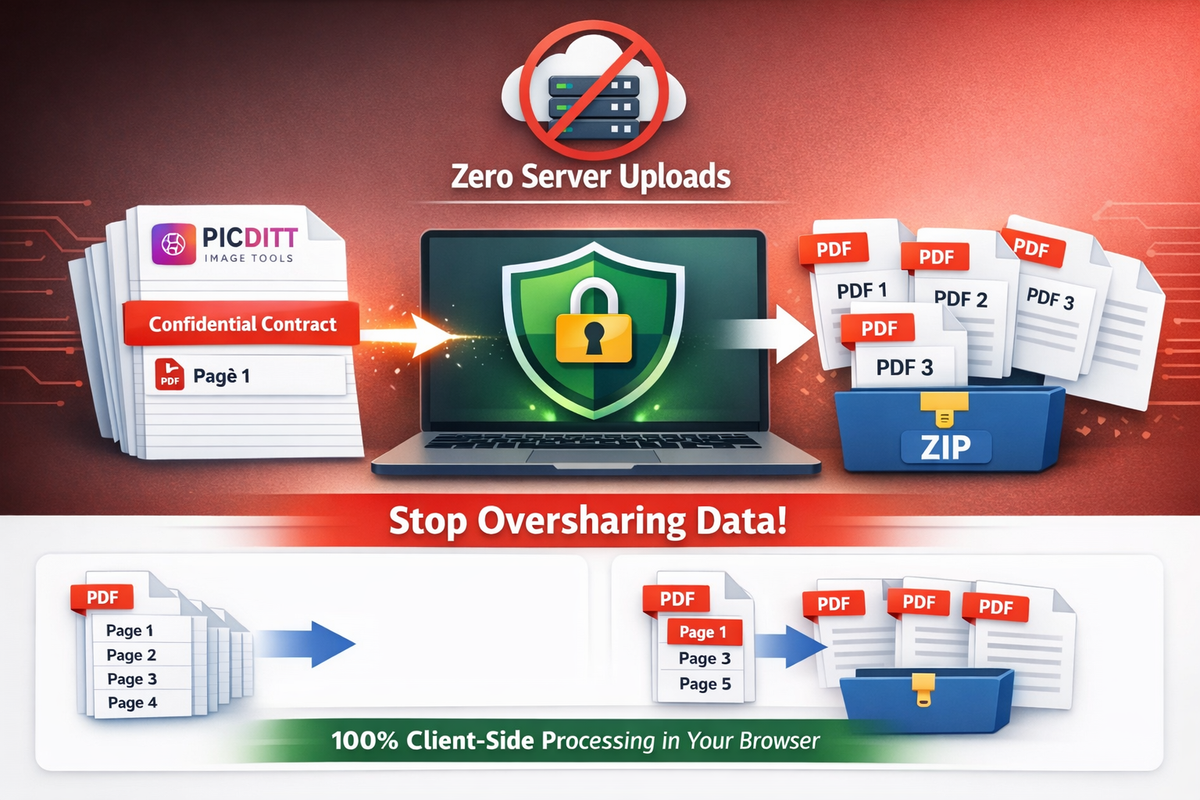
Picditt's PDF Splitter eliminates this risk entirely through client-side processing.
When you drag and drop your PDF into Picditt, the file never leaves your computer. The tool uses your web browser's own memory and processing power to slice the PDF locally.
- ✅ Zero Server Uploads: Your PDF is never transmitted over the internet.
- ✅ Instant Speed: Because there is no upload or download time, a 500-page PDF can be split in milliseconds.
- ✅ No File Size Limits: You are only limited by the RAM on your own computer, meaning you can process massive gigabyte-sized PDFs that other online tools would reject.
- ✅ Offline Capability: Once the tool has loaded in your browser, you could turn off your Wi-Fi and it would still work perfectly.
This makes Picditt completely safe and compliant for legal, medical (HIPAA), financial, and enterprise-level document handling.
Popular Industry Use Cases
Extracting pages from PDFs is a daily requirement across numerous professions. Here is how different industries use this tool:
⚖️ Legal Professionals
Lawyers receive massive "discovery" files containing hundreds of pages of evidence. They use the PDF splitter to extract only the specific exhibits or contract pages relevant to a specific motion, merging them into a new, clean document for the judge.
💼 Finance and Accounting
Accountants often download a single PDF containing a full month of bank statements or 50 different vendor invoices. They use the Individual Files output mode to separate that massive PDF into 50 individual invoice files for digital filing. (Pro tip: They then use the PDF to Excel Extractor to pull the data from those invoices!)
🎓 Academic Research and Students
Students download massive 400-page digital textbooks or academic journals. Instead of scrolling through 400 pages every time they study, they use the Page Range mode to extract just the specific 20-page chapter assigned for that week's reading.
🏢 Real Estate
Realtors receive massive closing disclosure packets. They use the splitter to extract just the signature pages to send to clients via DocuSign, stripping out the dozens of pages of boilerplate disclosures.
🏥 Medical and Healthcare
Healthcare administrators receive massive patient history files from other hospitals. They extract just the specific lab results needed by a specialist, ensuring they don't overshare unrelated medical history (maintaining strict HIPAA compliance by using a browser-based, no-upload tool).
What to Do With Your PDF After Splitting
Extracting the pages is often just step one of your workflow. Picditt offers a full suite of free, browser-based tools to help you manage your documents:
- Need to extract the data? If the pages you extracted contain tables or numbers, run the new file through the PDF to Excel Converter to turn them into editable spreadsheets.
- Need to combine it with something else? If you extracted a page from Document A, and want to attach it to Document B, use the Merge PDF tool.
- Need to turn it into an image? If you extracted a chart and want to post it on social media or embed it in an email, use the PDF to Image Converter to turn it into a high-res JPG or PNG.
Frequently Asked Questions (FAQ)
Is it really free to split PDFs on Picditt?
Yes, Picditt's PDF Splitter is 100% free to use. There are no hidden fees, no premium tiers, no daily limits, and we do not add any watermarks to your extracted pages.
Will splitting the PDF reduce its quality?
No. Picditt performs a 100% lossless extraction. The pages you extract will retain the exact same resolution, text clarity, vector graphics, and formatting as the original document. It does not compress or alter the contents of the pages.
What is the maximum file size I can upload?
Because Picditt processes the file locally in your browser (not on our servers), there is no arbitrary file size limit. You can upload files as large as your device's RAM can handle. Files up to several hundred megabytes process instantly on modern computers.
Is it safe to upload confidential legal or financial PDFs?
Absolutely. Picditt is uniquely secure because your document is never uploaded to a server. All splitting happens locally inside your web browser. No data is transmitted over the internet, making it completely private and safe for highly confidential files.
How do I extract just one single page from a PDF?
Upload your document, click on the visual thumbnail of the single page you want to extract so it highlights, ensure the output option is set to "Single PDF", and click download. You will instantly get a new 1-page PDF file.
Can I split a PDF on my iPhone or Android device?
Yes. Because Picditt is entirely browser-based, you don't need to download an app. Just open Safari or Chrome on your mobile device, navigate to the PDF Splitter tool, and select a PDF from your phone's files app.
How do I remove pages from a PDF?
Splitting and removing are essentially the same process in reverse. To "remove" pages 5 and 6 from a 10-page document, simply upload the document, select pages 1-4 and 7-10, and choose "Combined Single PDF" as your output. The resulting file will be your document with pages 5 and 6 removed.
Why did I get a ZIP file instead of a PDF?
If you received a .zip file, it means your output setting was set to "Individual Files" and you selected multiple pages. Your browser zipped them together for easy downloading. To get one continuous document instead, change the output setting to "Combined Single PDF" before downloading.
Does the splitter work with password-protected PDFs?
If the PDF requires a password to open/view the document, you will not be able to split it unless you remove the password first. However, if the document only has editing restrictions (but can be viewed without a password), Picditt can usually extract the pages successfully.
Can I combine PDFs using this tool?
This specific tool is designed to separate pages. If you have multiple different PDF files that you want to stitch together into one long document, you should use Picditt's Merge PDF tool instead.
Conclusion
Sending a massive, 100-page PDF when the recipient only needs to see three pages is unprofessional, confusing, and a security risk.
Extracting exactly what you need shouldn't require expensive desktop software, and it certainly shouldn't require uploading your confidential business documents to shady third-party servers.
Picditt's Free PDF Splitter gives you professional document control instantly:
- ✅ Visual Interface: See your pages and click exactly what you want.
- ✅ Flexible Outputs: Download as a batch of single files, or merge them into a new document.
- ✅ Lightning Fast: Process hundreds of pages in milliseconds.
- ✅ 100% Private: Zero server uploads. Your files never leave your device.
- ✅ No Limits: Process files of any size, completely free, with no watermarks.
Stop oversharing data and clogging up email inboxes. Extract exactly what you need and send clean, professional documents every time.
Try Picditt's Free PDF Splitter →
Need to extract specific pages rather than splitting all pages? See our guide: How to Split PDF Files & Extract Specific Pages for Free (No Adobe)
Ready to Try It Yourself?
Use this tool for free — no signup, no download, no watermarks.
Open Free ToolYou Might Also Like
How to Convert Images to PDF Online Free — The Complete Guide
Convert any image to a professional PDF document for free. Combine multiple photos, customize page size, adjust margins, set orientation, and download instantly. All processing happens in your browser — your images never leave your device.
Read More →
PDF to Excel Smart Data Extraction: Convert PDF Tables to Editable Spreadsheets
Extracting data from PDF tables shouldn't mean hours of manual typing. Learn how to instantly convert static PDF documents into dynamic, editable Microsoft Excel spreadsheets using Picditt's smart PDF to Excel converter. Features advanced table detection, OCR for scanned documents, and perfect formatting preservation.
Read More →
Stop Struggling with Excel Print Settings: How to Fix and Export Spreadsheets to Perfect PDF
Tired of Excel cutting off columns, splitting data across pages, or printing text too small to read? Picditt's free Excel Print Fixer automatically detects and fixes all common printing problems, then exports your spreadsheet to a perfectly formatted PDF — all in your browser, 100% private.
Read More →