Turn Messy Text Lists into Excel Spreadsheets in Seconds (No More Column A Chaos)
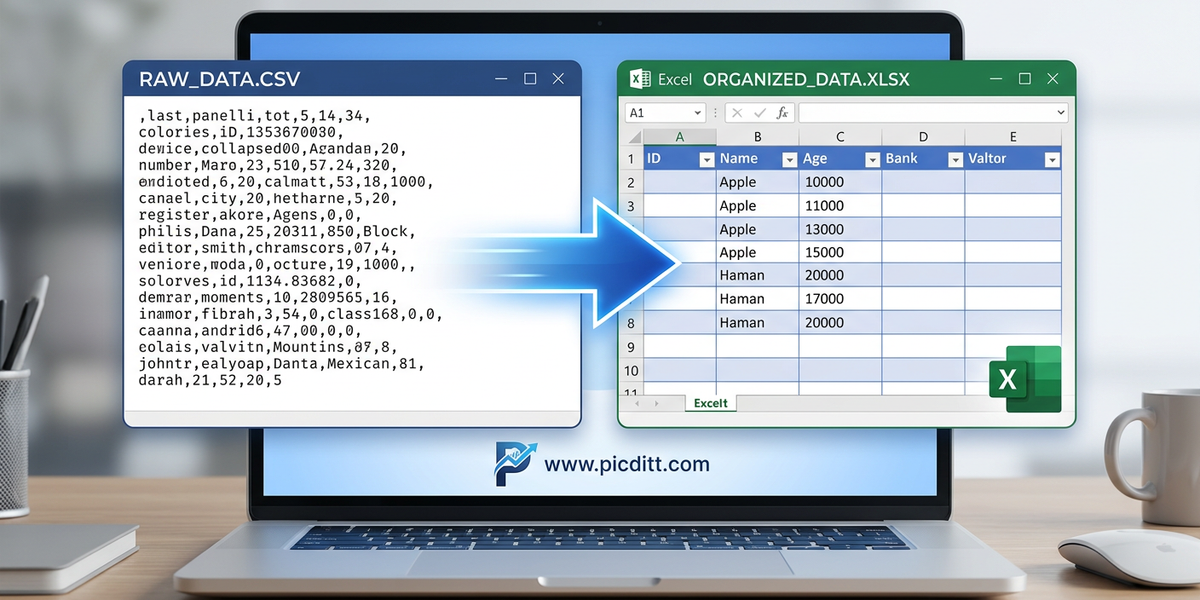
Turn Messy Text Lists into Excel Spreadsheets in Seconds (No More Column A Chaos)
You've got the data. It's right there in front of you. But it looks like this:
textJohn Doe,john@example.com,28,New York,Sales Manager
Jane Smith,jane@example.com,34,London,Marketing Director
Carlos Rivera,carlos@example.com,41,Madrid,Operations Lead
And it needs to look like this:
Name
Age
City
Role
John Doe
28
New York
Sales Manager
Jane Smith
34
London
Marketing Director
Carlos Rivera
41
Madrid
Operations Lead
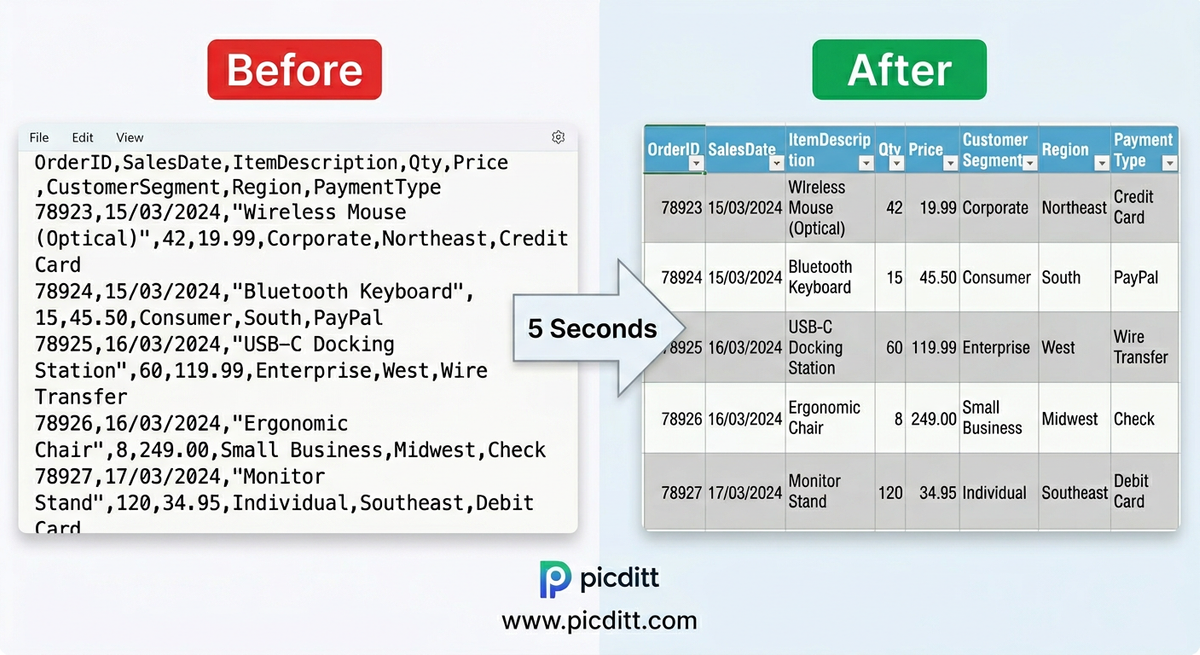
The gap between those two states — between raw text chaos and organized, usable Excel data — is where most people waste enormous amounts of time. They copy values one by one into separate columns. They use Find and Replace in creative but tedious ways. They ask someone technical to write a script. They spend twenty minutes on a task that should take five seconds.
It should take five seconds. Literally.
This complete guide explains everything about converting text data to Excel — why the problem exists, how delimiters work, every common challenge you'll encounter, and how to use the free Picditt Text to Excel Converter to transform any delimited text into a perfectly formatted spreadsheet instantly, privately, and at no cost.
Why Does This Problem Exist in the First Place?
To understand why converting text to Excel is both so common and so frustrating, you need to understand how data moves between systems.
The Universal Language of Data Exchange
When software systems export data — databases, CRM platforms, e-commerce systems, analytics tools, survey platforms, accounting software — they almost universally default to plain text formats. Not Excel. Not PDF. Plain text.
The most common is CSV (Comma-Separated Values), which stores tabular data as plain text with values separated by commas. Here's why systems prefer exporting CSV over Excel:
- Universal compatibility — every system on Earth can read and write plain text
- No software dependency — reading CSV doesn't require Excel or any specific application
- Small file sizes — plain text is dramatically smaller than formatted Excel files
- Simple to generate — any programming language can write a CSV in three lines of code
- Version control friendly — plain text works with Git and other version control systems
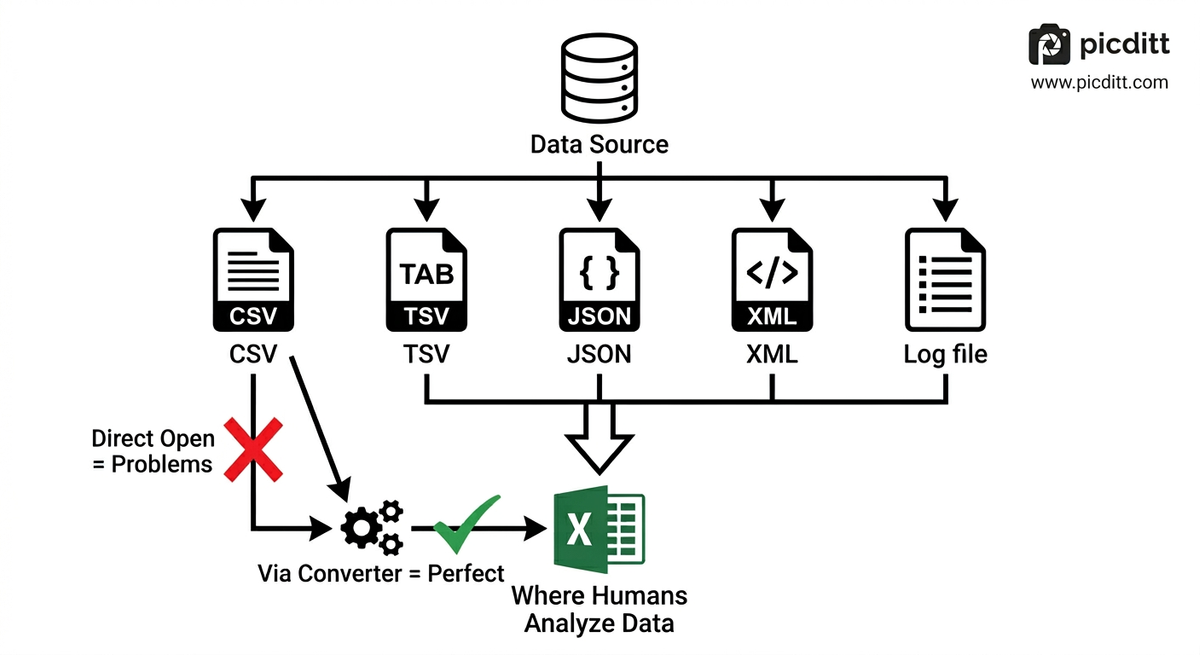
The problem is that while CSV is perfect for machines talking to machines, it's terrible for humans trying to work with data. There's no formatting, no column headers that stand out, no way to sort or filter, no formula support, and no visual organization.
Excel is where humans work with data. CSV is how systems share it. Converting between the two is one of the most frequent data tasks in modern work — and it needs to be fast, accurate, and private.
Why "Just Open It in Excel" Doesn't Work
The instinctive response to a CSV file is to double-click it and let Excel open it. This works sometimes. But it fails in important ways:
- Excel's automatic parsing often chooses the wrong delimiter, putting everything in column A
- Leading zeros disappear from ZIP codes, phone numbers, and product codes
- Special characters break if the encoding doesn't match Excel's regional settings
- Dates convert to serial numbers instead of remaining readable dates
- You get no control over how columns are named, typed, or formatted
- Large files with millions of rows may trigger Excel's import wizard with confusing settings
A dedicated converter handles all of these issues automatically, giving you clean, correctly formatted data without any of the guesswork.
Understanding Text Delimiters: The Key to Everything
The single most important concept in text-to-Excel conversion is the delimiter — the character that separates one value from the next. Getting the delimiter right means perfectly separated columns. Getting it wrong means everything piled into column A.
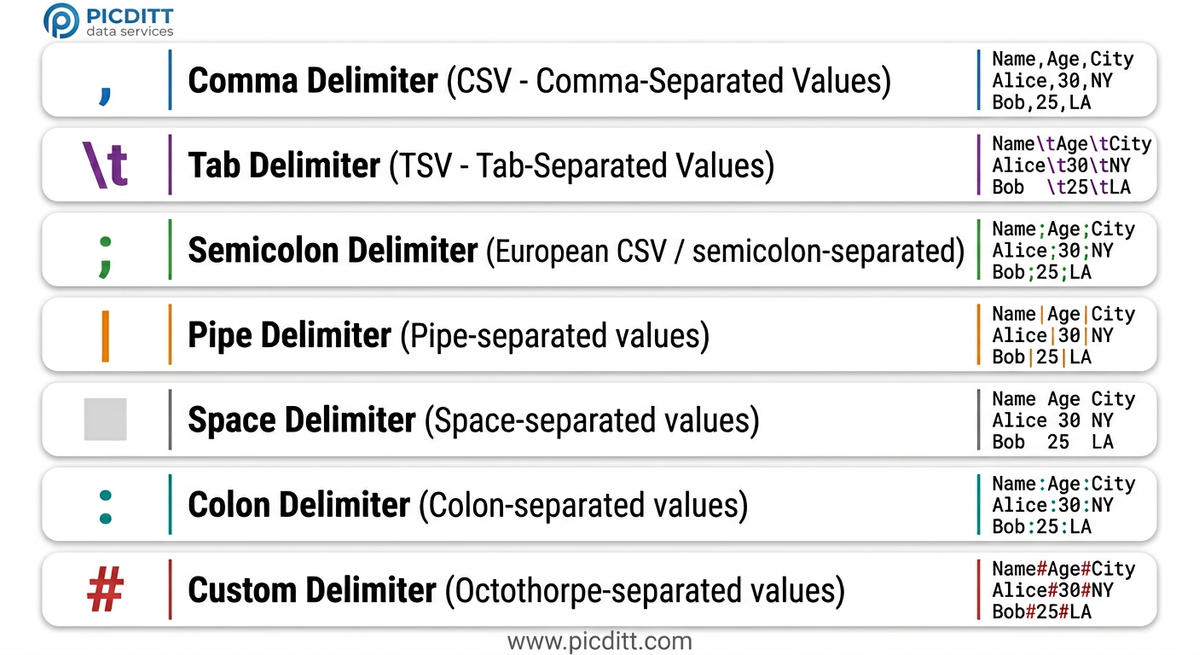
The 7 Main Delimiter Types
The Picditt Text to Excel Converter supports all seven common delimiter types. Here's what each one looks like and when you'll encounter it:
Comma ( , ) — CSV Format
textName,Email,Age,City
John Doe,john@example.com,28,New York
Jane Smith,jane@example.com,34,London
When you see it: Database exports, spreadsheet exports, Google Sheets downloads, survey tool exports, e-commerce platform data, CRM exports. By far the most common delimiter worldwide.
Watch out for: Values that contain commas themselves (like addresses or descriptions). These should be wrapped in double quotes: "123 Main St, Suite 100". If they're not quoted, your column structure will break.
Tab ( \t ) — TSV Format
textName Email Age City
John john@example.com 28 New York
Jane jane@example.com 34 London
When you see it: Database exports from tools that need to handle comma-containing data, Excel "Save as Text (Tab delimited)" exports, log files, scientific data exports. Tab-delimited data is safer than CSV for data containing commas.
Watch out for: Tab characters look like spaces visually. If you paste tab-delimited data and it looks space-separated, select the Tab delimiter in the converter, not Space.
Semicolon ( ; ) — European CSV
textName;Email;Age;City
John;john@example.com;28;New York
Jane;jane@example.com;34;London
When you see it: Any system configured for European locales, especially Germany, France, Italy, Spain, Netherlands, and other countries where a comma is used as the decimal separator (1.234,56 rather than 1,234.56). A significant proportion of European business data uses semicolons.
Watch out for: If your CSV from a European client or system is showing everything in column A when you use comma as delimiter, switch to semicolon — that's almost certainly the issue.
Pipe ( | ) — Pipe-Delimited
textName|Email|Age|City
John|john@example.com|28|New York
Jane|jane@example.com|34|London
When you see it: Database exports from legacy systems, financial data exports, some ERP systems, data from older enterprise software. Pipe-delimited data is common in enterprise environments because the pipe character almost never appears naturally in data.
Watch out for: Very little — pipes are a clean, safe delimiter that rarely causes ambiguity. If you're designing a system that exports delimited data, pipe is often the safest choice.
Space — Space-Separated
textName Email Age City
John john@example.com 28 NewYork
Jane jane@example.com 34 London
When you see it: Simple configuration files, some log formats, scientific data, command-line tool outputs.
Watch out for: Multi-word values immediately break space-delimited data. "New York" becomes two separate columns. Space delimiter works reliably only when no values contain spaces — which is rare in real-world data.
Colon ( : ) — Colon-Delimited
textName:Email:Age:City
John:john@example.com:28:New York
Jane:jane@example.com:34:London
When you see it: Log files, configuration files, Unix/Linux system outputs, some API response formats.
Watch out for: URLs contain colons (https://), which can cause column splitting problems in data containing web addresses.
Custom Delimiter
Any character or string you specify. Common choices include #, ~, ^, ||, or any other character that doesn't appear in your data.
When you see it: Proprietary data exports from specialized software, internally generated data files where the export format was customized.
Introducing the Picditt Text to Excel Converter
The Picditt Text to Excel Converter is a free, browser-based tool that converts any delimited text data into a professionally formatted Excel spreadsheet — with live preview, column configuration, smart data type detection, and instant XLSX download — without ever sending your data to any server.
Why This Tool Exists
Most text-to-Excel workflows involve one of these painful approaches:
- Manual copying — paste everything into column A, then use Text to Columns, fiddle with settings, fix encoding issues, rename columns, adjust widths — ten-minute process minimum
- Excel's Text Import Wizard — clunky, multi-step, requires knowing your settings in advance, still doesn't fix encoding properly
- Online converters that upload files — faster but your data goes to a stranger's server
- Writing a script — only an option if you know Python, R, or another language
The Picditt converter eliminates all of these problems. Paste your text or upload your file, see an instant live preview, configure what you need, and download a clean XLSX in under a minute.
Key Features
7 Delimiter Support
Automatically handles comma, tab, semicolon, pipe, space, colon, and custom delimiters. Supports mixed quoting with double quotes, single quotes, or custom quote characters.
Live Preview
Before downloading anything, see your parsed data displayed as a formatted table. Verify columns split correctly, headers are recognized, and data looks right. Catch problems before they become Excel problems.
Column Configuration
Rename columns to more descriptive names. Hide columns you don't need in the output. Reorder data to match your preferred layout. Configure column data types manually when auto-detection isn't right.
Smart Data Type Detection
Automatically identifies numbers, dates, and text fields. Applies appropriate Excel data types to each column, enabling sorting, calculations, and date functions to work correctly from the moment you open the file.
Multiple Export Formats
Export as XLSX (modern Excel format), XLS (legacy Excel format for older systems), or CSV (clean, reformatted text output). Each format is optimized for its target application.
Excel Formatting Features
Auto-sized column widths, frozen header rows, filter dropdowns, and cell formatting are automatically applied to make the output immediately usable without further formatting.
100% Private Processing
All conversion happens in your browser using client-side JavaScript. Your data — whether it's customer lists, employee records, financial data, or any other sensitive content — never leaves your device. No server. No storage. No data collection.
Works Offline
After the page loads, conversion works without an internet connection. Process sensitive data in secure environments with no network access.
Technical Specifications
Specification
Details
Supported Delimiters
Comma, Tab, Semicolon, Pipe, Space, Colon, Custom
Input Methods
Paste text directly, upload .txt or .csv files
Export Formats
XLSX, XLS, CSV
Maximum Rows
Unlimited (browser memory dependent)
Maximum Columns
16,384 (Excel's limit)
Quote Characters
Double quote, single quote, or custom
Data Type Detection
Text, numbers, dates (automatic or manual override)
Excel Features
Auto-width columns, freeze header, filter dropdowns
Character Encoding
UTF-8, UTF-16, ASCII (auto-detected)
Processing Location
100% client-side (browser-based)
Cost
Free forever, no limits
Registration
None required
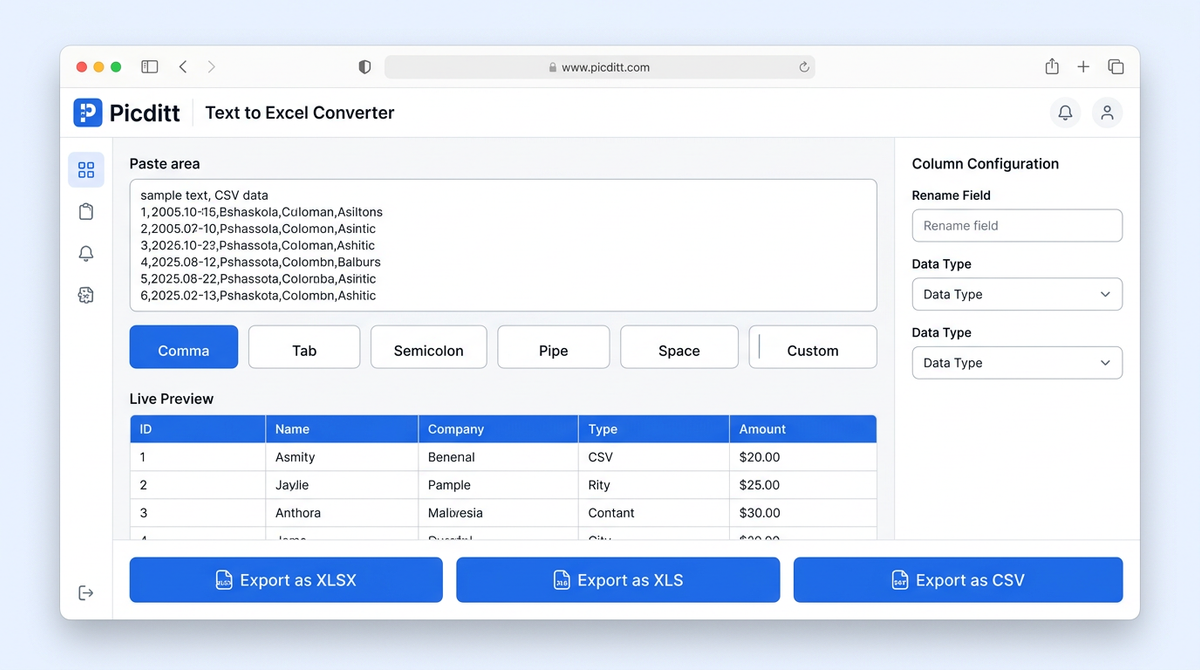
Step-by-Step Guide: Converting Text to Excel
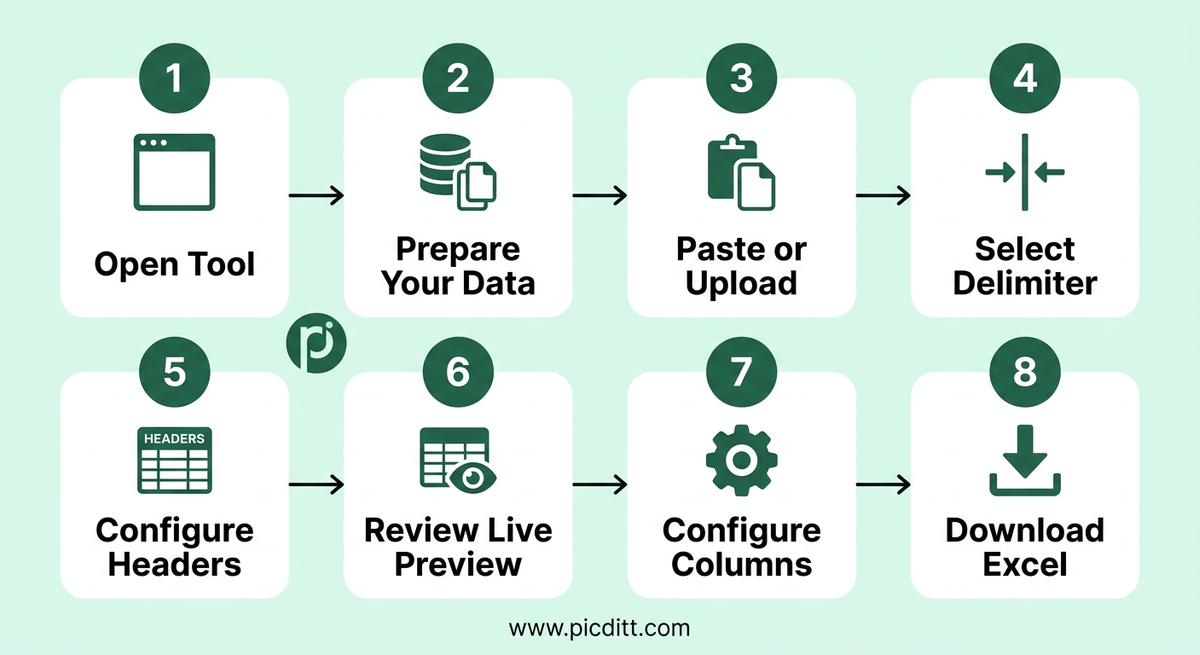
Here is the complete process from raw text to finished Excel file.
Step 1: Open the Tool
Visit https://picditt.com/misc/text-to-excel in any modern browser. Works on desktop, laptop, tablet, and smartphone. No installation, no account, no loading time.
Step 2: Get Your Text Data Ready
Your text data can come from many sources:
- Copy from a website or application — select the data, copy with Ctrl+C (or Cmd+C on Mac)
- Open a CSV or text file — open in any text editor (Notepad, TextEdit), select all, copy
- Export from a database — database tools like MySQL Workbench, pgAdmin, and SQL Server export as CSV or TSV
- API response — copy the delimited text portion of an API response
- Log files — open in a text editor and copy the relevant rows
Not sure what your data looks like? The tool includes three built-in sample datasets: CSV Sample, TSV Sample, and Semicolon Sample. Use these to explore the tool's features before working with your real data.
Step 3: Input Your Data
Option A — Paste directly:
Click inside the text input area and paste your copied data (Ctrl+V or Cmd+V). The tool accepts any amount of text.
Option B — Upload a file:
Click "Upload File" to browse your device and select a .csv or .txt file up to the browser's memory limit. File contents load into the tool instantly.
Step 4: Select Your Delimiter
Look at your pasted data and identify how values are separated. Then click the corresponding delimiter button:
- Comma — values separated by commas
- Tab — values separated by tab characters (look like wide spaces)
- Semicolon — values separated by semicolons
- Pipe — values separated by
|characters - Space — values separated by single spaces
- Colon — values separated by colons
- Custom — type your custom delimiter character
The live preview updates instantly as you switch delimiters — you'll immediately see whether your data splits into correct columns.
Step 5: Configure Headers
If your first row contains column names (like Name,Email,Age,City), enable the "First row is header" option. This treats the first row as column headers in the Excel output — they'll appear in a bold formatted header row and be used as filter labels.
If your first row contains actual data (not headers), leave this option off and the tool will label columns as Column 1, Column 2, etc.
Step 6: Review the Live Preview
The live preview table shows your parsed data exactly as it will appear in Excel. Check:
- Column count — is data split into the correct number of columns?
- Column alignment — are values in the right columns?
- Headers — are column names correct if you enabled header detection?
- Special characters — do international characters display correctly?
- Numbers — are numeric values (especially those with leading zeros) displaying as expected?
- Row count — does the preview show the expected number of rows?
If anything looks wrong, try a different delimiter selection. Usually switching delimiter type immediately resolves column problems.
Step 7: Configure Columns (Optional)
For more control over your output, use the column configuration options:
Rename columns — click a column header to edit its name. Rename col1 to Customer Name, col2 to Email Address, etc. These names appear in your Excel file.
Hide columns — toggle off columns you don't need in the output. The data is ignored during export without deleting it from the source.
Set data types — override automatic type detection for specific columns. Force a column to Text type to preserve leading zeros on ZIP codes or phone numbers.
Step 8: Export Your Excel File
Click your desired export format:
XLSX — recommended for all modern use. Full Excel formatting, auto-sized columns, freeze header, filter dropdowns. Compatible with Excel 2007+, Google Sheets, Apple Numbers, LibreOffice.
XLS — for legacy systems requiring the older Excel format. Fewer formatting features but maximum compatibility with older software.
CSV — if you need a clean, reformatted version of your text data rather than an Excel file. Useful for cleaning up malformed CSV files.
Your file downloads instantly to your device. Open it in Excel and your data is immediately ready to use — sorted, filtered, and formatted without any additional work.
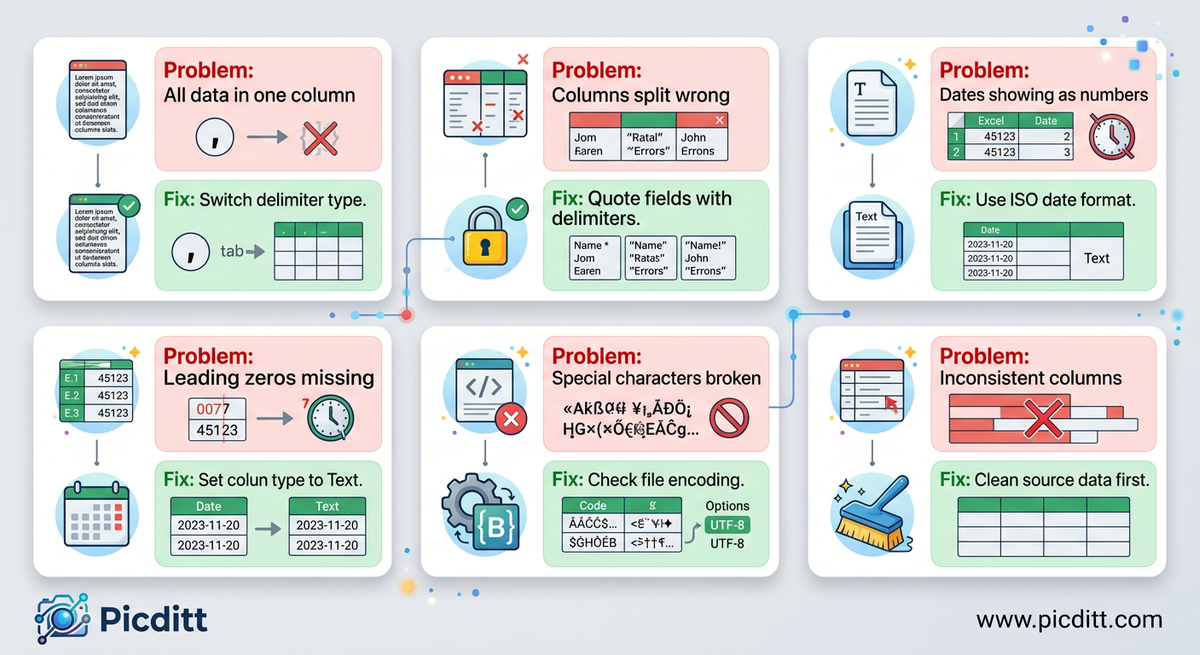
Common Text Data Problems and How to Fix Them
Real-world text data is messy. Here are the most common problems you'll encounter and exactly how to handle each one.
Problem: Everything Appears in One Column
What you see: All data lands in a single column with the raw text visible including delimiter characters.
Why it happens: Wrong delimiter selected. If your data uses semicolons but you selected comma, the parser finds no commas to split on and treats each entire row as one value.
Fix: Look at a few rows of your raw data and identify the actual separator character. Switch the delimiter selection in the tool — the live preview will immediately show correct column splitting when you find the right one.
Problem: Columns Split in the Wrong Places
What you see: You have more columns than expected, with some data split incorrectly in the middle of a field.
Why it happens: Your data contains the delimiter character within a field value, and those fields aren't properly quoted. For example: New York, USA in a comma-delimited file creates an extra column split.
Fix: Properly formatted CSV wraps values containing the delimiter in double quotes: "New York, USA". If your source data doesn't do this, switch to a delimiter that doesn't appear in your data (try tab, pipe, or semicolon), or clean the source data before converting.
Problem: Leading Zeros Missing from Numbers
What you see: ZIP code 07302 becomes 7302. Product code 00142 becomes 142. Phone numbers lose country code zeros.
Why it happens: Auto data type detection identifies these columns as numeric and removes leading zeros because mathematically they're identical to the same number without zeros.
Fix: In the column configuration section, manually set the data type for these columns to Text. This preserves every digit exactly as it appears in the source data.
Problem: Dates Showing as Numbers or Wrong Dates
What you see: 2026-01-15 becomes 46031 or 01/15/26 is interpreted as a different date.
Why it happens: Excel's date serial number system converts dates to numbers internally. Different date formats are interpreted according to regional settings.
Fix: The tool's smart date detection handles standard ISO dates (YYYY-MM-DD) reliably. For non-standard date formats, set the column type to Text to preserve the date string exactly as-is, then format the column as dates manually in Excel after opening.
Problem: Special Characters Showing as Question Marks
What you see: José becomes Jos?. München becomes M?nchen. Chinese or Arabic characters become garbled.
Why it happens: Character encoding mismatch. The source file uses UTF-8 encoding but the tool is interpreting it as a different encoding, or vice versa.
Fix: The tool auto-detects encoding for uploaded files. For pasted data, encoding is preserved from your clipboard. If you see broken characters, try copying the data from a text editor that has already correctly opened the file with the right encoding. On Windows, Notepad++ shows and converts encoding. On Mac, TextEdit's encoding setting handles this.
Problem: Quoted Fields Not Handled Correctly
What you see: Values that should stay together are splitting, or quotation marks appear in your data.
Why it happens: Your data uses single quotes instead of double quotes for field quoting, or uses a custom quote character.
Fix: Use the Quote Character setting to specify whether your data uses double quotes ", single quotes ', or a custom character. The parser will then correctly handle quoted fields containing delimiter characters.
Problem: Inconsistent Number of Columns Per Row
What you see: Some rows have five columns, others have four or six, causing data to shift out of alignment.
Why it happens: Missing values without proper empty field handling (John,,28,New York — note the empty email field should produce four columns but might be misread), or genuinely inconsistent source data.
Fix: Verify your source data has consistent column counts. Empty fields in properly formatted CSV appear as two consecutive delimiters (,,). If your source data is genuinely inconsistent, data cleaning before conversion is necessary.
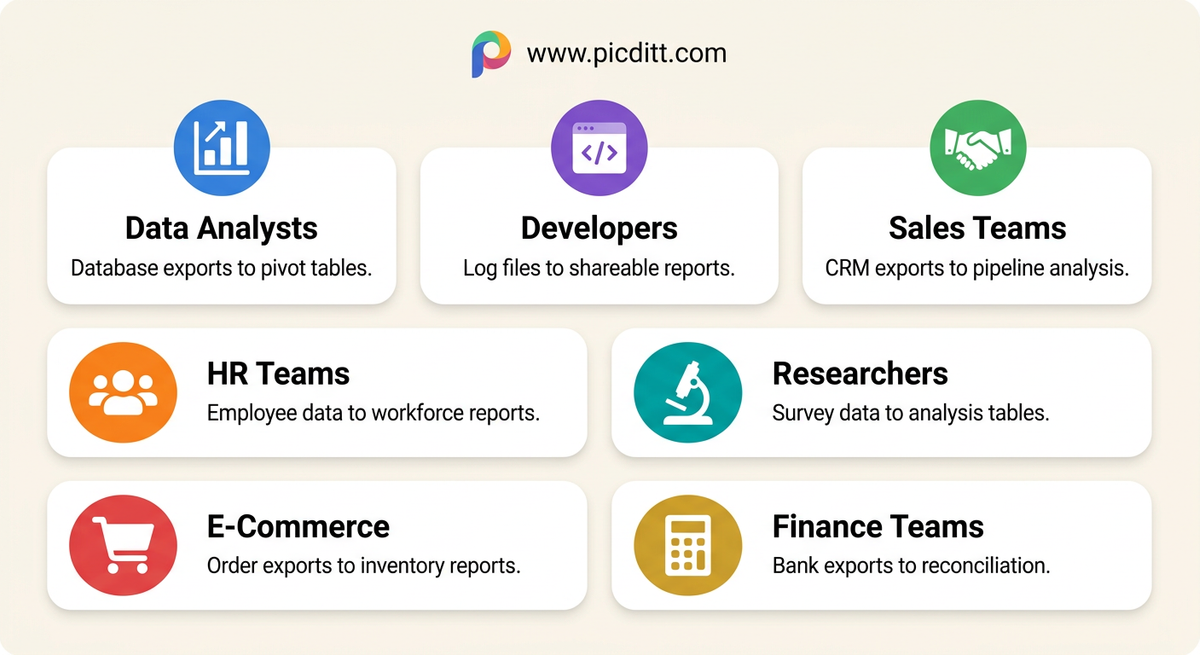
Who Uses Text to Excel Conversion and Why
Data Analysts and Business Intelligence Teams
Data analysts live at the intersection of raw data and meaningful insights. Their workflow almost always begins with a CSV or text export from a database, data warehouse, or analytics platform. Converting this raw output to Excel is step one of every analysis project — enabling pivot tables, chart creation, formula application, and the formatting needed for executive reporting.
For analysts handling large datasets, the Picditt converter's unlimited row support and browser-based processing mean that even large exports from enterprise databases convert cleanly without file size limitations or server timeouts.
Developers and System Administrators
Developers regularly work with log files, API responses, and database exports in text format. Converting these to Excel is useful for debugging, sharing findings with non-technical stakeholders, or performing quick analysis on log data without writing analysis scripts. The tool's support for multiple delimiters including custom characters handles the varied formats that technical data sources produce.
Sales and CRM Teams
CRM platforms like Salesforce, HubSpot, and Zoho export contact lists, deal pipelines, activity logs, and campaign results as CSV. Sales teams converting these exports to Excel can apply formulas to calculate conversion rates, create charts of pipeline stages, sort deals by value or close date, and produce polished reports for management review.
HR and People Operations
HR systems export employee directories, attendance records, payroll data, and performance information as text files. Converting these to Excel enables headcount analysis, compensation benchmarking, attendance pattern analysis, and HR reporting. The privacy of browser-based processing is particularly important here — employee data is among the most sensitive information any organization handles.
Researchers and Academics
Research data collected through surveys, experiments, or field observation is frequently exported as CSV from tools like REDCap, Qualtrics, SPSS, or custom research databases. Converting to Excel allows researchers to apply statistical functions, create visualizations, and prepare data tables for publication — without specialized statistical software.
E-Commerce and Operations Teams
Online stores export order histories, inventory levels, product catalogs, and customer data from platforms like Shopify, WooCommerce, Amazon, and eBay as CSV files. Converting these exports to Excel enables inventory analysis, order tracking, sales reporting, and supplier communication in a professional, formatted format.
Finance and Accounting Professionals
Bank statements, transaction exports, and accounting software outputs all commonly arrive as CSV or text files. Finance teams converting these to Excel can apply financial functions, reconcile accounts, produce cash flow reports, and analyze spending patterns with Excel's full formula and charting capabilities.
Advanced Tips for Power Users
Tip 1: Identify Your Delimiter Before You Start
Don't guess — look at your raw data first. Open the text file in any basic text editor and examine a few rows. The delimiter is whatever character appears between every value. Once you identify it correctly, conversion is instant and perfect. Spending 10 seconds identifying the delimiter saves minutes of troubleshooting.
Tip 2: Use Live Preview to Validate Before Exporting
The live preview is your quality gate. Before clicking any export button, verify that the number of columns matches what you expect, that all headers are correctly labeled, that numeric columns display numbers (not text), and that special characters are intact. A 30-second review in preview mode prevents having to redo the conversion after discovering a problem in Excel.
Tip 3: Force Text Type for Identifier Columns
Any column that contains numeric identifiers — ZIP codes, phone numbers, product codes, employee IDs, account numbers — should have its data type manually set to Text in the column configuration. This is the single most important setting for preserving data integrity in numeric identifier columns. Once set to Text, leading zeros, long numbers, and formatted values are preserved exactly.
Tip 4: Clean Your Source Data When Possible
If you control the system generating the text data, invest time in making it export cleanly. Use consistent delimiters. Quote fields that contain the delimiter character. Use UTF-8 encoding. Use ISO date format (YYYY-MM-DD). Add column headers as the first row. These source-side improvements make every downstream conversion cleaner and faster.
Tip 5: Try Sample Data to Learn the Tool First
The built-in CSV Sample, TSV Sample, and Semicolon Sample datasets are genuinely useful for learning the tool's features before working with important real data. Load each sample, switch delimiter settings, try column configuration, and export a test file. This five-minute familiarization prevents mistakes when processing data that matters.
Tip 6: Use XLSX for Humans, CSV for Systems
When exporting from the tool, choose XLSX if a person will open the file in Excel. Choose CSV if the output will be imported into another system or processed by code. The tool's CSV export is useful for cleaning up and reformatting malformed CSV files — convert the broken CSV to clean XLSX, verify it looks right, then export back to clean CSV if needed.
Frequently Asked Questions
What types of text data can this tool convert?
The tool converts any delimited text data — data where values are separated by a consistent character. This includes CSV (comma-separated), TSV (tab-separated), semicolon-delimited, pipe-delimited, colon-delimited, space-separated, and any custom delimiter. It works with database exports, log files, copied web table data, API responses, and manually prepared text lists.
Is my data private when using this tool?
Yes, completely. All processing happens 100% within your web browser using client-side JavaScript. Your text data is never transmitted to any server, never stored anywhere outside your device, and never accessed by anyone other than you. This makes the tool safe for customer data, financial records, employee information, medical data, and any other sensitive content.
How many rows can the tool handle?
The tool supports unlimited rows, bounded only by your browser's available memory. Modern browsers can comfortably handle hundreds of thousands of rows. For extremely large files (millions of rows), processing time may increase slightly but there are no hard row limits imposed by the tool itself.
Why is my data all showing in one column?
This almost always means the wrong delimiter is selected. Look at your raw data in the text area and identify the character that separates each value — that's your delimiter. Switch to the correct delimiter and the live preview will immediately show correctly separated columns.
How do I preserve leading zeros on ZIP codes and phone numbers?
In the column configuration section, manually set the data type for those columns to Text. When a column is set to Text type, all values are treated as text strings and preserved exactly — including leading zeros, special formatting, and any other characters that would be lost if the column were treated as numeric.
Can I convert data copied from a website?
Yes. Select and copy any tabular data from a website (using Ctrl+C or Cmd+C), paste it into the text input area, and identify the delimiter. Web tables copied from browsers often paste as tab-separated text, so try the Tab delimiter first. The live preview immediately shows whether the columns separated correctly.
Does the tool work on mobile phones and tablets?
Yes. The tool is fully responsive and works in any modern mobile browser on iOS and Android devices. You can paste text data, configure settings, and download the Excel file directly to your phone or tablet — though the column configuration options are more comfortable to use on a larger screen.
What is the difference between XLSX and XLS export?
XLSX is the modern Excel format introduced in Office 2007. It supports all current Excel features including rich formatting, large datasets, and modern functions. XLS is the legacy format from before 2007. Choose XLSX unless you specifically need to share files with very old Excel installations (pre-2007) or legacy systems that only accept XLS format.
Can I convert the output back to CSV?
Yes. The tool offers CSV as an export option alongside XLSX and XLS. This is useful for cleaning up malformed or inconsistently formatted CSV files — paste the broken CSV, configure correctly, verify in preview, then export as clean CSV. The output will have consistent quoting, encoding, and delimiter handling.
Does the tool work offline?
Yes, after the initial page load. Once the tool has loaded in your browser, the conversion functionality works without an internet connection. This makes it suitable for processing sensitive data in secure environments without network access.
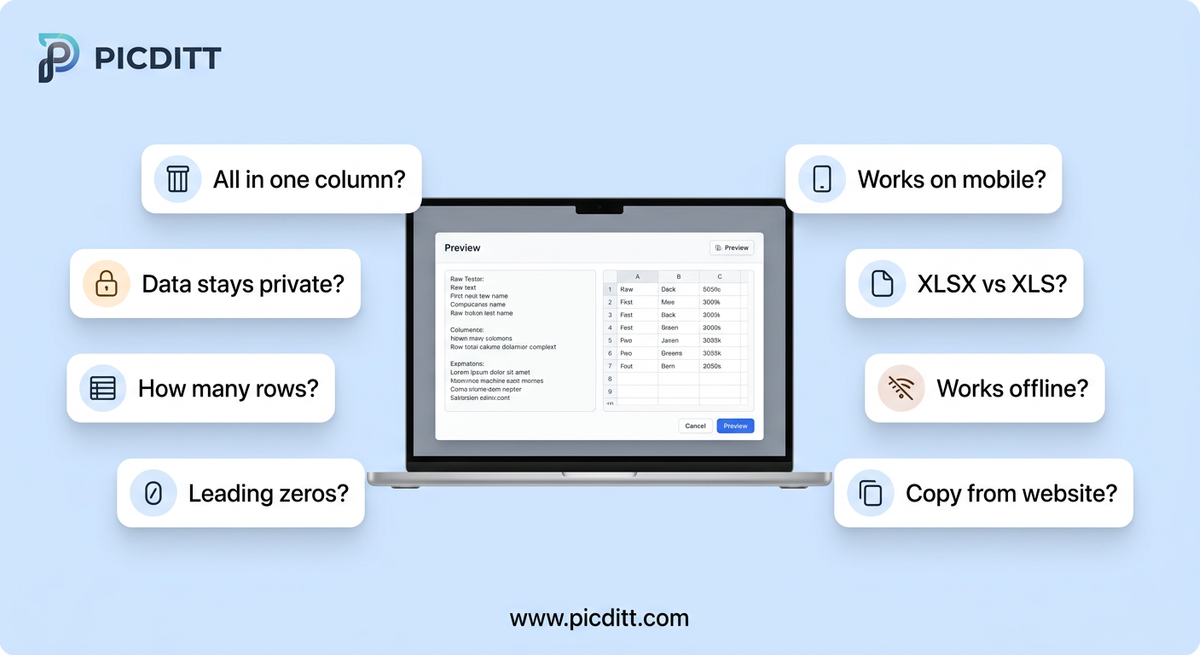
Final Thoughts: Your Data Deserves Better Than Column A
Raw text data sitting in a CSV file or pasted from a website isn't usable data — it's potential data. The moment it becomes a properly structured Excel spreadsheet with correct column types, preserved special characters, readable headers, and auto-sized formatting, it becomes something you can actually work with.
The gap between those two states should be measured in seconds, not minutes. Certainly not in the half-hour of manual copying, Text to Columns fiddling, encoding troubleshooting, and reformatting that still characterizes this task for too many people.
The free Picditt Text to Excel Converter closes that gap. Paste your data, select your delimiter, see the live preview, configure any columns that need attention, and download a clean, properly formatted XLSX file. Seven delimiter types. Smart data type detection. Column configuration. Complete privacy. No uploads. No limits. No cost.
Your text data deserves to be in a real spreadsheet. Getting it there should be the easiest part of your workday.
Convert Your Text to Excel Free — Instant, Private, No Upload →
Ready to Try It Yourself?
Use this tool for free — no signup, no download, no watermarks.
Open Free ToolYou Might Also Like

Create a Transparent Background Digital Signature for Free (No Signup Needed)
Create a professional digital signature with transparent background in seconds. No signup required. Free online signature maker with instant download.
Read More →
PDF to Excel Smart Data Extraction: Convert PDF Tables to Editable Spreadsheets
Extracting data from PDF tables shouldn't mean hours of manual typing. Learn how to instantly convert static PDF documents into dynamic, editable Microsoft Excel spreadsheets using Picditt's smart PDF to Excel converter. Features advanced table detection, OCR for scanned documents, and perfect formatting preservation.
Read More →