Zoom & Resize Images Perfectly: The Complete Guide to Scaling Photos for Social Media, Web, and Print
Advertisement
Zoom & Resize Images Perfectly: The Complete Guide to Scaling Photos for Social Media, Web, and Print
There's a quiet frustration that nearly everyone who uses a computer or smartphone has experienced at some point.
You have an image. It's the right image—the perfect product shot, a team photo for the website, a logo for your email signature, or a vacation picture you want to print and frame. Everything about it is exactly what you need.
Except the size.
It's too big for your website. Too small for a poster. The wrong dimensions for Instagram. Not the right aspect ratio for a YouTube thumbnail. Too heavy to attach to an email. Too wide for a sidebar. Too tall for a banner.
And suddenly, what should take ten seconds turns into a twenty-minute detour through random online tools, confusing menus, and blurry results.
Here's the thing: resizing an image shouldn't be complicated. It should be fast, precise, and it shouldn't destroy your photo in the process.
That's what PicDitt's free Zoom & Resize Images tool is built to do. At https://picditt.com/social/zoom-image, you get a browser-based resizer with 40+ presets for social media, web, print, and app development—plus the ability to resize by exact pixels or percentage, all while keeping your images sharp.
No software to install. No account to create. No watermarks on your output.
Let me walk you through everything you need to know about image resizing, when and why it matters, and how to use this tool to get perfect results every time.
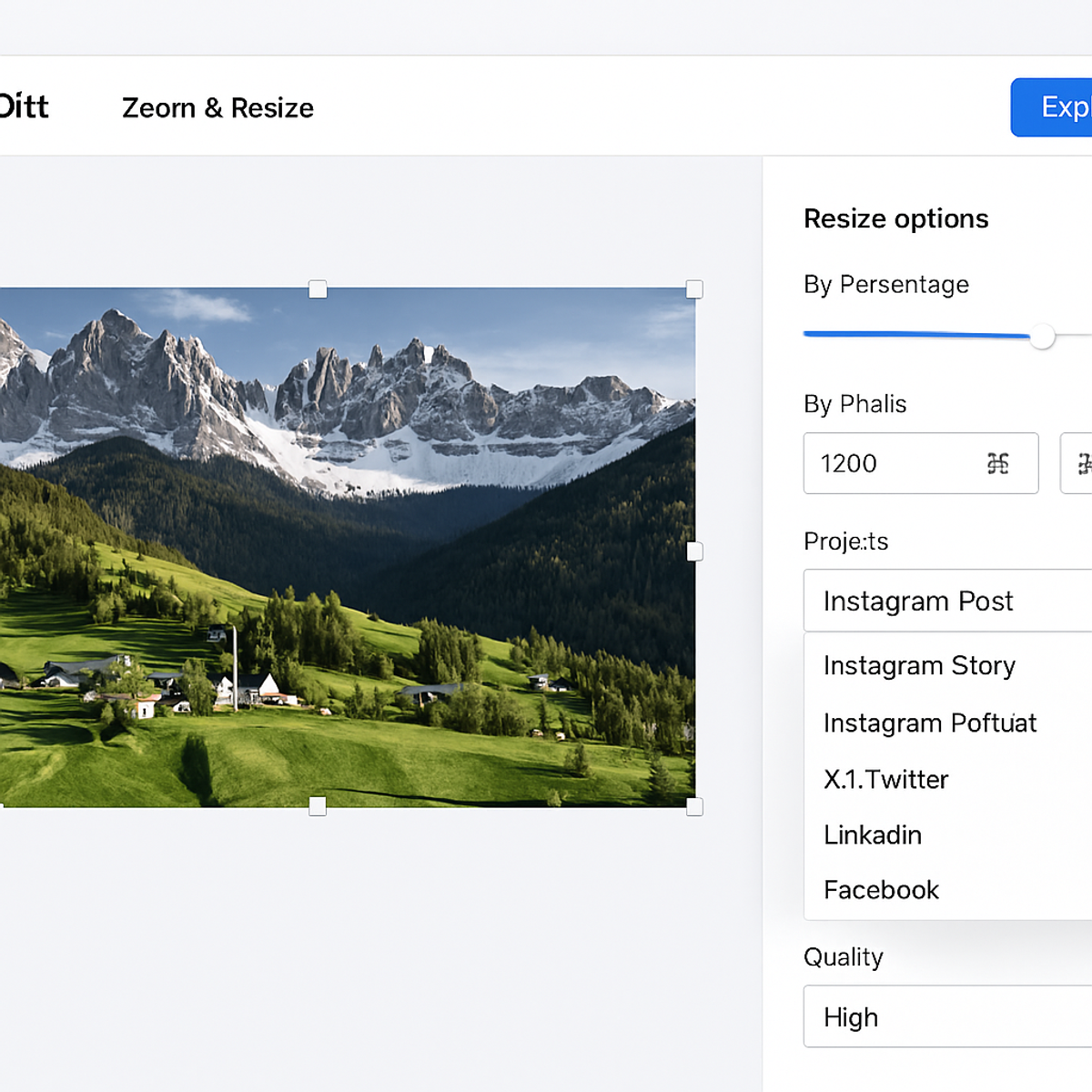
Screenshot of PicDitt's Zoom and Resize Images tool showing resize options by percentage, pixels, and presets, with aspect ratio lock and quality settings visible.
Why Image Size Actually Matters
You might be thinking: does size really matter that much? Can't I just upload whatever and let the platform figure it out?
Technically, yes. Practically, no. Here's why.
Slow Websites Lose Visitors
If you're running a blog, portfolio, or online store, oversized images are one of the biggest reasons pages load slowly. A 5MB photo that displays at 400 pixels wide on your website is wasting bandwidth and annoying your visitors. Studies show that even a one-second delay in page load time can cause a noticeable drop in engagement.
Properly resized images load faster, which means happier visitors, better SEO rankings, and lower bounce rates.
Social Media Platforms Have Rules
Every platform has specific image dimensions it prefers:
- Instagram posts: 1080×1080 (square)
- Instagram Stories: 1080×1920
- Facebook cover: 820×312
- Twitter/X header: 1500×500
- LinkedIn banner: 1584×396
- YouTube thumbnail: 1280×720
- Pinterest pin: 1000×1500
Upload the wrong size and your image gets stretched, cropped, or compressed in ugly ways. Upload the right size and it displays crisp and clean, exactly as intended.
Print Needs Higher Resolution
If you're printing photos, flyers, business cards, or posters, you need much higher resolution than screen display. A photo that looks great on your phone screen might print blurry if it doesn't have enough pixels.
The general rule for print is 300 DPI (dots per inch). For a 4×6 inch print, that means you need at least 1200×1800 pixels.
Email and Messaging Have Limits
Attaching a 15MB photo to an email isn't just rude to the recipient's inbox—it might not even go through. Most email services have attachment size limits. Resizing and compressing before sending is basic digital courtesy.
Understanding Upscaling vs. Downscaling
Not all resizing is the same. The direction you resize in makes a real difference in quality.
Upscaling (Making Images Bigger)
Upscaling increases the pixel dimensions of your image. You're essentially asking the tool to create new pixels that didn't exist in the original.
When you need it:
- Enlarging a photo for printing
- Making a small logo bigger for a banner
- Increasing resolution for a presentation or display
The reality:
Modern algorithms are good at intelligently filling in detail, but there are limits. If you try to upscale a 200×200 pixel image to 4000×4000, it will look blurry and pixelated no matter what tool you use. The original data simply isn't there.
Best practice: Start with the highest resolution source you have, and don't upscale more than 200-300% if you want usable results.
Downscaling (Making Images Smaller)
Downscaling reduces pixel dimensions. You're removing pixels rather than creating them, which generally preserves quality much better.
When you need it:
- Optimizing images for websites
- Reducing file size for email
- Fitting images into specific spaces
- Creating thumbnails
The reality:
Downscaling almost always looks good. A 4000×3000 photo reduced to 1200×900 will still be sharp and clear. You're just making it more efficient.
Best practice: Always keep a copy of your original full-resolution image. Resize copies, not originals.
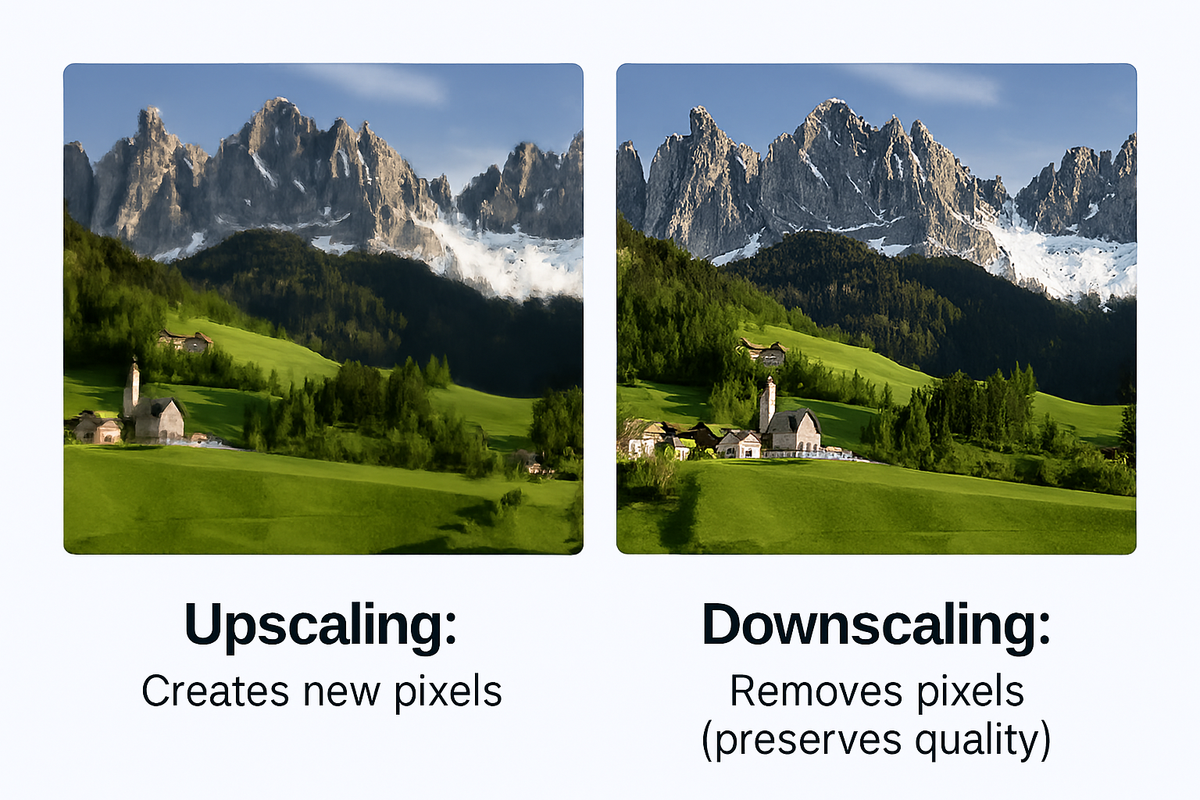
Side-by-side comparison showing an upscaled image with slight quality loss on the left and a downscaled image with preserved quality on the right.
What Is Aspect Ratio (And Why You Should Lock It)
Aspect ratio is the proportional relationship between an image's width and height. Common aspect ratios include:
Ratio
Common Use
1:1
Instagram posts, profile pictures, app icons
4:3
Traditional photos, presentations
16:9
YouTube videos, HD displays, modern TVs
9:16
Stories, Reels, TikTok, mobile screens
2:3
Pinterest pins, portrait photos, 4×6 prints
21:9
Cinematic content, ultrawide monitors, banners
Why Locking Aspect Ratio Matters
When you resize an image, you can either:
- Lock the aspect ratio – Change one dimension and the other adjusts automatically to keep proportions correct.
- Unlock the aspect ratio – Set width and height independently.
If you unlock and set mismatched dimensions, your image gets stretched or squished. Faces become wide. Circles become ovals. Text gets distorted. It looks unprofessional and immediately obvious.
Always keep aspect ratio locked unless you have a very specific design reason to change proportions. PicDitt's tool has this locked by default, which is the right call.
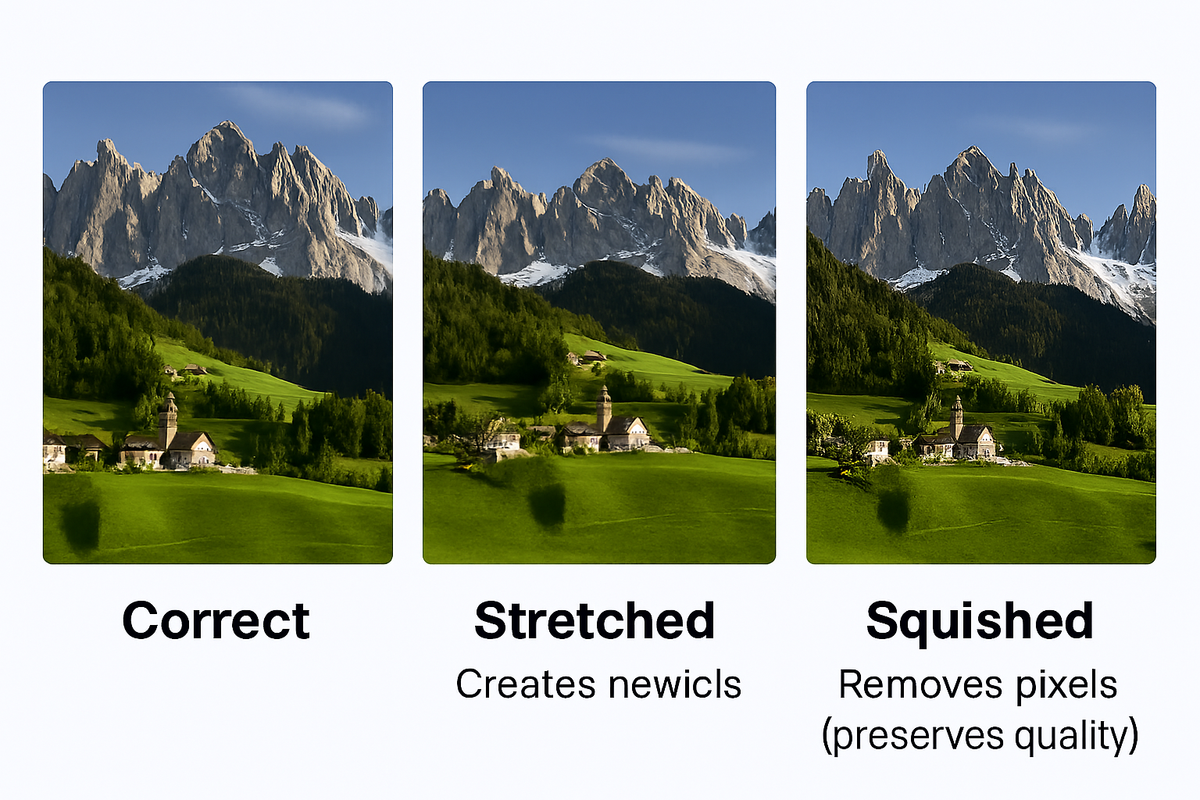
Three versions of the same photo showing correct proportions with locked aspect ratio, horizontally stretched, and vertically squished when aspect ratio is unlocked.
Three Ways to Resize with PicDitt's Tool
PicDitt's Zoom & Resize tool offers three distinct methods to resize your images. Each serves a different purpose.
Method 1: Resize by Percentage
The simplest approach. Enter a percentage and the tool scales your image proportionally.
- 50% = Half the original size
- 100% = No change
- 200% = Double the size
- Range: 1% to 500%
Best for: Quick proportional scaling when you don't need exact pixel dimensions. For example, reducing a batch of photos to half size for web use.
Example: A 4000×3000 photo at 50% becomes 2000×1500.
Method 2: Resize by Exact Pixels
Set the precise width and/or height in pixels. With aspect ratio locked, entering one value automatically calculates the other.
- Enter width: height adjusts proportionally
- Enter height: width adjusts proportionally
- Unlock ratio: set both independently
Best for: When you know the exact dimensions you need. Website headers, email banners, specific print sizes.
Example: Need a 1920px wide image for a Full HD display? Enter 1920 as width, and the height calculates automatically.
Method 3: Resize by Presets
Choose from 40+ preset sizes organized by category:
- Social Media: Instagram square, Instagram Story, Facebook cover, Twitter header, LinkedIn banner, Pinterest pin, YouTube thumbnail
- Web: Full HD (1920×1080), HD (1280×720), common website widths
- Print: 4×6, 5×7, 8×10, A4, A3, poster sizes
- Icons: App icons at multiple sizes (16×16 to 512×512)
Best for: When you're creating content for a specific platform and want the exact right dimensions without looking them up.
Example: Select "Instagram Square" and the tool sets 1080×1080 automatically.
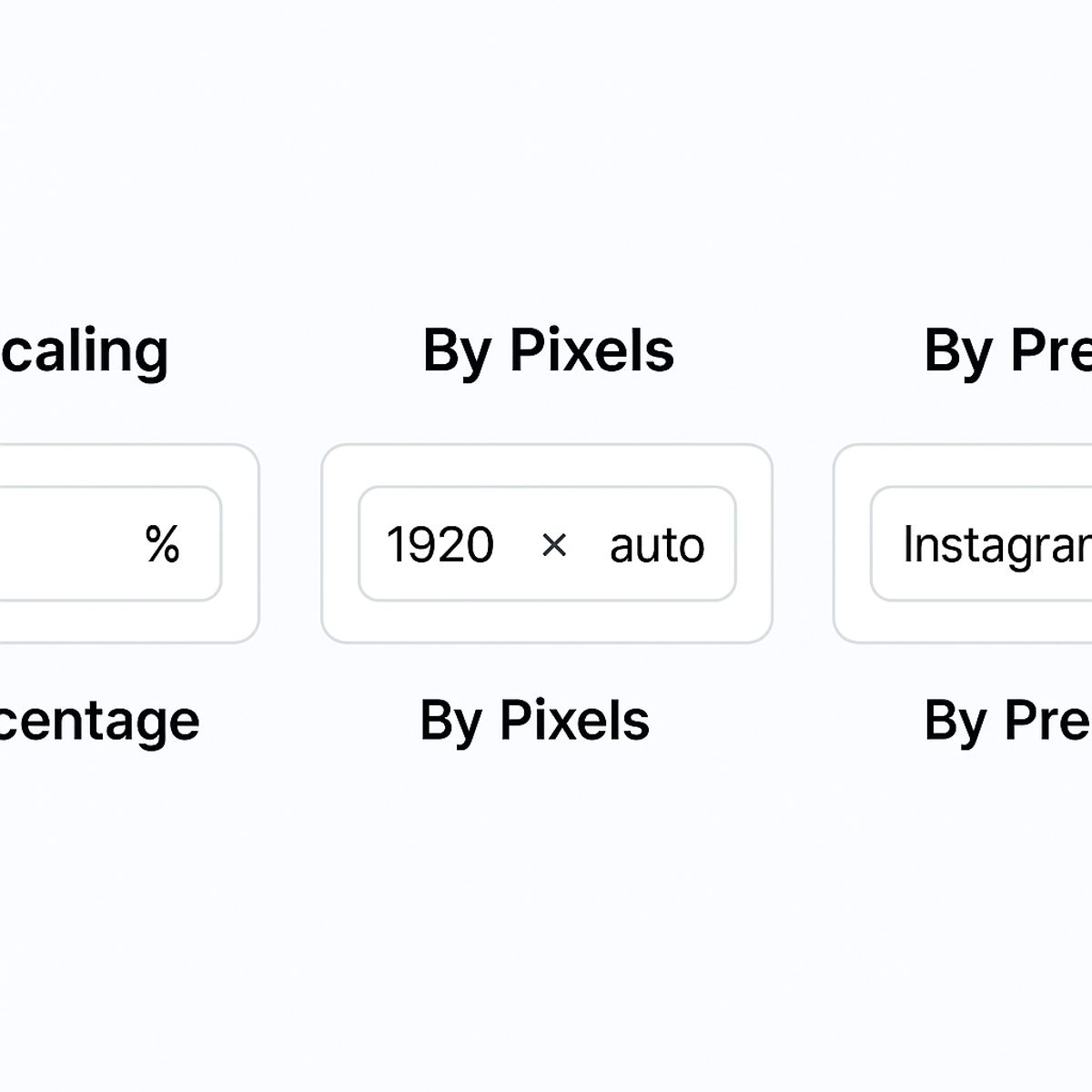
Three resize methods in PicDitt's tool: resize by percentage showing 50%, resize by exact pixels showing 1920px width, and resize by presets showing social media size options.
Step-by-Step: How to Resize Your Image
The actual process is fast. Once you've done it once, future resizes take seconds.
Step 1: Open the Tool
Go to:
https://picditt.com/social/zoom-image
You'll see a clean interface with an upload area.
Step 2: Upload Your Image
Drag and drop your image or click to browse. The tool accepts:
- JPG / JPEG
- PNG
- WebP
- GIF
- BMP
- SVG
Maximum input size is 50 MB, which handles even large camera RAW exports.
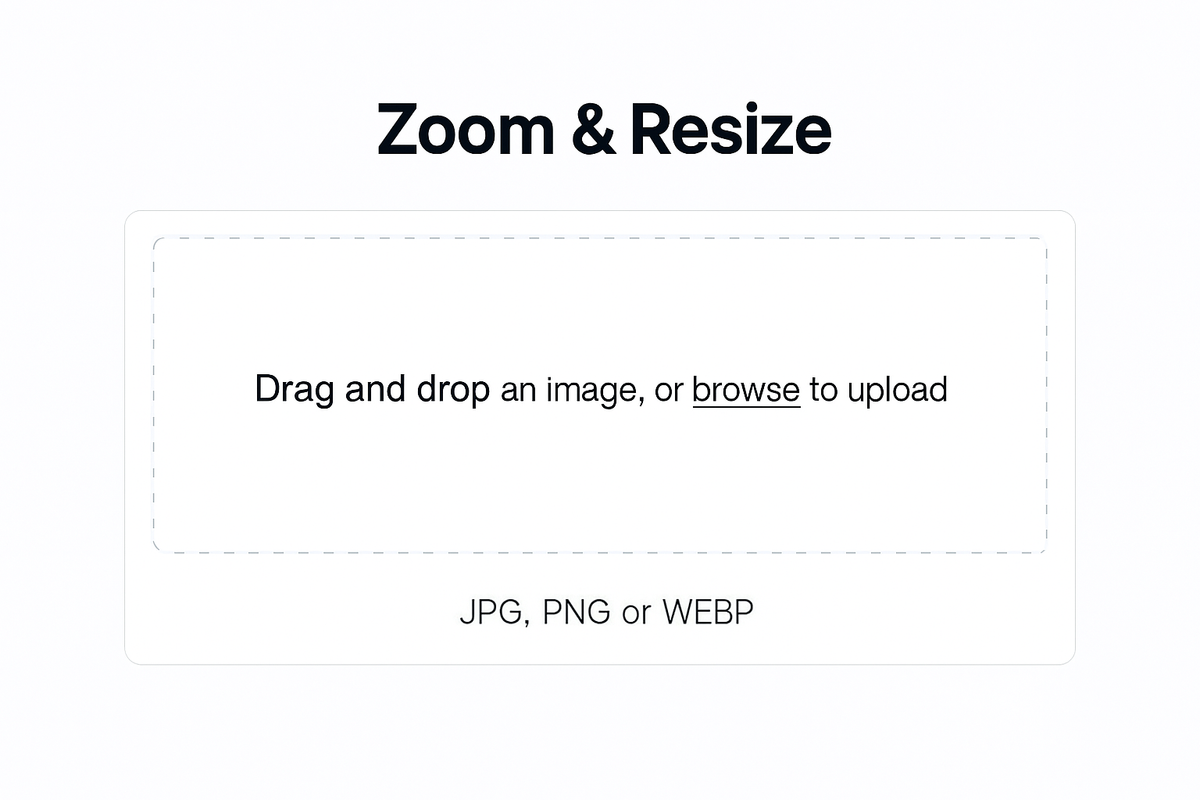
PicDitt Zoom and Resize tool showing the empty upload screen with drag-and-drop area and list of supported image formats.
Step 3: Choose Your Resize Method
Decide how you want to resize:
- Percentage: Enter a value (e.g., 75% to reduce, 150% to enlarge)
- Pixels: Enter exact width and/or height
- Preset: Select from the 40+ preset options
Step 4: Verify Aspect Ratio
Check that the aspect ratio lock is on (it should be by default). This prevents distortion.
Only unlock it if you specifically need non-proportional dimensions for a design purpose.
Step 5: Adjust Quality Settings (Optional)
For JPG and WebP outputs, you can adjust the compression quality:
- 90-100%: Maximum quality, larger file size
- 80-90%: Excellent balance of quality and file size (recommended)
- 70-80%: Good for web use where file size matters more
- Below 70%: Noticeable compression artifacts
For PNG output, quality is lossless by default.
Step 6: Fine-Tune (Optional)
If needed, adjust:
- Brightness – Lighten or darken
- Contrast – Add depth
- Saturation – Boost or mute colors
These are optional but can help polish your image while you're already in the tool.
Step 7: Choose Output Format
Select your preferred format:
- JPG – Best for photographs. Smaller file sizes. No transparency.
- PNG – Best for graphics, logos, screenshots. Supports transparency. Larger files.
- WebP – Excellent compression for web. Modern format supported by most browsers.
Step 8: Download
Click download. Your perfectly resized image is saved to your device, ready to use wherever you need it.
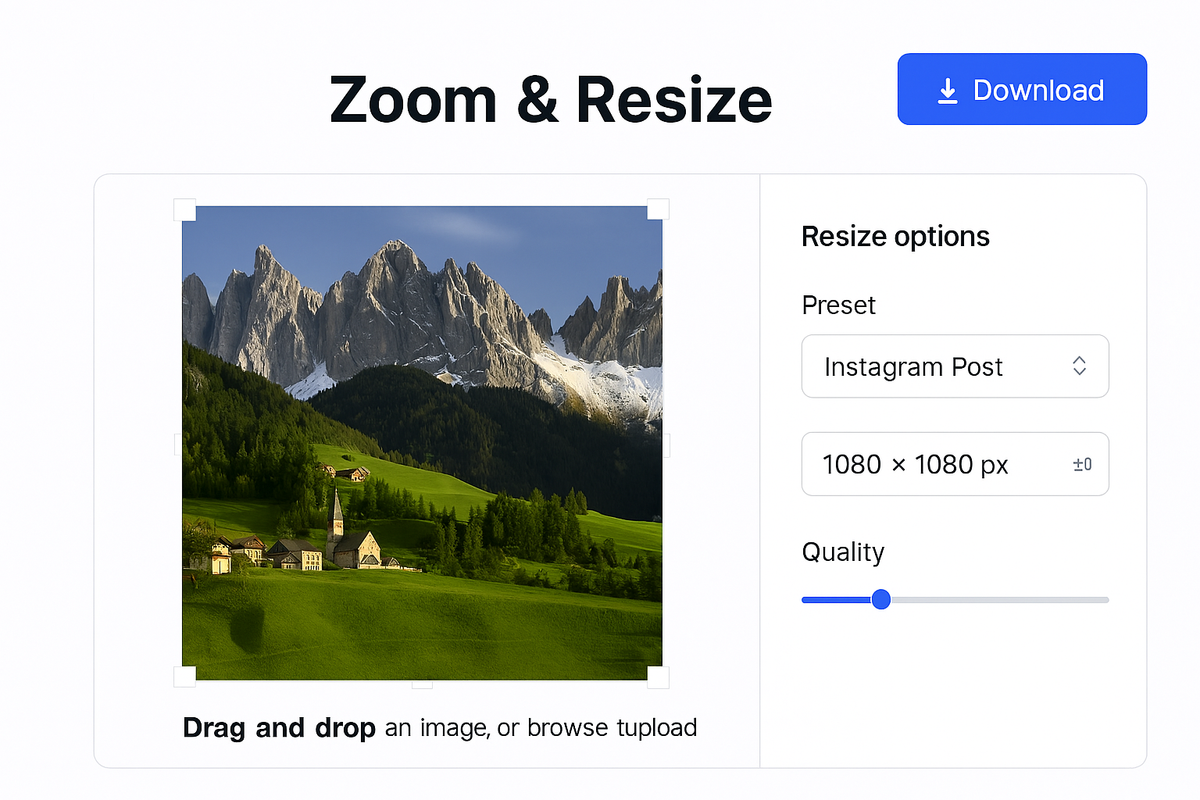
PicDitt Zoom and Resize tool with an image loaded, 1080×1080 preset selected, quality slider set to 85%, and download button highlighted.
Who Needs an Image Resizer? (Real-World Use Cases)
Almost everyone who works with images needs to resize them at some point. Here are the most common scenarios.
Social Media Managers & Creators
Every platform wants different dimensions. Instead of memorizing sizes, use the presets:
- Instagram post → 1080×1080
- Facebook cover → 820×312
- YouTube thumbnail → 1280×720
- Pinterest pin → 1000×1500
One tool, all platforms, correct dimensions every time.
Website Owners & Bloggers
Large images slow down websites. Resize blog images to match your content area width (typically 800-1200px) and compress them for fast loading. Your visitors and your SEO rankings will thank you.
Designers & Developers
Creating app icons? You often need the same icon at multiple sizes (16×16, 32×32, 64×64, 128×128, 256×256, 512×512). The presets make this a fast, repeatable process.
People Who Print Photos
Want to print a 4×6? An 8×10? A poster? Knowing the pixel dimensions you need (and starting with high enough resolution) is the difference between a sharp print and a blurry one.
Email Marketers
Email clients are picky about image sizes. Large images slow loading, break layouts, and get blocked. Resizing to appropriate dimensions and compressing before embedding keeps your emails clean and fast.
Everyday Users
Sometimes you just need to make a photo smaller to text to a friend, or slightly larger for a presentation slide. Quick, simple resizing without installing software.
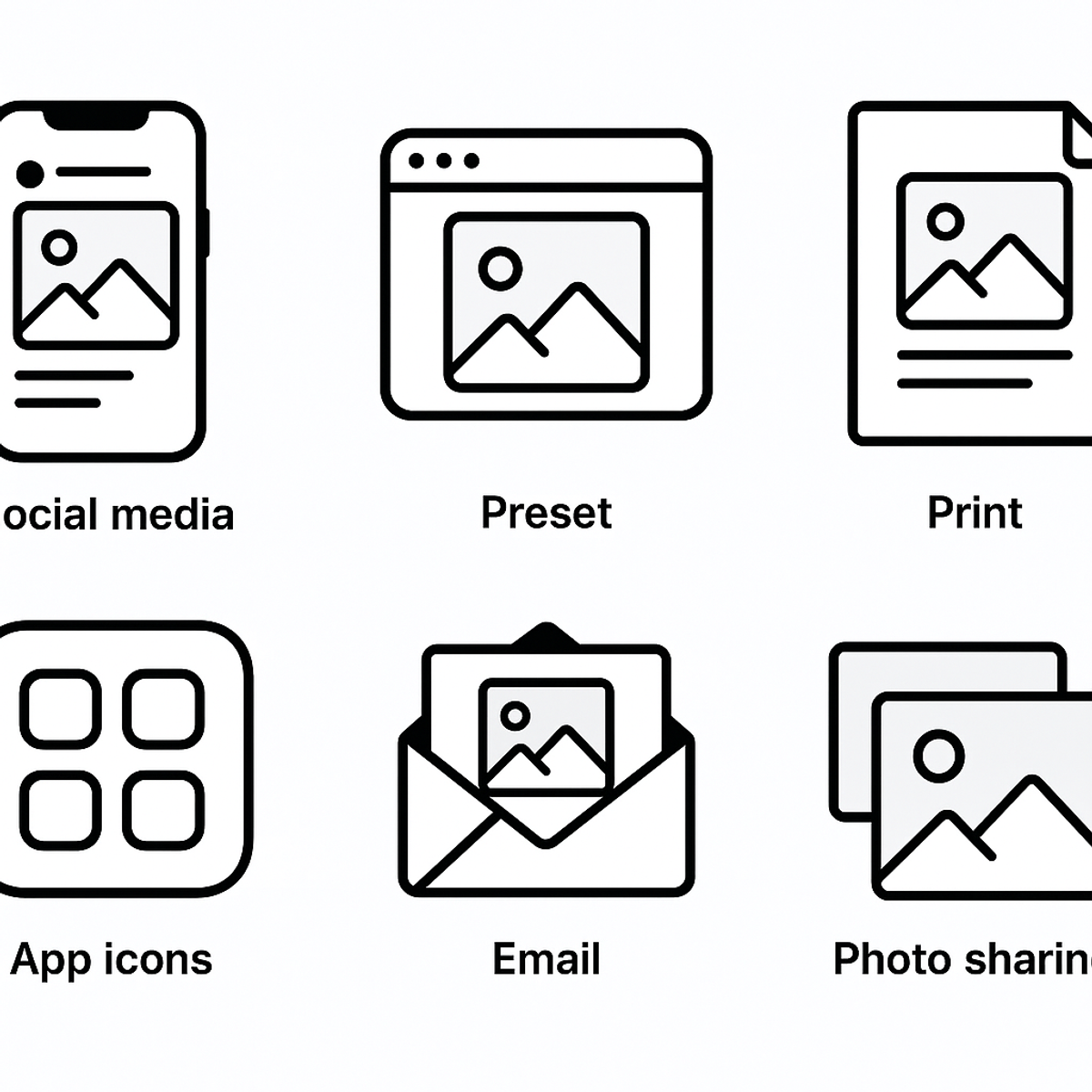
Collage showing different image resizing use cases: social media, websites, printing, app development, email marketing, and photo sharing.
Pro Tips for Getting the Best Results
After years of working with images, certain patterns emerge. These tips will save you time and prevent common mistakes.
Tip 1: Always Start with the Highest Resolution
It's always better to scale down than up. Keep your original, full-resolution files safe. Resize copies, not originals. If you start with a 6000×4000 photo from your camera, you can create any smaller size from it without quality loss.
Tip 2: Match Format to Content
Content Type
Best Format
Why
Photographs
JPG
Great color range, small files
Logos & Graphics
PNG
Sharp edges, transparency support
Web images
WebP
Smallest files, great quality
Screenshots
PNG
Preserves text sharpness
Using the wrong format for your content type either wastes file size or compromises quality.
Tip 3: Don't Resize Bigger Than You'll Display
If an image will only ever appear at 600px wide on your website, there's no reason to export it at 3000px. Match output dimensions to actual display size. This keeps files lean and pages fast.
Tip 4: Test Quality Between 80-90%
For JPG and WebP, quality settings between 80% and 90% offer the sweet spot: visually indistinguishable from 100% in most cases, but significantly smaller file sizes. Below 70%, compression artifacts become noticeable.
Tip 5: Check Your Output Before Using It
After resizing, quickly preview the result. Zoom in to check for:
- Blurriness (especially if you upscaled)
- Distortion (if aspect ratio was unlocked)
- Color shifts (rare, but possible with heavy compression)
A five-second check saves you from publishing or printing a flawed image.
Technical Specifications
For those who want the exact capabilities of the tool:
Specification
Details
Input Formats
JPG, JPEG, PNG, WebP, GIF, BMP, SVG
Output Formats
JPG, PNG, WebP
Maximum Input Size
50 MB per image
Maximum Output
8192 × 8192 pixels
Resize Range
1% to 500%
Quality Settings
1% to 100% (JPG/WebP)
Preset Categories
Social Media, Web, Print, Icons (40+ total)
Aspect Ratio
Locked (proportional) or Unlocked (free)
Adjustments
Brightness, Contrast, Saturation
Processing
100% browser-based (client-side)
Frequently Asked Questions
Is PicDitt's Zoom & Resize tool free?
Yes. Completely free with no watermarks, no signup, and no usage limits.
Are my images uploaded to a server?
No. Everything processes locally in your browser. Your images never leave your device, which means complete privacy.
Can I resize multiple images at once?
The tool currently handles one image at a time. However, since processing takes under a second, even batch work goes quickly.
What's the maximum I can upscale?
The tool allows up to 500% upscaling, but for best quality, try to stay within 200-300%. Beyond that, quality degrades because the tool has to invent pixels that don't exist in the original.
Which output format should I choose?
- JPG for photographs and general images
- PNG for graphics, logos, and anything needing transparency
- WebP for web use where smaller file sizes matter
Will resizing reduce my image quality?
Downscaling generally preserves quality very well. Upscaling can reduce quality if pushed too far. Using appropriate quality settings (80-90% for JPG/WebP) maintains visual quality while keeping file sizes manageable.
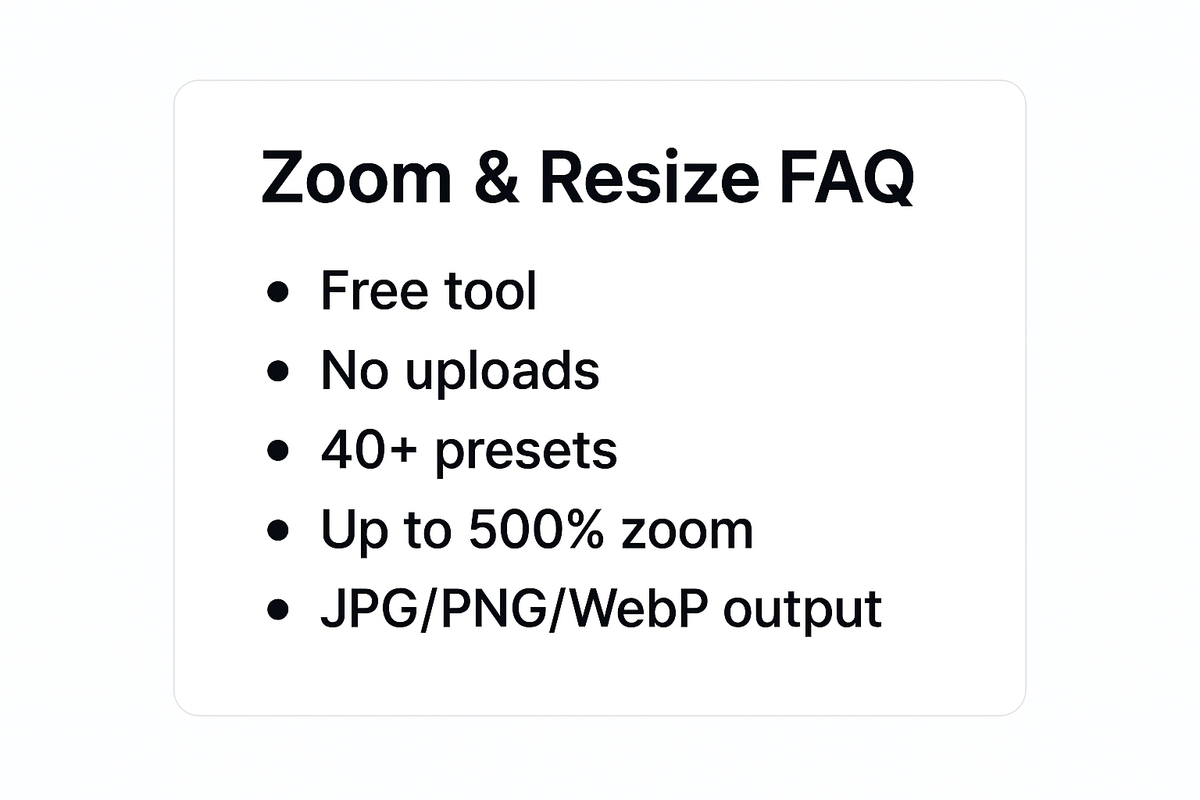
FAQ summary graphic for PicDitt's Zoom and Resize tool highlighting that it's free, private, includes 40+ presets, supports up to 500% zoom, and outputs JPG, PNG, and WebP.
Stop Fighting With Image Sizes
Every platform, every project, and every use case has different size requirements. Trying to remember them all—or worse, guessing and ending up with stretched, cropped, or blurry images—wastes time and makes your work look less professional than it deserves.
PicDitt's free Zoom & Resize Images tool at:
https://picditt.com/social/zoom-image
gives you three flexible ways to resize (percentage, pixels, presets), 40+ ready-made size options for every major platform, quality controls that let you balance sharpness and file size, and complete privacy with zero server uploads.
Whether you're preparing social media content, optimizing website images, creating print-ready files, or simply making a photo the right size to share with a friend, this tool handles it in seconds.
Your images already look great. Now make sure they're the right size too.
Call-to-action banner inviting readers to resize their images using PicDitt's free Zoom and Resize tool, with text showing 40+ Presets, Pixel Perfect, 100% Free.
You Might Also Like
Screenshot Editor – Edit, Annotate & Share Screenshots Like a Pro
Edit screenshots instantly with PicDitt's free online screenshot editor. Add text, arrows, shapes, blur sensitive info, crop, and export in PNG, JPEG, or WebP. No signup required.
Read More →
Magic Eraser Online: How to Remove Unwanted Objects from Photos with AI
Photobombers, power lines, watermarks, blemishes—every photo has something you wish wasn't there. Learn how to use PicDitt's free Magic Eraser to brush over any unwanted object and watch AI remove it seamlessly, all directly in your browser with complete privacy.
Read More →
How to Compress Images to an Exact File Size: The Complete Guide to Target Compression
Need your image to be exactly 500KB for a government form or under 25MB for Gmail? Learn how to compress any image to a precise file size using PicDitt's free Target Compression tool—without guessing quality settings or losing more quality than necessary.
Read More →