YouTube Banner Maker with Safe Zone Guides: Design Channel Art That Looks Perfect on Every Device
YouTube Banner Maker with Safe Zone Guides: Design Channel Art That Looks Perfect on Every Device
Here's something most new YouTubers learn the hard way.
They spend an hour designing the perfect channel banner. It looks incredible on their laptop screen. The channel name is crisp, the colors pop, and the layout feels balanced. They upload it, admire it on desktop, and move on with their day.
Then someone visits their channel on a phone.
Half the text is missing. The logo is cut off. The carefully placed social media handles? Completely invisible. What looked like professional channel art on a 15-inch screen turned into an unreadable mess on a 6-inch phone.
The problem isn't bad design. The problem is that YouTube displays your banner differently on every single device—and most people don't realize this until it's too late.
On a TV, viewers see the entire 2560×1440 pixel image. On a desktop browser, they only see a narrow horizontal strip. On a tablet, even less. And on a phone? Just a tiny sliver in the center.
That's why designing a YouTube banner isn't just about making something pretty. It's about understanding safe zones—the areas of your banner that are guaranteed to be visible no matter what device someone uses to view your channel.
And that's exactly what PicDitt's free YouTube Banner Maker is built to handle.
At https://picditt.com/social/youtube-banner, you get a tool that not only creates properly sized 2560×1440 banners but also includes color-coded safe zone guides that show you exactly what will be visible on mobile, tablet, desktop, and TV—before you upload anything to YouTube.
Let me show you how it works, why it matters, and how to create channel art that actually looks professional everywhere.
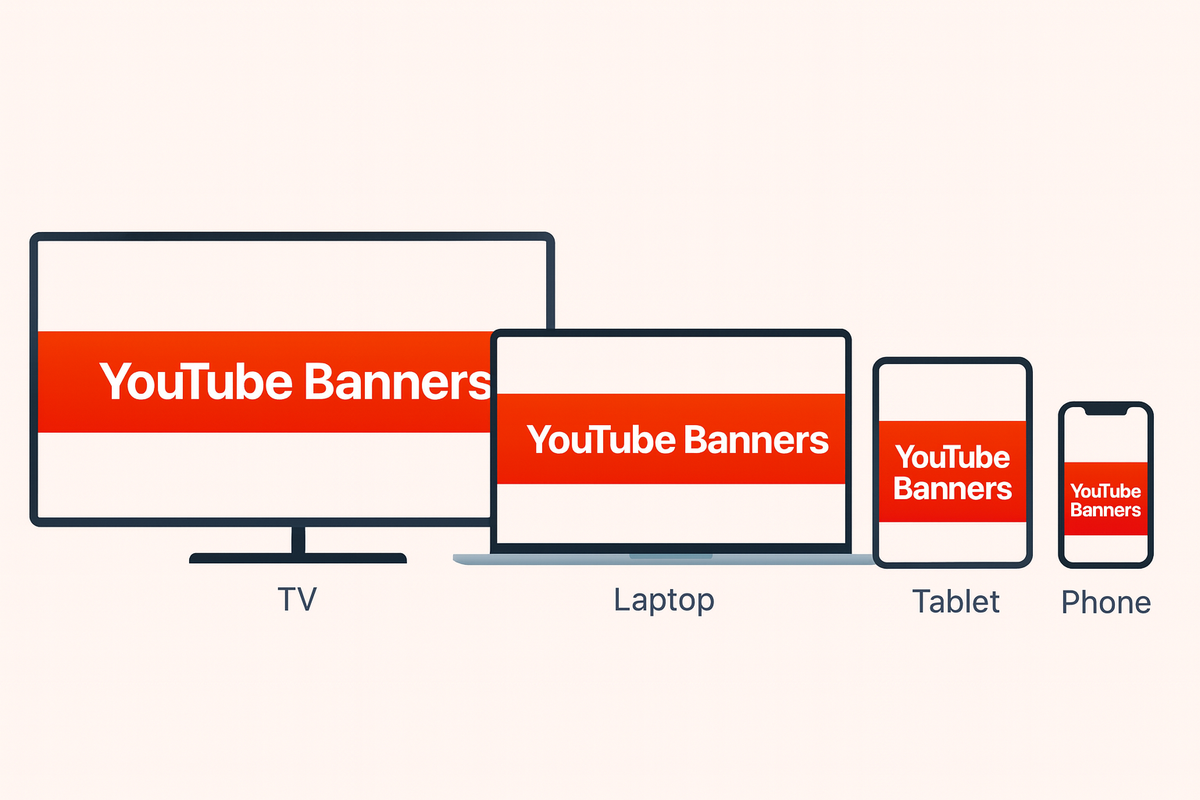
The same YouTube banner displayed on TV, desktop, tablet, and mobile, showing how each device shows a different portion of the banner image.
What Is a YouTube Channel Banner (And Why Should You Care)?
Your YouTube channel banner—sometimes called channel art or a header image—is the large rectangular image that stretches across the top of your channel page.
Think of it as your channel's billboard.
It's one of the very first things a visitor sees when they land on your channel. Before they read your video titles, before they check your subscriber count, before they watch a single second of content—they see your banner.
That banner communicates a lot in a split second:
- Who you are (channel name, face, or logo)
- What your channel is about (tagline, content style)
- How professional you are (design quality, consistency)
- Whether they should subscribe (first impressions matter)
A blurry, poorly cropped, or generic banner tells visitors you don't take your channel seriously. A clean, well-designed banner with clear branding tells them you're worth their time.
The Numbers Behind First Impressions
Studies consistently show that people form opinions about websites and profiles within the first few seconds. Your banner occupies the largest visual space on your channel page. If it looks amateur, visitors may leave before scrolling down to your content.
On the other hand, a polished banner creates trust. It signals that if you put effort into your branding, you probably put effort into your videos too.
The Safe Zone Problem (And Why Most Banners Fail)
Here's the part that trips up most creators—even experienced ones.
YouTube officially recommends a banner size of 2560×1440 pixels. That sounds simple enough. But the catch is that YouTube never shows the full image unless the viewer is on a TV.
How YouTube Crops Your Banner by Device
Device
Visible Area
What Gets Shown
TV
2560 × 1440px
Full banner
Desktop
2560 × 423px
A narrow horizontal strip across the center
Tablet
1855 × 423px
Less than desktop, centered
Mobile
1546 × 423px
The smallest visible area, dead center
That means:
- If you put your channel name near the top of the banner → invisible on mobile, tablet, and desktop
- If you place your logo on the far left or right → cut off on tablets and phones
- If your tagline sits outside the center strip → nobody on mobile will ever see it
This is why so many YouTube banners look broken on phones. The creator designed for the full 2560×1440 canvas without realizing that most viewers only see a fraction of it.
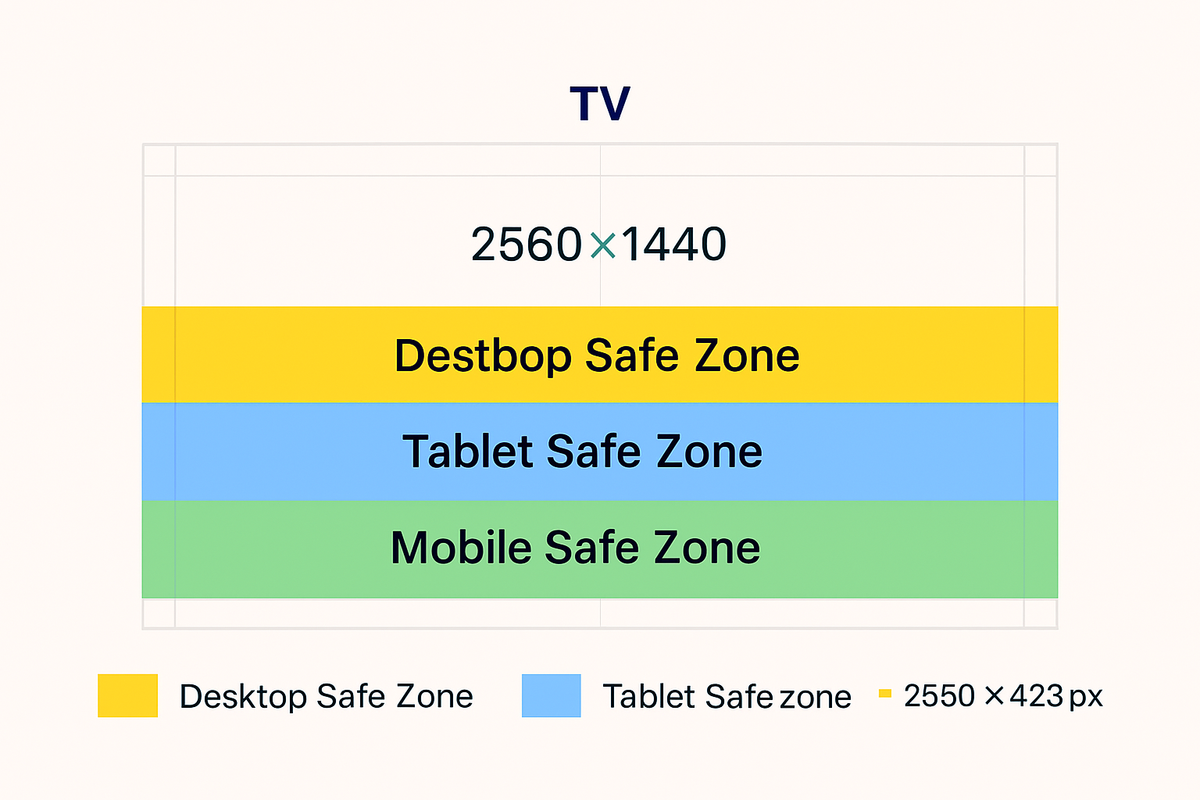
YouTube banner safe zone diagram showing mobile safe area (green), tablet safe area (blue), desktop safe area (yellow), and full TV display area on a 2560×1440 canvas.
The Golden Rule: Design for Mobile First
If there's one takeaway from this entire article, it's this:
Always place your most important elements inside the mobile safe zone: the center 1546×423 pixels.
This includes:
- ✅ Your channel name
- ✅ Your logo
- ✅ Your tagline or slogan
- ✅ Your upload schedule (if you show it)
- ✅ Any call-to-action text
Everything in that center zone is guaranteed to be visible on every device—mobile, tablet, desktop, and TV.
The outer areas of the banner (above, below, and to the sides of the center strip) are only visible on larger screens. Use those for:
- Decorative background imagery
- Extended patterns or colors
- Secondary graphics that enhance the design but aren't critical
Think of it like designing a billboard where you know the edges might be covered by trees. The core message goes in the middle. The pretty scenery fills the rest.
How PicDitt's YouTube Banner Maker Solves This
This is where PicDitt's tool saves you from the guessing game.
At https://picditt.com/social/youtube-banner, you get a banner creator that includes built-in safe zone overlays. While you design, you can toggle colored guides that show exactly what will be visible on each device type.
No more uploading a banner to YouTube, checking it on your phone, realizing it's wrong, going back to Photoshop, tweaking it, re-uploading, checking again... and repeating that frustrating loop five times.
With PicDitt, you see everything in real time. If your text is outside the mobile zone, you'll know immediately—before you ever upload to YouTube.
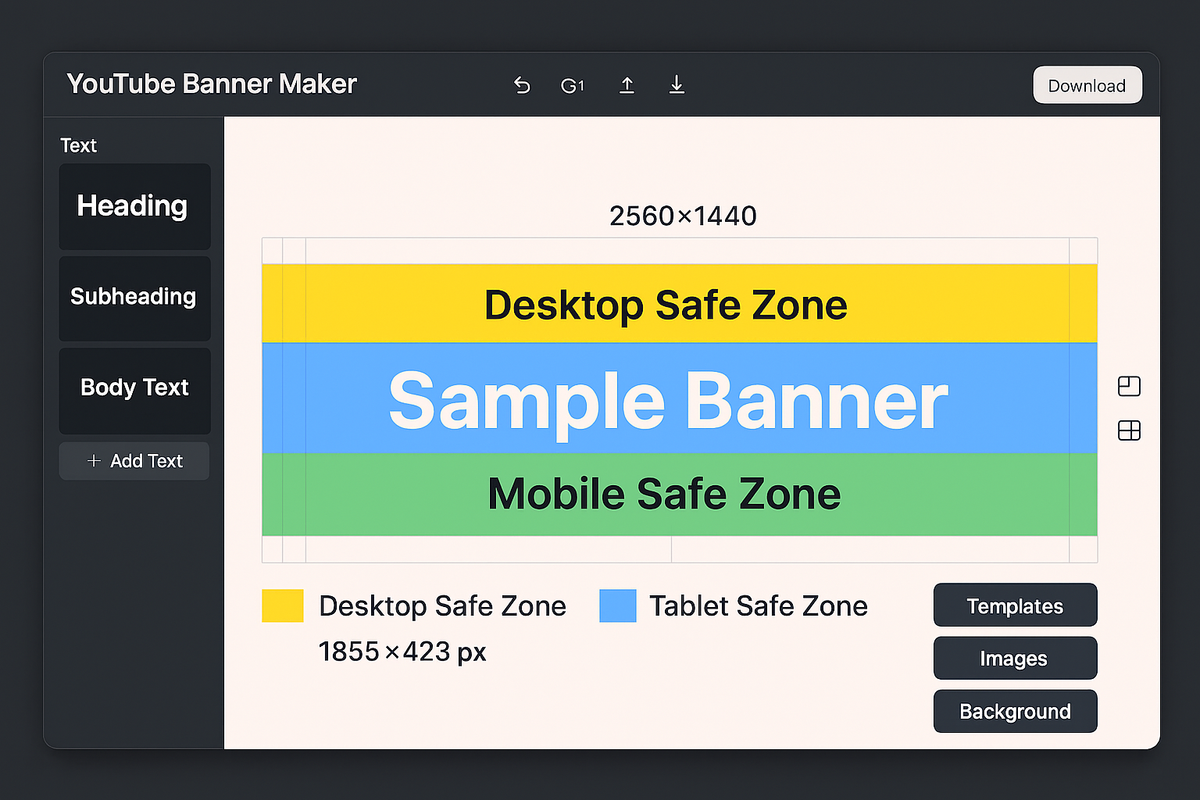
Screenshot of PicDitt's YouTube Banner Maker tool with color-coded safe zone guides visible over a sample YouTube banner design.
Key Features of the Tool
Safe Zone Visualization
Toggle overlays for mobile, tablet, desktop, and TV zones. Each is color-coded so you instantly see which parts of your design are safe and which might get cropped.
Device Previews
Before downloading, preview how your banner will actually look on each device type. This removes all guesswork and ensures consistency.
Text Overlay
Add your channel name, tagline, upload schedule, or any custom text directly in the tool. Choose from various fonts and styles without needing external design software.
Background Options
Start with your own uploaded image, or create a banner from scratch using:
- Solid colors – Clean, branded backgrounds
- Gradients – Modern, eye-catching transitions
- Smart blur – Soft backgrounds based on your uploaded image
Image Adjustments
Fine-tune your banner with brightness, contrast, saturation, and positioning controls. Get the look exactly right without switching to another tool.
Complete Privacy
Everything processes in your browser. Your images are never uploaded to any server. Fast, private, and secure.
Step-by-Step: Creating Your YouTube Banner
Here's the actual process from start to finish.
Step 1: Prepare Your Content
Before opening the tool, gather what you need:
- Channel name (as you want it displayed)
- Logo file (if you have one)
- Tagline or description (one short line about your content)
- Background image (optional—you can use solid colors or gradients instead)
- Brand colors (if you have specific colors you use consistently)
Having these ready makes the process much faster.
Step 2: Open the Tool
Visit:
https://picditt.com/social/youtube-banner
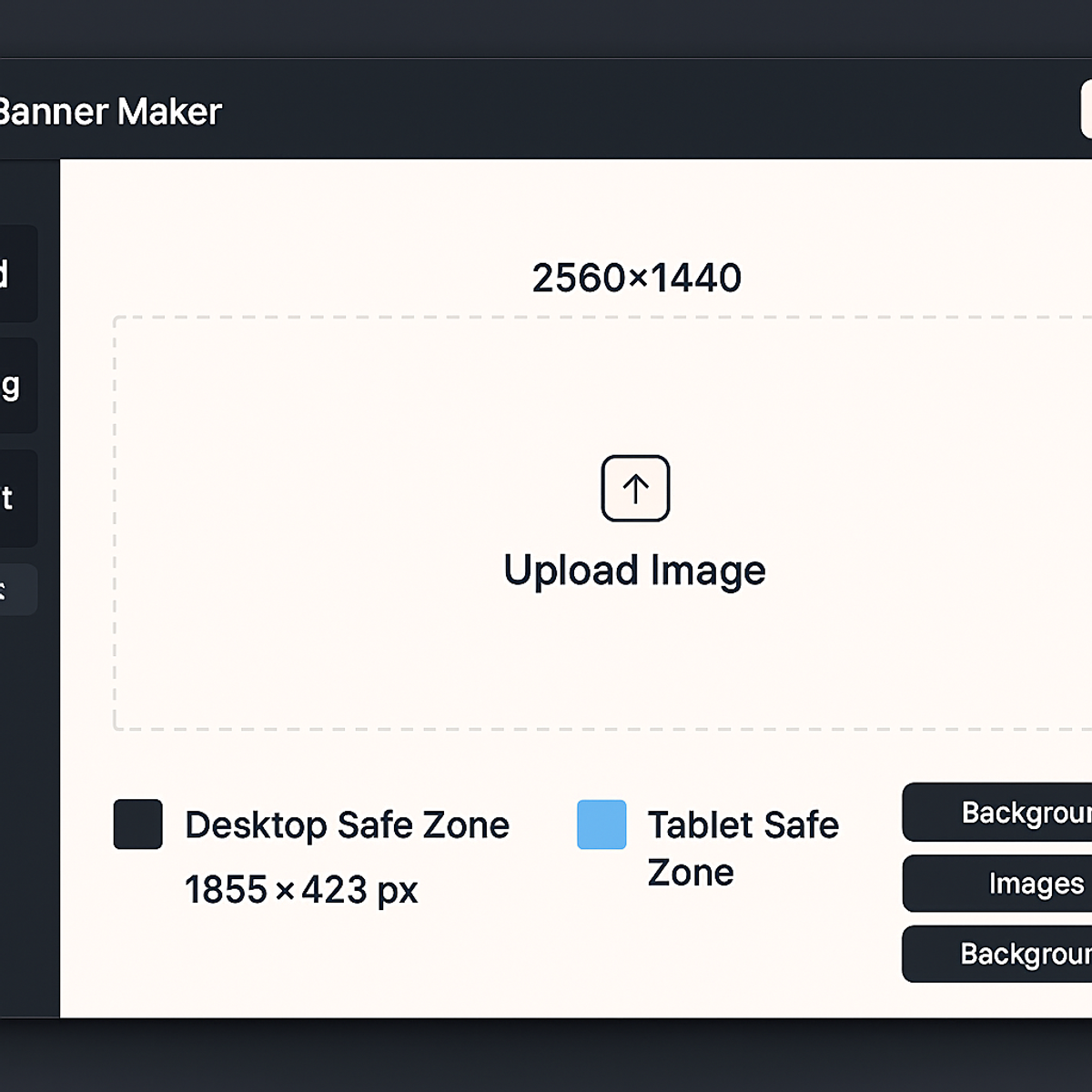
PicDitt YouTube Banner Maker tool showing the empty canvas with upload button and options to start with a solid color or gradient background.
Step 3: Upload or Choose a Background
You have two paths:
Path A: Upload your own image
- Drag and drop or click to browse
- Use an image at least 2560×1440 pixels for best quality
- The tool accepts JPG, JPEG, PNG, WebP, GIF
Path B: Start with a color or gradient
- Choose a solid color that matches your brand
- Or select a gradient for a modern, professional look
- You can add text and elements on top
Step 4: Turn On Safe Zone Guides
This is the crucial step most other tools skip.
Toggle on the safe zone overlays. You'll see colored rectangles showing:
- Mobile safe zone (innermost) – Your critical content goes here
- Tablet safe zone – Slightly wider
- Desktop safe zone – Full width but narrow height
- TV area – The entire canvas
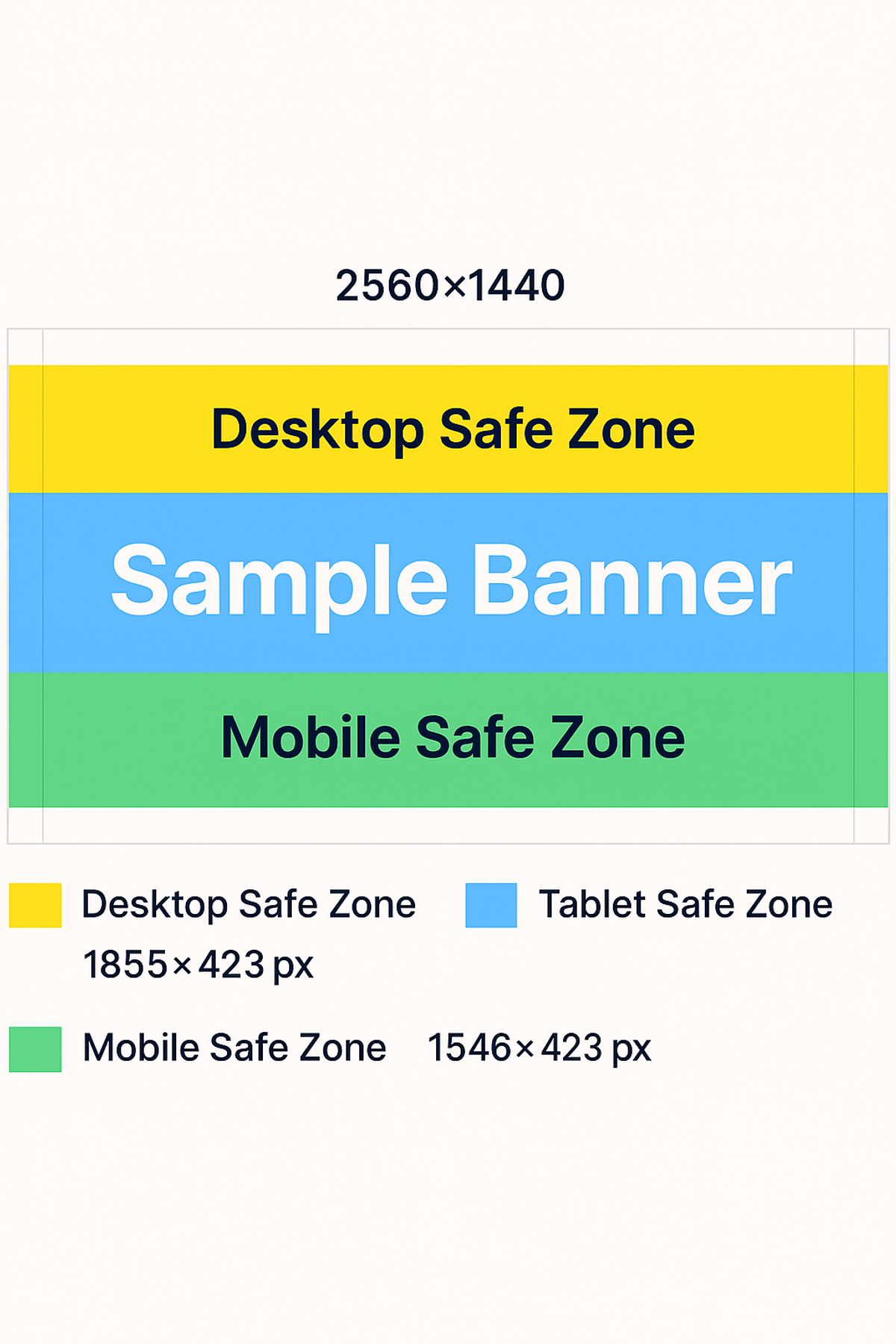
YouTube Banner Maker canvas with safe zone guides activated showing mobile, tablet, desktop, and TV zones in different colors.
Step 5: Add Your Text and Design Elements
Now design within the zones:
- Add your channel name → Place it inside the mobile safe zone
- Add your tagline → Below the channel name, still within mobile zone
- Add your logo → Center or alongside the channel name
- Add upload schedule (optional) → "New videos every Tuesday" etc.
- Decorative elements → These can extend beyond the mobile zone
Remember: anything outside the mobile safe zone might be invisible to a large portion of your audience.
Step 6: Preview on Different Devices
Use the device preview feature to see your banner as it would appear on:
- A TV screen (full image)
- A desktop browser (center strip)
- A tablet (slightly narrower)
- A mobile phone (narrowest view)
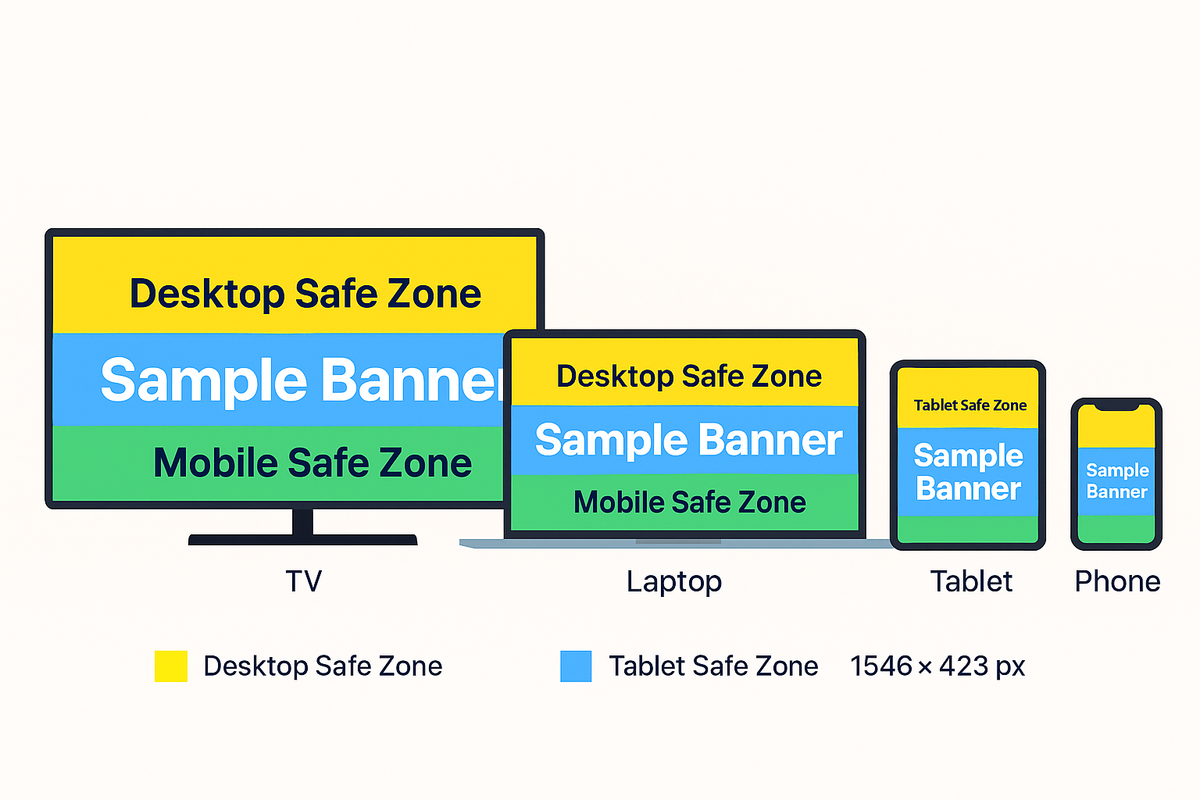
Device preview in PicDitt's YouTube Banner Maker showing how the same banner design appears on TV, desktop, tablet, and mobile screens.
If anything important is cut off on the mobile preview, go back and adjust.
Step 7: Download Your Banner
When you're satisfied:
- Click Download
- Choose JPG (smaller file, good quality) or PNG (maximum quality)
- Make sure the file is under 6 MB (YouTube's upload limit)
- Save to your device
Step 8: Upload to YouTube
- Go to YouTube Studio (studio.youtube.com)
- Click Customization → Branding (or Layout, depending on version)
- Under Banner image, click Upload or Change
- Select your downloaded banner
- YouTube will show a preview—confirm it looks right
- Save changes
Your new banner is now live across all devices.
What to Put in Your Banner (and Where)
Here's a practical placement guide for the elements that matter most.
Center Mobile Safe Zone (1546×423px) – Critical Content
Element
Why It Goes Here
Channel Name
Must be visible everywhere
Logo
Brand recognition at a glance
Tagline
Tells visitors what you're about
Upload Schedule
Sets expectations for subscribers
Call to Action
"Subscribe" or similar prompt
Extended Areas (Desktop/TV Only) – Supporting Content
Element
Why It Goes Here
Background Imagery
Adds atmosphere and context
Social Media Handles
Nice to have but not critical
Extended Branding
Patterns, colors, textures
Decorative Graphics
Enhance design on larger screens
Common YouTube Banner Mistakes (And How to Avoid Them)
Mistake 1: Ignoring Safe Zones
The most common mistake. Designers create beautiful full-canvas art without checking how it looks on mobile. Result: cropped text, hidden logos, wasted effort.
Fix: Always design with safe zone guides on. Mobile-first, always.
Mistake 2: Using Low-Resolution Images
YouTube recommends 2560×1440 pixels. Uploading smaller images results in blurry, pixelated banners that look unprofessional.
Fix: Start with the highest resolution image possible. PicDitt's tool is built around the 2560×1440 standard.
Mistake 3: Too Much Text
Banners are visual, not essays. Cramming in paragraphs of text makes the banner cluttered and hard to read—especially on mobile.
Fix: Stick to essentials: channel name, tagline, and maybe one more line. Let the design breathe.
Mistake 4: Clashing Colors
Text that blends into the background is invisible. Dark text on a dark photo, light text on a pale background—these kill readability.
Fix: Use high contrast. Light text on dark backgrounds. Dark text on light backgrounds. Test readability at a glance.
Mistake 5: Forgetting to Update
A banner from 2019 with outdated branding or information makes your channel look abandoned.
Fix: Update your banner whenever you rebrand, change content focus, or want a fresh look. The tool is free, so there's no cost to refreshing.
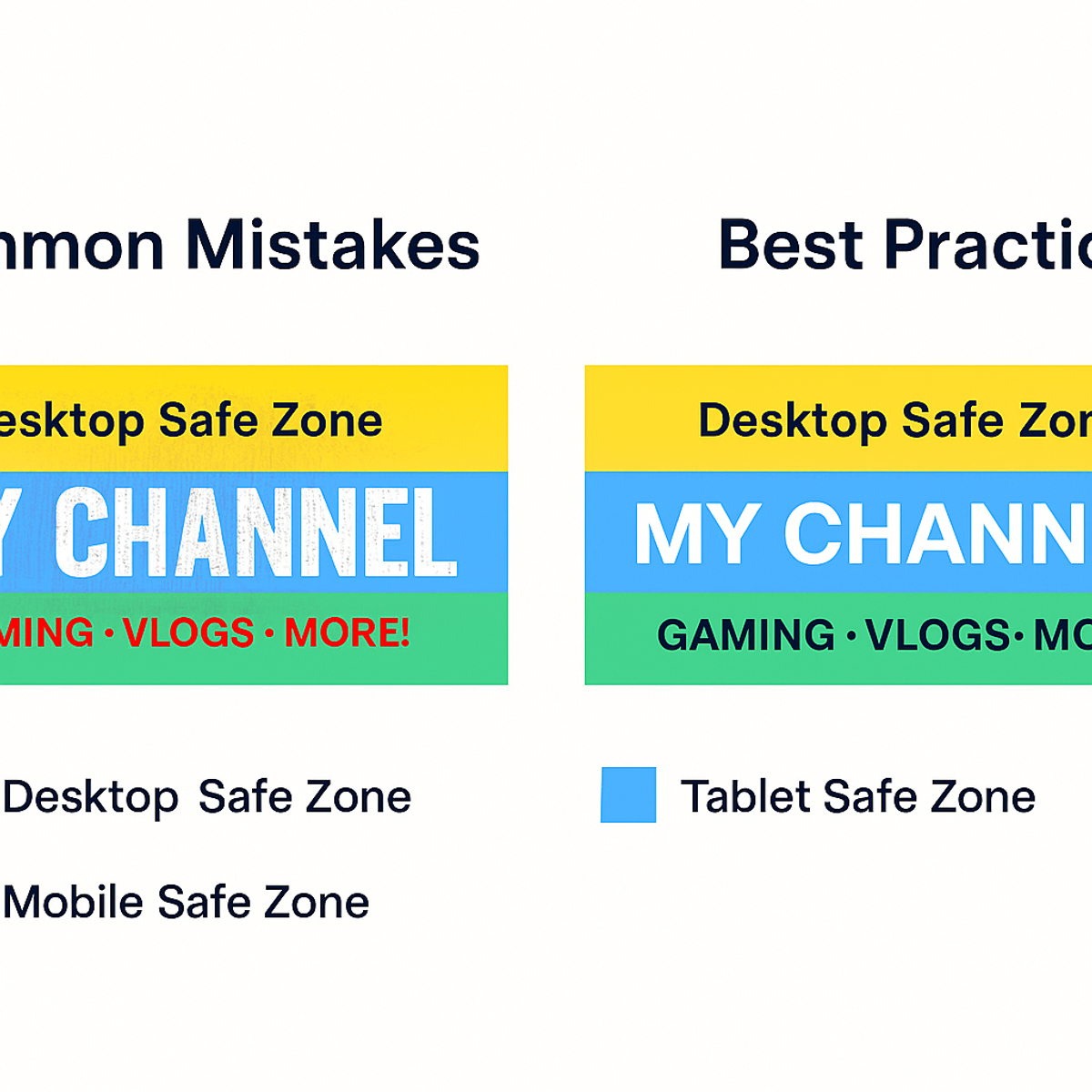
Comparison of a poorly designed YouTube banner with text outside safe zones versus a well-designed banner with content properly placed within the mobile safe zone.
Who Needs a YouTube Banner Maker?
Whether you're just starting or have been on YouTube for years, there's always a reason to create or update your banner.
New Channels
First impressions matter. A professional banner tells your first visitors that this channel is worth subscribing to—even before they watch a single video.
Rebranding Creators
Changing your content style, niche, or name? A new banner signals the shift and keeps your branding consistent.
Businesses on YouTube
Companies using YouTube for marketing need banners that reflect their brand identity. Logos, taglines, and brand colors should be front and center.
Seasonal or Event-Based Updates
Holiday specials, product launches, milestone celebrations—temporary banners keep your channel feeling alive and current.
Creators Growing Their Brand
As your channel grows, your branding should grow with it. What worked at 100 subscribers might not reflect who you are at 10,000.
Frequently Asked Questions
What size should a YouTube banner be?
YouTube recommends 2560×1440 pixels. This is the full canvas size. The mobile safe zone (the most important area) is 1546×423 pixels centered within that.
What's the maximum file size YouTube allows?
6 MB. PicDitt's tool exports optimized files that stay well within this limit.
Is PicDitt's YouTube Banner Maker free?
Yes. Completely free with no watermarks, no account required, and no limits on how many banners you create.
Are my images uploaded to a server?
No. Everything processes locally in your browser. Your images stay on your device. 100% private.
Can I add text to my banner in the tool?
Yes. PicDitt's tool includes text overlay features with various fonts and styling options. You can add your channel name, tagline, and more directly in the tool.
What if I don't have a background image?
No problem. You can start with a solid color or gradient background and build your banner from there. Many professional banners use simple colored backgrounds with clean text.
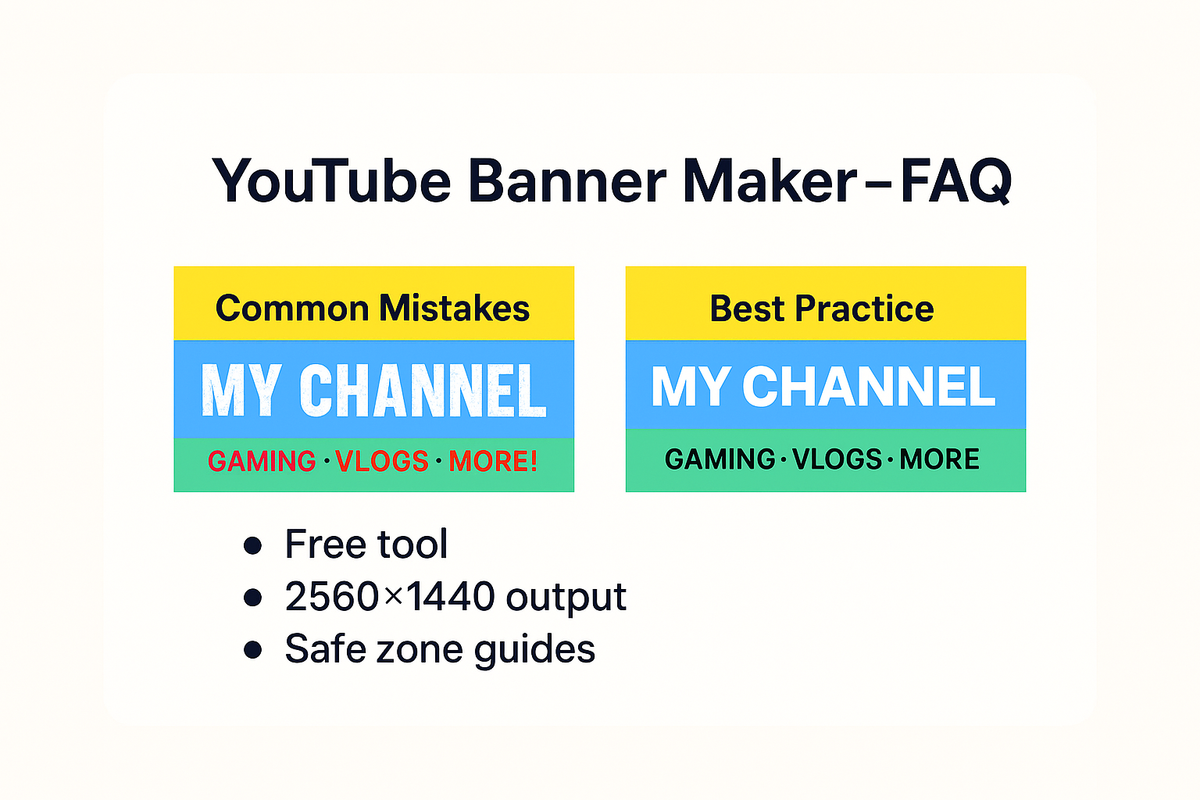
FAQ summary graphic for PicDitt's YouTube Banner Maker highlighting that it's free, outputs 2560×1440 banners, includes safe zone guides, and is 100% private.
Your Channel Deserves Better Than a Guessing Game
Designing a YouTube banner shouldn't require uploading, checking, re-editing, and re-uploading five times just to get the text in the right spot. And it definitely shouldn't require expensive design software or hiring a professional for what should be a straightforward task.
PicDitt's free YouTube Banner Maker with built-in safe zone guides at:
https://picditt.com/social/youtube-banner
...takes the guesswork out of the equation. You see exactly what every viewer will see—on mobile, tablet, desktop, and TV—before you ever upload to YouTube.
Whether you're launching a brand new channel, refreshing an existing one, or preparing for a special event, the tool gives you everything you need to create professional, properly sized channel art in minutes.
Your content is worth watching. Make sure your banner reflects that.
Call-to-action banner inviting readers to design their YouTube banner using PicDitt's free Banner Maker with safe zone guides.
You Might Also Like
Screenshot Editor – Edit, Annotate & Share Screenshots Like a Pro
Edit screenshots instantly with PicDitt's free online screenshot editor. Add text, arrows, shapes, blur sensitive info, crop, and export in PNG, JPEG, or WebP. No signup required.
Read More →
Magic Eraser Online: How to Remove Unwanted Objects from Photos with AI
Photobombers, power lines, watermarks, blemishes—every photo has something you wish wasn't there. Learn how to use PicDitt's free Magic Eraser to brush over any unwanted object and watch AI remove it seamlessly, all directly in your browser with complete privacy.
Read More →
How to Compress Images to an Exact File Size: The Complete Guide to Target Compression
Need your image to be exactly 500KB for a government form or under 25MB for Gmail? Learn how to compress any image to a precise file size using PicDitt's free Target Compression tool—without guessing quality settings or losing more quality than necessary.
Read More →