WhatsApp DP Resizer: How to Fit Your Full Photo Without Cropping or Losing Quality
WhatsApp DP Resizer: How to Fit Your Full Photo Without Cropping or Losing Quality
Let me paint a picture you've probably experienced.
You've got this perfect photo. Maybe it's from a vacation where the sunset was absolutely unreal. Maybe it's a group shot from a friend's wedding where everyone actually looked good at the same time (a miracle, honestly). Or maybe it's just a really solid selfie where your hair cooperated for once.
You want to make it your WhatsApp display picture.
You open WhatsApp, tap on your profile, select the photo... and then watch in horror as the app forces you to zoom in and crop out half the image. The sunset? Gone. Your friend on the left? Decapitated. That good hair day? Now it's just your forehead.
Sound familiar?
WhatsApp profile pictures are square. Your photos usually aren't. And WhatsApp's built-in editor doesn't give you many options—it's either crop aggressively or don't use the photo at all.
But here's the thing: you don't have to choose between your favorite photo and a properly sized DP.
There's a better way. And today I'm going to show you exactly how to fit any photo into a WhatsApp profile picture without losing a single pixel of what matters.
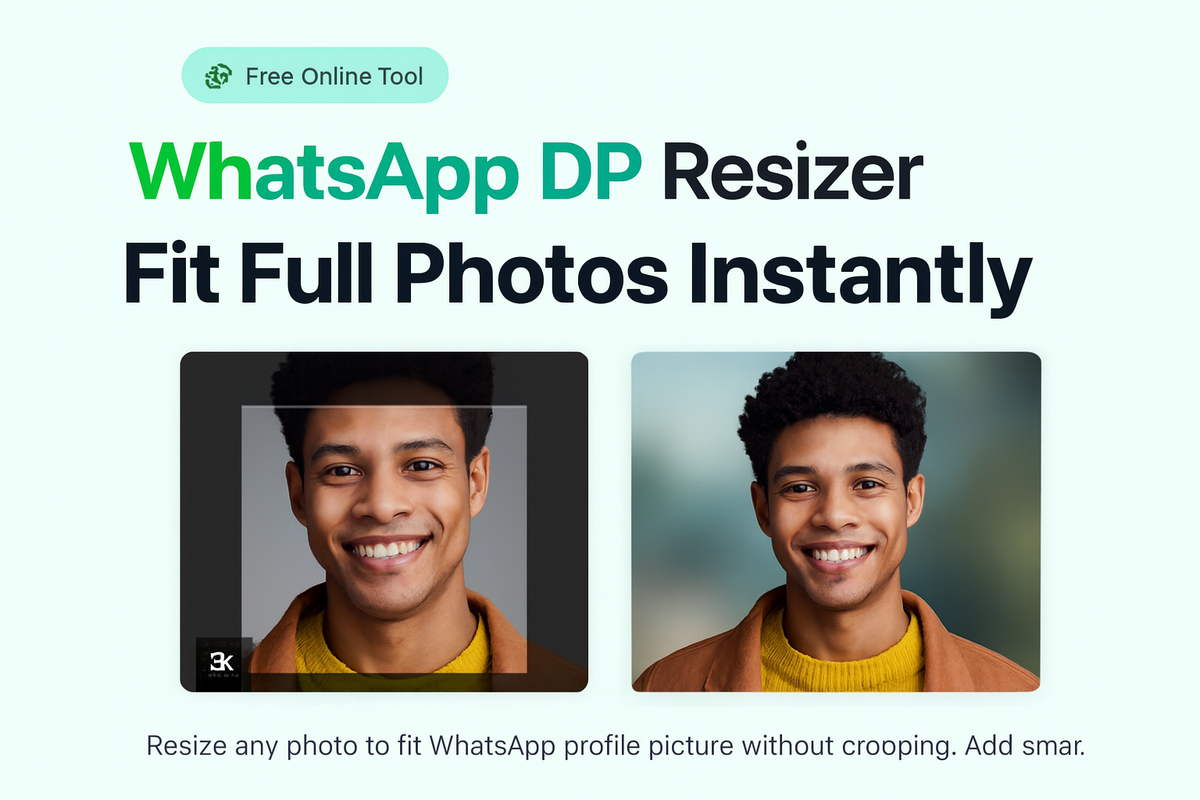
Comparison showing a photo cropped by WhatsApp's default editor on the left and the same full photo fitted into a square with blurred background on the right using a DP resizer.
The Problem with WhatsApp Profile Pictures
Before we get to the solution, let's understand why this keeps happening.
WhatsApp Wants Squares
WhatsApp displays profile pictures as circles on most screens—in chats, contact lists, and group info. But behind the scenes, it stores them as square images and then crops them into circles for display.
When you upload a rectangular photo (which is what most phone cameras shoot), WhatsApp forces you to select a square portion of that image. Whatever falls outside that square gets cut.
Your Camera Doesn't Shoot Squares
Most smartphone cameras default to:
- 4:3 ratio – The standard photo mode
- 16:9 ratio – Widescreen mode
- Full sensor – Which varies by phone but is rarely square
So unless you specifically set your camera to shoot 1:1 squares (which most people don't), every photo you take will need some adjustment before it fits WhatsApp's requirements.
The Built-In Editor Is Limited
WhatsApp lets you pinch and zoom, but that's about it. You can't:
- Add borders or backgrounds
- Resize the photo while keeping everything visible
- Apply any effects or enhancements
Your only options are "crop more" or "crop slightly less."
The Simple Solution: A WhatsApp DP Resizer
Here's where things get better.
A WhatsApp DP Resizer is a tool that takes your original photo—whatever shape it is—and places it inside a square canvas. Instead of cutting off parts of your image, it fills the extra space around your photo with something that looks good: a blurred version of the image, a solid color, or a gradient.
The result? A perfectly square image where your entire original photo is visible, ready to upload to WhatsApp without any cropping.
PicDitt offers a free WhatsApp DP Resizer at:
https://picditt.com/social/whatsapp-dp
It works directly in your browser, processes images in under a second, and doesn't upload your photos anywhere. Let me show you how it works and why it's worth bookmarking.
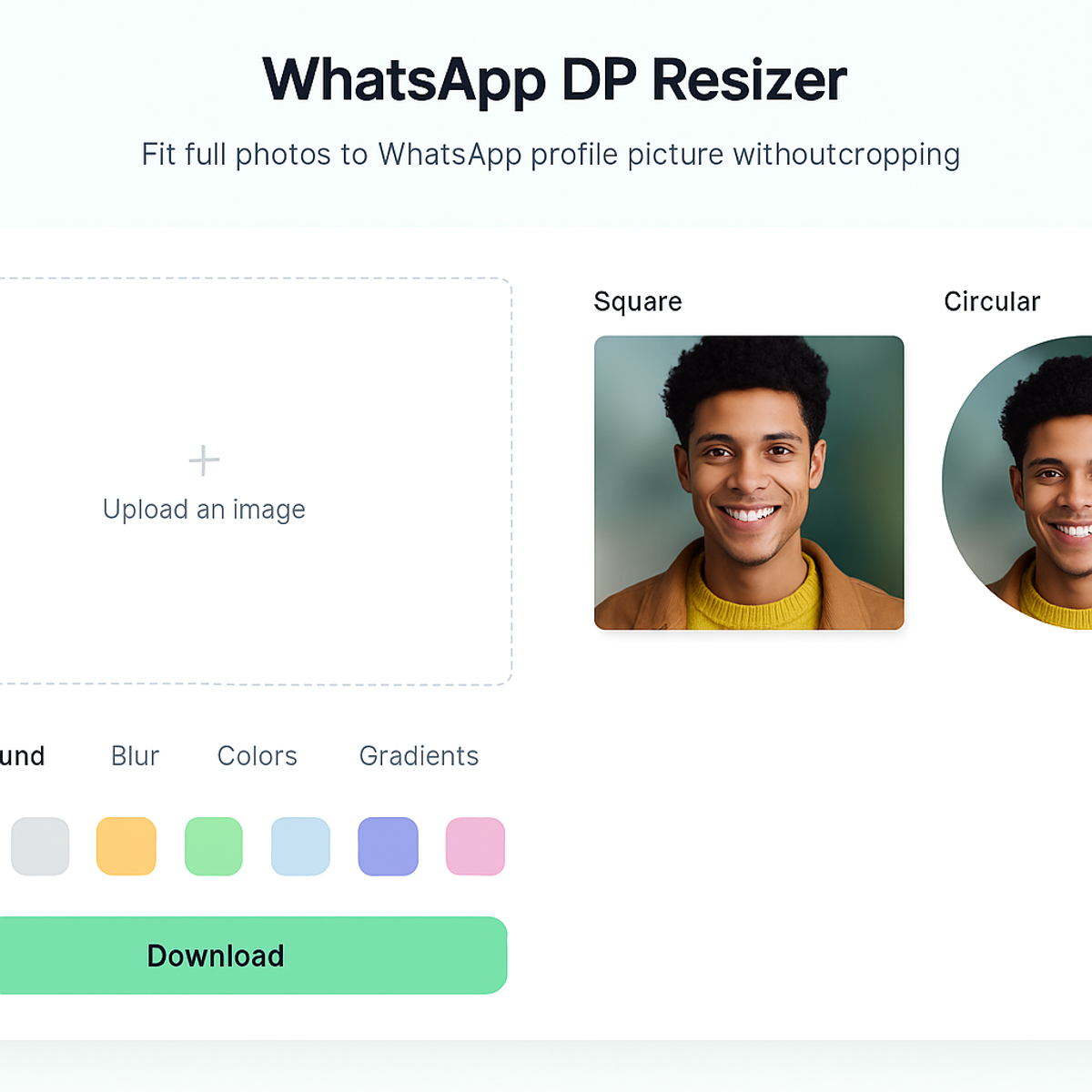
Screenshot of PicDitt's WhatsApp DP Resizer tool showing the upload area, background style options, square and circular preview, and download button.
What Makes PicDitt's DP Resizer Different
There are other tools out there, so let me explain what makes this one worth your time.
Your Entire Photo Stays Intact
This is the core promise: no cropping whatsoever.
Whether your photo is vertical, horizontal, or some odd panoramic shape, the tool fits it completely inside a square frame. Nothing gets cut. Every face stays in the picture. Every detail remains visible.
Smart Blur Backgrounds
The most popular option. When you choose blur, the tool creates a soft, out-of-focus version of your photo and uses it to fill the background. This keeps the colors consistent and makes the final image look natural—like it was always meant to be square.
It doesn't look like you just slapped white bars on the sides. It looks intentional and modern.
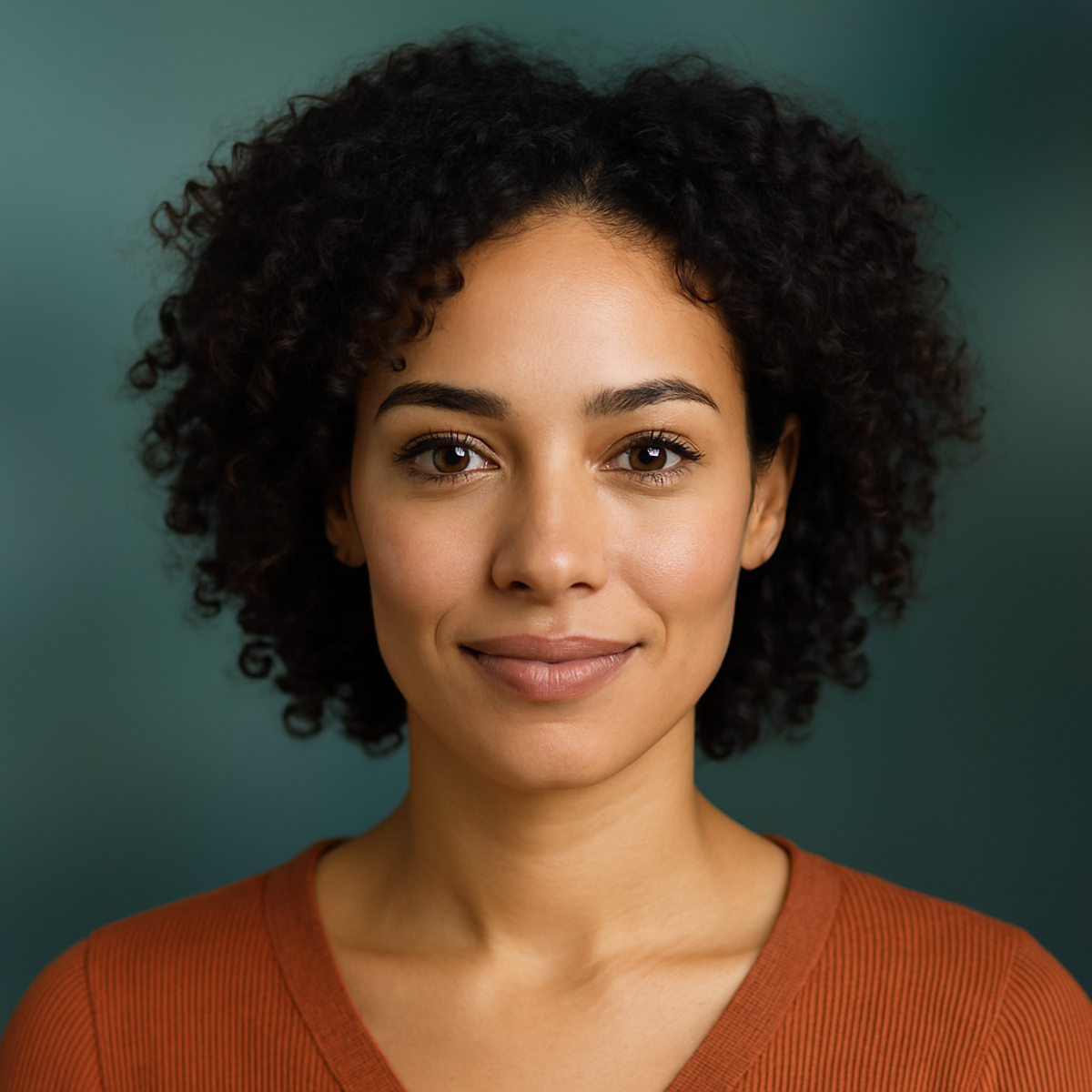
Portrait photo fitted into a square frame with a smart blurred background created by the WhatsApp DP Resizer tool.
50+ Background Options
Not everyone wants blur. Maybe you prefer:
- Solid colors – Clean white, black, or any color that matches your vibe
- Gradients – Smooth color transitions for a more artistic look
- Custom colors – Pick exactly what you want using a color picker
With over 50 options, you can match the background to your photo, your mood, or your personal brand.
12 Photo Filters
Want to enhance your photo while you're at it? The tool includes 12 preset filters:
- Vivid (boosts colors)
- Warm (adds golden tones)
- Cool (adds blue tones)
- Vintage (retro feel)
- Black & White
- And more...
These aren't heavy Instagram-style filters that completely change your photo. They're subtle enhancements that can make your DP look polished without overdoing it.
Circular Preview
Here's a thoughtful touch: the tool shows you both a square preview AND a circular preview.
Why does this matter? Because WhatsApp displays your DP as a circle. What looks great as a square might have important elements (like your face) too close to the edges, which could get clipped when displayed in a circle.
The circular preview lets you catch that before you download.
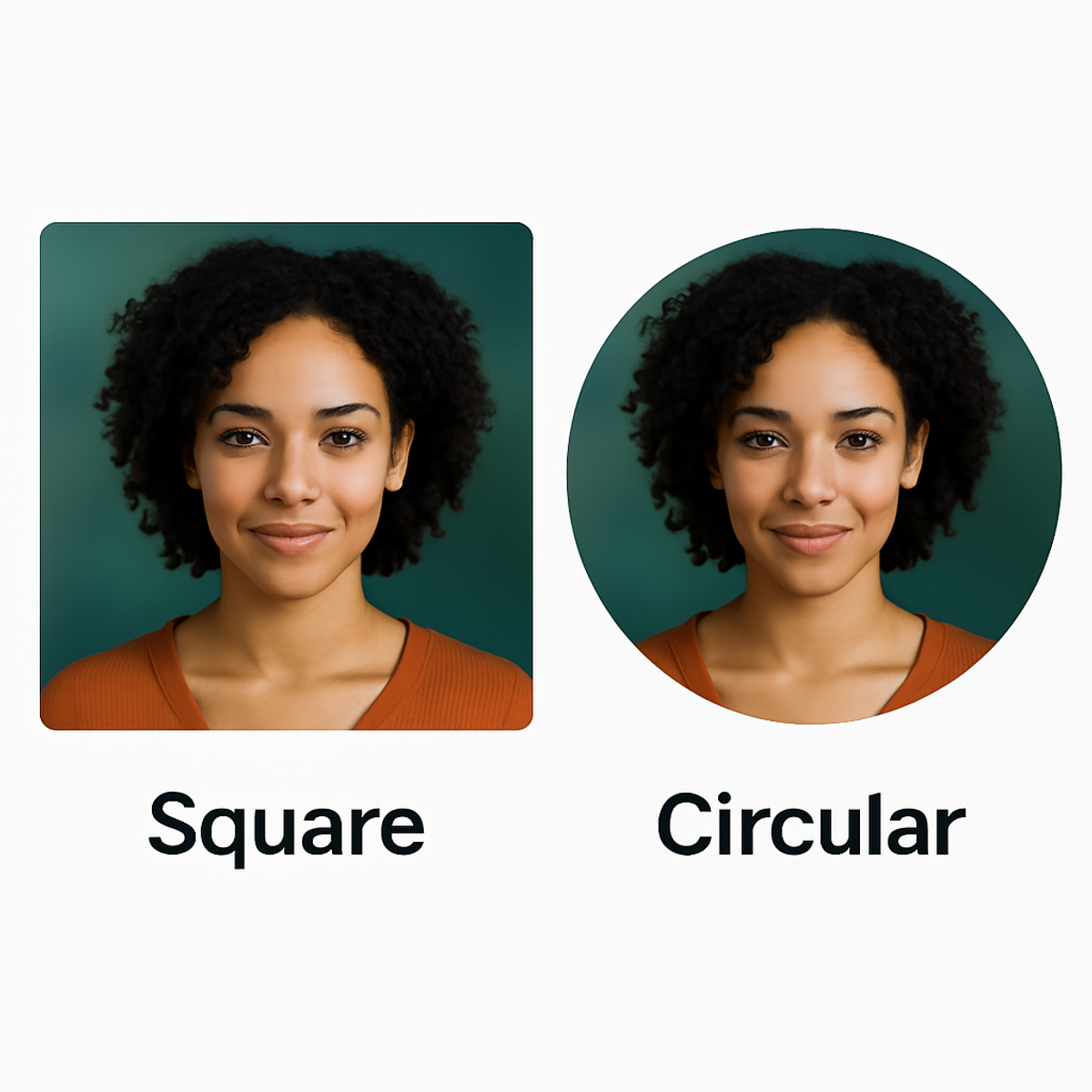
WhatsApp DP Resizer showing both square preview and circular preview of the same profile picture to show how it will appear on WhatsApp.
Border Options
Want to add a little extra style? You can include borders around your photo:
- Various thicknesses
- Multiple colors including WhatsApp green
- Gold, white, black, and more
Borders can make your DP stand out and add a professional or decorative touch.
100% Browser-Based (Complete Privacy)
This is important: your photos never leave your device.
Unlike some apps that upload your images to a server for processing, PicDitt's tool runs entirely in your browser. The processing happens on your phone or computer, not on some remote server.
This means:
- Faster processing (no upload/download wait times)
- Complete privacy (no one else sees your photos)
- Works offline once the page is loaded
If you're privacy-conscious—and you should be—this matters.
How to Create Your Perfect WhatsApp DP (Step-by-Step)
Let's walk through the actual process. It takes about 30 seconds once you get the hang of it.
Step 1: Open the Tool
Go to:
https://picditt.com/social/whatsapp-dp
You'll see a clean interface with an upload area and options on the side.
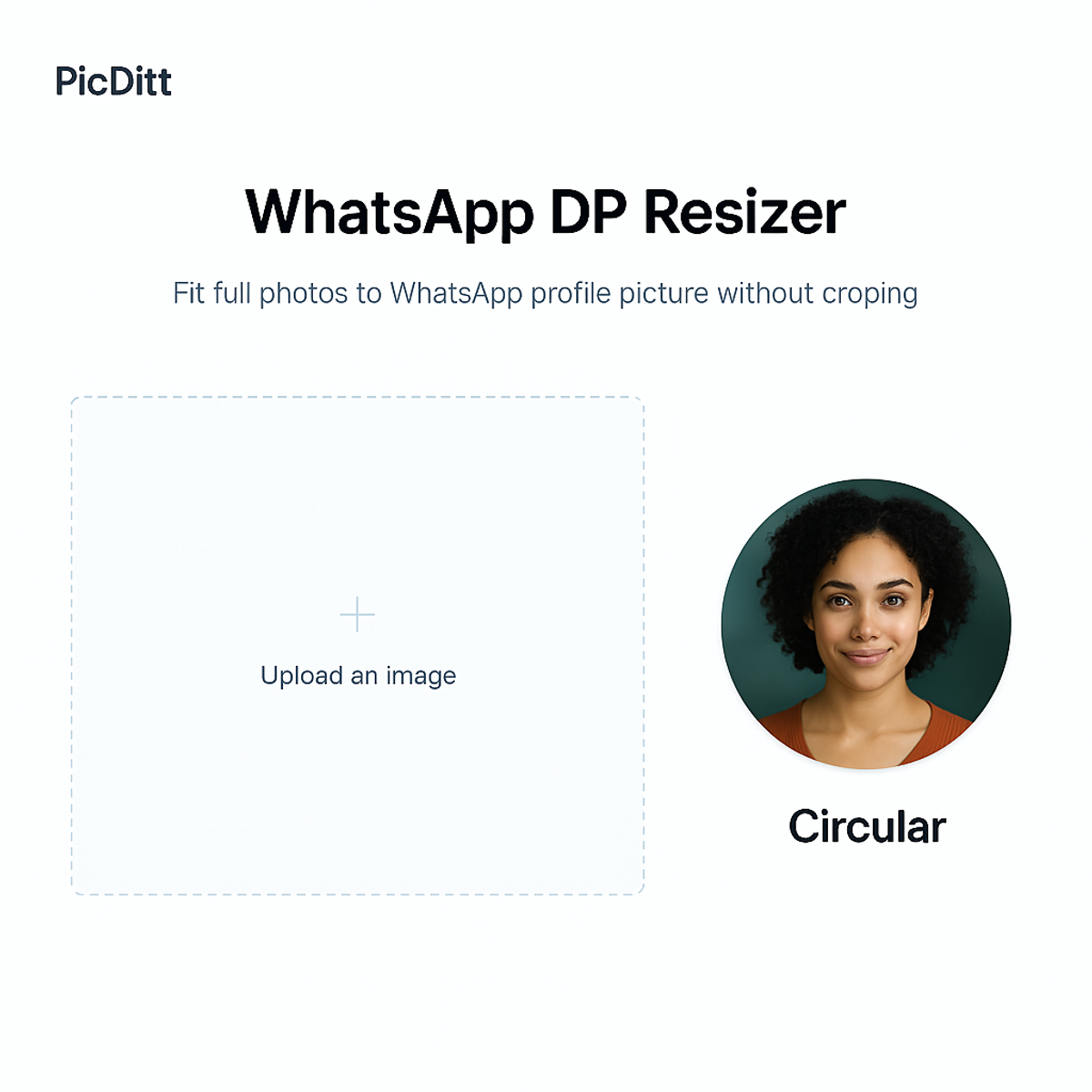
PicDitt WhatsApp DP Resizer tool showing the empty upload screen with drag-and-drop area and browse button.
Step 2: Upload Your Photo
Either:
- Drag and drop your photo onto the upload area, or
- Click to browse and select the file from your device
The tool accepts JPG, JPEG, PNG, WebP, GIF, and BMP files up to 50 MB. That covers pretty much any photo you'd have on your phone.
Step 3: Choose Your Background Style
Once your photo loads, you'll see it centered in a square frame. Now decide how to fill the background:
Option A: Smart Blur
Select one of the blur levels (light to heavy). The background becomes a soft, defocused version of your photo. Colors stay consistent, and the result looks cohesive.
Option B: Solid Color
Pick from 24+ preset colors or use the custom color picker. White and black are popular for a clean look. Bright colors work well for creative or playful DPs.
Option C: Gradient
Choose from 12 gradient presets. These add a modern, stylish touch—especially nice for selfies or portraits.
Step 4: Apply Filters (Optional)
If you want to enhance your photo, browse the 12 filter options:
- Vivid – Makes colors pop
- Warm – Adds cozy golden tones
- Cool – Adds calm blue tones
- Vintage – Gives a retro, faded look
- B&W – Classic black and white
Tap a filter to preview it. Tap again to remove it. These are optional—your photo might already look perfect as-is.
Step 5: Adjust as Needed
Fine-tune your DP using the adjustment controls:
- Brightness – Lighten or darken
- Contrast – Add depth
- Saturation – Boost or mute colors
- Zoom – Adjust how much of the square your photo fills
- Rotation – Straighten a crooked shot
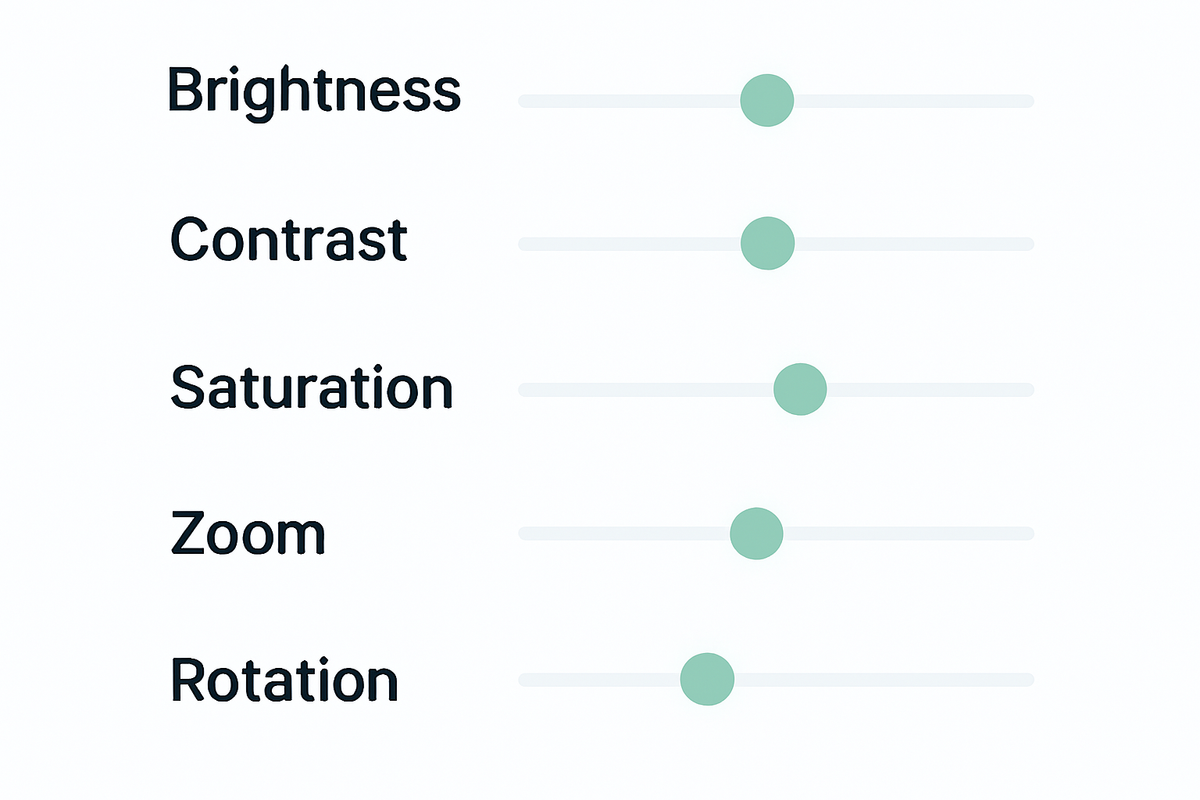
Adjustment controls in PicDitt's WhatsApp DP Resizer showing sliders for brightness, contrast, saturation, zoom, and rotation.
Step 6: Check Both Previews
Look at the square preview to see the full image.
Then check the circular preview to see how it will actually appear on WhatsApp. Make sure:
- Your face isn't too close to the edges
- Important elements are within the circle
- The overall composition looks balanced
Step 7: Download Your DP
When everything looks right:
- Choose your output size (500px, 640px, 800px, or 1024px)
- Select format (JPG for smaller file size, PNG for maximum quality)
- Click Download
Your new WhatsApp-ready DP is saved to your device.
Step 8: Set It on WhatsApp
Open WhatsApp:
- Tap your profile picture (or Settings → Profile)
- Tap the camera icon to change your photo
- Select Gallery and choose your newly created DP
- Since it's already a perfect square, you won't need to crop anything
- Confirm and save
Done. Your full photo is now your WhatsApp DP.
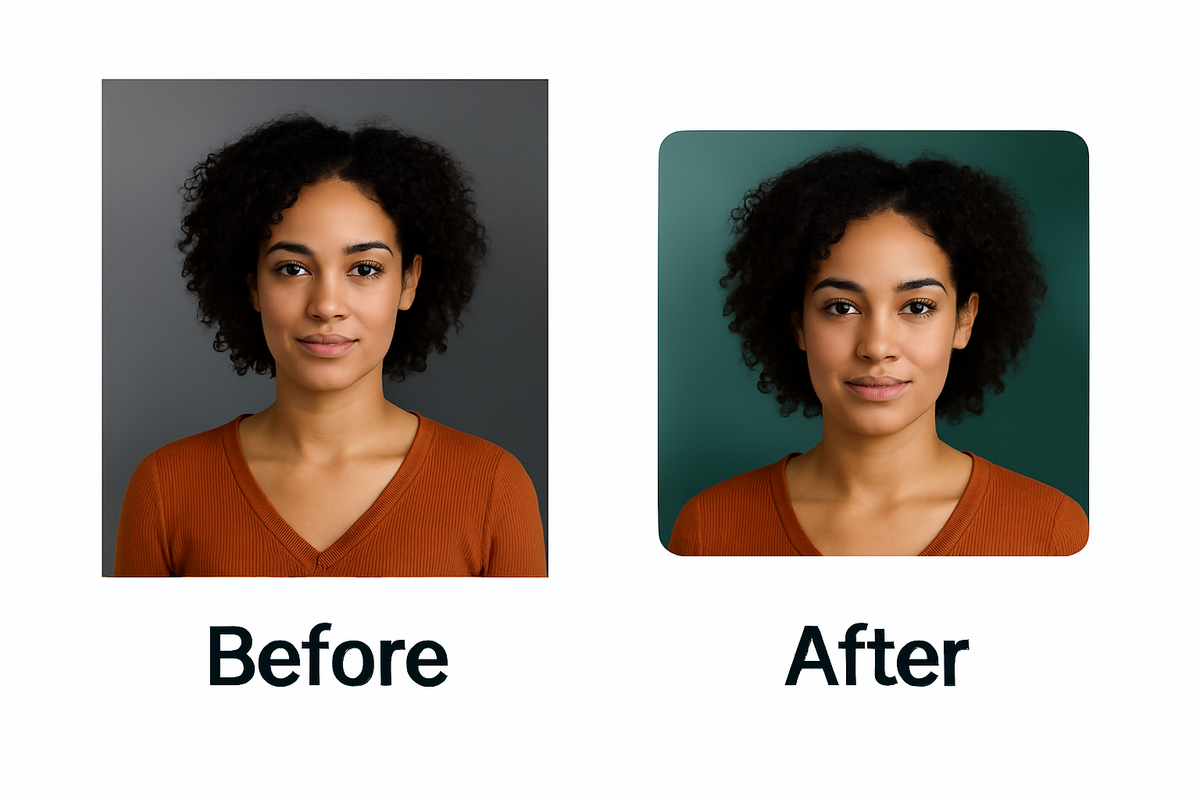
Before and after comparison showing an original rectangular photo transformed into a square WhatsApp DP with blurred background using the DP Resizer tool.
When to Use the WhatsApp DP Resizer
This tool isn't just for fixing cropping problems. Here are some specific situations where it really shines.
Group Photos
You finally got everyone together and took a perfect group shot. But it's horizontal, and WhatsApp wants to cut out the people on the ends. The resizer keeps everyone in the frame.
Couple Photos
Whether it's you and your partner, you and your best friend, or you and your pet—the resizer ensures both subjects stay fully visible.
Vacation and Travel Shots
Landscape photos with beautiful scenery shouldn't be cropped to just your face. Show the whole moment: the beach, the mountains, the city skyline behind you.
Professional Headshots
If you use WhatsApp for work or business networking, a properly composed DP looks more professional than an awkwardly cropped image with your forehead cut off.
Selfies
Even selfies benefit. Instead of an extreme close-up, you can show more context—your outfit, the background, or simply have more breathing room around your face.
Creative DPs
With the gradient and filter options, you can create artistic, eye-catching profile pictures that stand out from the typical cropped photos everyone else uses.
Technical Details (For Those Who Care)
If you want to know exactly what the tool offers, here are the specs:
Specification
Details
Output Sizes
500px, 640px, 800px, 1024px (custom available)
Supported Input Formats
JPG, JPEG, PNG, WebP, GIF, BMP
Output Formats
JPG (optimized), PNG (high quality)
Maximum Input Size
50 MB per image
Background Options
Blur (4 levels), 24 solid colors, 12 gradients
Photo Filters
12 presets (Vivid, Warm, Cool, B&W, etc.)
Border Options
8 styles including WhatsApp green, gold
Adjustments
Brightness, Contrast, Saturation, Zoom, Rotation
Preview
Real-time square + circular WhatsApp preview
Processing
100% browser-based (client-side)
Frequently Asked Questions
Is the WhatsApp DP Resizer free?
Yes. Completely free with no watermarks, no signup required, and no hidden limits.
Will my photos be uploaded anywhere?
No. Everything processes locally in your browser. Your images never leave your device, which is great for privacy.
What's the best output size for WhatsApp?
WhatsApp compresses images anyway, so 640px or 800px is usually plenty. If you want maximum quality (and don't mind a slightly larger file), go with 1024px.
Can I use this for other apps besides WhatsApp?
Absolutely. The output works great for any platform that uses square profile pictures: Instagram, Telegram, Signal, LinkedIn, and more.
Does it work on mobile?
Yes. The tool is fully browser-based and works on both phones and computers. No app download needed.
FAQ summary graphic for WhatsApp DP Resizer highlighting that it's free, private, mobile-friendly, and supports multiple formats.
Stop Letting WhatsApp Ruin Your Photos
Your photos capture moments that matter. A sunset you'll never see again. Friends who don't get together often enough. A version of yourself you felt really good about that day.
Those moments deserve to be seen fully—not hacked apart by an app that only understands squares.
With PicDitt's free WhatsApp DP Resizer at:
https://picditt.com/social/whatsapp-dp
...you can finally use the photos you actually want as your profile picture. No more compromises. No more cropping out the good parts. No more settling for "close enough."
Upload. Adjust. Download. And let your full photo shine.
Call-to-action banner inviting readers to resize their WhatsApp DP using PicDitt's free online tool, with sample profile pictures in the background.
You Might Also Like
Screenshot Editor – Edit, Annotate & Share Screenshots Like a Pro
Edit screenshots instantly with PicDitt's free online screenshot editor. Add text, arrows, shapes, blur sensitive info, crop, and export in PNG, JPEG, or WebP. No signup required.
Read More →
Magic Eraser Online: How to Remove Unwanted Objects from Photos with AI
Photobombers, power lines, watermarks, blemishes—every photo has something you wish wasn't there. Learn how to use PicDitt's free Magic Eraser to brush over any unwanted object and watch AI remove it seamlessly, all directly in your browser with complete privacy.
Read More →
How to Compress Images to an Exact File Size: The Complete Guide to Target Compression
Need your image to be exactly 500KB for a government form or under 25MB for Gmail? Learn how to compress any image to a precise file size using PicDitt's free Target Compression tool—without guessing quality settings or losing more quality than necessary.
Read More →