Unlock the Power of Data Extraction with PicDitt’s Free Image to Excel OCR Tool
Advertisement
Unlock the Power of Data Extraction with PicDitt’s Free Image to Excel OCR Tool
If you’ve ever sat hunched over your laptop, manually typing numbers from receipts, invoices, or printed tables into a spreadsheet, you know how exhausting that process can be. It’s slow, repetitive, and one tiny typo can completely throw off your totals or analysis.
Yet for many people, that’s still their everyday reality.
In a world where everything moves fast—reports, deadlines, budgets, and client work—spending hours on manual data entry simply doesn’t make sense anymore. That’s where PicDitt’s free Image to Excel OCR tool becomes a real game changer.
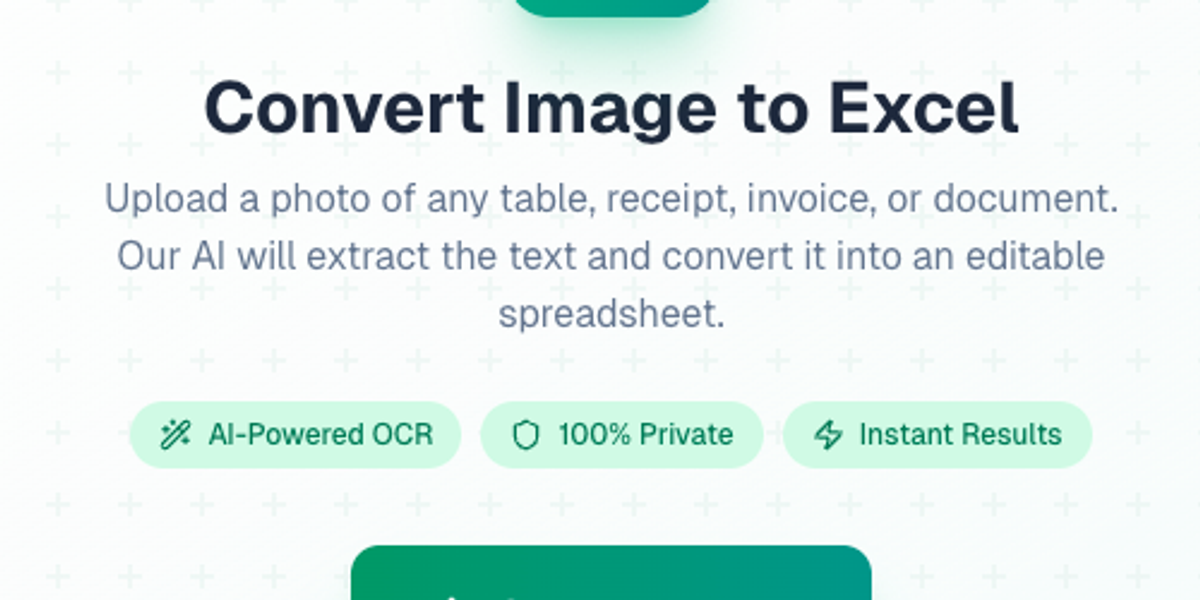
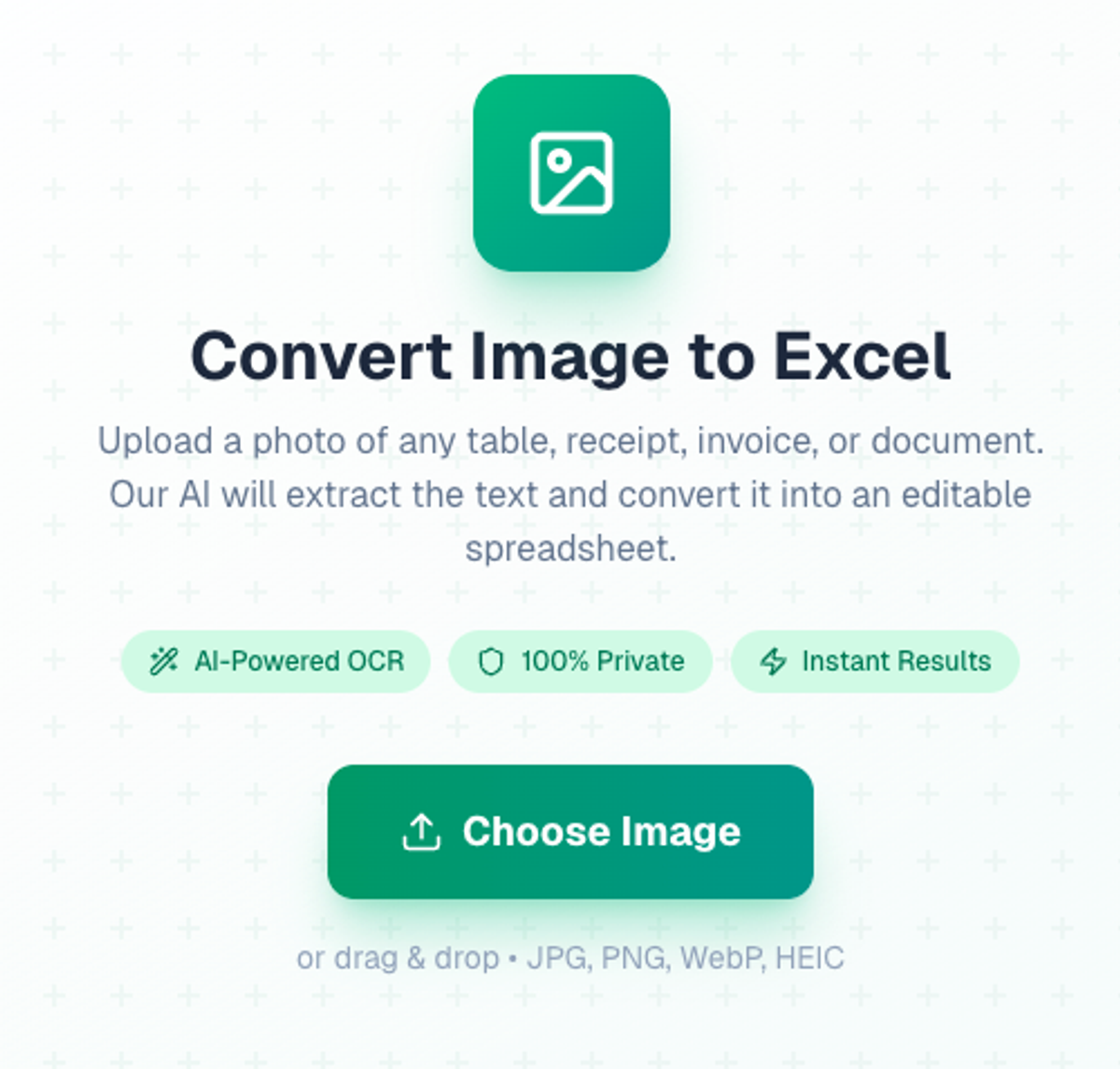
Instead of retyping data, PicDitt lets you upload an image and automatically converts it into an editable spreadsheet. Whether you handle receipts, invoices, research data, or printed tables, this free OCR tool can instantly turn static images into structured data ready for Excel or CSV.
What Is Image to Excel OCR?
Image to Excel OCR combines two powerful ideas:
- OCR (Optical Character Recognition) – technology that recognizes printed or handwritten text inside images and converts it into machine‑readable text.
- Spreadsheet conversion – organizing that recognized text into rows and columns that can be opened in tools like Excel or Google Sheets.
In simple terms, OCR looks at the pixels in your image and figures out which shapes form letters, numbers, and symbols. Image to Excel OCR goes further by preserving the table structure so your data lands in proper cells rather than a giant text block.
Instead of:
- Taking a photo of a receipt,
- Zooming in and out,
- Typing every item, price, and tax line,
you let the OCR engine do the data extraction for you. PicDitt’s tool reads your image, pulls out the numbers and text, and arranges them in a neat table you can edit and analyze.
Why OCR Matters in Everyday Work
OCR used to be something only large companies used in big document‑processing systems. Today, it’s useful for almost anyone:
- Students collecting data from textbooks and papers
- Freelancers and small businesses tracking expenses
- Researchers digitizing results from printed reports
- Anyone trying to turn paper or screenshots into usable data
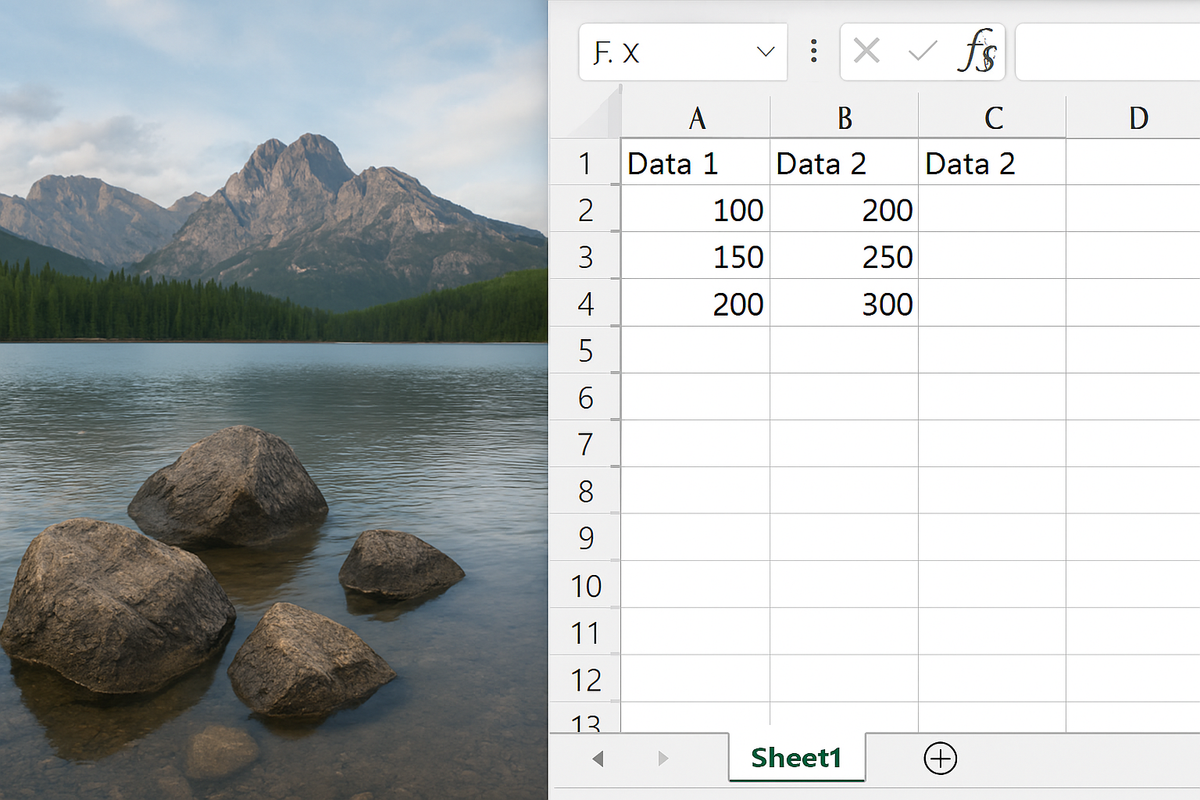
By converting images into spreadsheets, you reduce human error, save time, and free yourself up for the work that actually requires your brain—analysis, decision‑making, and creativity.
Why PicDitt’s Free Image to Excel OCR Tool Stands Out
There are many OCR tools online, but not all of them are built with the same priorities. Some are slow, some lock core features behind paywalls, and some raise serious concerns around privacy and data storage.
PicDitt focuses on being fast, private, and genuinely useful. Here’s what sets it apart.
1. 100% Privacy Guaranteed
Whenever you upload receipts, invoices, or internal reports, you’re handling sensitive information. You don’t want that ending up stored or analyzed on a random server.
PicDitt’s Image to Excel OCR tool takes a strong privacy‑first approach: your files are never uploaded to their servers. The processing doesn’t rely on saving your documents elsewhere.
What that means for you:
- No hidden archive of your files on third‑party systems
- No long‑term storage of your documents
- Peace of mind when handling financial or client information
If you care about privacy—and you should—this alone makes PicDitt a compelling option.
2. Lightning‑Fast OCR for Busy People
Slow tools kill productivity. If you have a stack of documents to process, you don’t have time to watch a loading spinner.
PicDitt’s Fast OCR technology is built to give you results in seconds. You upload an image and almost immediately see the data in table form.
This speed is especially helpful when:
- You’re closing your books at the end of the month
- You’re preparing a report right before a meeting
- You’re traveling and logging expenses on the go
Instead of blocking off an hour for manual data entry, you can handle everything in minutes and move on.
3. Edit Your Data Before You Download
Even the best OCR systems can occasionally misread a character—turning “5” into “S” or “0” into “O”. PicDitt understands this, which is why it lets you edit the extracted data directly in the browser before you download.
After the tool processes your image, you get a preview of the resulting table where you can:
- Correct any OCR misreads
- Adjust column headers to match your needs
- Delete extra rows or unnecessary notes
- Make sure totals, dates, and key values are accurate
Because you can clean up the data on the spot, the file you download is already polished—no extra cleanup step in Excel unless you want to fine‑tune further.
4. Multi‑Language Support for Global Workflows
Not all documents are in English. Many OCR tools struggle when you give them receipts or invoices in other languages.
PicDitt’s multi‑language support covers more than 11 languages, making it a truly global free OCR tool. Whether you’re handling documents in English, Spanish, French, or other supported languages, the tool can recognize and convert them reliably.
This is especially valuable if you:
- Work with international clients
- Travel frequently and collect receipts from different countries
- Conduct research using foreign‑language sources
Multi‑language support means your workflow doesn’t break just because the text in your document changes.
5. Flexible Export Options: Excel and CSV
Once your data looks right, you get to choose how you want to use it. PicDitt supports two main export formats:
- Export to Excel (.xlsx) – perfect for most users, and ideal if you work in Excel, Google Sheets, LibreOffice, or similar tools.
- Export to CSV (.csv) – great when you want to import the data into accounting software, databases, analytics tools, or scripts.
These flexible export options mean PicDitt adapts to your workflow, not the other way around. Whether you’re making a quick report or feeding data into a larger system, you’re covered.
Step‑by‑Step: How to Use PicDitt’s Image to Excel OCR Tool
Getting started with PicDitt is very straightforward. You don’t need to install anything or create an account.
1. Visit the Image to Excel OCR Page
Open your browser and go to:
https://picditt.com/conversion/image-to-excel
This is where you’ll find the Image to Excel OCR tool.
2. Upload Your Image
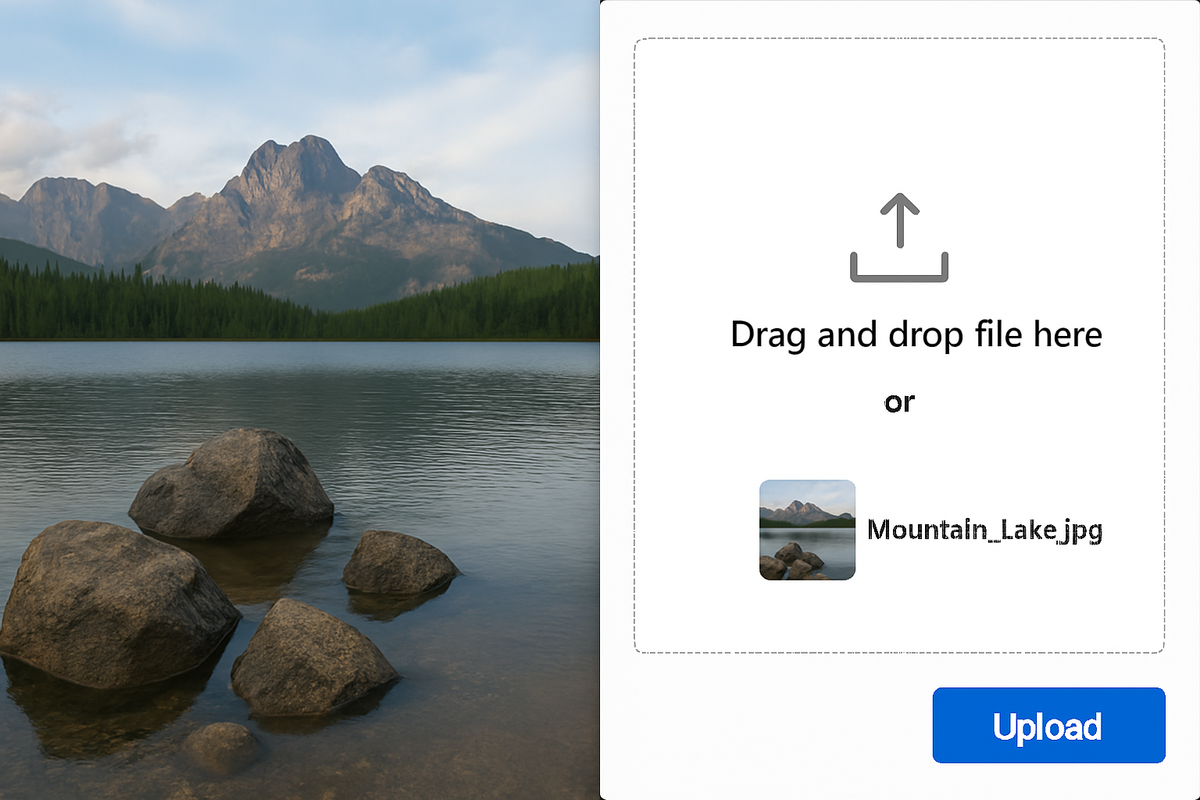
Click the Upload button and select the image you want to convert. This could be:
- A photo of a receipt or invoice
- A screenshot of a table from a PDF or report
- A scanned copy of a printed document
For best results, use a clear, well‑lit image where text is easy to read.
3. Let the Fast OCR Do Its Job
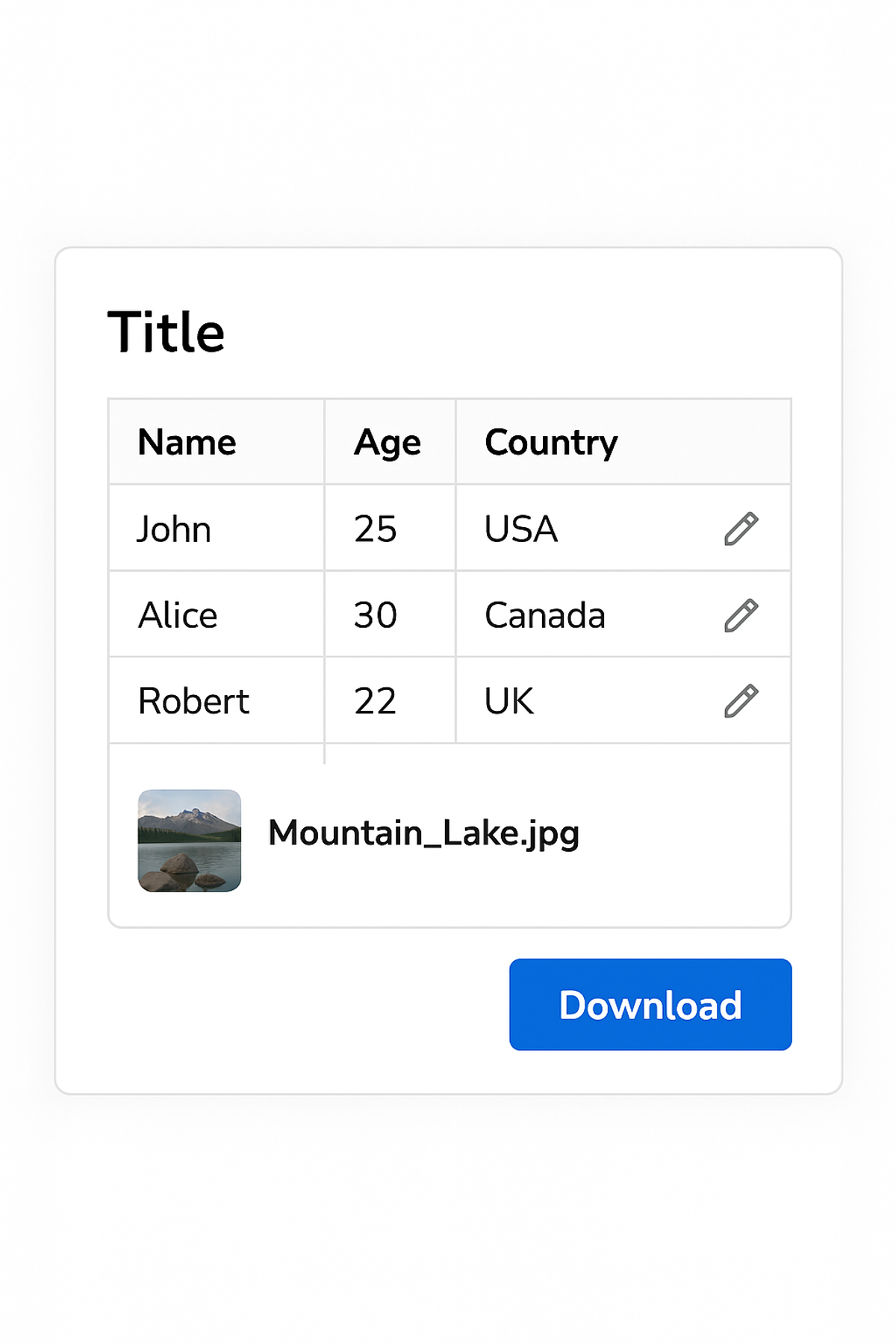
Once the image is selected, PicDitt will process it using its advanced Fast OCR engine. In just a few seconds, you’ll see the extracted data displayed in a table format.
4. Edit and Clean Up the Data
Review the data in the preview:
- Fix any minor recognition errors
- Adjust headers or labels
- Remove any rows or columns you don’t need
This step helps guarantee that the spreadsheet you download is accurate and ready to use.
5. Choose Your Export Format
When everything looks good, select whether you want to:
- Export to Excel (.xlsx)
- Export to CSV (.csv)
Click download, save the file to your device, and open it in your preferred software.
Real‑World Use Cases for PicDitt’s Free OCR Tool

PicDitt isn’t just for one specific profession or niche. Here are a few ways different people can use the Image to Excel OCR tool in their daily work.
For Students
Students often need to pull data from:
- Textbooks and printed research papers
- Photographed lecture slides
- Lab reports and experiment tables
Instead of recreating tables by hand, you can:
- Photograph or screenshot the table
- Run it through PicDitt
- Get an editable spreadsheet for analysis, charts, or assignments
This saves time and helps avoid mistakes when working with complex numbers or statistics.
For Business Professionals
If you’re a freelancer, accountant, or small business owner, you probably manage:
- Receipts and expense reports
- Vendor invoices
- Printed sales or inventory reports
Manually entering all that into Excel is slow and error‑prone. With PicDitt, you can:
- Convert expense receipts into a clean sheet
- Extract line items from invoices
- Quickly build monthly or quarterly summaries
Because privacy is protected, it’s safer to use this tool with financial and client‑related documents.
For Researchers
Researchers often collect data from:
- Printed surveys and questionnaires
- Books and archival documents
- Lab logs or experiment sheets
PicDitt helps turn those sources into structured data so you can:
- Combine information from multiple documents
- Analyze trends and results more efficiently
- Share spreadsheets with colleagues and collaborators
The built‑in multi‑language support is particularly useful when working with international or historical sources.
For Everyday Users
You don’t need a specialized role to benefit from good data extraction tools. Everyday uses include:
- Tracking personal spending from paper receipts
- Creating a home inventory list from existing notes
- Logging warranties, serial numbers, or purchase records
- Digitizing old printed lists into modern spreadsheets
Anytime you have structured information trapped on paper or in a screenshot, PicDitt can help you bring it into Excel quickly.
Tips for Getting the Best Results from Any Image to Excel OCR Tool
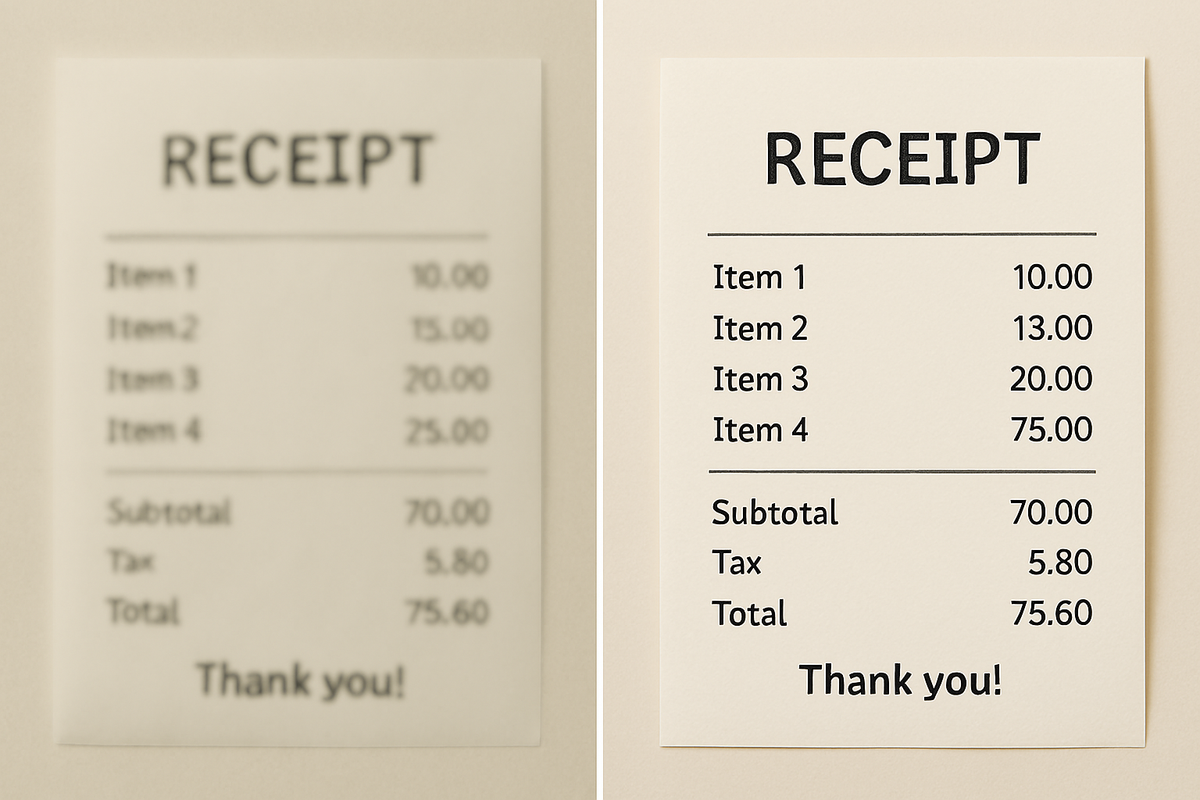
Even with advanced OCR, the quality of your results depends a lot on the quality of your images. A few simple habits can dramatically improve accuracy:
- Use Good Lighting
Avoid dark or overly bright spots. Natural light or soft indoor lighting usually works best. - Keep the Camera Steady
If you’re using a phone, hold it with both hands or rest it on a stable surface to avoid blur. - Fill the Frame with the Document
Get close enough that the text is clear, without cutting off edges or corners. - Shoot Straight On
Try to keep your camera parallel to the document so the lines stay straight, not skewed. - Avoid Folds, Creases, and Shadows
Flatten the paper and move any objects casting shadows over the text.
These tips aren’t specific to PicDitt—they improve results with any free OCR tool—but they help you get the most accurate editable spreadsheets with the least amount of manual correction.
Frequently Asked Questions
Is PicDitt’s Image to Excel OCR tool really free?
Yes, PicDitt offers its Image to Excel OCR as a free OCR tool. You can use it directly from the website without creating an account or paying a subscription.
Are my files stored anywhere?
No. One of PicDitt’s key promises is 100% privacy. Your files are not uploaded to or stored on their servers, which helps protect your sensitive information.
What formats can I export to?
You can Export to Excel (.xlsx) or Export to CSV (.csv). Both formats are widely supported and work with many spreadsheet and data tools.
Does it work with handwriting?
Results with handwriting can vary depending on clarity. Printed text typically works best with OCR. If the handwriting is very neat and consistent, it may work reasonably well, but it’s not guaranteed.
Which languages are supported?
PicDitt supports multi‑language OCR with more than 11 languages, including English and several major international languages. This makes it suitable for global users and international documents.
Final Thoughts
Manual data entry is one of those invisible tasks that quietly eats up hours of your time. With PicDitt’s free Image to Excel OCR tool, you can turn that chore into a quick, efficient step in your workflow.
By focusing on:
- Strong privacy protections
- Fast OCR processing
- In‑browser editing for editable spreadsheets
- Multi‑language support
- Flexible Export to Excel and Export to CSV options
PicDitt offers a practical tool that works for students, professionals, researchers, and everyday users alike.
If you’re ready to stop retyping receipts, invoices, and tables by hand, visit PicDitt’s Image to Excel OCR page and try it on your next document. Once you see how quickly you can convert images into clean spreadsheets, it’s hard to go back to doing everything manually.
You Might Also Like
Screenshot Editor – Edit, Annotate & Share Screenshots Like a Pro
Edit screenshots instantly with PicDitt's free online screenshot editor. Add text, arrows, shapes, blur sensitive info, crop, and export in PNG, JPEG, or WebP. No signup required.
Read More →
Magic Eraser Online: How to Remove Unwanted Objects from Photos with AI
Photobombers, power lines, watermarks, blemishes—every photo has something you wish wasn't there. Learn how to use PicDitt's free Magic Eraser to brush over any unwanted object and watch AI remove it seamlessly, all directly in your browser with complete privacy.
Read More →
How to Compress Images to an Exact File Size: The Complete Guide to Target Compression
Need your image to be exactly 500KB for a government form or under 25MB for Gmail? Learn how to compress any image to a precise file size using PicDitt's free Target Compression tool—without guessing quality settings or losing more quality than necessary.
Read More →