Make Your Photos Look Professional: How to Blur Backgrounds Online (Free Bokeh-Style Look)
Make Your Photos Look Professional: How to Blur Backgrounds Online (Free Bokeh-Style Look)
A “professional” photo doesn’t always mean a fancy camera. Most of the time it means one thing: the viewer’s eyes go exactly where you want them to go. When the background is busy (people, cars, messy rooms, brand logos, random signs), your subject loses impact.
Background blur fixes that instantly.
And blur isn’t only for aesthetics. It’s also one of the most practical privacy tools you can use—think: faces, license plates, addresses, screens, or sensitive text before you share an image online.
In this guide, you’ll learn how to blur images in a way that looks intentional (not like a rushed censor job) using Picditt’s Blur Image Online tool:/editing/blur
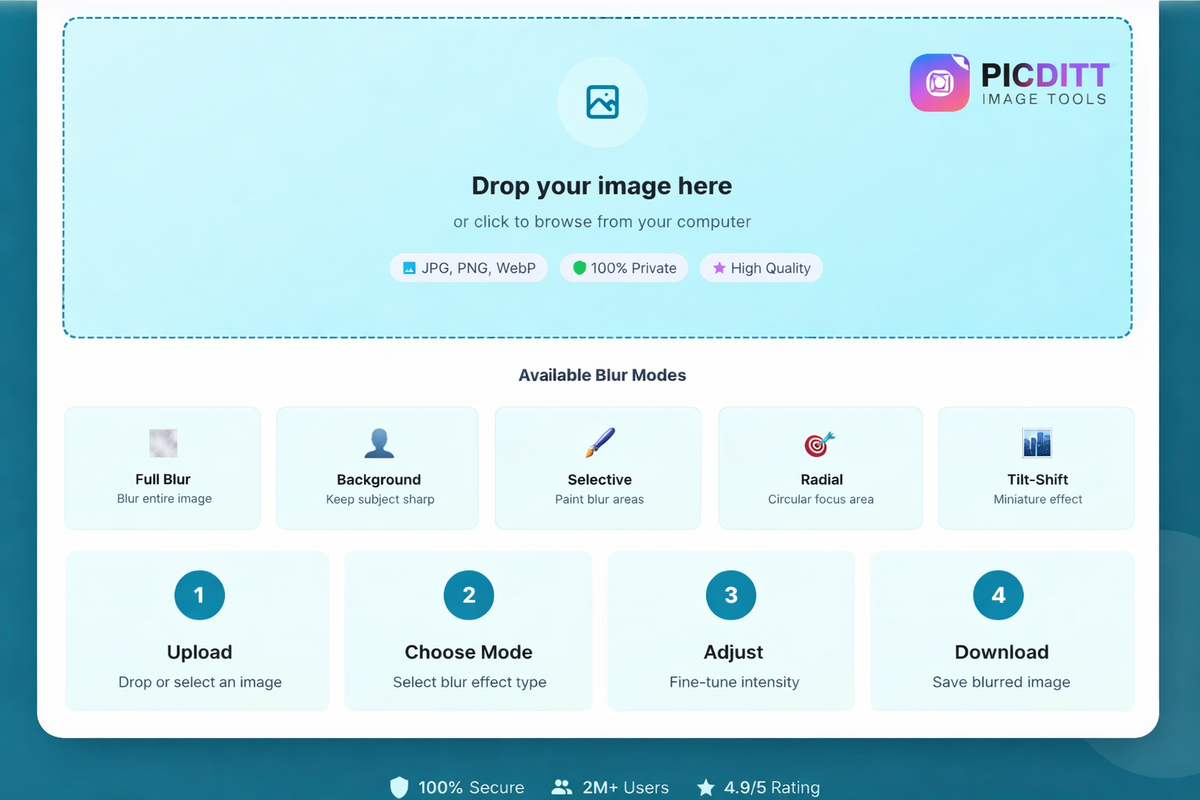
Pick the right blur mode (fast guide)
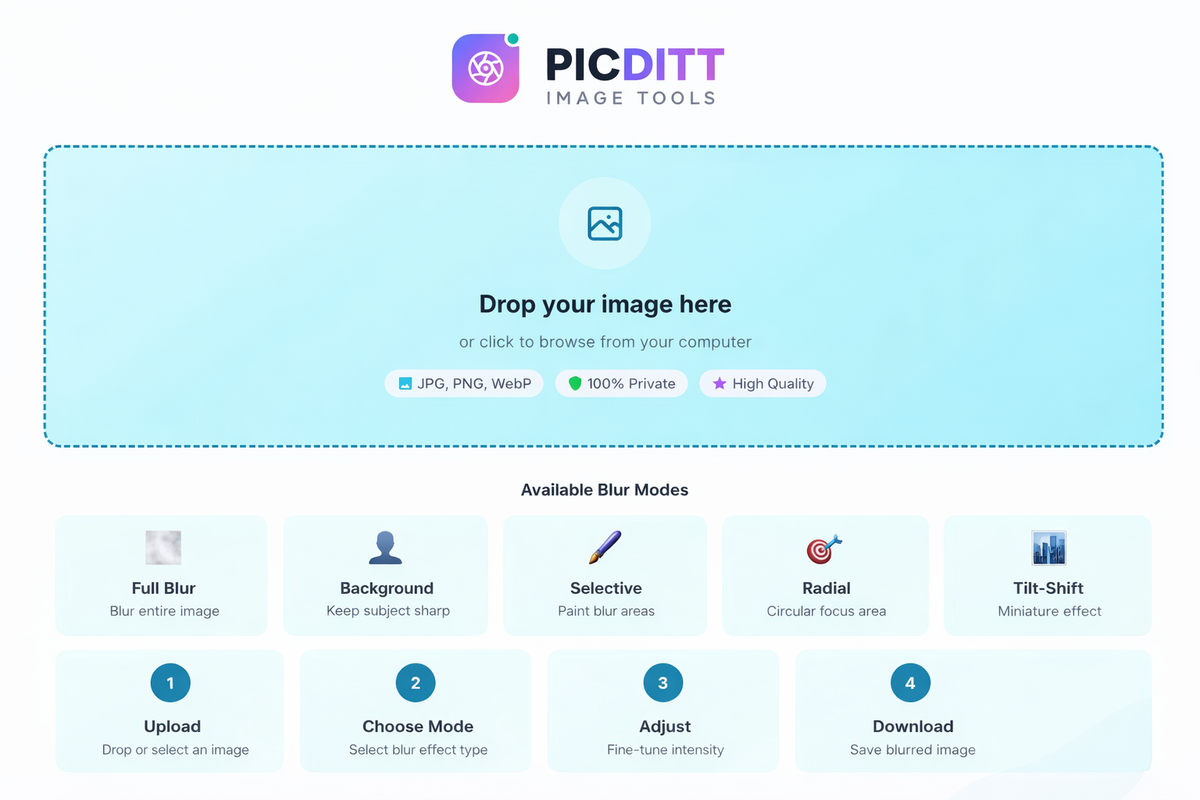
Blur can mean five totally different things depending on what you’re trying to achieve. Before touching the intensity slider, choose the right mode:
- Full Blur: blur everything (great for backgrounds/overlays)
- Background Blur: portrait-style subject sharp, background soft
- Selective Blur: brush blur only where you paint (privacy)
- Radial Blur: focus point in a circle, blur around it (attention control)
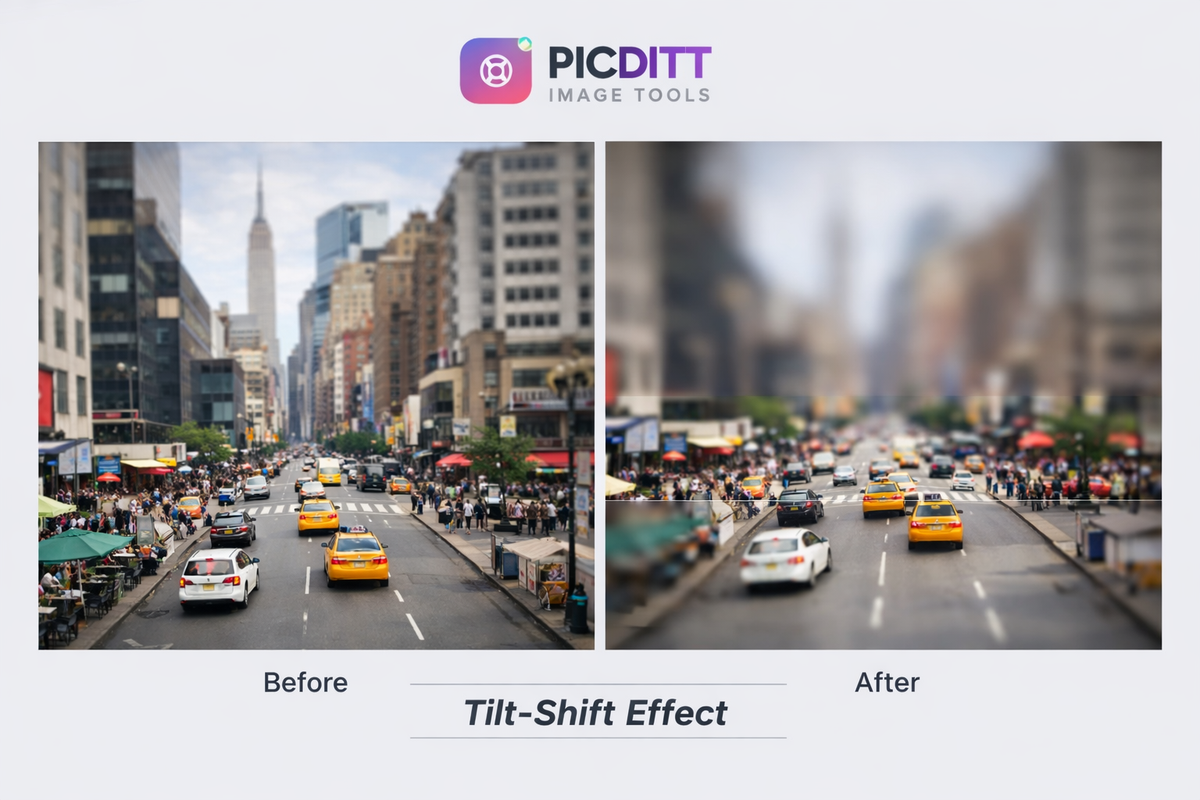
- Tilt‑Shift: sharp band in the middle, blur above/below (miniature/cinematic)
Quick rule:
- If your goal is privacy → Selective blur (paint exact areas)
- If your goal is portrait look → Background blur
- If your goal is design / mood → Full blur, radial, or tilt‑shift
What is “image blur,” really?
Blur is a family of effects that reduce sharpness and detail. The most common blur style in editing tools is Gaussian blur, which produces a smooth, natural softening effect and is widely used in graphics software.
Modern blur tools can go beyond simple blur-by-radius:
- some blur modes mimic depth of field (like a lens)
- others isolate focus areas to create “portrait mode” style separation
- and effects like tilt‑shift are often used to create a miniature/diorama look by keeping only a narrow band in focus
How to blur an image online with Picditt (step-by-step)
Step 1: Upload your photo
Open: /editing/blur
Drop in a JPG/PNG/WebP image.
Step 2: Choose a blur mode
Pick one of the five modes depending on your goal:
- Full
- Background
- Selective
- Radial
- Tilt‑Shift
Step 3: Adjust blur intensity (and don’t overdo it)
Move the intensity slider slowly. Many people go too far.
Step 4: Download in high quality
Export the result. If you’re posting online, consider compressing after export to reduce file size:
/compress(Image Compressor)
Full blur (when you want a clean, soft background fast)
Full blur is underrated. It’s not “portrait mode,” it’s more like a design tool:
- blurred backgrounds for quote posts
- blur behind text overlays
- blur for story backgrounds
- blur a screenshot before you annotate it
Pro tip: Full blur + a slight dark overlay looks instantly “premium” on social posts.
Background blur (portrait mode look—without a new phone)
Background blur is the “make it look expensive” option:
- subject stays sharp
- background becomes soft
- it creates visual separation that mimics shallow depth of field
Use it for:
- headshots
- product photos
- real estate shots (soften clutter)
- creator profile images
If you want to crop for social after blurring:
/crop(Image Cropper)/crop/circle-crop(if you need a round avatar)
Selective blur (the privacy superpower)
Selective blur is where this tool becomes a serious privacy utility.
Use it to hide:
- faces in group photos
- license plates
- addresses on packages
- private text on documents
- screens (laptops/phones)
Many privacy guides recommend blurring license plates before sharing photos publicly to reduce privacy risk.
Make privacy blur look “clean”
- blur a little beyond the edges (don’t leave sharp corners around sensitive data)
- use stronger intensity for privacy than for aesthetics
- always zoom in before exporting to confirm it’s unreadable
Radial blur (make the viewer look exactly where you want)
Radial blur is perfect when the subject is centered and you want a “spotlight” feel:
- click to set the focus point
- keep the center sharp
- blur around it
Use cases:
- portraits
- food photos
- product hero images
- “before/after” comparison focus
Radial blur is also a great “fake depth” trick when background blur struggles.
Tilt‑shift blur (miniature / cinematic effect)
Tilt‑shift blur keeps a horizontal band sharp while blurring the top and bottom. It’s often used to create a miniature effect—your brain associates shallow depth of field with close‑up photography, so wide scenes start to look like tiny models.
Best subjects:
- city streets from above
- trains, traffic, markets
- architecture shots
- landscapes with lots of “small” objects
How much blur is too much? (the “px” cheat sheet)
Here’s a simple way to think about blur strength:
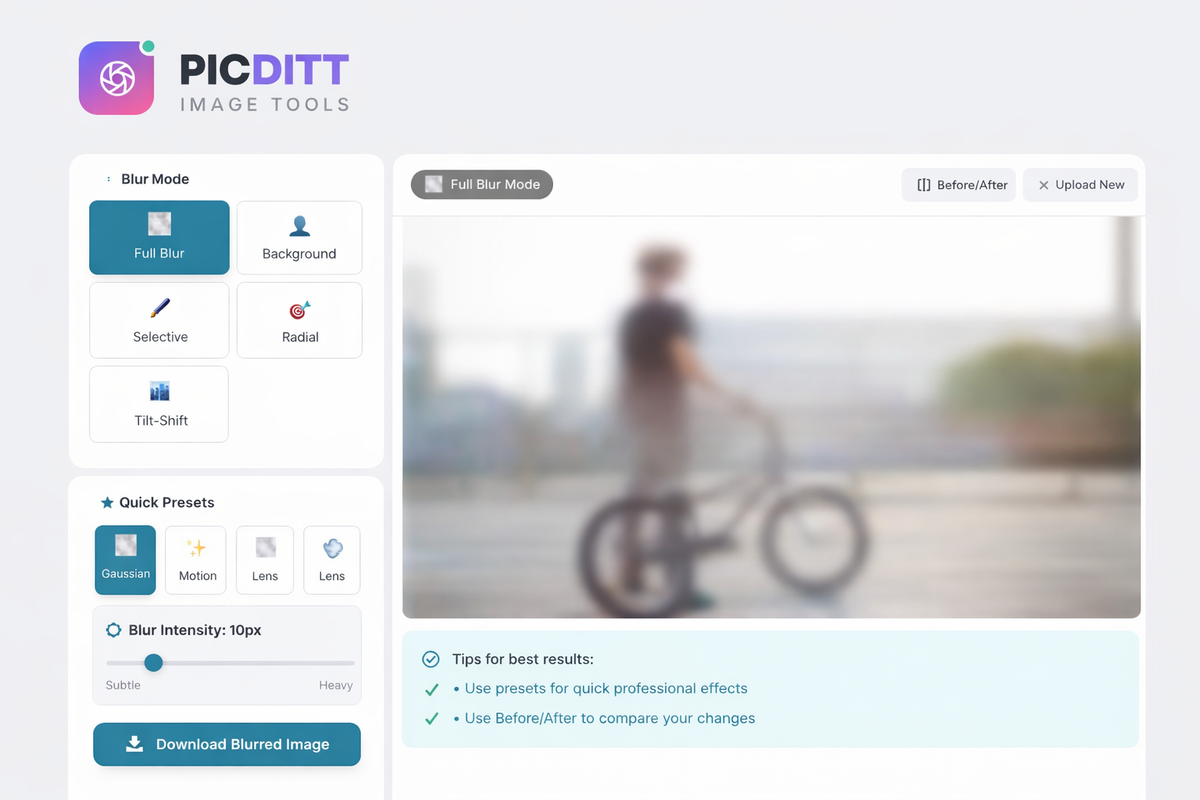
Light blur (5–10px)
- soften a distracting background slightly
- keep it natural
- great for “professional but subtle”
Medium blur (15–25px)
- strong portrait background blur
- social media “bokeh” vibe
- still readable if you blurred text (so don’t use for privacy)
Heavy blur (30–50px)
- privacy blur
- makes details unreadable
- use for plates, addresses, faces, sensitive text
Best practices (small changes that make results look professional)
1) Blur is stronger when your original is clean
If your image is noisy or low-light:
- try a smaller blur amount
- or increase blur slightly but avoid “muddy” edges
2) Match blur to the story
Ask: “What do I want the viewer to notice first?”
- person’s face?
- product?
- price tag?
- headline text?
Then blur everything that competes with that.
3) For social media, crop after blur
People often blur, then upload a weird aspect ratio and get auto-cropped. Instead:
Privacy: blur sensitive info safely (without uploading it)
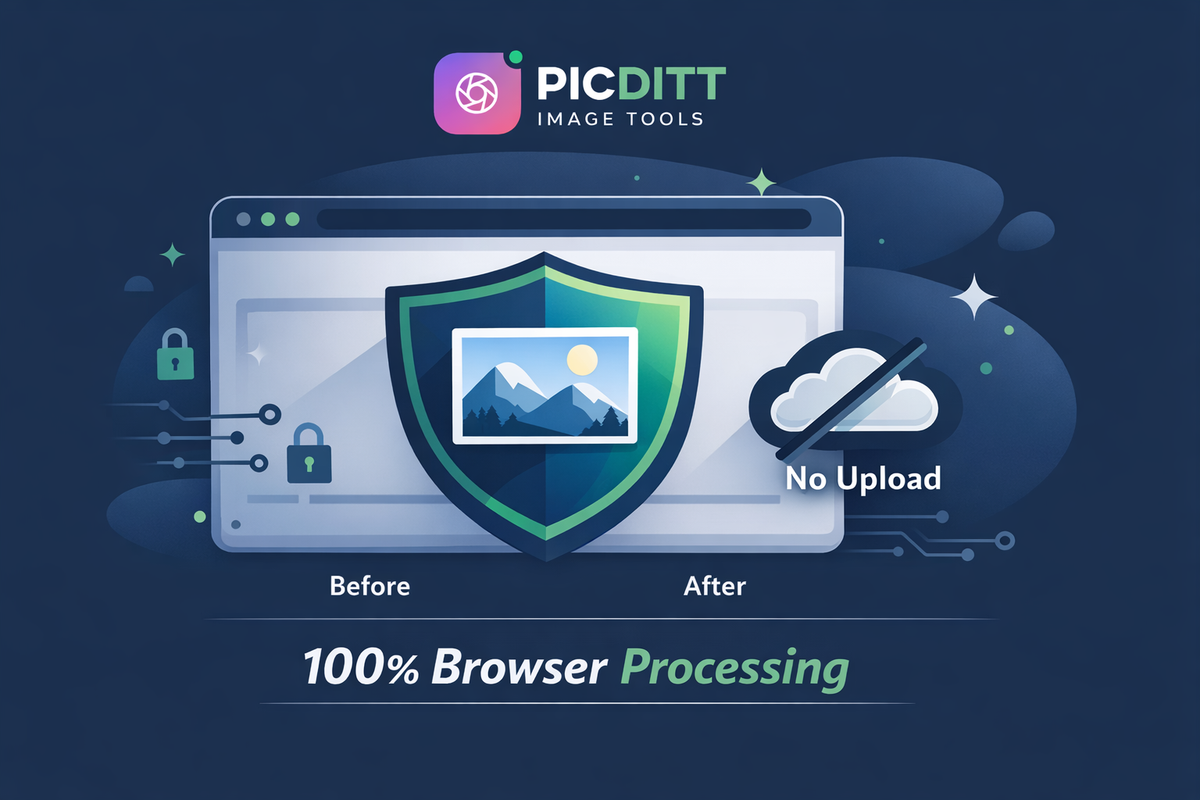
If the reason you’re blurring is privacy—contracts, medical docs, addresses—then where the processing happens matters.
Picditt’s blur tool runs in your browser:
- no server upload
- no waiting for cloud processing
- better privacy posture for sensitive images
FAQs (10)
1) How do I blur an image online for free?
Use Picditt /editing/blur: upload → choose mode → adjust intensity → download.
2) Which blur mode is best for portraits?
Background blur (subject sharp, background soft).
3) How do I blur faces or license plates?
Use Selective blur and paint over the sensitive area.
4) What blur strength should I use for privacy?
Use heavy blur (often 30–50px) so text/details become unreadable.
5) What blur strength looks “professional” for backgrounds?
Usually light to medium (5–25px). Subtle often looks more premium.
6) Does blur reduce image quality?
Blur changes detail by design, but export should remain high quality. Avoid repeated re-exports.
7) Can I use this on mobile?
Yes—works in modern mobile browsers.
8) What formats are supported?
Upload: JPG/PNG/WebP (and more per your specs). Export: high-quality PNG.
9) Can I blur text in screenshots?
Yes—Selective blur is ideal for hiding text.
10) What if I need to remove something instead of blur?
Use /editing/magic-eraser for removing objects (when allowed).
Conclusion
Blur is one of the easiest ways to upgrade photos fast—either for a clean portrait look or for privacy protection.
Try the tool here:
Blur Image Online → /editing/blur
Ready to Try It Yourself?
Use this tool for free — no signup, no download, no watermarks.
Open Free ToolYou Might Also Like
How to Convert Image to Word Online (Free OCR Tool) – Step-by-Step Guide
Learn how to convert images, scanned documents, and photos of text into fully editable Word files using PicDitt’s free, browser-based Image to Word OCR tool. This step-by-step guide covers how OCR works, how to use the tool, and how to get the best accuracy.
Read More →
How to Convert PDF to High-Resolution JPG, PNG, or WebP Instantly
Need to post a PDF on social media or embed it on a website? Learn how to instantly convert your PDF documents into high-quality JPG, PNG, or WebP images using Picditt's free online converter. All processing happens securely in your browser — your files never leave your device.
Read More →
How to Crop a Picture into a Circle: Free Online Round Profile Picture Maker
Need a perfectly round profile picture? Picditt's free Circle Crop tool lets you crop any photo into a circle with transparent background. Position, zoom, choose your size, and download a PNG — all in your browser, 100% private. Works for LinkedIn, GitHub, Slack, Discord, and any platform that uses circular avatars.
Read More →