How to Crop a Picture into a Circle: Free Online Round Profile Picture Maker
How to Crop a Picture into a Circle: Free Online Round Profile Picture Maker
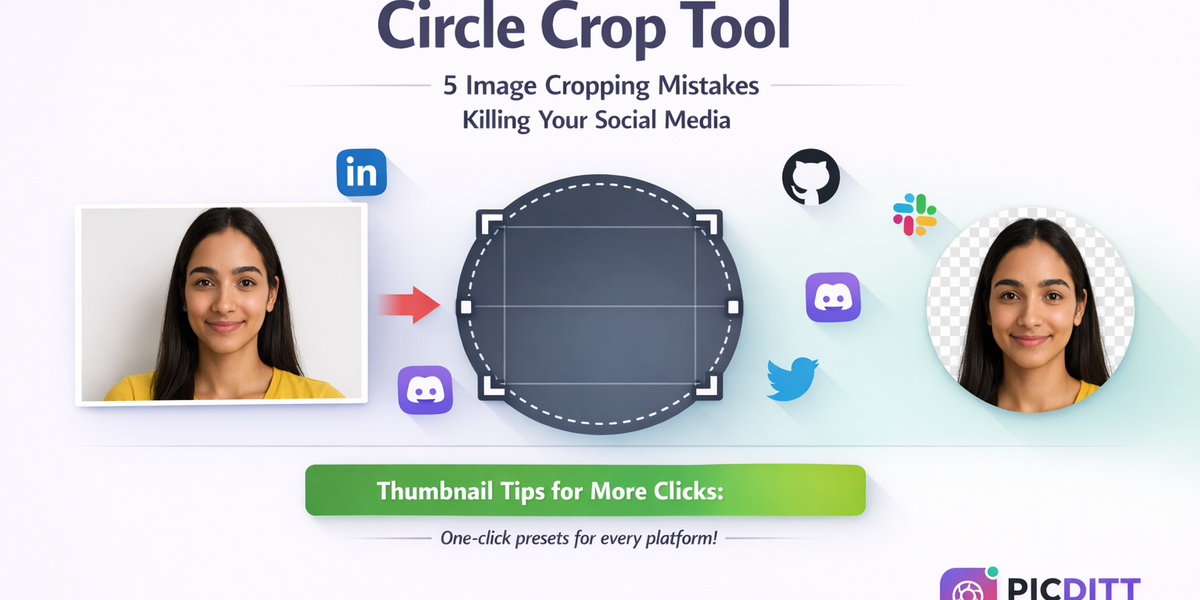
You just landed a new job and need to update your LinkedIn profile picture. Or maybe you are setting up a GitHub account, joining a new Slack workspace, or creating a Discord server. You have a great photo, but there is a problem — every platform displays your profile picture as a circle, and your photo is a rectangle.
You upload it anyway, hoping the platform will handle the cropping. And then you see the result: your forehead is cut off. Or your chin is missing. Or the photo is weirdly off-center because the platform's automatic circular crop chose the wrong focal point.
This is a universal problem. Nearly every modern platform — from LinkedIn and GitHub to Slack, Discord, Zoom, Microsoft Teams, and Google — displays profile pictures inside circular frames. But the photos you take with your phone or camera are always rectangular. The mismatch between rectangular photos and circular display frames means someone (or something) has to decide what gets shown and what gets cut off.
Most people leave this decision to the platform's automatic cropping algorithm, and the results are rarely ideal. The solution? Crop your photo into a circle yourself before uploading, so you have full control over exactly how it looks.
In this guide, you will learn why circular profile pictures matter, how to create a perfect one in seconds using Picditt's free Circle Crop tool, and expert tips for making your circular avatar look polished and professional on every platform.
Where Are Circular Profile Pictures Used?
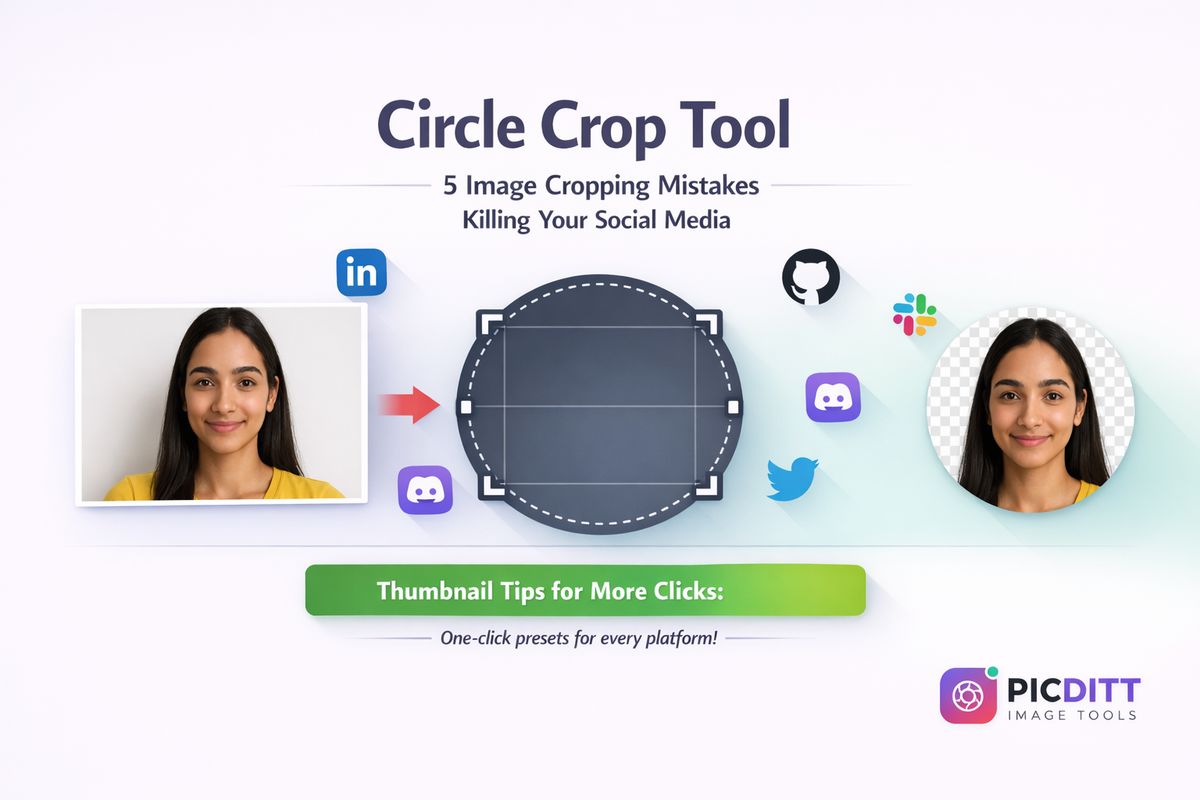
You might be surprised by how many platforms and applications use circular avatars. Here is a comprehensive list:
Professional Platforms
- LinkedIn — Your profile picture is one of the first things recruiters and connections see
- GitHub — Your avatar appears next to every commit, pull request, and comment
- Behance & Dribbble — Portfolio platforms where your avatar represents your creative brand
- Company websites — Team pages almost universally use circular headshots
Communication Platforms
- Slack — Your avatar appears in every message, thread, and channel
- Discord — Server member lists and messages display circular avatars
- Microsoft Teams — Your profile photo appears in chats, meetings, and the organization directory
- Zoom — Your profile picture shows when your camera is off during meetings
- Google Workspace — Gmail, Google Meet, Google Docs — your circular avatar is everywhere
Social Media
- Twitter/X — Profile picture displayed as a circle in the feed and profile page
- Instagram — Profile picture and Story ring are circular
- TikTok — Circular profile avatar
- Pinterest — Round profile picture on your account page
Other Uses
- Forum and community platforms (Reddit, Stack Overflow, Quora)
- Email signatures — Professional emails often include a circular headshot
- Presentations — Speaker bios and team slides frequently use circular photos
- Printed materials — Business cards, brochures, and event programs
- Web design — Testimonial sections, about pages, team directories
The point is clear: if you have any online presence at all, a well-cropped circular profile picture is essential.
Why Not Just Let the Platform Crop It?
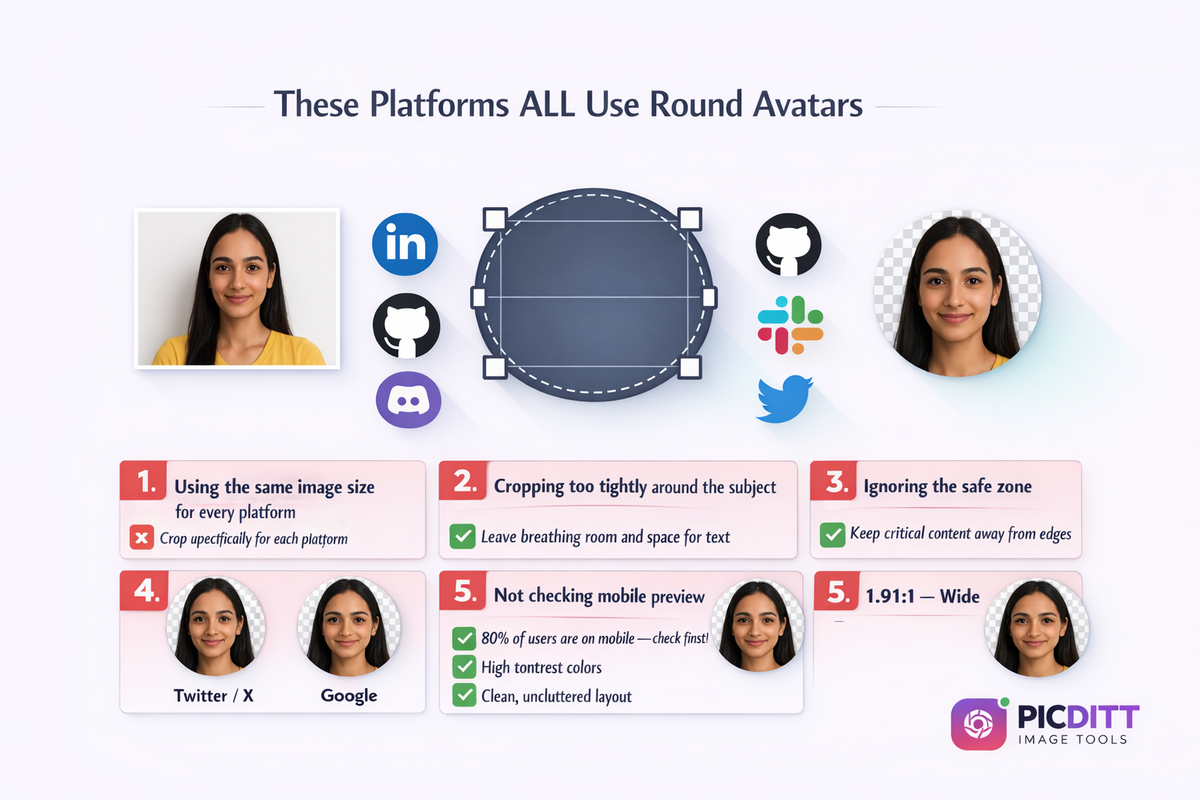
Most platforms allow you to upload a rectangular photo and then adjust the crop. So why bother using a separate tool? Here are five important reasons:
1. Platform Croppers Are Limited
Most platform built-in croppers give you very basic controls — usually just drag and pinch to zoom. They rarely offer precise positioning, do not show you the exact pixel dimensions, and sometimes do not even show a real-time preview of the circular crop. You end up guessing and hoping for the best.
2. Different Platforms Crop Differently
Each platform applies its own cropping algorithm, which means the same rectangular photo will look different on LinkedIn versus Slack versus GitHub. If you crop to a circle yourself first, the result is consistent everywhere because you are uploading an already-circular image.
3. You Want a Transparent Background
When you crop a photo into a circle using Picditt's tool, the area outside the circle becomes transparent (saved as a PNG). This means the image sits cleanly on any background color — white, dark, colored, or patterned. If you let the platform crop it, you might end up with awkward rectangular corners visible in certain display contexts.
4. Batch Preparation
If you are preparing circular avatars for an entire team (company website, event program, presentation), you need a dedicated tool. Uploading 20 photos to 20 different platform croppers is impractical. A standalone circle crop tool lets you process them efficiently.
5. Full Control Over Quality
Platform upload processes often compress your image, sometimes significantly. By cropping and optimizing your image before uploading, you start with the best possible quality. The platform's compression will have less impact on an already-optimized image.
How to Crop a Photo into a Circle Using Picditt (Step-by-Step)
Picditt's Circle Crop tool makes creating round profile pictures incredibly simple. The entire process takes about 10 seconds.
Step 1: Open the Picditt Circle Crop Tool
Go to https://picditt.com/crop/circle-crop in any web browser — Chrome, Firefox, Safari, Edge, or any other. It works on desktop, tablet, and mobile.
Step 2: Upload Your Photo
You have two options:
- Drag and drop your image directly onto the upload area
- Click "Choose Image" to browse and select a file from your device
Supported formats include JPG, PNG, and WebP. Maximum file size is 15MB, which covers any standard photo.
Step 3: Position and Zoom Your Photo
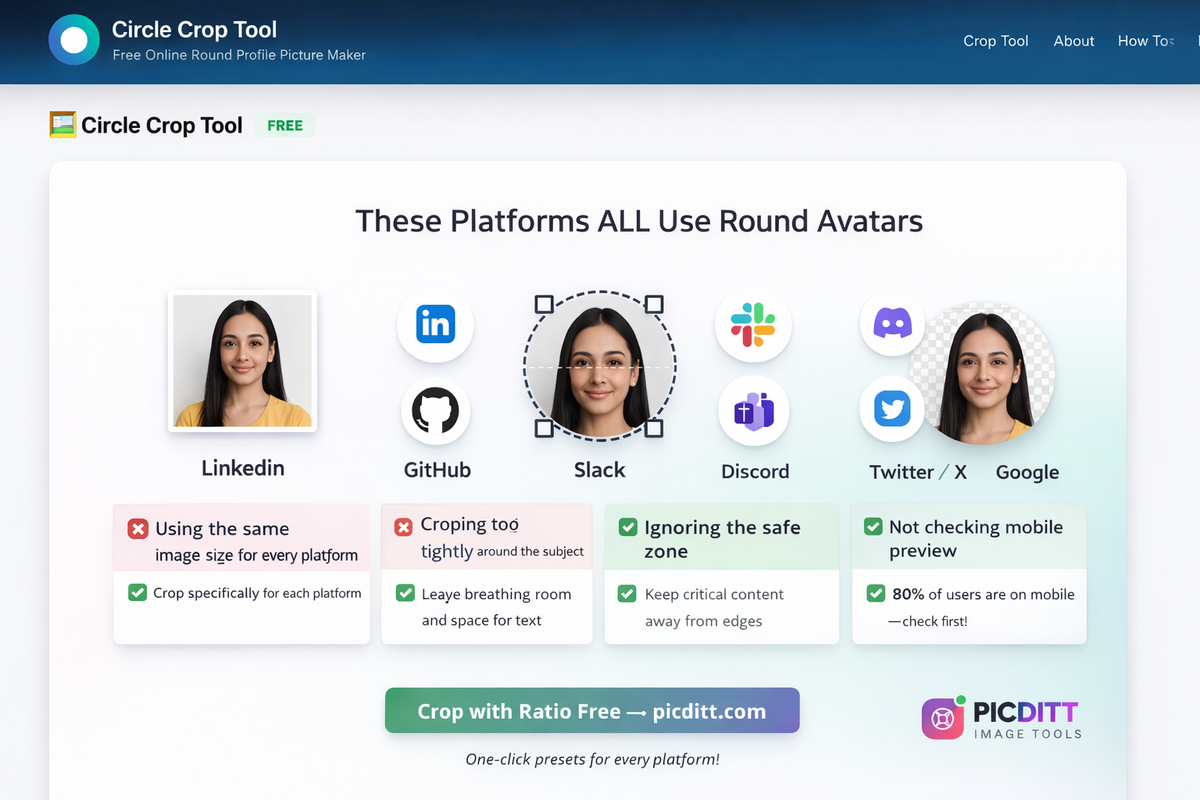
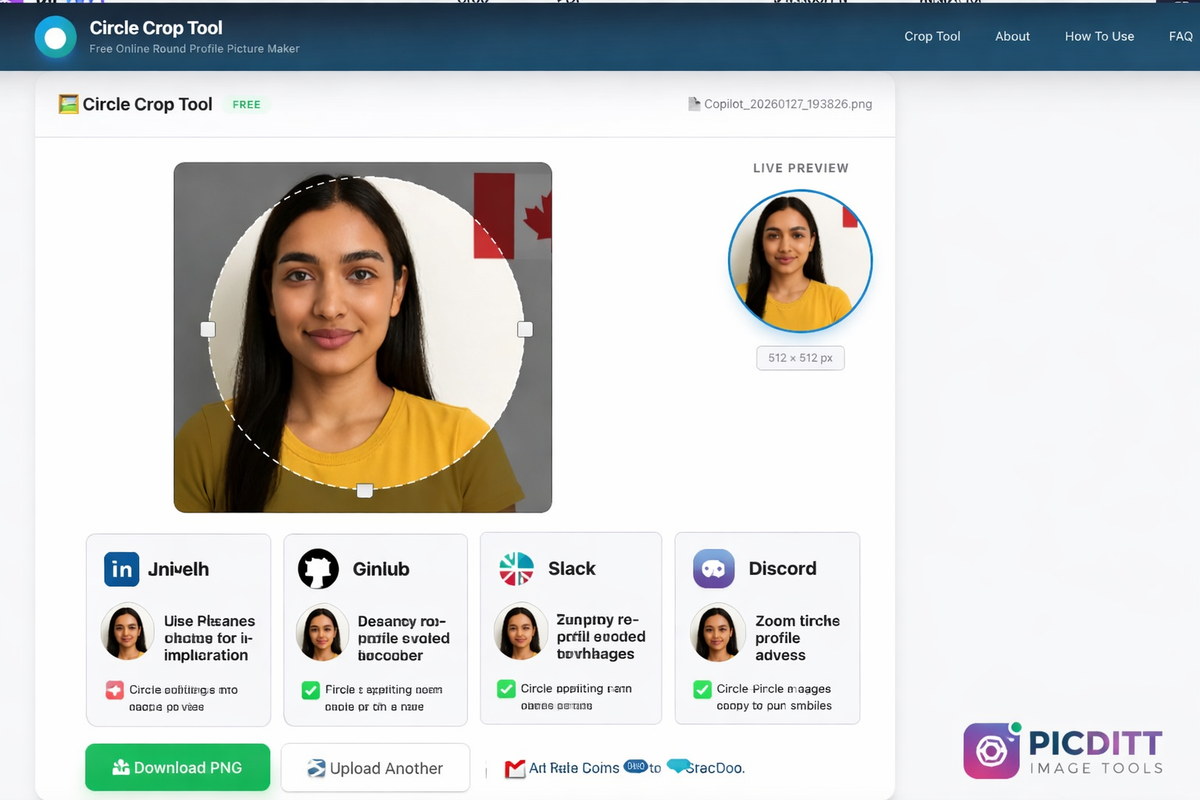
Once your image loads, you will see it displayed with a circular frame overlay. This is the live preview of exactly what your final circular image will look like.
Use these controls to get the perfect framing:
- Drag the image to move it left, right, up, or down within the circle
- Use the zoom slider to zoom in or out
- Zoom in to fill the circle with your face or subject
- Zoom out to include more of the surrounding area
The circular preview updates in real-time, so you can see exactly how every adjustment affects the final result.
Step 4: Choose Your Output Size
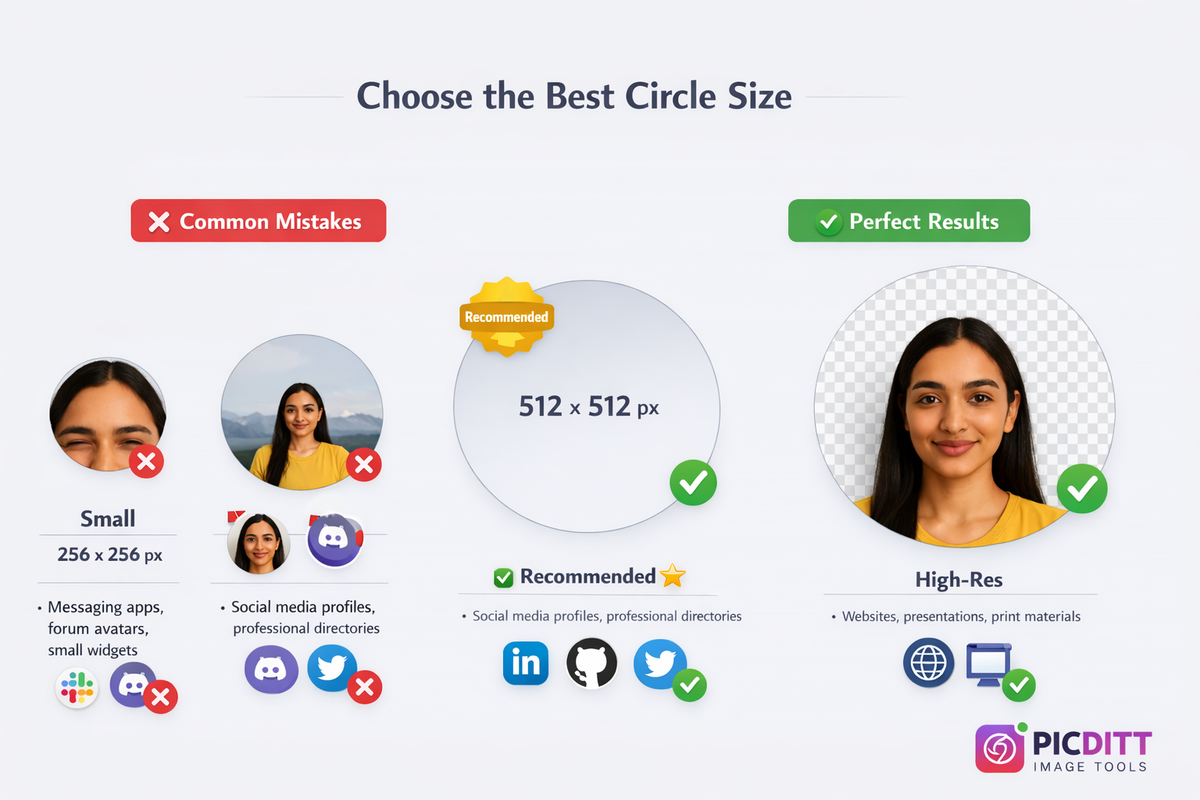
Select your preferred output resolution:
Size
Pixels
Best For
Small
256 x 256
Messaging apps, forum avatars, small widgets
Medium
512 x 512
Social media profiles, professional directories ⭐ Recommended
Large
1024 x 1024
Websites, presentations, print materials
For most profile pictures, 512 x 512 is the sweet spot — large enough to look sharp on any screen, small enough for fast uploading.
Step 5: Download Your Circular PNG
Click "Download PNG" and your perfectly cropped circular image downloads instantly. The image is saved as a PNG file with a transparent background — the area outside the circle is completely transparent, not white.
That is it. Upload to any platform, and your circular profile picture will look exactly as you designed it.
Which Output Size Should You Choose?
The three size options exist because different use cases require different resolutions. Here is a detailed breakdown:
256 x 256 Pixels — Small
This is the smallest option and works well for:
- Slack and Discord avatars (displayed at small sizes in chat)
- Forum signatures and comment sections
- Small website widgets and sidebar elements
- Any context where the avatar displays at under 100px
The file size is very small (typically under 50KB), making it perfect for fast-loading contexts.
512 x 512 Pixels — Medium (Recommended) ⭐
This is the recommended size for most use cases:
- LinkedIn (displays at 400x400, so 512 gives clean downscaling)
- GitHub (displays at various sizes from 40px to 460px)
- Twitter/X (displays at 400x400)
- Google Workspace (Gmail, Meet, Docs)
- Most social media platforms
512px gives you a good balance between image quality and file size. It is large enough to look sharp even on high-DPI (Retina) displays while keeping the file size manageable (typically 100-300KB).
1024 x 1024 Pixels — Large
Choose the largest option when you need:
- Website hero sections where the avatar is displayed prominently
- Presentations and slides where the image will be projected on a large screen
- Print materials (business cards, brochures, event programs)
- High-resolution displays and marketing materials
The file size will be larger (typically 300KB-1MB), but the extra resolution ensures the image stays sharp at any display size.
What Makes a Great Circular Profile Picture?
A circular crop is only as good as the source photo. Here are expert tips for creating profile pictures that make a strong impression:
Choose the Right Source Photo
- Use a clear, sharp photo — blurry or pixelated images look worse after cropping
- Minimum resolution: Start with at least 500 x 500 pixels; larger is always better
- Well-lit photos with even, natural lighting produce the best results
- Recent photos that accurately represent your current appearance
Frame Your Face Properly
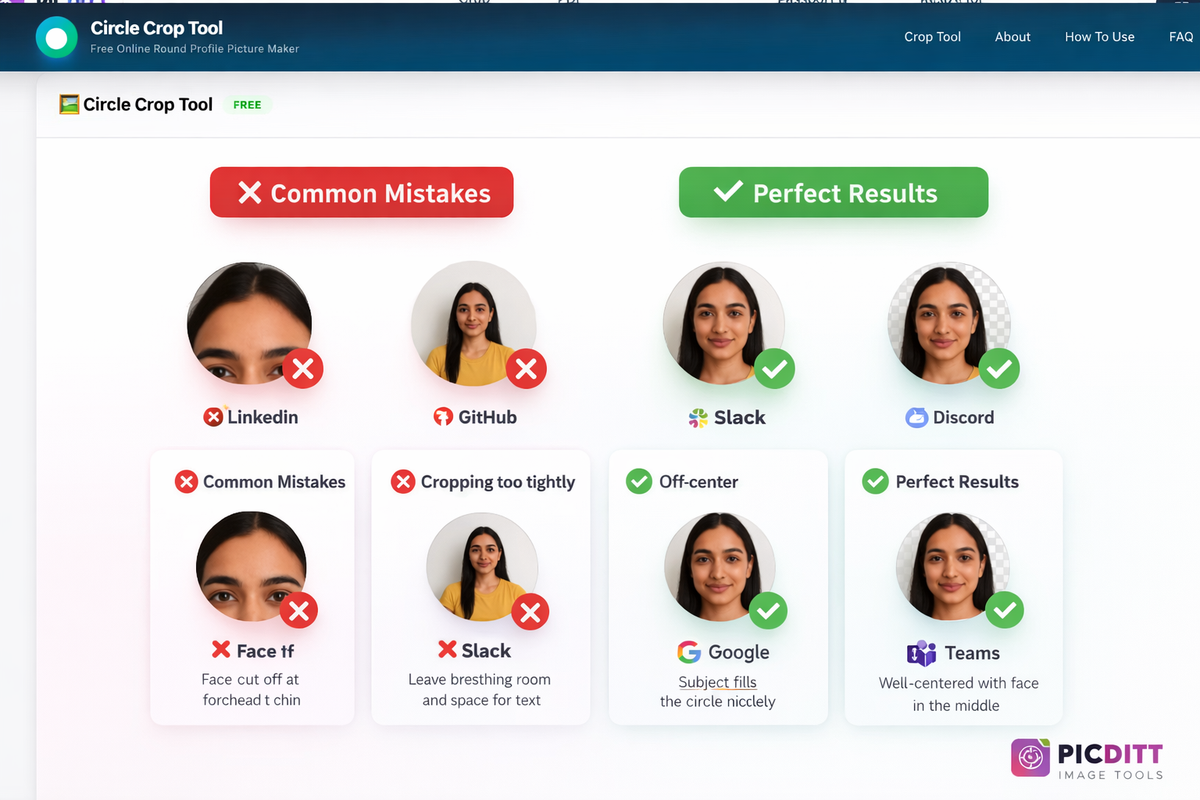
- Center your face within the circular frame
- Include forehead to chin — do not cut off either
- Leave breathing room — a small margin around your face prevents a cramped look
- Position your eyes roughly in the upper third of the circle for a natural, professional look
Optimize the Background
- Simple backgrounds work best — solid colors or gently blurred environments
- Avoid busy patterns that distract from your face
- High contrast between you and the background makes your face stand out at small sizes
- Consider using Picditt's Background Remover to remove the background entirely before circle cropping
Consider How It Looks Small
Profile pictures are often displayed at very small sizes — 32px to 48px in message threads, 40px in comment sections. Your circular avatar needs to be recognizable even at these tiny dimensions:
- Faces work better than full body shots at small sizes
- High contrast between subject and background is critical
- Simple compositions are more recognizable than complex ones
- Avoid text — it will be unreadable at small display sizes
Why Does the Circle Image Have a Checkered Background?
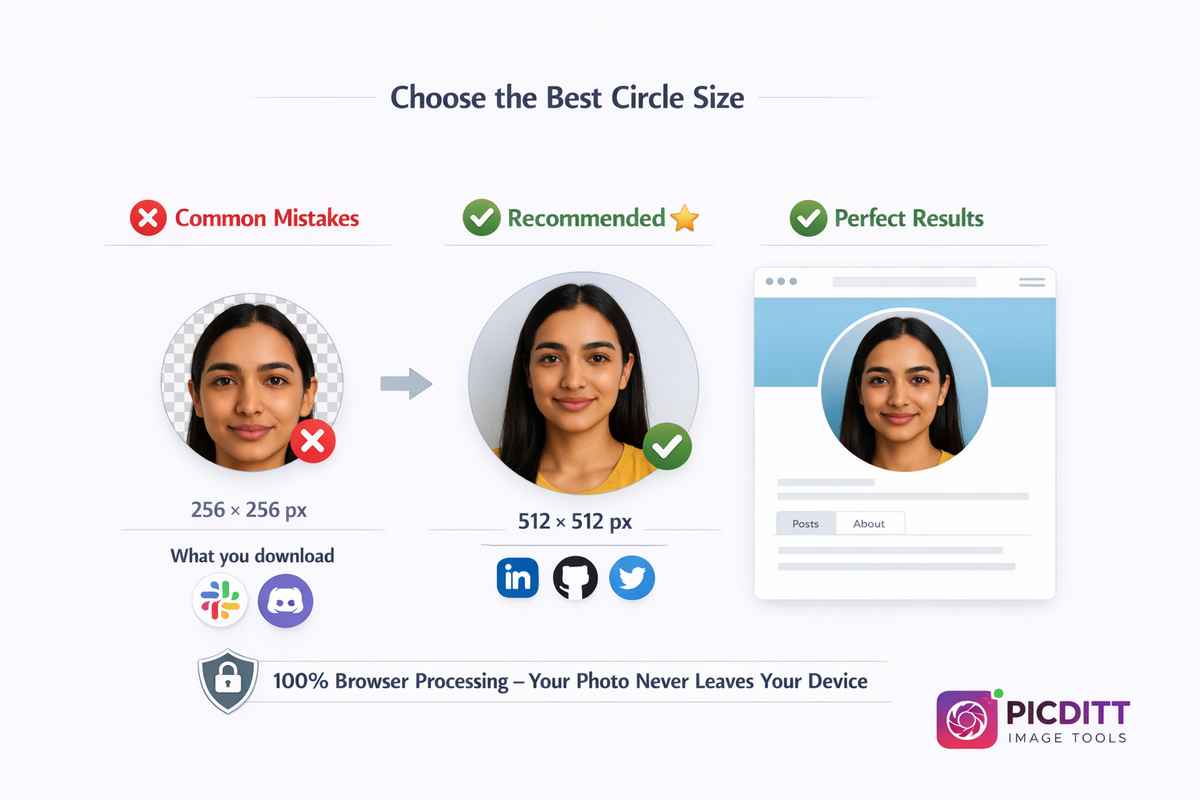
When you download your circular image from Picditt, you might notice a gray and white checkered pattern around the circle when viewing the file on your computer. This checkered pattern is not actually part of your image — it is your computer's way of showing you that those areas are transparent.
Your circular image is saved as a PNG file with transparency. This means:
- ✅ The circular photo area contains your image
- ✅ Everything outside the circle is completely transparent (invisible)
- ✅ When you upload it to any platform, the transparent area disappears and the circle sits cleanly on whatever background the platform uses
This is much better than having white corners around your circle, which would show up as visible white squares on platforms with dark or colored backgrounds.
What About JPEG?
JPEG format does not support transparency. If you need a JPEG version (some older systems require it), you can convert your transparent PNG to JPEG using Picditt's Universal Image Converter — but note that the transparent areas will become white.
Is It Safe to Crop Profile Pictures Online?
Profile pictures are personal — they contain your face, your identity. You should absolutely care about where these images go when you use an online tool.
Most online circle crop tools upload your photo to their server, process it remotely, and send the result back to you. During this process, your face — your biometric data — passes through a third-party server. You have no control over whether they store it, analyze it, or use it for AI training.
Picditt's Circle Crop tool is fundamentally different:
- ✅ 100% browser-based processing — your photo is processed using your device's HTML5 Canvas API
- ✅ No server upload — your image never leaves your device
- ✅ No account required — no email, no sign-up, no personal information collected
- ✅ No storage — close the tab and all image data is gone
- ✅ No tracking — your photos are not logged, analyzed, or used for any purpose
This makes it safe for:
- 👤 Personal headshots and selfies
- 💼 Professional corporate photos
- 👥 Team photos for company directories
- 🏢 Client photos (for designers and developers)
- 🪪 ID photos and formal portraits
Circle Crop for Specific Platforms
Here are platform-specific tips for the best circular profile pictures:
- Recommended size: 512 x 512 or 1024 x 1024
- Tip: Use a professional headshot with business attire. LinkedIn displays your profile picture in search results, messages, posts, and connection requests — it should look professional in all contexts.
- Background: Solid or softly blurred professional environment
GitHub
- Recommended size: 512 x 512
- Tip: Can be a headshot or a logo/avatar if you prefer anonymity. GitHub displays your avatar at various sizes from very small (20px in commit logs) to large (460px on your profile page). Make sure it is recognizable at small sizes.
Slack and Discord
- Recommended size: 256 x 256 or 512 x 512
- Tip: These are casual communication platforms. Your photo can be more relaxed and personality-driven. Make sure it is easily distinguishable from other team members' avatars.
Twitter/X
- Recommended size: 512 x 512
- Tip: Your avatar appears next to every tweet and reply. Choose an image that represents your personal brand and is instantly recognizable in a fast-scrolling feed.
Zoom and Microsoft Teams
- Recommended size: 512 x 512
- Tip: Your profile photo is displayed when your camera is off during meetings. Use a clear, professional headshot so colleagues can still identify you visually even without video.
Google Workspace
- Recommended size: 512 x 512
- Tip: Your Google avatar appears across Gmail, Google Meet, Google Docs, Google Drive, and more. It should be professional and clear since it represents you across all Google services.
Other Picditt Tools for Profile Picture Perfection
Creating the perfect profile picture often involves more than just circular cropping. Here are other free Picditt tools that complement the Circle Crop tool:
- Image Cropper — Crop photos to specific social media sizes before circle cropping for the best framing
- Background Remover — Remove busy or distracting backgrounds before creating your circular avatar
- AI Image Upscaler — Upscale a low-resolution photo before cropping so your circle image stays sharp
- Image Compressor — Reduce file size after cropping if the platform has upload limits
- WhatsApp DP Resizer — Resize and fit photos for WhatsApp profile pictures specifically
- Zoom Image — Zoom and reframe photos before cropping
- Photo Filters — Apply professional filters to enhance your photo before cropping
- Old Photo Restorer — Restore and enhance old photos before creating a circular avatar
All tools process locally in your browser with complete privacy.
Frequently Asked Questions (FAQ)
How do I crop a picture into a circle online for free?
The easiest way is to use Picditt's free Circle Crop tool. Upload your photo (JPG, PNG, or WebP), drag and zoom to position your subject inside the circular frame, choose your output size (256px, 512px, or 1024px), and download a PNG with transparent background. Everything processes in your browser — no upload, no sign-up, completely free.
What is the best size for a circular profile picture?
For most social media and professional platforms, 512 x 512 pixels is the recommended size. It is large enough to look sharp on high-resolution screens and small enough for fast uploading. Use 1024 x 1024 for websites and print materials, or 256 x 256 for messaging apps and small avatars.
Why is my profile picture blurry after uploading?
This usually happens when your source image is too small or low-resolution. If you start with a 200 x 200 pixel image and the platform displays it at 400 x 400, it will look blurry because it is being stretched beyond its original resolution. Always start with the highest resolution photo available. If needed, use Picditt's AI Image Upscaler to increase the resolution first.
Does the circle crop image have a white background?
No. Picditt's Circle Crop tool saves your image as a PNG with a transparent background. The area outside the circle is completely transparent, not white. This means your circular photo sits cleanly on any background color when uploaded to platforms. The checkered pattern you see when viewing the file on your computer represents transparency.
Can I crop a logo into a circle?
Yes. The Circle Crop tool works with any image — photos, logos, graphics, illustrations. For logos, make sure the design fits well within a circular frame and is recognizable at small sizes. Center the logo and leave some breathing room around the edges.
Is it safe to crop my face photo online?
With most online tools, your photo is uploaded to a server, which creates privacy concerns with biometric data. Picditt is different — all processing happens locally in your browser using HTML5 Canvas. Your photo never leaves your device, making it completely safe for personal photos and professional headshots.
Can I crop multiple photos into circles?
Picditt's Circle Crop tool processes one photo at a time, which allows you to carefully position each one for the best result. For batch processing, simply repeat the process for each photo — upload, position, download. Each crop takes about 10 seconds. For cropping multiple images to standard rectangular sizes, use Picditt's Image Cropper.
What image formats are supported?
The tool supports JPG, PNG, and WebP images up to 15MB in size. The output is always a PNG file because PNG is the only common format that supports transparency, which is essential for a clean circular image.
Do I need to create an account to use the tool?
No. There is no sign-up, no email verification, no account creation, and no paywall. The tool is completely free and accessible to everyone immediately. Just visit the page and start cropping.
Can I use the circle crop tool on my phone?
Yes. The tool works in any mobile browser — Safari on iPhone, Chrome on Android, or any other mobile browser. Simply visit the page, upload a photo from your camera roll or take a new one, position it in the circle, and download. No app installation required.
Conclusion
In a world where nearly every platform displays profile pictures as circles, having a properly cropped circular avatar is not a luxury — it is a necessity. Leaving the crop to platform algorithms means accepting whatever they decide to show, which often means cut-off foreheads, missing chins, and off-center compositions.
Picditt's free Circle Crop tool gives you full control in just 10 seconds:
- ✅ Upload any photo — JPG, PNG, or WebP
- ✅ Drag and zoom to position perfectly inside the circle
- ✅ Choose your size — 256px, 512px, or 1024px
- ✅ Download PNG with transparent background
- ✅ 100% private — your photo never leaves your device
- ✅ No account needed — no sign-up, no email, no paywall
- ✅ Works everywhere — desktop, tablet, mobile, any browser
Whether you are updating your LinkedIn headshot, setting up a new Slack workspace, preparing team photos for your company website, or creating avatars for any other purpose — your circular profile picture will look exactly the way you intended.
Ready to Try It Yourself?
Use this tool for free — no signup, no download, no watermarks.
Open Free ToolYou Might Also Like
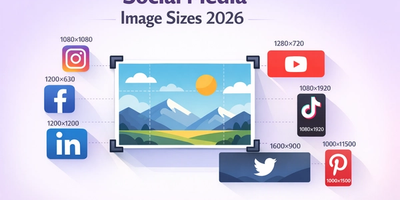
The Complete Guide to Social Media Image Sizes: How to Crop Photos for Every Platform in 2026
Stop guessing social media image sizes! This complete guide covers the exact dimensions for Instagram, Facebook, YouTube, TikTok, LinkedIn, Twitter/X, Pinterest, and more — plus how to crop your photos perfectly using Picditt's free online image cropper with one-click presets.
Read More →
WhatsApp DP Resizer: How to Fit Your Full Photo Without Cropping or Losing Quality
Tired of WhatsApp cutting off your head, your friend, or the best part of your photo? Learn how to use PicDitt's free WhatsApp DP Resizer to fit any image into a perfect square profile picture with blur, color, or gradient backgrounds—no cropping required.
Read More →
Screenshot Editor – Edit, Annotate & Share Screenshots Like a Pro
Edit screenshots instantly with PicDitt's free online screenshot editor. Add text, arrows, shapes, blur sensitive info, crop, and export in PNG, JPEG, or WebP. No signup required.
Read More →