Make Every Photo Fit: PicDitt’s Instagram No Crop Photo Editor for Instagram & WhatsApp
Advertisement
Make Every Photo Fit: Use PicDitt’s Instagram No Crop Photo Editor
No Crop Photo Editor for Instagram & WhatsApp
Fit any photo into a perfect square without cutting anything off. Add beautiful blurred backgrounds, solid colors, or gradients instantly.
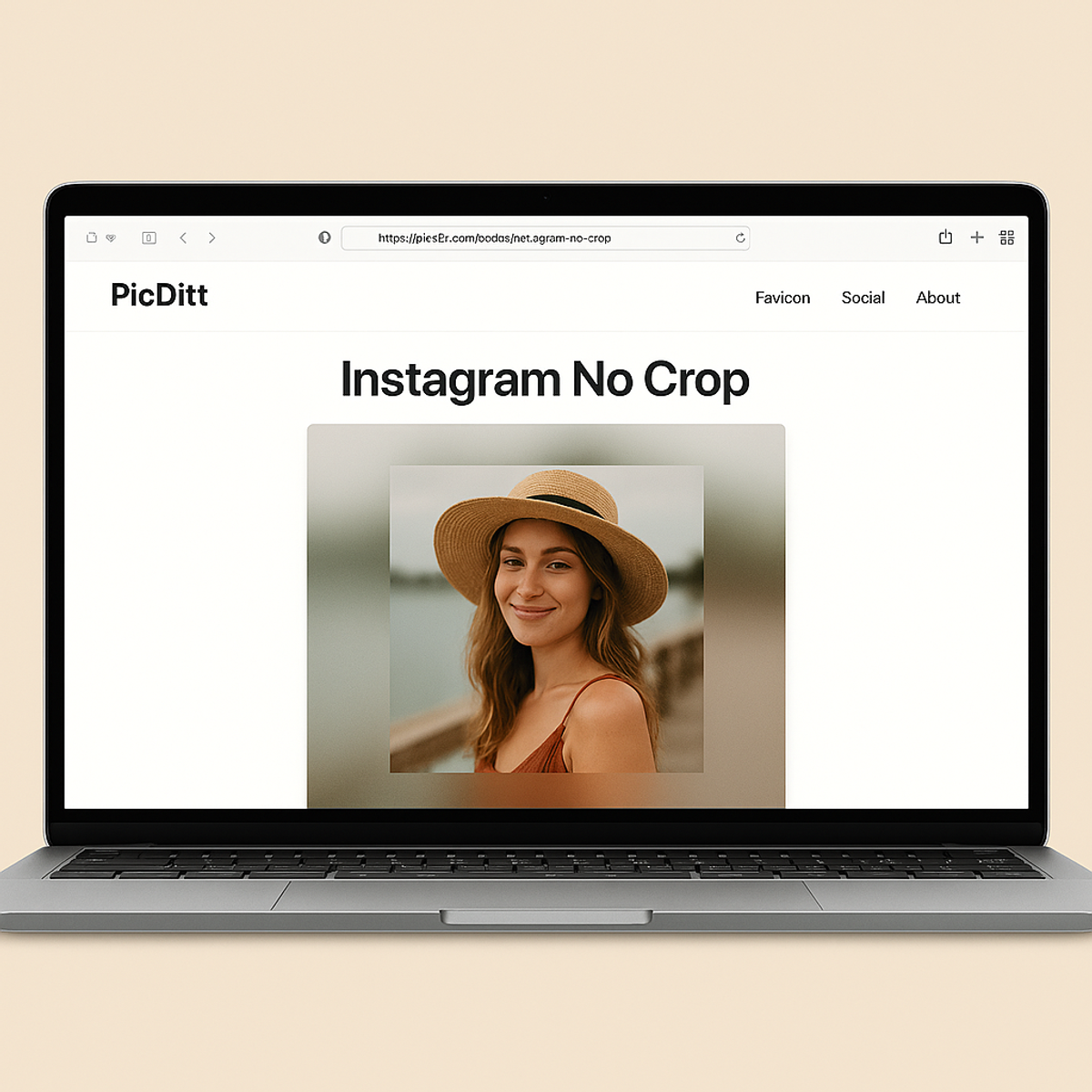
If you’ve ever tried to upload a photo to Instagram or set a new WhatsApp display picture and watched the app force you to crop out something important, you’re not alone. Maybe it’s the top of your head, a friend on the side, or the nice background you wanted to show.
Social platforms love square or specific aspect ratios—but your camera definitely doesn’t always shoot in a perfect square.
That’s exactly the problem PicDitt’s Instagram No Crop tool is built to solve. With the No Crop Photo Editor athttps://picditt.com/social/instagram-no-crop
you can fit your entire photo into a square canvas without losing anything, and make it look good with blur, solid color, or gradient backgrounds.
In this guide, you’ll learn:
- Why Instagram and WhatsApp crop your photos
- What PicDitt’s Instagram No Crop tool does
- How to use it step by step
- Creative ways to use no‑crop images for personal and business accounts
- Simple tips to get the best-looking results
Why Instagram and WhatsApp Keep Cropping Your Photos
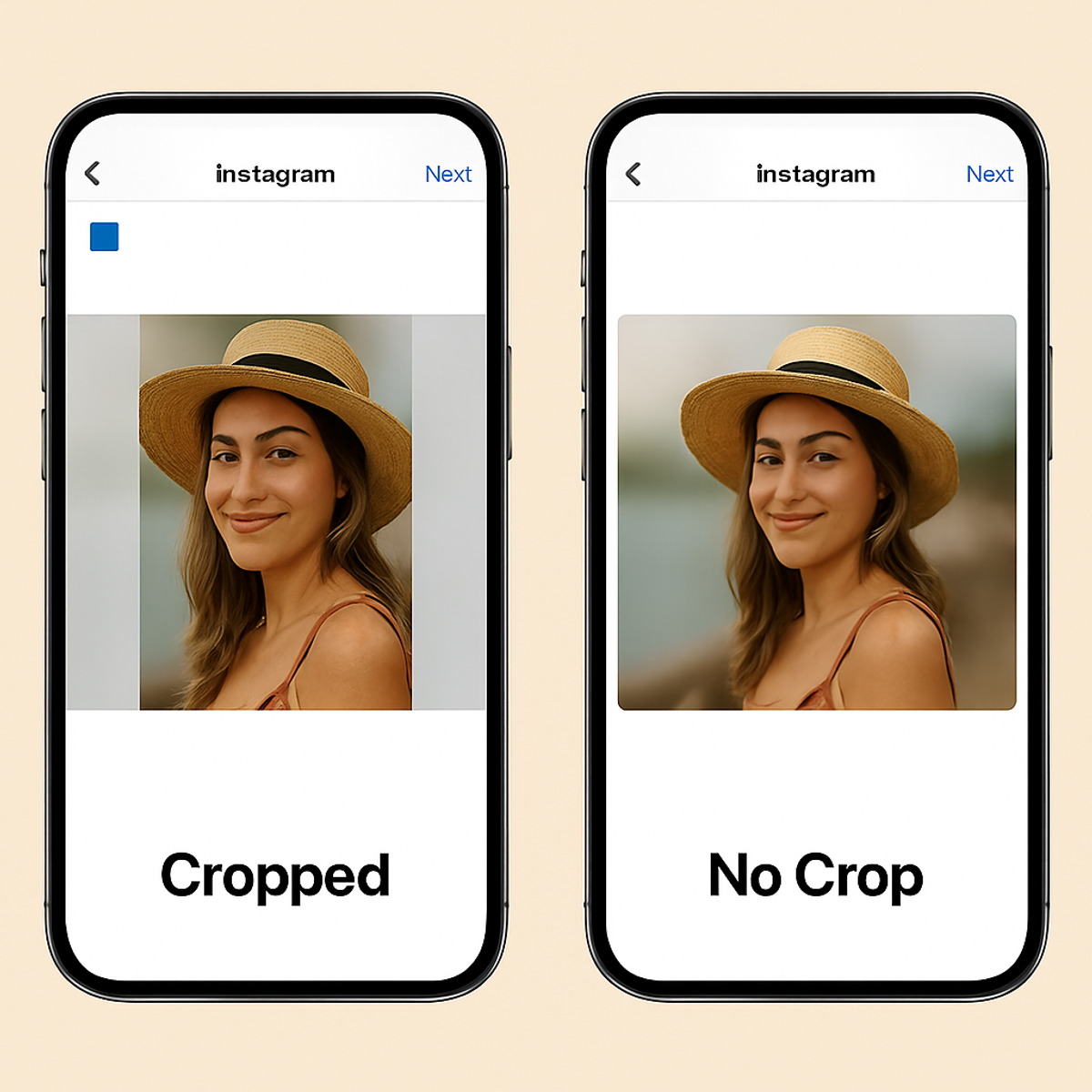
Before fixing the issue, it helps to understand what’s actually going on when your image gets cut.
Social Apps Love Specific Aspect Ratios
Instagram and WhatsApp are designed for quick scrolling and clean grids. To keep everything consistent, they often push your content into:
- Square (1:1) for profile pictures and many grid posts
- Portrait (4:5) or landscape (1.91:1) for some feed posts and ads
- Full-screen vertical for Stories and Reels/Status
Your phone camera, on the other hand, usually shoots at:
- 4:3 (most default camera modes)
- 16:9 (widescreen)
- Or other custom sizes depending on settings
When those don’t match, the app forces a crop.
The Limitations of Default Cropping Tools
Inside Instagram or WhatsApp, you can pinch to zoom out a bit, but you often hit a limit:
- You still end up cutting off parts of the image
- You can’t easily add a matching background
- You don’t get fine control over framing or padding
If you care about your feed’s look or don’t want to slice off half your photo, you need a better approach: add space around the image instead of cutting into it.
What Is PicDitt’s Instagram No Crop Photo Editor?
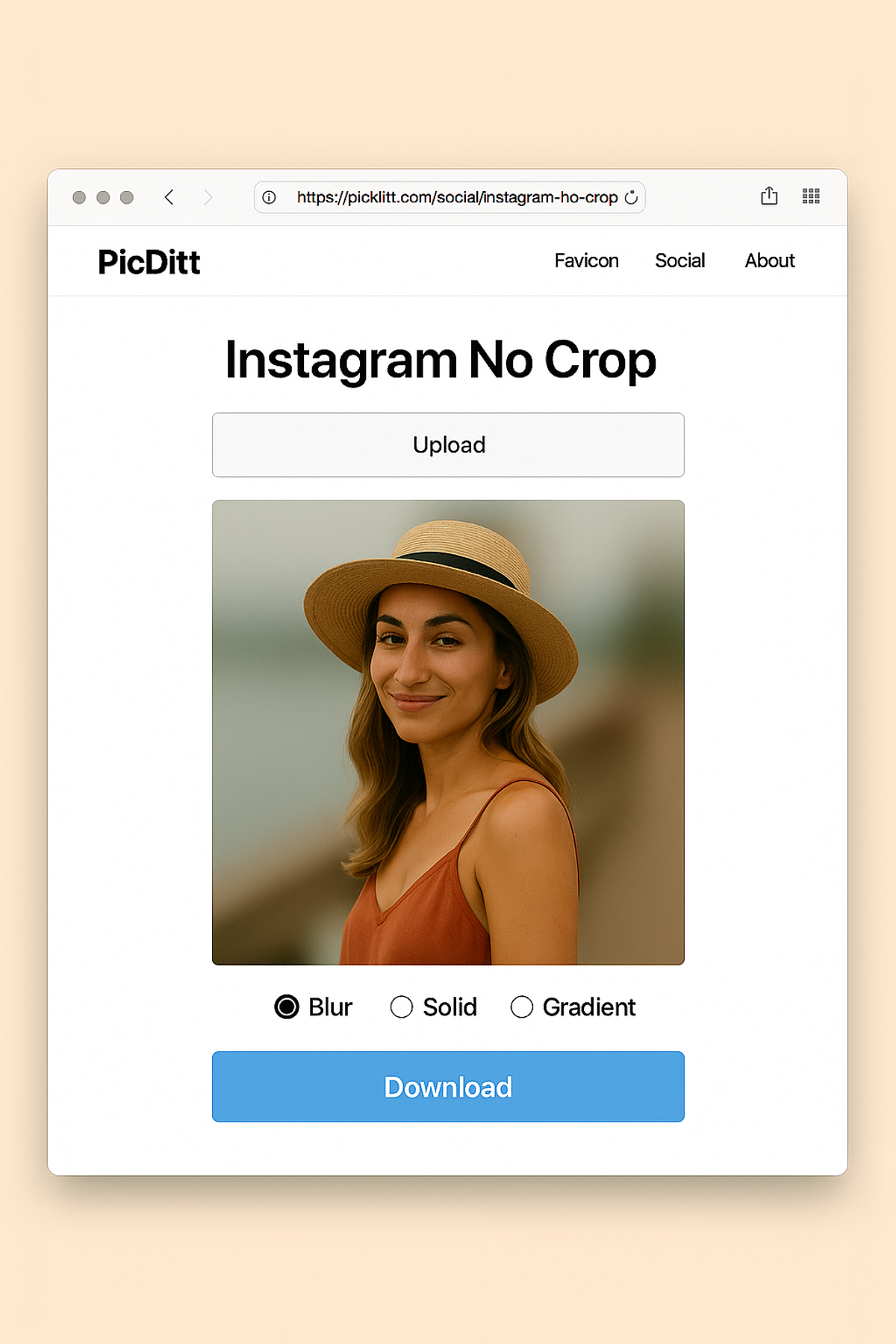
PicDitt’s Instagram No Crop tool is a simple online editor that lets you:
- Place any photo inside a square canvas
- Keep the entire image visible (no cropping)
- Fill the extra space with:
- A blurred version of your photo
- A solid color background
- A smooth gradient that matches your style
- Download the final image ready for:
- Instagram posts and profile pictures
- WhatsApp DP and Status
- Other platforms that prefer square images
You don’t need to install an app or create an account. Everything happens in your browser at:
https://picditt.com/social/instagram-no-crop
Key Features That Make the No Crop Tool Stand Out
1. Fit Any Photo Into a Perfect Square
Whether your picture is tall, wide, or somewhere in between, the tool:
- Automatically places it inside a square canvas
- Keeps the full content of the photo visible
- Avoids stretching or warping—only the background changes, not the main image
You get the right dimensions for Instagram/WhatsApp without sacrificing composition.
2. Beautiful Background Options
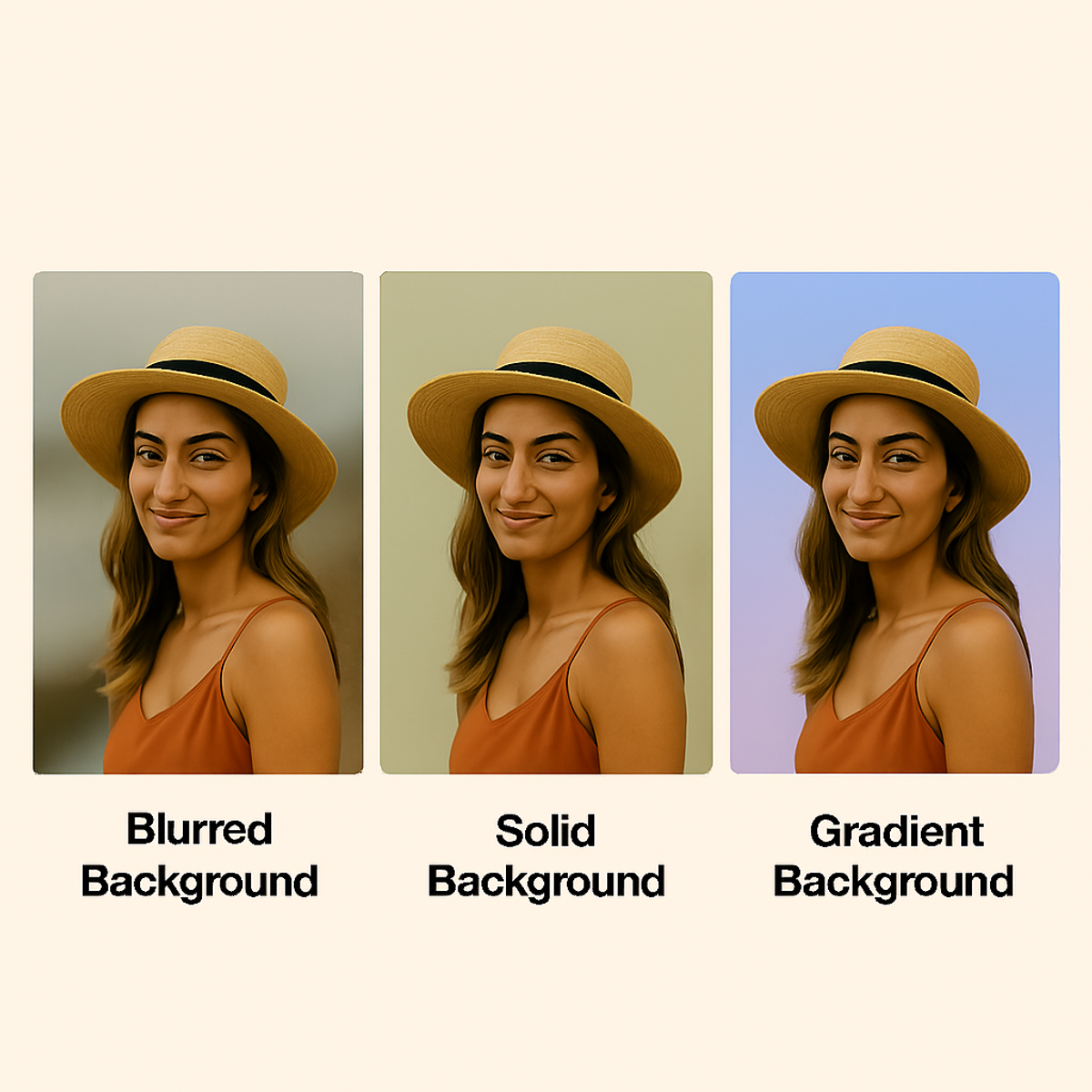
Once your image is centered in the square, you can choose how to fill the empty space around it:
- Blurred background
- Uses a soft, out-of-focus version of your original photo
- Keeps colors consistent and looks modern on Instagram
- Solid color background
- Pick a clean white, black, or any color that fits your feed
- Great for minimal grids and branding
- Gradient background
- Blend two or more colors for a stylish, eye-catching look
- Perfect for quotes, announcements, and promotional posts
This makes your no‑crop image look intentional—not like a random white border.
3. Works for Instagram & WhatsApp
The square output works well for:
- Instagram feed posts
- Instagram profile photos (DP)
- WhatsApp profile photos
- WhatsApp Status images
- Other platforms that use square or close-to-square thumbnails
Instead of resizing each time inside each app, you prepare it once with PicDitt and reuse it anywhere.
4. Simple, Browser-Based Workflow
- Open the tool in your browser
- Upload, adjust, and export
- No login required, no heavy software
This keeps things quick and beginner-friendly, which is perfect if you just want to fix a picture and post it.
How to Use the Instagram No Crop Tool (Step-by-Step)
You can create a no‑crop image in just a few minutes. Here’s a simple walkthrough.
H2: Step 1 – Open the Tool
Go to:
https://picditt.com/social/instagram-no-crop
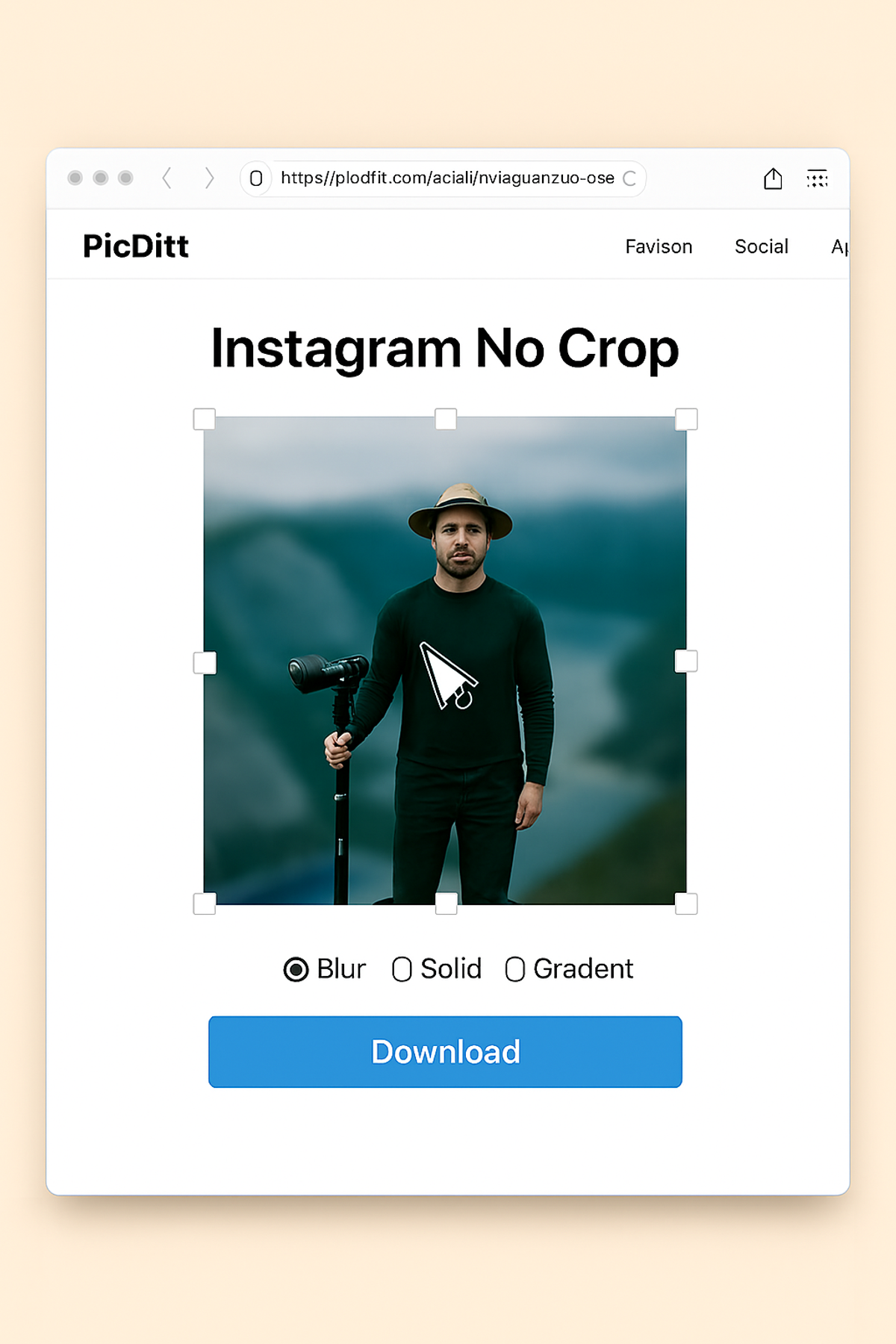
You’ll see the No Crop Photo Editor for Instagram & WhatsApp interface.
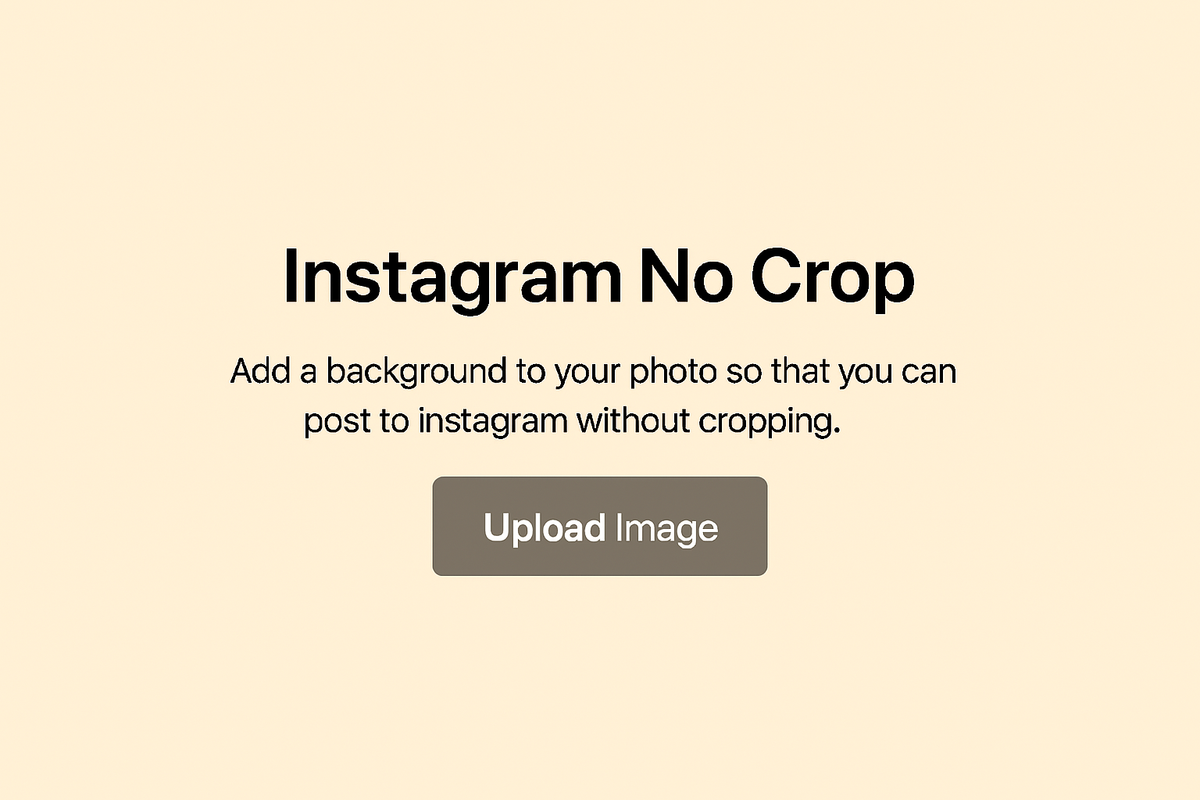
H2: Step 2 – Upload Your Photo
- Click the Upload or Choose image button.
- Select the photo you want to use:
- Portrait or landscape photos
- Group photos
- Selfies
- Product images
The tool will load it onto a square canvas.
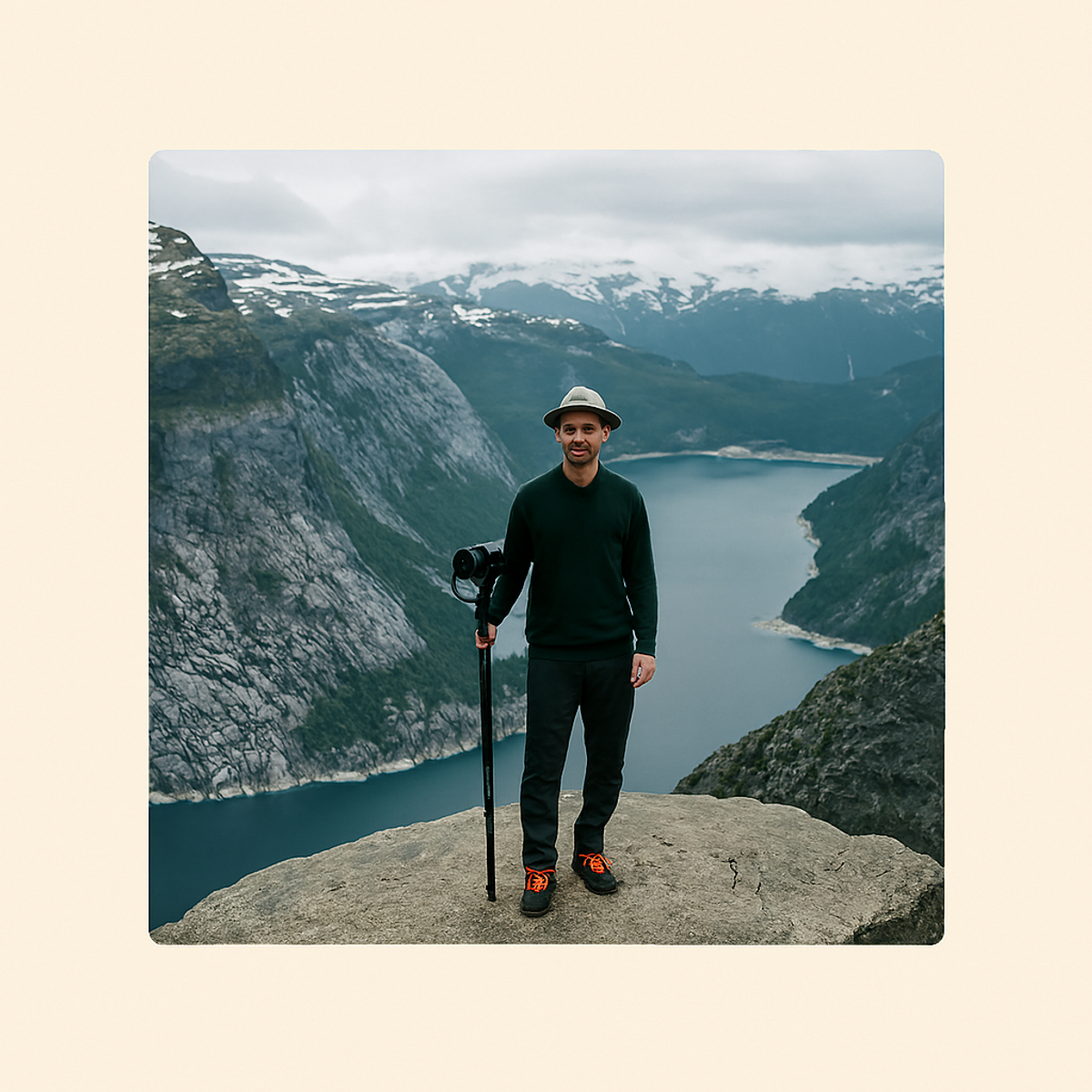
H2: Step 3 – Choose Your Background Style
Now, decide how to fill the extra space around your image:
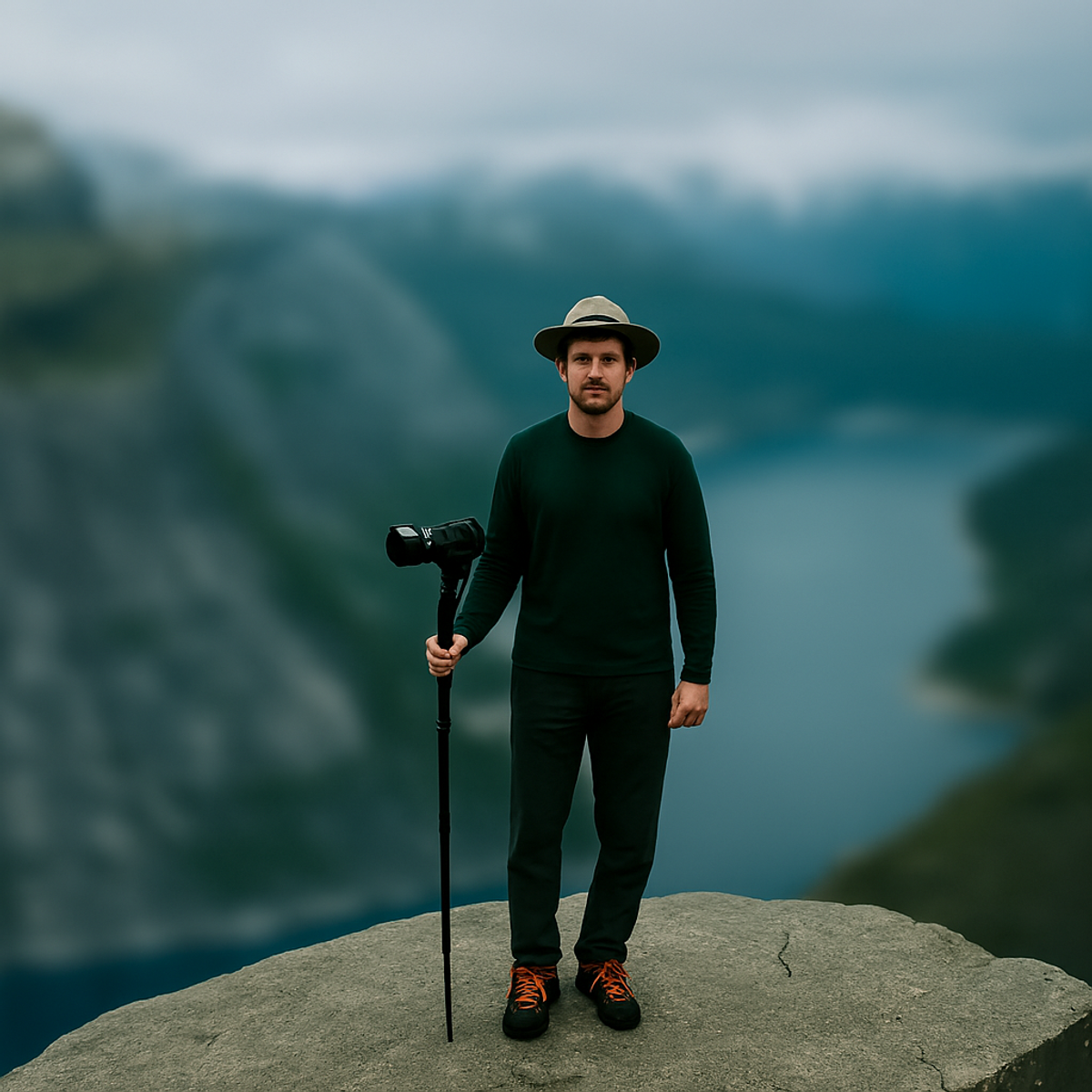
H3: Option A – Blurred Background
- Select Blur as your background style.
- The edges of the square will be filled with a soft, zoomed-in, blurred version of your photo.
- This is ideal when:
- You want a modern, cinematic look
- You want the colors of the original photo to carry through
H3: Option B – Solid Color Background
- Choose Solid color.
- Pick a color that:
- Matches your Instagram theme
- Contrasts nicely with your image
- Works well with your brand colors
For example:
- White or light gray for a clean, minimal feed
- Black for a moody, high-contrast look
- Brand-specific colors (like your logo color)
H3: Option C – Gradient Background
- Select Gradient.
- Choose the gradient presets or customize your own.
- Gradients work well for:
- Quote posts
- Announcements
- Posts where you want a bold, eye-catching background
H2: Step 4 – Adjust Position and Size
Most no-crop editors, including PicDitt’s, allow some basic adjustments:
- Move the photo slightly up/down or left/right
- Zoom in or out a bit (without cutting off important parts)
- Center the main subject (your face, product, text, etc.)
Take a few seconds to:
- Make sure nothing important is near the very edge
- Check that the margins look balanced
- Confirm that your subject is well-framed
H2: Step 5 – Download and Upload to Instagram or WhatsApp
Once you’re happy with the preview:
- Click Download (usually saves as JPG or PNG).
- The file is now on your device, already in a square format.
- Open Instagram or WhatsApp:
- For Instagram:
- New Post → select the edited image → post
- For WhatsApp:
- Change profile photo → choose the edited image (it will fit perfectly)
- Or add to Status with no weird cropping
- For Instagram:
You don’t need to pinch or fight with the app’s built-in cropping screen anymore.
Creative Ways to Use No Crop Photos
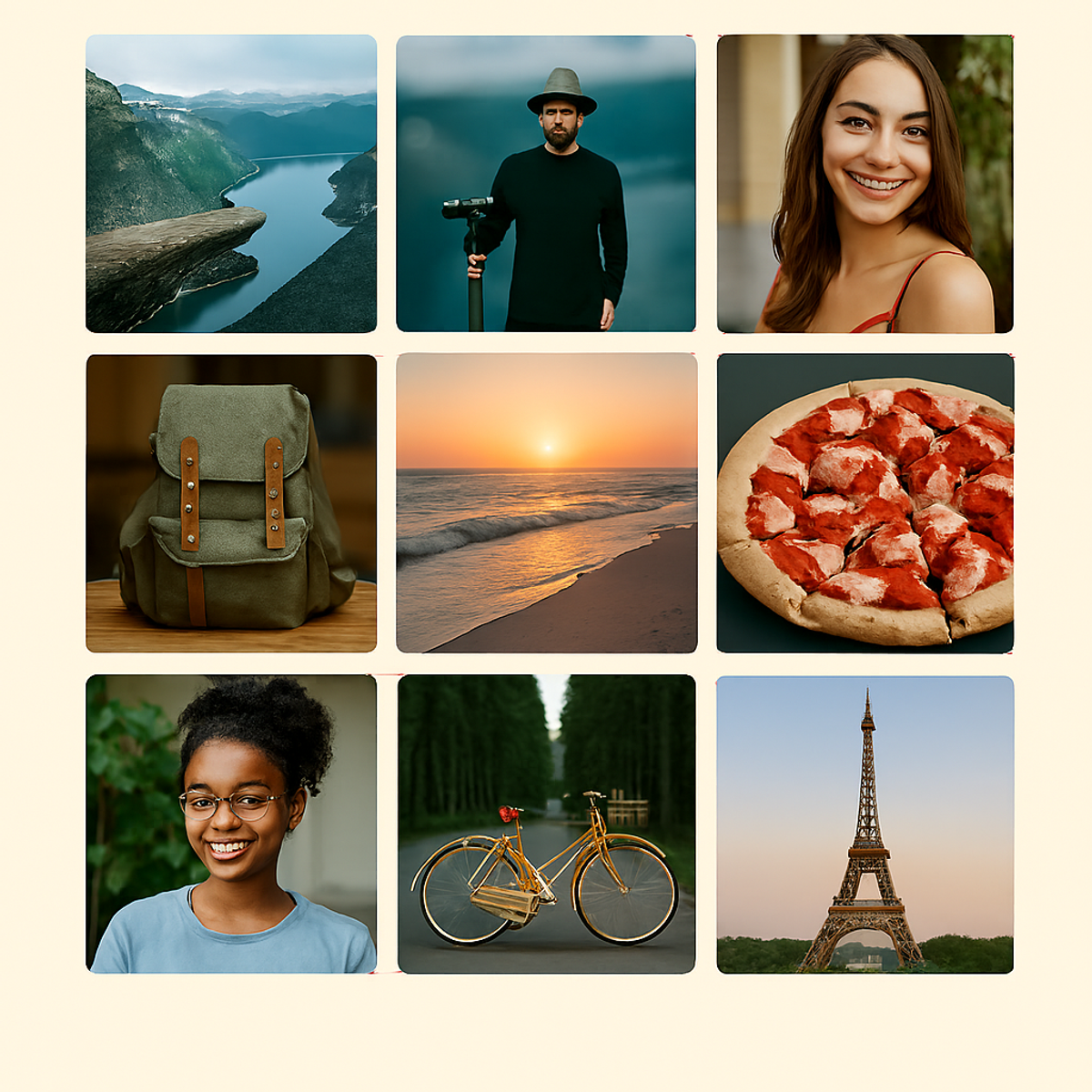
No-crop images aren’t just about “fixing” a problem. They can actually improve your entire profile and content strategy.
H2: For Personal Instagram Feeds
- Travel photos
- Keep the sky and the ground in frame
- Show buildings, landmarks, and people without chopping off edges
- Group photos
- Fit everyone in the frame without leaving friends half-visible
- Selfies & portraits
- Add a subtle blur around you so the focus stays on your face
- Use solid or gradient backgrounds to make your profile grid more cohesive
H2: For Small Businesses & Creators
If you’re running a personal brand, shop, or content page:
- Product shots
- Center your product and use a brand color background
- Makes your grid look clean and consistent
- Quotes and tips
- Use gradients or solid colors with your logo
- The no-crop square format keeps everything aligned nicely
- Before & after comparisons
- Place the main photo in the middle with a soft blurred background
- Add small text labels (“Before” / “After”) within the square space
H2: For WhatsApp DP and Status
- Profile photos (DP)
- Ensure your face is fully visible
- Add subtle color or blur behind you for a polished look
- Status updates
- Share text quotes or announcements on a gradient background
- Reuse designs from Instagram so your personal or business identity stays consistent across platforms
Tips for Getting the Best Results with the No Crop Editor
To make your final images look as good as possible, keep a few simple things in mind.
H2: Start with a Good-Quality Image
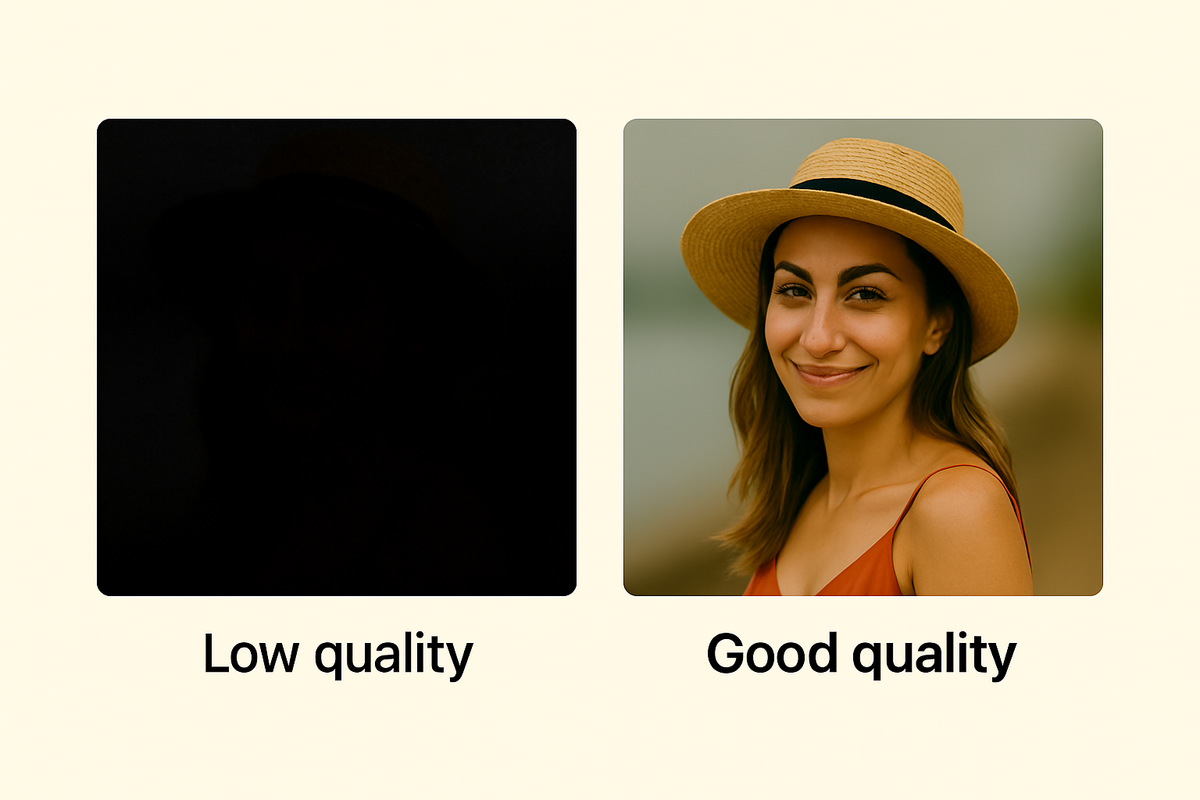
- Use the original photo from your camera, not a screenshot of a screenshot.
- Avoid overly compressed images (they can look blurry once edited).
Higher resolution in → sharper result out.
H2: Match Background Style to Your Content
- Blurred background:
- Best when the original photo has nice colors or a scenic environment
- Solid color:
- Great for minimal feeds or corporate/brand pages
- Gradient:
- Ideal when you want a more modern, creative vibe
Try to use similar styles across your posts so your overall profile looks intentional and consistent.
H2: Check Contrast and Readability
If you plan to add text (in another editor or inside Instagram):
- Make sure the background doesn’t clash with the text color
- Use high contrast:
- Light text on dark background
- Dark text on light background
Good contrast makes your posts more readable and user-friendly.
H2: Preview on Your Phone
Even if you edit on a laptop, quickly:
- Send the edited image to your phone
- Open it in your gallery
- Imagine it in the Instagram grid or WhatsApp profile circle
This quick check can catch any awkward cropping or framing before you post.
Frequently Asked Questions About the Instagram No Crop Tool
H3: Is the PicDitt Instagram No Crop tool free?
Yes, the Instagram No Crop editor athttps://picditt.com/social/instagram-no-crop
is free to use in your browser. You can open the page, upload a photo, adjust the layout, and download the result without a paid subscription.
H3: Do I need to install an app?
No. The tool runs directly in your web browser. You don’t need to download an app from the store or install anything on your computer.
H3: Will this reduce the quality of my photo?
Any time you edit and export an image, it’s re-saved, which involves some compression. However, the tool is designed to keep your photo suitable for Instagram and WhatsApp sharing. Starting with a good-quality original image helps keep your final result clean and sharp.
H3: Does the tool add a watermark?
The goal of a no-crop editor like this is to let you share clean content. When you use the tool on PicDitt, you can prepare photos that are ready for personal or professional use without distracting marks on top of your image.
H3: Can I use it for other platforms besides Instagram and WhatsApp?
Yes. Even though the name mentions Instagram and WhatsApp, the output is a square image that works well on:
- Telegram
- LinkedIn (for some post formats)
- Any place where a square or near-square image is useful
Final Thoughts
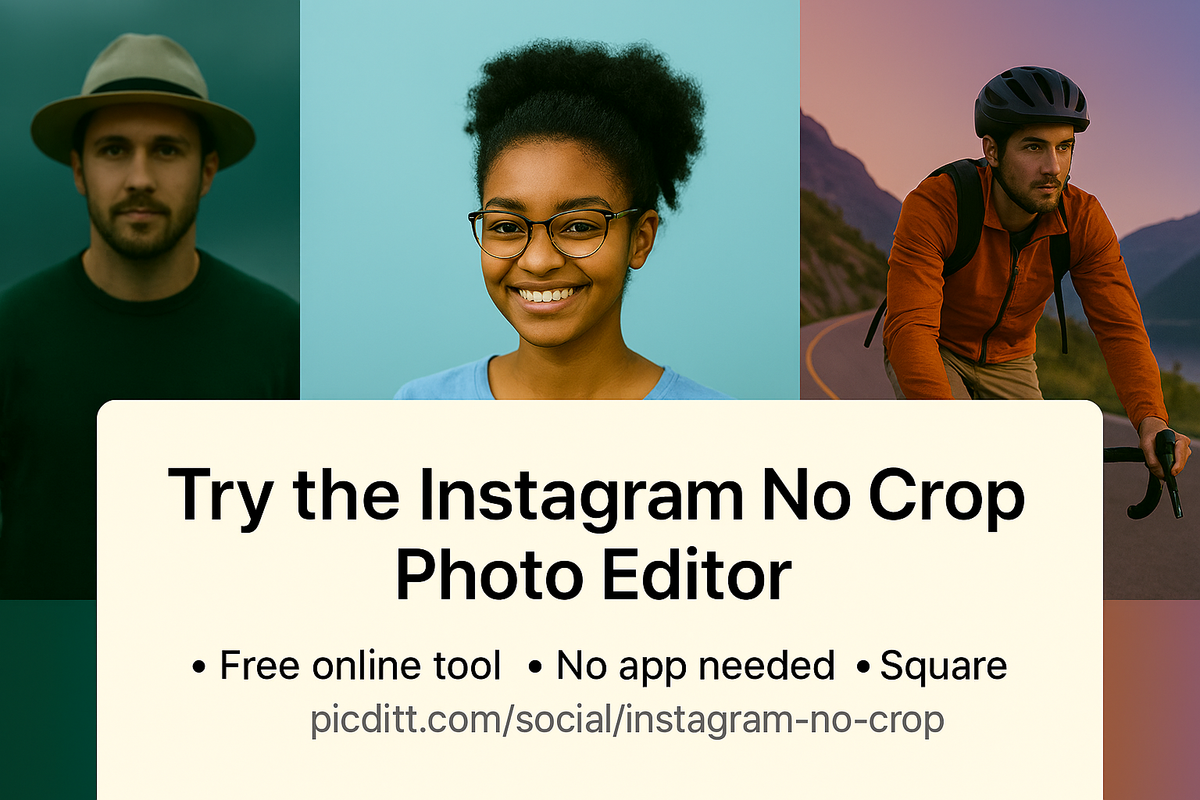
Social media platforms are built for fast sharing, but their default cropping rules don’t always respect the photos you carefully took. Important details get cut, faces disappear at the edge, and your feed can end up looking messy.
PicDitt’s Instagram No Crop Photo Editor at
https://picditt.com/social/instagram-no-crop
gives you a simple way to:
- Fit any photo into a perfect square
- Keep the entire image visible
- Add blurred, solid, or gradient backgrounds for a polished look
- Prepare content for Instagram, WhatsApp, and beyond—without fighting the crop tool every time
While you wait for AdSense approval or continue growing your site, publishing useful, original guides like this one—with clear visuals and screenshots—helps show that your website is active, helpful, and focused on real user needs.
If you’ve ever been frustrated by Instagram or WhatsApp chopping off your favorite parts of a photo, try the no-crop editor for your next post and see how much better your images can look when nothing important gets left out.
You Might Also Like
Screenshot Editor – Edit, Annotate & Share Screenshots Like a Pro
Edit screenshots instantly with PicDitt's free online screenshot editor. Add text, arrows, shapes, blur sensitive info, crop, and export in PNG, JPEG, or WebP. No signup required.
Read More →
Magic Eraser Online: How to Remove Unwanted Objects from Photos with AI
Photobombers, power lines, watermarks, blemishes—every photo has something you wish wasn't there. Learn how to use PicDitt's free Magic Eraser to brush over any unwanted object and watch AI remove it seamlessly, all directly in your browser with complete privacy.
Read More →
How to Compress Images to an Exact File Size: The Complete Guide to Target Compression
Need your image to be exactly 500KB for a government form or under 25MB for Gmail? Learn how to compress any image to a precise file size using PicDitt's free Target Compression tool—without guessing quality settings or losing more quality than necessary.
Read More →