Instagram Reels Embed Not Working in 2025? The Complete iFrame Fix Guide
Instagram Reels Embed Not Working in 2026? The Complete iFrame Fix Guide
Your Instagram Reel is getting thousands of views. You want to embed it on your website — your blog, your portfolio, your business landing page. You copy the embed code, paste it into your site, publish, and reload the page.
Blank space.
Not even an error message. Just nothing where your Reel should be.
If you searched for help and found guides about "Instagram embed not working" — you may have noticed that most of them focus on regular Instagram post embeds. They walk you through oEmbed authentication, JavaScript conflicts, and plugin updates. You try everything. Still nothing.
Here is the reason: Instagram Reels embed differently from regular posts, and they break for different reasons. The fixes are different too.
This complete 2025 guide is specifically about Reels embeds — why they fail, what changed in Meta's API that broke thousands of Reels iFrames, and exactly how to fix them across every major platform and tech stack.
Why Instagram Reels Embeds Are Different
Understanding why Reels embeds break requires understanding how they work differently from regular post embeds.
Regular Posts vs Reels: The Technical Difference
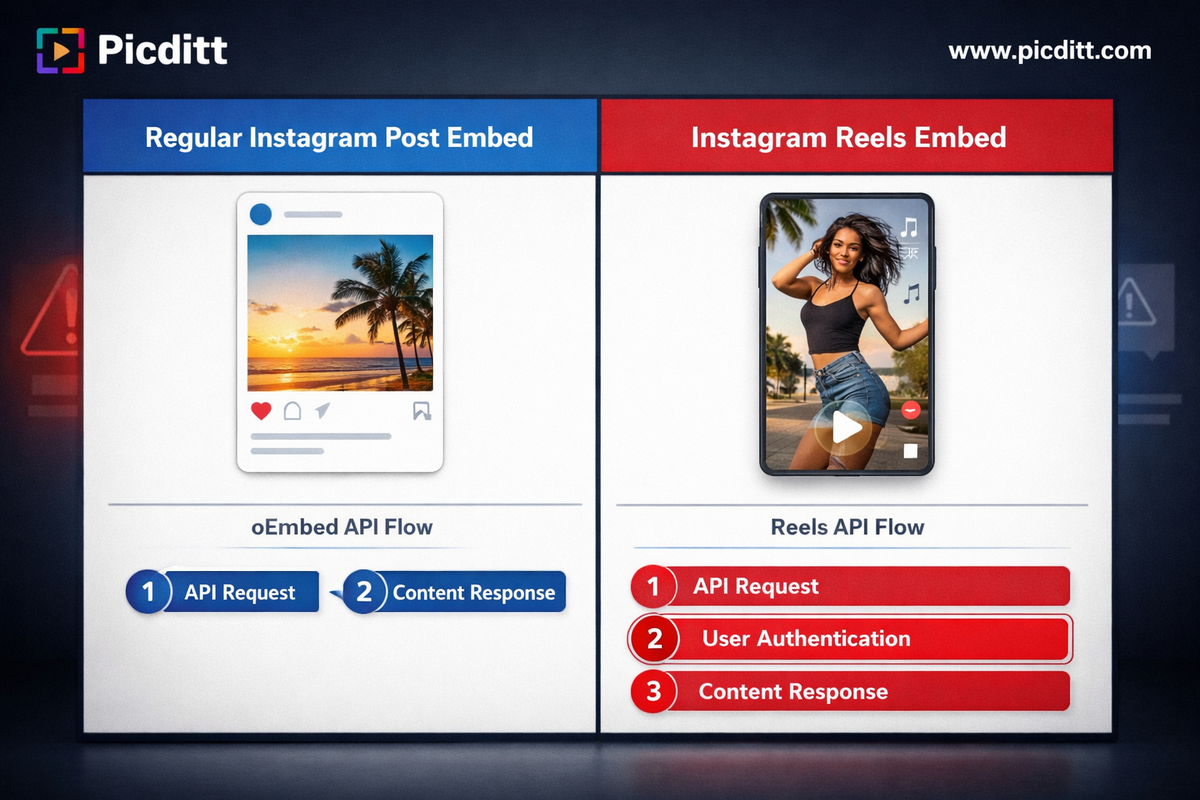
When you embed a regular Instagram photo or carousel post, the process uses Instagram's standard oEmbed endpoint. The endpoint returns an HTML snippet containing a blockquote element and a reference to Instagram's embed.js script. The script renders the post as an interactive widget.
Reels use a different rendering path entirely:
Regular post embed flow:
textYour website requests embed code
→ Instagram oEmbed API returns blockquote HTML
→ embed.js renders the widget
→ Post displays
Reels embed flow:
textYour website requests embed code
→ Meta Graph API validates authentication token
→ Returns iFrame-based embed code
→ iFrame loads Reels player from Instagram servers
→ Cross-origin permissions checked
→ Reel displays (or fails silently)
The iFrame-based architecture means Reels embeds are subject to an additional layer of requirements:
- Cross-Origin Resource Sharing (CORS) — your website must be permitted to load content from Instagram's servers in an iFrame
- Content Security Policy (CSP) — your site's security headers must explicitly allow iFrame content from Instagram
- Meta Graph API authentication — the embed request must include a valid, unexpired access token
- Reel-specific permissions — your Facebook App must have the correct permissions scope for Reels content
Any one of these failing produces the same result: a blank space where your Reel should be.

What Changed in 2025 — The Meta API Updates That Broke Reels Embeds
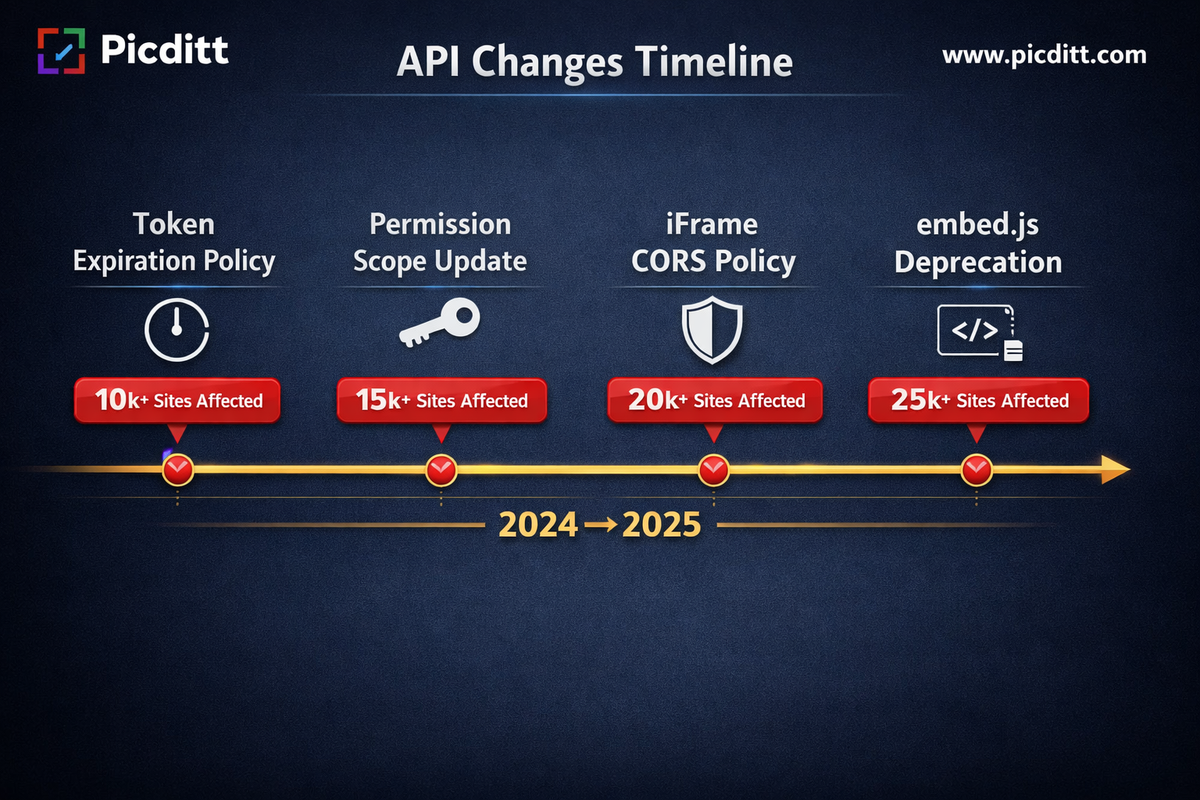
Several specific changes in Meta's API infrastructure in 2024-2025 have broken Reels embeds across thousands of websites. Understanding which change affected your site determines which fix you need.
Change 1: Access Token Expiration Policy Update
Meta updated their token expiration policy for the Instagram oEmbed API. Previously, long-lived access tokens generated through the Facebook developer console would remain valid for extended periods. The updated policy enforces stricter expiration schedules and requires token refresh more frequently.
How this breaks your embed: Your Reels embed was working, then suddenly stopped. The token used to authenticate the embed request expired and was not automatically refreshed.
Who this affects: Websites using manually generated access tokens in plugin settings, custom embed implementations, and any site that set up Instagram authentication more than 60 days ago without refreshing tokens.
Change 2: Reels-Specific Permission Scope Requirement
Meta introduced a specific permission scope for Reels content: instagram_basic combined with pages_read_engagement is no longer sufficient for Reels embeds in all contexts. Some Reels content types now require additional scope permissions depending on how the embed is being served.
How this breaks your embed: Regular Instagram post embeds still work on your site but Reels specifically show blank or return an error in the API response.
Who this affects: Custom implementations using the Graph API directly, developers who set up Facebook Apps for Instagram embedding before 2024.
Change 3: Stricter iFrame Same-Origin Policy
Instagram tightened the cross-origin policy for Reels player iFrames. Websites that previously served Reels iFrames without explicit CORS headers began seeing silent failures as Instagram's servers started rejecting cross-origin requests from sites without proper configuration.
How this breaks your embed: The iFrame loads in the HTML source but displays blank — no error, just empty space. This is the most confusing failure mode because the embed code appears correct.
Who this affects: Sites with strict Content Security Policy headers, sites behind CDNs with modified response headers (particularly Cloudflare), and custom-built websites without explicit CSP configuration for Instagram.
Change 4: embed.js Version Conflicts
Meta updated their embed.js script and deprecated support for calls made to older versions of the script path. Sites loading embed.js from cached or outdated URLs stopped being able to render Reels correctly even when authentication was valid.
How this breaks your embed: Reels show a loading spinner that never resolves, or the embed frame appears but the video never plays.
Who this affects: Sites with aggressive JavaScript caching, sites that hardcoded the embed.js URL, and some WordPress plugins that bundle their own version of the script.
Diagnosing Your Specific Reels Embed Problem
Before jumping to fixes, spend two minutes diagnosing which specific failure you are experiencing. This saves significant time by pointing you to the correct solution immediately.
Diagnostic Step 1: Open Browser Developer Tools
- Open the page with the broken Reel embed in Google Chrome
- Press F12 to open Developer Tools
- Click the Console tab
- Reload the page
- Look for any error messages
What the errors tell you:
Console Error
Likely Cause
Fix to Apply
Access token expired or OAuthException
Token expiration
Fix 1 — Refresh access token
Refused to display in frame
CSP header blocking iFrame
Fix 2 — Update CSP headers
CORS error or Cross-origin request blocked
CORS policy
Fix 3 — Configure CORS
instagram.com/embed.js failed to load
embed.js blocked or cached
Fix 4 — Fix embed.js loading
No errors but blank space
iFrame rendering silently failing
Fix 5 — iFrame fallback method
Diagnostic Step 2: Check the Network Tab
- Still in Developer Tools, click the Network tab
- Reload the page
- Filter by "instagram" in the search box
- Look at the status codes for Instagram requests
Status codes explained:
Status Code
Meaning
Action
200
Request successful — rendering issue
Check CSP and iFrame permissions
400
Bad request — malformed embed code
Regenerate embed code
401
Unauthorized — authentication failed
Refresh access token
403
Forbidden — permission denied
Check Facebook App permissions
429
Rate limited — too many requests
Wait and implement caching
Diagnostic Step 3: Test the Reel URL Directly
Navigate directly to the Reel URL on Instagram.com. If the Reel loads on Instagram but not on your site, the issue is with your embed implementation. If the Reel is unavailable on Instagram itself, the content is the issue — not your embed code.
Fix 1: Refresh Your Access Token
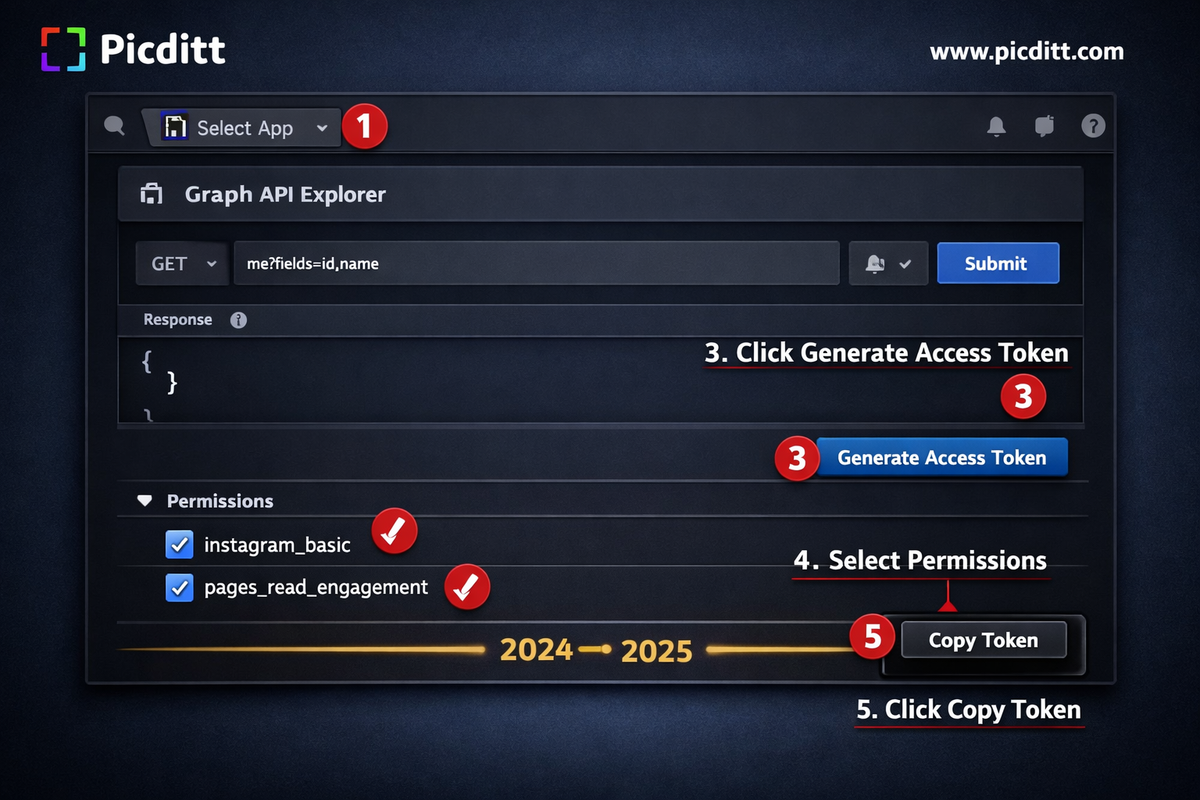
The most common cause of Reels embed failure in 2025 is an expired access token. Here is how to generate a fresh one.
For Facebook Developer Console Users
- Go to developers.facebook.com
- Log in and select your app
- Go to Tools → Graph API Explorer
- Select your app from the Application dropdown
- Click Generate Access Token
- Select the required permissions:
instagram_basicpages_read_engagementpages_show_list
- Click Generate Access Token and authorize
- Copy the short-lived token shown
- To convert to a long-lived token, make this API call:
textGET https://graph.facebook.com/oauth/access_token?
grant_type=fb_exchange_token&
client_id={app_id}&
client_secret={app_secret}&
fb_exchange_token={short_lived_token}
- Use the returned long-lived token in your embed implementation
For WordPress Plugin Users
If you use an Instagram feed or embed plugin:
- Go to your plugin's settings page
- Find the Authentication or Access Token section
- Click Reconnect or Re-authenticate
- Follow the OAuth flow to generate a new token
- Save settings
- Clear all caches (browser, plugin, CDN)
Verify Token is Working
Test your new token by making a direct API call:
texthttps://graph.facebook.com/v18.0/instagram_oembed?
url=YOUR_REEL_URL&
access_token=YOUR_NEW_TOKEN
If the API returns JSON with embed HTML — your token is valid and working.
Fix 2: Update Your Content Security Policy Headers
If your browser console shows CSP errors, your website's security headers are blocking Instagram's iFrame content. This is a common issue on sites using Next.js, custom security configurations, or certain hosting providers.
Understanding the CSP Requirement
Your Content Security Policy must explicitly allow:
frame-src— permits iFrames from Instagramscript-src— permits Instagram's embed.js scriptconnect-src— permits API connections to Instagram
For Next.js (next.config.ts/js)
TypeScriptasync headers() {
return [
{
source: '/(.*)',
headers: [
{
key: 'Content-Security-Policy',
value: [
"default-src 'self'",
"script-src 'self' 'unsafe-inline' https://www.instagram.com https://platform.instagram.com",
"frame-src https://www.instagram.com https://instagram.com",
"connect-src 'self' https://graph.facebook.com https://www.instagram.com",
"img-src 'self' data: https://www.instagram.com https://cdninstagram.com",
"style-src 'self' 'unsafe-inline'",
].join('; '),
},
],
},
]
},
For Apache (.htaccess)
apacheHeader always set Content-Security-Policy "default-src 'self'; script-src 'self' 'unsafe-inline' https://www.instagram.com https://platform.instagram.com; frame-src https://www.instagram.com https://instagram.com; connect-src 'self' https://graph.facebook.com https://www.instagram.com"
For Nginx
nginxadd_header Content-Security-Policy "default-src 'self'; script-src 'self' 'unsafe-inline' https://www.instagram.com https://platform.instagram.com; frame-src https://www.instagram.com https://instagram.com; connect-src 'self' https://graph.facebook.com https://www.instagram.com";
For WordPress (via .htaccess or plugin)
Use the Headers & Footers plugin or add to your .htaccess:
apache<IfModule mod_headers.c>
Header always append Content-Security-Policy "frame-src https://www.instagram.com https://instagram.com; script-src 'self' https://www.instagram.com;"
</IfModule>
Verify the Fix
After updating your CSP headers, reload your page with Developer Tools open. CSP-related console errors should be gone and the Reel should load.
Fix 3: Use Instagram's Native Reels Embed Code (Most Reliable Method)
The most reliable method for embedding Reels in 2025 is using Instagram's own native embed code, which is generated specifically for each Reel and uses current API authentication automatically.
How to Get the Native Embed Code
- Open the Reel on instagram.com (desktop browser)
- Click the three dots (⋯) in the top right of the Reel
- Select "Embed" from the dropdown menu
- Copy the entire HTML code provided
The code will look like this:
HTML<blockquote class="instagram-media"
data-instgrm-captioned
data-instgrm-permalink="https://www.instagram.com/reel/REEL_ID/?utm_source=ig_embed"
data-instgrm-version="14"
style="...">
<!-- Instagram content -->
</blockquote>
<script async src="//www.instagram.com/embed.js"></script>
Important: Use the Current embed.js URL
The script tag must reference the current embed.js URL. Always use:
HTML<script async src="https://www.instagram.com/embed.js"></script>
Not these outdated variants:
HTML<!-- Outdated — do not use -->
<script src="//www.instagram.com/embed.js"></script>
<script src="http://www.instagram.com/embed.js"></script>
For WordPress — Paste into HTML Block
In WordPress Block Editor:
- Add a new block
- Search for "Custom HTML" block
- Paste the complete embed code into the HTML block
- Do NOT paste into a paragraph or shortcode block — this strips the necessary attributes
Manually Trigger Rendering
If the embed loads slowly or inconsistently, add this script after your embed code:
HTML<script>
if (window.instgrm) {
window.instgrm.Embeds.process();
} else {
window.addEventListener('load', function() {
if (window.instgrm) {
window.instgrm.Embeds.process();
}
});
}
</script>
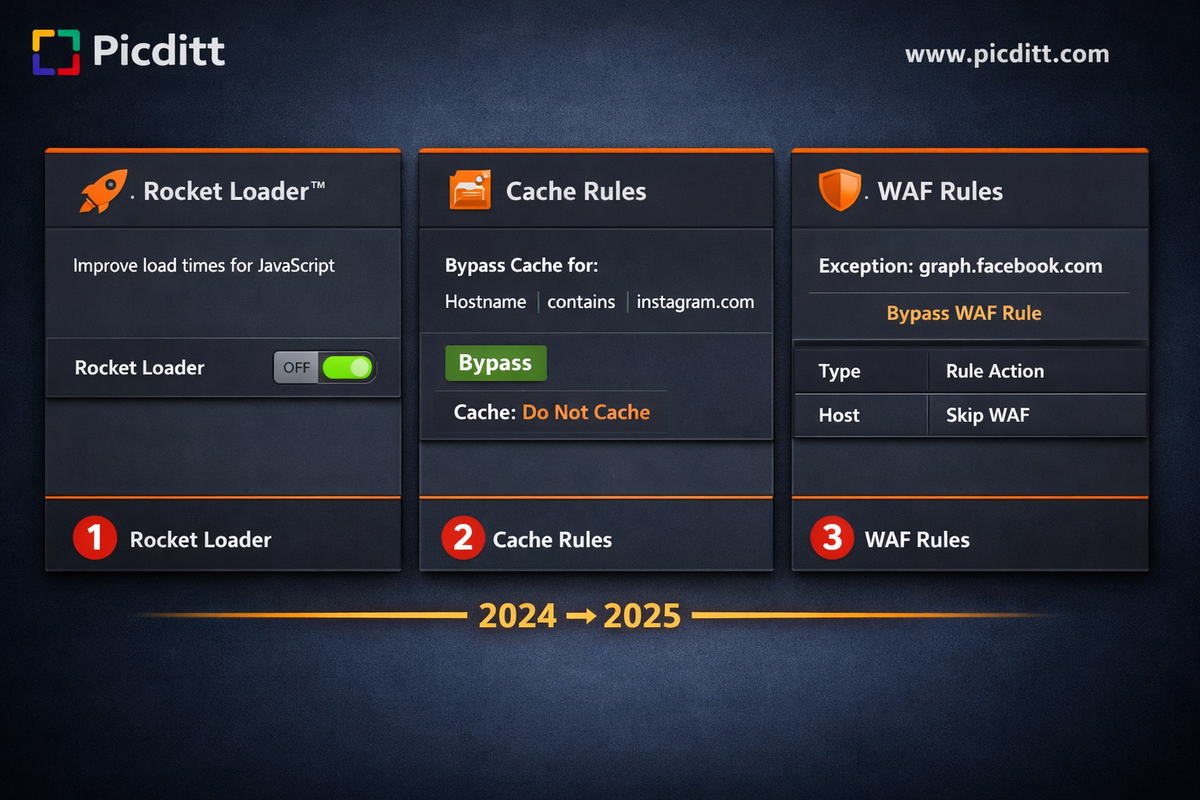
Fix 4: Fix Cloudflare-Specific Reels Embed Issues
If your site uses Cloudflare (as picditt.com does), Cloudflare's security features can interfere with Instagram Reels iFrames in specific ways.
Cloudflare and Reels iFrames
Cloudflare's default settings may:
- Modify response headers in ways that break Instagram's CORS requirements
- Cache Instagram API responses that should not be cached
- Apply security rules that block Instagram's cross-origin requests
Fix 4A: Disable Cloudflare Rocket Loader for Embed Pages
Rocket Loader can interfere with Instagram's embed.js initialization:
- Go to Cloudflare Dashboard → Speed → Optimization
- Under Rocket Loader — toggle it OFF
- Alternatively, add
data-cfasync="false"to your Instagram embed.js script tag:
HTML<script data-cfasync="false" async src="https://www.instagram.com/embed.js"></script>
Fix 4B: Configure Cloudflare Cache Rules for Instagram
Prevent Cloudflare from caching Instagram API responses:
- Go to Cloudflare Dashboard → Rules → Cache Rules
- Create a new rule:
- If URL contains
instagram.comorgraph.facebook.com - Then: Bypass Cache
- If URL contains
- Save and deploy
Fix 4C: Check Cloudflare Security Rules
- Go to Cloudflare → Security → WAF
- Check if any firewall rules are blocking Instagram API requests
- Look for rules that might be flagging Instagram's cross-origin requests as suspicious
- Add an exception for
graph.facebook.comandwww.instagram.com
Fix 5: The Fallback Method — Screenshot + Link (Never Breaks)
If all technical fixes have been tried and the Reel still will not embed reliably, the screenshot and link approach provides a guaranteed solution that never breaks, loads faster than a JavaScript embed, and looks professional.
Why This Works Better Than You Think
An Instagram Reel embed has significant overhead:
- JavaScript file must load from Instagram's servers
- API authentication must succeed
- iFrame must be permitted by CSP
- Cross-origin request must be allowed
- Video player must initialize
A screenshot with a link has none of these dependencies. It is a simple image file hosted on your server with a hyperlink. It loads instantly, works in any browser, requires no external API calls, and never breaks.
How to Create the Fallback
Step 1: Take a high-quality screenshot of your Reel's thumbnail on instagram.com (or use the Reel's cover image)
Step 2: Upload the screenshot to your website's media library
Step 3: Add this HTML to your page:
HTML<a href="https://www.instagram.com/reel/YOUR_REEL_ID/"
target="_blank"
rel="noopener noreferrer"
aria-label="Watch this Instagram Reel">
<img
src="your-reel-screenshot.jpg"
alt="Your descriptive alt text here"
style="width: 100%; max-width: 400px; border-radius: 12px;"
/>
</a>
Step 4: Optionally add a play button overlay to communicate it is a video:
CSS.reel-container {
position: relative;
display: inline-block;
}
.reel-container::after {
content: "▶";
position: absolute;
top: 50%;
left: 50%;
transform: translate(-50%, -50%);
font-size: 48px;
color: white;
text-shadow: 0 2px 8px rgba(0,0,0,0.5);
pointer-events: none;
}
This approach:
- Loads instantly — no external API calls
- Never breaks — not dependent on Meta's API availability
- Works everywhere — no browser compatibility issues
- Drives traffic — clicking opens the actual Reel on Instagram
- SEO friendly — search engines can index the alt text
Testing Your Reels Embed Fix
After applying any fix, use this checklist to verify it is working correctly:
Test 1: Multiple Browsers
Test your page in Chrome, Firefox, Safari, and Edge. Reels embed issues are sometimes browser-specific due to different security implementations.
Test 2: Incognito Mode
Open the page in an Incognito or Private window. This eliminates browser extension interference and cached data.
Test 3: Mobile Devices
Test on both iOS Safari and Android Chrome. Reels iFrames sometimes render differently on mobile due to different Content Security Policy handling.
Test 4: Developer Console Check
With no console errors and the Reel displaying correctly in all tested environments — your fix is complete.
Test 5: Lighthouse Check
Run Google Lighthouse on the page. Reels embeds from external sources can affect Core Web Vitals. If the Reel is causing performance issues, consider the screenshot fallback method instead.
After Fixing Your Embeds — Upgrade Your Instagram Strategy
Your Reel now embeds correctly on your website. Now let's talk about the other side of your Instagram strategy: your profile itself.
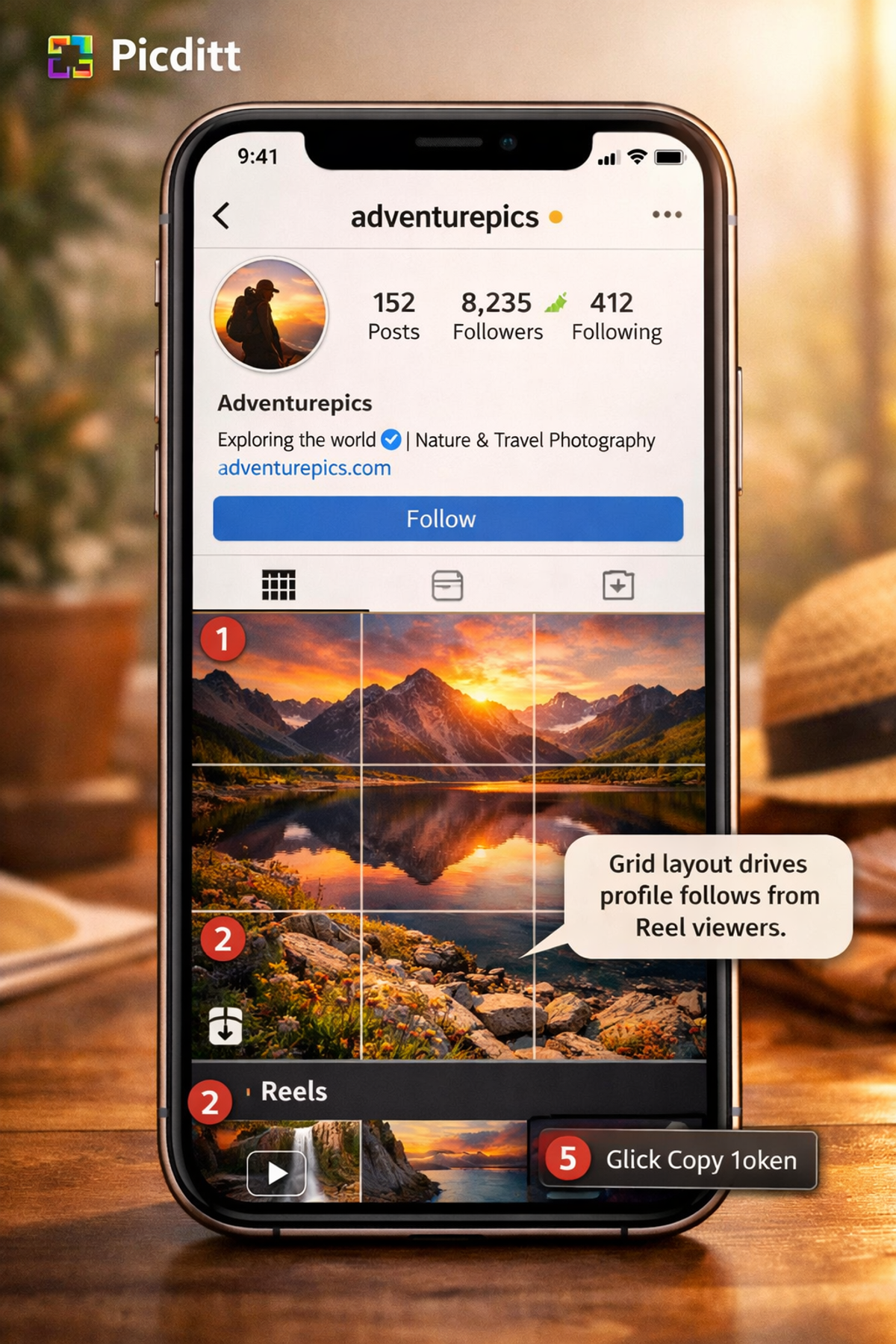
While individual Reels drive viral discovery, your profile grid is what converts those viewers into followers. Someone who discovers your Reel, clicks your username, and lands on a beautifully designed grid profile is significantly more likely to follow than someone who lands on a random collection of disconnected posts.
This is where Instagram grid layouts become a powerful tool — and the free Picditt Instagram Grid Maker makes creating them effortless.
What Is an Instagram Grid Layout?
A grid layout splits a single high-resolution image into multiple square tiles that, when posted in the correct reverse order, appear as a unified piece of visual art on your profile. Your three-column Instagram grid becomes a canvas rather than just a collection of posts.
When a Reel viewer clicks to your profile and sees a cohesive, professional grid design instead of random posts, the psychological effect is immediate — your account looks intentional, branded, and worth following.
How to Create a Grid Layout That Complements Your Reels Strategy
Step 1: Choose a high-resolution image that represents your brand — at least 3240×3240 pixels for a 3×3 grid
Step 2: Visit https://picditt.com/social/grid-maker and upload your image
Step 3: Select your grid size — 3×3 is the most impactful, creating 9 tiles that fill the visible profile area
Step 4: Preview how each tile looks individually — each appears in your followers' feeds as its own post
Step 5: Download your numbered tiles as a ZIP file — each is 1080×1080px at up to 95% JPEG quality
Step 6: Post in reverse order starting from the highest tile number — post 9 first, then 8, then 7, down to 1
The entire process takes under five minutes. Your images never leave your device — all processing is browser-based.
Frequently Asked Questions
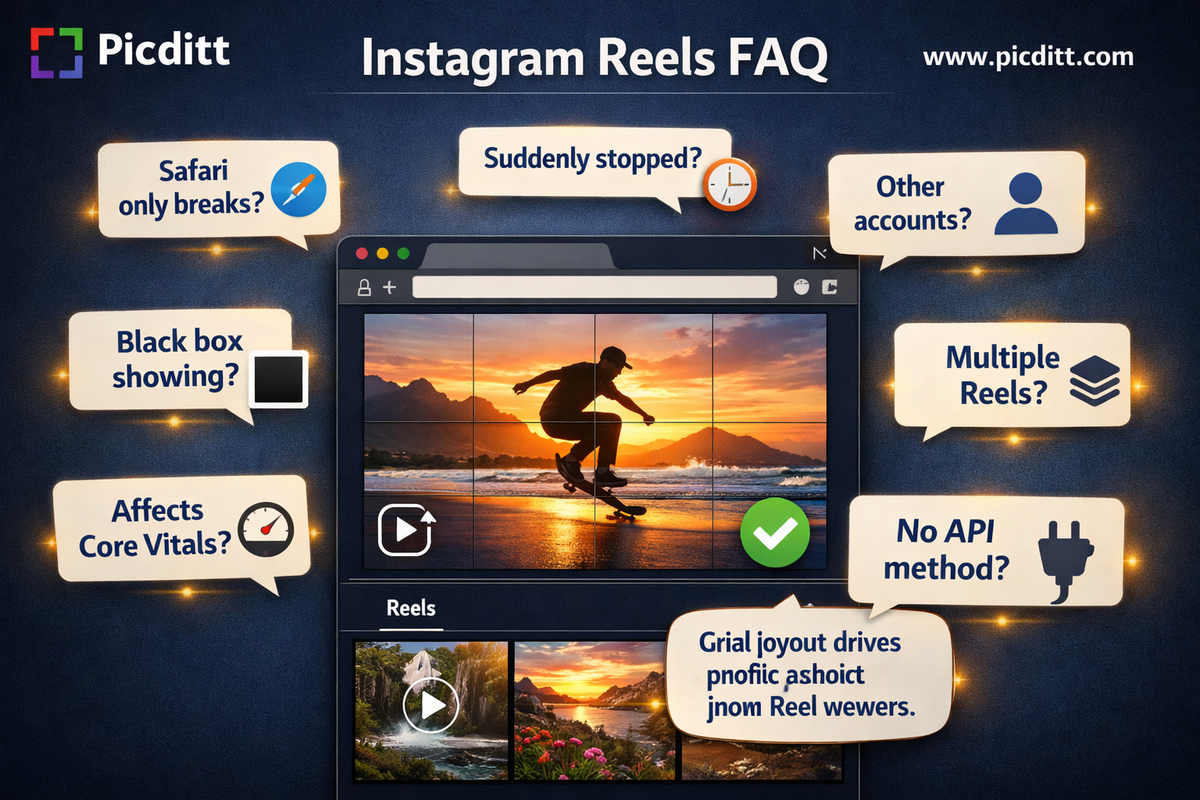
Why does my Reel embed work in Chrome but not Safari?
Safari has stricter third-party cookie and cross-origin restrictions than Chrome. Instagram Reels iFrames sometimes fail in Safari due to Intelligent Tracking Prevention (ITP) blocking the cross-origin request. The most reliable fix is Safari-specific: ensure your CSP headers explicitly include frame-src https://www.instagram.com and consider using the screenshot fallback method for maximum cross-browser compatibility.
My Reel embed worked for months and then suddenly broke — why?
The most likely cause is token expiration. Meta's long-lived access tokens expire after 60 days when not refreshed. If your embed implementation uses an access token (either directly or through a plugin), that token has likely expired. Follow Fix 1 to generate a new token. If token refresh is the recurring issue, implement automatic token refresh in your implementation.
Can I embed a Reel from someone else's account?
Yes, you can embed public Reels from any public account using Instagram's native embed code. However, if the account owner switches to private or deletes the Reel after you embed it, the embed will break. For content you plan to embed long-term, always use your own Reels where you have control over the content.
Why does the Reel show a black box instead of blank space?
A black box typically means the iFrame loaded correctly but the Reel player failed to initialize. This is most commonly caused by a JavaScript conflict — specifically something on your page that is interfering with Instagram's video player initialization. Check for other video players on the page (YouTube embeds, HTML5 video elements) and ensure embed.js is loading only once.
Does embedding Reels affect my website's Core Web Vitals?
Yes, Instagram Reel embeds load external JavaScript and iFrame content that can impact your Largest Contentful Paint (LCP) and Total Blocking Time (TBT) scores. Use the loading="lazy" attribute on iFrame embeds and consider loading the embed.js script asynchronously. For pages where Core Web Vitals are critical, the screenshot and link approach has zero impact on performance scores.
How do I embed multiple Reels on the same page?
Load embed.js only once — typically at the end of the page body. Add each Reel's blockquote HTML wherever you want it on the page. After all blockquotes are in place, make a single call to window.instgrm.Embeds.process() to render all embeds simultaneously. Loading embed.js multiple times (once per embed) causes conflicts and rendering failures.
Is there a way to embed Reels without using the Meta API?
Using the screenshot and link method described in Fix 5 requires no API calls whatsoever. It is the most reliable approach for anyone who wants zero dependency on Meta's API infrastructure. The trade-off is that clicking the image opens the Reel on Instagram rather than playing it inline — which is actually preferable from a website performance standpoint.
Final Thoughts: Embed Smarter, Grow Faster
Instagram Reels represent one of the highest-reach content formats available right now. Getting them embedded correctly on your website — your blog, your portfolio, your business site — extends that reach to an audience that may never find you through Instagram's algorithm alone.
The fixes in this guide address every major cause of Reels embed failure in 2025: expired tokens, CSP blocking, Cloudflare configuration, embed.js conflicts, and iFrame CORS issues. Start with the diagnostic steps to identify your specific failure, apply the relevant fix, and test across browsers and devices.
And once your embeds are working — upgrade your entire Instagram strategy. Use the free Picditt Instagram Grid Maker to create a profile that converts every Reel viewer who clicks your username into a follower. The combination of viral Reels for discovery and a stunning grid layout for conversion is one of the most effective Instagram growth strategies available.
Fix Your Instagram Reels Embed Now →
Ready to Try It Yourself?
Use this tool for free — no signup, no download, no watermarks.
Open Free ToolYou Might Also Like
Fix Your Profile Picture: How to Zoom and Resize Photos Online (WhatsApp, Instagram, LinkedIn)
Blurry profile picture? Wrong dimensions for Instagram, WhatsApp, or LinkedIn? This complete guide shows you how to zoom and resize any photo online for free — with 40+ platform presets, aspect ratio lock, and 100% private browser-based processing. No downloads, no sign-up, instant results.
Read More →
How to Make a Passport Photo at Home Free — Meets Official Requirements for 50+ Countries
Paying $15–$25 at a pharmacy for a passport photo that you could make at home in two minutes for free is one of the most unnecessary expenses in modern life. This complete guide covers official passport photo requirements for 50+ countries, the most common mistakes that get photos rejected, how to take a perfect passport photo at home, and how to use the free Picditt Passport Photo Maker to create, adjust, and download print-ready photos privately — without uploading your image to any server.
Read More →
Brand Your Photos: How to Add Logos, Watermarks, and Text Overlays in Seconds
Every photo you share online without your brand on it is a missed marketing opportunity — and a potential theft waiting to happen. This complete guide shows photographers, content creators, e-commerce sellers, and businesses how to add professional logos, text watermarks, copyright notices, and brand overlays to any photo in seconds using a free, 100% private, browser-based tool with 15 fonts, unlimited colors, tile patterns, and drag-and-drop positioning.
Read More →