Instagram Embed Not Working? 5 Easy Fixes (Then Upgrade Your Feed with Grid Layouts)
Instagram Embed Not Working? 5 Easy Fixes (Then Upgrade Your Feed with Grid Layouts)
You've carefully crafted a blog post or website page, embedded an Instagram post to add social proof—and then it just doesn't show up. A blank white space. A broken frame. An error message where your beautiful content should be. If your Instagram embed is not working, you're far from alone, and the good news is that the problem is almost always fixable.
In this comprehensive guide, we'll walk you through the five most common reasons Instagram embeds break and give you step-by-step solutions for each one. But we won't stop there. Once your embeds are running smoothly, we'll show you how to take your Instagram presence to the next level by creating stunning grid layouts with a free online tool—the Picditt Instagram Grid Maker—that transforms your profile from ordinary to extraordinary.
Whether you're a blogger, a small business owner, a social media manager, or a creator trying to build your brand, this guide has everything you need.
Why Instagram Embeds Break in the First Place
Before diving into fixes, it helps to understand why Instagram embeds fail. Instagram embeds rely on a combination of oEmbed protocols, JavaScript rendering, and API permissions to display content from Instagram's servers on your website. When any link in that chain is disrupted, the embed breaks.
Here are the most common culprits:
- Instagram API and oEmbed policy changes (Facebook/Meta regularly updates requirements)
- Missing or expired authentication tokens
- Privacy settings on the original post
- JavaScript conflicts or blocking on your website
- Outdated embed code or plugin incompatibilities
Understanding these root causes makes the fixes below much easier to implement effectively.
Fix 1: Check if the Instagram Post Is Still Public
The Problem
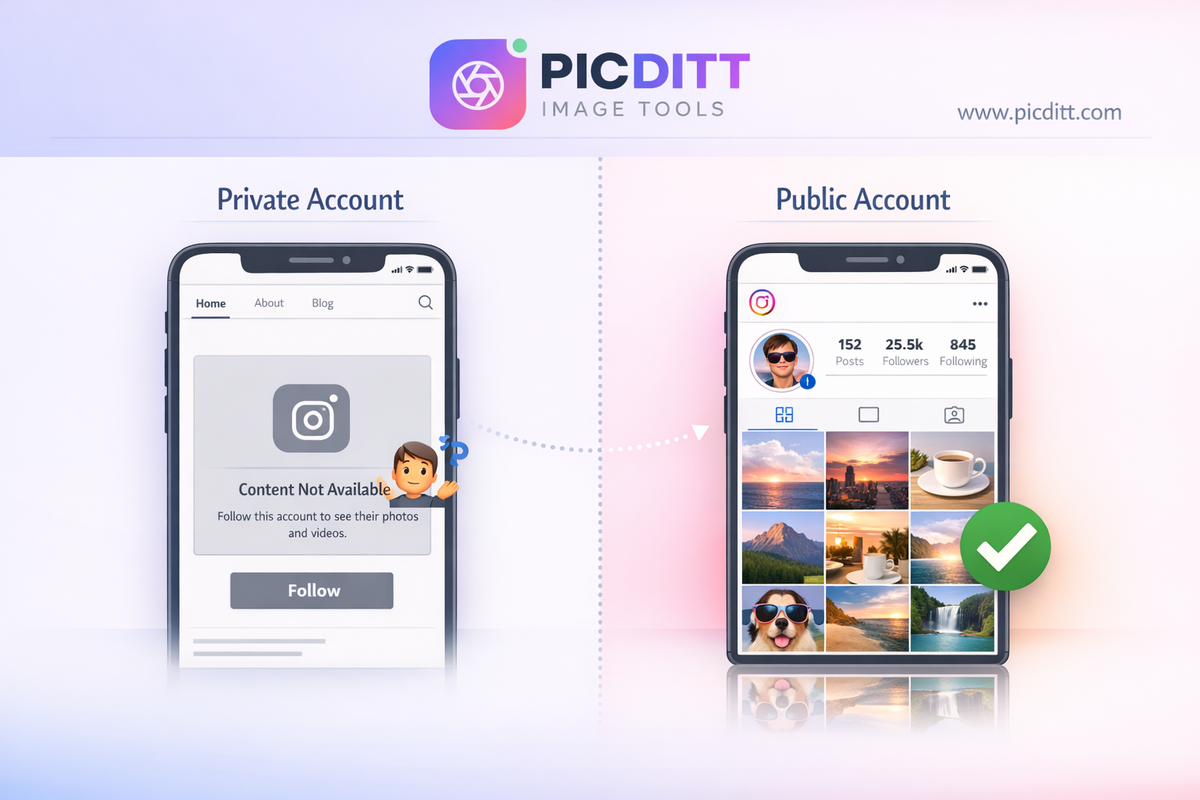
This is the simplest and most overlooked cause of broken Instagram embeds. If the original poster has switched their account to private, deleted the post, or archived it, the embed will break immediately. Instagram cannot serve content from private or nonexistent posts to third-party websites.
How to Fix It
- Open Instagram (app or web) and navigate directly to the post URL you're trying to embed.
- If you see a message like "This page isn't available" or "Sorry, this page isn't available," the post has been deleted or the account is now private.
- If the account is private, the embed cannot work—Instagram's privacy policies prevent it. You'll need to choose a different post from a public account.
- If the post was deleted, remove the broken embed from your website and replace it with an alternative post.
Pro Tip
Always embed your own content when possible. This way, you have full control over whether the post stays public and available. If you must embed someone else's content, periodically audit your embeds to ensure they're still functional.
Fix 2: Update Your oEmbed Authentication (The Facebook/Meta API Change)
The Problem
In October 2020, Facebook (now Meta) made a significant change that broke Instagram embeds across millions of websites overnight. They retired the legacy oEmbed endpoint and now require Facebook App authentication via an access token to use the Instagram oEmbed API.
If your website or CMS was embedding Instagram posts using the old method, those embeds likely stopped working and display blank boxes or error messages.
How to Fix It
For WordPress Users:
- Update WordPress to version 5.6 or later—WordPress 5.6+ includes built-in support for the new oEmbed authentication.
- Go to Settings → General or check if your theme requires additional configuration for oEmbed.
- If you're using a plugin like Jetstagram, Jeeng, or Social Feed, update the plugin to its latest version.
- Some plugins now require you to create a Facebook App and generate an access token:
- Go to developers.facebook.com
- Create a new app (choose "Business" type)
- Add the oEmbed product
- Generate your access token
- Paste the token into your plugin's settings
For Custom Websites (HTML/JavaScript):
- Instead of using the old
https://api.instagram.com/oembedendpoint, use the new endpoint:
texthttps://graph.facebook.com/v18.0/instagram_oembed?url={POST_URL}&access_token={YOUR_TOKEN}
- Register a Facebook App and obtain a valid access token as described above.
- Replace all old embed API calls with the updated endpoint.
Quick Alternative—Use Instagram's Native Embed Code:
- Go to the Instagram post on the web (instagram.com).
- Click the three dots (⋯) in the top-right corner of the post.
- Select "Embed" from the dropdown menu.
- Copy the provided HTML code.
- Paste it directly into your website's HTML editor.
This native embed code uses Instagram's own JavaScript (embed.js) and bypasses the oEmbed API requirement entirely.
Why This Matters
This is the number one reason Instagram embeds stopped working for most websites after 2020. If you haven't addressed this change, every Instagram embed on your site is likely broken.
Fix 3: Fix JavaScript Conflicts and Loading Issues
The Problem
Instagram embeds rely on a JavaScript file called embed.js (https://www.instagram.com/embed.js) to render properly. If this script is blocked, deferred incorrectly, or conflicting with other scripts on your page, the embed will fail to render.
Common causes include:
- Ad blockers or privacy extensions blocking Instagram's scripts
- Content Security Policy (CSP) headers that don't whitelist Instagram domains
- JavaScript optimization plugins that defer or minify
embed.jsincorrectly - Multiple instances of
embed.jsbeing loaded on the same page
How to Fix It
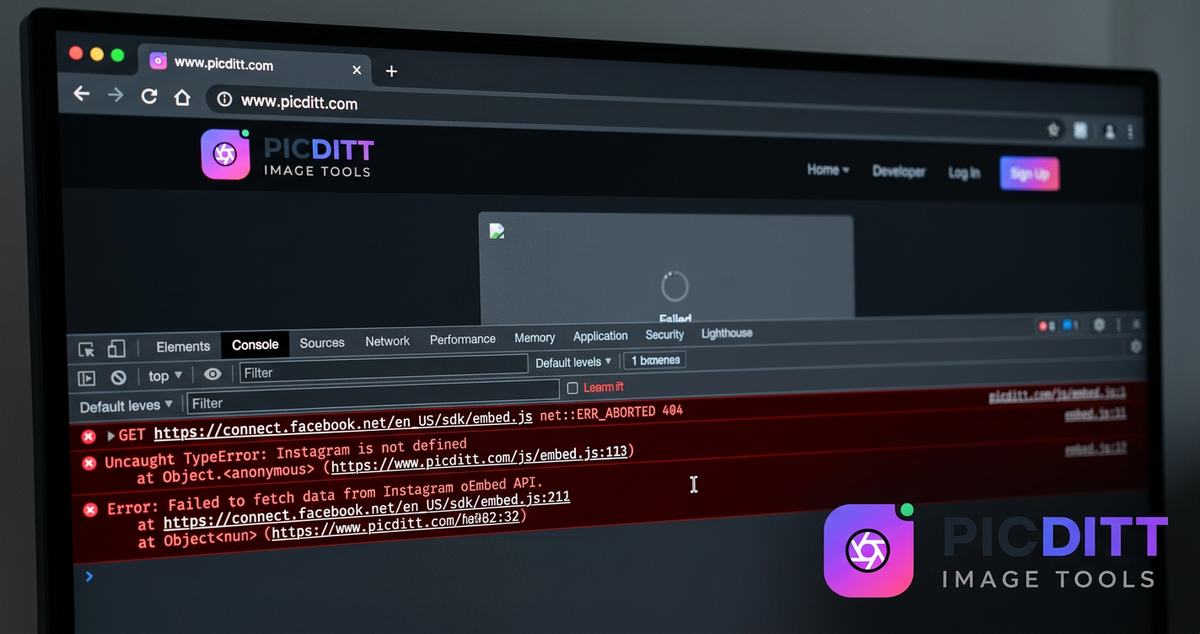
Step 1: Check Your Browser Console
- Open your website in Google Chrome.
- Right-click on the broken embed area and select "Inspect".
- Go to the "Console" tab.
- Look for errors related to
instagram.com/embed.js, CSP violations, or blocked scripts.
Step 2: Whitelist Instagram in Your CSP Headers
If you see CSP-related errors, add Instagram's domains to your Content Security Policy:
textContent-Security-Policy: script-src 'self' https://www.instagram.com; frame-src https://www.instagram.com;
Step 3: Exclude embed.js from Optimization
If you use caching or optimization plugins (like WP Rocket, Autoptimize, or W3 Total Cache), exclude Instagram's embed script from minification and deferral:
- In WP Rocket: Go to Settings → File Optimization → Exclude JavaScript and add
instagram.com/embed.js - In Autoptimize: Add
instagram.comto the script exclusion list
Step 4: Ensure embed.js Loads Only Once
Check your page source (Ctrl+U) and search for embed.js. If it appears multiple times, remove duplicates. Multiple instances can cause conflicts.
Step 5: Manually Trigger Rendering
If embeds load intermittently, add this script after your embed code:
JavaScript<script>
window.addEventListener('load', function() {
if (window.instgrm) {
window.instgrm.Embeds.process();
}
});
</script>
This forces Instagram's embed processor to re-scan the page after everything has loaded.
Fix 4: Clear Cache and Test in Incognito Mode
The Problem
Sometimes the embed is actually fixed on the server side, but your browser (or your website's cache) is still serving the old, broken version of the page. Caching layers—at the browser level, CDN level, and server level—can prevent updated embed code from displaying correctly.
How to Fix It
Browser Cache:
- Press Ctrl + Shift + Delete (Windows) or Cmd + Shift + Delete (Mac) to open your browser's clear cache dialog.
- Select "Cached images and files" and clear them.
- Reload the page.
Incognito/Private Mode Test:
- Open a new Incognito window (Ctrl+Shift+N in Chrome).
- Navigate to the page with the Instagram embed.
- If it works in Incognito but not in your regular browser, the issue is a browser extension (likely an ad blocker) or cached data.
Website/Server Cache:
- If you use a caching plugin (WP Super Cache, WP Rocket, LiteSpeed Cache, etc.), purge all caches.
- If you use a CDN like Cloudflare, purge the cache from your CDN dashboard.
- Check if your hosting provider has server-side caching (like Varnish) and purge that as well.
Test on Multiple Devices:
Open your website on a different device (phone, tablet, or another computer) to confirm whether the issue is local or site-wide.
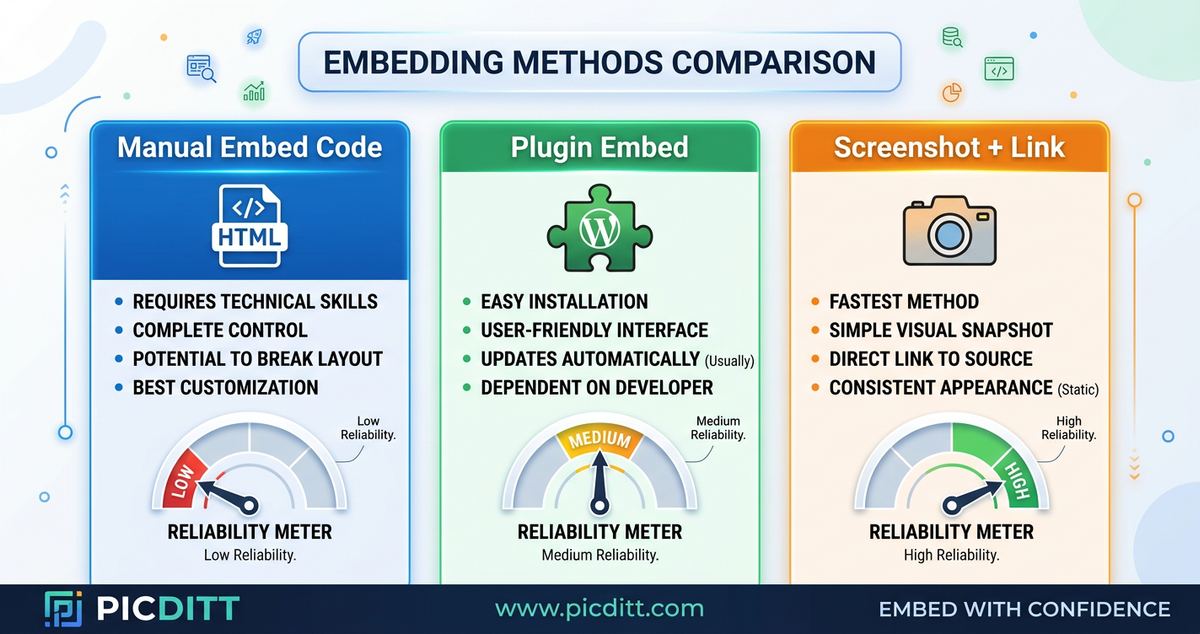
Fix 5: Switch to a Reliable Instagram Embed Plugin or Method
The Problem
If you've tried fixes 1 through 4 and your embeds are still inconsistent, it might be time to change your embedding method entirely. Some WordPress themes, page builders, and plugins use outdated methods that no longer work with Instagram's current API requirements.
How to Fix It
Option A: Use a Dedicated Instagram Plugin
Several well-maintained plugins handle Instagram embeds properly with current API requirements:
- Jeeng Instagram Feed – Lightweight and regularly updated
- Jetstagram – Feature-rich with grid display options
- Social Feed Gallery – Supports multiple layout types
- Jeeng Starter Templates – Includes social media embed blocks
Install your chosen plugin, authenticate with your Instagram/Facebook account, and use the plugin's shortcodes or blocks instead of manual embeds.
Option B: Use Instagram's Official Embed Code
As mentioned in Fix 2, the most reliable method is using Instagram's own embed code:
- Visit the post on instagram.com
- Click ⋯ → Embed → Copy Embed Code
- Paste into an HTML block in your editor (not a paragraph or shortcode block)
Option C: Screenshot + Link Approach
For maximum reliability (especially in high-traffic, ad-supported sites), consider:
- Taking a high-quality screenshot of the Instagram post
- Uploading it as an image to your website
- Linking the image to the original Instagram post
- Adding proper alt text and attribution
This method never breaks, loads faster than JavaScript embeds, and gives you full control over the visual presentation.
Now Let's Upgrade Your Feed: Creating Stunning Instagram Grid Layouts
Your embeds are fixed—great! But let's go beyond just embedding individual posts. What if your entire Instagram profile could be a work of art that draws visitors in and keeps them scrolling? That's exactly what Instagram grid layouts do, and with the free Picditt Instagram Grid Maker, creating them is incredibly easy.
What Is an Instagram Grid Layout?
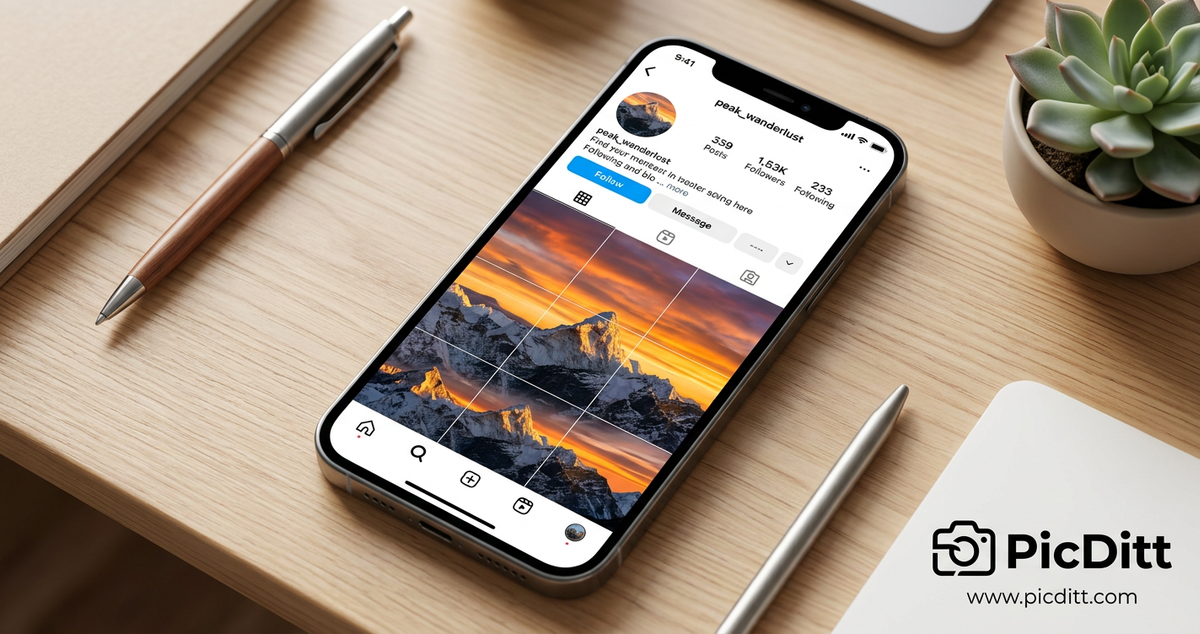
An Instagram grid layout is a creative technique where a single large image is split into multiple smaller tiles that, when posted in the correct order and viewed together on your profile, form a complete picture. This creates a stunning visual impact that immediately catches the eye of anyone who visits your profile.
Think of it like a mosaic or jigsaw puzzle. Each individual post is a piece, but when someone visits your profile and sees all the pieces together in Instagram's three-column layout, they see the full breathtaking image.
Instagram grid layouts have become a powerful tool for personal branding, business marketing, and artistic expression. What started as a creative hack by early Instagram users has evolved into a mainstream strategy used by celebrities, major brands, artists, photographers, and influencers worldwide.
Why Grid Layouts Work (The Psychology)
Human brains are wired to recognize patterns and complete images. When visitors see a grid layout on your profile, they're naturally drawn to view your profile as a whole rather than as individual posts. This psychological principle creates several powerful effects:
- Increased curiosity — visitors want to see the full picture
- Longer profile visit duration — people scroll to understand the pattern
- Higher follow rates — the professional aesthetic builds trust
- More engagement — each tile gets attention as part of the bigger story
- Brand memorability — your profile stands out in a sea of random posts
Understanding Grid Types: Which One Should You Choose?
The Picditt Instagram Grid Maker supports multiple grid formats. Here's how to choose the right one:
1×3 Panorama (3 Tiles)
Best for: Wide landscape photos, cityscapes, horizontal banners
Perfect for creating a stunning panoramic effect across one row of your profile. This is the easiest grid to create and maintain because it only requires three posts.
3×3 Classic Grid (9 Tiles)
Best for: Portraits, product launches, dramatic reveals
The most popular choice. It creates a perfect square that fills your profile's entire visible area on most devices. This is the gold standard for grid layouts.
2×3 Two-Row Grid (6 Tiles)
Best for: Products, quote graphics, mid-impact content
A great balance between visual impact and effort. It doesn't require as many posts as a 3×3 but still creates a cohesive look.
4×3 Extended Grid (12 Tiles)
Best for: Tall images, architecture, fashion
When you need extra vertical space for tall images or want your grid to dominate the entire visible profile.
5×3 Showcase Grid (15 Tiles)
Best for: Major product launches, events, grand announcements
Maximum impact for special occasions. Your grid becomes the entire scrollable profile—perfect for making a statement.
3×1 Vertical Strip (3 Tiles)
Best for: Infographics, tall artwork, vertical compositions
Creates a unique vertical column down your profile that stands out from typical horizontal layouts.
How to Create Your Instagram Grid: Step-by-Step Guide
Here's exactly how to use the Picditt Instagram Grid Maker to create a stunning grid:
Step 1: Choose and Prepare Your Image
Select a high-resolution image that will look amazing when split into tiles. Key considerations:
- For a 3×3 grid, your image should be at least 3240×3240 pixels (1080px per tile)
- Choose images with balanced composition—important details shouldn't be at the exact split lines
- Images with bold colors, clear subjects, and clean backgrounds work best
- Avoid images with important text near the edges or grid lines
Step 2: Upload Your Image to the Grid Maker
- Visit https://picditt.com/social/grid-maker
- Click the "Select Image" button
- Choose your high-resolution image from your device
- The tool supports JPG, JPEG, PNG, WebP, and GIF formats up to 50 MB
Step 3: Select Your Grid Size
Choose from the available grid options:
- 1×3, 2×3, 3×3, 4×3, 5×3, 2×2, 3×1, or 1×2
The tool will instantly show you a preview of how your image will be split.
Step 4: Adjust and Preview
- Fine-tune brightness, contrast, and saturation if needed
- Use the live preview feature to see exactly how your grid will appear on an Instagram profile
- Make sure no important elements are awkwardly split between tiles
Step 5: Download Your Tiles
- Click Download to get all your tiles
- The tool provides a convenient ZIP file containing all tiles
- Each tile is numbered for easy posting in the correct order
- Output tiles are 1080×1080 pixels—Instagram's optimal resolution
Step 6: Post to Instagram in the Correct Order
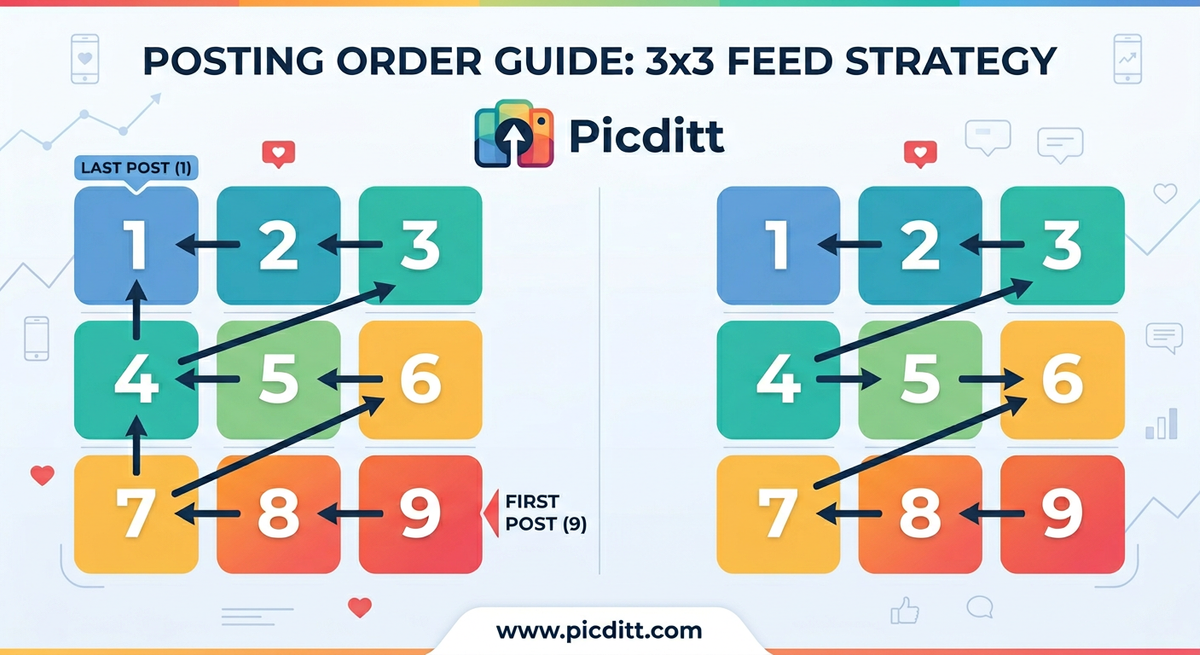
This is the most critical step. Instagram displays posts in reverse chronological order on your profile grid. This means:
- The first post you make appears in the bottom-right position
- Subsequent posts fill from right to left, bottom to top
For a 3×3 grid, post in this order: 9 → 8 → 7 → 6 → 5 → 4 → 3 → 2 → 1
The Picditt tool numbers each tile for you, so simply start from the highest number and work down to 1.
Why Choose the Picditt Instagram Grid Maker?
There are several grid tools available online, but the Picditt Instagram Grid Maker stands out for several important reasons:
Feature
Picditt Grid Maker
Other Tools
Price
Completely free
Often freemium with watermarks
Privacy
100% browser-based—images never uploaded to servers
Many upload to cloud servers
Processing Speed
Under 2 seconds
Often 10-30 seconds
Output Quality
1080px tiles at up to 95% JPEG quality
Often compressed
Numbered Tiles
Yes, for easy posting
Rarely included
ZIP Download
Yes, all tiles bundled
Often individual downloads
Watermarks
None
Common in free tiers
Grid Options
8 different layouts
Usually 2-3 options
Popular Use Cases for Instagram Grid Layouts
Brand and Product Launches
Reveal new products dramatically by posting grid tiles over hours or days, building anticipation with each new piece of the puzzle.
Photography Portfolios
Showcase large panoramas, detailed shots, and landscape photography in a way that individual posts simply can't match.
Profile Makeovers
Create a stunning first impression for anyone who visits your profile. This is especially powerful for businesses, influencers, and public figures.
Special Events
Share wedding photos, birthday celebrations, event coverage, or anniversary content in a creative, memorable format.
Art and Design Portfolios
Display artwork, illustrations, graphic designs, and creative projects as large-format presentations.
Influencer Branding
Stand out from the competition with a professional, cohesive profile aesthetic that communicates quality and creativity.
Pro Tips for Perfect Instagram Grids
- Always use high-resolution images — Low-res images will look pixelated when split into tiles. Aim for at least 1080px per tile.
- Plan your grid layout in advance — Before posting, visualize how the grid will look alongside your existing posts. Consider doing a complete profile refresh.
- Post all tiles consecutively — Don't post other content between grid tiles. Upload everything in one session (some creators post at midnight for minimal disruption to followers' feeds).
- Use the Archive feature strategically — If you want to change your grid later, archive tiles instead of deleting them. This preserves likes and comments.
- Write meaningful captions for each tile — Even though the tiles are parts of a larger image, each one appears individually in followers' feeds. Give each tile a caption that provides value.
- Consider your audience's time zone — Post when engagement is lowest if you don't want to flood followers' feeds, or post when engagement is highest if you want maximum visibility for each tile.
Technical Specifications of the Grid Maker
For those who want the technical details, here's what the Picditt Instagram Grid Maker offers:
Specification
Details
Output Tile Size
1080×1080 pixels (Instagram optimal)
Supported Input Formats
JPG, JPEG, PNG, WebP, GIF
Output Formats
JPG (compressed) or PNG (high quality)
Maximum Input Size
50 MB per image
Available Grid Sizes
1×3, 2×3, 3×3, 4×3, 5×3, 2×2, 3×1, 1×2
Tile Spacing Options
None, Small (2px), Medium (4px), Large (8px)
Download Options
Individual tiles or ZIP bundle
Processing Location
100% browser-based (client-side)
Quality Settings
Up to 95% JPEG quality
Recommended Input Resolution
3240×3240px minimum for 3×3 grid
The fact that all processing happens entirely in your browser means your images are never uploaded to any server. This is a significant privacy advantage, especially for businesses handling branded content or individuals sharing personal photos.
Frequently Asked Questions (FAQs)
Why is my Instagram embed not showing on my website?
The most common reasons are: the original post has been deleted or made private, your website hasn't been updated to support Meta's new oEmbed authentication (changed in October 2020), JavaScript conflicts are preventing the embed script from loading, your browser or server cache is serving an outdated page, or your CMS plugin is outdated. Follow the five fixes outlined above to diagnose and resolve the issue.
How do I fix Instagram embeds on WordPress?
Update WordPress to version 5.6 or later, which includes built-in support for the updated oEmbed protocol. If embeds still don't work, try using Instagram's native embed code (copied from the post on instagram.com) pasted into an HTML block. Alternatively, install a dedicated Instagram embed plugin and authenticate it with your Facebook developer account.
Do Instagram embeds work with private accounts?
No. Instagram embeds only work with public accounts. If the account owner switches their profile to private after you've embedded their post, the embed will break. Always verify that the source account is public before embedding, and periodically check your embeds to ensure they're still functional.
What is an Instagram grid layout?
An Instagram grid layout is a creative technique where a single large image is divided into multiple smaller tiles (such as 9 tiles for a 3×3 grid) that are posted individually to Instagram. When viewed together on your profile, these tiles combine to form the complete original image, creating a stunning visual effect.
How do I use the Picditt Instagram Grid Maker?
Visit https://picditt.com/social/grid-maker, upload a high-resolution image, choose your desired grid size (1×3, 2×3, 3×3, etc.), preview and adjust if needed, then download your numbered tiles as a ZIP file. Post the tiles to Instagram in reverse numerical order, starting from the highest number.
Is the Picditt Grid Maker really free?
Yes, the Picditt Instagram Grid Maker is completely free with no watermarks, no upload limits, and no hidden fees. All image processing happens in your browser, so your photos are never uploaded to any server.
In what order do I post Instagram grid tiles?
You must post tiles in reverse order. For a 3×3 grid, post tile 9 first (it will appear in the bottom-right corner), then tile 8, then tile 7, and so on, ending with tile 1 (which appears in the top-left corner). The Picditt tool numbers each tile for you to make this easy.
What image resolution do I need for an Instagram grid?
For the best results with a 3×3 grid, use an image that is at least 3240×3240 pixels (1080px per tile). Higher resolution images produce sharper, more professional-looking tiles. The tool supports images up to 50 MB in size.
Can I create a panoramic grid on Instagram?
Yes! Use the 1×3 panorama option in the Picditt Grid Maker. This splits your image into three horizontal tiles that create a wide panoramic effect across one row of your Instagram profile. It's perfect for landscapes, cityscapes, and horizontal banners.
Will posting a grid spam my followers' feeds?
Each tile will appear as an individual post in your followers' feeds, so posting a 3×3 grid means 9 posts in rapid succession. To minimize disruption, many creators post grid tiles late at night or during low-engagement hours. You can also use Instagram's scheduling feature to space tiles a few minutes apart.
How do I maintain my grid layout after posting new content?
Each new post you make after completing your grid will shift the grid pattern. To maintain it, plan your future posts in multiples of three (since Instagram uses a three-column layout). Alternatively, you can create new grids periodically or use the Archive feature to remove and restore content as needed.
Final Thoughts: Fix Your Embeds, Then Elevate Your Entire Instagram Presence
Broken Instagram embeds are frustrating, but they're almost always fixable with the right approach. Start with the simplest check—is the post still public?—and work your way through the more technical fixes involving oEmbed authentication, JavaScript conflicts, caching, and plugin updates.
But don't stop at just fixing what's broken. Take this as an opportunity to upgrade your entire Instagram strategy. With the free Picditt Instagram Grid Maker, you can transform your Instagram profile into a visually stunning, cohesive experience that attracts followers, builds your brand, and sets you apart from the competition.
The tool is free, private (your images never leave your device), fast (processing in under 2 seconds), and produces Instagram-optimized 1080px tiles with convenient numbering and ZIP downloads. Whether you're planning a product launch, showcasing your photography, or simply want a more beautiful profile, grid layouts are one of the most powerful visual strategies available on Instagram today.
Ready to get started? Try the Picditt Instagram Grid Maker now →
Ready to Try It Yourself?
Use this tool for free — no signup, no download, no watermarks.
Open Free ToolYou Might Also Like
YouTube Banner Maker with Safe Zone Guides: Design Channel Art That Looks Perfect on Every Device
Your YouTube banner looks different on every device. Learn how to design a 2560×1440 channel banner that works perfectly on TV, desktop, tablet, and mobile using PicDitt's free YouTube Banner Maker with built-in safe zone guides.
Read More →
The End of Manual Typing: How to Extract Editable Text from Any Image Instantly
We've all been there: staring at a photograph of a document, a screenshot of a recipe, or a slide from a presentation, wishing we could just copy and paste the words. With Picditt's AI-powered Optical Character Recognition (OCR) tool, you can. Learn how to transform static pixels into fully editable text in seconds—without sacrificing your data privacy.
Read More →
Stop Struggling with Excel Print Settings: How to Fix and Export Spreadsheets to Perfect PDF
Tired of Excel cutting off columns, splitting data across pages, or printing text too small to read? Picditt's free Excel Print Fixer automatically detects and fixes all common printing problems, then exports your spreadsheet to a perfectly formatted PDF — all in your browser, 100% private.
Read More →