The End of Manual Typing: How to Extract Editable Text from Any Image Instantly
The End of Manual Typing: How to Extract Editable Text from Any Image Instantly
We have all found ourselves in this incredibly frustrating scenario: You are watching a webinar, and the presenter flashes a slide packed with brilliant statistics. You quickly take a screenshot. Later, you sit down at your computer, open that screenshot on one half of your monitor, open a blank Word document on the other, and begin the soul-crushing process of manually retyping every single word.
It feels completely archaic. In an era where artificial intelligence can generate hyper-realistic videos and write software code, why are we still acting like human typewriters?
The truth is, you don't have to.
The bridge between "a picture of text" and "actual, editable text" is a technology called Optical Character Recognition (OCR). While OCR used to require expensive desktop software and heavy scanners, the technology has evolved. Today, you can turn photographs, scanned documents, and screenshots into perfectly formatted text documents in milliseconds using Picditt's Image to Text Converter.
Let’s dive into how this AI-powered tool is quietly killing manual data entry, how it handles everything from Spanish contracts to Japanese menus, and why browser-based extraction is the only way to keep your private documents secure.
Why Are We Still Typing from Screens?
Before we look at the solution, it helps to understand the friction of the problem. A digital image—whether it is a JPG, PNG, or WebP—is just a mosaic of colored pixels. When you take a photo of a restaurant menu or a page in a textbook, your computer does not know that the pixels form the word "Appetizers" or "Chapter One." It just sees a cluster of black pixels on a white background.
Because the computer doesn't understand the pixels as language, you cannot highlight, copy, or search for that text.
For decades, the only workaround was manual transcription. This bottleneck slows down productivity across every sector imaginable:
- Students manually typing out quotes from library books for their research papers.
- Accountants squinting at photos of crumpled receipts to log expenses.
- Developers retyping error codes from un-copyable system screenshots.
- HR Managers manually transferring contact details from printed business cards into a database.
Optical Character Recognition changes the paradigm entirely. It teaches the computer how to "read" the pixels.
Under the Hood: How AI Reads Pixels
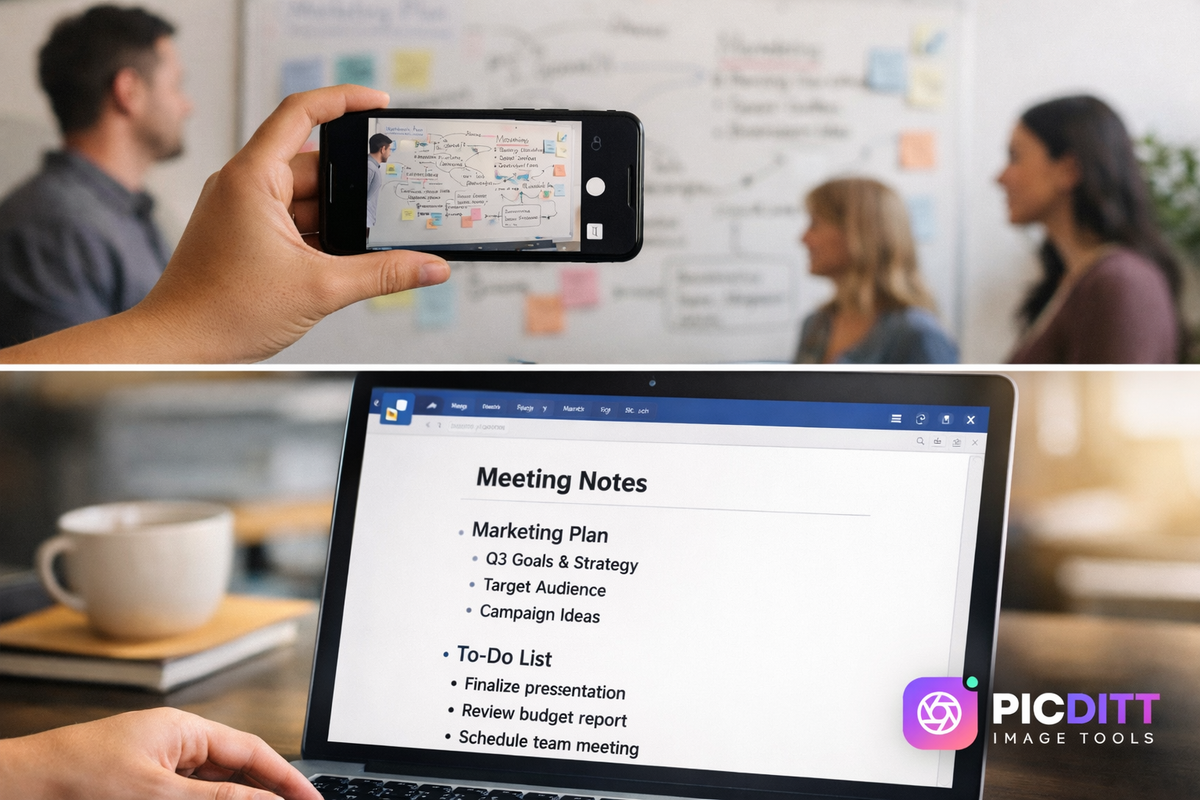
When you drop an image into Picditt's OCR engine, a fascinating technological ballet happens in the span of about two seconds.
First, the system performs image preprocessing. It automatically cleans up the photo, adjusting the contrast to make the dark letters stand out sharply against the background. It also "de-skews" the image—meaning if you took a photo of a piece of paper at a slight angle, the software attempts to flatten and straighten the lines of text.
Next comes character isolation. The AI breaks the image down into blocks of text, then into individual lines, then into distinct words, and finally into isolated characters.
Finally, the pattern recognition phase begins. This is where machine learning shines. The AI has been trained on millions of different fonts, typefaces, and handwriting styles. It looks at the curves, intersections, and loops of a pixel cluster and calculates the probability of what letter it represents.
It doesn't just look at letters in isolation, either. It uses contextual analysis. If it is unsure whether a shape is a capital "I" or a number "1," it looks at the surrounding characters to make an educated, context-aware decision. The result? A staggering 95% to 99% accuracy rate on clear, printed text.

The Workflow: From Image to Clipboard in 3 Seconds
Extracting text using Picditt is designed to be frictionless. There are no accounts to create, no software to install, and no convoluted menus. Here is the modern workflow:
Phase 1: Feed the Engine
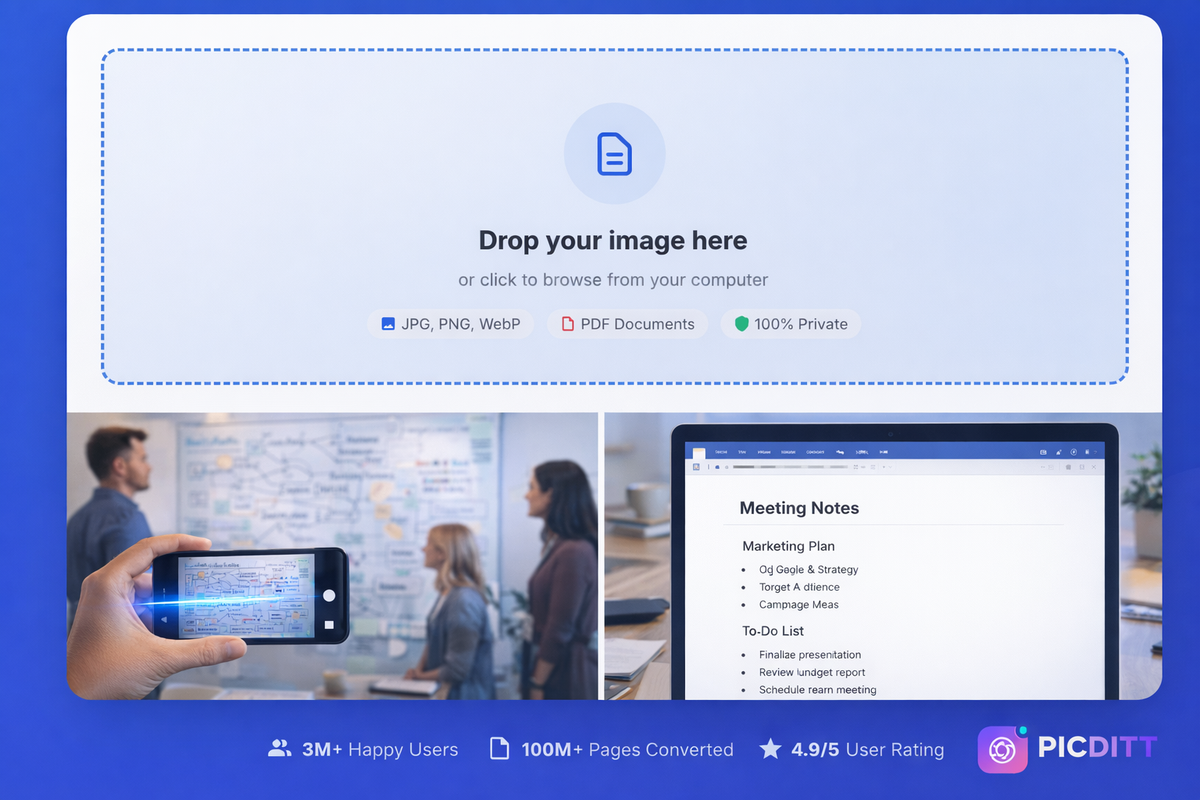
Navigate to the Image to Text tool. You can drag and drop your file, click to browse your hard drive, or simply paste an image directly from your clipboard (perfect for instant screenshot extraction). The tool accepts JPG, PNG, WebP, GIF, BMP, TIFF, and even PDF documents.
Phase 2: Tell the AI What to Look For
This step is crucial. Above the upload zone, you will see a language selector. While the AI is incredibly smart, telling it what language it is looking at dramatically improves accuracy, especially for documents containing special characters, accents, or non-Latin alphabets.
Phase 3: Extract and Export
Click the extract button. The text will instantly populate in an editable text box on your screen. From here, you have total control. You can edit the text directly in the browser, copy it to your clipboard with one click, download it as a raw .txt file, or export it directly as a formatted Microsoft Word (.doc) document.
100+ Languages (Yes, Even That One)
One of the most impressive feats of modern OCR is its global reach. Early OCR technology was notoriously rigid, struggling with anything outside of standard English characters.
Picditt’s extraction engine shatters that limitation, supporting over 100 languages.
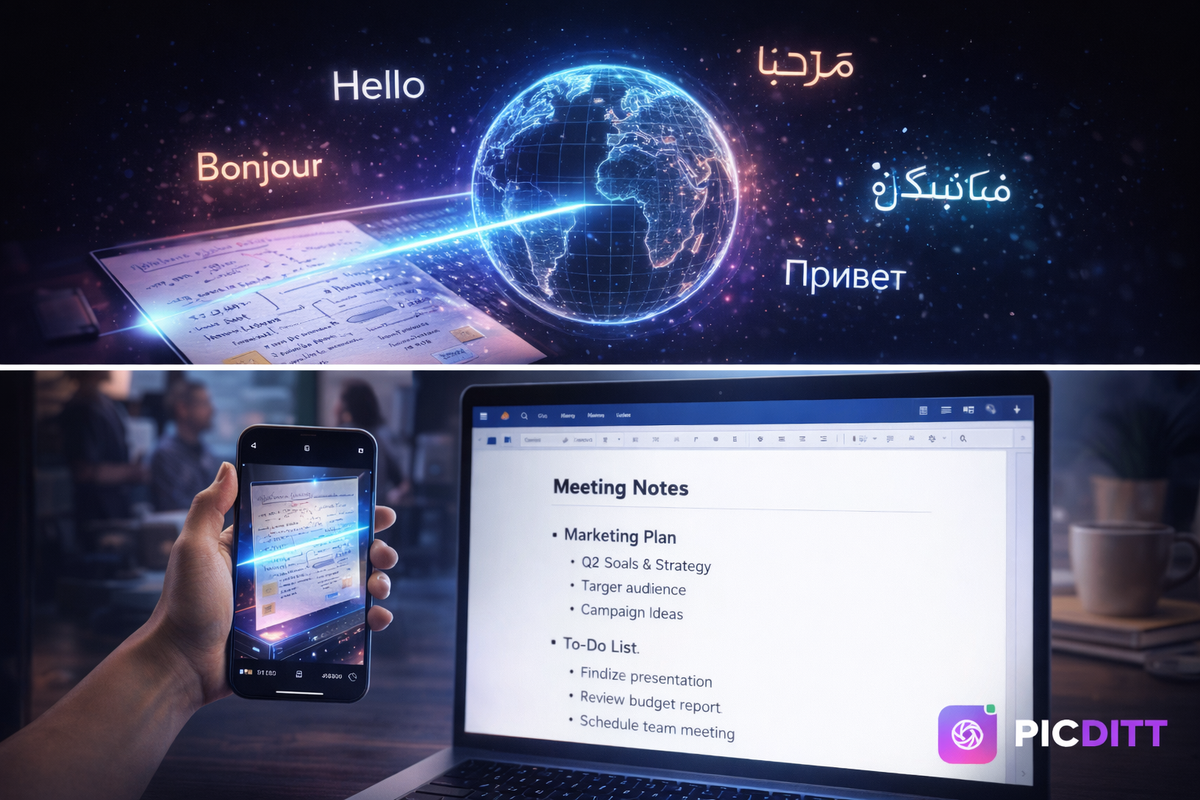
This goes far beyond recognizing French accents or German umlauts. The system is capable of parsing highly complex CJK (Chinese, Japanese, Korean) characters, the flowing script of Arabic, and the intricate characters of Hindi.
This makes the tool an indispensable asset for translation workflows. Imagine finding a foreign-language historical document in an archive. You can photograph it, extract the native text using Picditt, and immediately drop that editable text into a translation engine. What used to require a specialized human transcriber can now be done by anyone with a smartphone camera and a browser.
What Else Survives the Extraction?
A great OCR tool doesn't just spit out a wall of unformatted text. It attempts to understand the intent and structure of the original document. When you extract text with Picditt, the AI works to preserve:
- Paragraphs and Line Breaks: The spacing of the original document is respected.
- Lists: Bullet points and numbered lists are identified and maintained.
- Specialized Symbols: Currency signs, mathematical operators, and complex punctuation are accurately recognized.
- Document Layout: The general hierarchy of headers, subtext, and body paragraphs is kept intact, saving you the hassle of having to reformat the exported Word document.
Note: If your image contains a highly structured data table that you need to move into Microsoft Excel, you should use our specialized Image to Excel Converter instead, which is specifically trained to recreate spreadsheet grids.
The Elephant in the Room: Data Privacy
We need to talk about security, because OCR involves a massive vulnerability that most users completely ignore.
When you use a random "free OCR" app on your phone or a website you found on Google, how exactly is the text being extracted? In 99% of cases, your image is being uploaded to their remote server. Their server processes the image, extracts the text, and sends it back to you.
Now, think about what you are extracting. A photograph of a medical bill? A screenshot of a confidential corporate contract? An image of a bank statement? You have just uploaded highly sensitive, personally identifiable information to a third-party server.
Picditt takes a radically different approach to data extraction. The technology operates 100% client-side.
This means that when you load the webpage, the OCR engine is downloaded directly into your browser's memory. When you feed an image into the tool, the processing happens using your computer’s own CPU.
Your image is never uploaded to the internet. It never touches our servers.
You could literally load the website, disconnect your computer from Wi-Fi, and the text extraction would still work perfectly. This isn't just a neat technical trick; it is a fundamental requirement for anyone handling legal documents, healthcare records (HIPAA compliance), or proprietary corporate data.
The Insider's Guide to Flawless Extraction
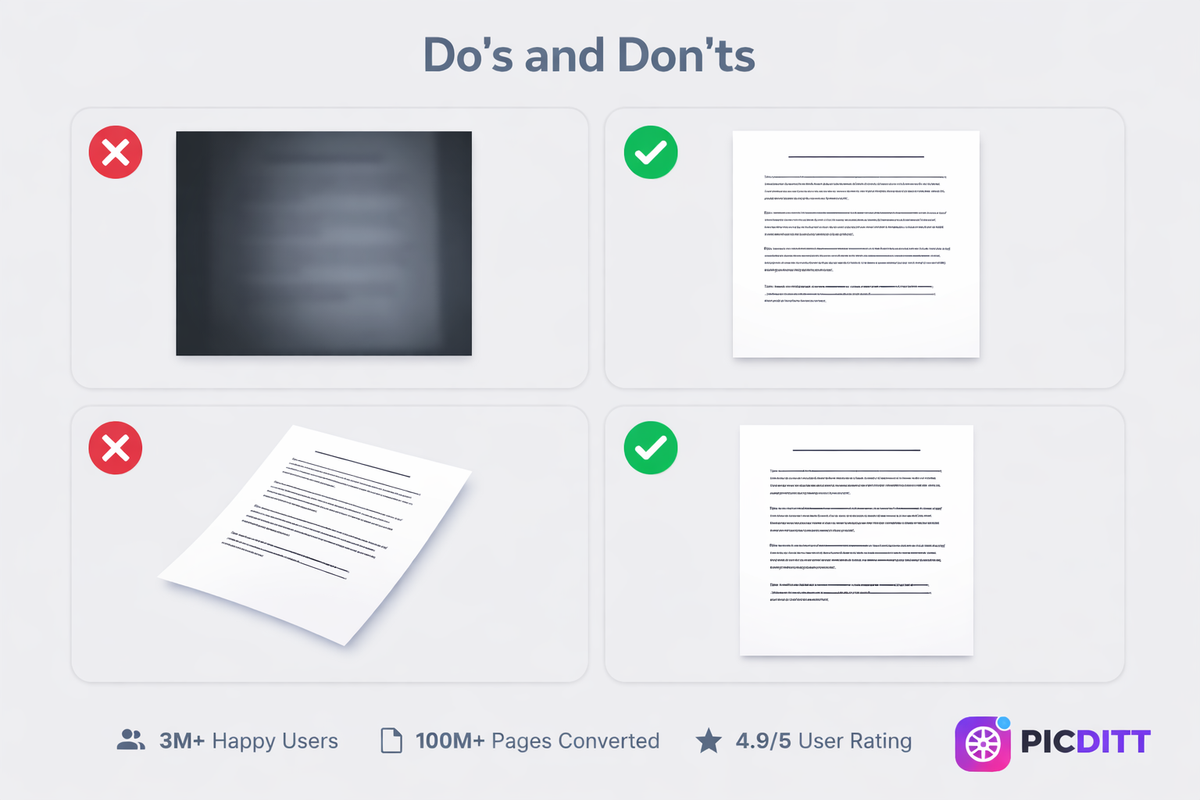
While AI is brilliant, it cannot perform miracles on terrible source material. If you feed the engine a blurry, dark, crooked photograph of a crumpled receipt, the text output will be garbled.
If you want to achieve that coveted 99% accuracy rate, you need to set the AI up for success. Here are the pro tips for flawless text extraction:
1. Feed It High-Resolution Pixels
The more pixels the AI has to analyze, the more accurate the character recognition will be. If you are scanning a document, aim for at least 300 DPI. If you are taking a photo with your phone, make sure you tap to focus the camera so the text is razor-sharp. Avoid compressing the image before uploading it.
2. Light It Up
Shadows are the enemy of OCR. If half of your page is brightly lit and the other half is covered by the shadow of your hand holding the phone, the AI will struggle with the contrast changes. Photograph documents in bright, even, natural light whenever possible.
3. Kill the Skew
Try to photograph the document straight-on from above. If the text is heavily distorted by perspective (e.g., taking a photo from a severe angle), the characters warp, making them harder for the AI to identify.
4. Handwriting is Wildcard Territory
Can Picditt read handwriting? Yes. Will it be 99% accurate? No. Handwriting recognition is one of the hardest challenges in AI. If you are uploading a photo of a doctor's famously messy cursive, expect some errors. However, if you upload neat, legible block lettering, the extraction accuracy will surprise you.
Beyond Text: Building a Digital Workflow
Extracting text from an image is incredibly powerful, but it is usually just the first step in a broader digital workflow. Because Picditt is a comprehensive suite of tools, you can chain these utilities together to solve complex problems:
- The Foreign Language Workflow: Extract text from a foreign document using OCR, export it to Word, and run it through a translator.
- The Archival Workflow: Use the Old Photo Restorer to clean up and sharpen a faded historical document before running it through the OCR engine, dramatically improving the text recognition.
- The Spreadsheet Workflow: Instead of plain text, use the PDF to Excel or Image to Excel tools to extract financial data directly into a working spreadsheet.
- The Anonymity Workflow: Extract the text you need, then use the Magic Eraser to wipe sensitive names or addresses off the original image before archiving it.
Frequently Asked Questions (FAQ)
What is OCR and how does it work?
OCR stands for Optical Character Recognition. It is a technology that analyzes the shapes and patterns within a digital image (like a photograph or scanned document) and translates those visual shapes into machine-encoded, editable text.
Is the Picditt Image to Text tool really free?
Yes. The tool is completely free to use. There are no hidden paywalls, no subscription requirements, and no daily limits on how many images you can process.
Can I extract text from a PDF file?
Yes. While this tool is primarily designed for image formats (JPG, PNG, WebP), you can also upload PDF documents. The engine will scan the visual layout of the PDF and extract the text. If your PDF contains data tables that you want to move into a spreadsheet, we recommend using our dedicated PDF to Excel tool instead.
Will this tool work on handwritten notes?
Yes, the AI is capable of recognizing handwritten text, but the accuracy depends heavily on the legibility of the handwriting. Neat, block-style print will yield much higher accuracy (70-90%) than messy or tightly connected cursive.
Is my data safe when using this tool?
Your data is 100% safe because it never leaves your device. Picditt uses client-side browser processing. This means the OCR extraction happens on your own computer's hardware. Your images and the resulting text are never uploaded to our servers, ensuring total privacy.
Why did the extractor misspell some words?
If the output contains errors, it is usually due to the quality of the source image. Blurry text, low lighting, heavy shadows, or severely angled photographs make it difficult for the AI to confidently recognize characters. Try uploading a brighter, sharper, and straighter image.
How do I export the text once it is extracted?
Once the text appears on your screen, you have three options: you can click the "Copy" button to instantly copy it to your clipboard, download it as a raw plain text (.txt) file, or download it as a formatted Microsoft Word (.doc) document.
Does it support languages other than English?
Absolutely. The engine supports over 100 languages, including complex scripts like Arabic, Hindi, Chinese, Japanese, and Korean. For the best accuracy, be sure to select the correct primary language from the dropdown menu before you upload your image.
Can I use this on my mobile phone?
Yes. The tool is fully responsive and works perfectly in mobile browsers like Safari and Chrome. This is incredibly useful for taking a photo of a document with your phone's camera and immediately extracting the text on the go.
What is the maximum file size I can upload?
You can upload images up to 50MB in size. Because the processing happens locally on your device, you are not restricted by strict server-upload limits, allowing you to process very high-resolution photographs without compressing them first.
Conclusion: Stop Typing, Start Doing
Every minute you spend manually retyping text from a photograph is a minute of your life you are never getting back. It is a task that belongs in the past.
The Picditt Image to Text Converter puts enterprise-grade AI directly into your web browser, allowing you to transform static pixels into workable data in seconds.
- ✅ Instant Extraction: Turn photos into text almost immediately.
- ✅ Global Reach: Support for over 100 languages and complex scripts.
- ✅ Total Privacy: 100% local processing means your files are never uploaded.
- ✅ Versatile Export: Copy to clipboard, or download as TXT and Word documents.
- ✅ Zero Cost: Professional OCR technology available for free.
Take the friction out of your workflow. Snap the photo, extract the text, and move on with your day.
Try Picditt's Free Image to Text Converter →
Ready to Try It Yourself?
Use this tool for free — no signup, no download, no watermarks.
Open Free ToolYou Might Also Like
PDF to Excel Smart Data Extraction: Convert PDF Tables to Editable Spreadsheets
Extracting data from PDF tables shouldn't mean hours of manual typing. Learn how to instantly convert static PDF documents into dynamic, editable Microsoft Excel spreadsheets using Picditt's smart PDF to Excel converter. Features advanced table detection, OCR for scanned documents, and perfect formatting preservation.
Read More →
Secure XLSX to CSV Conversion Online — No Upload, No Data Leak
Need to convert an Excel spreadsheet to CSV format? Picditt's free XLSX to CSV converter processes everything locally in your browser — your files never leave your device. Support for multiple sheets, custom delimiters, data preview, and instant download. Zero privacy risk.
Read More →
How to Convert Images to PDF Online Free — The Complete Guide
Convert any image to a professional PDF document for free. Combine multiple photos, customize page size, adjust margins, set orientation, and download instantly. All processing happens in your browser — your images never leave your device.
Read More →