Convert Images to Word Free: The Only OCR Tool That Actually Supports Urdu, Pashto & 100+ Languages
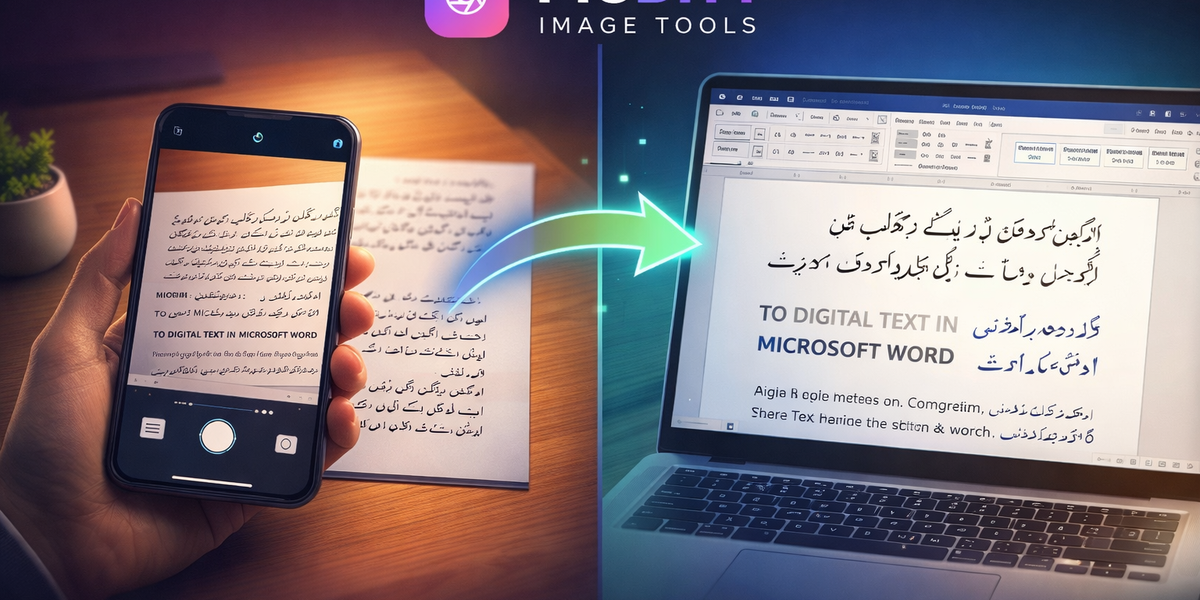
Convert Images to Word Free: The Only OCR Tool That Actually Supports Urdu, Pashto & 100+ Languages
You received a photo of an important document on WhatsApp.
Maybe it is a letter in Urdu that someone photographed and sent. Maybe it is a scanned page from a Pashto textbook. Maybe it is a screenshot of an Arabic contract. Maybe it is simply a photo of an English document you need to edit without retyping.
Whatever the language, the problem is the same: the text is trapped inside an image and you need it in a Word document — editable, searchable, shareable.
For English documents, dozens of online OCR tools exist. You upload, it converts, you download. Done.
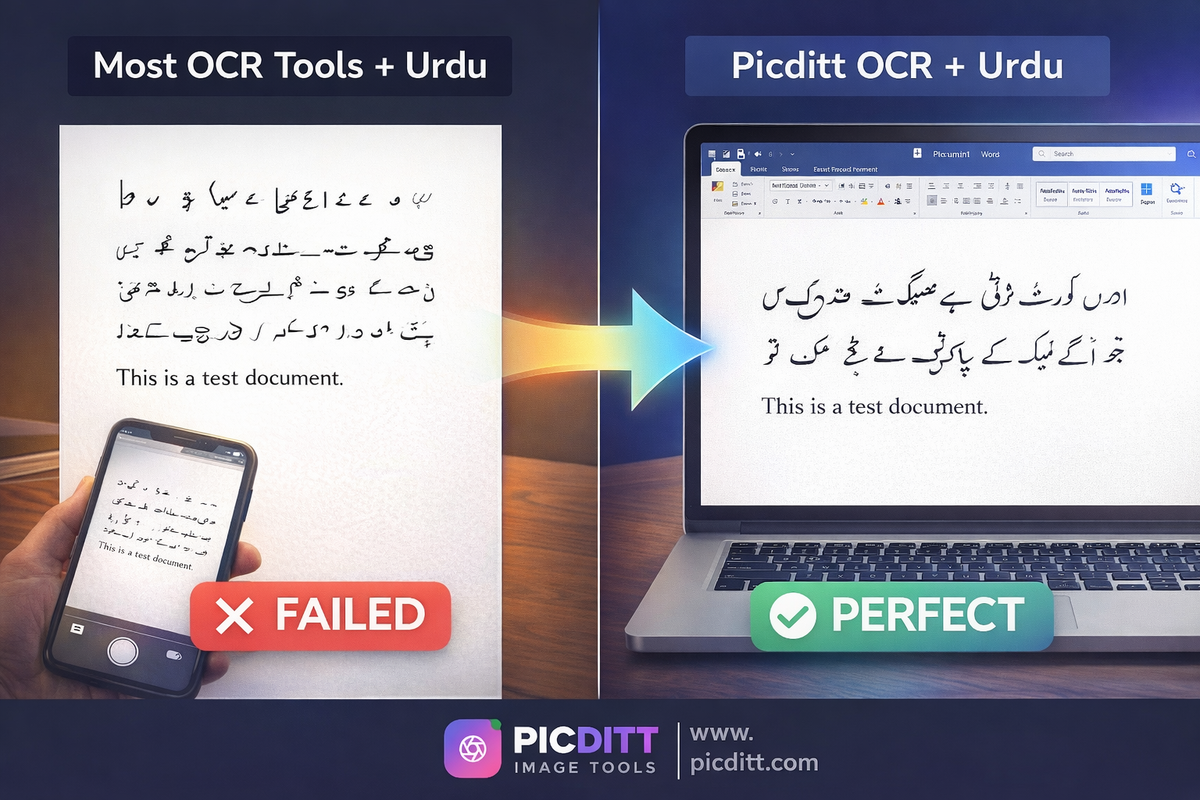
But try that same process with an Urdu document. Or Pashto. Or Arabic. The results are almost universally terrible — garbled characters, reversed text direction, broken letter connections, or complete failure to recognize the script at all.
The reason is that Urdu, Pashto, and Arabic are not just different languages — they use fundamentally different writing systems with unique technical challenges that most OCR engines are not built to handle. Nastaliq script, right-to-left text direction, connected cursive characters, and complex ligatures require specialized OCR optimization that the vast majority of online tools simply do not have.
This guide explains why OCR for complex scripts is difficult, how to get the best results from any image-to-Word conversion regardless of language, and how to use the free Picditt Image to Word Converter — one of the only browser-based OCR tools with genuine, optimized support for Urdu, Pashto, Arabic, and 100+ languages, processing everything locally with zero server uploads.
Why OCR for Urdu, Pashto, and Arabic Is Technically Difficult
To understand why most OCR tools fail with complex scripts, you need to understand what makes these writing systems fundamentally different from Latin-based languages.
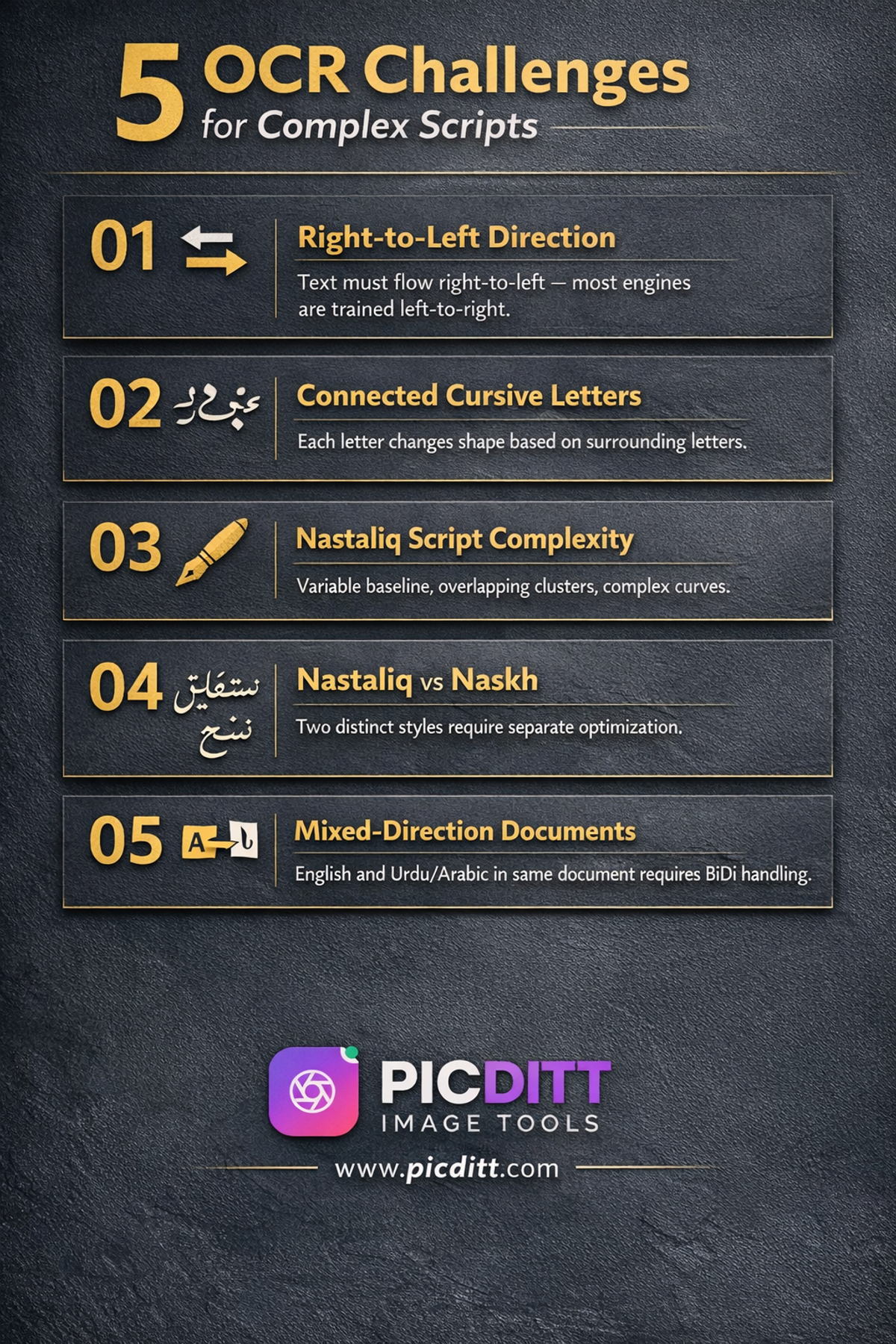
Challenge 1: Right-to-Left Text Direction
English and most European languages write left-to-right. Urdu, Pashto, Arabic, Hebrew, and Persian write right-to-left. This is not simply a visual preference — it changes the entire logic of how text is read, stored, displayed, and processed.
An OCR engine that was designed and trained primarily on left-to-right text must completely reverse its scanning direction, word boundary detection, and line ordering to correctly handle right-to-left text. Many OCR engines apply RTL support as an afterthought rather than a core design principle, resulting in partially correct or completely incorrect text direction in the output.
The result in practice: Words in the correct language but in completely wrong order. A sentence that should read right-to-left appears left-to-right, making it completely unreadable and unusable.
Challenge 2: Connected Cursive Characters
Written Urdu and Arabic are inherently cursive — letters within words connect to each other in ways that change the shape of each letter depending on its position. The letter "ب" (ba) looks different at the beginning of a word, in the middle of a word, and at the end of a word.
This means an OCR engine cannot simply match individual characters against a database of fixed shapes. It must understand contextual character forms — recognizing that the same character has dozens of visual variants depending on the letters surrounding it.
Latin-script OCR engines that identify individual isolated characters perform very poorly on connected scripts because they have no model for contextual character shape variation.
Challenge 3: Nastaliq Script Complexity
Urdu is most commonly written in Nastaliq — a calligraphic style of Arabic script that is considered one of the most visually beautiful writing systems in the world. It is also one of the most complex for OCR.
In Nastaliq:
- Characters are written at varying angles and heights
- Letters cluster vertically as well as horizontally
- Words overlap and stack in complex arrangements
- The baseline of text varies throughout a line
- Characters have complex curves and flourishes
Standard OCR approaches that assume a consistent horizontal baseline and uniform character size fail dramatically with Nastaliq. Specialized Nastaliq OCR requires training on large datasets of Nastaliq text with models specifically designed for the script's unique geometry.
Challenge 4: Naskh vs Nastaliq Fonts
Arabic script is used in two main styles for Urdu and Pashto — Nastaliq (the traditional calligraphic style) and Naskh (a simpler, more upright style used in some printed materials). These two styles are visually quite different, and an OCR engine optimized for one may perform poorly on the other.
The Picditt Image to Word Converter is optimized for both Nastaliq and Naskh, with preprocessing that adapts to the script style detected in the image.
Challenge 5: Mixed-Language Documents
Many real-world Urdu, Pashto, and Arabic documents contain mixed content — Urdu text alongside English product names, Arabic numerals mixed with Eastern Arabic numerals, or English headings in an otherwise Urdu document.
Handling mixed-direction text (bidirectional or BiDi text) in a single document is technically complex. Words must be displayed in the correct direction within their language context while the overall document structure is preserved. Most basic OCR tools collapse entirely when faced with mixed-direction documents.
What Makes a Good Image-to-Word Converter
Whether you are converting English, Urdu, Pashto, Arabic, or any other language, certain qualities distinguish excellent OCR tools from mediocre ones.
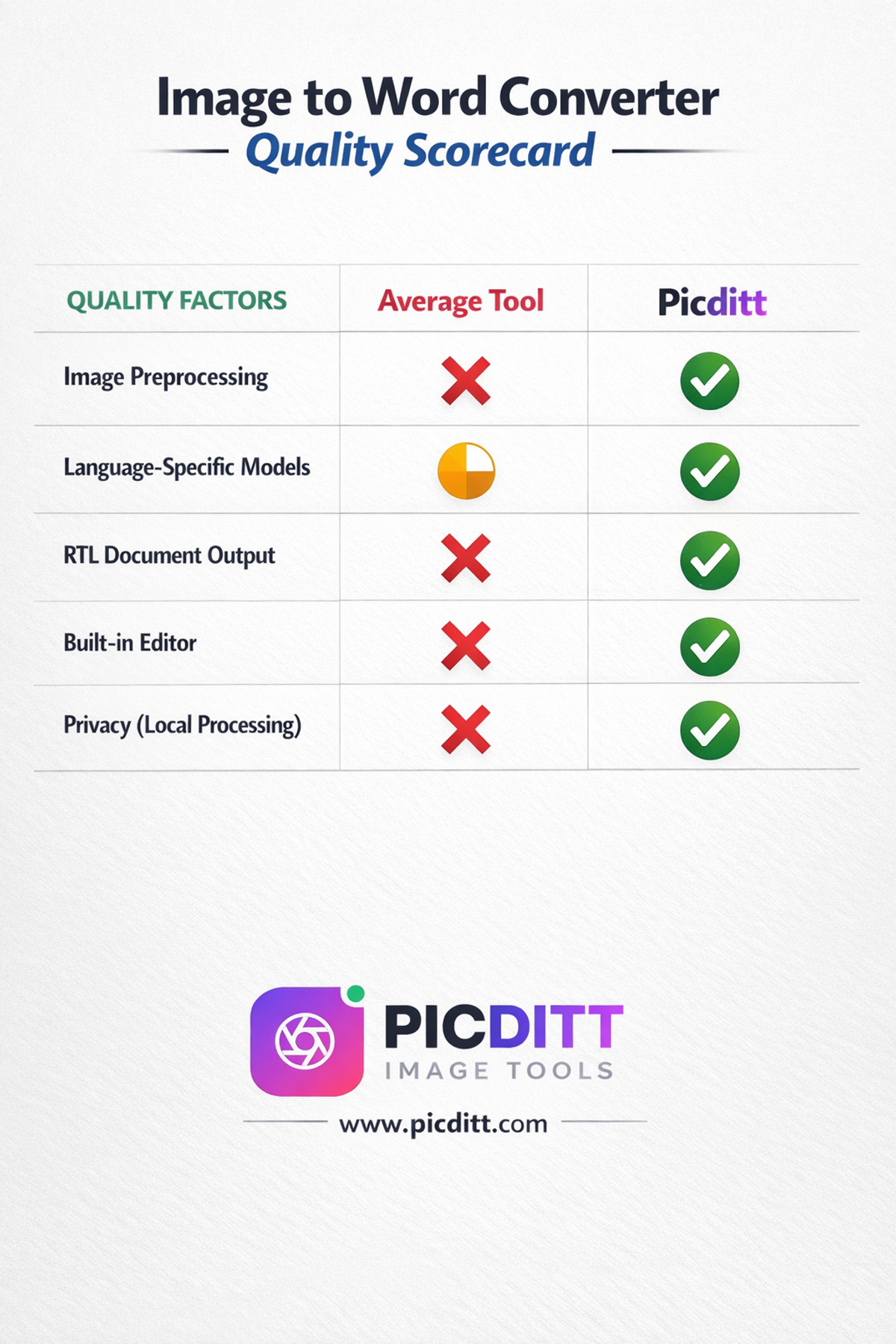
Quality 1: Smart Image Preprocessing
The quality of OCR output depends heavily on preprocessing — the steps taken to enhance the image before character recognition begins. Good preprocessing includes:
- Contrast enhancement — making text darker and backgrounds lighter
- Noise reduction — removing artifacts from phone cameras or scanners
- Upscaling — increasing resolution of low-quality images
- Background removal — eliminating colored or patterned backgrounds
- Deskewing — correcting slightly rotated or tilted documents
However — and this is important for Urdu and Pashto — aggressive preprocessing that works well for English can damage Nastaliq script recognition. The fine connecting strokes that link letters in Nastaliq can be eliminated by heavy contrast enhancement, causing letters to separate and break the cursive connections that define the script.
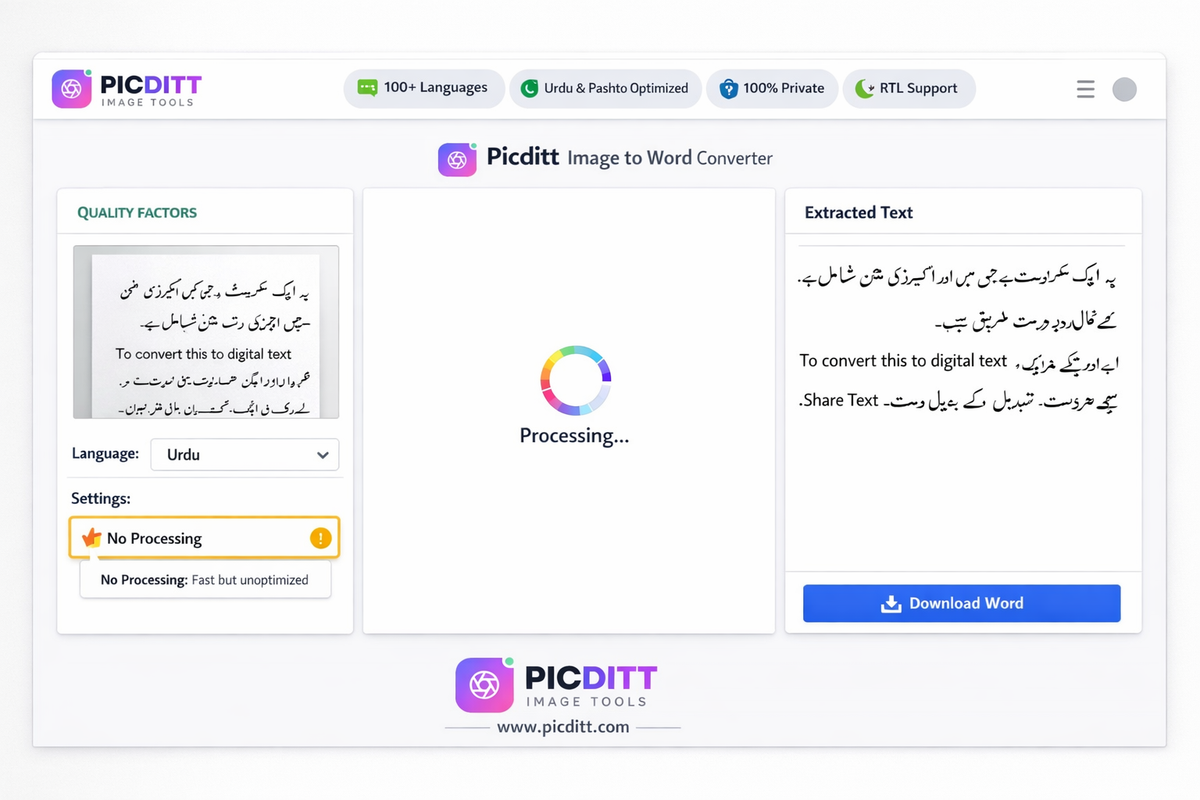
This is why the Picditt converter offers a "No Processing" option specifically recommended for Urdu and Pashto — allowing the OCR engine to work with the original image characteristics rather than applying aggressive preprocessing designed for Latin scripts.
Quality 2: Language-Specific OCR Models
The best OCR tools train separate recognition models for different language families rather than applying a single universal model. A model trained specifically on Urdu text with Nastaliq fonts will dramatically outperform a generic model applied to Urdu.
Quality 3: Proper RTL Document Output
Extracting text correctly is only half the challenge. The output Word document must also handle RTL text properly — with correct paragraph direction, correct line ordering, correct character display, and correct cursor behavior in the editable document.
A Word document with correctly recognized Urdu text but incorrect RTL formatting is unusable for most purposes.
Quality 4: Built-in Editor for Review
No OCR tool achieves 100% accuracy on all documents. A built-in editor that lets you review and correct the extracted text before downloading is essential — especially for important documents where accuracy matters.
Quality 5: Privacy by Design
Documents converted with OCR tools are often sensitive — business contracts, academic work, official letters, personal correspondence. A tool that uploads your documents to a remote server creates unnecessary privacy risk. Local browser-based processing eliminates this risk entirely.
Introducing the Picditt Image to Word Converter
The Picditt Image to Word Converter is a free, browser-based OCR tool that converts photos, screenshots, and scanned documents into editable Microsoft Word (.docx) files — with genuine, optimized support for Urdu, Pashto, Arabic, and 100+ languages, processing everything locally in your browser.
Language Support
Language
Script
Direction
Support Level
Urdu (اردو)
Nastaliq / Naskh
RTL
✅ Optimized
Pashto (پښتو)
Nastaliq
RTL
✅ Optimized
Arabic (العربية)
Naskh
RTL
✅ Optimized
Persian/Dari
Nastaliq
RTL
✅ Supported
English
Latin
LTR
✅ Excellent
Hindi (हिन्दी)
Devanagari
LTR
✅ Supported
Bengali
Bengali script
LTR
✅ Supported
Chinese
Han characters
LTR/TTB
✅ Supported
Japanese
Mixed scripts
LTR/TTB
✅ Supported
Russian
Cyrillic
LTR
✅ Supported
Spanish, French, German
Latin
LTR
✅ Excellent
100+ more languages
Various
Various
✅ Supported
Smart Preprocessing Modes
Standard Processing — Recommended for English and Latin-script documents. Applies contrast enhancement, noise reduction, upscaling, and background removal for maximum recognition accuracy.
No Processing — Specifically recommended for Urdu, Pashto, and Arabic in Nastaliq script. Preserves the fine connecting strokes of cursive Arabic scripts that aggressive preprocessing can damage. Always use this mode for Urdu and Pashto documents.
Adaptive Mode — The tool analyzes your image and selects the optimal preprocessing level automatically based on detected script characteristics.
Key Features
Intelligent Text Extraction
The OCR engine identifies text regions, recognizes individual characters in their contextual forms, and reconstructs words and sentences with correct reading order.
RTL Text Preservation
Urdu, Pashto, and Arabic text is output in the correct right-to-left direction in the Word document, with proper paragraph formatting and BiDi text handling for mixed-direction documents.
Edit Before Download
Review all extracted text in the browser editor before downloading. Correct any recognition errors, add formatting, and ensure accuracy before exporting to Word.
Clean Word Output
The .docx output preserves paragraph structure, handles RTL text with correct formatting, and creates clean, properly formatted Word documents ready for editing in Microsoft Word, LibreOffice Writer, or Google Docs.
100% Private Processing
All OCR processing happens inside your browser using Tesseract.js running on WebAssembly. Your documents — including sensitive personal, business, or academic content — never transmit to any server.
Technical Specifications
Specification
Details
Input Formats
JPG, JPEG, PNG, GIF, BMP, WebP
Maximum File Size
10 MB
Output Format
Microsoft Word (.docx)
OCR Engine
Tesseract.js (WebAssembly)
Languages
100+ including Urdu, Pashto, Arabic
Script Support
Nastaliq, Naskh, Latin, Devanagari, Cyrillic, Han, and more
RTL Support
Full right-to-left text and document direction
Preprocessing
Standard, No Processing, Adaptive
Built-in Editor
Yes — edit before downloading
Processing
100% browser-based (client-side)
Privacy
Files never uploaded to any server
Cost
Free forever, no limits
Registration
None required
Step-by-Step Guide: Converting Images to Word
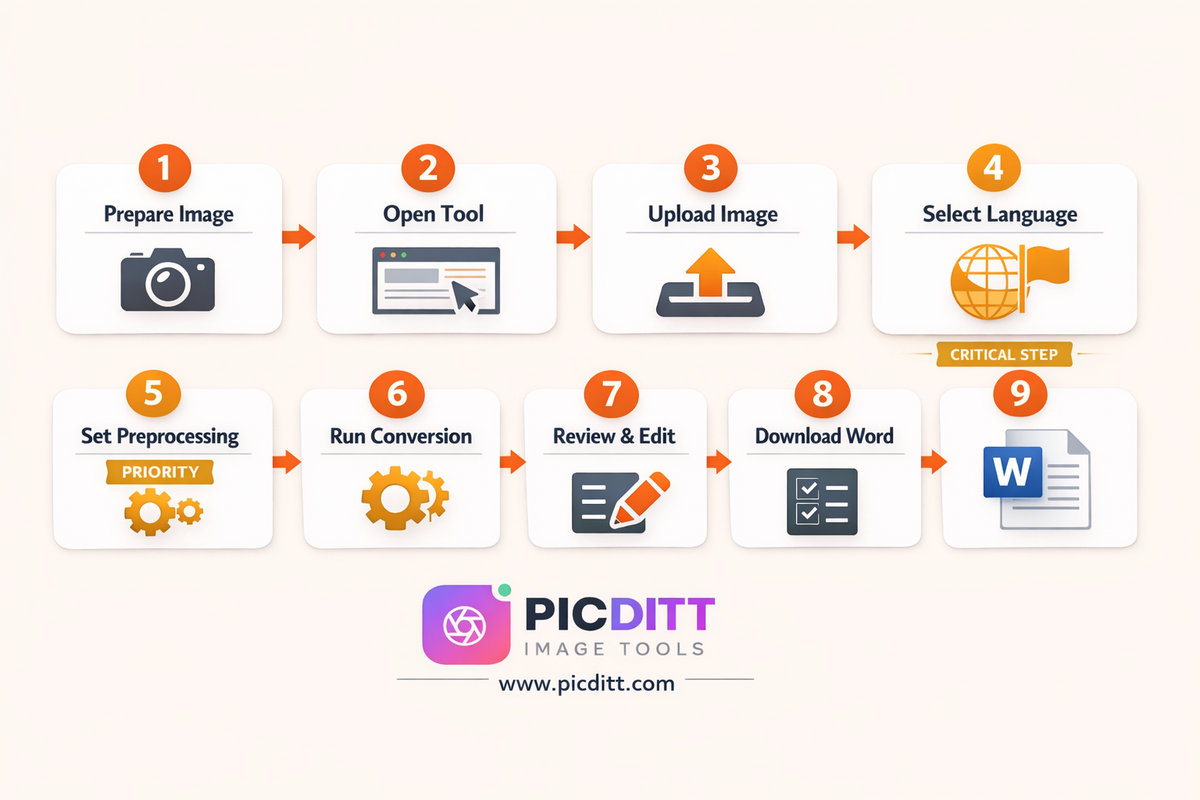
Step 1: Prepare Your Image
Image quality significantly impacts OCR accuracy. Follow these guidelines:
For phone photos of physical documents:
- Place document on a flat, dark, matte surface
- Use natural daylight from a window — avoid direct flash
- Hold phone directly above document (not at an angle)
- Ensure entire document fits in frame with small borders
- Keep text horizontal — tilted text reduces accuracy significantly
- For Urdu/Pashto: ensure letters are clearly printed without ink bleeding
For screenshots:
- Capture at maximum available resolution
- Ensure the complete text is visible with no cutoff
- Dark text on light background gives best results
For scanned documents:
- Scan at 300 DPI minimum
- Use black and white mode for text documents
- Ensure pages are completely flat against scanner glass
Step 2: Open the Tool
Visit https://picditt.com/conversion/image-to-word in any modern browser. Works on desktop and mobile. No account or installation required.
Step 3: Upload Your Image
Click "Select Image to Convert" or drag and drop your image file onto the upload area. Supported formats: JPG, JPEG, PNG, GIF, BMP, WebP up to 10 MB.
Step 4: Select Your Language
This step is critical for non-English documents. Open the language selector and choose the primary language of your document:
- For Urdu documents: Select 🇵🇰 Urdu
- For Pashto documents: Select 🇦🇫 Pashto
- For Arabic documents: Select 🇸🇦 Arabic
- For English documents: 🇺🇸 English (default)
- For Hindi documents: Select 🇮🇳 Hindi
Selecting the wrong language is the most common cause of poor OCR results. Always match the language to the primary script in your document.
Step 5: Configure Preprocessing Mode
Open Settings and select the appropriate preprocessing mode:
For Urdu, Pashto, Arabic (Nastaliq/cursive scripts):
Select "No Processing" — This is specifically recommended for cursive scripts. Standard image enhancement can sever the connecting strokes between letters in Nastaliq, causing character recognition failures.
For English, Hindi, and Latin-script languages:
Use the default Standard Processing — This applies contrast enhancement, noise reduction, and other preprocessing that improves recognition accuracy for printed text.
For faded, old, or low-contrast documents in any language:
Try Standard Processing first. If results are poor, try No Processing as an alternative.
Step 6: Run the Conversion
Click to start OCR processing. The tool:
- Applies your selected preprocessing mode
- Analyzes the image with language-specific OCR models
- Reconstructs text with correct character connections and reading order
- Formats the output with correct RTL/LTR direction as appropriate
- Presents the extracted text in the browser editor
Processing typically completes in seconds for standard documents.
Step 7: Review and Edit
Before downloading, carefully review the extracted text:
For Urdu/Pashto/Arabic documents — check:
- Is text flowing correctly right-to-left?
- Are character connections intact (words should not appear as disconnected letters)?
- Are diacritical marks (harakat) present where they should be?
- Is the word order correct?
For English documents — check:
- Are all words correctly recognized?
- Are numbers accurate?
- Are special characters and punctuation correct?
Use the built-in editor to correct any errors before downloading.
Step 8: Download as Word Document
Click "Download Word" to save your .docx file. Open in Microsoft Word, LibreOffice Writer, or Google Docs. For Urdu/Pashto documents, ensure your Word version has the appropriate RTL language support enabled to display the text correctly.
Use Cases: Who Uses Image to Word Conversion
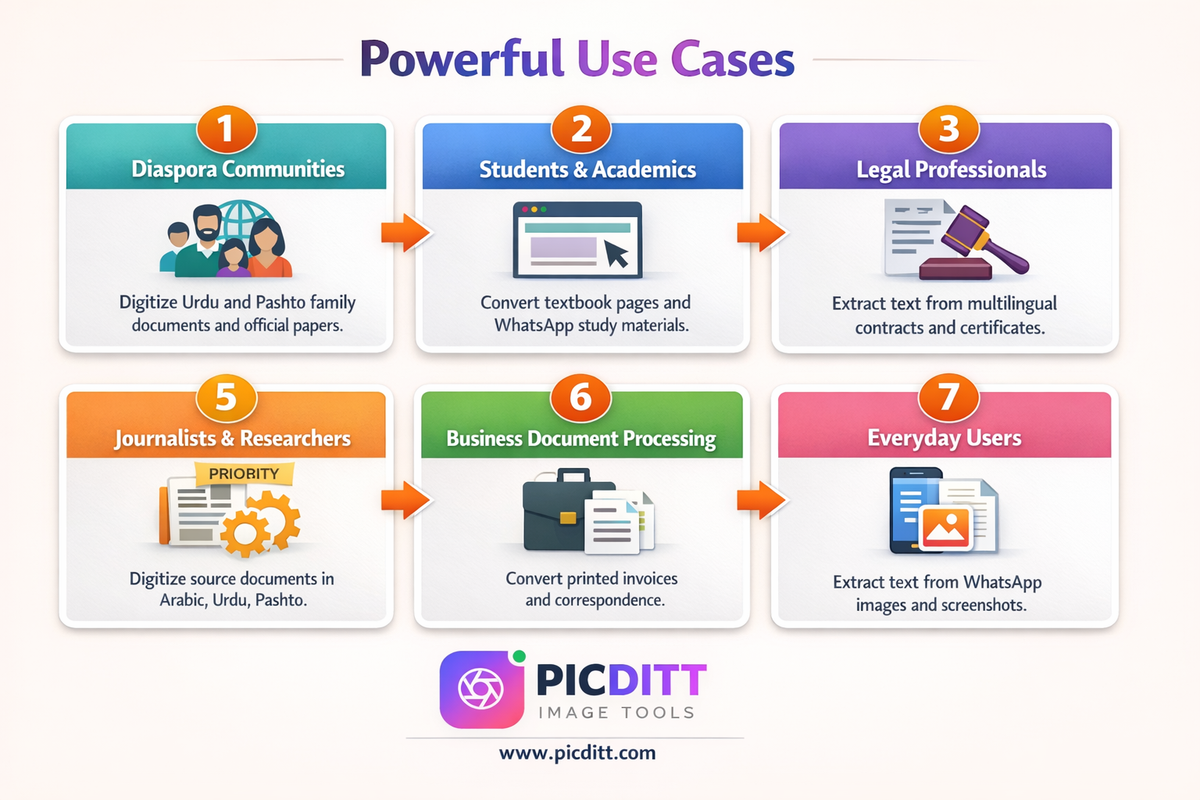
Pakistani and Afghan Diaspora Communities
For Pakistani and Afghan communities worldwide, the ability to digitize Urdu and Pashto documents is genuinely valuable and practically difficult to find elsewhere. Official documents, family correspondence, academic certificates, and legal papers written in Urdu or Pashto often need to be digitized for:
- Translating for legal, immigration, or official purposes
- Preserving family documents in digital format
- Making documents searchable and editable
- Sharing with family members who need editable text
Finding an OCR tool that actually handles Urdu Nastaliq correctly is rare. The Picditt tool was specifically built with this community in mind.
Students and Academics
Students across South Asia and the Middle East receive course materials, textbook pages, and reference documents as photographs — shared via WhatsApp, Telegram, or email. Converting these image-based documents to editable Word files enables:
- Copying and pasting quotes and references
- Creating searchable study notes
- Editing and annotating digital documents
- Submitting digitized content in required formats
For students studying Urdu or Arabic literature, religious texts, or historical documents, accurate OCR in the original script is essential.
Legal and Administrative Professionals
Legal professionals handling documents in multiple languages — lawyers, notaries, immigration consultants, translators — regularly need to extract text from physical or photographed documents. Converting images to editable Word documents enables:
- Creating editable drafts from signed or sealed documents
- Extracting specific clauses from printed contracts
- Building searchable document archives
- Preparing multilingual document sets
Journalists and Researchers
Journalists covering South Asian or Middle Eastern affairs, and researchers studying these regions, frequently work with source documents in Urdu, Pashto, Arabic, or Persian. Accurate OCR enables:
- Rapidly digitizing source documents for analysis
- Creating searchable archives of physical documents
- Extracting quotes accurately without manual transcription
- Working efficiently across languages
Business Document Processing
Businesses operating in Pakistan, Afghanistan, the UAE, Saudi Arabia, and other markets where Urdu or Arabic is the primary business language need to process documents in these scripts. Common business uses include:
- Converting printed invoices to editable digital records
- Digitizing supplier and vendor correspondence
- Processing government regulatory documents
- Converting paper contracts to digital archives
Everyday Screenshot Text Extraction
For everyday users, the most common use case is simpler: extracting text from a screenshot or image where copy-paste is not available. This applies to:
- WhatsApp images containing text someone sent you
- Screenshots of websites with copy-protection
- Photos of posters, announcements, or notices
- Images of text in any language that you need to edit or search
Tips for Perfect Results With Every Language
For Urdu (اردو) Documents
Urdu in Nastaliq is the most challenging script for OCR. Follow these tips for the best results:
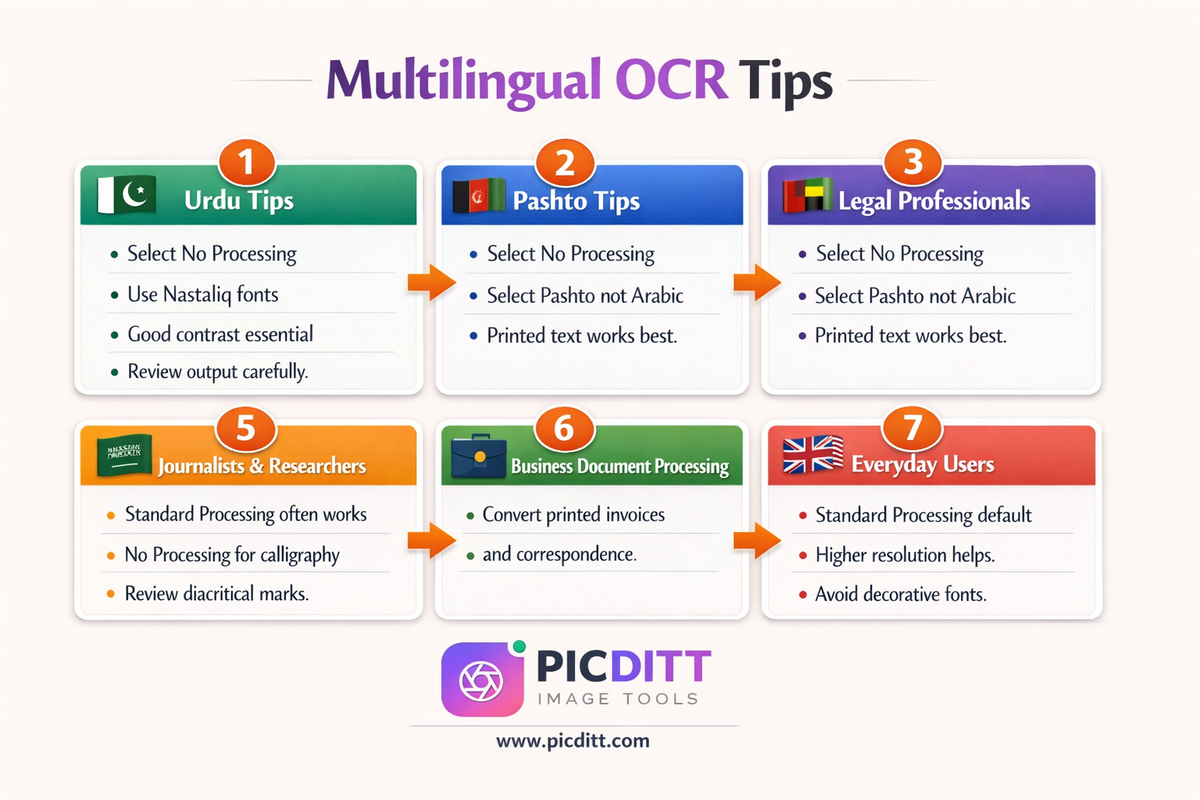
Always select "No Processing" in Settings before running OCR on Urdu text. Standard preprocessing can damage the connecting strokes between letters.
Use Jameel Noori Nastaliq or similar printed Nastaliq fonts — these are the most widely used and best-supported fonts for Urdu OCR. Documents in these fonts typically yield the highest accuracy.
Ensure good contrast — Urdu text on cream or colored paper can reduce recognition accuracy. If possible, increase contrast in your phone's photo editor before uploading.
Photograph straight on — any tilt or perspective distortion significantly affects Nastaliq recognition because the complex geometry of the script depends on consistent orientation.
Check the output carefully — even good Urdu OCR may occasionally merge or separate characters incorrectly. Review the output in the editor and correct any issues before downloading.
For Pashto (پښتو) Documents
Pashto shares many characteristics with Urdu OCR:
Select "No Processing" for Pashto Nastaliq documents — same reason as Urdu.
Select Pashto specifically from the language dropdown — do not use Arabic as a substitute. Pashto has additional characters (like پ, ټ, ډ, ړ, ژ, ګ, ڼ) that are only correctly recognized when the Pashto language model is selected.
Clear printed text works best — handwritten Pashto is significantly more challenging for OCR than printed documents.
For Arabic (العربية) Documents
Arabic typically uses Naskh rather than Nastaliq, making it slightly more accessible for OCR than Urdu:
Standard Processing can work for many Arabic documents — Naskh's more upright letterforms are less sensitive to preprocessing than Nastaliq.
Select "No Processing" for handwritten or calligraphic Arabic — decorative or calligraphic Arabic scripts benefit from the same gentle approach as Nastaliq.
Diacritical marks (tashkeel/harakat) may not always be correctly recognized. Review documents where diacritical accuracy is critical.
For English and Latin-Script Languages
Use Standard Processing — the default settings are optimized for Latin scripts.
Higher resolution always helps — for English documents, the tool handles standard office document quality easily, but very low-resolution images benefit significantly from higher resolution originals.
Avoid decorative fonts — standard business and document fonts (Times New Roman, Arial, Calibri) achieve near-perfect accuracy. Decorative, script, or stylized fonts reduce accuracy.
For Hindi (हिन्दी) and Devanagari Scripts
Select Hindi or the appropriate Devanagari language from the dropdown.
Standard Processing generally works well for Devanagari — unlike Nastaliq, Devanagari has a consistent horizontal baseline that preprocessing handles well.
Clear printed text in standard fonts such as Mangal or Arial Unicode MS yields the best results.
Frequently Asked Questions
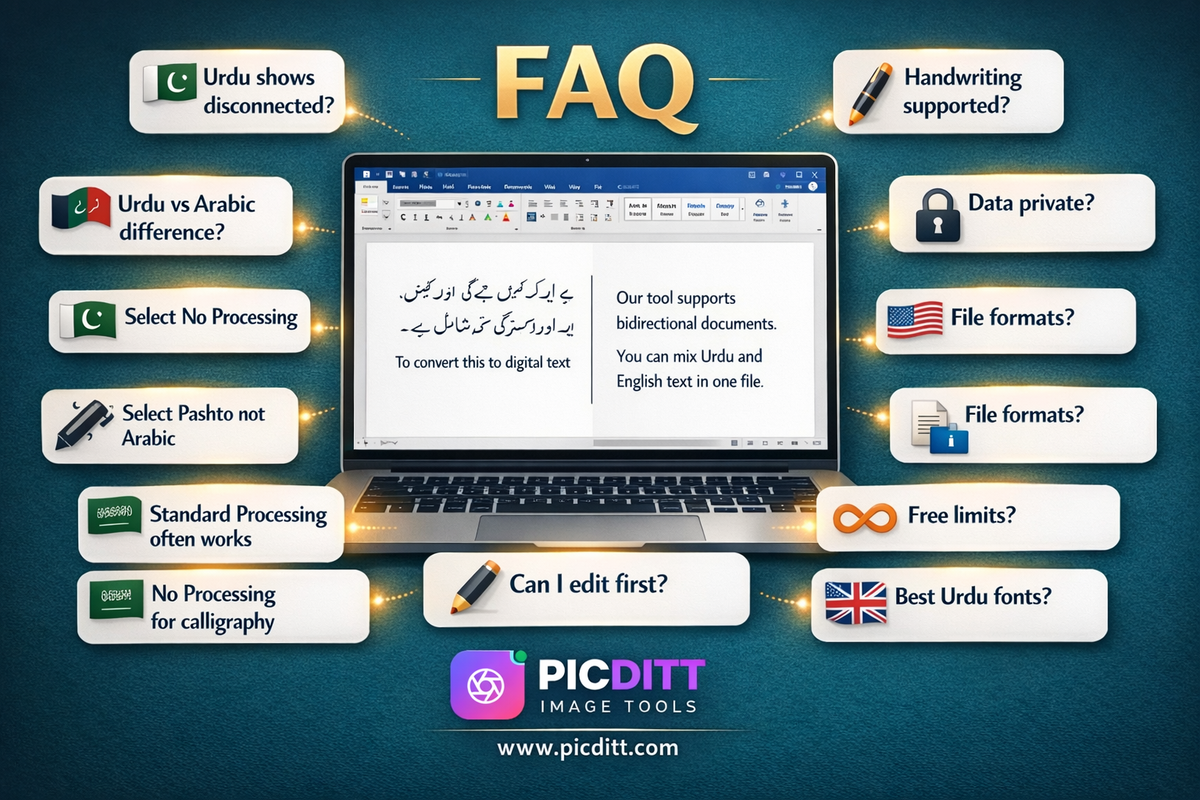
Why does my Urdu text come out as disconnected letters or random symbols?
This almost always means the wrong preprocessing mode is selected. For Urdu and Pashto in Nastaliq script, go to Settings and select "No Processing" before running the conversion. Standard preprocessing is designed for Latin scripts and can sever the connecting strokes between letters in Nastaliq, causing the OCR engine to see disconnected fragments rather than connected letters. The "No Processing" mode preserves the original image characteristics that Nastaliq OCR depends on.
What is the difference between Urdu and Arabic OCR?
While both Urdu and Arabic use Arabic script, they are different languages with different character sets and different primary font styles. Urdu most commonly uses Nastaliq — a complex calligraphic style. Arabic most commonly uses Naskh — a simpler, more upright style. Selecting Urdu when your document contains Urdu is important because the language model includes Urdu-specific characters (like ٹ, ڈ, ڑ, ں, ی) that differ from standard Arabic. Always select the correct language for best results.
Can it recognize handwritten Urdu or Pashto?
The tool is optimized for printed text in standard fonts. Handwriting recognition for any language — and especially for complex cursive scripts like Urdu Nastaliq — is significantly more challenging and less accurate than printed text recognition. Neatly written, clear handwriting may be partially recognized, but complex cursive handwriting typically produces poor results. For primarily handwritten Urdu documents, manual transcription or specialized handwriting recognition services will produce better results.
Does the tool correctly handle mixed Urdu and English documents?
Yes. The tool handles bidirectional (BiDi) text where Urdu flows right-to-left and English terms or headings flow left-to-right within the same document. The Word output applies correct BiDi formatting so both scripts display in their correct directions. Select Urdu as the primary language for mixed documents where Urdu is dominant.
Is my document private when I use this tool?
Yes, completely. All OCR processing runs inside your browser using Tesseract.js on WebAssembly — a technology that executes the OCR engine locally on your device. Your image never transmits to any server. This is particularly important for sensitive documents like personal correspondence, official certificates, business contracts, and academic work. You can verify this using your browser's network inspector — no file upload request will appear during processing.
What file formats does the tool accept?
The tool accepts JPG, JPEG, PNG, GIF, BMP, and WebP image files up to 10 MB. PDF files are not directly supported as input — take a screenshot of the relevant PDF page or export it as an image, then upload that image.
Can I edit the extracted text before downloading?
Yes. After OCR processing completes, the extracted text appears in a built-in browser editor. You can correct any recognition errors, add formatting, remove unwanted text, and make any other changes before downloading the Word file. This review step is especially important for Urdu and Pashto documents where even optimized OCR may occasionally make errors.
The tool is free — what are the limitations?
There are no functional limitations. The tool is completely free with no daily usage limits, no file count restrictions, no watermarks on output documents, and no registration required. Convert as many images as you need. The only technical limitation is the 10 MB maximum file size per image.
Which Urdu fonts does the tool recognize best?
The OCR engine performs best with Jameel Noori Nastaliq, Faiz Lahori Nastaliq, and other widely-used printed Nastaliq fonts. Naskh fonts like Traditional Arabic are also well-supported. Decorative or display calligraphic fonts may produce lower accuracy. For documents you control the printing of, using Jameel Noori Nastaliq or a standard Naskh font before printing will maximize OCR accuracy.
Can this tool replace a professional human translator or transcriber for important Urdu documents?
For routine digitization of clearly printed documents, the tool produces highly accurate results that significantly reduce manual work. However, for critical documents — legal contracts, medical records, official government papers — we recommend using the tool's output as a starting point and having a fluent Urdu or Pashto speaker review and verify the extracted text before using it for important purposes.
The Gap Nobody Is Filling — And Why It Matters
Search for "image to word converter" in any language and you will find dozens of tools. Search for "Urdu image to word converter" and you will find almost nothing that actually works.
This gap is not accidental. Building accurate OCR for Nastaliq script requires significant investment in training data, specialized algorithms, and testing with real Urdu and Pashto documents. Most OCR tools are built for English-first markets and add other languages as afterthoughts — with predictably poor results.
For the millions of Urdu and Pashto speakers worldwide — in Pakistan, Afghanistan, and diaspora communities across the UK, USA, Canada, Australia, the UAE, and beyond — the lack of accessible, accurate OCR tools in their languages is a genuine daily inconvenience.
Digitizing family documents. Converting official papers for immigration processes. Extracting text from educational materials. Making historical texts searchable. These are not niche use cases — they are common needs for a significant global population that most OCR tools simply ignore.
The Picditt Image to Word Converter was built with genuine support for Urdu and Pashto — with preprocessing modes designed specifically for Nastaliq, language models trained for these scripts, and RTL document output that actually works. Combined with local processing for complete privacy and a built-in editor for accuracy review, it provides what this community needs and has not been able to find elsewhere.
Convert Your Urdu, Pashto, or Any Language Image to Word Free →
Ready to Try It Yourself?
Use this tool for free — no signup, no download, no watermarks.
Open Free ToolYou Might Also Like

Don't Let People Steal Your Photos: The Ultimate Free Watermarking Guide
Your photos are being stolen right now — downloaded, reposted, and used without your permission on social media, websites, and marketplaces across the internet. This ultimate guide covers everything you need to know about watermarking: why photo theft is rampant, the psychology of effective watermarks, every watermark type explained, exact opacity and placement recommendations, and a complete step-by-step guide to the free Picditt Watermark Tool that processes everything in your browser with zero server uploads.
Read More →
How to Convert Any Image to Excel Free — The Complete OCR Guide (Tables, Receipts, Invoices)
Stop manually retyping data from photos, screenshots, and scanned documents. This complete guide shows you how to convert any image — tables, receipts, invoices, printed documents, screenshots — into a fully editable Excel spreadsheet using free AI-powered OCR that processes everything locally in your browser with zero server uploads and complete privacy.
Read More →
AI Old Photo Restorer & Colorizer: How to Bring Faded Family Photos Back to Life
Old family photos fade, scratch, and lose their color over time—but they don't have to stay that way. Learn how to use PicDitt's free AI Old Photo Restorer & Colorizer to remove damage, enhance details, and add realistic color to black & white images, all directly in your browser.
Read More →