How to Split PDF Files & Extract Specific Pages for Free (No Adobe)
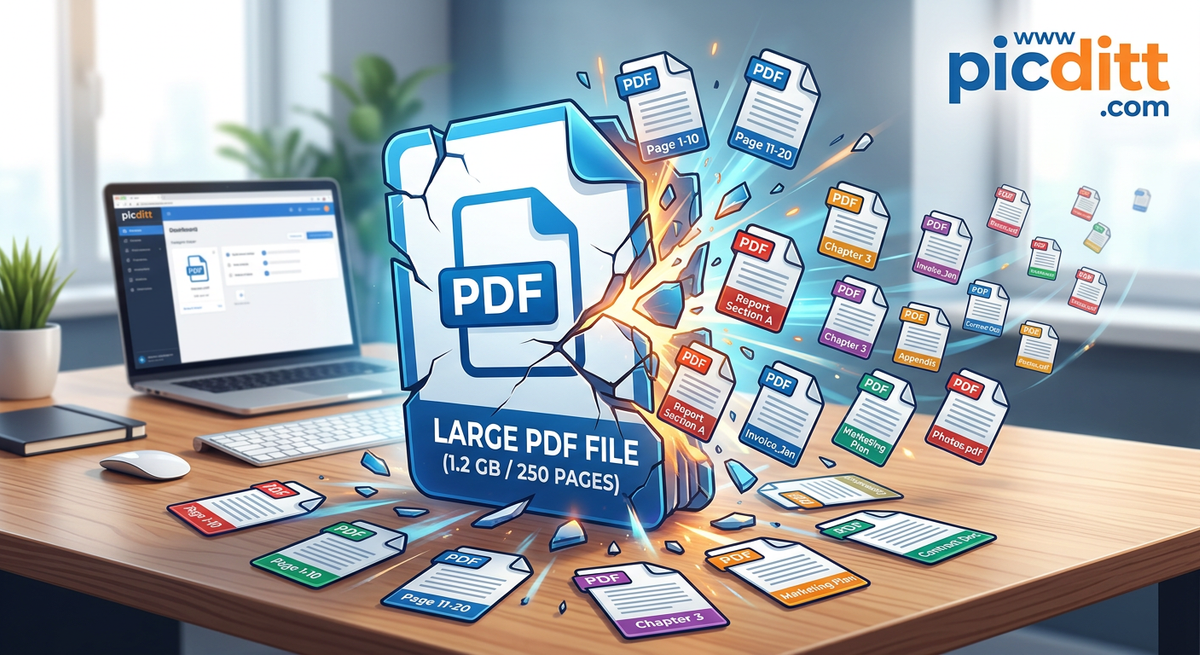
The Problem Nobody Talks About: PDFs Are Often Too Much
You download a document. It looks fine at first—until you realize it’s 120 pages long.
But you only need page 7.
Or maybe pages 15–20.
Or just a few scattered sections.
Now what?
- Scroll endlessly?
- Take screenshots?
- Send the whole file anyway?
This is where most people hit a wall. PDFs are designed to be universal—but not always flexible.
And that’s exactly why learning how to split PDF files is a game-changing skill.
The Old Way vs The Smart Way
❌ The Old Way
- Install heavy software like Adobe Acrobat
- Pay monthly subscriptions
- Deal with complicated interfaces
✅ The Smart Way
Use a lightweight, browser-based tool like:
👉 https://picditt.com/pdf-tools/split-pdf
No installation. No login. No learning curve.
Just upload → select → download.
Done.
Why Splitting PDFs Is More Useful Than You Think
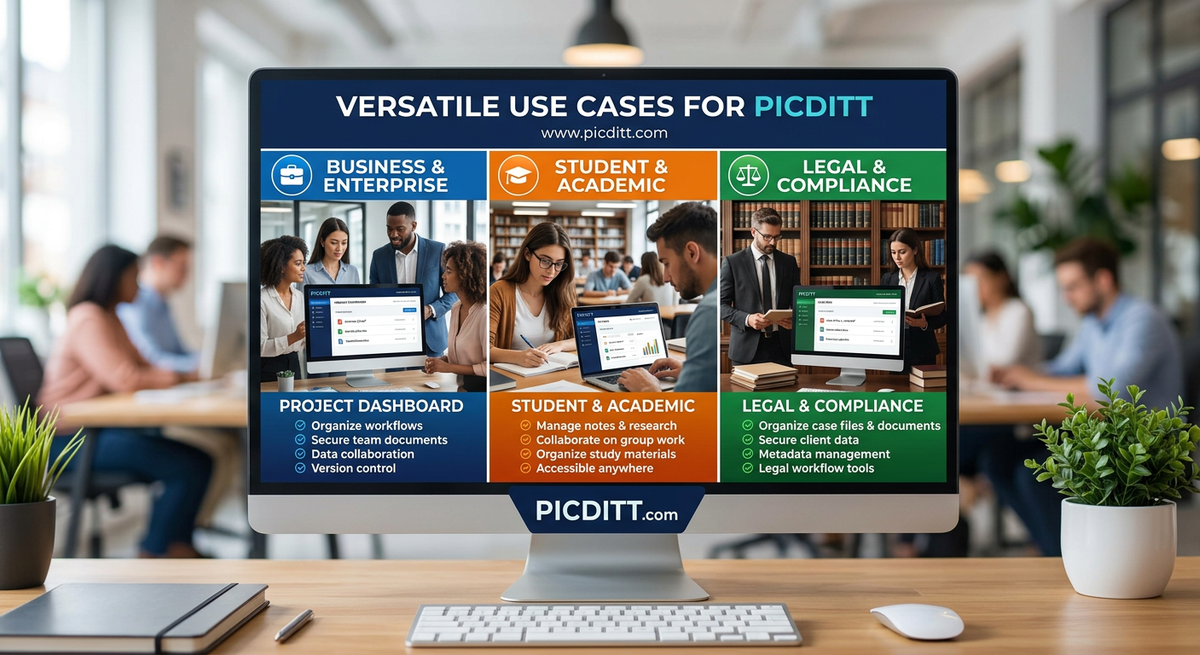
At first glance, splitting PDFs seems like a minor feature. But in reality, it solves real-world problems across multiple industries.
📊 Business Use
Extract only the relevant pages from reports or contracts before sharing with clients.
🎓 Academic Use
Break textbooks or research papers into manageable sections.
⚖️ Legal Use
Separate case files or agreements into individual pages for review.
🏥 Medical Use
Send only required patient records securely.
🏡 Real Estate
Share specific property documents without exposing the entire file.
Splitting PDFs isn’t just convenience—it’s efficiency.
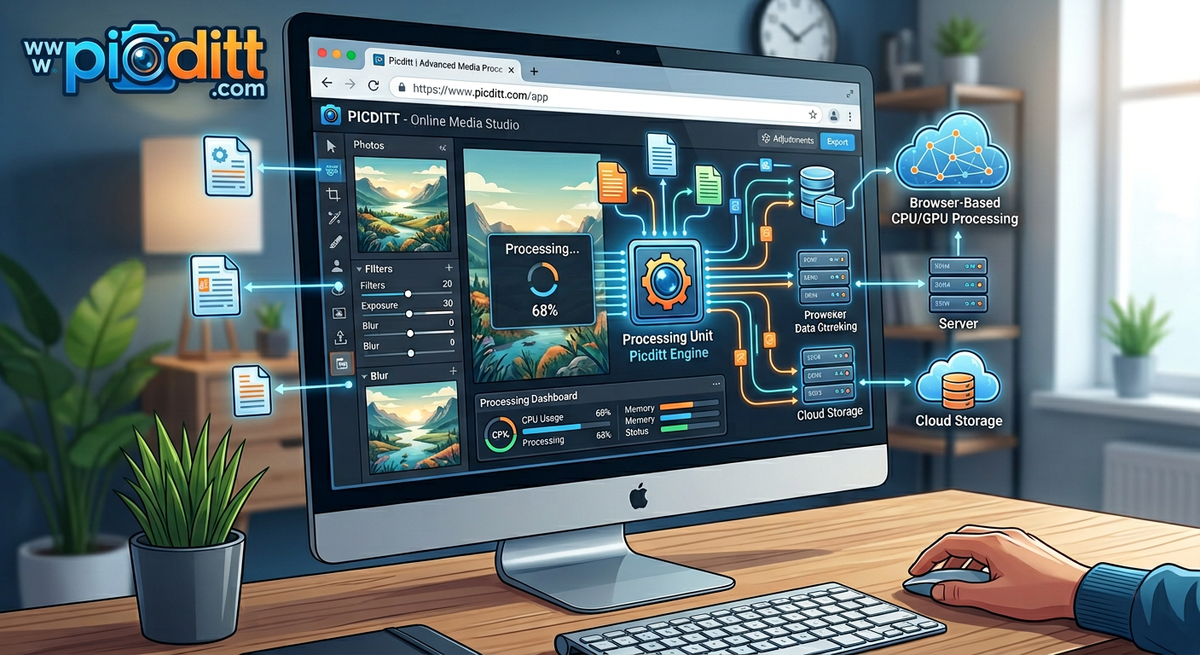
Meet the Modern Solution: Fast, Private PDF Splitting
The tool at
👉 https://picditt.com/pdf-tools/split-pdf
is designed with one core principle:
Your files should stay yours.
Unlike most online tools, it processes everything directly in your browser.
What That Means for You:
- 🔐 No uploads to servers
- ⚡ Instant processing
- 📱 Works on any device
- 💯 Original quality preserved
You get speed and privacy—without compromise.
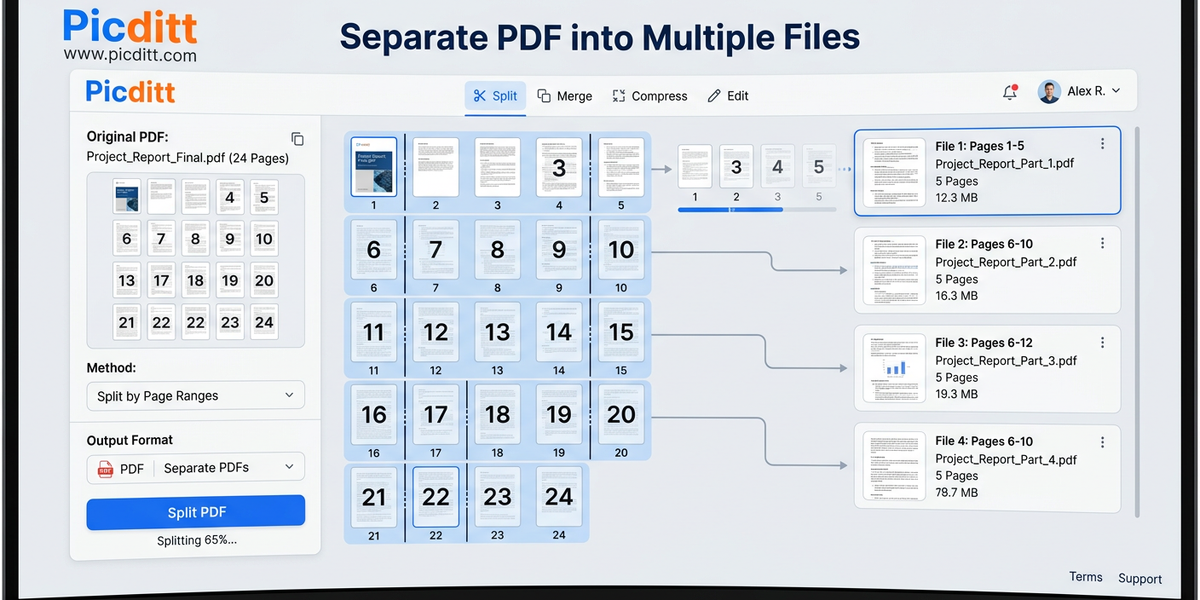
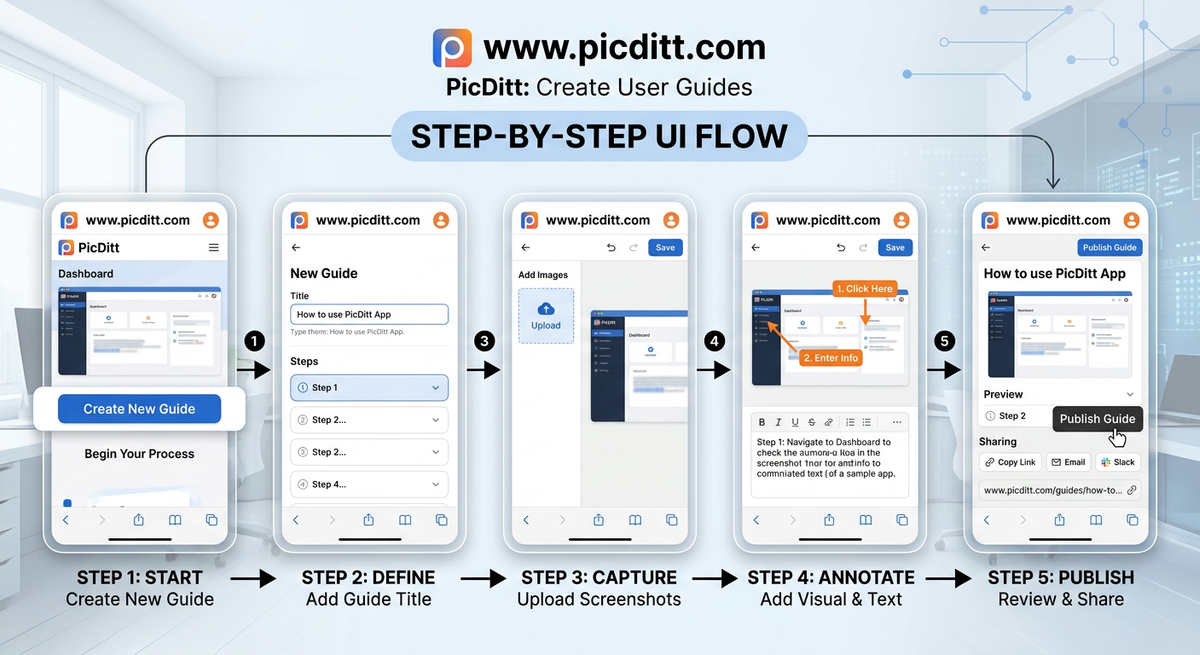
Step-by-Step: Split a PDF in Seconds
Let’s walk through the process.
Step 1: Select Your File
Upload your PDF by dragging it into the tool or browsing your device.
Step 2: Choose Pages
This is where things get powerful.
You can:
- Click pages visually
- Enter page ranges (like 5–10)
- Select custom pages (1, 3, 7, 20)
Step 3: Decide Output Format
Choose between:
- Individual PDFs (each page separate)
- Single combined PDF (selected pages merged)
Step 4: Download Instantly
No waiting. No processing delays.
Your files are ready immediately.
Advanced Features That Make a Difference
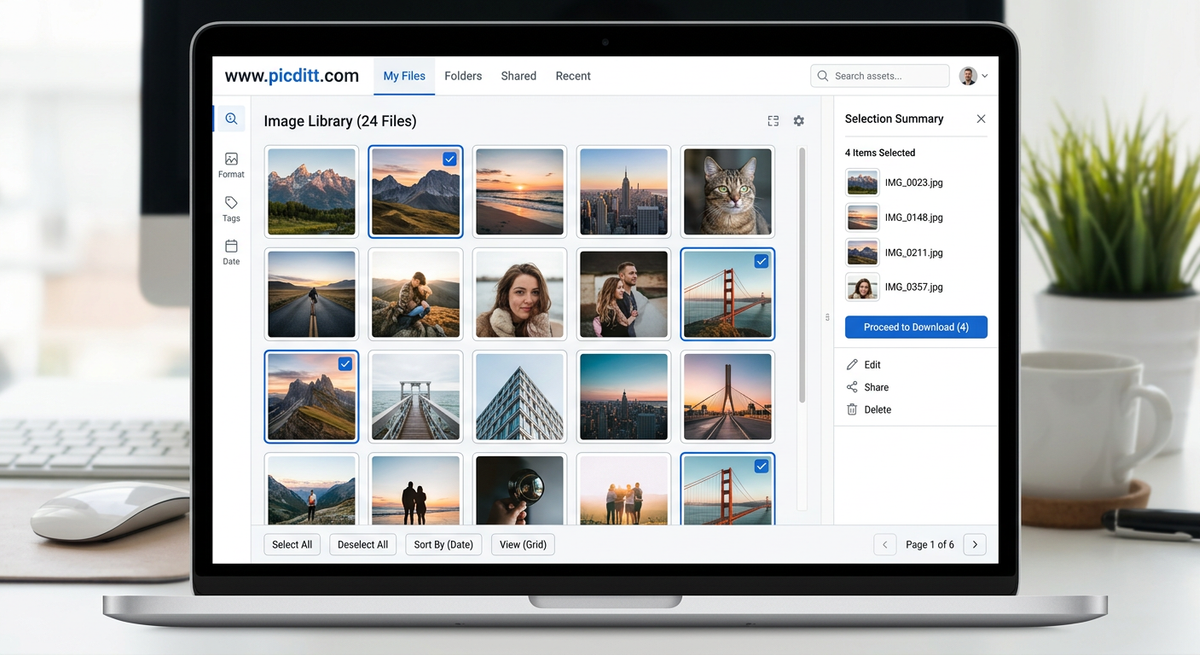
This isn’t just a basic splitter—it’s a precision tool.
🔹 Visual Page Selection
See every page and click exactly what you need.
🔹 Custom Page Lists
Example:1, 5, 7-10, 22
Perfect for non-sequential pages.
🔹 Range Extraction
Quickly grab continuous sections like chapters.
🔹 Every Nth Page
Extract patterns like:
- Every 2nd page
- Every 3rd page
Great for printing or analysis.
🔹 Batch Export
Download multiple pages as a ZIP file.
🔹 Combined Output
Merge selected pages into one clean document.
Real-Life Scenarios Where This Saves Time
Let’s make this practical.
Scenario 1: Sending a Contract Section
Instead of sending 50 pages, extract only the signature page.
Scenario 2: Studying Efficiently
Split a 300-page book into chapters.
Scenario 3: Printing Smart
Extract only odd or even pages for double-sided printing.
Scenario 4: Sharing Reports
Send only relevant sections to stakeholders.
Small action—big productivity boost.
Performance & Technical Capabilities
This tool isn’t just simple—it’s powerful.
- Supports all PDF versions (PDF 1.0–2.0)
- No file size limit (device dependent)
- Unlimited pages
- Works offline once loaded
- Compatible with all major browsers
You’re not dealing with limitations—you’re removing them.
Privacy First: Why This Tool Stands Out
Most online tools upload your files to servers.
That means:
- Potential data exposure
- Waiting time
- Trust issues
This tool avoids all of that.
✔ Files never leave your device
✔ No data stored
✔ No tracking of documents
It’s one of the safest ways to handle sensitive PDFs online.
Pro Tips to Work Smarter (Not Harder)
💡 Use Range Mode for Chapters
Faster than clicking page-by-page.
💡 Use Custom Mode for Mixed Pages
Example: 2, 4, 8-12
💡 Use Odd/Even Selection
Perfect for printing preparation.
💡 Use Single PDF Output
Best for sharing clean sections.
These small tricks can save you hours.
Common Mistakes to Avoid
Even simple tools can be misused.
❌ Selecting wrong pages
Always double-check before exporting.
❌ Choosing wrong output format
Individual vs combined matters.
❌ Ignoring file naming
Organize your files properly after download.
SEO Bonus: Why Smaller PDFs Matter
Here’s something most people overlook.
Splitting PDFs can improve:
- Faster file sharing
- Better document organization
- Reduced load time
- Improved user experience
Even for websites, smaller documents perform better.
Frequently Asked Questions (FAQs)
1. How do I split a PDF into individual pages?
Upload your file, select all pages, choose “Individual PDFs,” and download.
2. Is this PDF splitter free?
Yes, completely free with no hidden costs.
3. Are my files secure?
Yes. Files are processed locally and never uploaded.
4. Can I extract specific page ranges?
Absolutely. You can select ranges like 5–10 or custom pages.
5. What’s the difference between output options?
- Individual PDFs = separate files
- Single PDF = combined selection
6. Is there a file size limit?
No fixed limit—depends on your device.
7. Will quality be affected?
No. The process is 100% lossless.
8. Can I use it on mobile?
Yes, works on all devices and browsers.
9. Can I split password-protected PDFs?
Only after unlocking them first.
10. Do I need to install anything?
No installation required—everything runs in your browser.
Final Thoughts: Simplicity Wins
Splitting PDFs shouldn’t feel like a technical task.
It should be:
- Fast
- Easy
- Secure
And now, it is.
With tools like
👉 https://picditt.com/pdf-tools/split-pdf
you can handle documents smarter—not harder.
No Adobe. No hassle. No limits.
Just results.
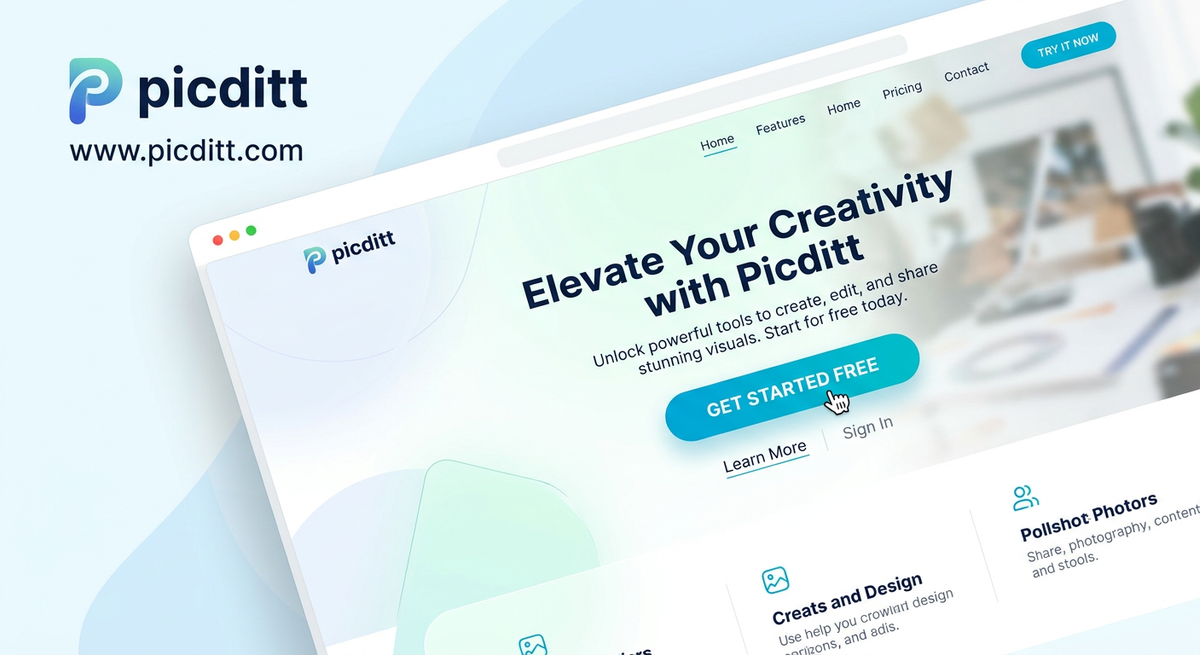
Looking to split a PDF into all separate pages without uploading your file? See our privacy-focused guide: How to Split a PDF into Separate Pages Free Online (No Upload)
Ready to Try It Yourself?
Use this tool for free — no signup, no download, no watermarks.
Open Free ToolYou Might Also Like
Make Your Photos Pop: Free Aesthetic Filters Online (A VSCO Alternative)
Enhance your photos instantly with free online filters. Apply effects, adjust colors, and download high-quality images in seconds.
Read More →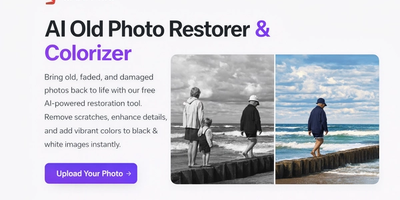
AI Old Photo Restorer & Colorizer: How to Bring Faded Family Photos Back to Life
Old family photos fade, scratch, and lose their color over time—but they don't have to stay that way. Learn how to use PicDitt's free AI Old Photo Restorer & Colorizer to remove damage, enhance details, and add realistic color to black & white images, all directly in your browser.
Read More →
YouTube Banner Maker with Safe Zone Guides: Design Channel Art That Looks Perfect on Every Device
Your YouTube banner looks different on every device. Learn how to design a 2560×1440 channel banner that works perfectly on TV, desktop, tablet, and mobile using PicDitt's free YouTube Banner Maker with built-in safe zone guides.
Read More →