How to Merge PDF Files Free Online (Without Uploading Your Data)
How to Merge PDF Files Free Online (Without Uploading Your Data)
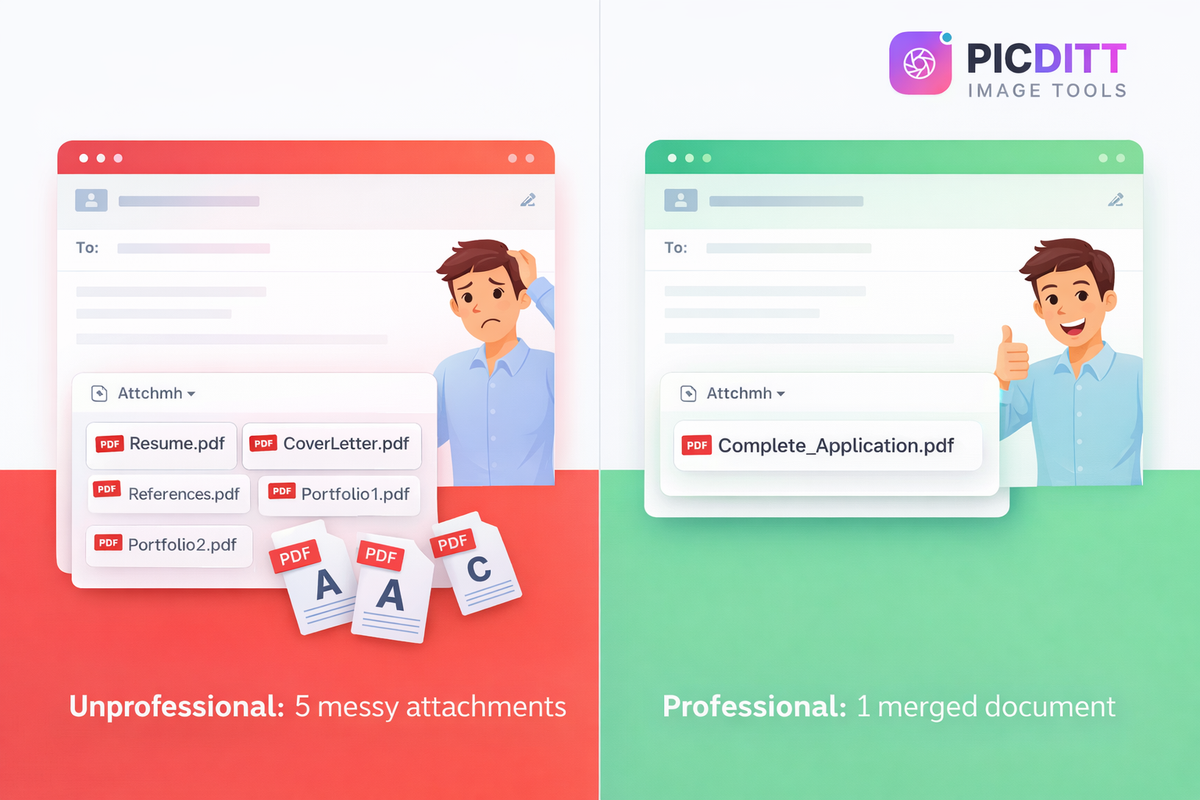
Imagine you are applying for your dream job. The employer asks for your resume, a cover letter, a list of references, and three examples of your past work. You have all these documents ready, but they are saved as six separate PDF files on your computer.
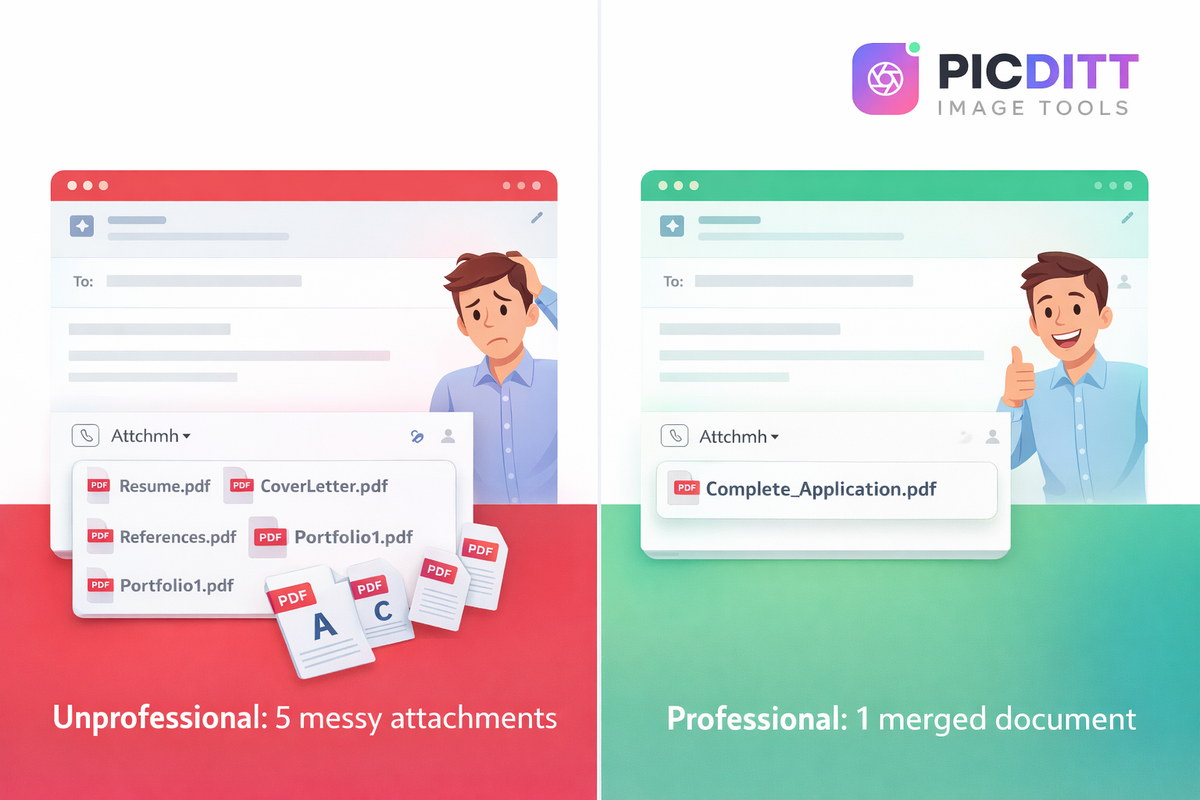
What do you do? If you attach six different files to an email, you are forcing the hiring manager to click, download, and open six separate documents just to evaluate your application. It is messy, confusing, and highly unprofessional.
The correct solution is to merge those six PDFs into one single, cohesive document.
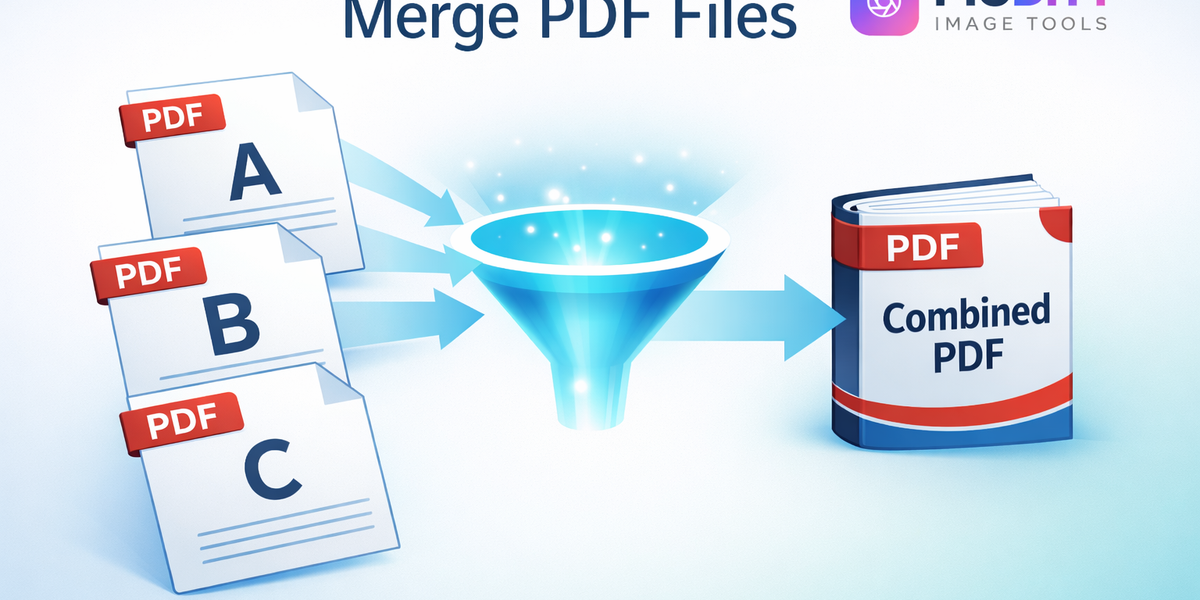
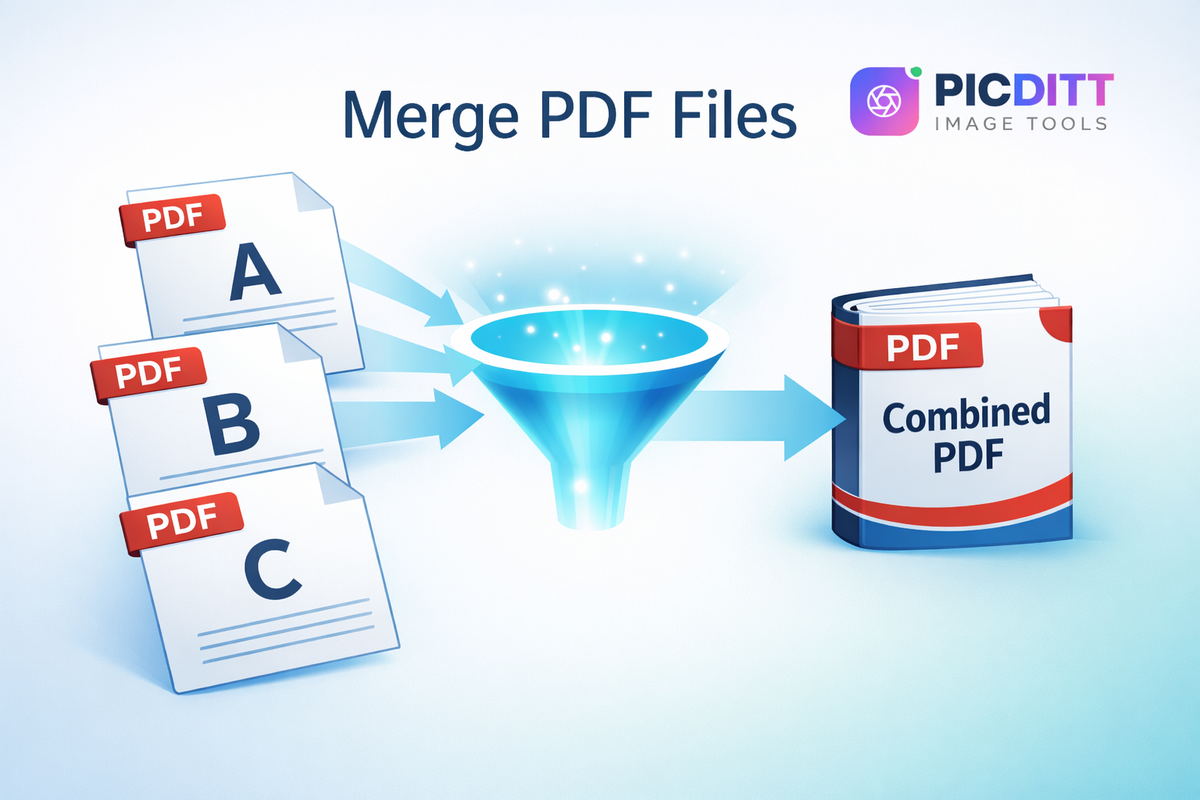
PDF merging is the simple act of joining two or more PDF files together end-to-end. Whether you are assembling a legal contract, consolidating monthly financial statements into an annual report, or submitting a job application, combining related documents into a single file is a fundamental digital skill.
In this comprehensive guide, you will learn how to easily combine multiple PDF files in seconds using Picditt's Free PDF Merger. More importantly, you will learn why using a browser-based tool is absolutely critical for the privacy and security of your sensitive documents.
The Problem with Multiple PDF Attachments
PDFs (Portable Document Format) were invented to make sharing documents reliable and consistent across any device. However, as our digital workflows have evolved, the sheer volume of PDFs we handle has skyrocketed.
Sending multiple related PDFs as separate files creates significant friction in business communications. Here is why you should stop doing it:
1. Email Clutter and Recipient Friction
When you send an email with five attachments, you are giving the recipient a chore. They have to open the first one, close it, find the email again, open the second one, and so on. If they are checking email on a mobile phone, managing multiple PDF attachments is a nightmare. A single, merged PDF allows them to open one file and simply scroll from beginning to end.
2. Unprofessional Presentation
In business, presentation matters. A consolidated report with a logical flow looks polished, prepared, and authoritative. A disorganized dump of files named report_part1.pdf, appendix_final.pdf, and scanned_chart.pdf looks rushed and chaotic.
3. Version Control Nightmares
When you have multiple pieces of a project scattered across different files, it is incredibly easy to accidentally send an outdated version of one specific section. By merging them into a single "Master" file, you ensure that the complete package is finalized, reviewed, and locked in before sending.
4. Printing Headaches
If someone needs to print your documents, sending them 10 separate files means they have to initiate 10 separate print jobs. If you merge them into one PDF, they can print the entire packet with a single click.
The Privacy Danger: Why Browser-Based Merging is Critical
If you Google "merge PDF online," you will be greeted by hundreds of free tools. They all seem to do the same thing, but behind the scenes, there is a massive difference that most users are completely unaware of.
The vast majority of online PDF mergers operate on a cloud-processing model. This means:
- You upload your PDFs to their remote server.
- Their server processes and merges the files.
- Their server sends the combined file back to you to download.
This is a massive security risk. Think about the documents you are merging: financial statements, legal contracts, medical records, or a resume containing your home address and phone number. By using a cloud-based merger, you are handing over your highly sensitive, confidential data to a third-party server owned by a company you know nothing about. Even if they promise to "delete files after 2 hours," your data has still left your control and crossed the internet.
The Picditt Difference: 100% Client-Side Processing
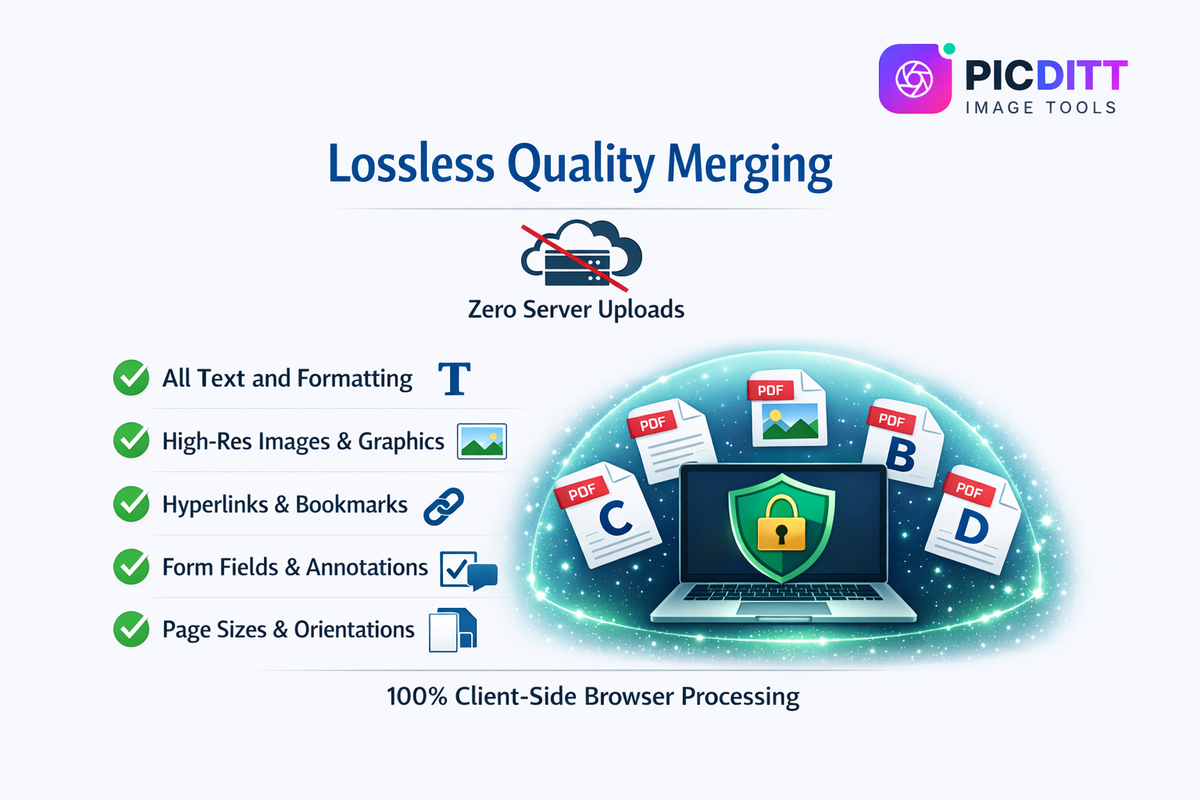
Picditt's PDF Merger was built to solve this exact security vulnerability. It uses advanced WebAssembly and HTML5 technology to process your files entirely on your own device.
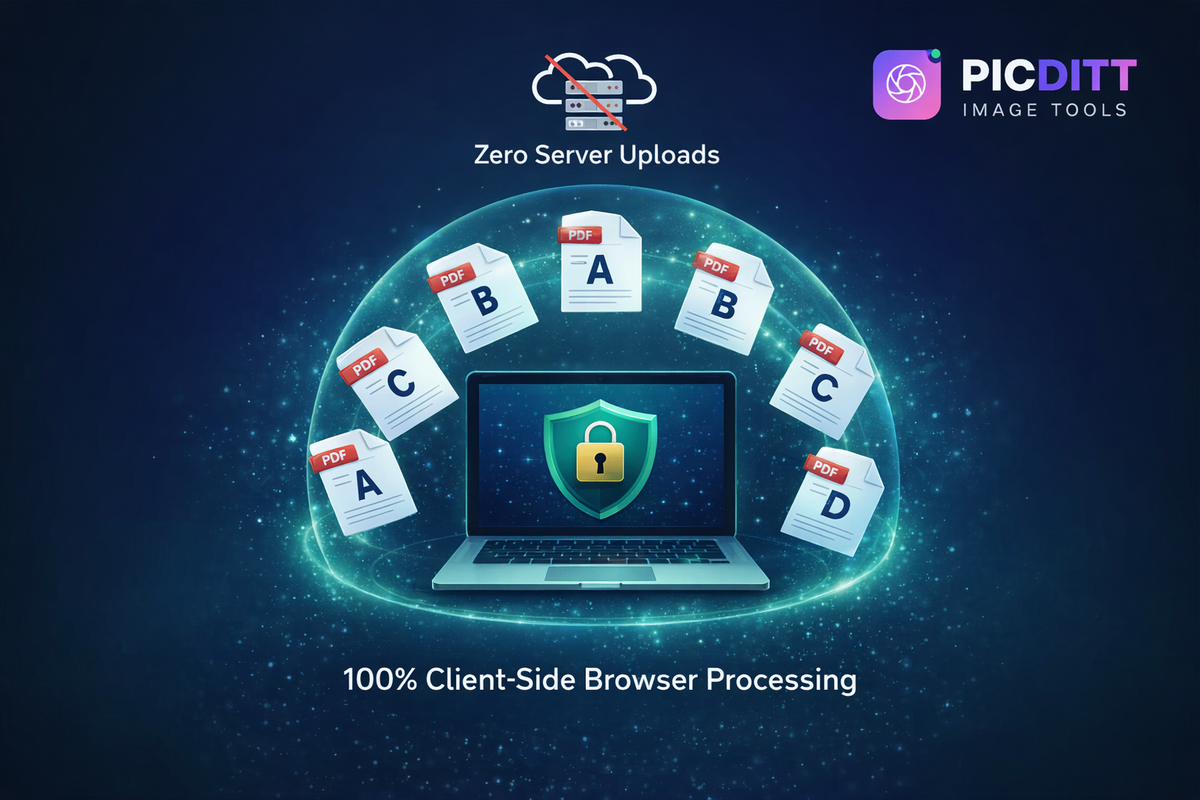
When you drag your PDFs into Picditt, they are never uploaded to any server.
- The merging happens inside your web browser using your computer's RAM and processor.
- Your files never transmit across the internet.
- No one else can intercept, view, or store your documents.
- Once you close the tab, all data is instantly wiped from your local browser memory.
This makes Picditt completely safe and compliant for handling highly confidential corporate, legal, and personal documents. As a bonus, because there is no upload or download time to a server, the merging process is lightning fast, even for massive files.
How to Merge PDF Files Using Picditt (Step-by-Step)
Combining your documents takes only a few seconds. The interface is highly visual, allowing you to easily manage your files before joining them. Here is how it works:
Step 1: Upload Your PDF Files
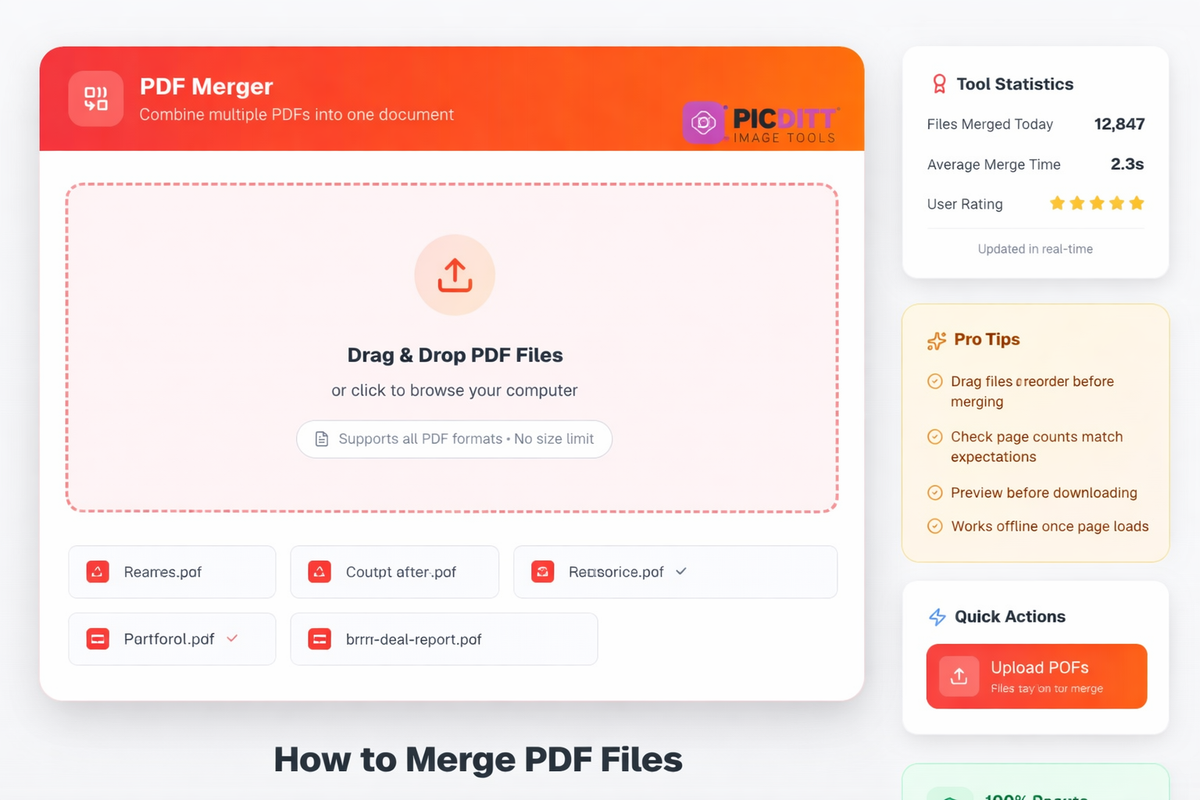
Go to https://picditt.com/pdf-tools/merge-pdf in any modern web browser (Chrome, Firefox, Safari, or Edge). Select all the PDF files you want to combine and drag them directly into the upload area. Alternatively, click the upload box to browse your computer and select multiple files at once.
Step 2: Arrange and Reorder Your Files
This is the most important step. Once your files are loaded, you will see them displayed as visual blocks in the interface. The order they appear left-to-right (or top-to-bottom) is the exact order they will appear in the final merged document.
If Document B needs to come before Document A, simply click and drag Document B to the front of the line. You can rearrange them as many times as you need until the sequence is perfect.
Step 3: Merge the Files
Once your sequence is set, click the "Merge PDFs" button. Because the tool uses your local device processor, the merge happens almost instantly—typically in under 3 seconds, even for large documents.
Step 4: Download Your Combined Document
Your newly consolidated PDF will immediately prompt for download. Open the file to verify the order is correct. Your original, separate PDF files remain completely untouched on your computer; the merger simply creates a brand new, combined copy.
What Gets Preserved When You Merge PDFs?
A common worry when combining files is that the merger will somehow compress, alter, or break the contents of the original documents.
A high-quality merger like Picditt performs a lossless combination. It does not re-render or compress the pages; it simply stitches the existing data streams together. This means the following elements are perfectly preserved:
1. All Text and Formatting
Fonts, text sizes, bolding, colors, and layouts remain exactly as they were in the original files. If you merge a document written in Arial with a document written in Times New Roman, both fonts are preserved perfectly.
2. High-Resolution Images
The resolution and quality of photos, charts, and vector graphics are completely untouched. The merger does not compress your images to save space.
3. Hyperlinks and Bookmarks
If your original PDF had clickable links to websites or internal bookmarks, those links will remain fully functional in the newly merged document.
4. Fillable Form Fields and Annotations
If you are combining interactive PDF forms (like tax documents or applications), the text boxes, checkboxes, and digital signatures will remain intact and functional.
5. Page Sizes and Orientations
You can merge a PDF that consists of standard portrait Letter-sized pages with a PDF that consists of wide landscape A3 pages. The merged document will seamlessly transition between the different page sizes without distorting or stretching the content to force them to match.
Top 6 Professional Use Cases for Merging PDFs
PDF merging is a daily requirement across almost every industry. Here is how professionals use this tool to streamline their workflows:
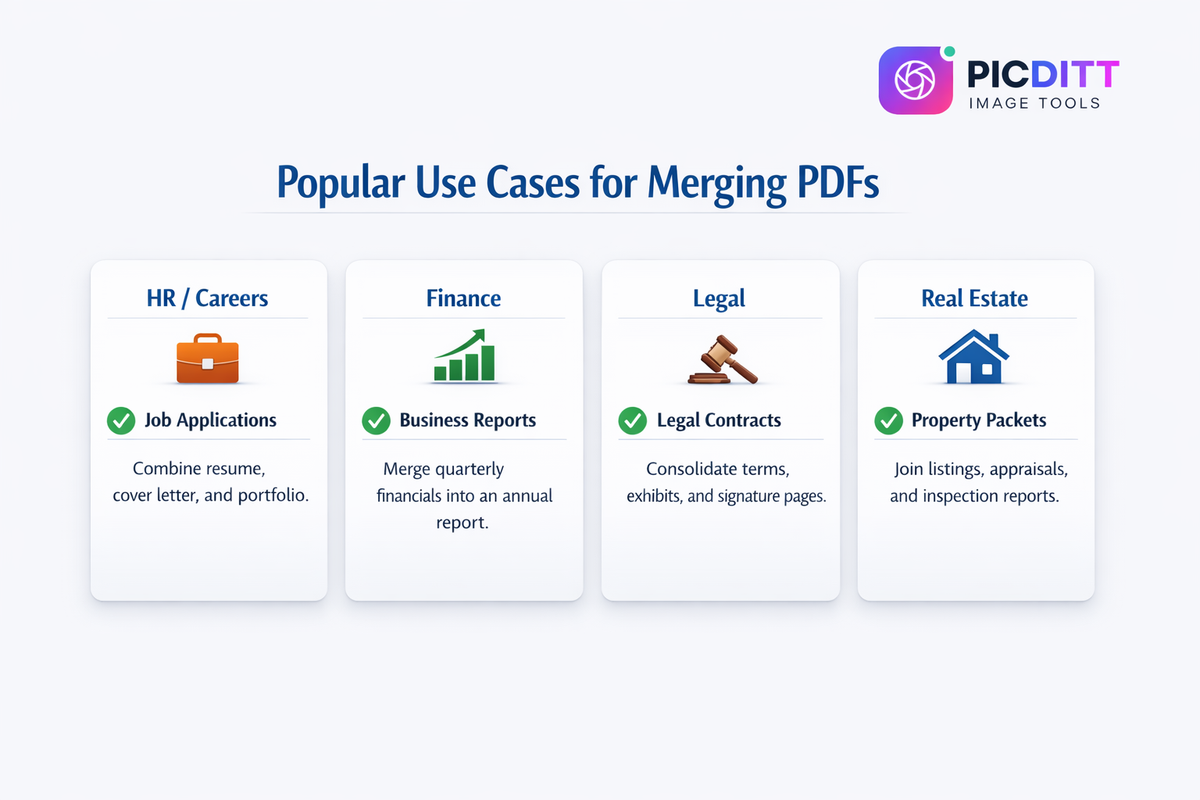
💼 1. Job Applications
The modern standard for job applications is a single PDF file. Candidates use the merger to combine their Resume, Cover Letter, Letters of Recommendation, and visual Portfolio into one cohesive "Application Packet." This ensures the hiring manager sees everything in the exact order the candidate intended.
📊 2. Business and Financial Reports
Finance teams generate various reports from different software systems. They might export a Balance Sheet from QuickBooks, an Expense Chart from Excel, and an Executive Summary from Word (all exported as PDFs). They then merge them into a single "Monthly Financial Review" to present to the board.
⚖️ 3. Legal Documents and Contracts
Lawyers rarely deal with single documents. They merge the Master Contract, the Terms & Conditions, the Exhibit A addendum, and the final Signature Pages into one legally binding, consolidated document for filing or sharing with opposing counsel.
🎓 4. Academic Research and Theses
Graduate students and researchers combine their title page, abstract, main research body, bibliography, and raw data appendices into a single submission-ready thesis document.
🏠 5. Real Estate Transactions
Realtors assemble "Property Packets" for potential buyers. They merge the MLS property listing, the property tax history, the land survey map, and the home inspection report into one comprehensive packet.
🏥 6. Medical Records
Healthcare administrators compile comprehensive patient histories for specialist referrals by merging lab results, imaging reports, and physician notes into a single file, ensuring no critical document gets lost in transit. (Using a privacy-first, local-processing tool like Picditt is vital here for HIPAA compliance).
Pro Tips for Creating the Perfect Combined PDF
Merging files is easy, but creating a professional, cohesive document takes a little bit of forethought. Follow these tips for the best results:
Tip 1: Standardize Your Source Files (If Possible)
While Picditt can merge pages of different sizes, a document looks much more professional if all pages are uniform. If you are generating the source PDFs yourself, try to ensure they are all exported using the same page size (e.g., US Letter or A4) and the same orientation before you merge them.
Tip 2: Name Your Source Files Logically
When you upload 10 files to a merger, it can be hard to remember which is which if they are named randomly. Before uploading, rename your source files numerically based on the order you want them to appear (e.g., 01_CoverPage.pdf, 02_Introduction.pdf, 03_Data.pdf). This makes the drag-and-drop reordering step incredibly easy.
Tip 3: Extract Unwanted Pages Before Merging
If you are merging Document A and Document B, but you don't want page 5 of Document B to be in the final product, don't merge them yet! First, use Picditt's PDF Splitter to extract the unwanted page from Document B. Then take the newly cleaned file and merge it with Document A.
Tip 4: Compress the Final Merged File
Combining multiple high-resolution PDFs into one file can result in a massive overall file size that is too large to email. After you have downloaded your merged PDF, run it through Picditt's Image Compressor (if it contains images) or a PDF compressor to reduce the file size while maintaining readability.
Other Essential Picditt Tools for PDF Management
Merging is just one way to manipulate PDF files. Picditt offers a full suite of free, browser-based tools to help you manage your digital documents securely:
- Split PDF — The exact opposite of merging. Take a massive PDF and separate it into individual pages or extract specific chapters.
- PDF to Image — Convert PDF pages into high-resolution JPG, PNG, or WebP images so you can post them on social media or embed them on websites.
- PDF to Excel OCR — Extract data tables out of a PDF document and turn them into editable Microsoft Excel spreadsheets.
- Image to Excel OCR — Turn screenshots or photos of tables into editable Excel data.
- Excel Print Fixer — Fix messy Excel print settings and export your spreadsheets to perfect, clean PDFs.
All of these tools share the same core philosophy: 100% private, browser-based processing with zero server uploads.
Frequently Asked Questions (FAQ)
How do I merge PDF files online?
Simply go to Picditt's PDF Merger, drag and drop your PDF files into the upload area, or click to browse your computer. Arrange the files in your desired order by dragging the handles, then click 'Merge PDFs'. Your combined document will be ready to download instantly.
Is this PDF merger completely free?
Yes. Picditt's PDF Merger is 100% free to use. There are no hidden fees, no daily usage limits, no premium tiers, and we absolutely never add promotional watermarks to your merged documents.
Are my PDF files secure and private?
Yes, they are completely private. Unlike most online tools, your files are never uploaded to any server. The merging process happens entirely locally inside your web browser using your device's memory. When you close the tab, all data is instantly wiped.
How many PDF files can I merge at once?
Because the processing happens on your local device, there is no arbitrary limit imposed by our servers. You can merge as many files as your computer's RAM can handle. For standard text PDFs, merging 50+ files simultaneously works seamlessly.
Can I rearrange the order of PDFs before merging?
Absolutely. Once your files are uploaded, you will see them displayed in a grid or list. Simply click, hold, and drag the files to rearrange them into the exact sequence you want them to appear in the final merged document.
What types of PDF files are supported?
The tool supports all standard PDF formats (PDF 1.0 - 2.0), including PDF/A for archiving and PDF/X for print. It can handle PDFs created by Adobe Acrobat, Microsoft Word, Google Docs, MacOS Preview, and any other standard PDF generator.
Will the merged PDF maintain original quality?
Yes. The merger performs a 100% lossless combination. It does not compress or alter the contents of your original files. All text clarity, image resolution, formatting, and hyperlinks will remain exactly as they were in the source documents.
Can I merge PDFs on my mobile phone or tablet?
Yes. Because the tool is entirely browser-based, it works perfectly on mobile devices. Simply open Safari (iOS) or Chrome (Android), navigate to the site, and select PDFs directly from your phone's file system or iCloud/Google Drive.
How long does it take to merge PDFs?
Because there is no upload time to a remote server, the process is incredibly fast. Most standard document merges are completed in under 3 seconds. Massive, image-heavy PDFs may take slightly longer depending on the processing speed of your specific device.
What if I need to split a PDF instead of merging?
If you have a large PDF and you want to extract specific pages out of it, you need our splitting tool. Navigate to Picditt's PDF Splitter where you can visually select pages to extract or type specific page ranges to separate.
Conclusion
Managing digital paperwork shouldn't be a frustrating chore. Sending an email with half a dozen scattered PDF attachments looks unprofessional, confuses the recipient, and risks important information being overlooked.
Picditt's Free PDF Merger gives you total control over document presentation in seconds:
- ✅ Simple visual interface: Drag, drop, and rearrange files easily.
- ✅ Lightning fast: Instant combination with no wait times.
- ✅ Lossless quality: Fonts, images, and formatting stay perfect.
- ✅ 100% Private: Zero server uploads. Your files never leave your device.
- ✅ Completely Free: No limits, no software, no watermarks.
Consolidate your applications, reports, and contracts into clean, cohesive documents. Protect your data privacy while doing it.
Try Picditt's Free PDF Merger Tool →
Ready to Try It Yourself?
Use this tool for free — no signup, no download, no watermarks.
Open Free ToolYou Might Also Like
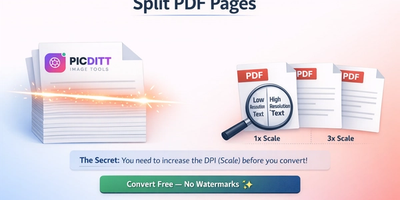
How to Split a PDF into Separate Pages Free Online (No Upload)
Got a massive 100-page PDF but only need three pages? Don't send the whole file! Learn how to easily split, extract, and separate PDF pages into individual files or a new, smaller document. Picditt's free online PDF Splitter works entirely in your browser with zero server uploads, guaranteeing 100% privacy for your sensitive documents.
Read More →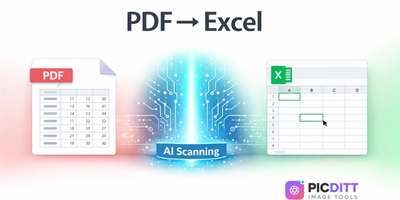
PDF to Excel Smart Data Extraction: Convert PDF Tables to Editable Spreadsheets
Extracting data from PDF tables shouldn't mean hours of manual typing. Learn how to instantly convert static PDF documents into dynamic, editable Microsoft Excel spreadsheets using Picditt's smart PDF to Excel converter. Features advanced table detection, OCR for scanned documents, and perfect formatting preservation.
Read More →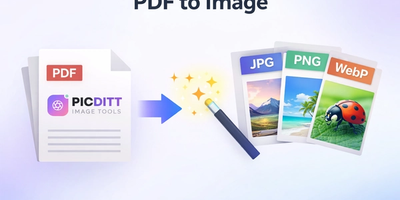
How to Convert PDF to High-Resolution JPG, PNG, or WebP Instantly
Need to post a PDF on social media or embed it on a website? Learn how to instantly convert your PDF documents into high-quality JPG, PNG, or WebP images using Picditt's free online converter. All processing happens securely in your browser — your files never leave your device.
Read More →