How to Create a Stunning Instagram Grid: The Complete Guide to Splitting Photos for Your Profile
Advertisement
How to Create a Stunning Instagram Grid: The Complete Guide to Splitting Photos for Your Profile
You've seen those Instagram profiles that look like works of art—where one massive image spreads across nine posts, creating a jaw-dropping visual when someone lands on the profile page. Maybe it's a travel blogger with a sweeping mountain landscape split perfectly across their grid. Or a brand launching a product with a dramatic reveal that spans multiple tiles.
And you've probably wondered: How do they do that?
The answer is simpler than you might think. They're using grid makers—tools that slice a single image into multiple perfectly sized pieces that, when posted in the right order, come together like puzzle pieces on the Instagram profile.
Today, I'll walk you through everything you need to know about Instagram grids: why they work, when to use them, and exactly how to create your own using PicDitt's free Instagram Grid Maker at https://picditt.com/social/grid-maker.
By the end of this guide, you'll have the knowledge to transform your Instagram profile from ordinary to extraordinary—without needing design skills or expensive software.
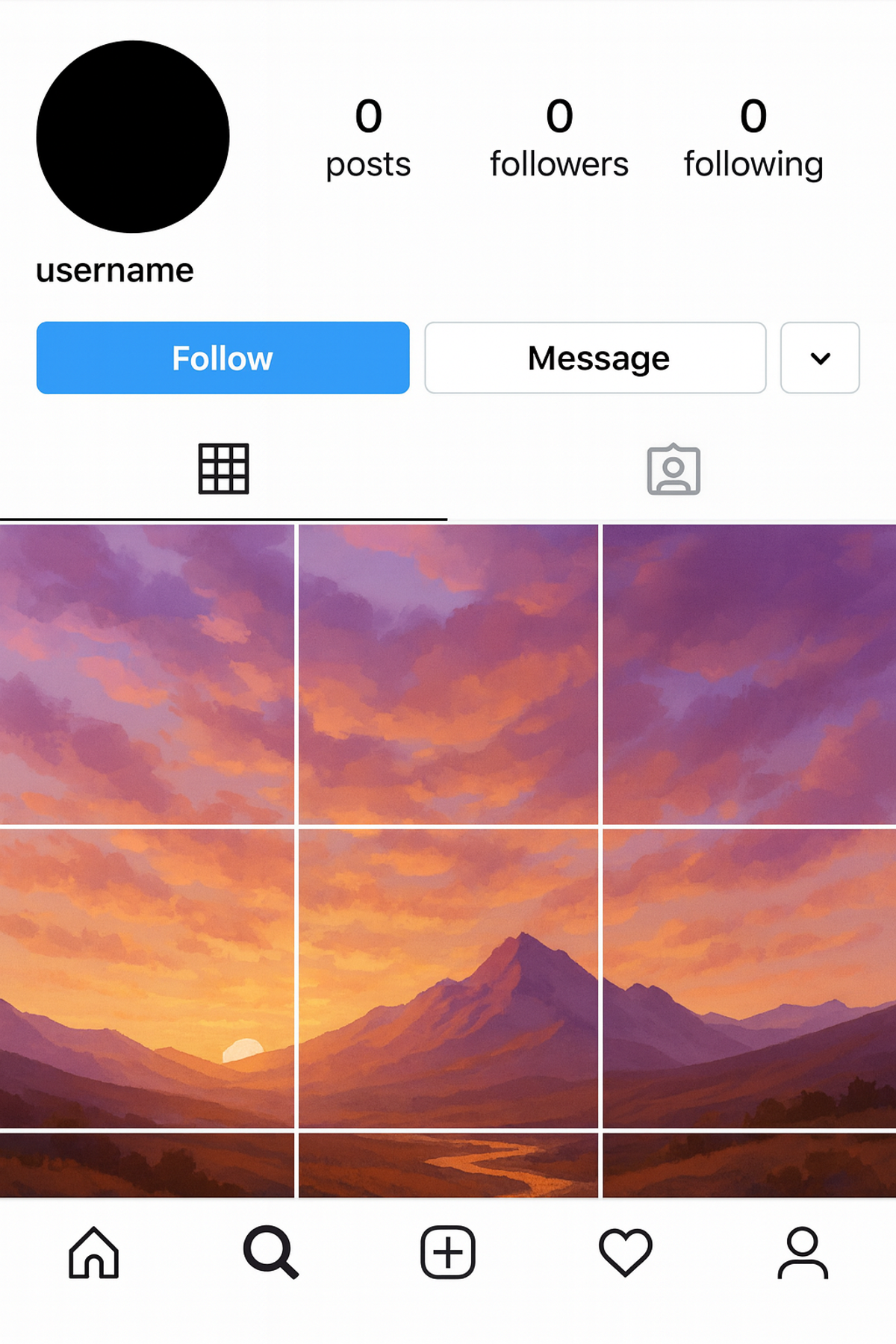
Example of an Instagram profile using a 3×3 grid layout where a single landscape photo is split across nine posts to create a cohesive visual.
What Exactly Is an Instagram Grid Layout?
Before diving into the how-to, let's make sure we're on the same page about what an Instagram grid actually is.
When you visit someone's Instagram profile, you see their posts displayed in rows of three. This creates a "grid" pattern—three columns, with as many rows as they have posts.
An Instagram grid layout (sometimes called a "grid split" or "tile layout") is when you intentionally design your posts so that multiple images work together to form a larger picture or cohesive design when viewed on your profile.
Common Grid Sizes
Not all grids are created equal. Depending on the effect you want, you might choose:
- 3×3 (9 tiles) – The classic. One image split into 9 squares, forming a perfect large square on your profile.
- 2×3 (6 tiles) – Two rows of three. Great for horizontal images or when you don't want to commit to 9 posts.
- 1×3 (3 tiles) – A single horizontal row. Perfect for panoramic shots or banners.
- 3×1 (3 tiles vertically) – A vertical strip down your feed.
- 4×3 or 5×3 – Extended grids for even more dramatic reveals.
Each size serves a different purpose, and the right choice depends on your image and goals.
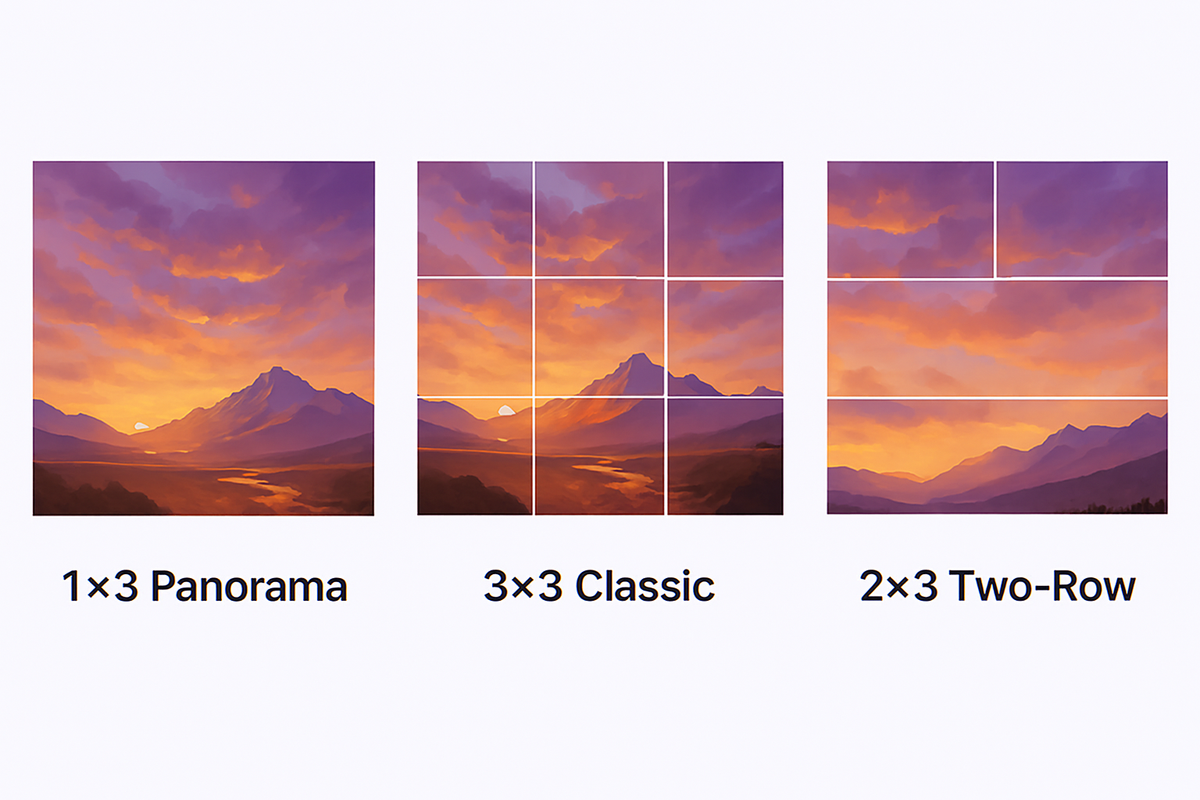
Visual comparison of Instagram grid sizes including 1×3 panorama, 3×3 classic grid, 2×3 two-row, and extended options like 4×3 and 5×3.
Why Do Instagram Grids Work So Well?
You might be wondering if splitting an image is really worth the effort. After all, you're posting multiple times for what could be a single photo.
Here's why grids are so powerful:
They Stop the Scroll
When someone lands on your profile and sees a cohesive, visually striking grid, it creates an immediate impression. It says: This person puts thought into their content. That first impression can be the difference between someone hitting "Follow" or moving on.
They Tell Bigger Stories
Some moments are too big for a single square. A wedding venue. A city skyline. A product lineup. Grids let you show the full picture—literally—without Instagram's cropping limitations getting in the way.
They Build Anticipation
Brands often use grids for product launches or announcements. Posting tiles one by one creates suspense. Followers see pieces of something coming together, generating curiosity and engagement along the way.
They Make Your Profile Memorable
Let's be honest: most Instagram profiles look the same. Random photos, no visual theme. A well-executed grid immediately sets you apart. People remember profiles that look intentional and artistic.
When Should You Use a Grid Layout?
Grids are powerful, but they're not for every situation. Here's when they make the most sense:
Profile Makeovers
Starting fresh or rebranding? A 3×3 grid is an excellent way to reset your profile's look and make a strong first impression.
Big Announcements
Product launches, event promotions, album drops, business openings—any time you have something major to share, a grid creates drama and draws attention.
Photography Portfolios
Photographers often use grids to showcase a single stunning image at maximum impact. Landscapes, cityscapes, and group shots work particularly well.
Special Occasions
Weddings, birthdays, graduations, anniversaries. Commemorate important moments with a grid that turns your profile into a dedicated tribute.
Brand Identity
Businesses use grids to establish visual identity. Your logo, tagline, or brand colors spread across multiple tiles reinforce recognition.
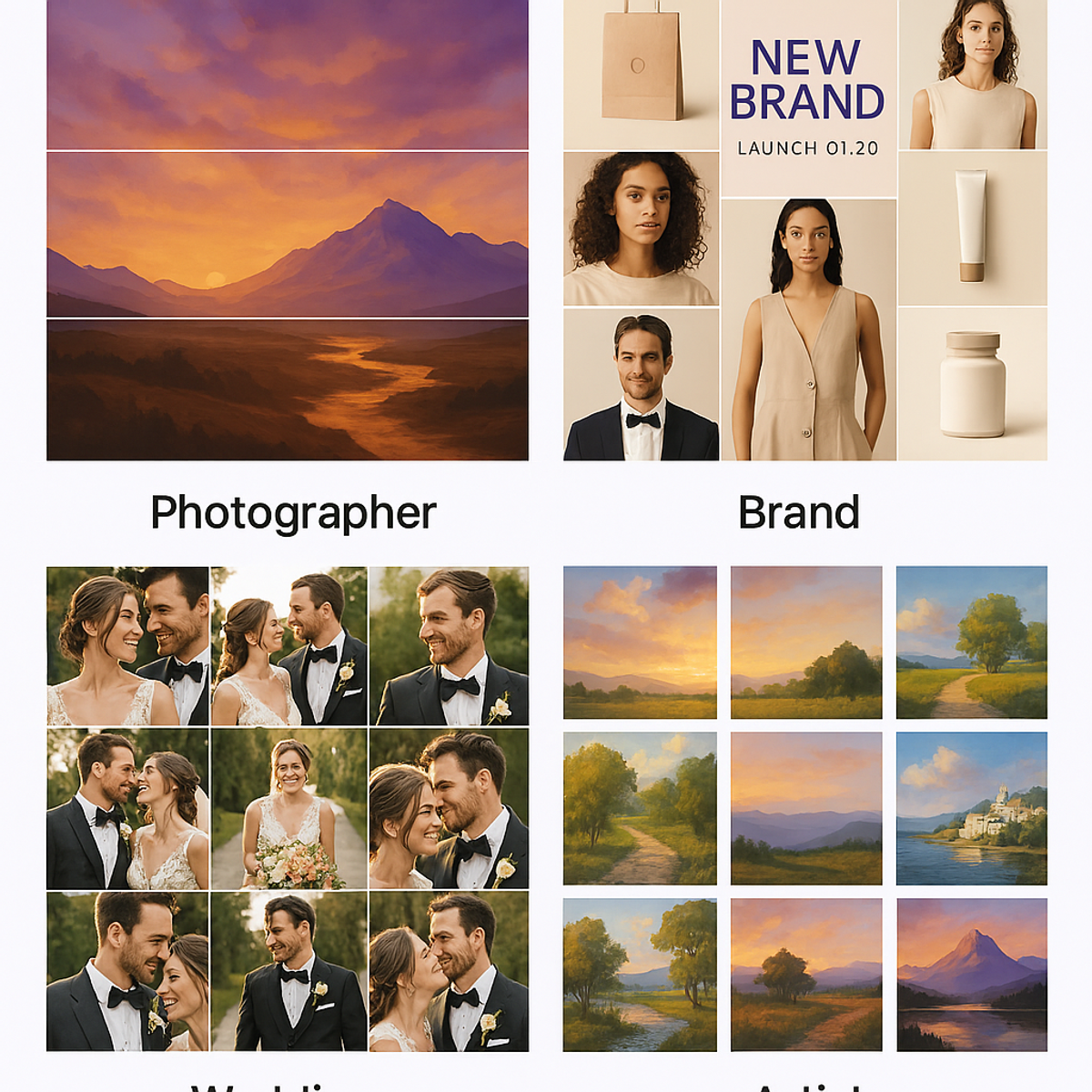
Collage showing different Instagram grid use cases including photography portfolios, brand launches, weddings, and artistic designs.
Introducing PicDitt's Instagram Grid Maker
Now that you understand the why, let's talk about the how.
PicDitt's Instagram Grid Maker is a free, browser-based tool that takes any image and splits it into perfectly sized tiles ready for Instagram. You don't need Photoshop. You don't need design experience. You don't even need to download an app.
Just visit:
https://picditt.com/social/grid-maker
Upload your image, choose your grid size, and download your tiles. That's it.
What Makes This Tool Different?
There are other grid makers out there, so why use PicDitt's? Here's what sets it apart:
Professional-Grade Output
Each tile is exported at 1080×1080 pixels—Instagram's optimal resolution. Your images will look crisp and professional, not blurry or pixelated.
Multiple Grid Options
Choose from:
- 1×3 Panorama
- 2×3 Two-Row
- 3×3 Classic Grid
- 4×3 Extended
- 5×3 Showcase
- 3×1 Vertical Strip
- 2×2 Square Grid
- 1×2 Double
Whatever layout you need, it's available.
Flexible Output Formats
Download your tiles as high-quality PNG files or compressed JPG files. Choose based on your preference for quality vs. file size.
Tile Spacing Options
Some creators prefer seamless grids where tiles blend perfectly. Others like a small gap between tiles for a different aesthetic. PicDitt offers spacing options: None, Small (2px), Medium (4px), or Large (8px).
Download as ZIP or Individual Files
Need all tiles at once? Download them as a ZIP bundle. Prefer to grab them one by one? That works too.
100% Browser-Based
Everything happens in your browser. Your images aren't uploaded to a server—they're processed locally on your device. This means faster processing and better privacy.
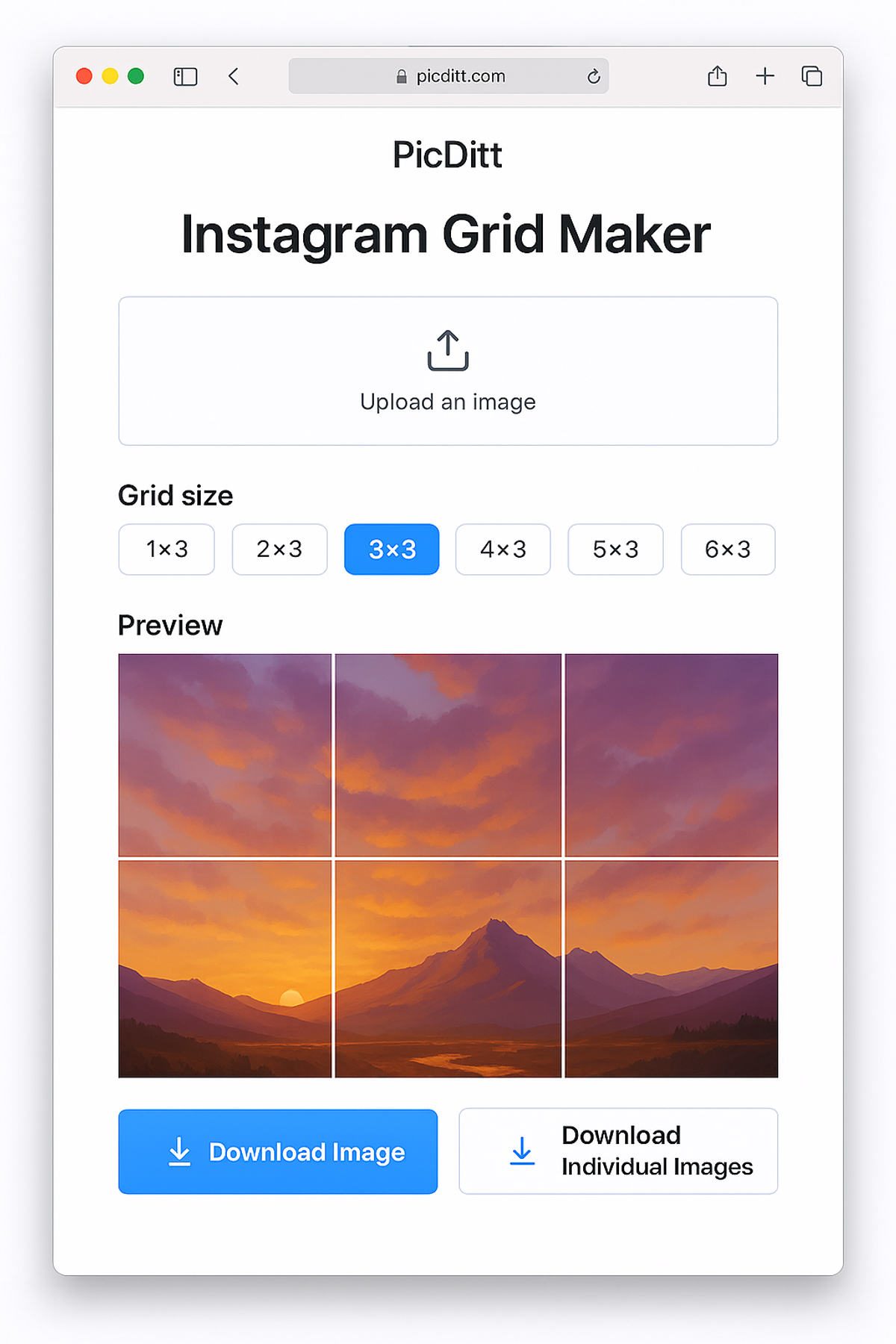
Screenshot of PicDitt's Instagram Grid Maker tool interface showing upload area, grid size options, preview canvas, and download buttons.
Step-by-Step: How to Create Your Instagram Grid
Let's walk through the exact process of creating a grid using PicDitt's tool.
Step 1: Choose Your Image
Before you even open the tool, pick the right image. For best results:
- Use high resolution. The tool recommends at least 3240×3240 pixels for a 3×3 grid. Higher resolution means sharper tiles.
- Consider the composition. Think about how the image will look when split. Where will the natural divisions fall? Is there a central subject that might get awkwardly cut?
- Landscape and wide shots work great for horizontal grids (1×3, 2×3).
- Square images are ideal for 3×3 grids.
Step 2: Open the Grid Maker
Go to:
https://picditt.com/social/grid-maker
You'll see a clean interface with an upload area and grid options.
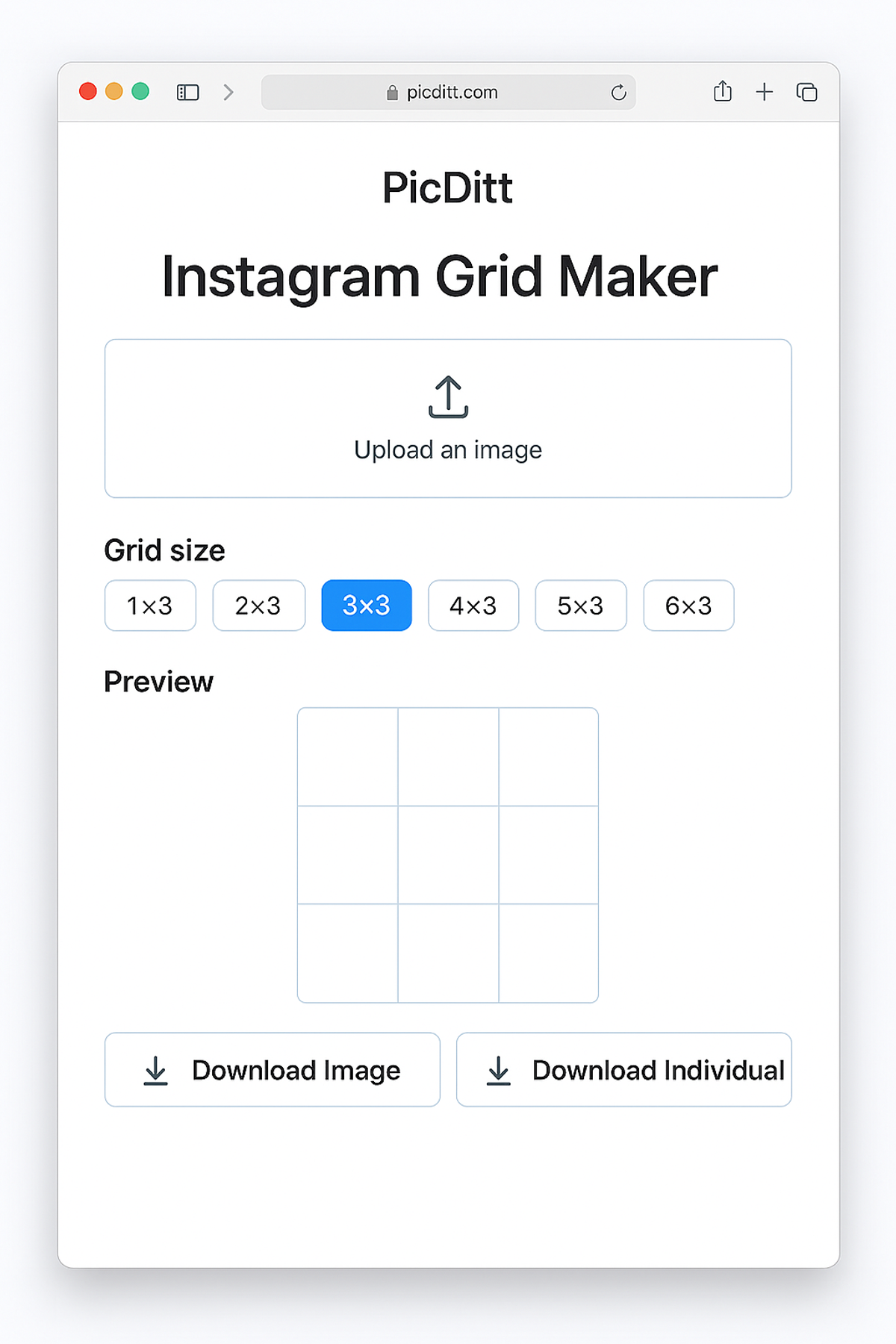
PicDitt Instagram Grid Maker tool showing the empty upload screen with grid size options visible.
Step 3: Upload Your Image
Click the upload area or drag and drop your image. The tool accepts:
- JPG / JPEG
- PNG
- WebP
- GIF
Maximum file size is 50 MB, which is plenty for even very high-resolution images.
Step 4: Select Your Grid Size
Choose the grid layout that fits your vision:
Grid Size
Tiles
Best For
1×3
3
Panoramas, banners
2×3
6
Horizontal images
3×3
9
Classic full grid
4×3
12
Extended reveals
5×3
15
Showcase layouts
3×1
3
Vertical strips
2×2
4
Small grids
Click the size you want, and the preview will update immediately.
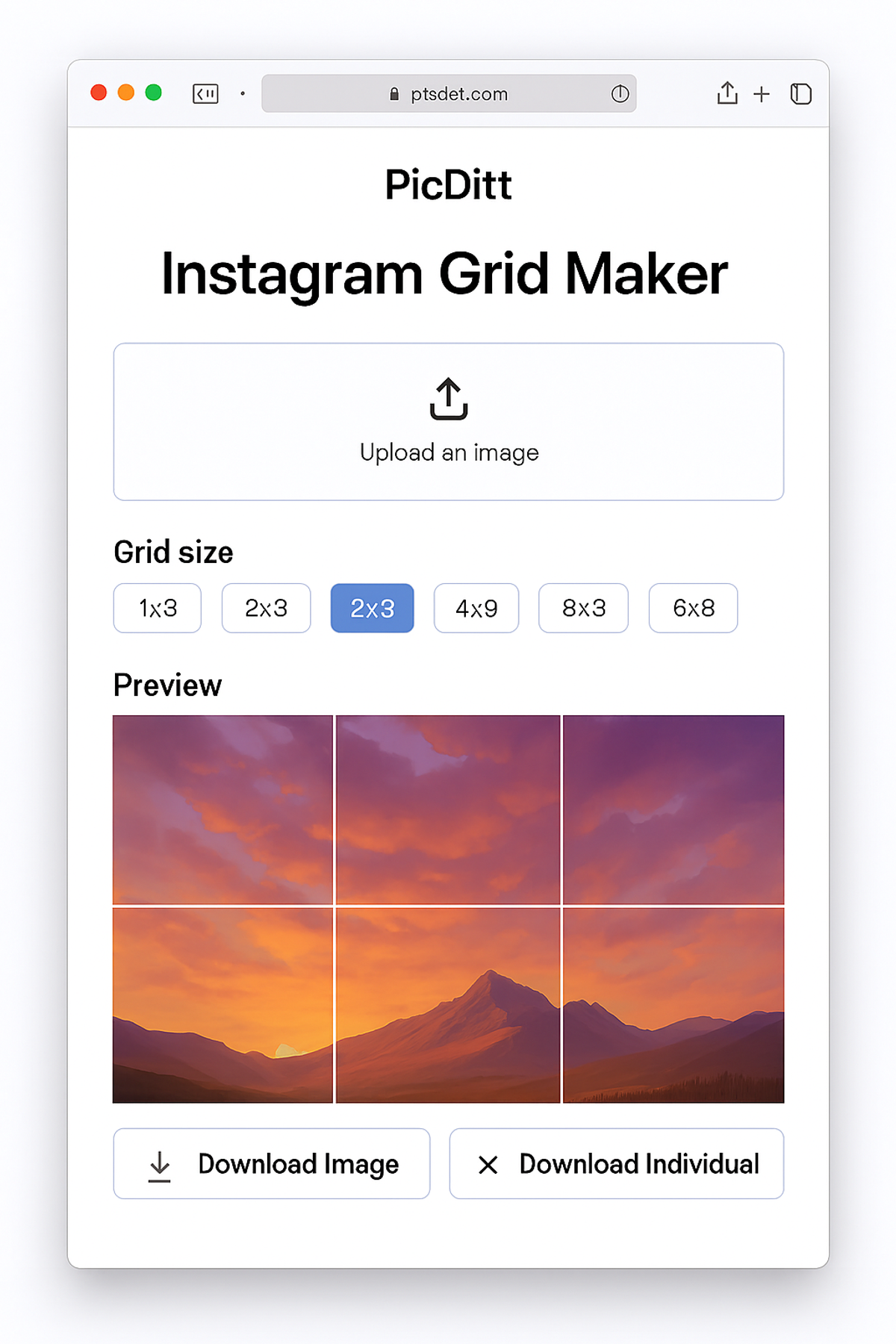
Preview of a landscape photo being split into a 3×3 grid inside the PicDitt Instagram Grid Maker tool.
Step 5: Adjust Settings (Optional)
Fine-tune your output:
- Tile spacing: Choose seamless (no gap) or add small borders between tiles.
- Output format: PNG for maximum quality, JPG for smaller files.
- Quality setting: Up to 95% for JPG exports.
Step 6: Download Your Tiles
When everything looks right:
- Click Download All to get a ZIP file containing all tiles, numbered in posting order.
- Or download individual tiles if you prefer.
The tiles are automatically numbered so you know exactly which order to post them (more on that below).
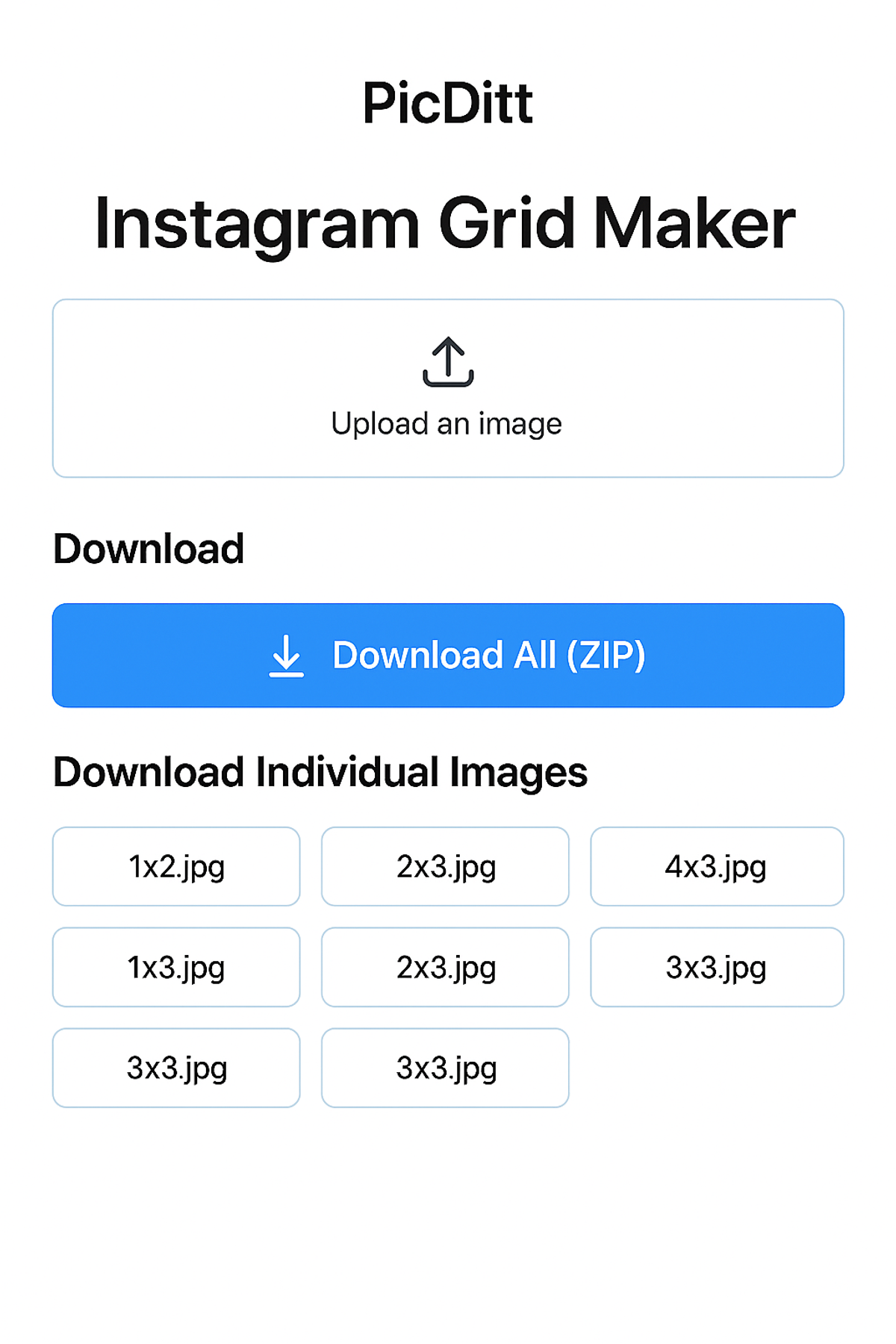
Download options in PicDitt's Instagram Grid Maker showing ZIP bundle download and individual tile downloads.
The Secret to Posting Grid Tiles in the Right Order
Here's where many people get confused: Instagram displays posts in reverse chronological order on your profile. The most recent post appears in the top-left corner of your grid.
So if you want your grid to display correctly, you need to post the tiles in reverse order—starting with the bottom-right tile and ending with the top-left tile.
For a 3×3 grid:
textFinal profile view:
[1] [2] [3]
[4] [5] [6]
[7] [8] [9]
Posting order:
Post #1: Tile 9 (bottom-right)
Post #2: Tile 8
Post #3: Tile 7
Post #4: Tile 6
Post #5: Tile 5
Post #6: Tile 4
Post #7: Tile 3
Post #8: Tile 2
Post #9: Tile 1 (top-left)
PicDitt numbers the tiles to help you follow this order. Just post them from the highest number to the lowest.
Pro Tip: Post All at Once
If possible, post all your tiles in a single session. This minimizes the awkward period where your grid looks incomplete, and it reduces the risk of other posts disrupting your layout.
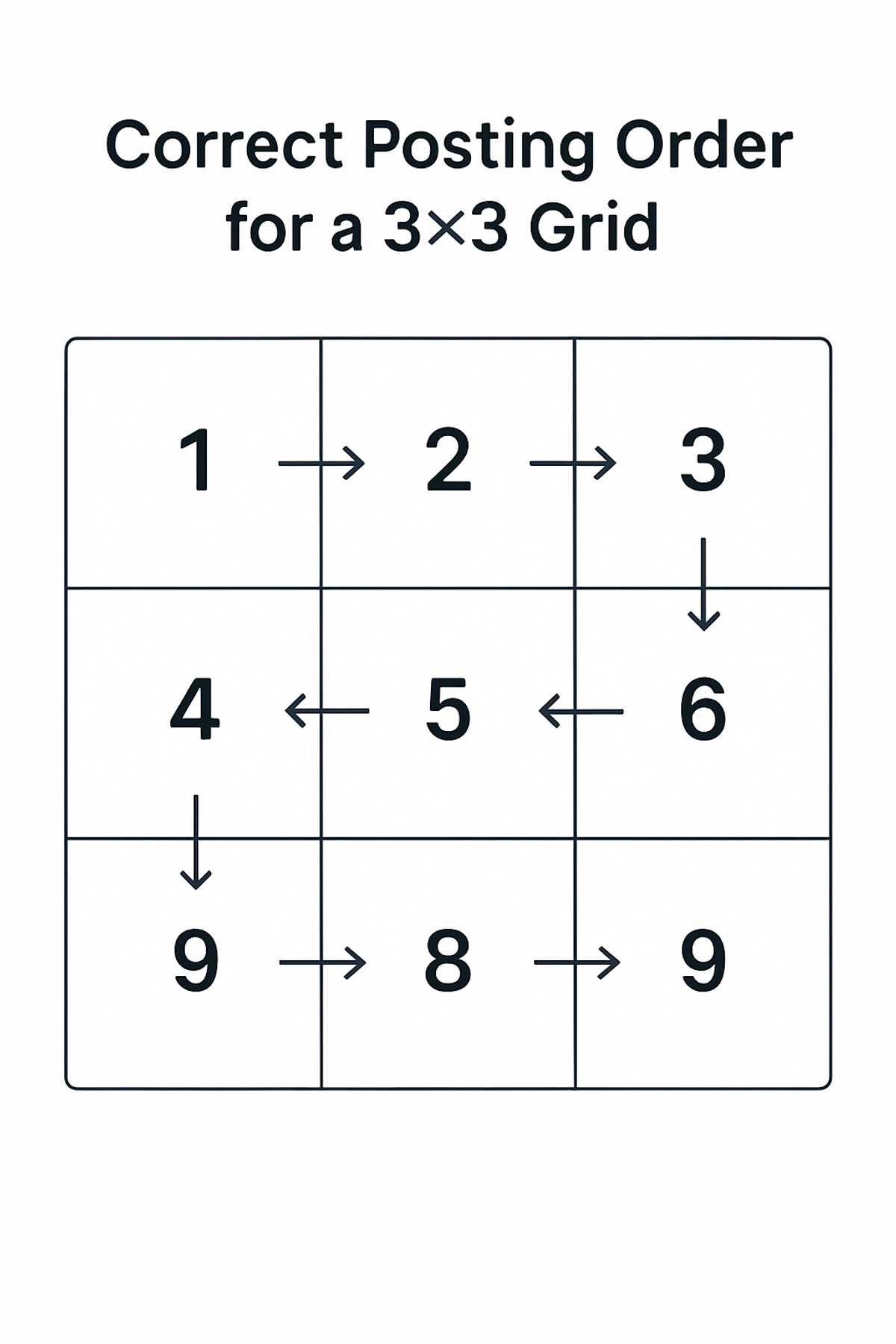
Diagram showing the correct posting order for a 3×3 Instagram grid, starting from tile 9 (bottom-right) and ending at tile 1 (top-left).
Creative Ideas for Using Your Instagram Grid
Need inspiration? Here are some ways real creators and brands use grid layouts:
The Grand Reveal
Split a new product photo across 9 tiles. Post them one by one over a few days, building suspense. When the final tile goes up, the full image is revealed.
The Portfolio Showcase
Artists and photographers use 3×3 grids to display their best work at maximum size. One stunning image says more than dozens of small thumbnails.
The Quote Wall
Design a typographic image with an inspiring quote or mission statement. Split it across your grid for maximum impact.
The Event Announcement
Promoting a wedding, concert, or conference? A grid with the event details, date, and imagery creates an unmissable announcement.
The Brand Identity Reset
Launching a new logo or rebrand? Clear your old posts (or archive them) and debut your new identity with a fresh grid.
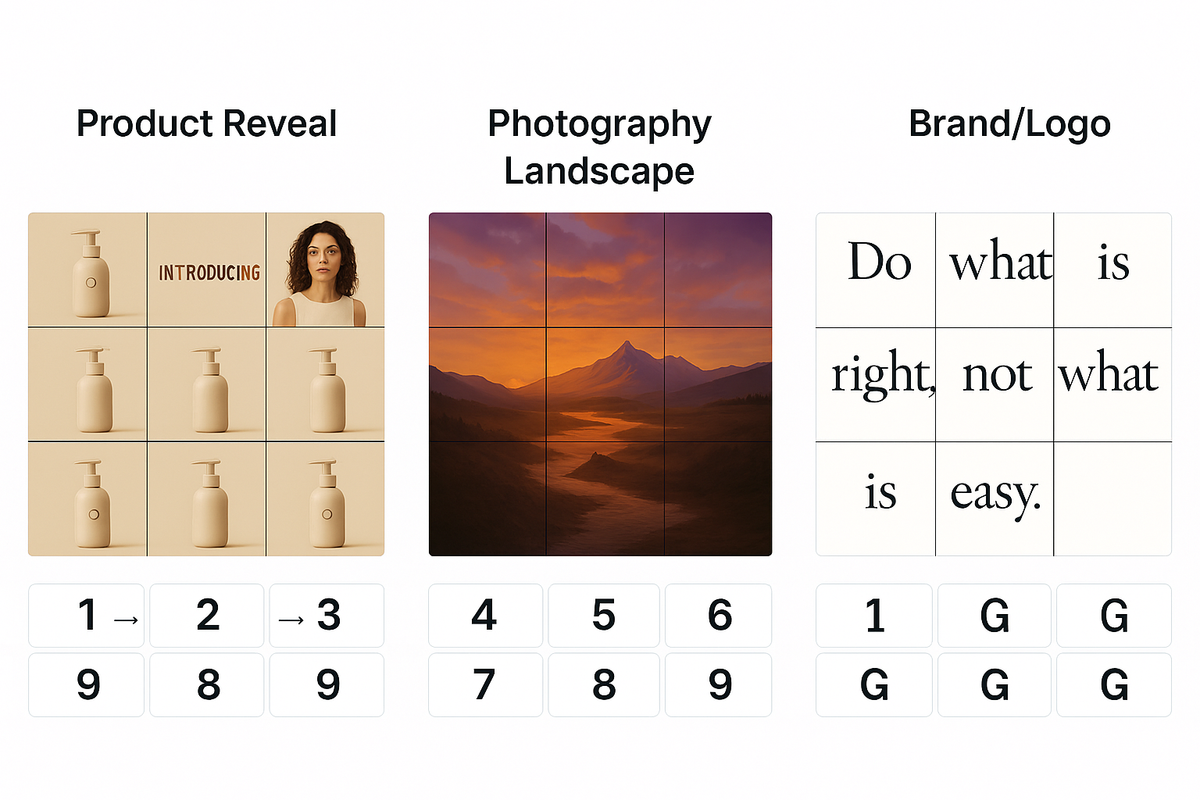
Examples of creative Instagram grid uses including product reveals, photography showcases, quote designs, and brand identity grids.
Technical Details for Best Results
To get the sharpest, most professional-looking grid, keep these specs in mind:
Specification
Recommended Value
Output Tile Size
1080×1080 pixels (Instagram optimal)
Minimum Input for 3×3
3240×3240 pixels
Supported Input Formats
JPG, JPEG, PNG, WebP, GIF
Maximum Input Size
50 MB
Output Formats
JPG (compressed), PNG (high quality)
Quality Settings
Up to 95% JPEG quality
Starting with a high-resolution image is the single most important factor in getting clean, sharp tiles.
Common Mistakes to Avoid
Even with a great tool, there are pitfalls. Here's what to watch out for:
Mistake 1: Using Low-Resolution Images
If your source image is small or blurry, the tiles will look pixelated on Instagram. Always use the highest resolution available.
Mistake 2: Forgetting About Cropping
Instagram crops profile thumbnails into circles for Stories highlights and squares for the grid. Make sure important elements aren't right at the edges where they might get cut.
Mistake 3: Posting in the Wrong Order
Double-check your posting sequence. One tile out of place ruins the entire grid effect.
Mistake 4: Interrupting the Grid with Other Posts
If you post something else between your grid tiles, it will shift everything and break the layout. Plan your posting schedule accordingly.
Mistake 5: Ignoring Mobile Preview
Most people view Instagram on phones. Always preview how your grid will look on a mobile screen before committing.
Frequently Asked Questions
Is PicDitt's Instagram Grid Maker free?
Yes. The tool at https://picditt.com/social/grid-maker is completely free to use. No account, no subscription, no hidden fees.
Do I need to install an app?
No. Everything runs in your web browser. It works on desktop and mobile devices.
Will my images be uploaded to a server?
No. The tool processes everything locally in your browser. Your images stay on your device.
What's the best grid size for beginners?
Start with a 3×3 grid. It's the most recognizable format and works with a wide variety of images.
Can I add borders between tiles?
Yes. PicDitt offers spacing options: None, Small (2px), Medium (4px), or Large (8px). Choose based on your aesthetic preference.
What if my image isn't square?
The tool will adjust the crop to fit your chosen grid. For best results, start with an image that matches the aspect ratio of your grid (square for 3×3, wider for 1×3, etc.)
FAQ summary graphic for PicDitt's Instagram Grid Maker highlighting that the tool is free, browser-based, and offers multiple grid sizes.
Final Thoughts: Your Profile, Your Canvas
Your Instagram profile is more than a collection of random photos. It's a canvas—a chance to tell your story, showcase your work, or build your brand in a way that's visually cohesive and memorable.
Instagram grids give you the power to think bigger. Instead of being limited to one square at a time, you can create experiences that span multiple posts and stop people mid-scroll.
With PicDitt's Instagram Grid Maker at:
https://picditt.com/social/grid-maker
...you have everything you need to:
- Split any image into perfectly sized tiles
- Choose from multiple grid layouts (3×3, 2×3, 1×3, and more)
- Download high-quality, Instagram-ready files
- Create stunning profile makeovers in minutes
No design degree required. No expensive software. Just your creativity and a few clicks.
So the next time you have a photo that deserves more than a single square, give it the space it needs. Build a grid. Make your profile unforgettable.
Call-to-action banner inviting readers to create their Instagram grid using PicDitt's free Grid Maker tool.
Image Placement Summary
Image #
Placement
What to Show
1
After intro
Hero: Example Instagram profile with 3×3 grid
2
After grid sizes section
Comparison chart of grid types
3
After use cases section
Collage of different grid examples
4
After tool features
Full tool interface screenshot
5
After Step 2
Empty upload screen
6
After Step 4
Grid preview with image loaded
7
After Step 6
Download options screen
8
After posting order text
Posting order diagram
9
After creative ideas
Creative examples collage
10
In FAQ section
FAQ summary graphic
11
End of article
CTA banner
You Might Also Like
Screenshot Editor – Edit, Annotate & Share Screenshots Like a Pro
Edit screenshots instantly with PicDitt's free online screenshot editor. Add text, arrows, shapes, blur sensitive info, crop, and export in PNG, JPEG, or WebP. No signup required.
Read More →
Magic Eraser Online: How to Remove Unwanted Objects from Photos with AI
Photobombers, power lines, watermarks, blemishes—every photo has something you wish wasn't there. Learn how to use PicDitt's free Magic Eraser to brush over any unwanted object and watch AI remove it seamlessly, all directly in your browser with complete privacy.
Read More →
How to Compress Images to an Exact File Size: The Complete Guide to Target Compression
Need your image to be exactly 500KB for a government form or under 25MB for Gmail? Learn how to compress any image to a precise file size using PicDitt's free Target Compression tool—without guessing quality settings or losing more quality than necessary.
Read More →