free-social-media-sizes-cropper-perfect-instagram-youtube-and-tiktok-photos-online
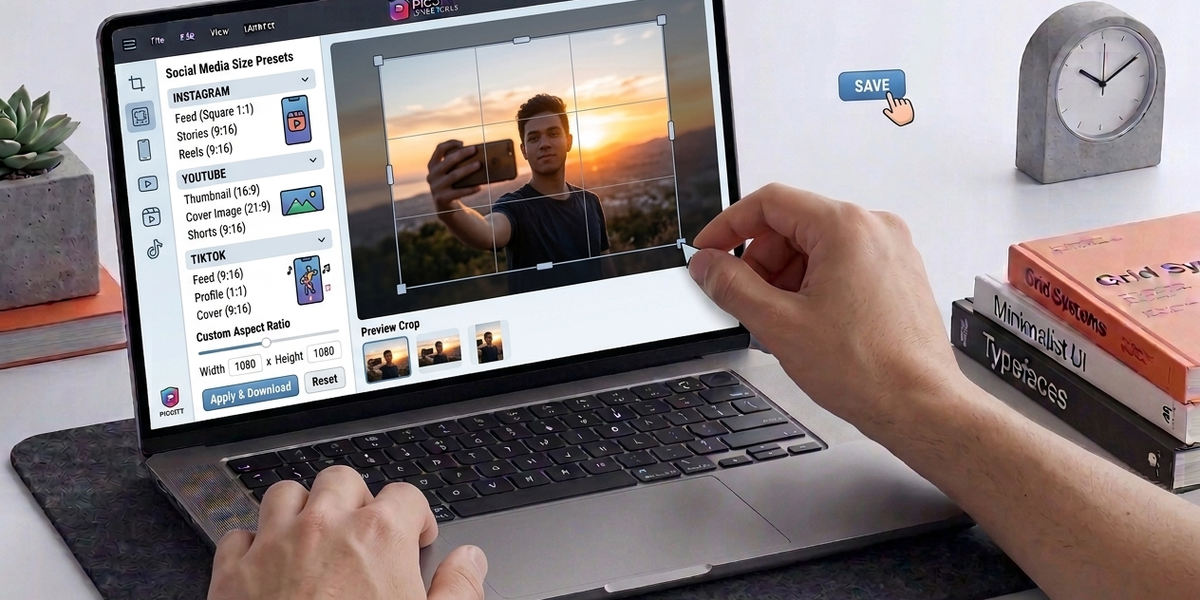
Free Social Media Sizes Cropper: Perfect Instagram, YouTube, and TikTok Photos Online
Introduction
Creating visually appealing content for social media is no longer optional—it’s essential.
Whether you're a content creator, marketer, business owner, or influencer, your images must look perfect across different platforms. But here’s the challenge: every platform has different size requirements.
An image that looks great on Instagram might appear cropped or distorted on Facebook. A YouTube thumbnail may lose key elements if not sized correctly. TikTok images may get cut off entirely.
This is where a social media image cropper becomes a must-have tool.
With the free Image Cropper available on www.picditt.com, you can instantly crop images to the exact dimensions required for platforms like Instagram, Facebook, YouTube, TikTok, LinkedIn, and more—without any design skills.
In this complete guide, you’ll learn how to crop images perfectly for social media, why dimensions matter, and how to do it in seconds.
Why Image Sizes Matter for Social Media
Every social platform uses different layouts and aspect ratios. If your image doesn’t match the required dimensions, it can lead to:
- Cropped content
- Blurry visuals
- Poor engagement
- Unprofessional appearance
Real Impact on Engagement
Correctly sized images:
- Improve click-through rates
- Increase visibility
- Enhance brand credibility
- Prevent awkward cropping
Common Problems with Incorrect Image Sizes
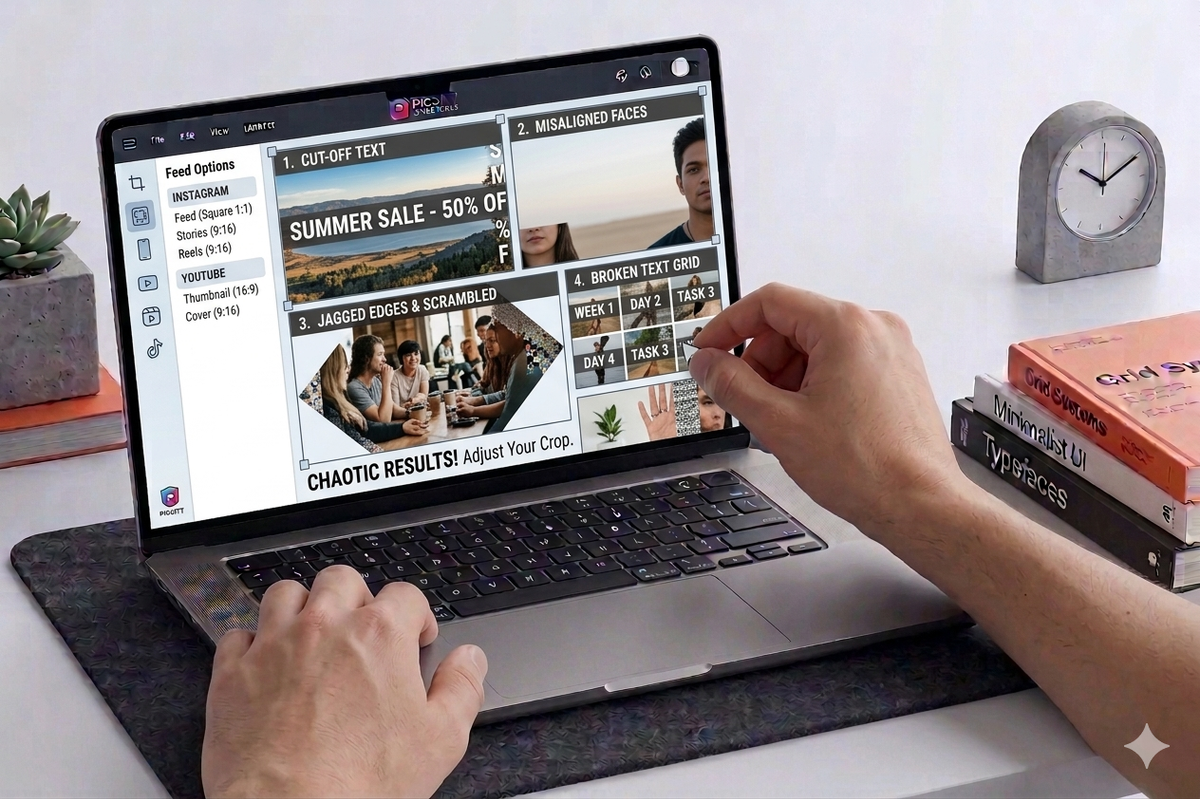
Many users upload images without resizing them properly. This causes several issues:
1. Important Content Gets Cut Off
Text, faces, or products may be cropped out.
2. Distorted Images
Wrong aspect ratios stretch or squash visuals.
3. Blurry Uploads
Platforms compress incorrectly sized images.
4. Poor Layout Display
Images may not align properly in feeds.
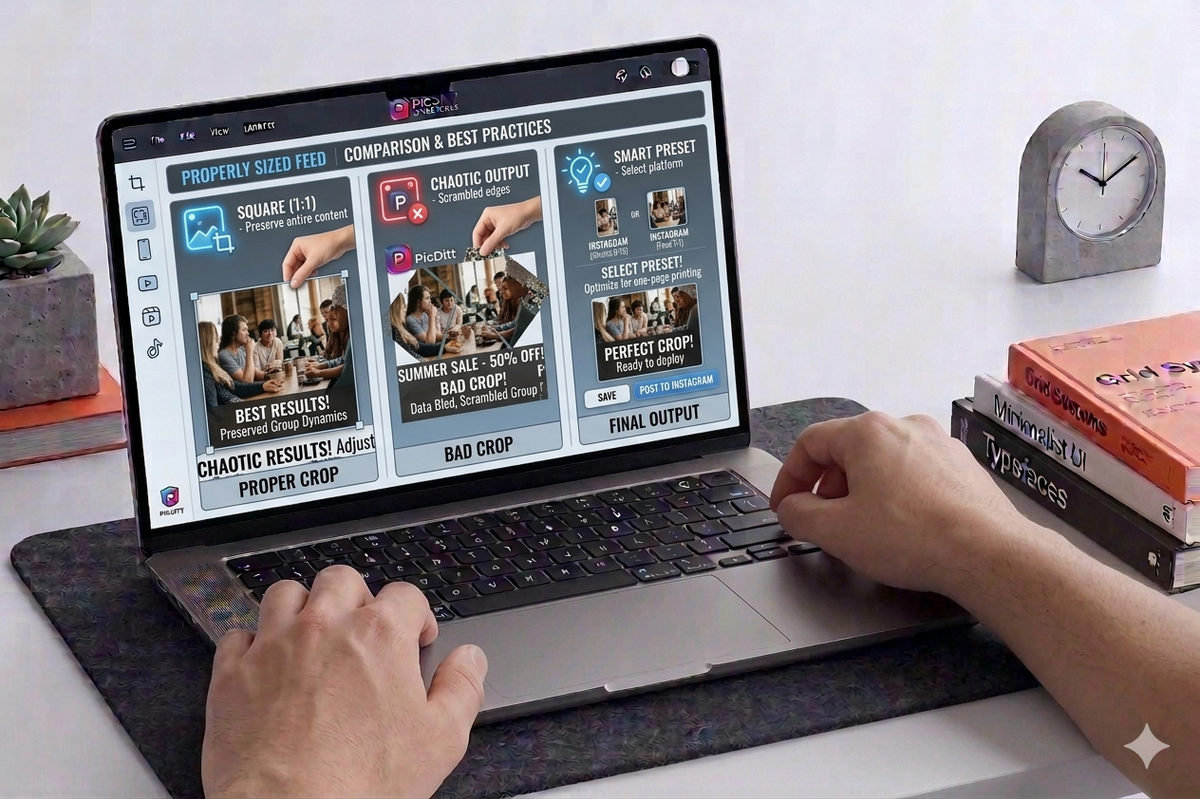
The Best Free Social Media Image Cropper
To solve all these problems, you can use:
The Image Cropper tool on www.picditt.com is designed specifically for social media optimization.
Key Highlights
- 100% free
- No signup required
- Instant cropping
- Social media presets
- Works on all devices
- Private and secure
Popular Social Media Image Sizes (2026 Updated)
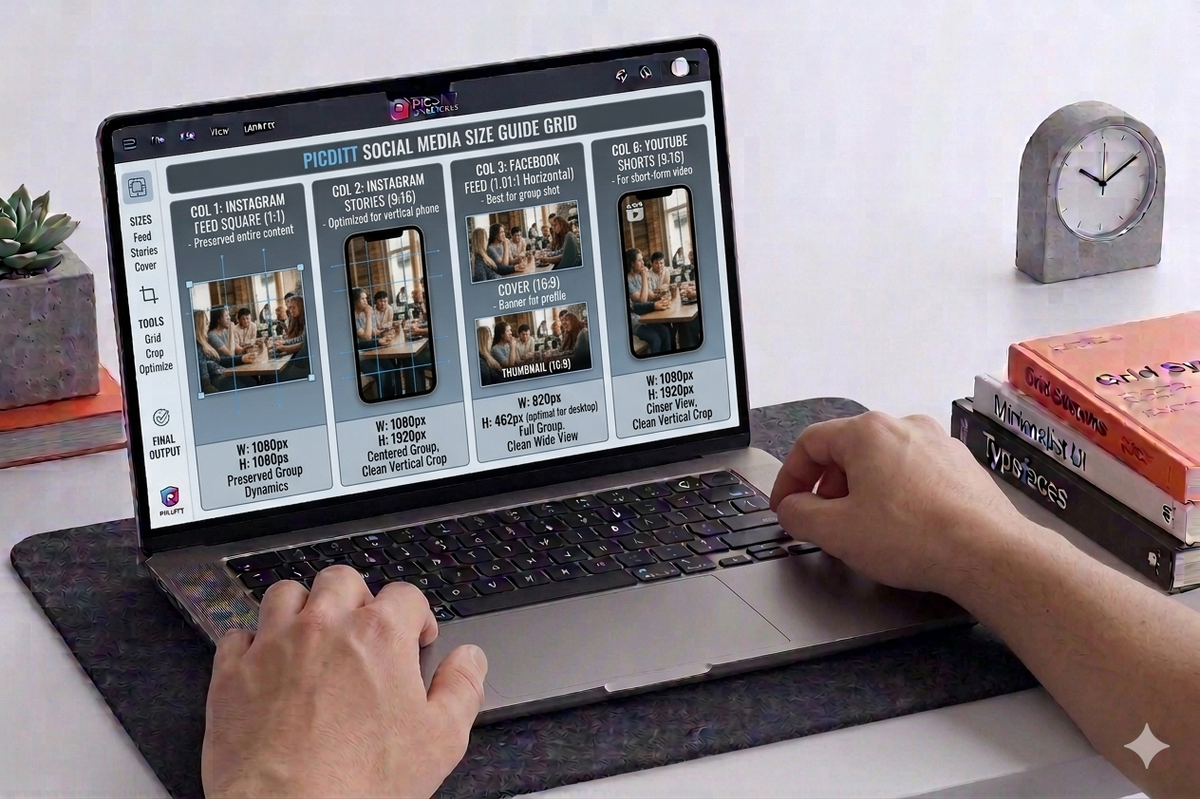
Here are the most commonly used dimensions:
Instagram Sizes
- Post (Square): 1080×1080
- Story/Reel: 1080×1920
- Portrait: 1080×1350
- Landscape: 1080×566
Facebook Sizes
- Post: 1200×630
- Cover: 820×312
- Profile: 170×170
- Event: 1920×1005
YouTube Thumbnail
- 1280×720
LinkedIn Post
- 1200×627
TikTok Content
- 1080×1920
Using these exact sizes ensures your content looks perfect everywhere.
How to Crop Images for Social Media (Step-by-Step)
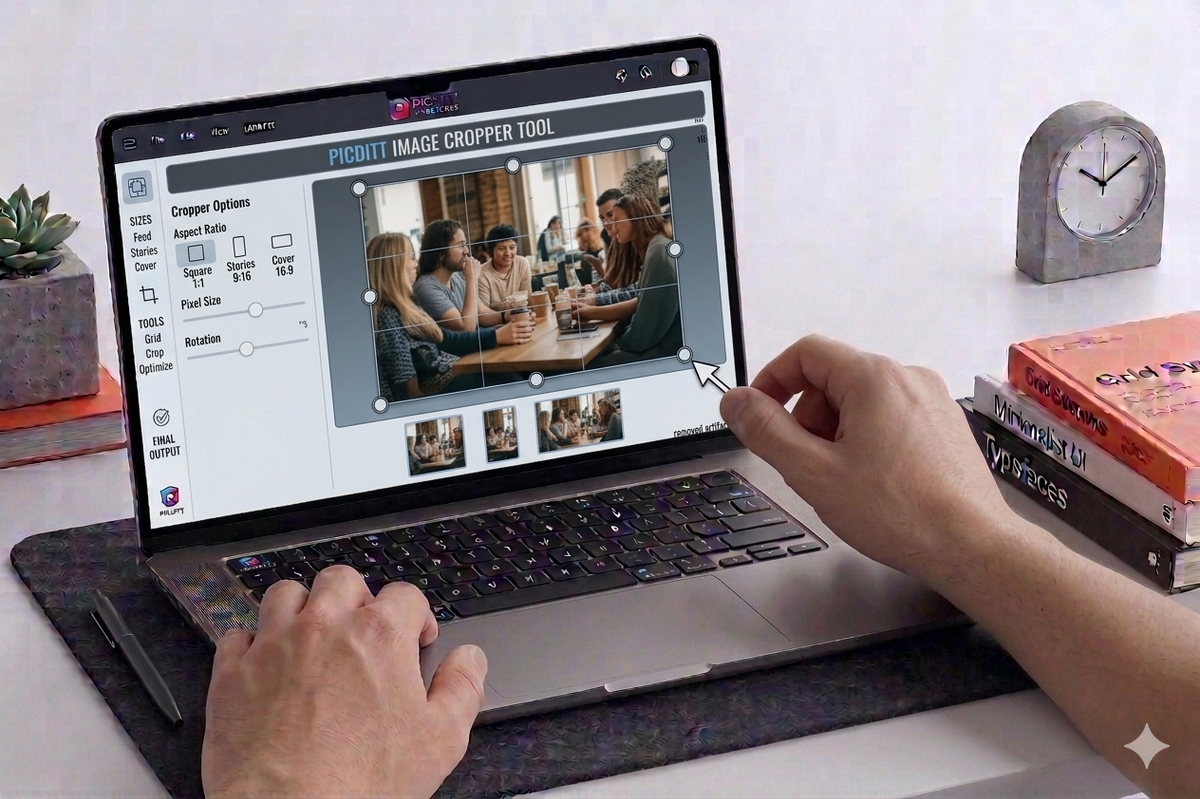
Cropping images with PicDitt is extremely simple.
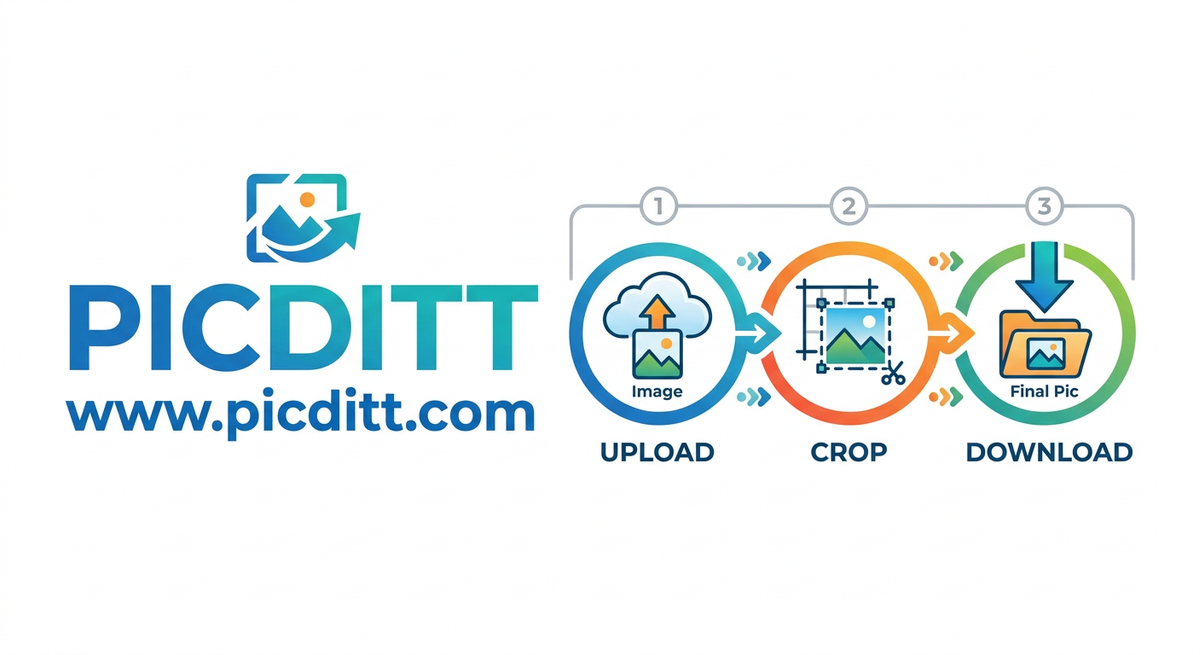
Step 1: Upload Your Image
- Drag and drop your file
- Supports JPG, PNG, WebP
- Max size: 50MB
Step 2: Choose a Social Media Size
Select from preset options like:
- Instagram post
- YouTube thumbnail
- Facebook cover
- TikTok format
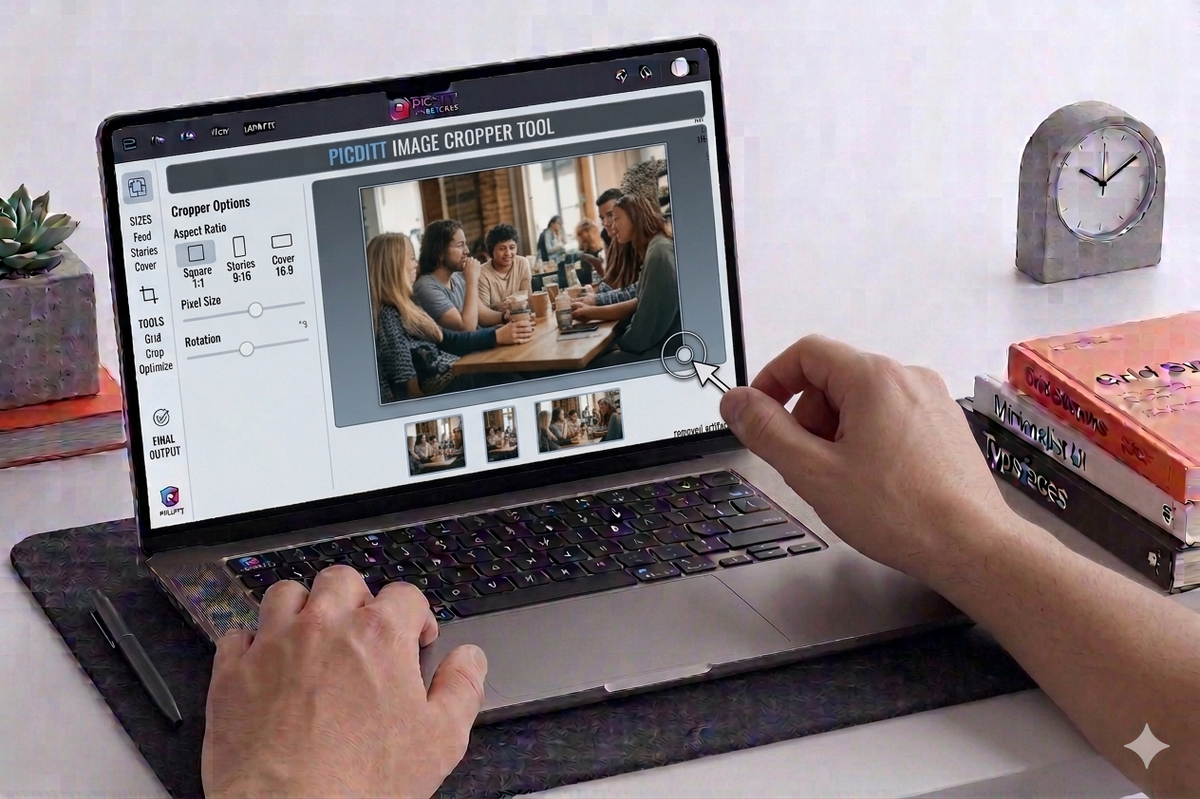
Step 3: Adjust Crop Area
- Drag to reposition
- Zoom for precision
- Lock aspect ratio
Step 4: Download Instantly
Get your perfectly cropped image in seconds.
Features That Make PicDitt Image Cropper Powerful
Social Media Presets
One-click cropping for all major platforms.
Aspect Ratio Lock
Maintain perfect proportions.
Rotate & Flip
Adjust orientation easily.
Zoom Controls
Crop with precision.
Live Preview
See results before downloading.
100% Privacy
Images never leave your device.
Benefits of Using an Online Cropper
No Installation Required
Everything works in your browser.
Fast & Lightweight
Instant results without delays.
Works on All Devices
Mobile, tablet, desktop—all supported.
Beginner-Friendly
No design skills needed.
Pro Tips for Perfect Social Media Images
Keep Important Content Centered
Avoid placing key elements near edges.
Use High-Resolution Images
Prevents pixelation and blur.
Stick to Recommended Sizes
Always use platform-specific dimensions.
Preview Before Upload
Ensure everything looks correct.
Use Consistent Branding
Maintain visual identity across platforms.
Advanced Cropping Techniques
Rule of Thirds
Position subjects for better composition.
Focus Cropping
Highlight the most important element.
Background Adjustment
Remove unnecessary space.
Symmetry and Balance
Create visually appealing layouts.
Real-World Use Cases
Social Media Marketing
Create optimized posts for better engagement.
YouTube Content Creation
Design perfect thumbnails.
E-commerce
Display product images professionally.
Personal Branding
Maintain a consistent visual identity.
Enhance Your Workflow with Other PicDitt Tools
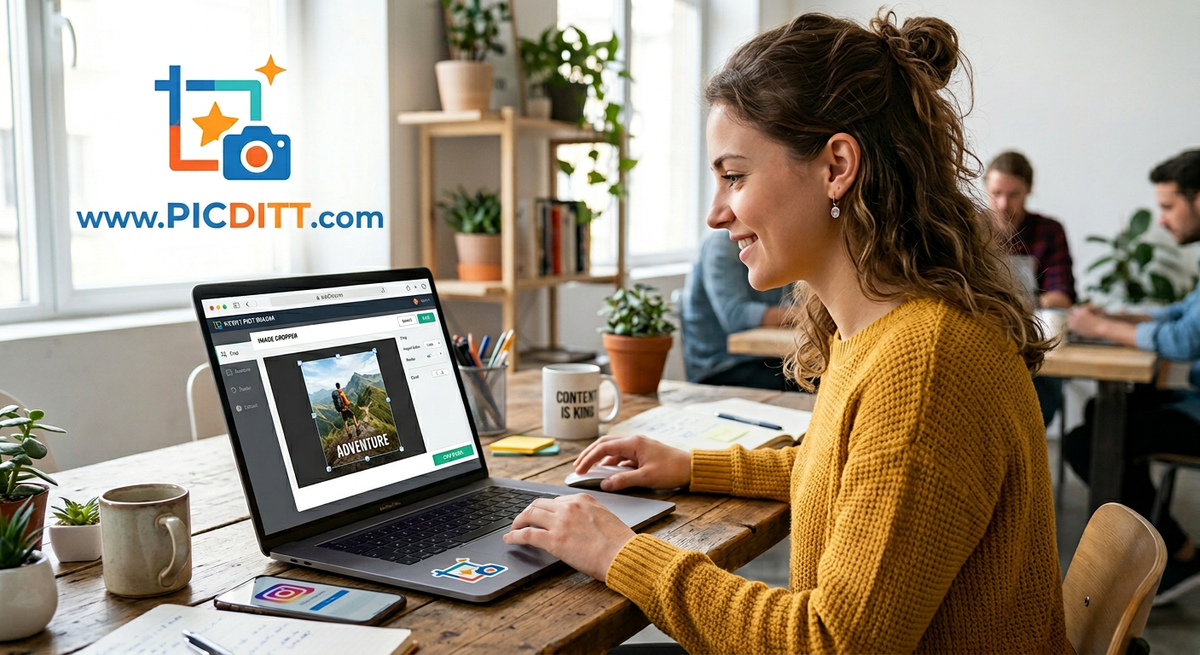
You can combine the cropper with other tools on www.picditt.com:
Circle Crop Tool
https://picditt.com/crop/circle-crop
Perfect for profile pictures and avatars.
Passport Photo Maker
https://picditt.com/passport/maker
Create official-size photos instantly.
Add Watermark Tool
https://picditt.com/misc/watermark
Protect your images with custom watermarks.
These tools help you build a complete image editing workflow.
Why Choose PicDitt Over Other Tools?
- No ads clutter
- No login required
- Fast processing
- Clean interface
- Accurate presets
- Secure environment
Common Mistakes to Avoid
- Uploading low-resolution images
- Ignoring aspect ratios
- Cropping too tightly
- Not previewing before download
- Using wrong dimensions
FAQs
Is the image cropper free?
Yes, it is completely free to use.
Do I need to create an account?
No signup is required.
Is my image (safe)?
Yes, all processing happens in your browser.
What formats are supported?
JPG, PNG, WebP, and more.
Can I crop images on mobile?
Yes, it works perfectly on smartphones and tablets.
Can I use custom sizes?
Yes, you can set custom dimensions easily.
Conclusion
Creating perfectly sized images for social media doesn’t have to be complicated.
With the Image Cropper on www.picditt.com, you can crop your images to exact platform dimensions in seconds—without any design skills or software.
Whether you're posting on Instagram, uploading YouTube thumbnails, or creating TikTok content, this tool ensures your visuals always look professional.
Start using it today and take your social media content to the next level.
Ready to Try It Yourself?
Use this tool for free — no signup, no download, no watermarks.
Open Free ToolYou Might Also Like
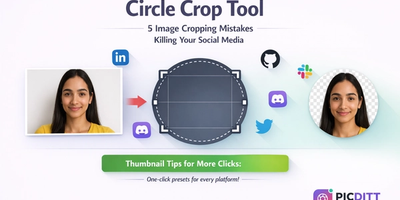
How to Crop a Picture into a Circle: Free Online Round Profile Picture Maker
Need a perfectly round profile picture? Picditt's free Circle Crop tool lets you crop any photo into a circle with transparent background. Position, zoom, choose your size, and download a PNG — all in your browser, 100% private. Works for LinkedIn, GitHub, Slack, Discord, and any platform that uses circular avatars.
Read More →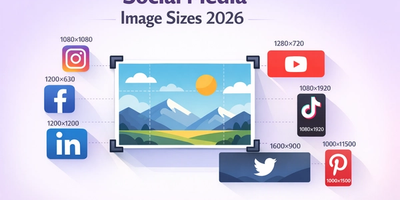
The Complete Guide to Social Media Image Sizes: How to Crop Photos for Every Platform in 2026
Stop guessing social media image sizes! This complete guide covers the exact dimensions for Instagram, Facebook, YouTube, TikTok, LinkedIn, Twitter/X, Pinterest, and more — plus how to crop your photos perfectly using Picditt's free online image cropper with one-click presets.
Read More →
How to Merge PDF Files Free Online (Without Uploading Your Data)
Stop sending multiple email attachments! Learn how to combine and merge multiple PDF files into a single, professional document in seconds. Picditt's free online PDF Merger lets you drag, drop, and reorder pages entirely in your browser — meaning zero server uploads, lightning-fast speeds, and 100% data privacy for your sensitive documents.
Read More →