Free Alternatives to Photoshop in 2026 — Do Everything You Need Without Paying $54/Month
Free Alternatives to Photoshop in 2026 — Do Everything You Need Without Paying $54/Month
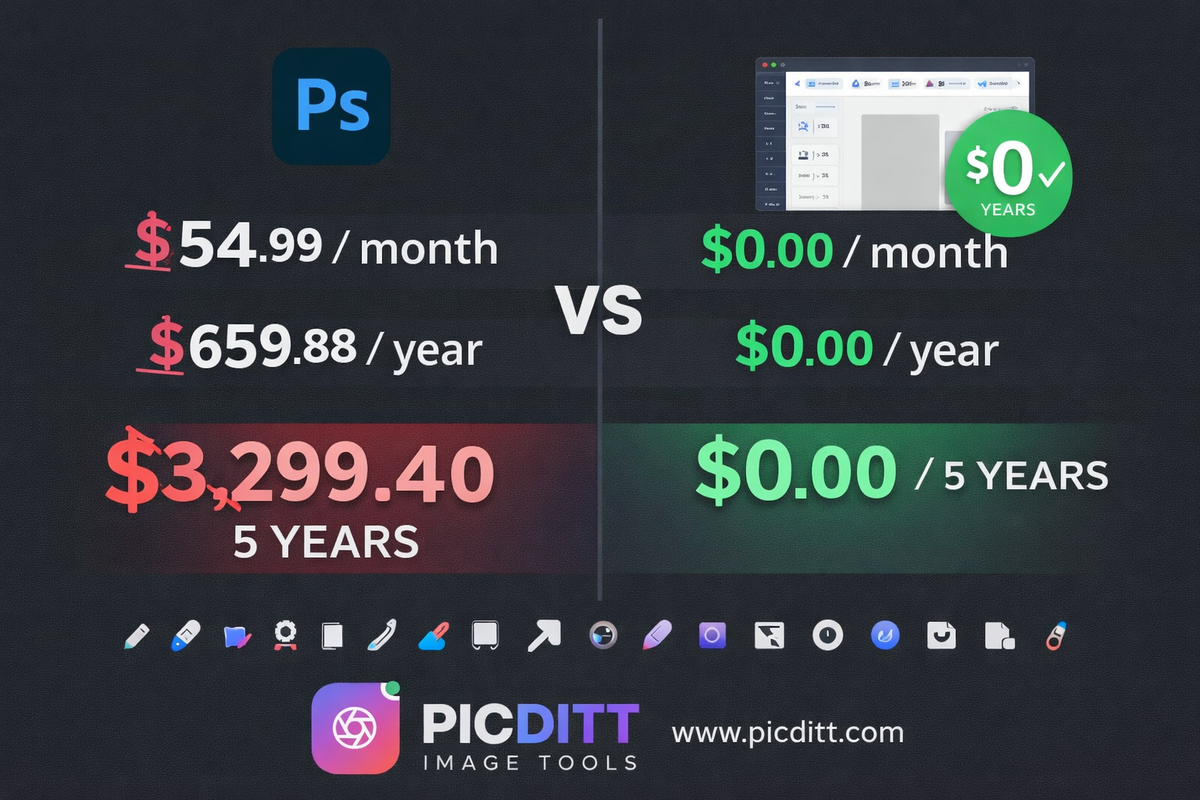
Adobe Photoshop costs $54.99 per month.
That is $659.88 per year for software that the vast majority of users open for one of a handful of tasks: removing a background, resizing a photo, removing an unwanted object, applying a filter, upscaling a low-resolution image, or adding text and a logo.
Adobe knows this. Their subscription model is built on the assumption that once you are inside the Adobe ecosystem, the switching cost feels too high to leave — even when you use only 5% of what you are paying for.
In 2026, that switching cost has effectively disappeared. Browser-based tools powered by the same AI models and algorithms that drove Photoshop's most popular features are now available completely free, with no software installation, no account creation, and — crucially — no uploading your images to anyone's server.
This complete guide maps every commonly used Photoshop feature to a free browser-based alternative, explains exactly how to use each one, and shows you how to build a complete free image editing workflow that replaces Photoshop for everyday tasks.
Why Free Tools Have Caught Up With Photoshop
The AI Revolution in Browser-Based Editing
Three years ago, background removal required Photoshop's Select Subject tool — a feature that took years of development and significant processing power. Today, AI-powered background removal runs entirely in your browser in under two seconds, producing results that match or exceed Photoshop's quality.
The same shift has happened across virtually every common image editing task. Object removal, image upscaling, photo restoration, filter application — all now run locally in browsers using AI models and WebAssembly technology that delivers near-native processing speed.
What Photoshop Is Actually Used For
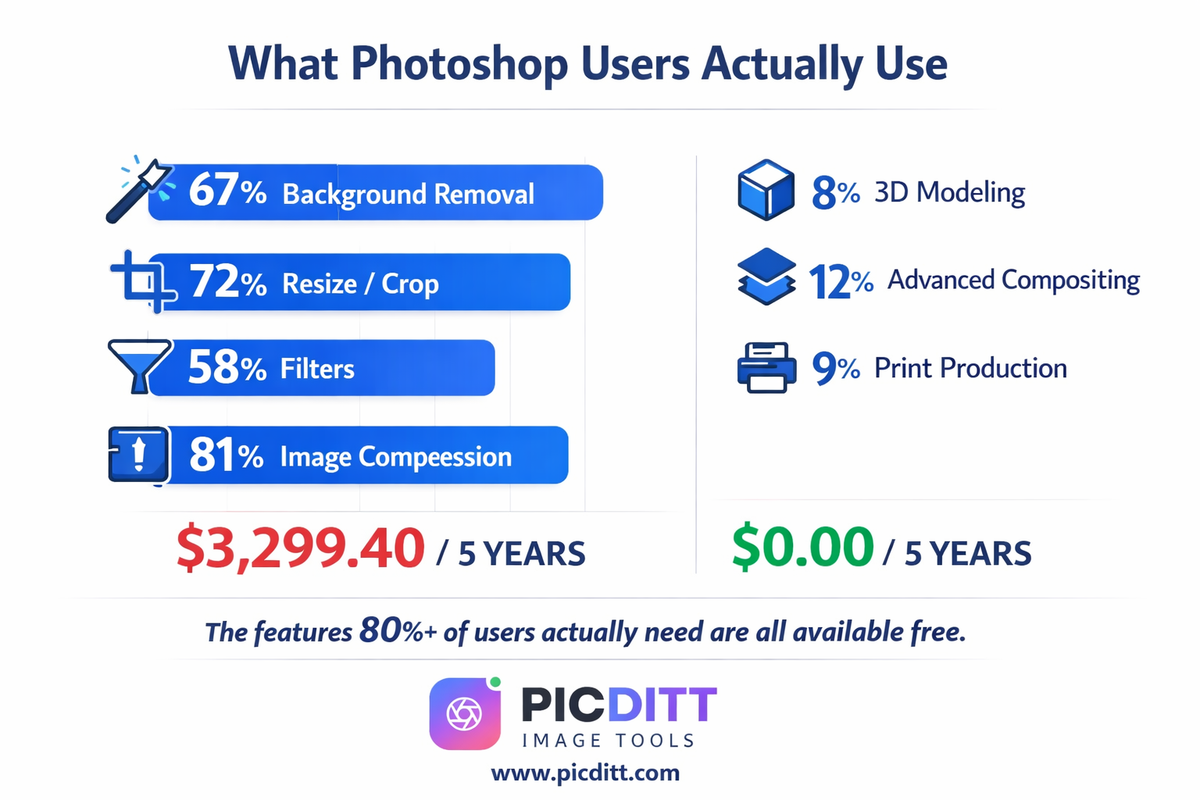
Adobe's own usage data and countless user surveys consistently show that the majority of Photoshop users rely on a small set of features:
Feature
% of Users Who Use It
Background removal
67%
Image resizing and cropping
72%
Filters and color adjustments
58%
Object/blemish removal
45%
Image compression/export
81%
Text and logo overlays
43%
Image upscaling
31%
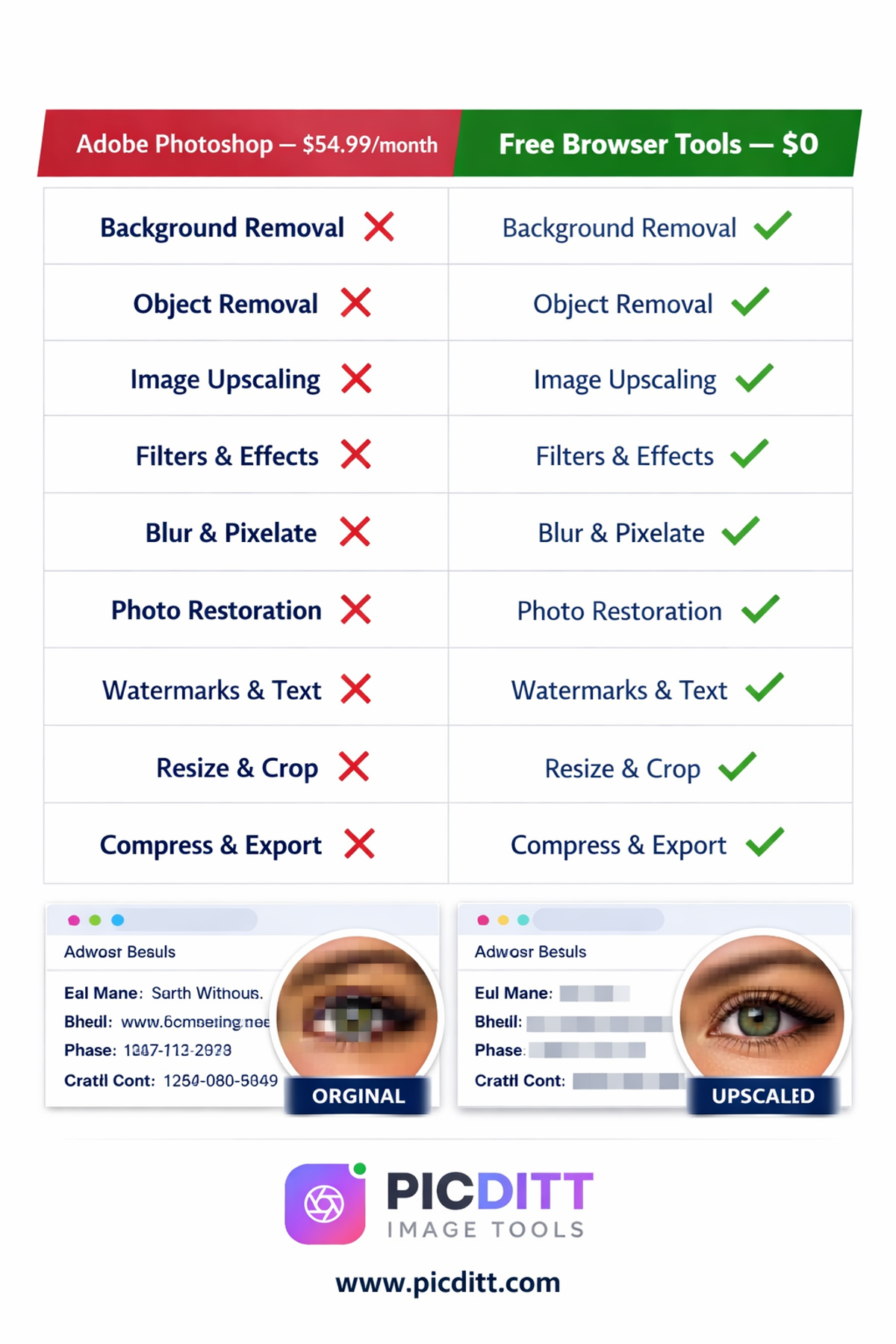
Every item on this list is available free in a browser in 2026. The 5% of users who need Photoshop's advanced compositing, professional color grading, non-destructive editing layers, and print production features — they have a genuine reason to pay. Everyone else does not.
Free Alternative 1: Remove Image Backgrounds (Replaces Photoshop's Select Subject)
Photoshop equivalent: Select Subject + Remove Background
Photoshop cost for this feature alone: $54.99/month
Free tool: Picditt Background Remover
What Photoshop Charges You For
Photoshop's AI-powered background removal — accessed through Select > Subject and then Delete Background — is one of the most-used features in the entire application. For e-commerce sellers, marketers, and content creators who need clean product photos and portraits, this single feature often justifies the entire subscription.
The Free Alternative
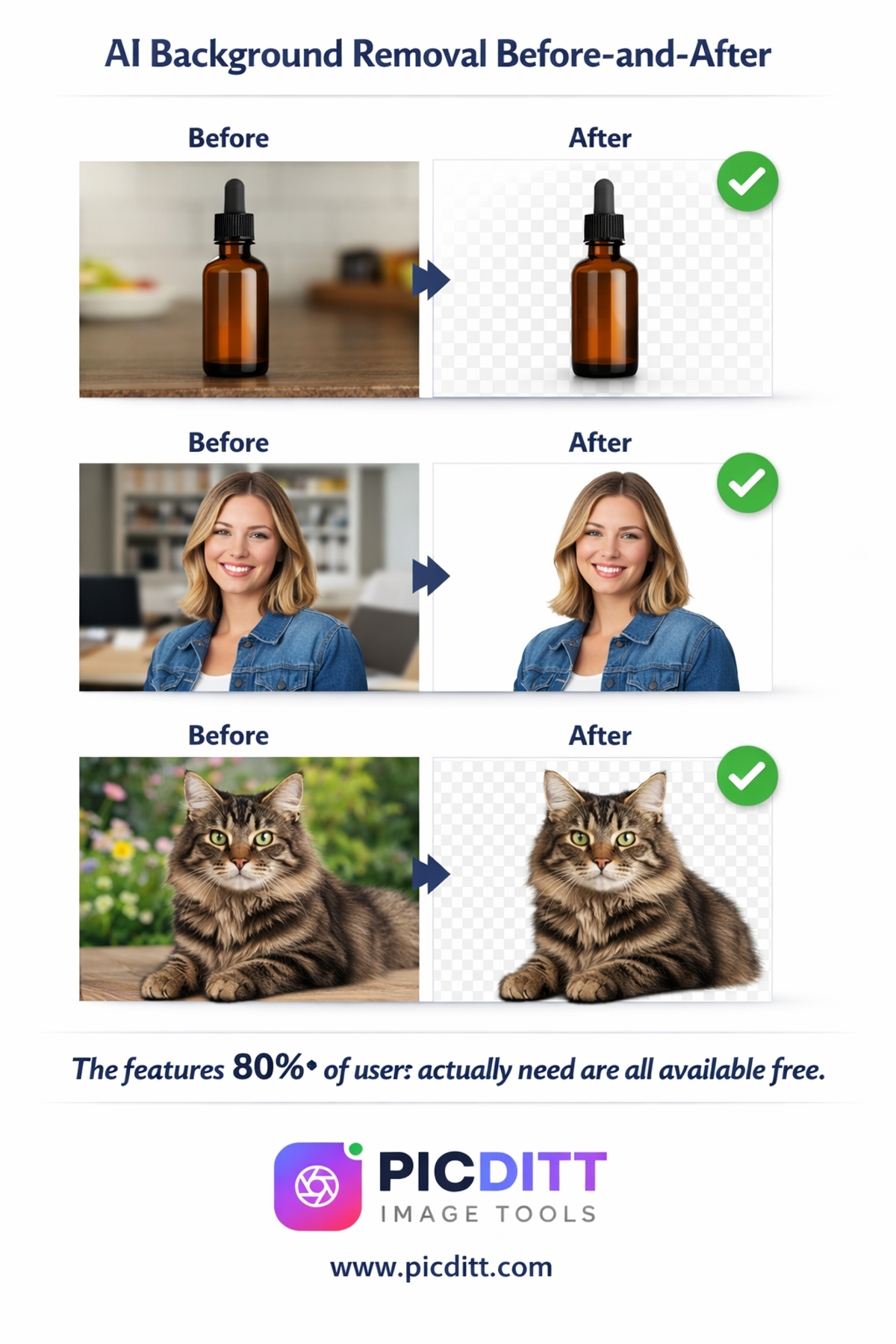
The Picditt Background Remover uses AI to detect and remove backgrounds from any image in under two seconds. The result is a transparent PNG ready to place on any background — white, colored, or transparent for use in presentations and graphics.
How to use it:
- Go to
picditt.com/misc/bg-remover - Upload your image
- AI automatically detects and removes the background
- Download as transparent PNG
Best for:
- Product photos for e-commerce listings
- Professional headshots and profile pictures
- Creating graphics where the subject needs a different background
- Preparing images for marketing materials
Quality comparison with Photoshop: For standard backgrounds (solid colors, simple environments), the free AI tool produces results equivalent to Photoshop. For complex backgrounds with similar colors to the subject, results are comparable to Photoshop's automated tools — both may require touch-up for the most demanding professional work.
Free Alternative 2: Remove Unwanted Objects from Photos (Replaces Photoshop's Content-Aware Fill)
Photoshop equivalent: Content-Aware Fill / Healing Brush
Photoshop cost for this feature alone: $54.99/month
Free tool: Picditt Magic Eraser
What Photoshop Charges You For
Photoshop's Content-Aware Fill is genuinely magical — paint over an unwanted object and Photoshop intelligently fills the space with surrounding content. Removing a photobomber from a group shot, eliminating a power line from a landscape, cleaning up a product photo — these tasks built Photoshop's reputation as the professional standard.
The Free Alternative
The Picditt Magic Eraser uses AI to remove unwanted objects from photos by analyzing the surrounding image content and intelligently reconstructing what should be behind the removed object.
How to use it:
- Go to
picditt.com/editing/magic-eraser - Upload your photo
- Paint over the object you want to remove
- AI fills the area with contextually appropriate content
- Download the cleaned image
Best for:
- Removing photobombers from group photos
- Eliminating distracting elements from product photos
- Cleaning up backgrounds in portrait photography
- Removing watermarks, timestamps, or unwanted text from photos
- Fixing imperfections in real estate photography
Free Alternative 3: Upscale and Enhance Low-Resolution Images (Replaces Photoshop's Super Resolution)
Photoshop equivalent: Super Resolution (Camera Raw)
Photoshop cost for this feature alone: $54.99/month
Free tool: Picditt AI Image Upscaler
What Photoshop Charges You For
Photoshop's Super Resolution feature uses AI to enlarge images up to 4x while adding detail and maintaining sharpness. This is invaluable for printing large format images from smaller source files, recovering usable images from old low-resolution photos, and enlarging cropped images.
The Free Alternative
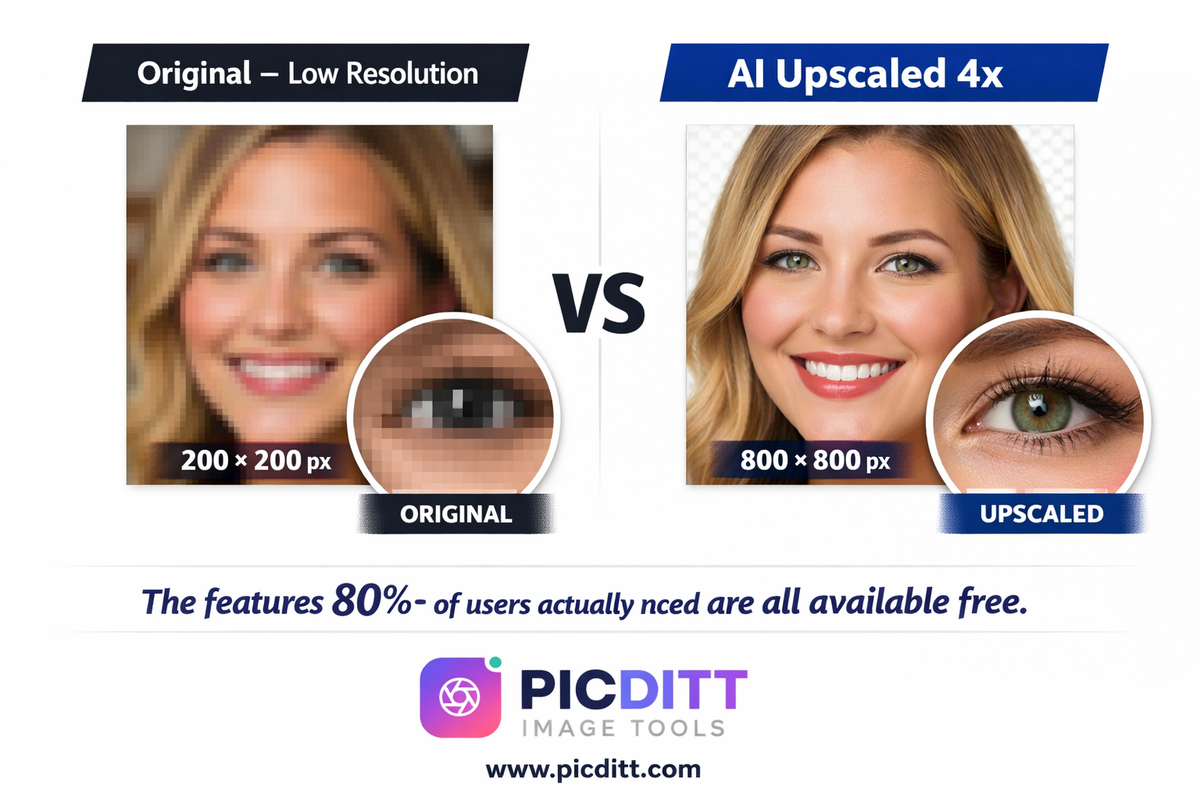
The Picditt AI Image Upscaler enhances and enlarges photos up to 8x using AI. It analyzes the image and intelligently adds detail, sharpens edges, and enhances clarity — turning low-resolution photos into high-definition images.
How to use it:
- Go to
picditt.com/editing/image-upscaler - Upload your low-resolution image
- Select your upscaling factor (2x, 4x, or 8x)
- AI enhances and enlarges the image
- Download the high-resolution result
Best for:
- Enlarging old family photos for printing
- Recovering detail from compressed or small images
- Preparing images for large-format printing
- Enhancing product photos taken in low resolution
- Improving screenshots and screencasts for presentations
Advantage over Photoshop: The free tool supports up to 8x upscaling compared to Photoshop's 4x Super Resolution — and processes entirely in your browser without uploading your photos.
Free Alternative 4: Apply Filters and Effects (Replaces Photoshop's Filter Gallery)
Photoshop equivalent: Filter Gallery / Neural Filters / Camera Raw
Photoshop cost for this feature alone: $54.99/month
Free tool: Picditt Photo Filters
What Photoshop Charges You For
Photoshop's Filter Gallery and Neural Filters provide artistic effects, color grading presets, and style transformations. For social media creators, photographers, and marketers who need consistent, attractive visual styles across their content, these filters are a major draw.
The Free Alternative
The Picditt Photo Filters tool provides free aesthetic filters in styles comparable to VSCO, Lightroom presets, and Instagram filters. Adjust brightness, contrast, saturation, and apply artistic effects instantly.
How to use it:
- Go to
picditt.com/editing/filters - Upload your photo
- Browse and apply filter presets
- Fine-tune with adjustment sliders
- Download your edited photo
Best for:
- Creating consistent visual styles across social media content
- Enhancing product photos with professional color grading
- Applying artistic effects to portfolio images
- Creating cohesive branding through consistent photo styles
Free Alternative 5: Blur Backgrounds and Pixelate Faces (Replaces Photoshop's Blur Gallery)
Photoshop equivalent: Blur Gallery / Field Blur / Face-Aware Liquify
Photoshop cost for this feature alone: $54.99/month
Free tool: Picditt Blur and Pixelate Tool
What Photoshop Charges You For
Photoshop's Blur Gallery creates professional depth-of-field blur effects, and its pixelation tools handle privacy protection. For photographers creating portrait effects and content creators protecting privacy in shared images, these are essential tools.
The Free Alternative
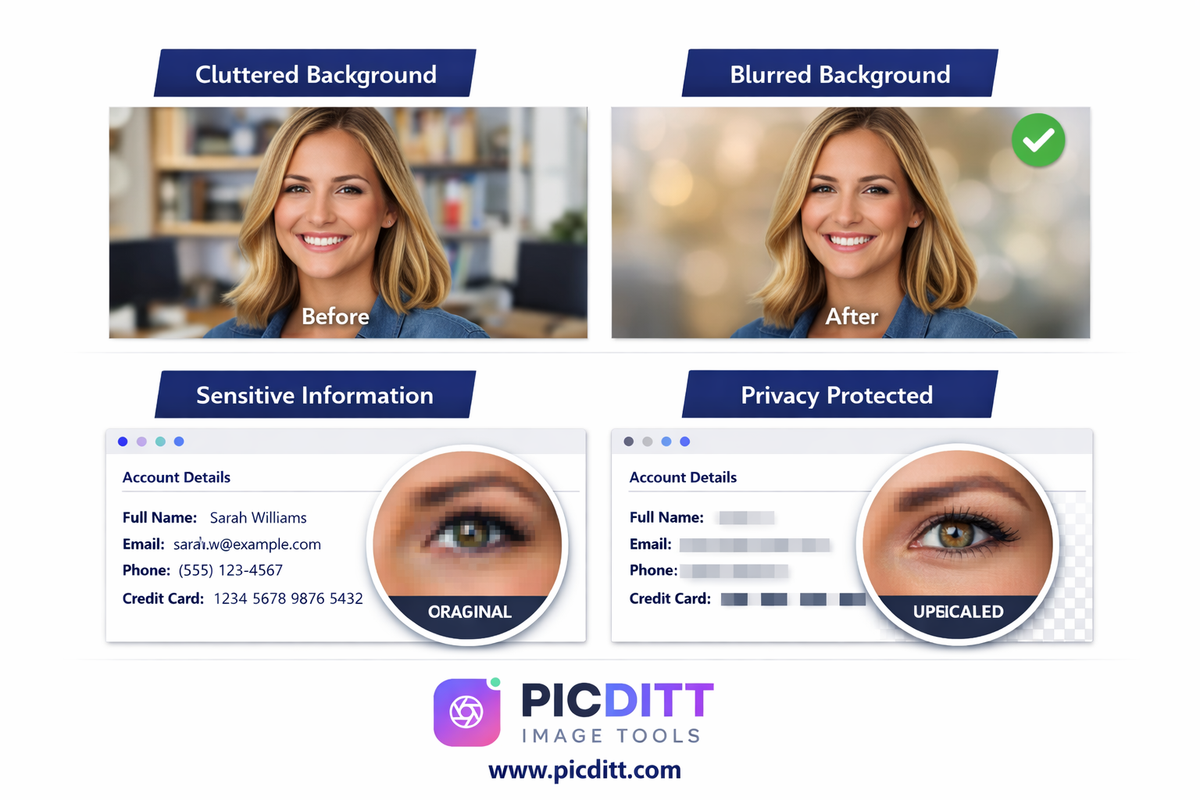
The Picditt Blur/Pixelate tool blurs backgrounds for a professional bokeh effect and pixelates or blurs faces, license plates, documents, and sensitive information in photos before sharing.
How to use it:
- Go to
picditt.com/editing/blur - Upload your photo
- Select areas to blur or pixelate
- Adjust blur intensity
- Download the edited photo
Best for:
- Creating professional portrait blur effects without expensive camera equipment
- Blurring faces in photos before sharing publicly
- Pixelating sensitive information in screenshots
- Protecting bystander privacy in event and street photography
- Blurring backgrounds in product photos to focus attention on the subject
Free Alternative 6: Restore Old and Damaged Photos (Replaces Photoshop's Neural Filters)
Photoshop equivalent: Neural Filters > Photo Restoration
Photoshop cost for this feature alone: $54.99/month
Free tool: Picditt Old Photo Restorer
What Photoshop Charges You For
Photoshop's Neural Filters include a Photo Restoration filter that repairs scratches, tears, fading, and damage in old photographs — and a Colorize filter that adds color to black-and-white images. These AI-powered features are genuinely impressive and require significant computational resources.
The Free Alternative
The Picditt Old Photo Restorer uses AI to restore and colorize old, faded, or damaged photos. It removes scratches, enhances details, and brings vintage memories back to life — all processing locally in your browser.
How to use it:
- Go to
picditt.com/editing/old-photo-restorer - Upload your old or damaged photo
- AI analyzes and restores the image
- Optional: enable colorization for black-and-white photos
- Download the restored image
Best for:
- Restoring family heirloom photographs
- Digitizing and improving scanned old photos
- Colorizing black-and-white historical photos
- Removing scratches and damage from aged photographs
- Creating meaningful gifts from restored family memories
Free Alternative 7: Add Watermarks, Text, and Logos (Replaces Photoshop's Text and Layer Tools)
Photoshop equivalent: Text Tool / Layer Styles / Smart Objects
Photoshop cost for this feature alone: $54.99/month
Free tools:
- Add Logo & Text — for branding and text overlays
- Watermark Tool — for copyright protection
What Photoshop Charges You For
Adding text, logos, watermarks, and brand elements to photos in Photoshop requires understanding layers, blending modes, and opacity controls — a significant learning curve. The professional result is worth it, but the complexity and cost are barriers for most users.
The Free Alternatives
The Add Logo & Text tool adds custom text watermarks, logo overlays, copyright notices, and brand elements to any photo. Drag to position exactly where you want. The Watermark Tool adds professional text and logo watermarks with tiling patterns for maximum protection.
Best for:
- Branding product photos before sharing
- Adding copyright protection to portfolio images
- Creating consistent branded content for social media
- Protecting images from unauthorized use
- Adding business name and website URL to marketing images
Free Alternative 8: Resize, Crop, and Transform Images (Replaces Photoshop's Transform Tools)
Photoshop equivalent: Image Size / Canvas Size / Crop Tool / Transform
Photoshop cost for this feature alone: $54.99/month
Free tools:
- Zoom & Resize — precision resizing
- Circle Crop — circular cropping
- Rotate Image — rotation and straightening
- Flip Image — horizontal and vertical flipping
What These Tools Do
Zoom & Resize: Resizes images by percentage, exact pixels, or 40+ platform presets. Locks aspect ratio to prevent distortion. Batch processes multiple images.
Circle Crop: Crops any photo into a perfect circle with transparent or colored backgrounds. Essential for profile pictures across all platforms.
Rotate Image: Rotates images in any direction, fixes sideways photos, and straightens tilted horizons.
Flip Image: Creates mirror images horizontally or vertically — useful for creating symmetrical graphics and correcting reversed text in photos.
Free Alternative 9: Compress and Export Images (Replaces Photoshop's Export As / Save for Web)
Photoshop equivalent: Export As / Save for Web
Photoshop cost for this feature alone: $54.99/month
Free tool: Picditt Image Compressor
What Photoshop Charges You For
Photoshop's "Save for Web" and "Export As" features were the professional standard for preparing images for web use — controlling compression quality, format conversion, and file size optimization. Many photographers and designers paid for Photoshop partly for this export capability.
The Free Alternative
The Picditt Image Compressor compresses images up to 90% smaller with a live before-and-after preview. Converts between JPEG, PNG, WebP, and HEIC. Batch processes unlimited images with ZIP download.
Advantage over Photoshop: The free tool offers WebP output — a modern format 25-35% more efficient than JPEG — that Photoshop only added support for in recent versions. The live before-and-after preview showing exact file size savings is more intuitive than Photoshop's Export As dialog.
Building Your Complete Free Photoshop Workflow
Here is how to replace Photoshop completely for everyday image editing tasks.
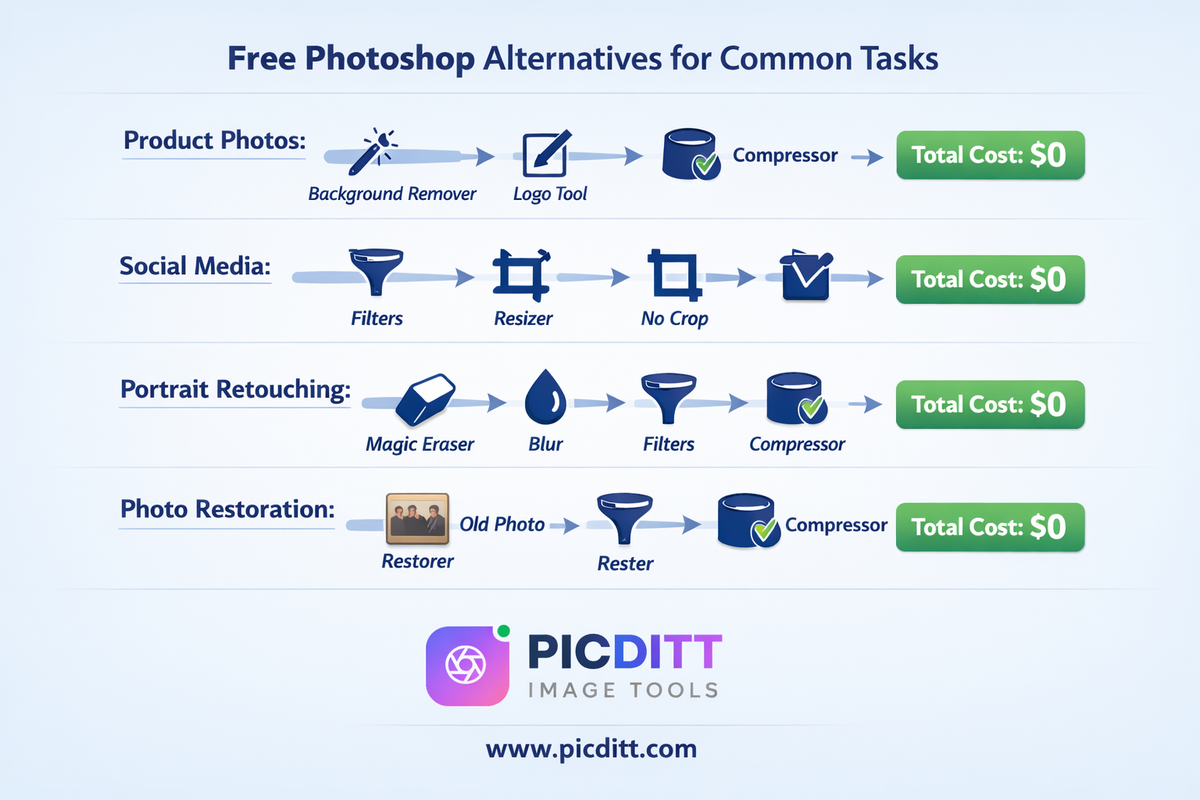
Workflow 1: Product Photo Preparation (E-Commerce)
Old workflow (Photoshop): Open in Photoshop → Select Subject → Remove Background → Add to Template → Add Watermark → Export → $54.99/month
New free workflow:
- Background Remover → Remove background (2 seconds)
- Add Logo & Text → Add your watermark or logo
- Image Compressor → Compress to web-optimized WebP
- Total cost: $0
Workflow 2: Social Media Content Creation
Old workflow (Photoshop): Create document → Place image → Apply filter → Resize for platform → Export → $54.99/month
New free workflow:
- Photo Filters → Apply your preferred filter style
- Image Resizer → Resize to platform specifications
- Instagram No Crop → Format for Instagram
- Total cost: $0
Workflow 3: Portrait Retouching
Old workflow (Photoshop): Open portrait → Healing Brush → Background blur → Color grade → Export → $54.99/month
New free workflow:
- Magic Eraser → Remove blemishes and distractions
- Blur Tool → Apply background blur
- Photo Filters → Color grade and enhance
- Image Compressor → Export optimized
- Total cost: $0
Workflow 4: Old Photo Restoration
Old workflow (Photoshop): Neural Filters → Photo Restoration → Colorize → Manual touch-up → Export → $54.99/month
New free workflow:
- Old Photo Restorer → AI restoration and colorization
- Image Compressor → Export at optimal quality
- Total cost: $0
When You Actually Need Photoshop
In the spirit of complete honesty, here are the use cases where Photoshop genuinely cannot be replaced by free browser tools:
Professional non-destructive layer editing: Photoshop's layer-based editing allows complex compositions to be modified at any point. Free browser tools generally apply edits destructively.
Advanced compositing: Combining multiple images into seamless composites — visual effects, conceptual photography, advertising imagery — requires Photoshop's precision masking and blending tools.
Print production: Professional print workflows require Photoshop's CMYK color mode, precise DPI control, and professional color profile management.
Raw file processing: While free tools handle JPEGs and common formats excellently, photographers working in RAW formats (CR2, NEF, ARW) for professional shoots benefit from Photoshop's Camera Raw processing.
Advanced typography and design: Precise typographic control, custom shapes, and complex design layouts are better handled in Photoshop or its dedicated alternatives (Illustrator, InDesign).
If your work regularly involves these professional-level tasks, Photoshop may be worth the subscription. If it does not — and for the majority of users it does not — the free tools in this guide are more than sufficient.
Frequently Asked Questions
Are these free tools as good as Photoshop for everyday editing?
For the tasks covered in this guide — background removal, object removal, filters, upscaling, blur effects, photo restoration, watermarking, resizing, and compression — the free tools produce results that are equivalent to Photoshop for the vast majority of use cases. For the most demanding professional work requiring pixel-level precision, Photoshop's manual control still has advantages.
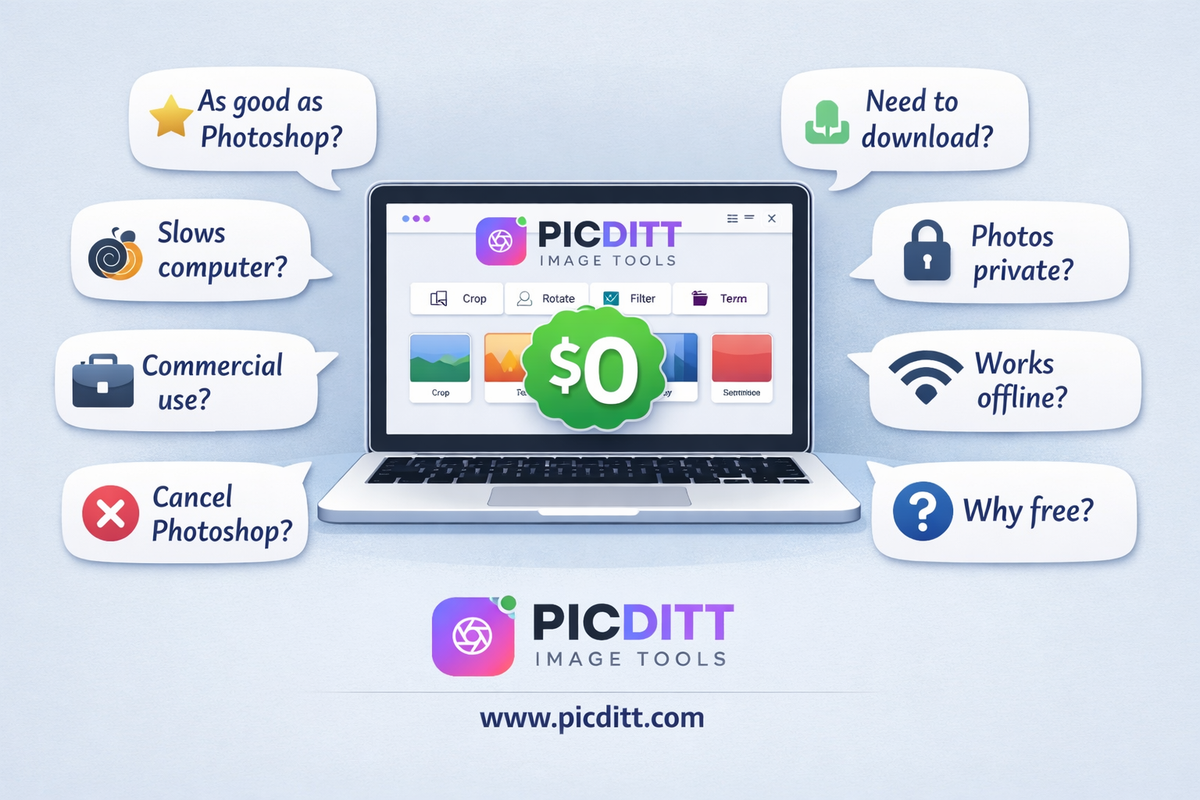
Do I need to download anything to use these tools?
No. Every tool runs entirely in your web browser using WebAssembly and JavaScript. No download, no installation, and no account creation required. Open the URL and start editing immediately.
Will using these tools slow down my computer?
No more than any other browser tab. AI-powered tools like the background remover and upscaler do use more CPU and RAM than simpler operations — processing a large image may take a few seconds — but this is comparable to Photoshop's processing time for the same operation.
Are my photos private when using these tools?
Yes. All tools process 100% in your browser. Your images are loaded into browser memory and never transmitted to any server. You can verify this by opening your browser's network inspector while using any tool — no image upload request will appear. This makes the free tools more private than Adobe's web-based tools, which upload your images to Adobe's servers.
Can I use these tools commercially?
Yes. All tools are free for commercial use with no attribution requirements, no watermarks on output, and no licensing restrictions on how you use the results.
What is the catch — why are these tools free?
The tools are supported by advertising displayed on the tool pages. Your data is never sold or monetized — it never reaches the server in the first place. The business model is advertising revenue, not data collection.
Can I cancel my Photoshop subscription immediately?
Check your Adobe subscription terms first — canceling mid-cycle may incur an early termination fee. Plan your cancellation for the end of your current billing period. Adobe's cancellation process: account.adobe.com → Plans & Payment → Manage Plan → Cancel Plan.
Final Thoughts: $659 Per Year Is Optional
Adobe Photoshop is exceptional software. For professional photographers, graphic designers, visual effects artists, and print production specialists, the subscription is justified by genuine professional requirements.
For everyone else — the small business owner editing product photos, the content creator enhancing social media images, the blogger adding watermarks, the professional preparing documents, the person restoring family memories — the free browser-based alternatives covered in this guide produce equivalent results at zero cost.
The tools are ready. The AI has caught up. The only thing left is the decision to stop paying for a subscription you do not fully use.
Start with whichever task you need most:
You Might Also Like
How to Make a Passport Photo at Home Free — Meets Official Requirements for 50+ Countries
Paying $15–$25 at a pharmacy for a passport photo that you could make at home in two minutes for free is one of the most unnecessary expenses in modern life. This complete guide covers official passport photo requirements for 50+ countries, the most common mistakes that get photos rejected, how to take a perfect passport photo at home, and how to use the free Picditt Passport Photo Maker to create, adjust, and download print-ready photos privately — without uploading your image to any server.
Read More →
Make Your Photos Look Professional: How to Blur Backgrounds Online (Free Bokeh-Style Look)
Learn how to blur backgrounds for a clean “portrait mode” look—or blur faces, text, and license plates for privacy. Use Picditt’s Blur Image Online tool to get professional blur effects instantly, fully in your browser.
Read More →
Magic Eraser Online: How to Remove Unwanted Objects from Photos with AI
Photobombers, power lines, watermarks, blemishes—every photo has something you wish wasn't there. Learn how to use PicDitt's free Magic Eraser to brush over any unwanted object and watch AI remove it seamlessly, all directly in your browser with complete privacy.
Read More →