Free Alternatives to Adobe Acrobat: Do Everything You Need With PDF Files for Free
Free Alternatives to Adobe Acrobat: Do Everything You Need With PDF Files for Free
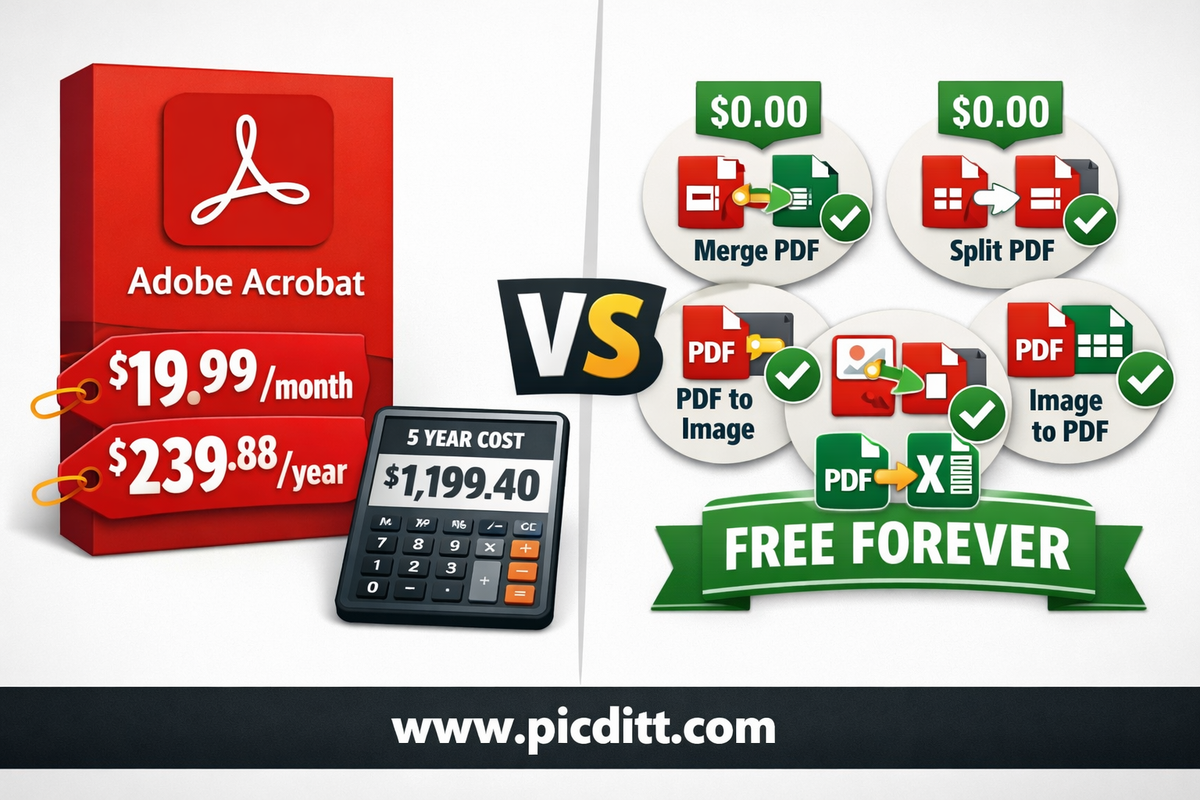
Adobe Acrobat costs $239.88 per year.
That is nearly twenty dollars every single month for software that most users need for five specific tasks: merging PDFs, splitting pages, converting images to PDF, exporting PDF pages as images, and extracting data from PDF tables.
Every one of those tasks can be done completely free. Right now. In your browser. Without installing anything, creating an account, or uploading your documents to a stranger's server.
Adobe knows this. Their business model depends on you not knowing it.
This guide breaks down every major PDF task that drives people to pay for Adobe Acrobat, shows you the free alternative for each one, and explains why the free tools are often more private and more convenient than Adobe's paid product.
Why Adobe Acrobat Is Overkill for Most Users
Adobe Acrobat Pro is a genuinely powerful tool. It offers advanced OCR, form creation, digital signatures, redaction, accessibility checking, and dozens of professional features that serious document professionals use daily.
But surveys of Acrobat users consistently show that the vast majority use it for a small subset of features:
- Merging multiple PDFs into a single document
- Splitting a PDF into individual pages or extracting specific pages
- Converting images to PDF format
- Exporting PDF pages as image files
- Extracting data from PDF tables into spreadsheets
If this describes your PDF usage — and it describes the majority of casual and professional users — you are paying $239.88 per year for features that are available free without limitations.
The Privacy Problem With Adobe Acrobat Online
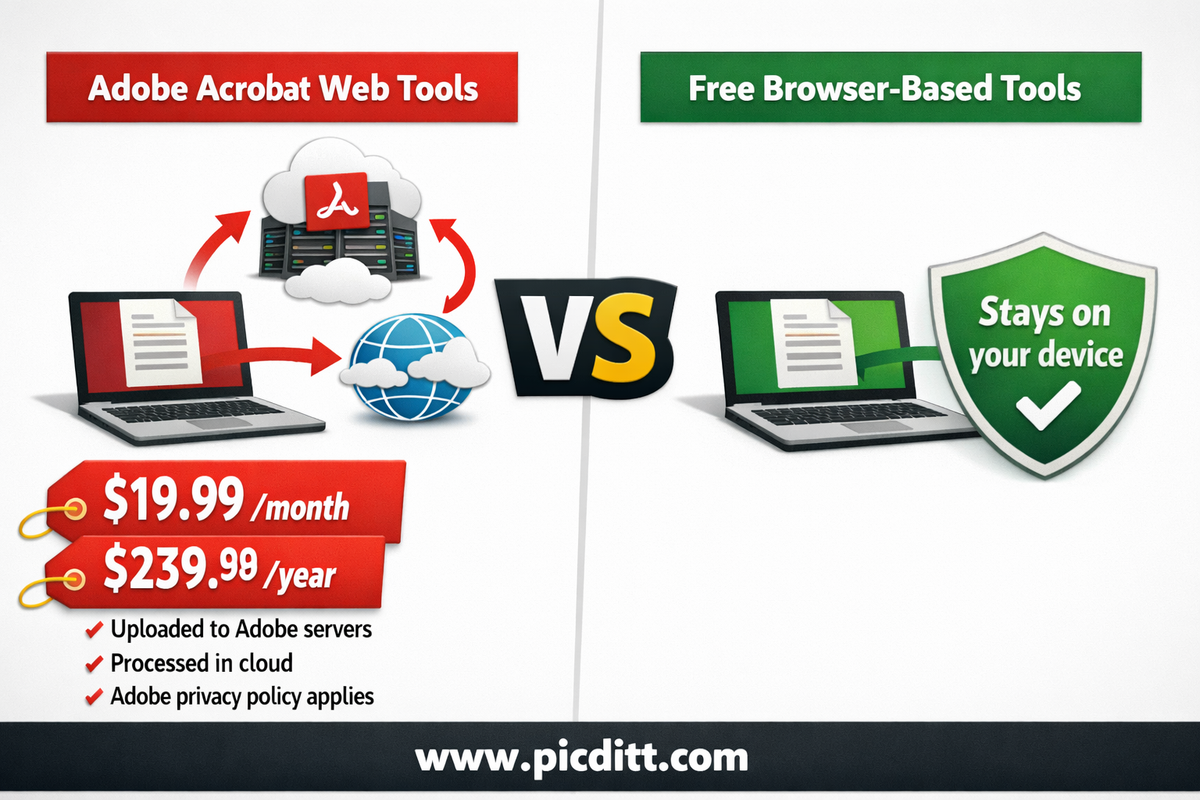
Adobe's web-based tools — the ones accessible without the desktop installation — upload your documents to Adobe's servers for processing. This creates a privacy concern that many users overlook:
- Your documents are transmitted to Adobe's cloud infrastructure
- Adobe's privacy policy grants them rights to process and analyze uploaded content
- Documents containing confidential business information, personal data, or sensitive content leave your device
For casual users this may not matter. For professionals handling client documents, financial records, legal papers, or any content subject to confidentiality obligations, uploading to Adobe's servers is a significant issue.
The free tools covered in this guide process everything 100% in your browser. Your PDF files never leave your device.
Free Alternative 1: Merge PDF Files Free
Replaces: Adobe Acrobat's Combine Files feature ($19.99/month)
Free tool: Picditt Merge PDF
What Adobe Charges You For
Adobe Acrobat's "Combine Files" feature lets you drag multiple PDF files into a single merged document. This is one of the most-used Acrobat features — and one of the most aggressively paywalled. Without an Acrobat subscription, you cannot merge PDFs in Adobe's tools.
The Free Alternative
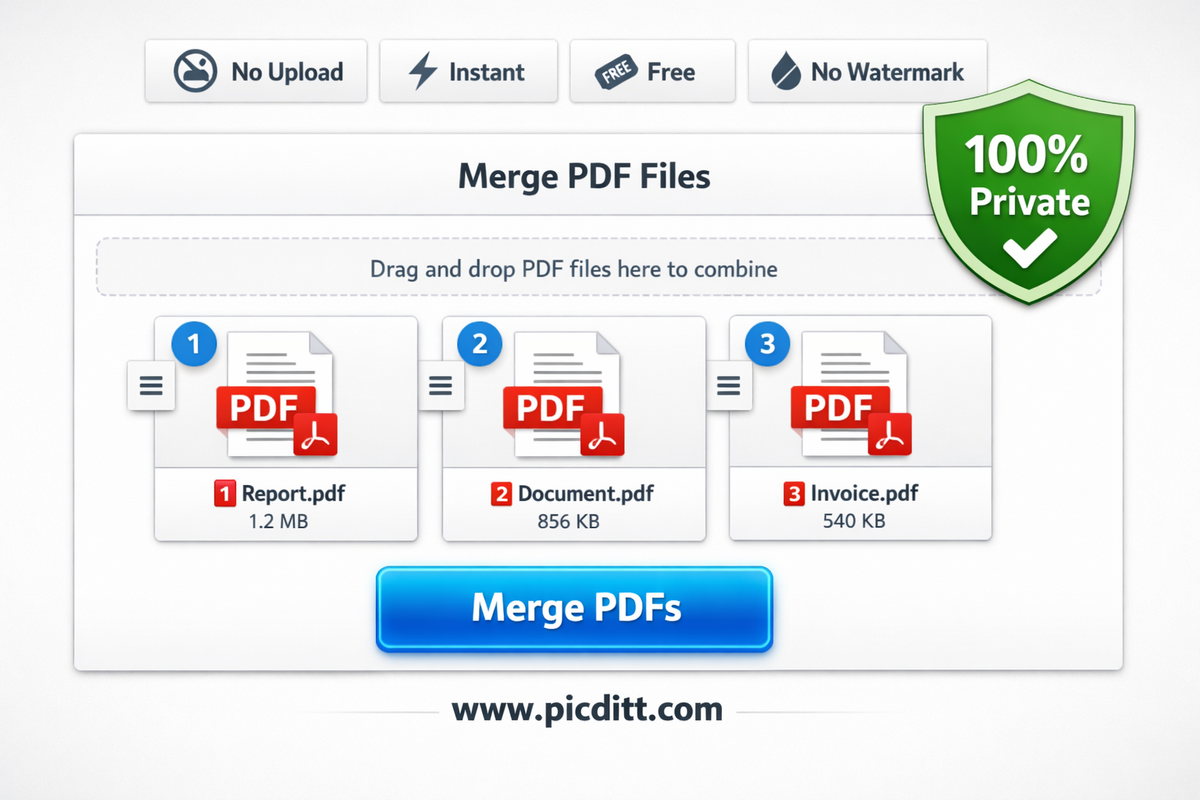
The Picditt Merge PDF tool combines multiple PDFs into a single document in seconds. The entire process happens locally in your browser — no uploads, no waiting for server processing.
How it works:
- Go to
picditt.com/pdf-tools/merge-pdf - Drag and drop your PDF files onto the interface
- Reorder files by dragging thumbnails into your preferred sequence
- Click merge
- Download your combined PDF instantly
Key advantages over Adobe:
- Completely free — no subscription, no per-document limit
- 100% private — files never leave your device
- Faster — no upload wait time, instant local processing
- No account required — start merging immediately
- No watermarks — the output PDF is completely clean
Best for: Combining multiple reports into one document, merging scanned pages, combining contracts and attachments, assembling portfolio documents.
Free Alternative 2: Split PDF and Extract Pages Free
Replaces: Adobe Acrobat's Organize Pages and Extract Pages features ($19.99/month)
Free tool: Picditt Split PDF
What Adobe Charges You For
Adobe Acrobat's page organization tools let you split a PDF into individual pages, extract specific pages into a new document, delete pages, or rearrange the page order. These are frequently needed tasks — extracting a single contract from a multi-document PDF, pulling specific slides from a report, or separating individual pages from a scanned batch.
The Free Alternative
The Picditt Split PDF tool separates PDF files into individual pages or extracts specific page ranges through a visual interface that shows you each page as a thumbnail before splitting.
How it works:
- Go to
picditt.com/pdf-tools/split-pdf - Upload your PDF file
- View page thumbnails and select which pages to extract
- Choose to split all pages individually or extract specific page ranges
- Download individual page files or a ZIP bundle
Key features:
- Visual page selection — see thumbnails of every page before splitting
- Flexible splitting — split all pages, extract specific pages, or define custom ranges
- Works offline — after the page loads, internet is not required for processing
- No upload required — all splitting happens in your browser
- No watermarks — extracted pages are completely clean
Best for: Extracting specific contract clauses, pulling individual pages from scanned documents, separating multi-section reports, creating page-by-page archives.
Free Alternative 3: Convert Images to PDF Free
Replaces: Adobe Acrobat's Create PDF from Image feature ($19.99/month)
Free tool: Picditt Image to PDF
What Adobe Charges You For
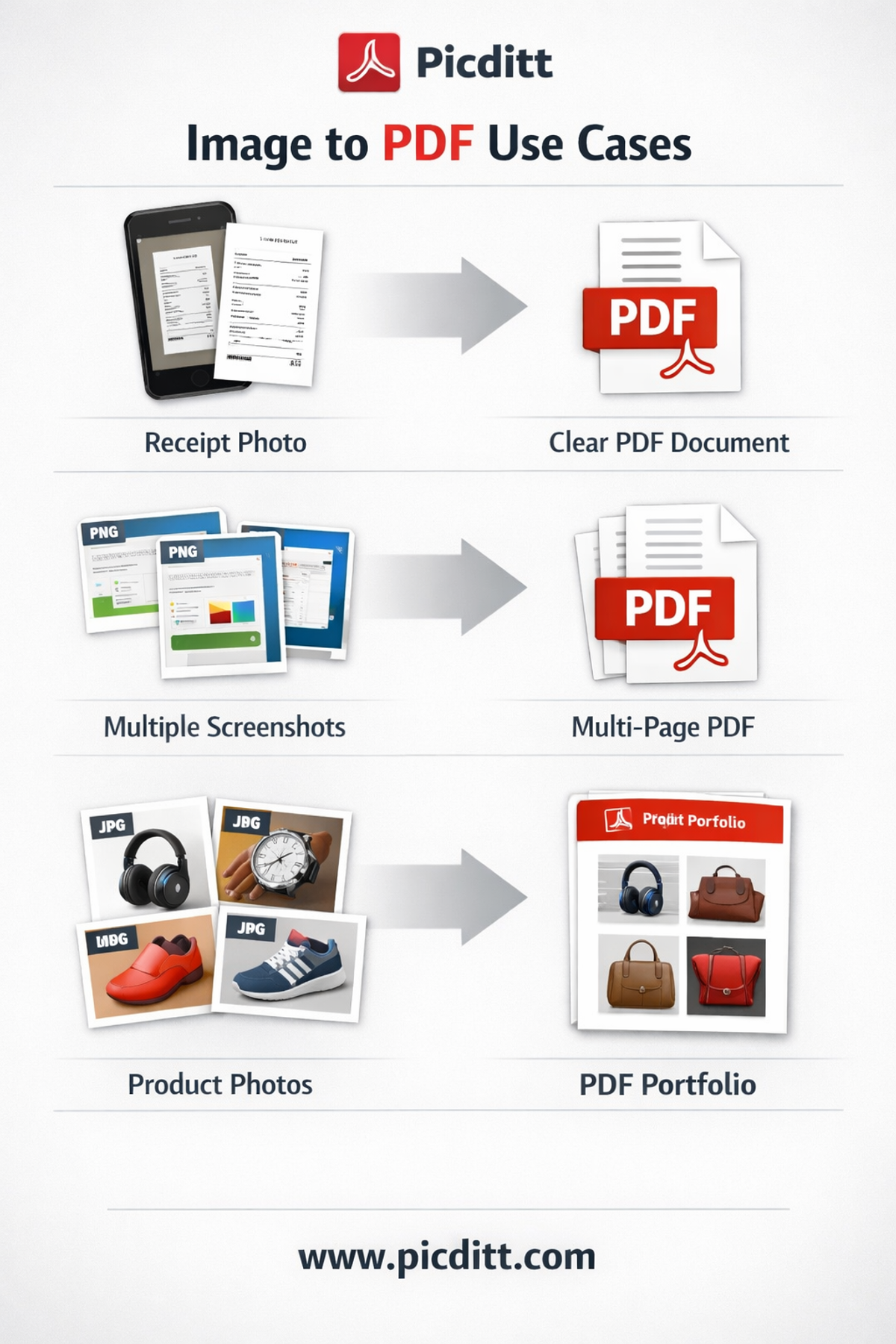
Creating a PDF from images — photos, screenshots, scans — is a fundamental document workflow. Adobe Acrobat charges subscription users for this capability. Combining multiple images into a single, professionally formatted PDF document requires either an Acrobat subscription or their limited free tools.
The Free Alternative
The Picditt Image to PDF converter transforms photos, screenshots, and images into professional PDF documents instantly. Combine multiple images, customize page size and margins, and download a clean PDF — all processed securely in your browser.
How it works:
- Go to
picditt.com/pdf-tools - Upload one or more images (JPG, PNG, WebP and more)
- Arrange the image order if combining multiple images
- Customize page size, orientation, and margins
- Download your PDF instantly
Key features:
- Multiple images — combine dozens of images into a single PDF
- Page customization — set page size, orientation, and margins
- High quality output — images render at full resolution in the PDF
- Fast processing — browser-based conversion completes in seconds
- Unlimited use — no daily limits or document count restrictions
Best for: Converting scanned documents to PDF, combining photo batches into portfolio documents, creating PDF reports from screenshots, digitizing printed materials.
Free Alternative 4: Convert PDF to Images Free
Replaces: Adobe Acrobat's Export PDF as Image feature ($19.99/month)
Free tool: Picditt PDF to Image
What Adobe Charges You For
Exporting PDF pages as high-resolution images — JPG, PNG, or WebP — is a common need for designers, marketers, and content creators. Adobe Acrobat's export feature produces high-quality image exports but requires a subscription. The free Adobe Reader cannot export pages as images at all.
The Free Alternative
The Picditt PDF to Image converter transforms PDF pages into high-resolution images with customizable quality settings. Extract single pages or convert entire documents in one operation.
How it works:
- Go to
picditt.com/pdf-tools/pdf-to-image - Upload your PDF file
- Select which pages to convert — single page, page range, or all pages
- Choose output format: JPG, PNG, or WebP
- Set your preferred quality level
- Download individual images or a ZIP bundle
Key features:
- Multiple formats — JPG for smaller files, PNG for lossless quality, WebP for web use
- Quality control — adjust compression from low to maximum quality
- Batch conversion — convert all pages in one operation
- High resolution — output suitable for professional printing and presentation
- Instant processing — no queue, no waiting for server processing
Best for: Extracting images from design documents, creating social media graphics from PDF slides, converting PDF presentations to editable images, extracting charts and diagrams from reports.
Free Alternative 5: Extract PDF Table Data to Excel Free
Replaces: Adobe Acrobat's Export PDF to Excel feature ($19.99/month)
Free tool: Picditt PDF to Excel
What Adobe Charges You For
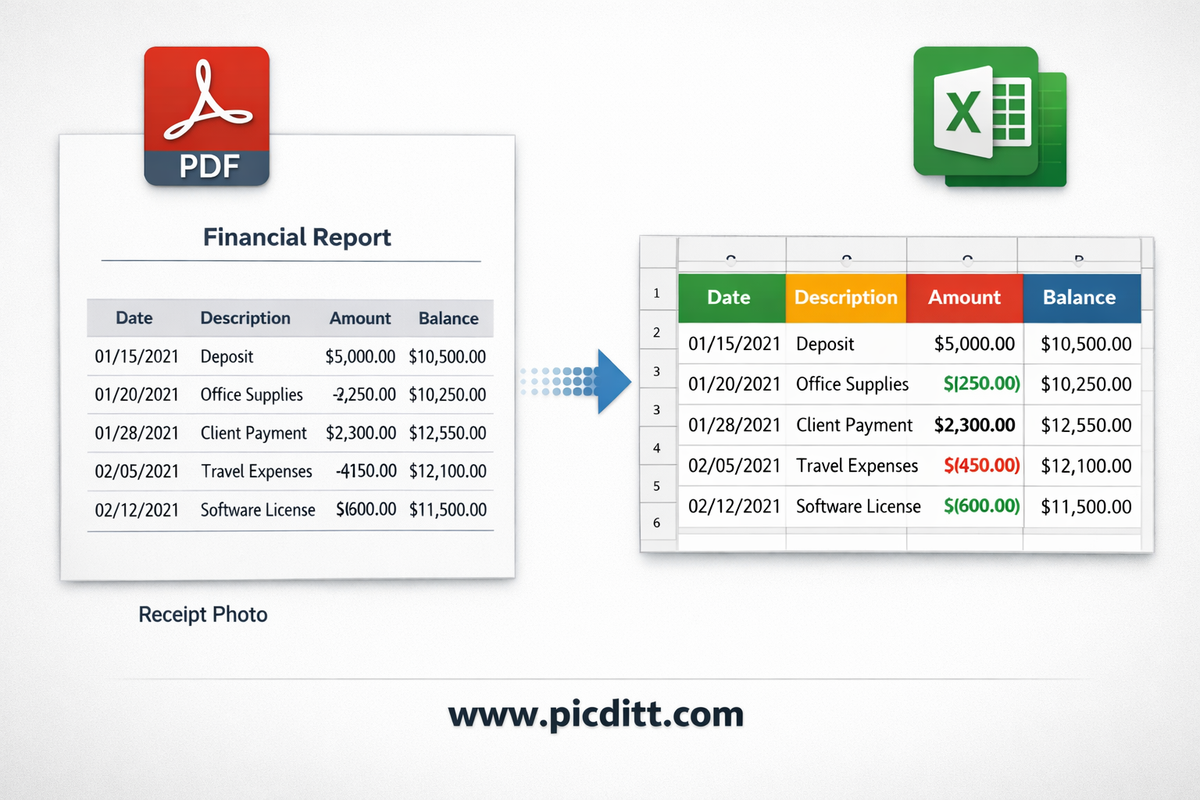
Extracting data tables from PDF documents into editable Excel spreadsheets is one of the most valuable PDF features for business users. Financial statements, inventory reports, pricing tables, and research data locked in PDFs become immediately usable once extracted to Excel. Adobe Acrobat charges for this capability — and charges significantly.
The Free Alternative
The Picditt PDF to Excel converter uses a smart parser to detect text columns and rows in PDF documents and extract them into properly formatted Excel spreadsheets — instantly and privately.
How it works:
- Go to
picditt.com/pdf-tools/pdf-to-excel - Upload your PDF containing tables or structured data
- The smart parser analyzes column and row structure
- Review the extracted data in the preview
- Download as Excel (.xlsx) or CSV
Key features:
- Smart table detection — automatically identifies column and row boundaries
- Multiple tables — extracts all tables found in the document
- Excel and CSV output — choose the format that works for your workflow
- Preview before download — verify extraction accuracy before saving
- Handles complex layouts — works with multi-column and merged cell tables
Best for: Extracting financial data from bank statements, pulling inventory data from supplier PDFs, converting research data tables for analysis, extracting pricing from vendor documents.
Side-by-Side Comparison: Adobe Acrobat vs Free Tools
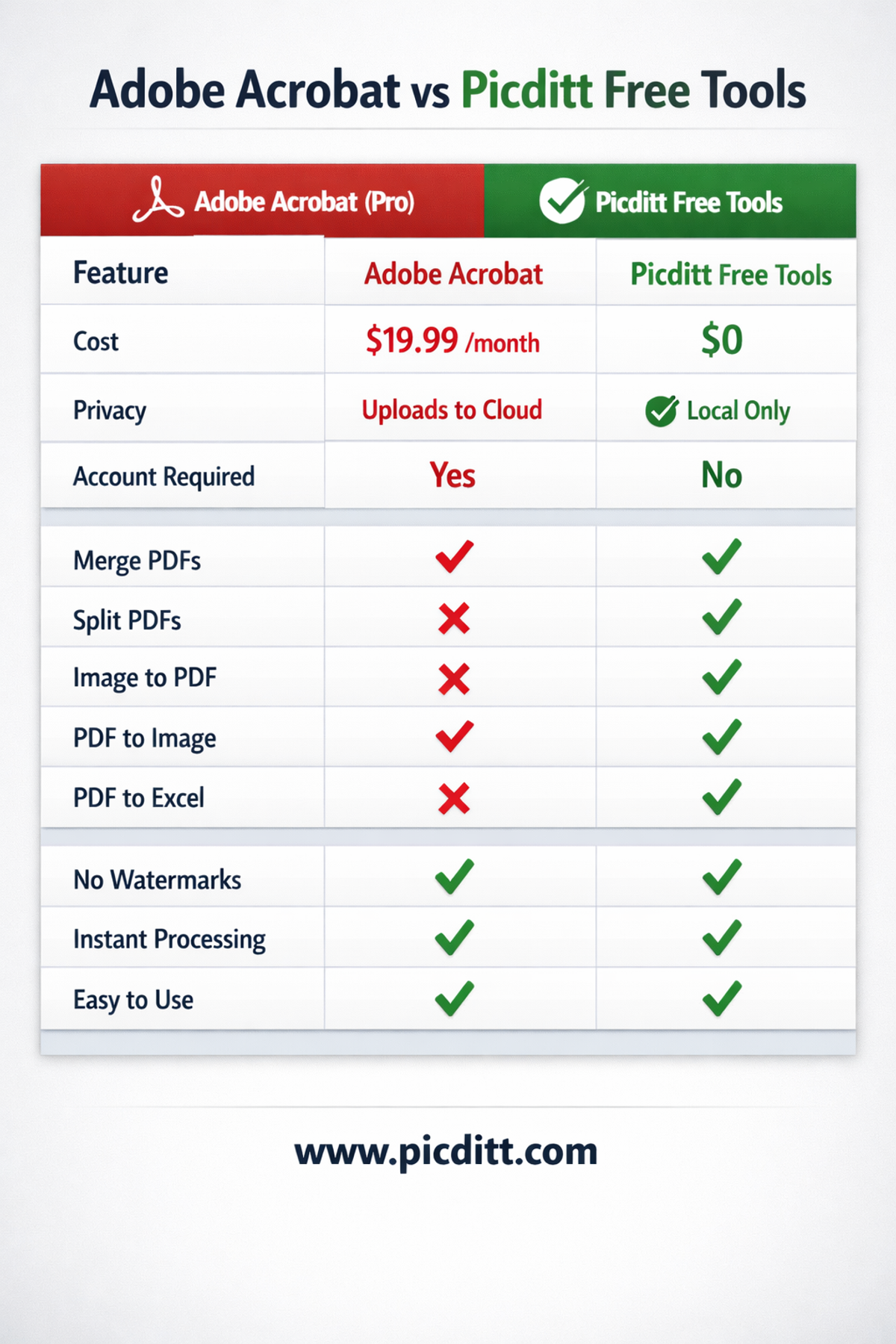
Feature
Adobe Acrobat Pro
Picditt Free Tools
Monthly cost
$19.99/month
$0
Annual cost
$239.88/year
$0
Merge PDFs
✅ Yes
✅ Yes
Split PDFs
✅ Yes
✅ Yes
Image to PDF
✅ Yes
✅ Yes
PDF to Image
✅ Yes
✅ Yes
PDF to Excel
✅ Yes
✅ Yes
File uploads to server
❌ Yes (cloud processing)
✅ No (local only)
Account required
❌ Yes
✅ No
Watermarks on output
✅ No
✅ No
Works offline
❌ Partial
✅ Yes
File size limits
❌ 2GB (free tier limited)
✅ Generous limits
Daily usage limits
❌ Limited on free tier
✅ Unlimited
Privacy
❌ Cloud uploads
✅ 100% local
When Adobe Acrobat Is Actually Worth It
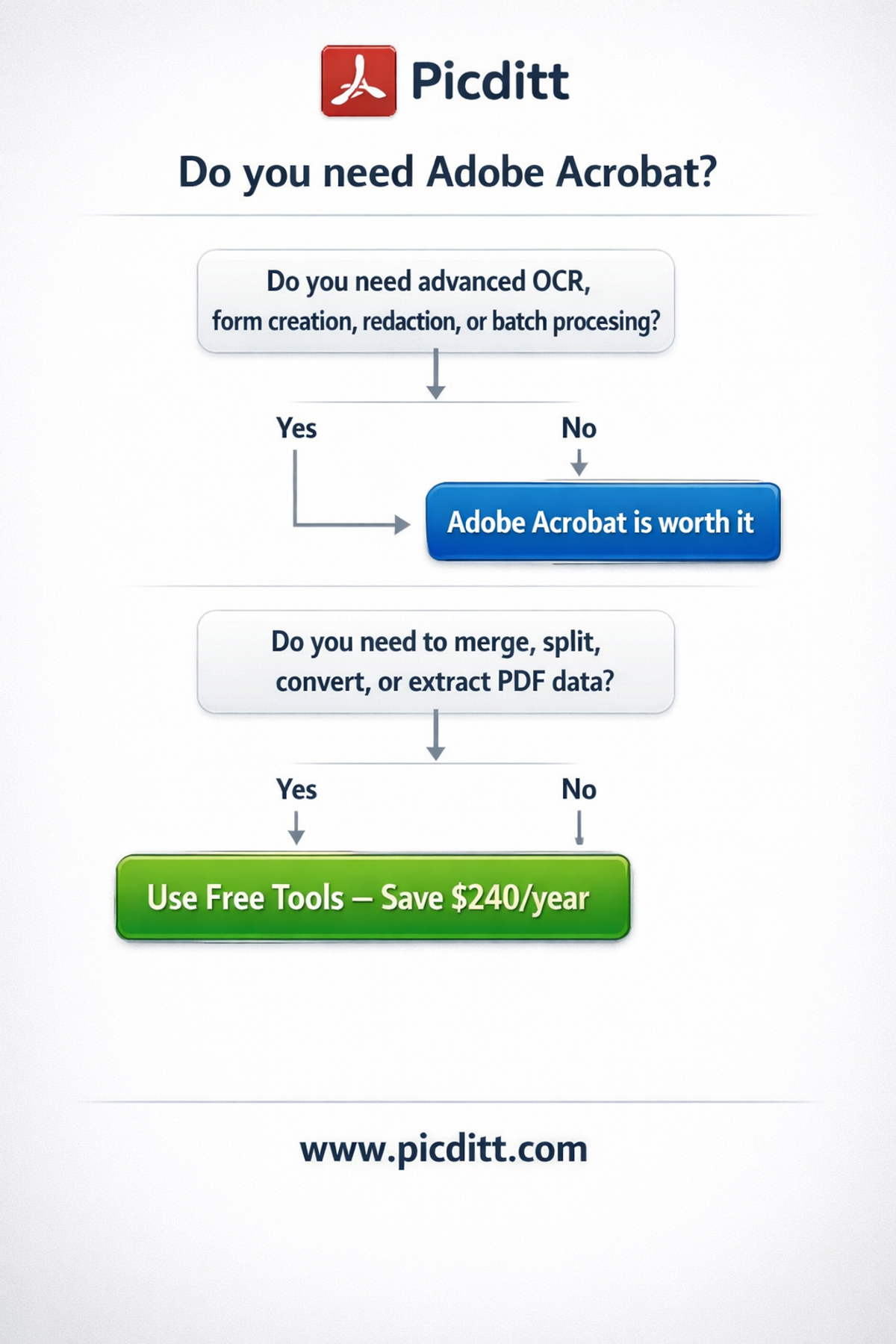
In the spirit of complete honesty, there are legitimate reasons to pay for Adobe Acrobat. If your workflow requires any of the following, the free alternatives genuinely cannot replace it:
Advanced OCR for scanned documents: Adobe's OCR engine for converting scanned page images into searchable, editable text is among the best available. The free tools covered in this guide do not offer this capability.
PDF form creation: Creating interactive PDF forms with fillable fields, dropdown menus, checkboxes, and digital signature fields requires Acrobat's form authoring tools. Free alternatives exist but are more limited.
Redaction: Permanently removing sensitive information from PDFs (so that it cannot be recovered) requires Acrobat's professional redaction tools. This is critical for legal, government, and healthcare document workflows.
PDF/A and accessibility compliance: Creating PDFs that meet specific archival standards (PDF/A) or accessibility requirements (tagged PDFs for screen readers) typically requires Acrobat's professional tools.
Batch processing: Processing hundreds of PDFs automatically using Acrobat's action wizard has no direct free equivalent for high-volume professional workflows.
If your needs fall into any of these categories — Acrobat is worth the price. If they do not, you are paying for features you never use.
How to Transition Away From Adobe Acrobat
If you currently pay for Adobe Acrobat and want to stop, here is a practical transition plan.
Step 1: Audit Your Actual Acrobat Usage
Before canceling, spend one week noting every time you use Acrobat and what feature you used. This gives you a clear picture of which tasks you actually need.
Step 2: Test Free Alternatives for Each Task
For each task in your audit, test the corresponding free tool. Verify that the output quality meets your requirements. Most users find the free tools more than adequate for their actual workflows.
Step 3: Bookmark Your Free Tools
Save the following pages:
- Merge PDF:
picditt.com/pdf-tools/merge-pdf - Split PDF:
picditt.com/pdf-tools/split-pdf - Image to PDF:
picditt.com/pdf-tools - PDF to Image:
picditt.com/pdf-tools/pdf-to-image - PDF to Excel:
picditt.com/pdf-tools/pdf-to-excel
Step 4: Cancel Your Acrobat Subscription
Adobe's cancellation process:
- Go to
account.adobe.com - Sign in and go to Plans & Payment
- Click Manage Plan
- Select Cancel Plan
- Note: Canceling mid-cycle may incur an early termination fee — check your plan terms
Step 5: Handle the Features Free Tools Cannot Replace
If your audit revealed needs that free tools cannot meet (OCR, forms, redaction), research these alternatives:
- PDF-XChange Editor — affordable desktop alternative with advanced features
- LibreOffice Draw — free, handles basic PDF editing
- Sejda PDF — browser-based with some advanced features
Frequently Asked Questions
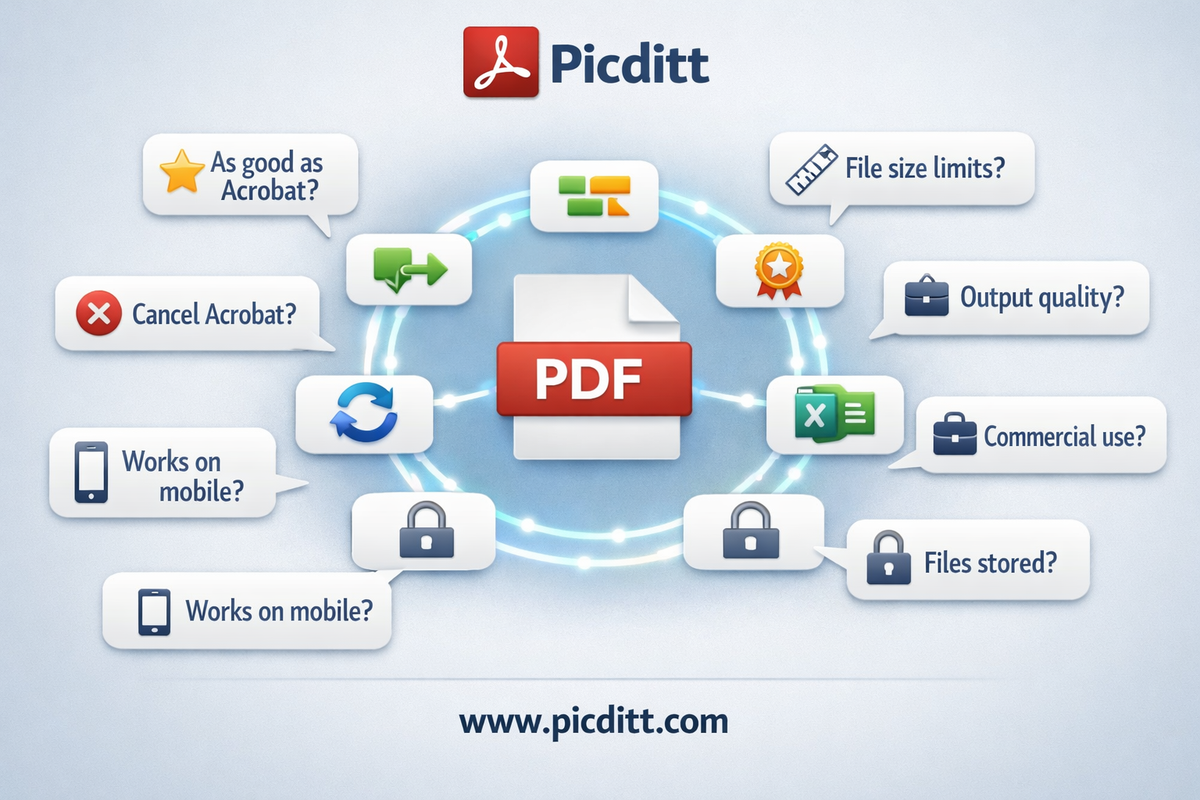
Are these free PDF tools as good as Adobe Acrobat for everyday tasks?
For the five tasks covered in this guide — merging, splitting, image to PDF, PDF to image, and table extraction — yes. The output quality is equivalent and in some cases superior since local processing eliminates compression from server-side conversion. The free tools do not match Acrobat for advanced features like OCR, form creation, and redaction.
Do these tools have file size limits?
Each tool supports files up to the browser's available memory — typically sufficient for standard business documents. The Merge PDF and Split PDF tools handle multi-hundred-page documents without difficulty. Very large files (hundreds of MB) may process more slowly on devices with limited RAM.
Is the output quality of free PDF conversions as good as Adobe Acrobat?
For PDF to image conversion, quality is determined by the resolution setting you choose — the free tools allow high-resolution output equivalent to Acrobat's export. For PDF to Excel extraction, accuracy depends on how clearly structured the source PDF table is — both Acrobat and free tools perform similarly on clean, well-structured tables.
Can I use these tools for commercial purposes?
Yes. All Picditt tools are free for commercial use with no restrictions. There are no watermarks, no attribution requirements, and no limitations on commercial application.
What happens to my PDF files after I use these tools?
Nothing — because they never leave your device. All processing happens locally in your browser. When you close the browser tab, the file data is cleared from memory. No copy exists anywhere other than your own device.
Can I merge password-protected PDFs?
Password-protected PDFs cannot be processed without first removing the password protection. You need to unlock or remove the password from PDFs before merging, splitting, or converting them.
Do these tools work on mobile phones?
Yes. All tools are responsive and work in mobile browsers. Uploading PDFs from your phone's file storage, Google Drive, or iCloud Drive is supported. Processing happens locally on your phone's processor — larger files may take slightly longer on mobile devices compared to desktop computers.
Final Thoughts: $240 Per Year Is Optional
Adobe Acrobat is excellent software. It is also completely unnecessary for the majority of people who pay for it.
If you merge PDFs, split documents, convert images to PDF, export PDF pages as images, or extract table data — you have five free, private, unlimited alternatives available right now. No subscription. No account. No uploads to anyone's server. No watermarks on your output.
The five tools covered in this guide collectively replace the features that drive the majority of Adobe Acrobat subscriptions — at zero cost, with better privacy, and without the friction of software installation or account management.
Start with whichever task you need most:
- Merge PDF Files Free →
- Split PDF Files Free →
- Convert Images to PDF Free →
- Convert PDF to Images Free →
- Extract PDF Tables to Excel Free →
You Might Also Like
How to Convert PDF to High-Resolution JPG, PNG, or WebP Instantly
Need to post a PDF on social media or embed it on a website? Learn how to instantly convert your PDF documents into high-quality JPG, PNG, or WebP images using Picditt's free online converter. All processing happens securely in your browser — your files never leave your device.
Read More →
How to Compress Images to Any Size Online Free — The Complete Guide
Learn how to compress images to any file size online for free. Reduce JPEG, PNG, and WebP photos for email, websites, forms, and social media — without losing visible quality. No signup required.
Read More →
Free Universal Image Converter — Change Any Image Format Online Instantly
Convert images between any format — JPG, PNG, WebP, GIF, HEIC, and BMP — completely free. Batch convert multiple files, adjust quality settings, and download instantly. All processing happens in your browser for complete privacy.
Read More →