Is Your Converter Site Stealing Your Data? Why Local Processing Matters (Privacy Guide)
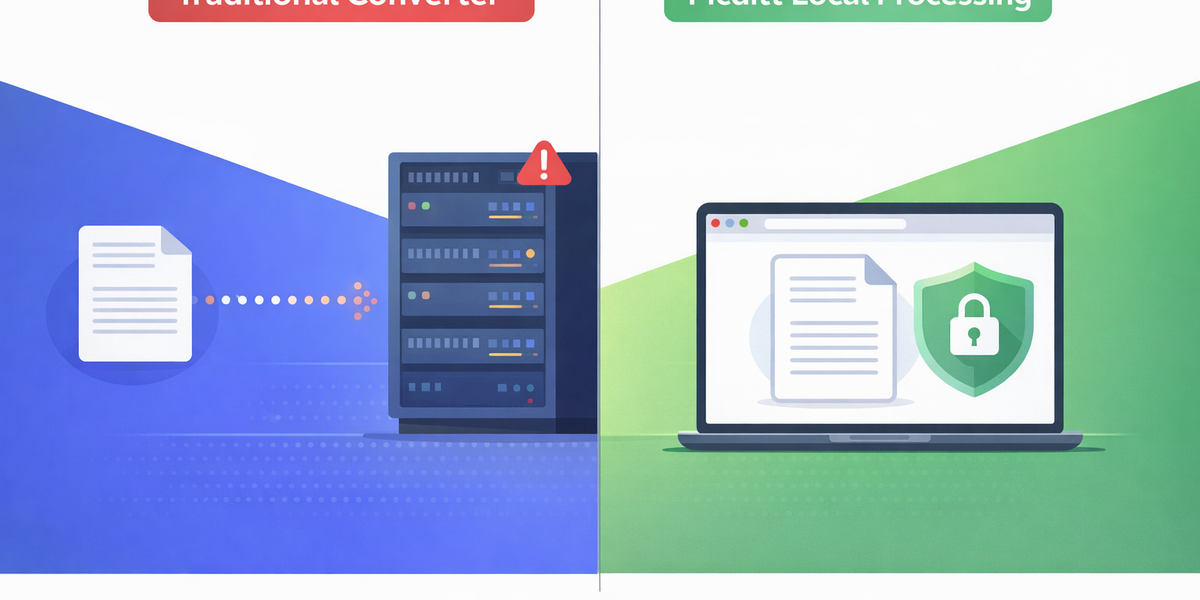
Is Your Converter Site Stealing Your Data? Why Local Processing Matters (Privacy Guide)
If you have ever searched "convert PDF to Word" or "compress image" and clicked the first tool that appeared in the results, you have done what millions of people do every day.
You hit Upload.
The file disappears into a progress bar. A few seconds later, you download the result. Problem solved — right?
Not always. Because that Upload step is the entire privacy risk.
When you upload a file to an online converter, you are not just using a tool. You are transferring your document — often containing sensitive personal or business information — to a server you do not control, operated by a company you likely have never heard of, under terms of service you almost certainly have not read.
This guide explains exactly what happens when you upload files to online converter sites, why that creates real and serious privacy risks, which files you should never upload to any online service, and how every tool on Picditt solves this problem entirely by processing your files locally in your browser — no upload, no server, no risk.
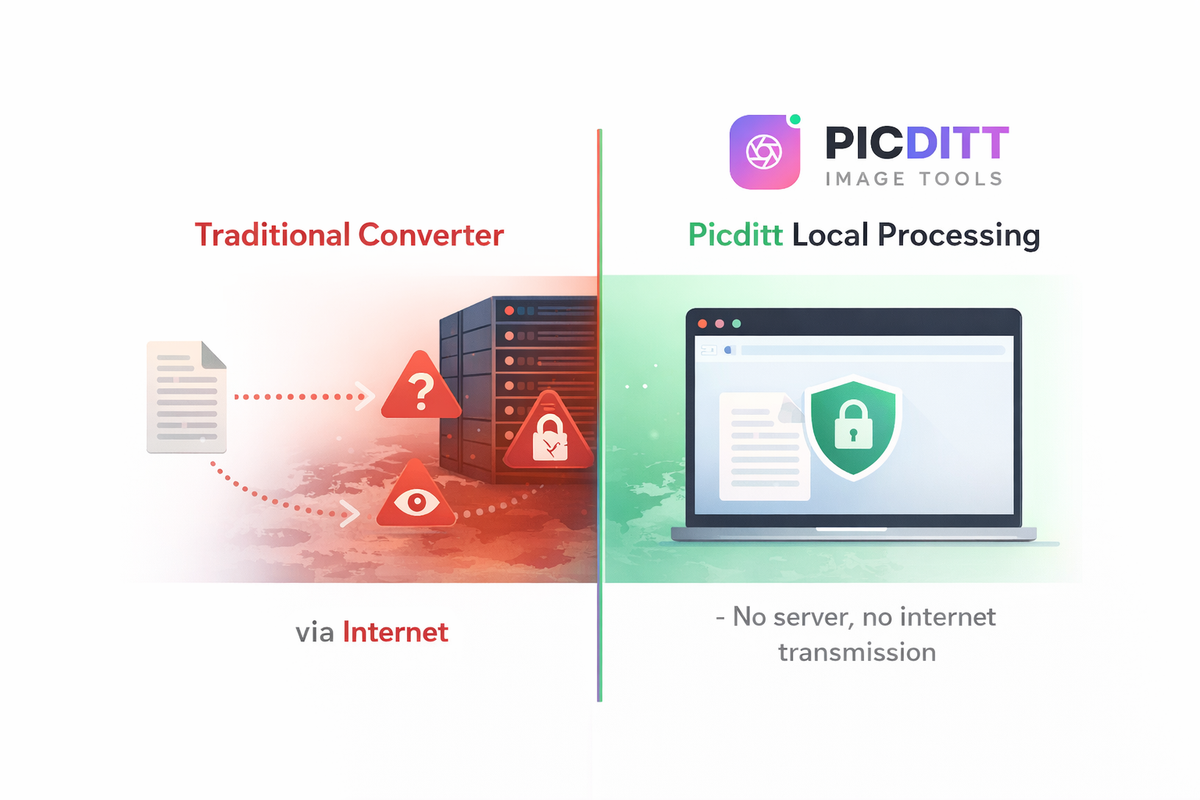
What "Upload" Actually Means — The Full Technical Picture
Most people think of uploading as a neutral, technical step. It is not. Understanding what actually happens technically changes how you think about every converter site you use.
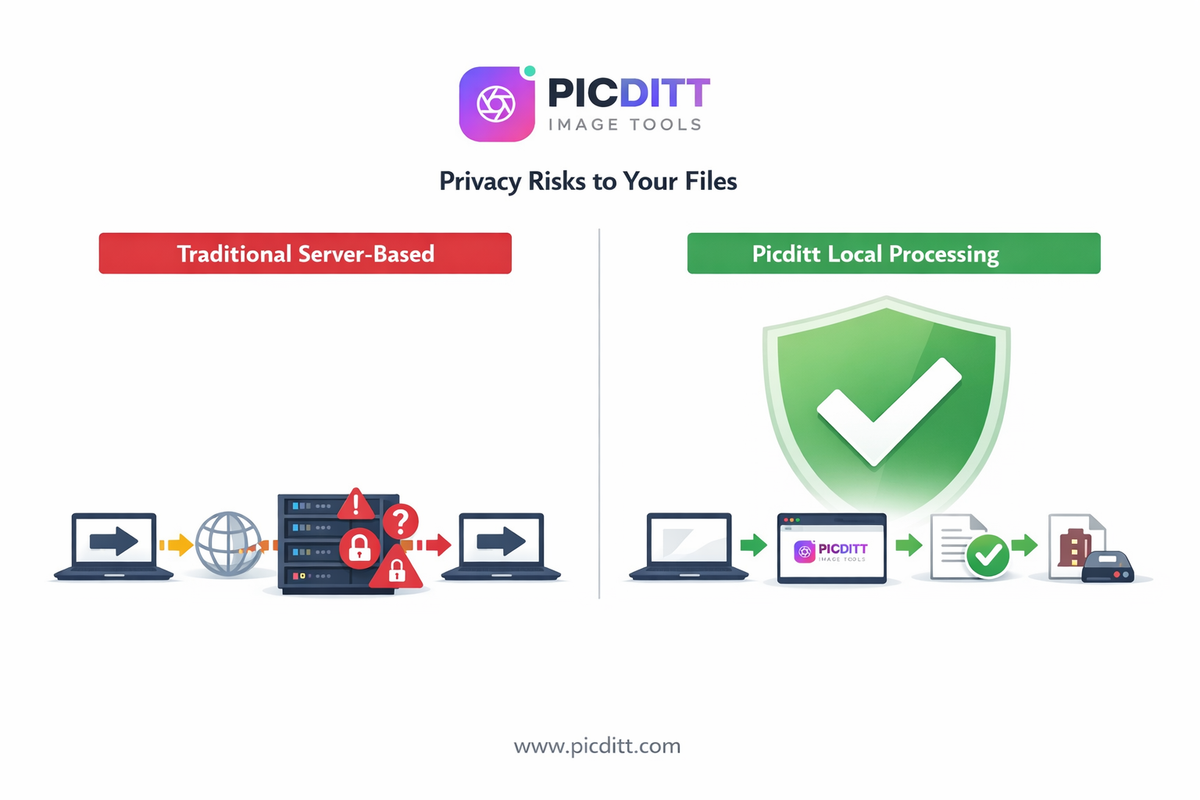
The Traditional Converter Flow
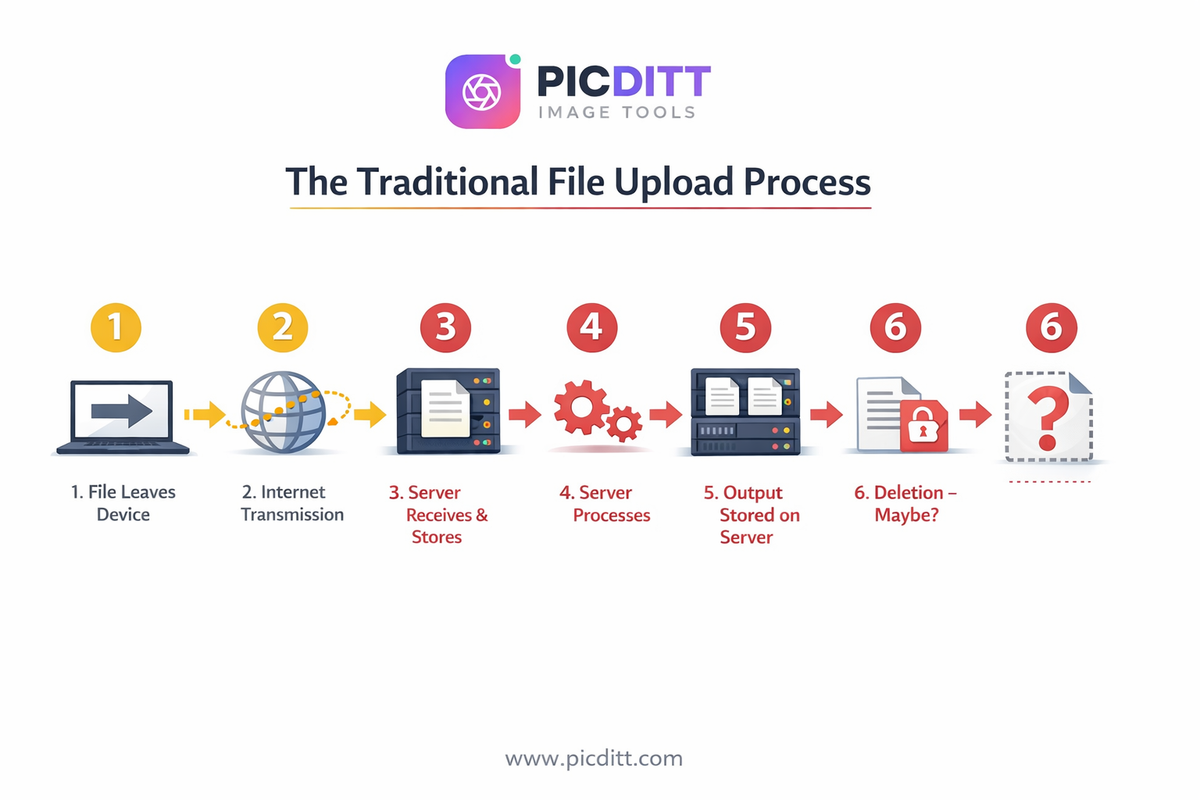
When a website asks you to upload a file, here is what happens step by step:
Step 1 — File Transmission
Your file is broken into data packets and transmitted over the internet from your device to a web server. This transmission typically uses HTTPS encryption, which protects the file in transit. However, encryption during transit does not protect the file once it arrives at the server.
Step 2 — Server Receipt and Storage
The server receives your file and writes it to storage — typically a hard drive or cloud storage bucket. Your file now exists on someone else's hardware. It has left your device and your control.
Step 3 — Server-Side Processing
Software running on the server processes your file — converting, compressing, merging, or extracting content as requested. During this step, server processes have full access to your file's contents.
Step 4 — Output Storage
The processed output file is written to server storage. Now two versions of your file exist on the server — the original upload and the processed output.
Step 5 — Download
You download the output. At this point you have what you needed. But your original file, and often the output, remain on the server.
Step 6 — Deletion (Maybe)
Many sites claim to delete files after a period — commonly one hour, 24 hours, or 7 days. Whether this actually happens, whether it includes server logs and backups, and whether deletion is complete rather than just marking the storage space as available — you have absolutely no way to verify any of this.
The Questions That Actually Matter
Every time you upload to an online converter, ask yourself:
Who owns that server?
Is it a reputable, accountable company with a real business address, privacy policy, and legal obligations? Or is it a disposable domain with no accountability, no physical address, and no clear ownership? Many free converter sites are the latter.
How long is your file stored?
"We delete after 1 hour" is a claim, not a verifiable fact. Server logs, automated backups, and caching systems often retain copies of files long after the primary storage is cleared. You cannot audit their deletion process.
Who has access?
Even with a completely honest company, access to your uploaded files can occur through multiple vectors — employees with database access, misconfigured storage permissions, security breaches, or legal requests from governments.
What are their actual incentives?
Many free converter sites generate revenue through advertising or by monetizing user data. Your uploaded files may contain information that is commercially valuable. Understanding the business model tells you something about how your data is treated.
Are they even who they say they are?
There is no barrier to creating an online file converter. Anyone can deploy a file upload form, run basic conversion software, and collect millions of documents from unsuspecting users. The site looking professional proves nothing.
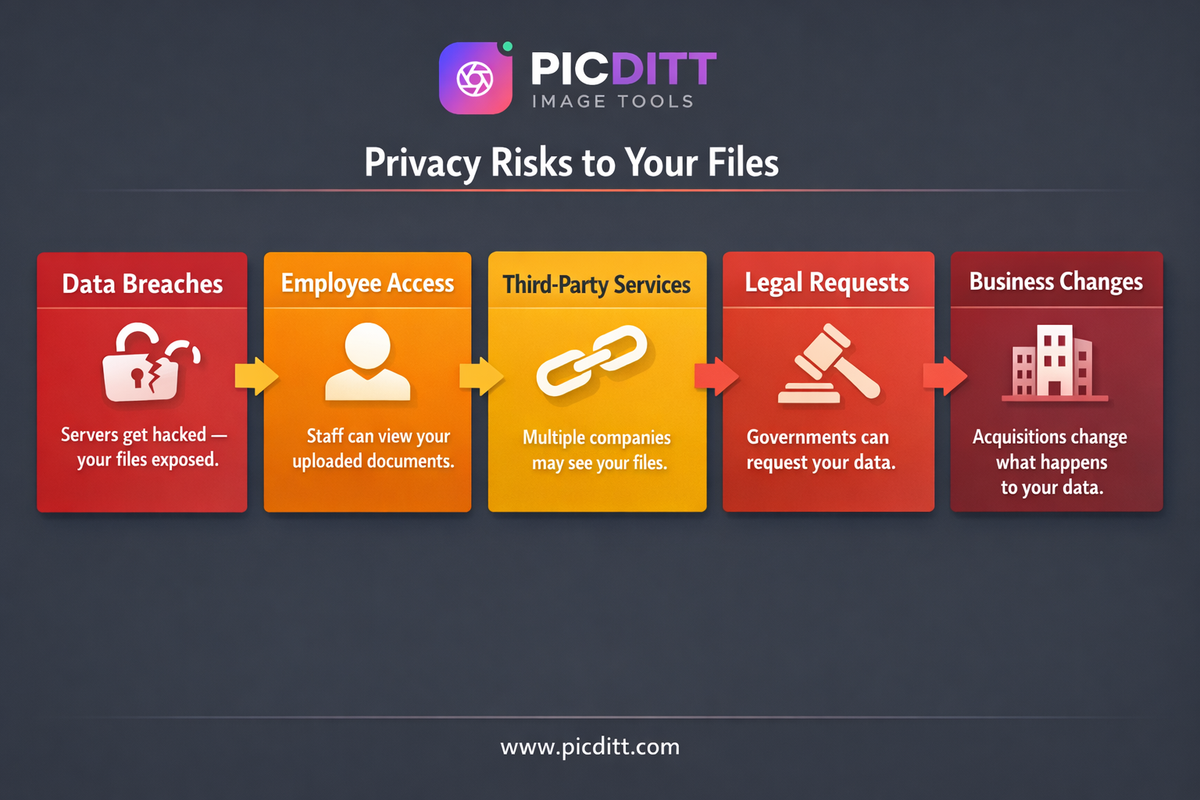
The Real-World Privacy Risks of Online File Converters
Risk 1: Data Breaches
Online services get breached. This is not a hypothetical risk — it is a statistical certainty for services operating at scale over time. When a converter site's database or file storage is compromised, every file uploaded to that service becomes accessible to the attacker.
The risk compounds with file converters because the data is often more sensitive than what people share on social media. Tax documents, bank statements, legal contracts, and government IDs — exactly the files people commonly convert or compress — are high-value targets for identity theft and fraud.
Risk 2: Employee Access
Any server-side processing means employees or contractors of that company can potentially access your files. For large, reputable companies this access is controlled and audited. For the countless small, anonymous file converter sites that dominate search results, there is no way to know what internal access controls exist.
Risk 3: Third-Party Integrations
Many online services use third-party cloud infrastructure (AWS, Google Cloud, Azure), analytics services, and content delivery networks. Your uploaded files may be accessible to multiple third-party services, each with their own data practices and security posture.
Risk 4: Legal Requests
Government agencies in various jurisdictions can request access to data stored on servers. If a converter site stores your files and receives a legal request for user data, your documents could be disclosed without your knowledge.
Risk 5: Business Changes
What happens to your uploaded data when a company is acquired, changes ownership, goes bankrupt, or pivots its business model? Privacy policies can change. Data that was promised to be deleted may be retained as a business asset during an acquisition. This risk is particularly acute with small converter sites that could be sold at any time.
The Solution: Client-Side Local Processing
Client-side processing means your file is processed entirely on your own device — inside your browser — without being uploaded to any server.
How It Works
Instead of the traditional flow:
textYour device → Upload → Server → Process → Download → Server stores
Local processing works like this:
textYour device → Browser loads tool → Browser processes locally → Save output
Your file never leaves your device. No transmission. No server receipt. No storage. No deletion policy to trust or distrust. The file exists only on your hardware throughout the entire process.
The Simple Analogy
Think of it this way.
Server-based processing is like mailing your tax documents to an accountant you found on a random website. They might do exactly what they said. They might not. Either way, your documents left your hands.
Local processing is like doing your taxes yourself with software installed on your own computer. The documents never leave your home. You never have to trust anyone else with their contents.
Both get the job done. Only one keeps your documents entirely in your control.
What Makes Local Processing Possible: WebAssembly
For years, heavy computational tasks like PDF processing, image conversion, and spreadsheet manipulation were done on servers because browsers were too slow for this kind of work. That changed fundamentally with WebAssembly (WASM).
WebAssembly is a technology that allows complex code to run inside your browser at near-native speed — performance that was previously only achievable by software installed directly on your operating system.
WebAssembly enables web applications to behave more like desktop applications, handling demanding tasks like:
- Converting image formats (JPG, PNG, WebP, HEIC)
- Merging and splitting PDF files
- Parsing and converting spreadsheet data
- Extracting text from images using OCR
- Compressing files to specific sizes
- Applying AI-powered image enhancements
All of this can now happen inside your browser, on your device, without any server involvement. This is the technology that makes genuinely private online tools possible.
Files You Should Never Upload to Unknown Online Services
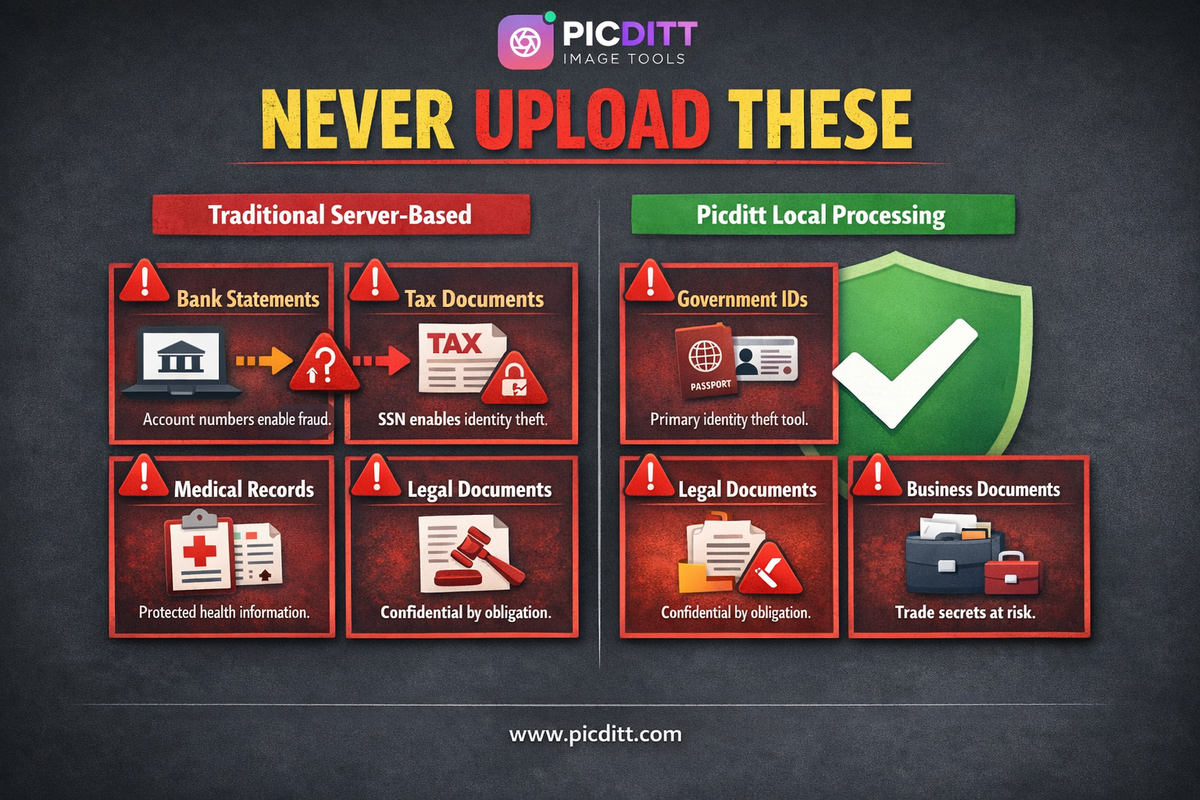
Some documents carry risks serious enough that uploading them to any unverified online service is simply not worth it. If a file contains any of the following, use only local processing tools.
Bank Statements and Financial Records
Bank statements contain your account numbers, bank name, balance history, transaction records, and often your home address. This combination of data is sufficient for a range of financial frauds including account takeover, wire transfer fraud, and identity theft.
If you need to compress, convert, or edit a bank statement, use a tool that processes locally. The risk of uploading to an unknown server is simply too high.
Tax Documents
Tax forms — W-2s, 1099s, tax returns — typically contain your full legal name, Social Security Number or tax ID, employer information, income figures, home address, and dependents' information. This is among the most sensitive combinations of personal data that exists.
A single tax document uploaded to a compromised or malicious converter site contains essentially everything needed to file a fraudulent tax return in your name, open credit accounts, or conduct identity theft.
Passports and Government-Issued IDs
Passport scans, driver's licenses, and national ID cards are primary identity documents. Uploading them to unknown servers is equivalent to physically handing a photocopy of your identity to a stranger. These documents are used to verify identity for financial accounts, travel, and legal purposes — their exposure creates long-term identity theft risk.
Medical Records and Health Information
Medical documents contain health history, prescription information, insurance details, and provider information. Beyond the significant personal sensitivity, medical information has specific legal protections in many jurisdictions (HIPAA in the United States, for example). Uploading medical records to non-compliant converter sites may violate these protections and certainly creates unnecessary exposure of highly sensitive personal information.
Legal Documents and Contracts
Contracts, NDAs, legal correspondence, and court documents often contain confidential business information, personal details of multiple parties, and legally sensitive content. Beyond the personal privacy risk, uploading confidential business documents to unknown servers may breach confidentiality obligations to clients, employers, or counterparties.
Business and Financial Confidential Information
Vendor contracts, pricing sheets, employee salary information, business strategies, and customer lists represent confidential business assets. For employees and business owners, uploading these documents to unknown servers may constitute a serious breach of duty to their organization.
How Picditt Handles Your Files — Every Tool, Every Time
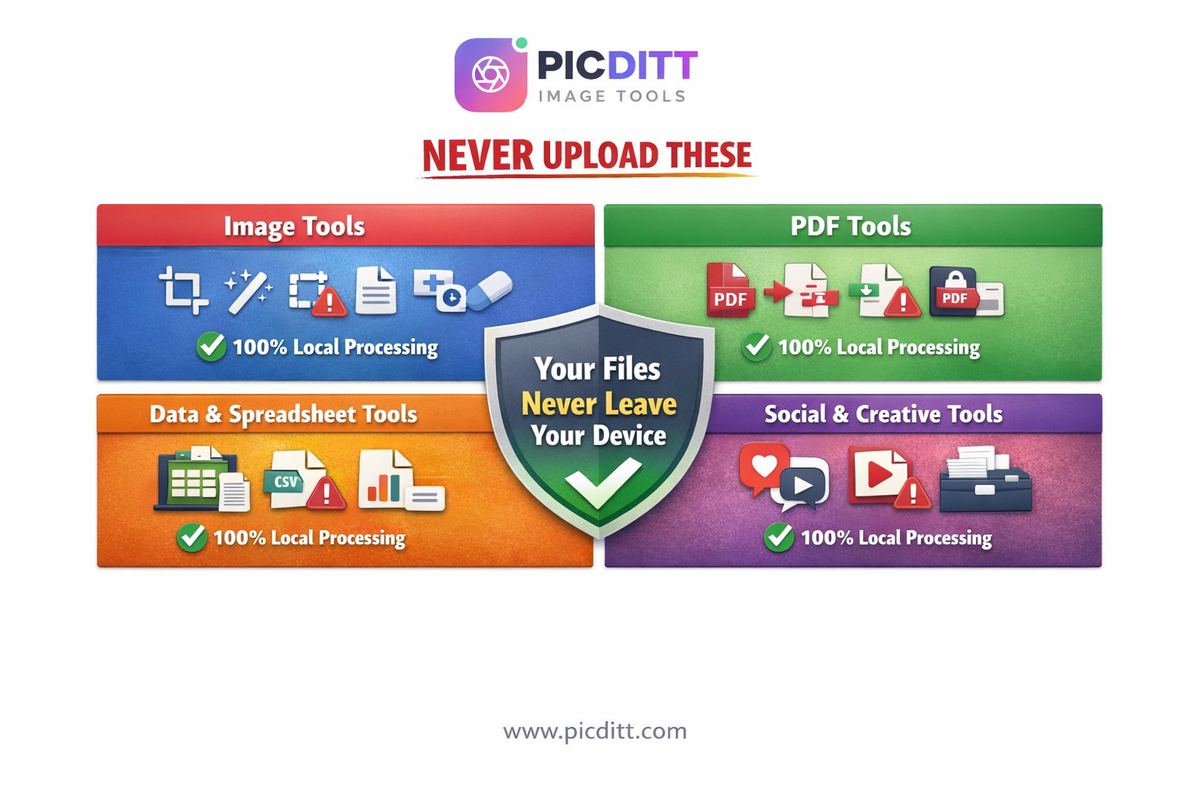
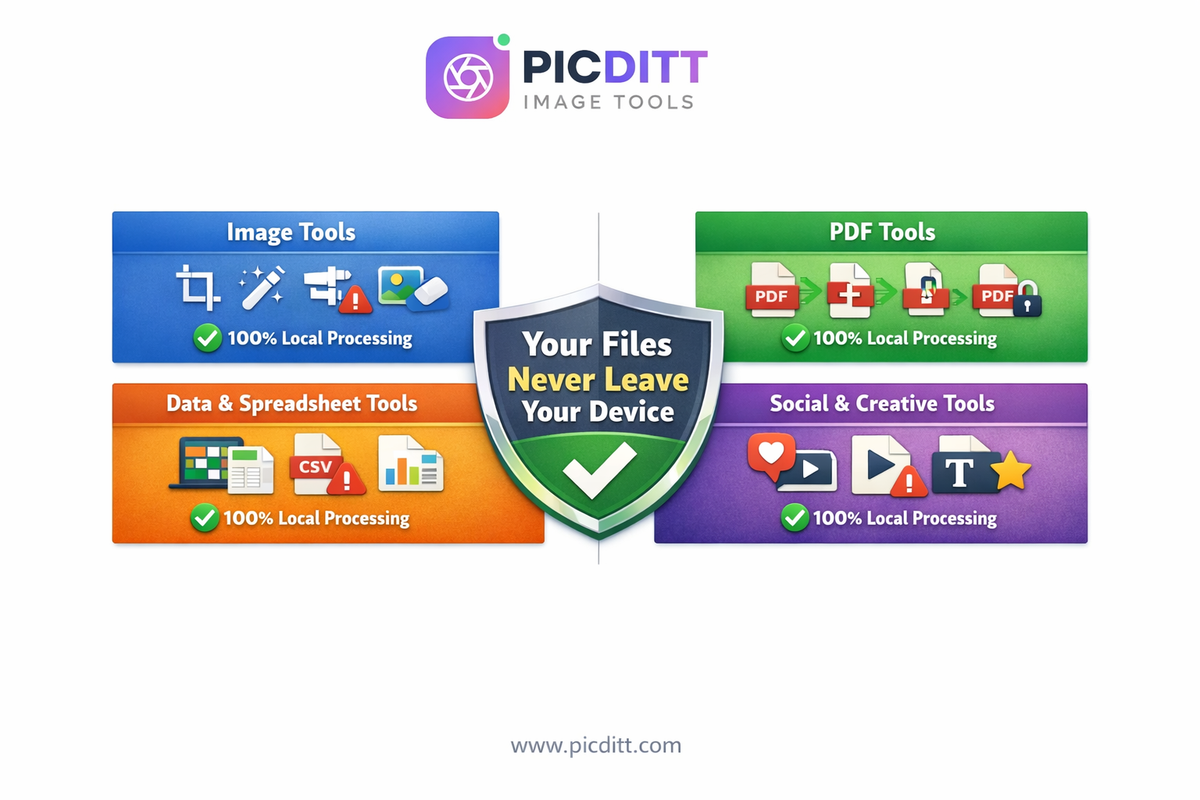
Every single tool on Picditt is built on the same privacy principle: your files never leave your device.
This is not a marketing claim or a privacy policy promise you have to take on faith. It is a technical fact that you can verify. Open your browser's network inspector (press F12, go to Network tab) while using any Picditt tool. You will see network requests for the page assets — JavaScript, CSS, fonts. You will not see your file being transmitted anywhere. The processing happens in your browser's memory.
Here is how every category of Picditt tools handles your data:
Image Tools — All Local
Image Compression — Your image is loaded into browser memory, compressed using JavaScript algorithms, and the result is offered for download. No upload.
Image Conversion — Format conversion between JPG, PNG, WebP, GIF, and other formats happens entirely in browser using Canvas API and JavaScript libraries.
Image Cropping and Editing — All crop, rotate, flip, and editing operations use browser-native Canvas processing. Your image never transmits anywhere.
Background Remover — AI-powered background removal runs the neural network model directly in your browser using WebAssembly. The model runs locally on your device.
Image Upscaler — AI upscaling uses WebAssembly to run the enhancement model locally. Processing a large image may take a moment but happens entirely on your hardware.
Magic Eraser — AI object removal processes your image locally using browser-based machine learning. No server receives your photo.
Watermark Tool — Watermark generation, positioning, and rendering all happen in browser using Canvas. Your images stay on your device.
EXIF Data Viewer and Remover — Your photo's metadata is read locally by JavaScript. If you remove EXIF data, the cleaned file is generated locally. Your photo's location data never transmits anywhere.
PDF Tools — All Local
Merge PDF — PDF files are combined using a JavaScript PDF library running in your browser. Multiple files are processed locally and merged into a single output without any file reaching a server.
Split PDF — PDF splitting and page extraction use the same local JavaScript library. Your document pages never transmit anywhere.
PDF to Image — Converting PDF pages to JPG or PNG format happens in your browser using WebAssembly-powered PDF rendering. High-resolution output is generated locally.
Image to PDF — Images are assembled into PDF format using browser-based PDF generation. The resulting PDF is created on your device.
PDF to Excel — Table extraction from PDFs uses local processing to identify and extract tabular data. Your financial or business data never leaves your device.
Spreadsheet and Data Tools — All Local
CSV to XLSX — CSV parsing and Excel file generation happen entirely in browser using JavaScript spreadsheet libraries. Your data stays local.
XLSX to CSV — Excel file parsing and CSV generation use the same local approach. No spreadsheet data transmits anywhere.
Text to Excel — Text parsing and Excel generation are local browser operations.
Image to Excel (OCR) — Optical character recognition for converting images of tables to spreadsheets runs locally.
Image to Word (OCR) — Text extraction from images uses local OCR processing.
Social Media and Creative Tools — All Local
Instagram No Crop, Grid Maker, WhatsApp DP, YouTube Banner — All image formatting and layout operations use browser Canvas processing. Your photos stay on your device.
Zoom and Resize — Image scaling operations are native browser Canvas operations.
Join Images — Image combination happens locally using Canvas.
Add Logo and Text — Overlay operations use browser Canvas. Your images never upload.
Signature Maker — Digital signature creation is a completely local canvas drawing operation.
Passport Photo Maker — Photo formatting and sizing use browser Canvas processing.
How to Verify Local Processing Yourself
You do not have to take anyone's word that a tool processes locally. You can verify it yourself in any modern browser.
Method 1: Browser Network Inspector
- Go to any Picditt tool page
- Press F12 (or right-click → Inspect) to open developer tools
- Click the Network tab
- Upload or drag a file into the tool
- Watch the Network tab
What you will see with local processing: No network requests containing your file data. The only requests are for page resources (JavaScript, CSS) that were already loaded.
What you would see with server-based processing: A large POST or PUT request transmitting your file data to a server URL.
Method 2: Offline Test
- Load any Picditt tool page while connected to the internet
- Once the page has fully loaded, disconnect from the internet (turn off WiFi or ethernet)
- Upload a file and use the tool
- The tool will still work — because no internet connection is needed for processing
If a tool requires an internet connection to process your file, it is uploading that file to a server. If it works offline, processing is genuinely local.
Choosing the Right Tool: A Decision Framework
Use this framework when deciding whether to use an online converter for any file:
Step 1: Does the file contain sensitive information?
Ask yourself: would I be uncomfortable if this document was accessible to a stranger? If yes, you need a local processing tool.
Sensitive files include anything with names, addresses, financial data, identification numbers, medical information, legal content, or confidential business information.
Step 2: Can you verify the tool processes locally?
Check the tool's privacy policy. Look for explicit statements about local or client-side processing. Use the network inspector test described above. If you cannot verify that processing is local, assume it is server-based.
Step 3: Do you know who operates the tool?
A tool operated by a known, reputable company with a clear privacy policy, physical address, and established track record is significantly lower risk than an anonymous tool with no clear operator. But even reputable server-based tools carry more risk than local tools for sensitive files.
Step 4: What are the consequences of a breach?
For a photo of your lunch or a public document, the consequences of a server breach are minimal. For tax documents, passport scans, or confidential contracts, the consequences can be severe and long-lasting. Match your risk tolerance to the actual stakes.
Frequently Asked Questions
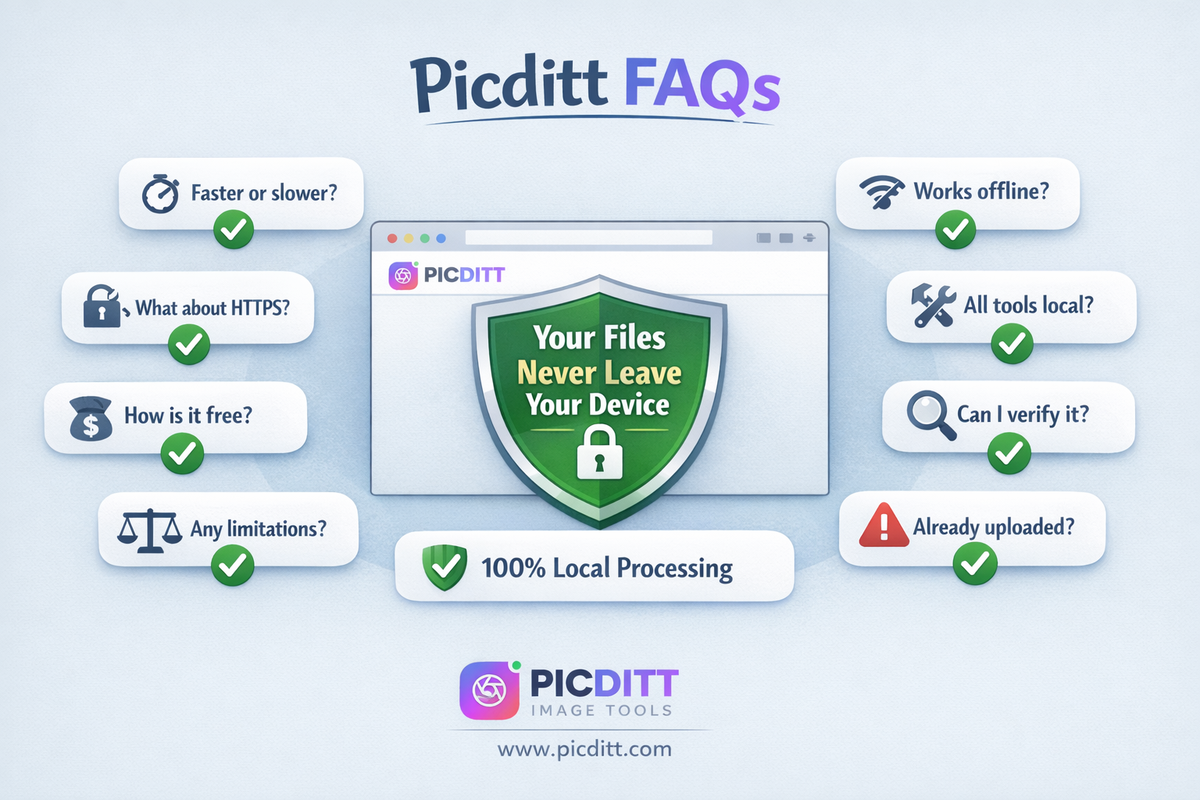
Is local processing always slower than server-based processing?
No — and often it is faster. Server-based processing requires time to upload your file, wait in a queue, process on the server, and download the result. Local processing skips all of these steps. For most common file operations, local processing in modern browsers is faster than server-based alternatives, especially for large files that take significant time to upload.
Does local processing mean the tool works offline?
Yes, after the initial page load. Once a local processing tool has loaded its JavaScript and WebAssembly modules, it typically functions without an internet connection. This is useful for processing sensitive files in secure environments without network access.
Are all Picditt tools genuinely local, or just some of them?
Every tool on Picditt uses local browser-based processing. This is a foundational design decision, not a feature added to some tools. The technical architecture of the entire platform is built around client-side processing.
Can I verify that Picditt is not uploading my files?
Yes. Use the browser network inspector method described in this article. Load any Picditt tool, open the Network tab in developer tools, upload a file, and observe that no network request transmits your file. You can also test offline functionality as an additional verification.
What about HTTPS — doesn't that protect my uploaded files?
HTTPS encrypts your file during transmission, which prevents interception in transit. However, HTTPS does not protect your file once it reaches the server. The server has complete access to the decrypted file content. HTTPS is an important security measure but it does not address the server-side storage and access risks described in this article.
If Picditt is free, how does it make money without selling data?
Picditt displays advertising through Google AdSense. The revenue from advertising supports the cost of running the service. Your files are never sold, analyzed for advertising purposes, or monetized in any way — they never reach Picditt's servers in the first place.
Does local processing have any limitations compared to server-based processing?
Local processing is limited by your device's memory and processing power. For very large files or extremely computationally intensive operations, a powerful server might outperform an average consumer device. However, for the vast majority of everyday file conversion, compression, and editing tasks, modern devices handle local processing without any meaningful limitation.
What should I do if I have already uploaded sensitive files to unknown converter sites?
Monitor your financial accounts and credit reports for unusual activity. Consider placing a credit freeze if you uploaded highly sensitive documents containing identification numbers. Be alert for phishing communications that reference information contained in the documents you uploaded. For future conversions, switch to local processing tools.
The Default Is Broken — Change It
The internet has normalized uploading. Sign up with your email. Upload your photo. Share your document. Every digital service is designed to collect data, and file converters are no different.
But the default being common does not make it safe. For sensitive files, uploading to unknown servers is a genuinely risky behavior that millions of people engage in daily without understanding what they are consenting to.
The alternative exists. It works. It is often faster. And it is completely free.
Every tool on Picditt — from PDF tools to image editing to spreadsheet conversion to social media formatting — processes your files locally in your browser. No upload. No server. No trust required.
The next time you see an Upload button on a site you do not recognize, stop and ask: does this file need to leave my device? In most cases, the answer is no — and there is a better way.
Use Picditt's Local Processing Tools — Your Files Stay on Your Device →
You Might Also Like

Don't Let People Steal Your Photos: The Ultimate Free Watermarking Guide
Your photos are being stolen right now — downloaded, reposted, and used without your permission on social media, websites, and marketplaces across the internet. This ultimate guide covers everything you need to know about watermarking: why photo theft is rampant, the psychology of effective watermarks, every watermark type explained, exact opacity and placement recommendations, and a complete step-by-step guide to the free Picditt Watermark Tool that processes everything in your browser with zero server uploads.
Read More →
Brand Your Photos: How to Add Logos, Watermarks, and Text Overlays in Seconds
Every photo you share online without your brand on it is a missed marketing opportunity — and a potential theft waiting to happen. This complete guide shows photographers, content creators, e-commerce sellers, and businesses how to add professional logos, text watermarks, copyright notices, and brand overlays to any photo in seconds using a free, 100% private, browser-based tool with 15 fonts, unlimited colors, tile patterns, and drag-and-drop positioning.
Read More →
How to Make a Free 2×2 Inch Passport Photo at Home (No CVS Markup)
Make a perfect 2×2 passport photo at home for pennies. Follow the U.S.-style sizing rules, avoid common rejection reasons, and use Picditt’s Passport Photo Maker to crop, background-fix, and export a 300 DPI print layout.
Read More →