AI Image Upscaler: How to Enhance and Enlarge Photos Without Losing Quality
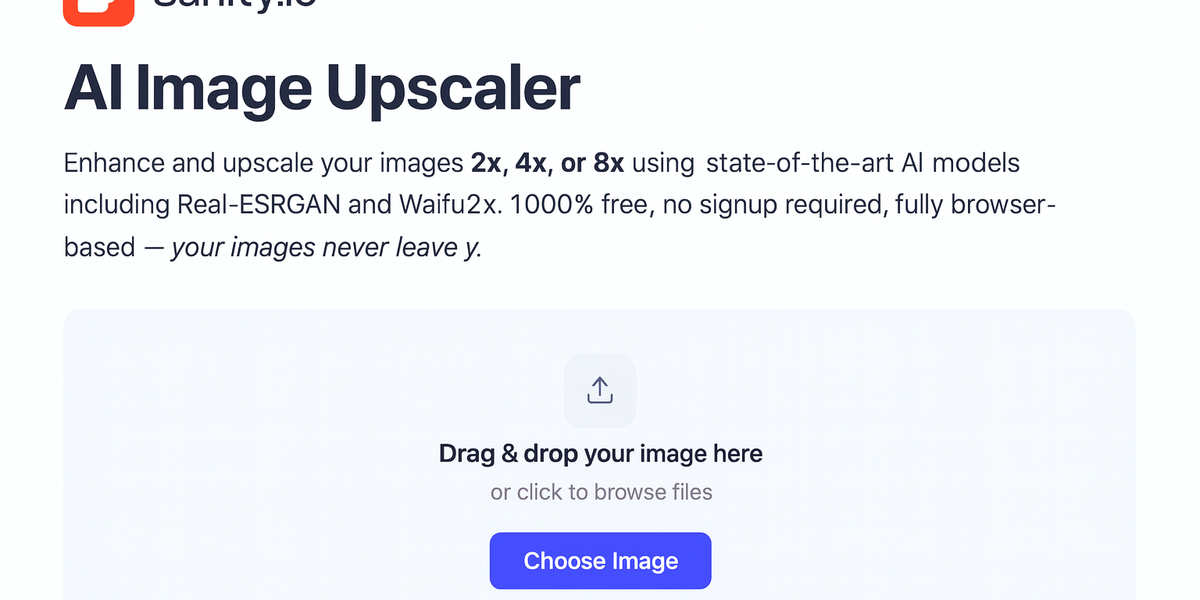
AI Image Upscaler: How to Enhance and Enlarge Photos Without Losing Quality
I want you to think about the last time you tried to make a small image bigger.
Maybe you cropped a group photo to zoom in on one person's face. Or you found an old family picture on your phone that was barely 500 pixels wide. Or a client sent you a tiny product image and asked you to use it on a billboard-sized banner.
You opened it in your photo editor, stretched it larger, and... it looked terrible. Soft. Mushy. Pixelated squares where there should have been skin texture, sharp edges, and fine details. Like someone smeared Vaseline on your screen.
That's because traditional image resizing doesn't actually add detail. It just makes existing pixels bigger—or averages neighboring pixels to fill the gaps. The result is always the same: blur.
For decades, the rule was simple: you can make images smaller without problems, but you can never make them bigger without losing quality.
That rule no longer applies.
AI-powered image upscaling has fundamentally changed what's possible. Instead of dumbly stretching pixels, trained neural networks actually predict and reconstruct the fine details, textures, and edges that should exist at higher resolutions. The results aren't perfect magic—but they're genuinely remarkable.
PicDitt offers a free AI Image Upscaler at https://picditt.com/editing/Image-Upscaler that uses some of the most respected AI models in the field—Real-ESRGAN, Waifu2x, and ESRGAN+—to enhance your images 2x, 4x, or even 8x. And it does all of this directly in your browser, meaning your photos never leave your device.
No server uploads. No account required. No watermarks. No fees.
Let me explain how it works, which model to choose, and how to get the best results from AI upscaling.
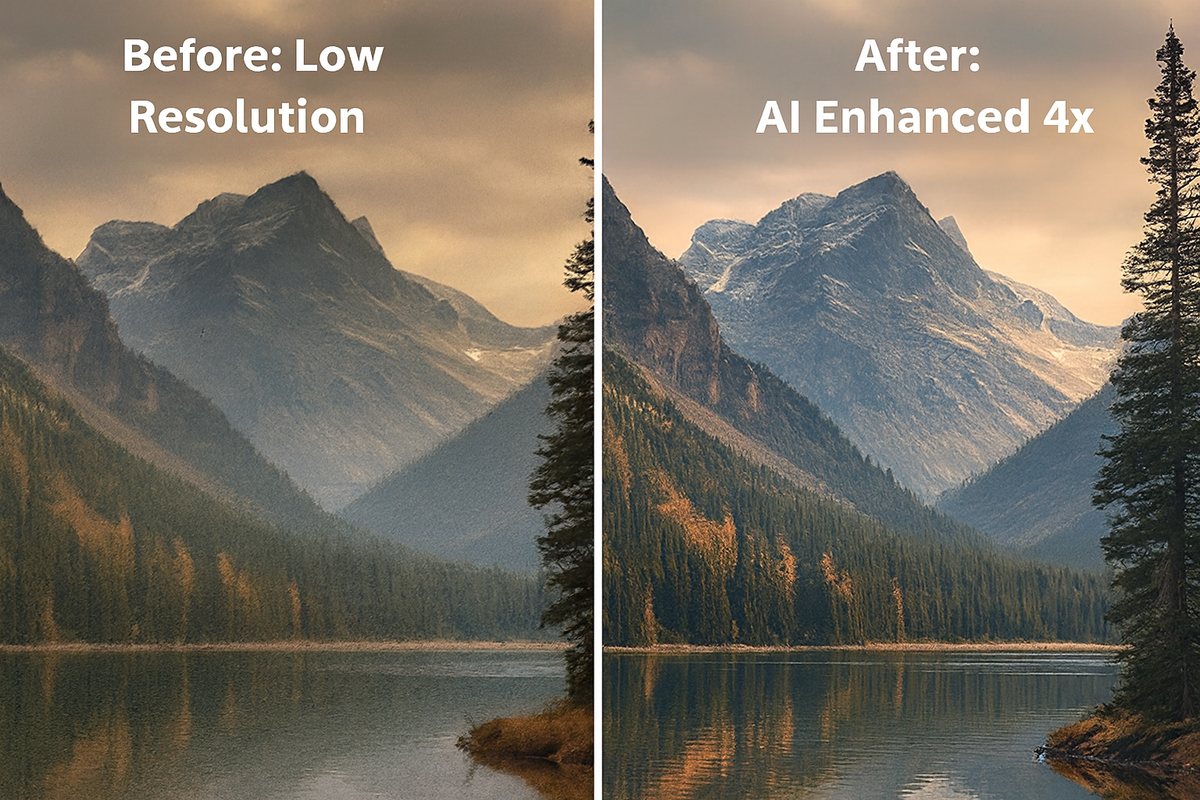
Side-by-side comparison of a low-resolution blurry photo on the left and the same photo enhanced and upscaled 4x using AI on the right, showing dramatically improved detail and sharpness.
How Traditional Resizing Fails (And Why AI Is Different)
To appreciate what AI upscaling does, it helps to understand what happens when you resize an image the old-fashioned way.
The Old Way: Interpolation
When traditional software makes an image larger, it uses a method called interpolation. There are a few types:
- Nearest Neighbor: Duplicates each pixel. Fast but creates blocky, pixelated results.
- Bilinear: Averages the four nearest pixels. Slightly smoother but still blurry.
- Bicubic: Uses 16 surrounding pixels for a smoother blend. Better, but still lacks real detail.
None of these methods add information. They just smear or duplicate what's already there. That's why zooming into any traditionally resized image reveals soft, undefined areas where there should be sharp details.
The AI Way: Learned Reconstruction
AI upscalers work completely differently.
Models like Real-ESRGAN are trained on millions of pairs of low-resolution and high-resolution images. Through this training, the neural network learns patterns:
- What does skin texture look like at higher resolution?
- How should the edge of a building sharpen when enlarged?
- What details should appear in hair, fabric, foliage, or text?
When you feed the AI a low-resolution image, it doesn't just stretch pixels. It predicts what the high-resolution version should look like based on everything it learned during training. It literally fills in plausible detail that wasn't in the original file.
The result isn't a guess. It's an educated reconstruction based on millions of examples.
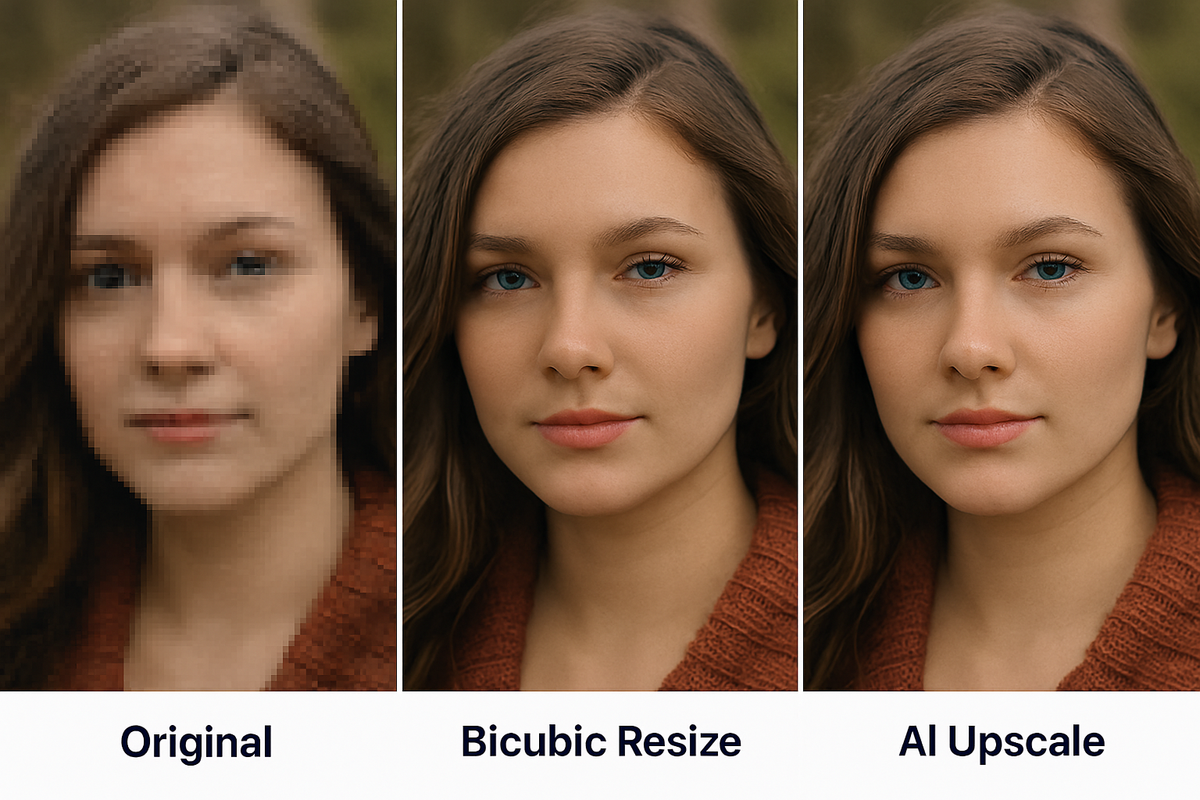
Three versions of the same image section showing original pixelated quality, blurry bicubic resize, and sharp AI upscale with reconstructed details.
The AI Models Behind the Tool
Not all images are the same, and not all AI models handle every type equally well. PicDitt's upscaler includes three powerful models, each with its own strengths.
Real-ESRGAN
Best for: Photographs, portraits, landscapes, nature shots, real-world imagery.
Real-ESRGAN (Enhanced Super-Resolution Generative Adversarial Network) is one of the most respected models in the AI upscaling world. It was specifically designed to handle real-world degradation—meaning it doesn't just upscale clean images, but can also improve photos that have compression artifacts, noise, or blur.
When to choose it:
- Enlarging photos from your phone camera
- Enhancing old or low-quality photographs
- Upscaling images with natural textures (skin, grass, water, wood)
- Recovering detail from heavily cropped images
Waifu2x
Best for: Anime, manga, illustrations, digital art, graphics with clean lines.
Waifu2x was originally designed for upscaling anime-style images. It excels at content with:
- Flat colors and sharp edges
- Line art and illustration styles
- Digital artwork with smooth gradients
When to choose it:
- Upscaling anime screenshots or fan art
- Enhancing illustrations or digital drawings
- Improving graphic designs with clean, defined edges
- Working with logos or vector-style content saved as rasters
ESRGAN+
Best for: A versatile middle ground that works across image types.
ESRGAN+ is a flexible option when you're not sure which model to use. It handles both photographic and artistic content reasonably well.
When to choose it:
- Mixed content (photos with text overlays, etc.)
- When you want a balanced result
- Testing different models to see which gives the best output for your specific image
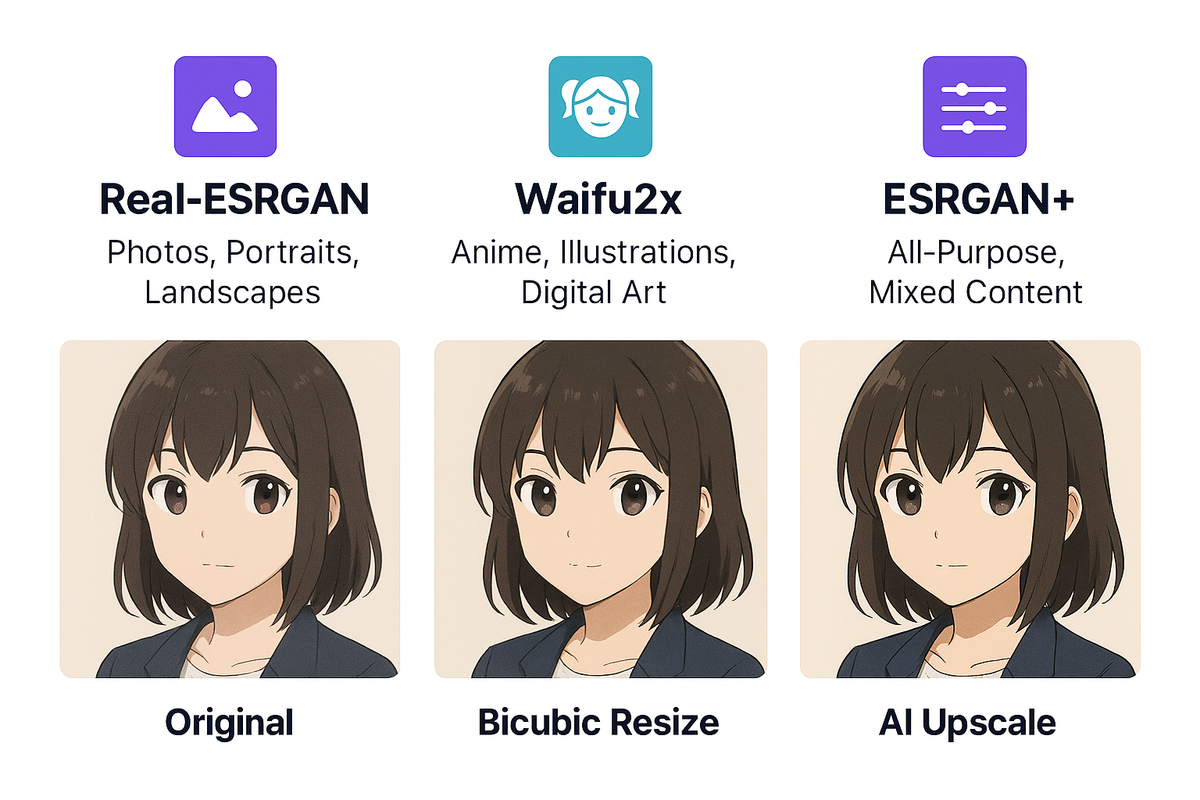
Three-column comparison of AI upscaling models: Real-ESRGAN for photos and portraits, Waifu2x for anime and illustrations, and ESRGAN+ as an all-purpose option.
What Makes PicDitt's Upscaler Different
There are other AI upscalers out there. Some are paid services. Some require you to upload your images to remote servers. Some add watermarks or limit your usage.
Here's what sets PicDitt's tool apart.
100% Browser-Based Processing
This is the big one. When you use PicDitt's AI Image Upscaler, your images never leave your device.
Most online AI tools work by uploading your photo to a server, processing it there, and sending the result back. That means:
- Someone else's server has a copy of your image
- You have to wait for upload and download
- You need a stable internet connection throughout
- Privacy is a real concern for sensitive images
PicDitt uses WebAssembly technology to run the AI models directly in your browser. The neural network operates on your computer or phone. Nothing gets sent anywhere.
This means:
- Faster processing (no upload/download wait)
- Complete privacy (your images stay yours)
- Works with any content (sensitive photos, client work, personal images)
Multiple Scale Options
Choose your upscale factor:
- 2x – Double the dimensions (a 500×500 image becomes 1000×1000)
- 4x – Quadruple the dimensions (500×500 → 2000×2000)
- 8x – Eight times the dimensions (500×500 → 4000×4000)
Higher factors produce larger images but require more processing time and may show more AI artifacts. For most use cases, 2x or 4x delivers the best balance of size and quality.
Three AI Models to Choose From
As covered above: Real-ESRGAN, Waifu2x, and ESRGAN+. Pick the right model for your image type and get optimized results.
Completely Free, No Strings
- No signup or account needed
- No watermarks on your output
- No usage limits
- No "free trial" bait-and-switch
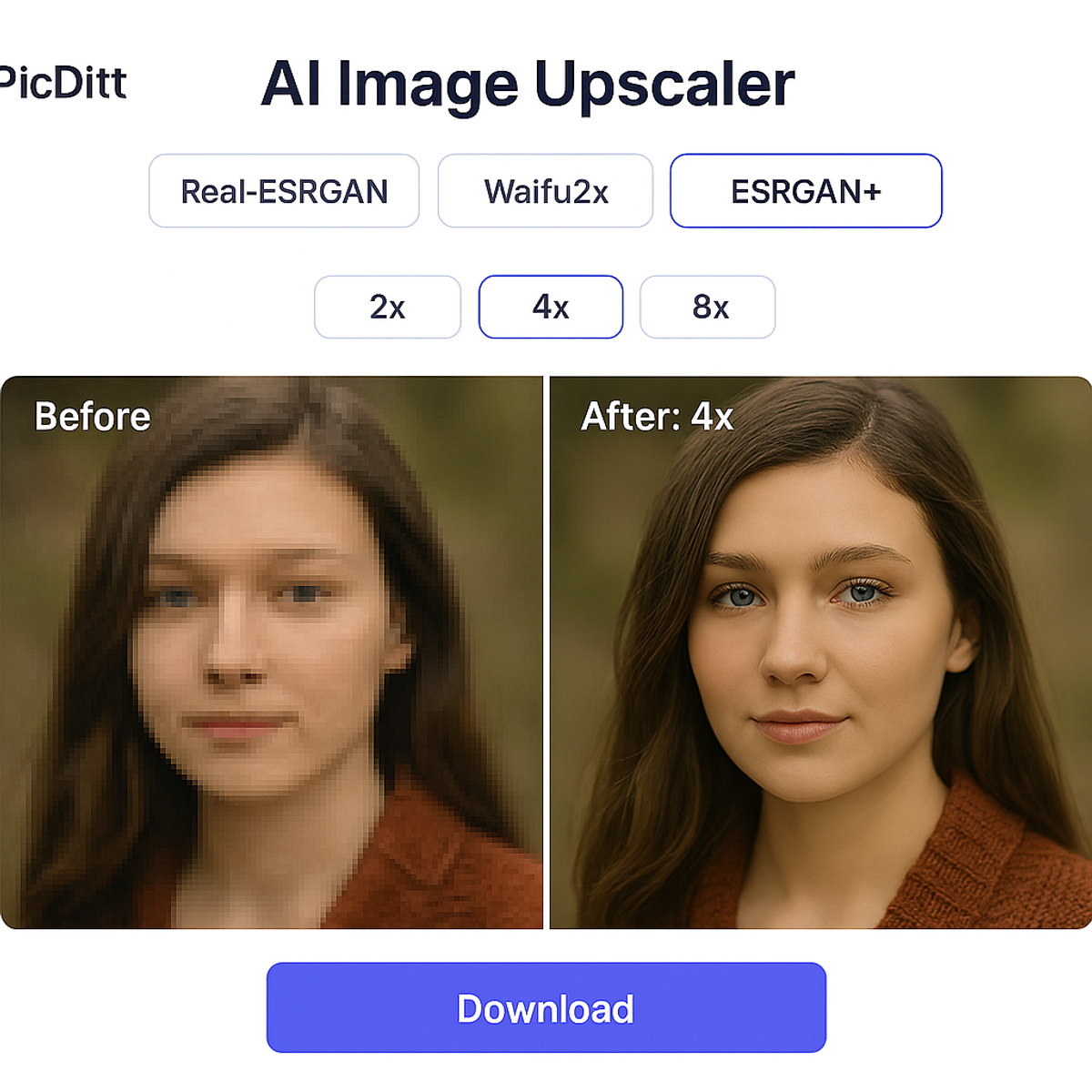
Screenshot of PicDitt's AI Image Upscaler tool showing upload area, AI model selection with Real-ESRGAN, Waifu2x, and ESRGAN+, scale options of 2x, 4x, and 8x, and a before-after preview.
Step-by-Step: How to Upscale Your Image with AI
The process is straightforward. Here's exactly how to do it.
Step 1: Open the Tool
Visit:
https://picditt.com/editing/Image-Upscaler
You'll see a clean interface with upload options and model/scale selections.
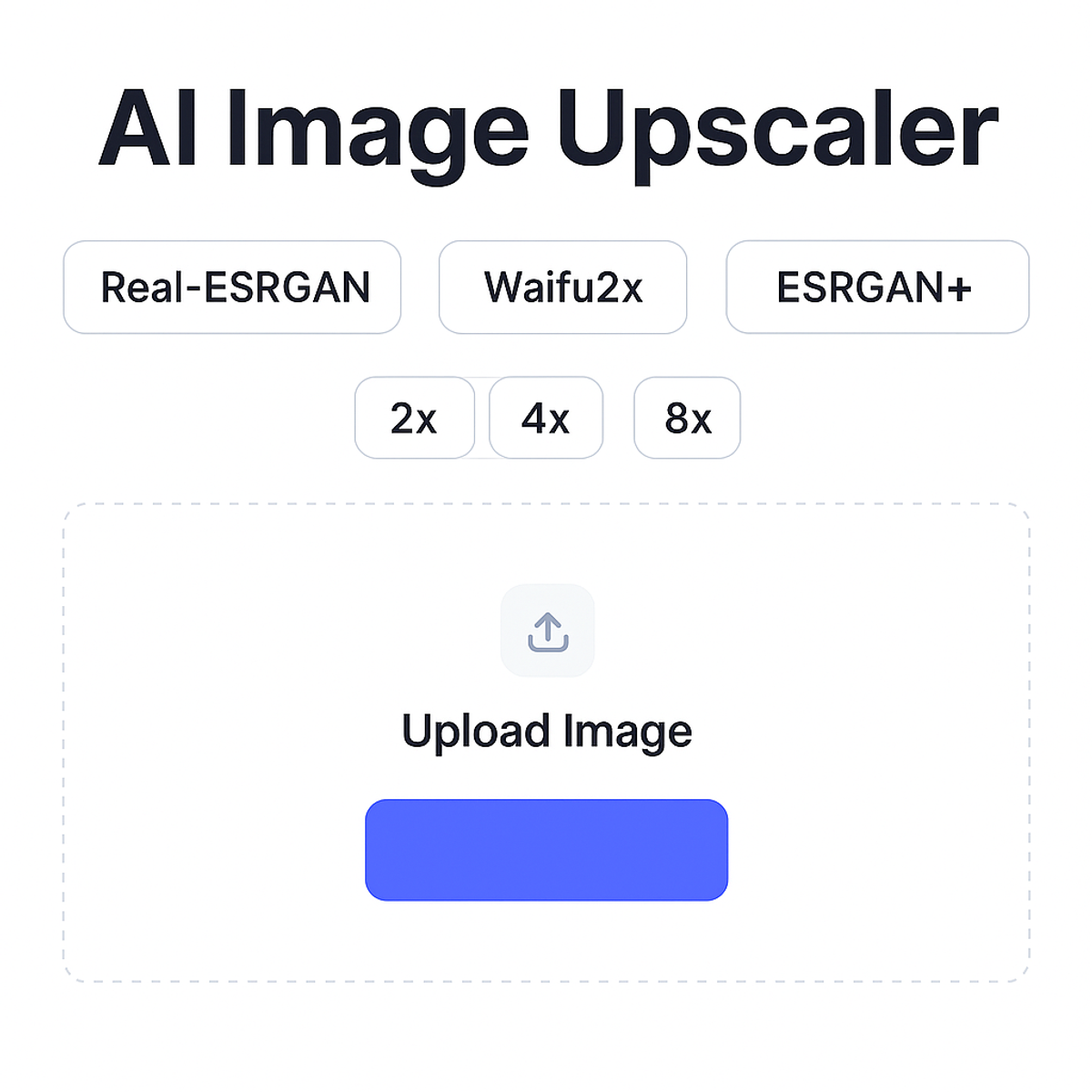
PicDitt AI Image Upscaler showing the empty upload screen with drag-and-drop area, AI model selection, and upscale factor options.
Step 2: Upload Your Image
Drag and drop your image or click to browse. The tool handles common formats like JPG, PNG, and WebP.
Keep in mind:
- Smaller input images benefit most from AI upscaling
- Very large images (already high-res) may not need upscaling at all
- The tool works best with images that have clear subjects
Step 3: Choose Your AI Model
Select the model that matches your content:
Your Image Type
Best Model
Photo of a person, place, or object
Real-ESRGAN
Anime, manga, illustration
Waifu2x
Mixed or unsure
ESRGAN+
If you're not sure, start with Real-ESRGAN for photos or ESRGAN+ for general content. You can always try a different model and compare results.
Step 4: Select Your Upscale Factor
Choose how much you want to enlarge:
- 2x – Good for moderate enlargement with maximum quality
- 4x – Great for significant enlargement (most popular choice)
- 8x – Maximum enlargement (best for very small source images)
Recommendation: Start with 2x or 4x. If you need more, try 8x—but know that quality decreases as the scale factor increases, since the AI has to "invent" more detail.
Step 5: Process and Preview
Click the upscale/enhance button. The AI model will process your image directly in your browser.
Processing time depends on:
- Your device's hardware (faster on newer computers/phones)
- The image size
- The scale factor chosen
You'll see a before/after preview once processing is complete.
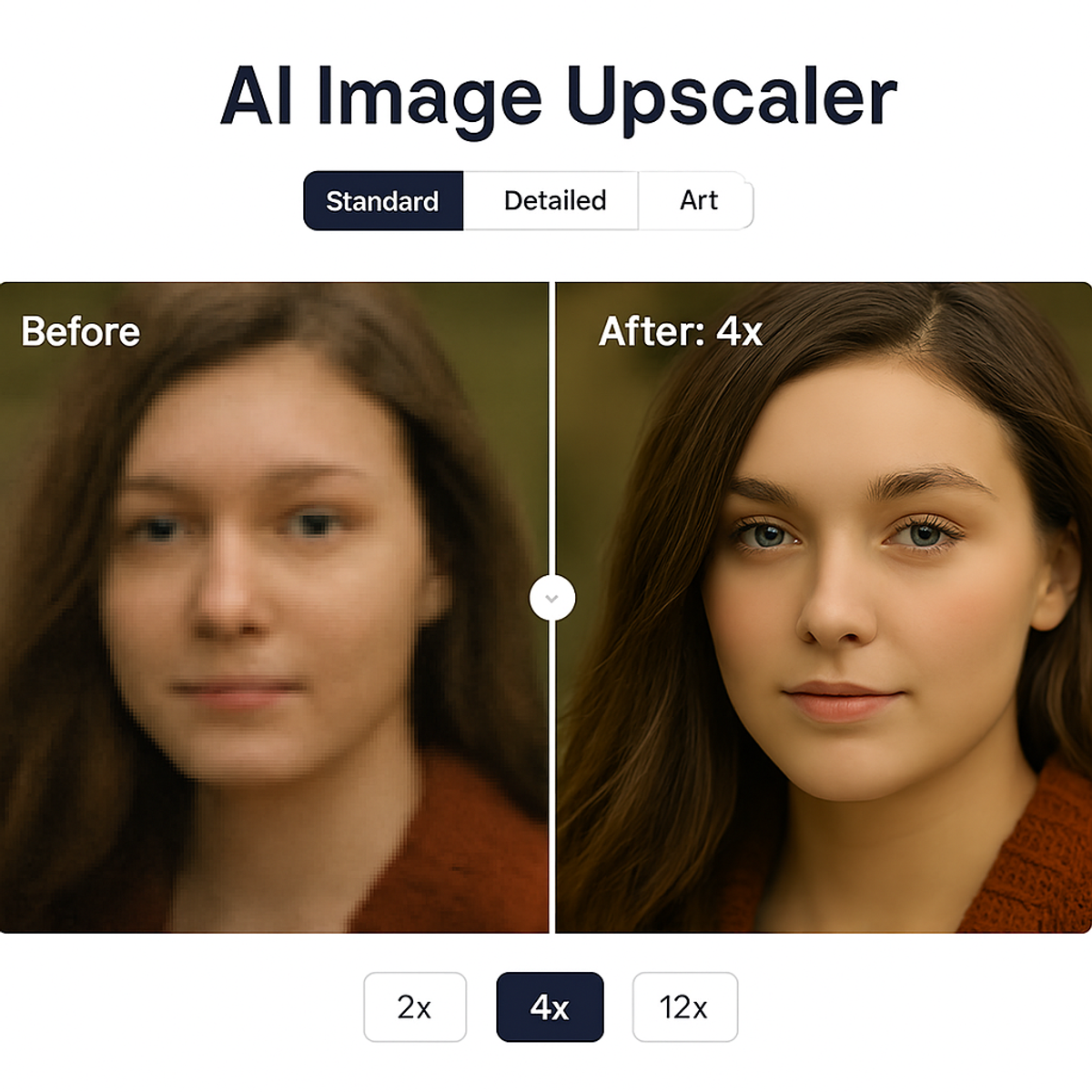
PicDitt AI Image Upscaler showing a before-and-after preview comparison of the original low-resolution image and the AI-enhanced upscaled version.
Step 6: Download Your Enhanced Image
When you're happy with the result, click download. The upscaled image is saved to your device in high quality—no watermarks, no compression.
Real-World Use Cases for AI Upscaling
AI image upscaling isn't just a cool technology demo. It solves real problems for real people every day.
Recovering Detail from Cropped Photos
You took a great photo but the subject is small in the frame. You crop to zoom in... and now it's blurry. AI upscaling can recover much of that lost detail, giving you a usable image from a heavy crop.
Enhancing Old Family Photos
That faded, small photo of your grandparents from decades ago? AI upscaling can bring it to life—sharpening features, recovering texture, and making it suitable for printing or framing.
E-Commerce Product Images
Online sellers often struggle with image quality. Small supplier photos don't look great on marketplace listings. Upscaling product images makes them look professional and trustworthy, which can directly impact sales.
Print-Ready Enlargement
An image that looks fine on screen might not have enough pixels for printing. AI upscaling can push a web-quality image closer to print-ready resolution—though starting with the highest quality source is always preferred.
YouTube Thumbnails and Social Media
Content creators sometimes need to enlarge portions of screenshots or photos for thumbnails. AI upscaling keeps those enlarged sections looking sharp rather than pixelated.
Restoring Real Estate Photos
Property photos taken with older cameras or phones can benefit from upscaling. Sharper, more detailed listing photos attract more interest from potential buyers or renters.
Digital Art and Illustration
Artists working at lower resolutions (for speed or older hardware) can upscale their final work using Waifu2x for clean, sharp enlargement that preserves their artistic style.
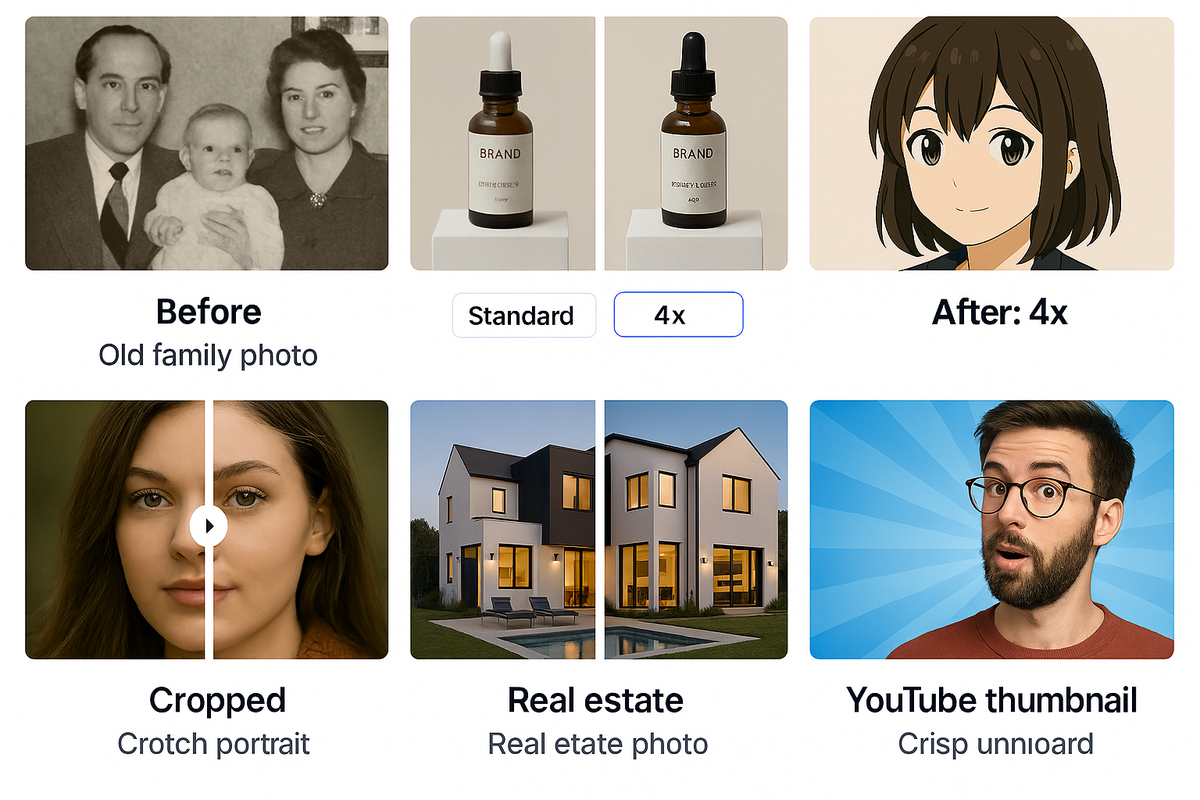
Grid showing six AI upscaling use cases with before-and-after examples: old family photo, product image, cropped portrait, anime artwork, real estate photo, and YouTube thumbnail.
Honest Expectations: What AI Upscaling Can and Can't Do
AI upscaling is impressive, but it's important to have realistic expectations. Here's what you should know.
What It Can Do
- Significantly sharpen soft, low-resolution images
- Reconstruct plausible textures (skin, fabric, foliage, brick, etc.)
- Enhance edges and lines for cleaner appearance
- Make small images large enough for printing or display
- Remove some compression artifacts and noise
What It Can't Do
- Create information that never existed. If a face is 10 pixels wide in the original, the AI can make it look better, but it's still guessing. It won't perfectly reconstruct a face from almost nothing.
- Fix extreme blur from camera shake. AI upscaling helps with resolution, not motion blur.
- Replace professional photography. A professionally shot high-resolution photo will always be better than an AI-upscaled low-resolution one.
- Work miracles on every image. Some images are simply too degraded. Very small, very compressed, or very noisy source images may still look imperfect after upscaling.
The golden rule: The better your source image, the better your upscaled result. AI enhances what's there—it doesn't fabricate what isn't.
Tips for Getting the Best Upscaling Results
Start with the Best Source You Have
If you have multiple versions of the same image (original camera file, a cropped copy, a compressed copy), always start with the highest quality version. More input detail = better AI output.
Choose the Right Model
- Real photos → Real-ESRGAN
- Art and illustrations → Waifu2x
- Not sure → ESRGAN+
The right model for the right content type makes a noticeable difference in output quality.
Don't Over-Upscale
Going from 2x to 4x is usually fine. Going from 4x to 8x pushes the AI harder and can introduce artifacts. If 4x gives you enough resolution, don't push to 8x just because you can.
Compare Before Committing
Use the before/after preview to evaluate the result. Zoom into key areas—faces, text, edges—and check for:
- Unnatural smoothness
- Weird textures or patterns (AI artifacts)
- Loss of important details
If one model doesn't give great results, try another.
Process Multiple Versions
It takes seconds, so there's no reason not to try:
- Real-ESRGAN at 4x
- ESRGAN+ at 4x
- Waifu2x at 4x (even on photos, just to compare)
Then pick the one that looks best for your specific image.
Frequently Asked Questions
Is the AI Image Upscaler really free?
Yes. Completely free with no watermarks, no signup, no usage limits, and no hidden fees.
Are my images uploaded to a server?
No. This is one of the tool's biggest advantages. Everything runs locally in your browser using WebAssembly. Your images never leave your device.
How long does processing take?
It depends on your device's hardware, the image size, and the scale factor. On modern devices, most images process in a few seconds to under a minute. Larger images at 8x scale take longer.
Which model should I use for regular photos?
Real-ESRGAN is the best choice for photographs, portraits, landscapes, and real-world imagery. It was specifically trained on this type of content.
Can I upscale screenshots?
Yes. ESRGAN+ or Waifu2x typically work well for screenshots since they contain clean lines, text, and flat colors.
Does it work on mobile?
Yes. The tool is browser-based and works on phones and tablets. However, AI processing is hardware-intensive, so performance may be slower on older or less powerful mobile devices.
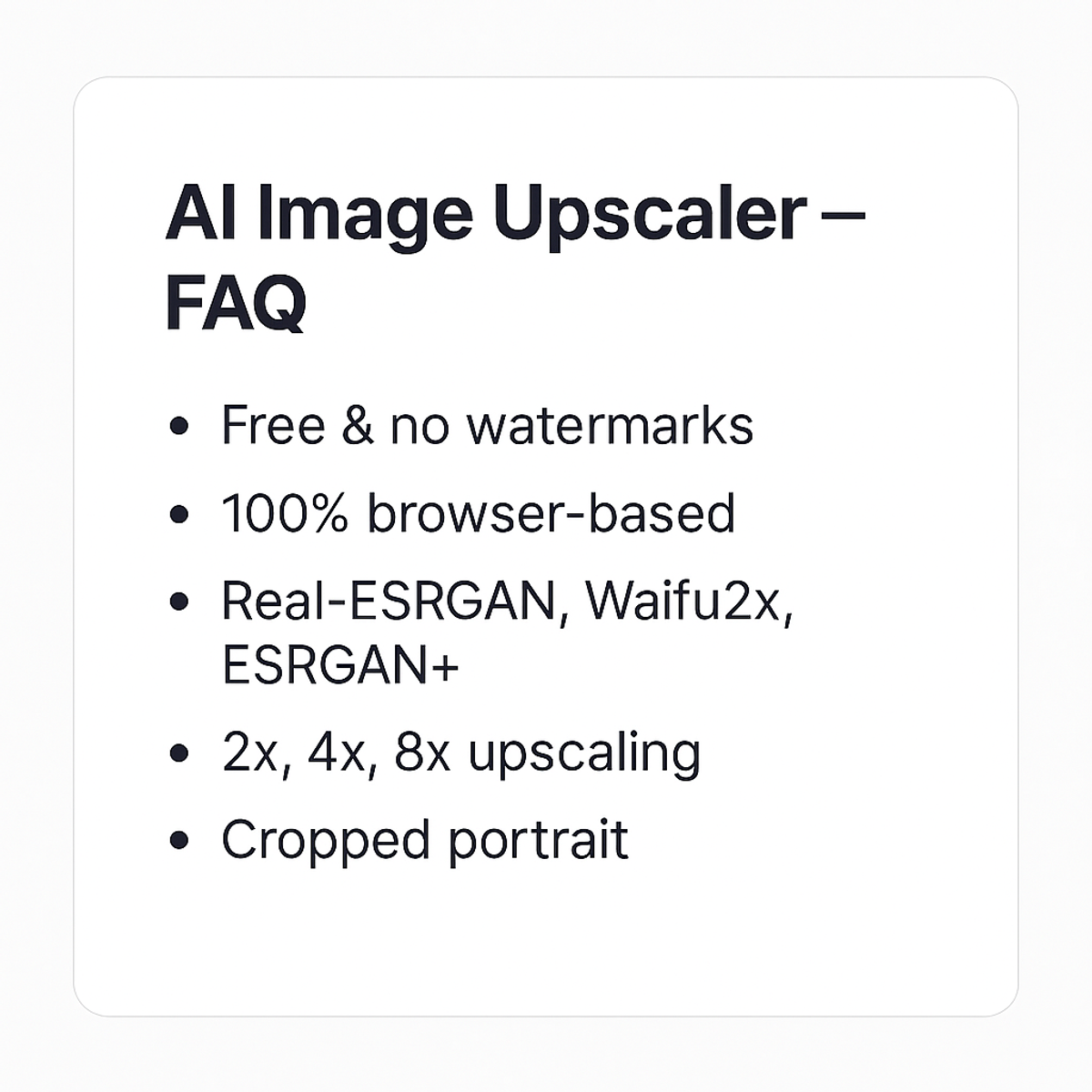
FAQ summary graphic for PicDitt's AI Image Upscaler highlighting that it's free, browser-based, offers three AI models, and supports 2x, 4x, and 8x upscaling.
Small Images Deserve a Second Chance
We all have images we wish were bigger, sharper, or more detailed. Old photos. Cropped screenshots. Low-quality downloads. Tiny product images.
In the past, making those images larger meant making them worse. That's no longer the case.
PicDitt's free AI Image Upscaler at:
https://picditt.com/editing/Image-Upscaler
uses the same AI technology trusted by professionals worldwide—Real-ESRGAN, Waifu2x, and ESRGAN+—to genuinely enhance your images. Not stretch them. Not blur them. Enhance them.
And because everything runs in your browser, your photos stay private, the processing is fast, and there's nothing to install or pay for.
The next time you have a photo that's too small or too blurry for what you need, give it a second chance. You might be surprised at what AI can recover.
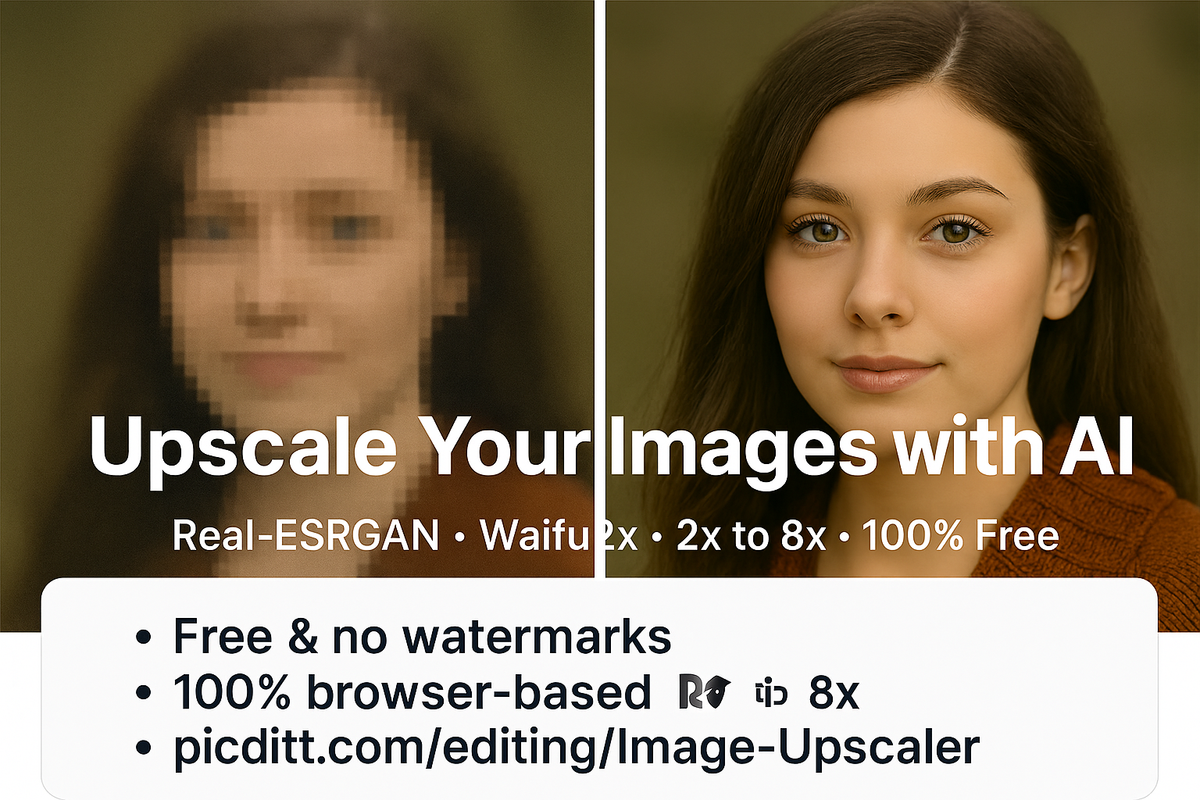
Call-to-action banner inviting readers to upscale their images using PicDitt's free AI Image Upscaler powered by Real-ESRGAN and Waifu2x.
You Might Also Like
Screenshot Editor – Edit, Annotate & Share Screenshots Like a Pro
Edit screenshots instantly with PicDitt's free online screenshot editor. Add text, arrows, shapes, blur sensitive info, crop, and export in PNG, JPEG, or WebP. No signup required.
Read More →
Magic Eraser Online: How to Remove Unwanted Objects from Photos with AI
Photobombers, power lines, watermarks, blemishes—every photo has something you wish wasn't there. Learn how to use PicDitt's free Magic Eraser to brush over any unwanted object and watch AI remove it seamlessly, all directly in your browser with complete privacy.
Read More →
How to Compress Images to an Exact File Size: The Complete Guide to Target Compression
Need your image to be exactly 500KB for a government form or under 25MB for Gmail? Learn how to compress any image to a precise file size using PicDitt's free Target Compression tool—without guessing quality settings or losing more quality than necessary.
Read More →