Why You Need to Stop Sending 50‑Page PDFs (And How to Fix Them for Free)
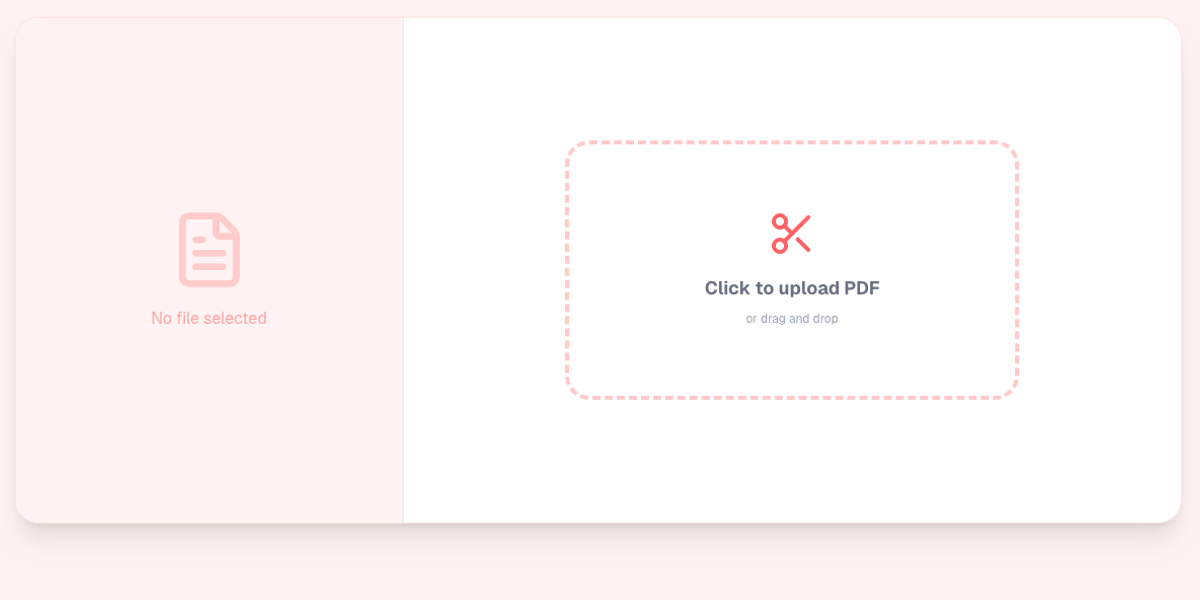
Advertisement
Introduction
PDFs were supposed to make life easier. One file. Same formatting everywhere. And yet, PDFs have quietly become one of the biggest sources of digital clutter in modern work and school.
We scan “packets,” download monthly statements, and merge attachments. Suddenly, we are sitting on a folder full of bloated files that nobody actually wants to open. Even worse: we share them.
You’ve probably done it. Someone asks for one page—an invoice, a signature page, a single chapter—and you email a 20MB document with 50 pages because it’s “easier.” It’s also unprofessional.
The fix is simple: split the PDF. Extract the exact pages you need. You don’t need Adobe Acrobat. You just need a reliable, free tool like PicDitt Split PDF.
The Digital Clutter Problem
PDF bloat happens in a few predictable ways:
- Scanner mode: You scan a stack of documents at once, creating a multi-page PDF with blank pages and unrelated documents stitched together.
- Export mode: Banks and payroll systems export “statements” as one PDF that includes pages you don’t need.
- Merge mode: You combined attachments once, but now you need them separated again.
When you share the whole thing, your recipient has to scroll and hunt for page 5. Splitting a PDF is not just tidiness. It’s communication, privacy, and professionalism.
Three Real-World Scenarios
1. The Homebuyer or Renter
Leases are perfect examples of PDFs that look straightforward but hide awkward sharing problems. A lease might be 30 pages long, but the property manager only asks for the signed signature page.
If you send the entire lease back, you may be sending sensitive details (ID numbers, banking details) that the recipient doesn’t actually need again. Splitting lets you extract only the signature page.
2. The Freelancer
Freelancers often get monthly statements from platforms that include multiple invoices and fee breakdowns. When tax season hits (or when a client asks for a specific invoice), you don’t want to forward a huge monthly PDF and say, “It’s in there somewhere.”
Splitting is the grown-up version of bookkeeping: extract the one invoice page you need and name it clearly.
3. The Student
Textbook PDFs can be enormous. If you’re studying on a tablet, it’s not ideal to load a 600-page file just to read Chapter 7. Extracting only the chapter you need results in faster load times and easier annotation.
Old School vs New School
Old School Method #1: Print and Re-scan
This is the classic workaround. It’s slow, wastes paper, and the output quality is terrible.
Old School Method #2: Expensive Software
Paying an Adobe subscription just to extract page 5 is like renting a moving truck to carry one grocery bag.
New School Method: Browser-Based Splitting
A modern PDF splitter does what you actually want: pick a file, pick pages, download. No printing. No rescanning. No monthly bill.
Tool: PicDitt Splitter
What Using PicDitt Feels Like
The first thing you’ll notice is that it’s not trying to be a “PDF suite” with 40 buttons. It’s focused.
You drop in your PDF, and instead of guessing page numbers blindly, you can work like a human. You typically have two ways to extract content:
- Single page extraction: When you only need the invoice or signature page.
- Range extraction: When you need a chunk of the file, like "1–5" for a short section or "12–18" for a chapter.
And when you’re done, you download a new PDF that contains only what you selected.
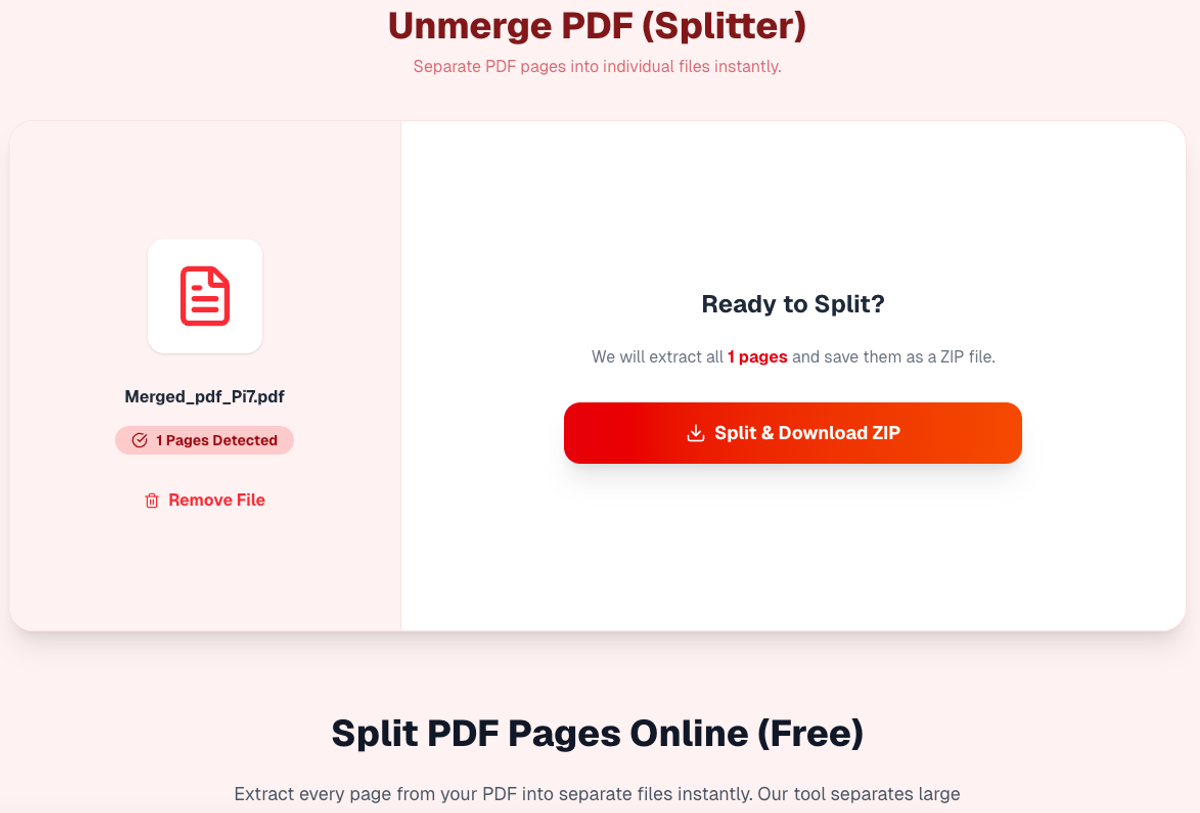
Extract specific pages or ranges from your PDF instantly.
The Privacy Angle: Why “Client-Side” Matters
If you’re splitting a cookbook PDF, privacy doesn’t matter much. But a lot of PDFs contain tax forms, bank statements, or medical bills.
Many “free PDF splitters” upload your file to their server to process it. That means your document exists on someone else’s infrastructure. You don’t know who can access it.
PicDitt takes the safer approach: Client-Side Processing.
In plain English, that means the splitting happens using JavaScript inside your browser, on your device. Your PDF data does not need to be uploaded to a server to extract pages.
Advanced Workflow: Split → Rearrange → Merge
Once you get comfortable splitting PDFs, you unlock a power move.
- Split the PDF to extract the pages you want.
- Arrange the pages in the order you need (e.g., Cover Page → Invoice → Contract).
- Merge them into one clean, final PDF using the Merge Tool.
Conclusion: Keep PDFs Lean
Splitting PDFs isn’t flashy. It’s not “AI.” But it’s one of those small workflow upgrades that changes how people experience working with you.
When you send the exact page someone needs, you look organized and you respect their time. If you deal with bloated PDFs even occasionally, bookmark the PicDitt Splitter.