Turn Your Photos into a Professional PDF Document Instantly (Portfolios & Receipts)
Advertisement
Introduction
“Please find attached 15 separate JPEG files.”
That sentence is the fastest way to make someone sigh before they even open your email. It’s messy, it’s easy to miss an attachment, and it forces the recipient to download a pile of files just to understand what you’re sending.
But this situation happens all the time. You have a folder full of photos—receipt snapshots, scanned notes, product shots, ID documents—and what you really need is one clean PDF.
That’s exactly what PicDitt’s PDF tools are for. Instead of sending a confusing ZIP file, you can combine images into one structured PDF in minutes—right in your browser.
Why Convert Photos to a Single PDF?
A PDF is the modern “container format” for sharing. It’s universal and easy to preview.
1. Job Applications: One upload, zero confusion
Many job portals only allow one document upload. A single PDF keeps your ID page, certificates, and work samples in sequence and makes it easy for a recruiter to scroll through without downloading a dozen files.
2. Expense Reports: Turn 50 receipt photos into one file
If you’ve ever taken 50 receipt photos over a trip, you know the pain. A PDF solves this instantly. You can reorder receipts chronologically and submit a single attachment that looks like a real report.
3. Creative Portfolios: Send a “lookbook”
Clients don’t love ZIP files. A “lookbook PDF” is a clean, professional way to show photography sets or branding concepts. Page 1 can be a cover image, then the rest flows like a mini presentation.
How to Convert Multiple Photos into One PDF
Open here: https://picditt.com/pdf-tools
Step 1: Upload Your Images
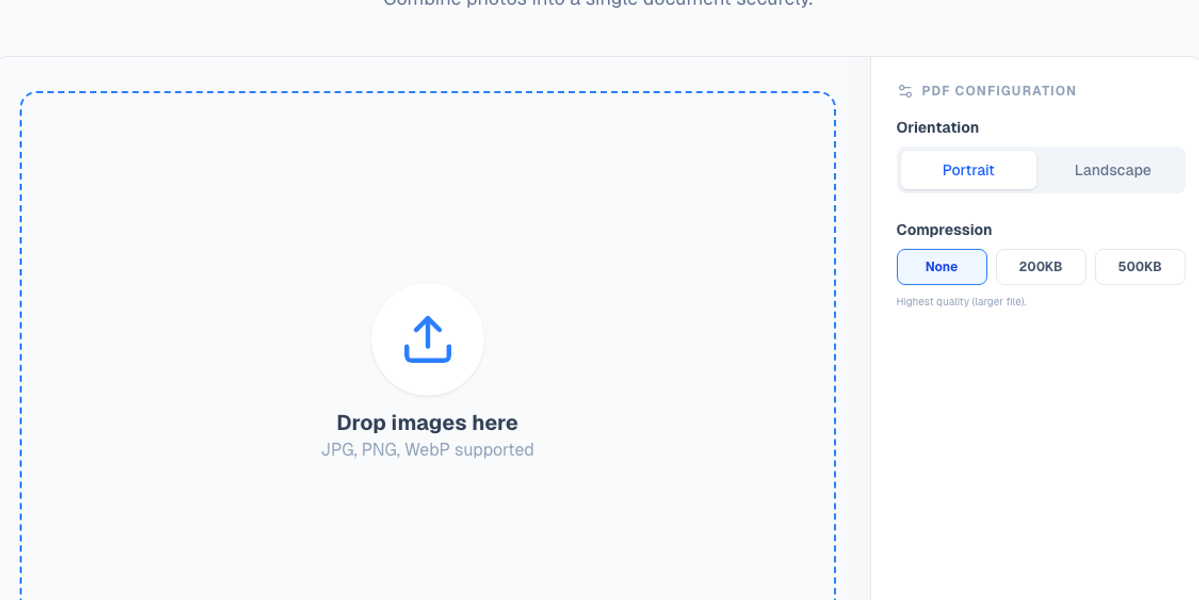
Start by selecting all the images you want in your PDF. PicDitt supports JPG, PNG, and WebP formats.
Step 2: Reorder the Pages
This is the step that turns “a bunch of photos” into a real document. PicDitt lets you drag and drop images to reorder them. Put receipts in date order or place your best portfolio images first.
Step 3: Choose Settings
- Portrait vs Landscape: Choose what fits your content best.
- Compression: This controls the final file size. Without compression, a PDF made from phone photos can explode into a massive file that gets rejected by email servers.
Step 4: Download Your PDF
Once your pages are in order, click Download PDF. You’ll get one clean document ready for email or archiving.
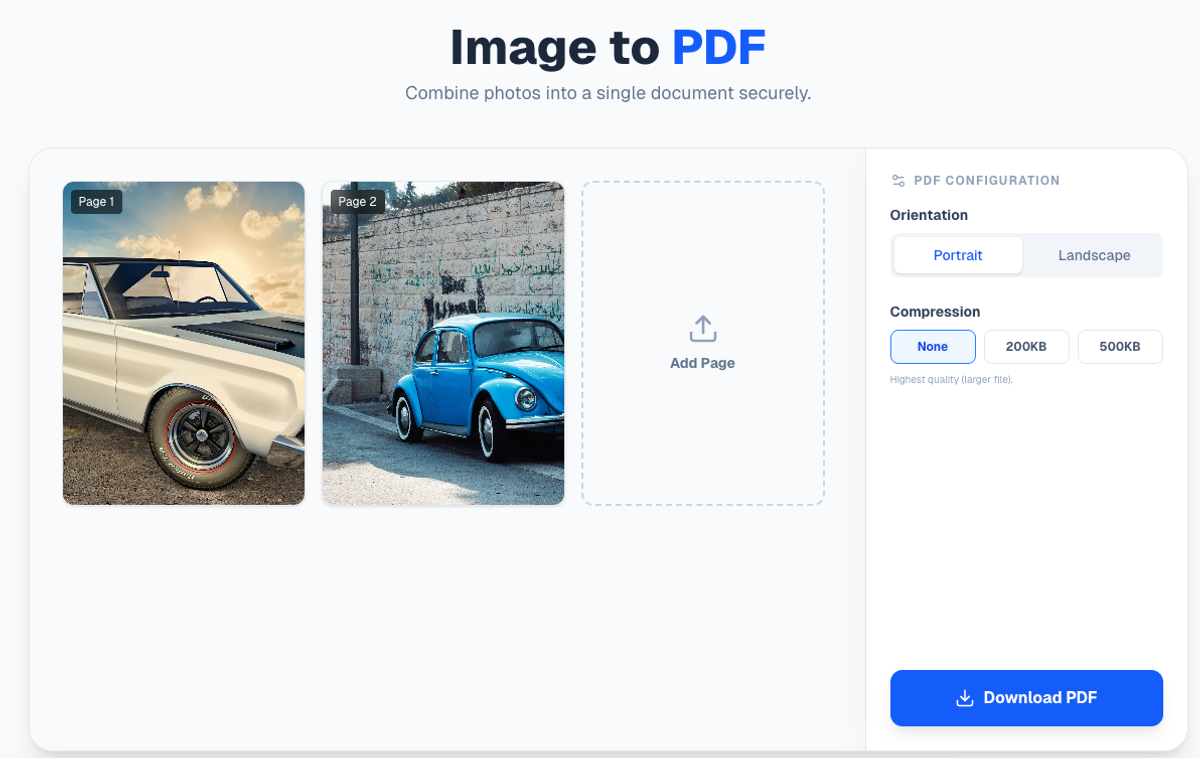
Drag and drop to reorder images before converting to PDF.
Feature Highlight: Smart Compression
“Why is my PDF 100MB?” is a common surprise. Phone photos are huge (3–8MB each).
PicDitt’s Smart Compression is designed to shrink images intelligently so the final PDF is realistic for everyday use (emailing/uploading) without destroying readability.
Privacy: Your Photos Stay on Your Device
A lot of “free online converters” upload your images to their servers to process them. That’s not ideal for receipts or IDs.
PicDitt’s conversion runs in the browser. Your files are processed locally on your device rather than being uploaded to a cloud server. It’s a safer approach for sensitive documents.
ConclusionIf you’re still sending folders of attachments, you’re making your life—and the recipient’s life—harder than it needs to be.
Next time you have a pile of receipts or portfolio images, turn them into one professional document with PicDitt PDF Tools. It’s the fastest way to go from “camera roll chaos” to a document that looks like you meant it.