Turn Messy Text Lists into Excel Spreadsheets in Seconds (No More Column A Chaos)

Advertisement
Introduction
If you’ve ever copied a list from an email or a website and pasted it into Excel, you’ve seen the same disaster: everything lands in Column A as one giant blob.
Names, emails, and addresses are jammed into a single cell. You know the data is there, but it’s not usable. You can’t sort or filter it because Excel can’t guess where your columns start and end.
This is the “wall of text” problem. And PicDitt Text to Excel solves it instantly. Paste your text, let the tool parse it into columns, and download a clean .XLSX file.
When This Matters: Real Use Cases
1. Email lists: Comma-separated to Contact Sheet
Marketing teams and sales reps constantly collect emails from form exports or inbox threads.
Often it looks like this: jane@example.com, bob@company.com, sales@brand.io.
You don’t want that in one cell. Turning it into a real spreadsheet means you can remove duplicates and import into CRM tools.
2. Developers / IT: Raw Data to Report
If you work in IT, you’ve probably been sent logs or database query outputs in plain text. It’s readable, but not useful until it’s in a spreadsheet where you can sort by timestamp or filter by status code.
3. Research: Copying Tables from Websites
Researchers often copy data tables from websites. The table looks structured on the site, but paste it into Excel and you get inconsistent spacing and odd line breaks. A parser that recognizes delimiters saves massive time.
How to Convert Text into an Excel File
Go here: https://picditt.com/misc/text-to-excel
Step 1: Paste your text
Copy your data from wherever it lives (email, Word doc, Notion, website). Paste it into the PicDitt text box.
Step 2: Auto-Detect Structure
As soon as the text is in the tool, PicDitt analyzes it to figure out the layout (commas, tabs, or newlines). If your data is consistent, the resulting grid is immediate.
Step 3: Download the .XLSX
Once it looks right, click Download. Save the .XLSX file and open it in Excel or Google Sheets.
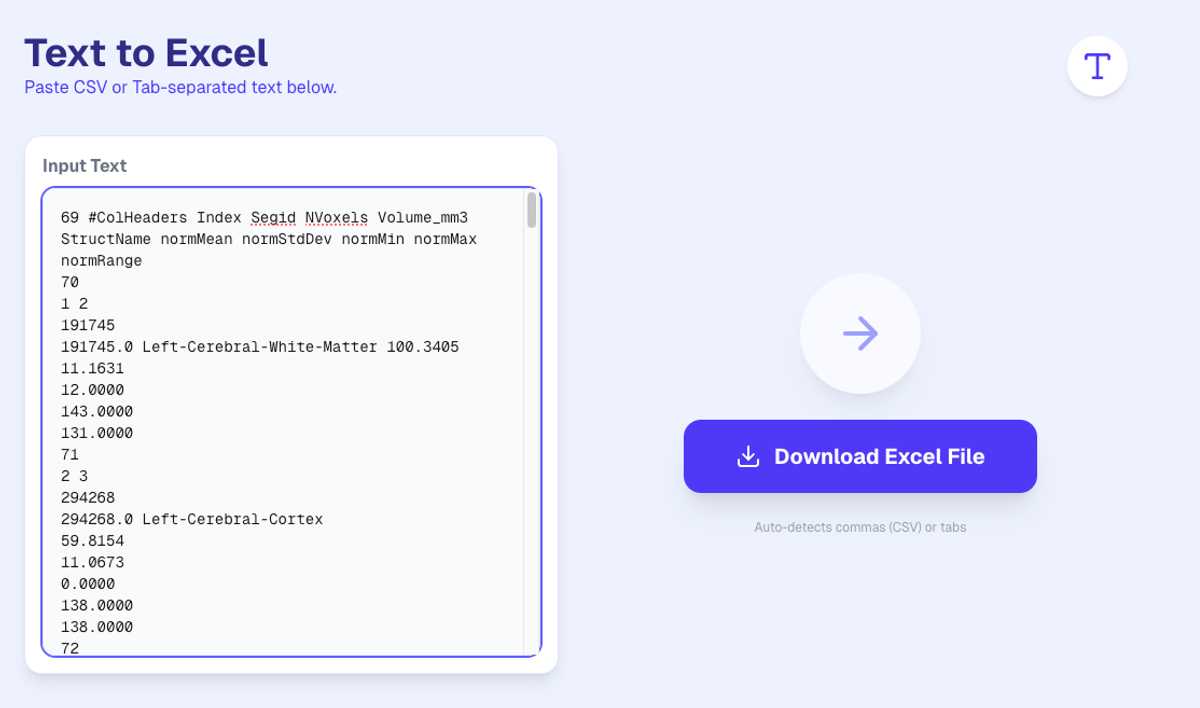
Instantly parse raw text into structured spreadsheet columns.
Deep Dive: What are Delimiters?
A delimiter is just the character that means “next column.”
- CSV (Comma-Separated Values): Columns are separated by commas. This is the most common format.
- TSV (Tab-Separated Values): Columns are separated by tab characters. This is common when copying tables from websites.
Privacy: Safe for Customer Lists
A lot of text data contains sensitive info like emails or phone numbers.
PicDitt processes your data in the browser. The parsing happens on your device rather than requiring you to upload your data to a server. For sensitive lists, that’s the safer default.
Conclusion
If you’re spending time splitting columns and cleaning “Column A blobs,” you’re doing unnecessary work.
Use PicDitt Text to Excel to paste text, detect columns, and download a clean spreadsheet in seconds.