The Ultimate Guide to Posting Full-Size Photos on Instagram & WhatsApp (No Crop Needed)

Advertisement
Introduction
Last summer I stood on the edge of Lake Bled at golden hour, phone raised, capturing the perfect horizontal frame. I hit share to Instagram and watched in horror as the app brutally chopped off the boat and half the mountains.
The photo that had made me catch my breath now looked like a postcard someone had taken scissors to. That was the moment I swore I would never let an algorithm decide what part of my memory was worth keeping again.
You’ve been there too. The full-length outfit pic loses the shoes. The group selfie cuts off Sarah on the edge. The square tyranny claims another victim.
Why the Square Tyranny Still Rules
Instagram launched in 2010 as a square-only app. Fifteen years later, the profile grid is still stubbornly 1:1. One tall photo and your entire grid turns into a chaotic collage. WhatsApp is even worse—it hard-crops your display picture without mercy.
The real crime isn’t the crop. It’s what gets lost. These aren’t just pixels; they are the details that made you take the picture.
The Great Border War: White vs. Blur vs. Color
1. White Borders (The Winner)
They’re clean, timeless, and make every photo look intentionally framed. They turn your grid into a gallery wall instead of a police lineup.
2. Blurred Borders
They had their moment in 2016. Blur hides sins (like a messy background), but white borders elevate the image.
3. Color Dropper
Pick the dominant color from your photo and flood the borders. Genius for mood boards, but if you switch aesthetics later, your grid might look messy.
My rule: 95% white borders. Blur only in emergencies.
How I Actually Do It (Without Losing My Mind)
I used to spend twenty minutes in apps that compressed my photos. Then I found PicDitt No-Crop.
Here is exactly what I do now:
- I take the photo exactly how I want it. No pinching, no pre-cropping.
- I open the tool: https://picditt.com/social/instagram-no-crop
- Drag the photo in. I almost always pick “White Padding.”
- Hit Download. Thirty seconds later I have a perfect square-ready file.
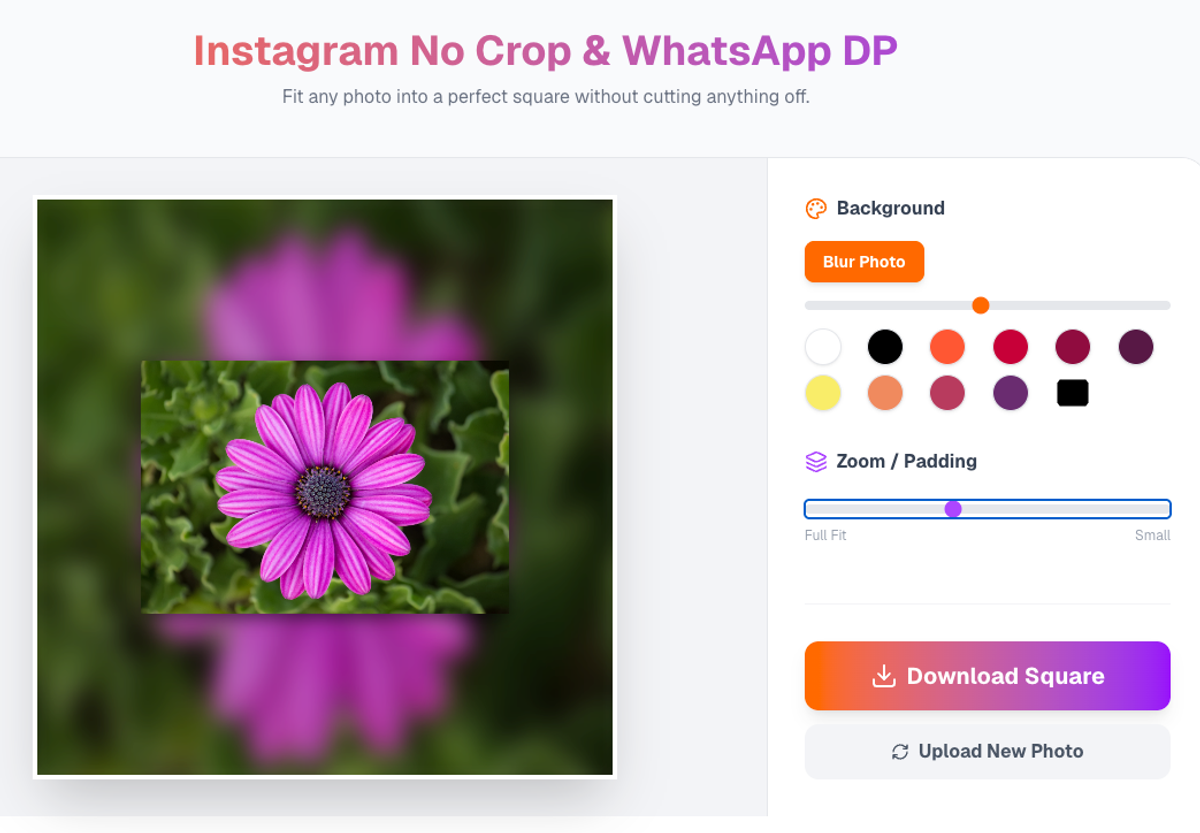
Instantly fit any photo into a square without cropping using smart padding.
The Platform Cheat Sheet
WhatsApp Display Picture: Strict 1:1 enforcer. Always pre-square your DP with white borders so your face stays large.
Instagram Feed: Square versions with borders perform better on the profile grid. If you post a native 4:5 portrait, it looks massive in the feed but becomes a tiny thumbnail on your grid.
Stories: Stories are 9:16 vertical. Use PicDitt to add vertical white padding so your landscape sits perfectly letterboxed inside the story.
Why I Trust PicDitt With Every Photo
Because nothing ever leaves my phone.
Most “no-crop” apps make you upload to their servers. You lose micro-contrast and hand over your private photos. PicDitt processes everything locally in your browser. Zero upload, zero compression, zero privacy headache.
Conclusion: Take Back the Frame
People don’t follow you for one viral photo. They follow the vibe of your grid. Consistency is the cheat code.
Pick one border style—I’m obviously team white—and commit. Stop letting apps amputate your photos.
Do it right now: PicDitt No-Crop Tool. Your future grid will thank you.