Stop Taking Blurry Screenshots: Convert PDF Pages to HD Images for Free (JPG, PNG, WebP)
Advertisement
Introduction
You have a beautiful PDF report—clean layout, crisp charts, perfect typography—and you want to share Page 1 on LinkedIn. So you do the obvious thing: take a screenshot.
And it looks… cheap. Pixelated text. Soft edges. Weird moiré patterns. Screenshots are a shortcut, not a solution. If you care about clarity, you want a real PDF-to-image converter.
That’s exactly what PicDitt PDF to Image is built for. Upload a PDF, choose your output format (JPG, PNG, WebP), and download high-quality images page-by-page.
Why Convert a PDF to an Image?
Turning PDF pages into images isn’t just about looks. It’s about compatibility.
- Social Media: Instagram and LinkedIn posts require images. If you want a PDF page to be shareable, converting it to a JPG/PNG is the only route.
- Presentations: A high-quality PNG dropped into a PowerPoint slide is stable and looks the same everywhere. No broken fonts or weird scaling.
- Compatibility: Images open instantly on every device, phone, and email client.
How to Convert PDF Pages to Images with PicDitt
Use the tool here: https://picditt.com/pdf-tools/pdf-to-image
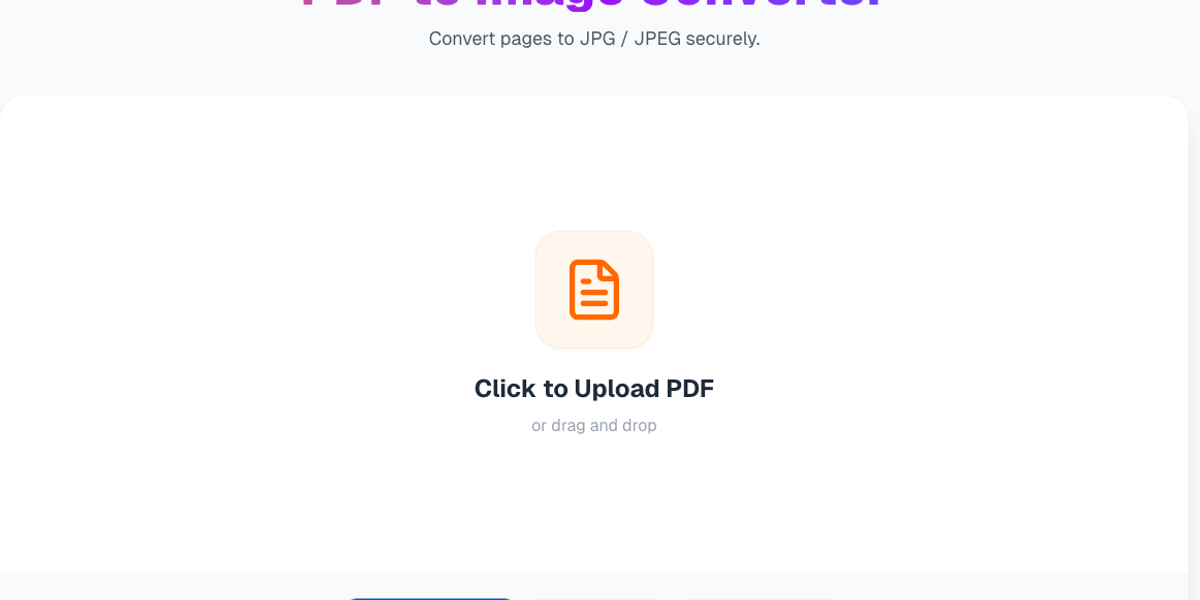
Step 1: Upload Your PDF
Click upload and choose the PDF file. This can be a report, a slide deck, a contract, or a brochure. Once loaded, PicDitt reads the file and prepares each page for rendering.
Step 2: Choose Your Output Format
Pick the format based on where the image will be used:
- JPG: Great for photos/mixed content. Small file size.
- PNG: Best for text documents (sharp lines, no artifacts).
- WebP: Best for websites (fast loading).
Step 3: Retina Rendering (Why PicDitt Looks Crisp)
Here is the technical detail that matters: rendering scale.
Most converters export at "screen resolution" (fuzzy text). PicDitt uses Retina Rendering (200% scale), so the output images have more pixel density. Text stays sharp even when zoomed in.
Step 4: Download Pages
After rendering, you can download a single page (like Page 1 for a post) or multiple pages for a carousel.
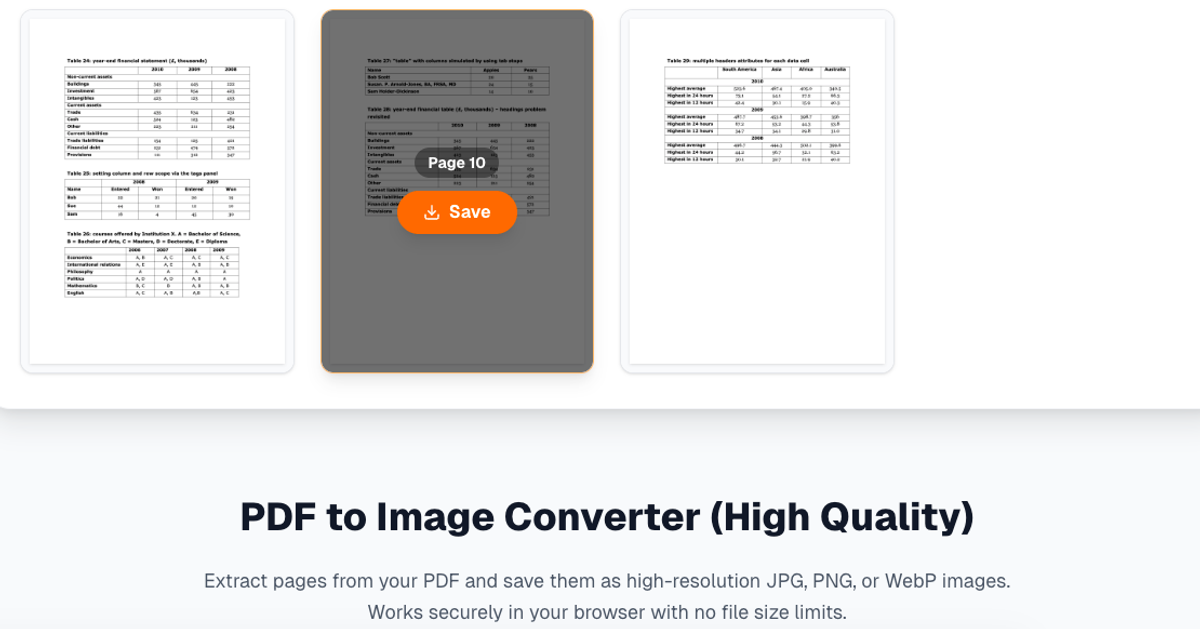
View and download individual high-quality pages from your PDF.
Mini Format Guide: Which to Use?
JPG (JPEG)
- Best for: Photo-heavy pages, marketing brochures.
- Pros: Small files, widely supported.
- Cons: Can introduce slight blur around sharp text.
PNG (Lossless)
- Best for: Text documents, tables, diagrams, UI screenshots.
- Pros: Sharp edges, perfectly clear text.
- Cons: Larger file size.
WebP
- Best for: Websites and blogs.
- Pros: Excellent quality-to-size ratio.
Privacy: Client-Side PDF Processing
PDFs often contain sensitive info (contracts, invoices).
Many online converters upload your PDF to a server to process it. That’s a privacy risk.
PicDitt processes PDFs in the browser. The conversion runs on your device using JavaScript, rather than sending your document to a cloud server. It’s a safer approach for professional files.
Conclusion
If you’re still screenshotting PDFs, you’re leaving quality on the table. A proper conversion gives you crisp text and clean edges.
Use PicDitt PDF to Image to turn your documents into shareable assets in seconds.