Stop Retyping: How to Extract Text from Images Instantly (Free OCR Tool)
Advertisement
Introduction
You have the text right in front of you… but you can’t select it. It’s in a screenshot, a photo of a book page, or a scanned invoice. And now you’re stuck retyping it—slowly, carefully, and still making typos.
This is the everyday frustration of “locked text.” Images look like documents, but they don’t behave like documents. You can zoom and crop, but you can’t highlight and copy-paste.
The fix is OCR (Optical Character Recognition). It reads text inside an image and turns it into real, editable text you can copy and paste into Word, Google Docs, or emails.
PicDitt OCR makes it simple and free.
The Problem: Locked Text
When text is inside an image file (JPG/PNG), your computer sees it as pixels—not characters. Retyping seems like the solution until you realize it’s slow, error-prone, and mentally draining.
OCR flips that workflow: instead of your eyes doing the typing, the tool reads the image and gives you text output you can actually use.
Why Use OCR?
- Students: Digitize study notes from a textbook photo or whiteboard picture.
- Office: Extract text from a scanned contract or invoice. Retyping a long ID number manually is how mistakes happen.
- Social Media: Copy a quote or recipe from an Instagram screenshot.
How to Copy Text from a Picture with PicDitt
Use the tool here: https://picditt.com/editing/ocr
Step 1: Upload an image
Start with your image file (JPG or PNG). Upload it from your phone or computer.
Step 2: Let the tool “scan” the text
After upload, the OCR process begins. It identifies where lines of text are and recognizes characters based on shapes and patterns.
Step 3: Copy the result
Once the text appears, you don’t need to manually highlight it. PicDitt includes a “Copy to Clipboard” button so you can paste it anywhere instantly.
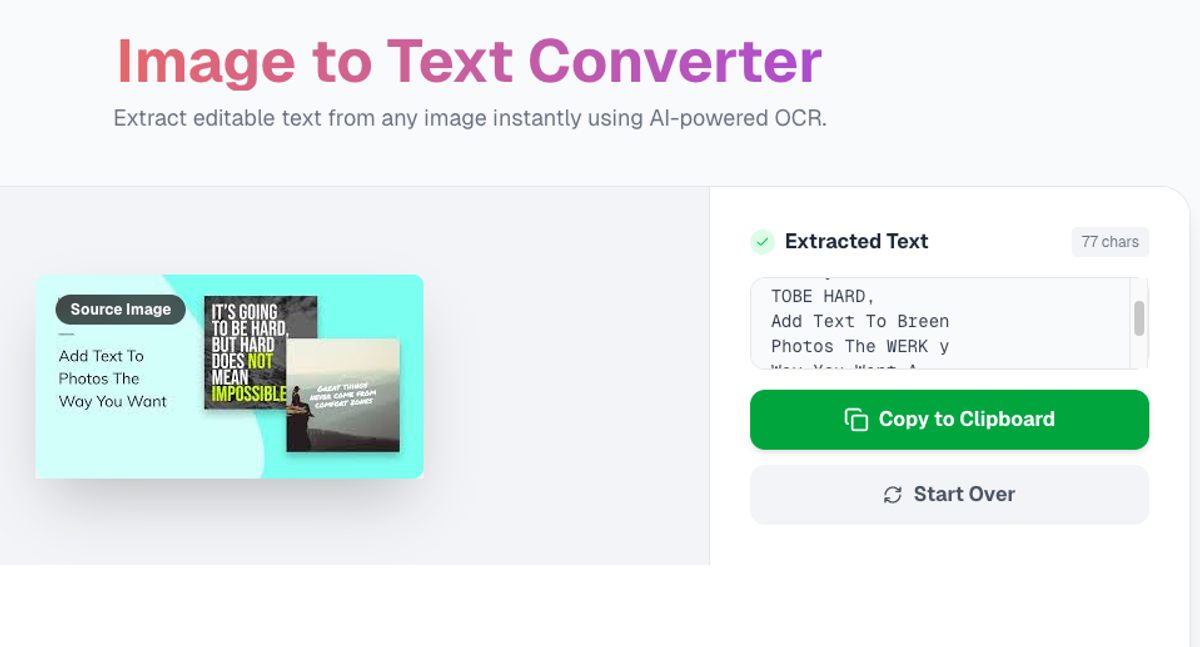
Extract editable text from any image or screenshot in seconds.
Pro Tips for Better Accuracy
- Lighting matters: Shadows are the #1 reason OCR fails. Use bright, even light and keep the camera flat.
- Handwriting vs Printed: Printed text (books, docs) is extremely accurate. Handwriting is harder, but still possible if it's neat.
- Crop the Image: Cut out background noise (desk, hands) before uploading for better results.
Privacy: Safe for Work Documents
Many OCR tools upload your images to a server. That’s risky for contracts or IDs.
PicDitt processes images locally. The text extraction happens on your device (Client-Side). Your image is never sent to a cloud server.
Conclusion
If you’re still retyping text from screenshots or photos, you’re wasting time.
Try PicDitt Free OCR. Upload an image, let it scan, hit “Copy,” and paste anywhere. In seconds, you go from locked pixels to real text.