Stop Retyping Data: Extract PDF Tables to Excel Instantly for Free
Advertisement
Introduction
PDFs are great at one thing: locking information into a clean, printable layout. Unfortunately, that’s exactly what makes them painful when you actually need to work with the data.
You’ve probably run into “The Data Trap” before. A bank statement arrives as a PDF. An invoice comes as a PDF. The information is right there in a neat table—rows, columns, totals—yet you can’t sort it, filter it, or run formulas on it without manually rebuilding the spreadsheet.
Copy-paste doesn’t save you either. It usually results in a mess of shifted columns and split numbers.
That’s why PicDitt PDF to Excel exists. It is built for one job: take table data trapped in a PDF and extract it into an editable spreadsheet—fast.
Why Convert PDF Tables to Excel?
1. Analysis: PDFs don’t do formulas
Spreadsheets are made for math. Once your table is in Excel, you can total monthly expenses, compare invoices, and build charts. None of that works when the data is stuck as static text on a page.
2. Formatting: Turn a static doc into flexible data
In Excel, you can sort rows, split columns, and clean up inconsistent labels. A PDF is a “view.” Excel is a “workspace.”
3. Time: Typing takes hours
Even a small table can take a long time to retype. Converting gets you to a usable spreadsheet immediately, so your time goes into reviewing data—not rebuilding it.
How to Convert a PDF Table to Excel
Open the tool here: https://picditt.com/pdf-tools/pdf-to-excel
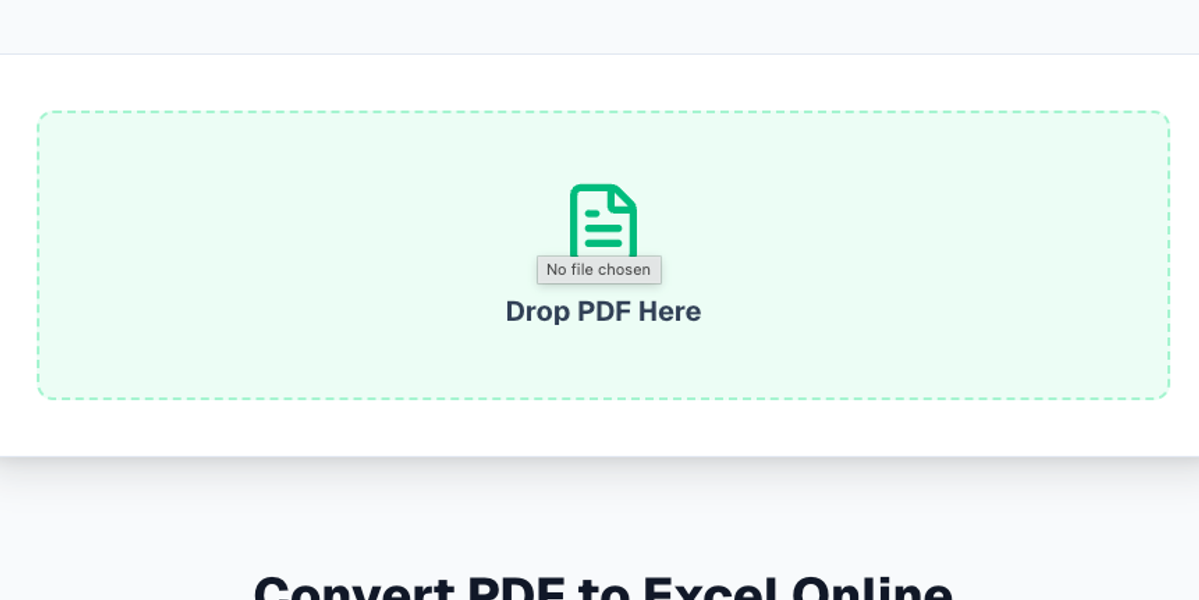
Step 1: Upload your PDF
Upload the PDF that contains your table (bank statement, invoice, report, etc.). The tool works best when the PDF is a “digital PDF” generated by software (like an export from a bank).
Step 2: Smart Extraction
PicDitt performs smart extraction by looking for the underlying structure of tables—things like alignment, consistent spacing, and repeated column patterns—so it can rebuild rows correctly.
Step 3: Download the .XLSX file
When the extraction is done, download your new Excel file. You can now edit, format, and calculate the data.
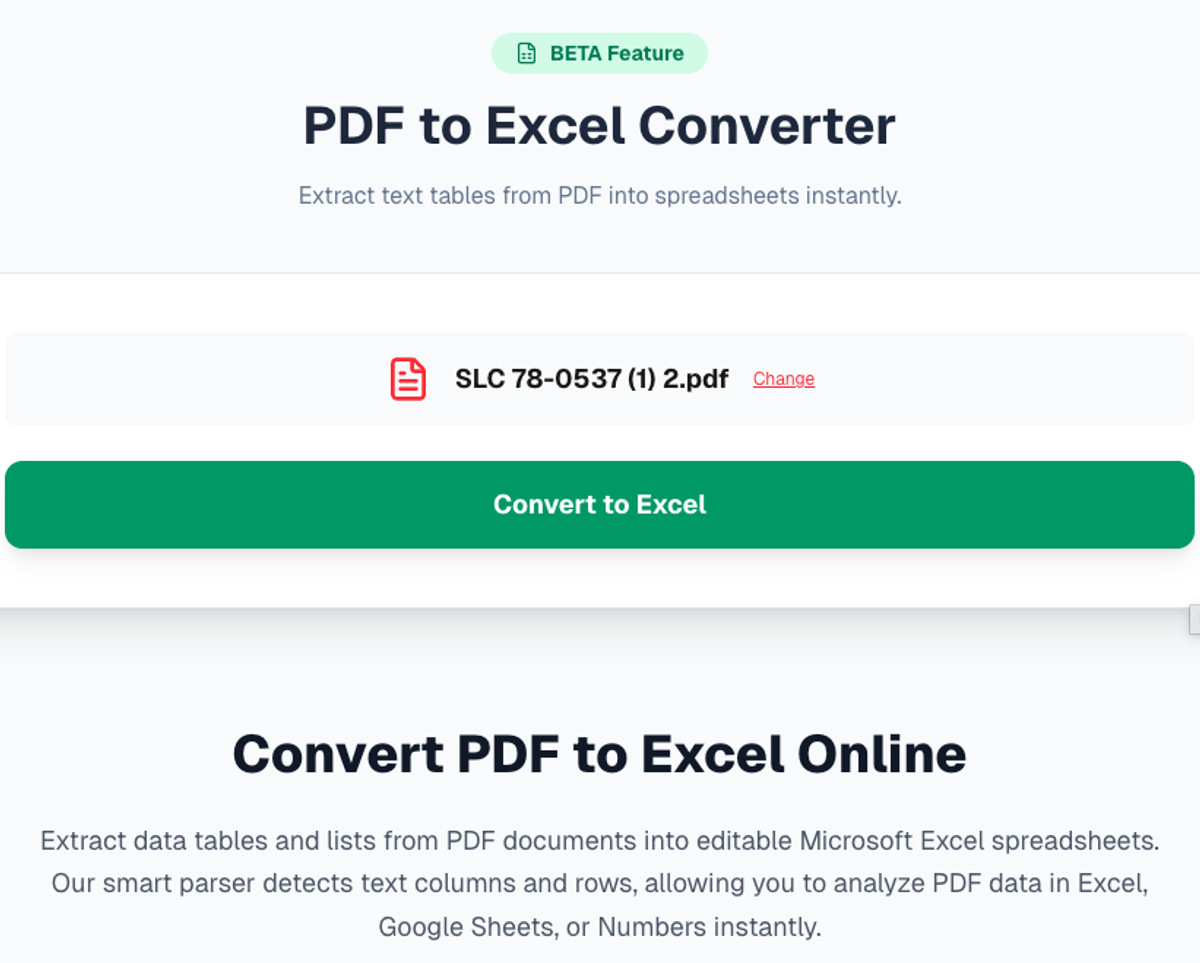
Extract rows and columns from PDF documents into editable Excel sheets.
Privacy: Critical for Financial Documents
A lot of PDFs people convert contain sensitive data: bank balances, invoices, and payroll info.
Many “free converters” upload your file to a server for processing. PicDitt is different.
- The extraction runs locally in your browser using JavaScript.
- Your document is not sent to a cloud server.
- If you’re working with personal financial data, this is the safer default.
FAQ
Does it work on scanned PDFs?
It works best on digital PDFs with selectable text. If your PDF is just a photo scan, there is no text data to extract easily without OCR.
Is it editable?
Yes. You get a real Excel (.XLSX) file. Once downloaded, you can edit cells just like any other spreadsheet.
Conclusion
PDF tables are everywhere, but they are terrible to work with. If you’re currently stuck retyping line items, converting the table into Excel is the smarter move.
Use PicDitt PDF to Excel to turn “trapped” data into a usable spreadsheet in minutes.