Stop Printing Excel on Two Pages: The Ultimate Fit to One Page Print Fixer Guide
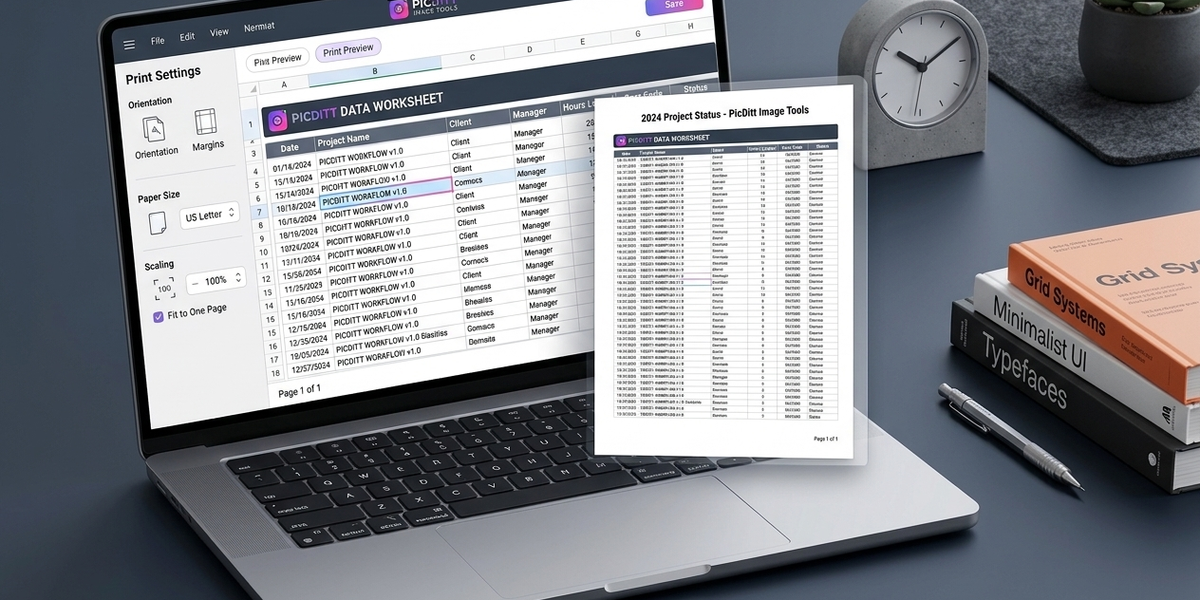
Stop Printing Excel on Two Pages: The Ultimate Fit to One Page Print Fixer Guide
Introduction
Printing Excel spreadsheets should be simple—but it rarely is.
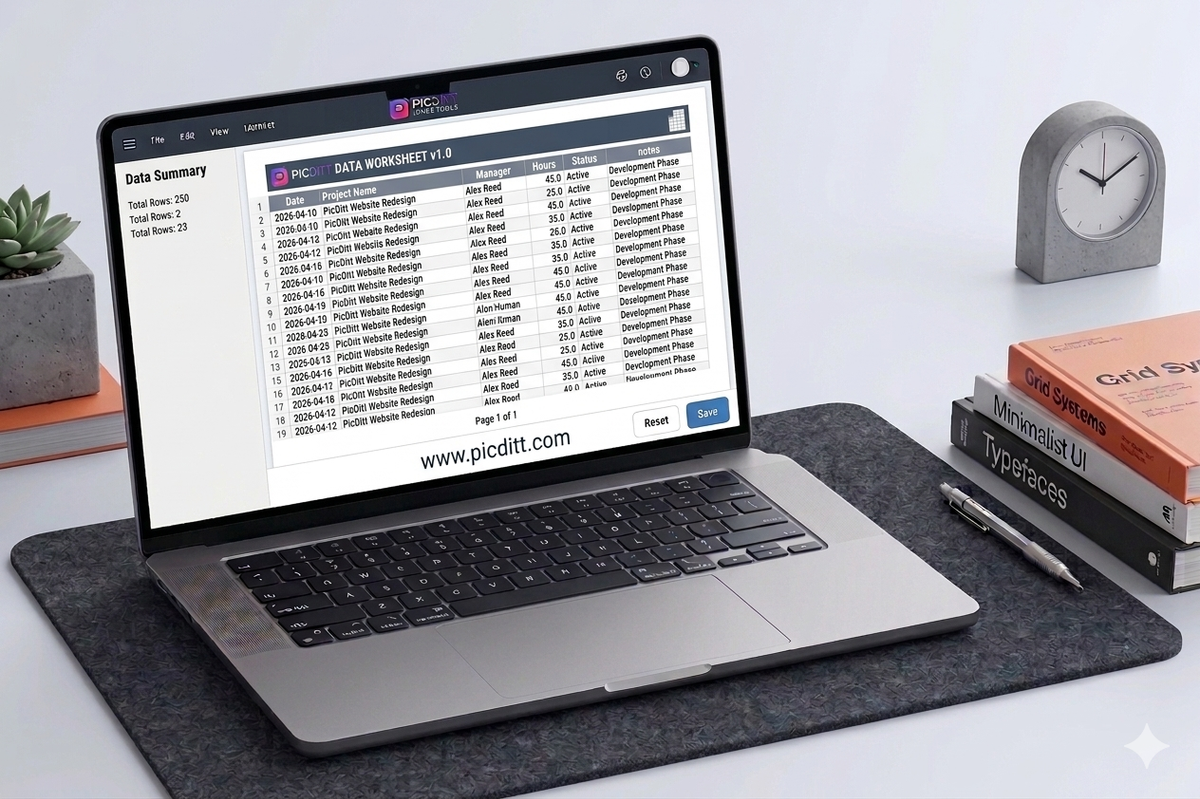
You prepare your data perfectly, hit print, and suddenly your spreadsheet is split across two or more pages. Columns get cut off, rows break awkwardly, and the final print looks unprofessional.
This is one of the most common problems Excel users face.
Whether you're printing invoices, reports, financial data, or business sheets, poor formatting can waste paper, time, and effort.
The good news? There’s an easier way to fix this.
With the Excel Print Fixer & PDF Converter available on www.picditt.com, you can automatically adjust your spreadsheet to fit perfectly on one page—without manually tweaking complex settings.
In this guide, you’ll learn everything about fixing Excel print issues and how to achieve perfect, professional results every time.
Why Excel Prints on Multiple Pages
Excel is designed for flexibility, not print perfection. That’s why it often struggles when converting spreadsheets into printable layouts.
Common Reasons
- Too many columns
- Wide data tables
- Incorrect page orientation
- Default scaling settings
- Large margins
- Hidden formatting issues
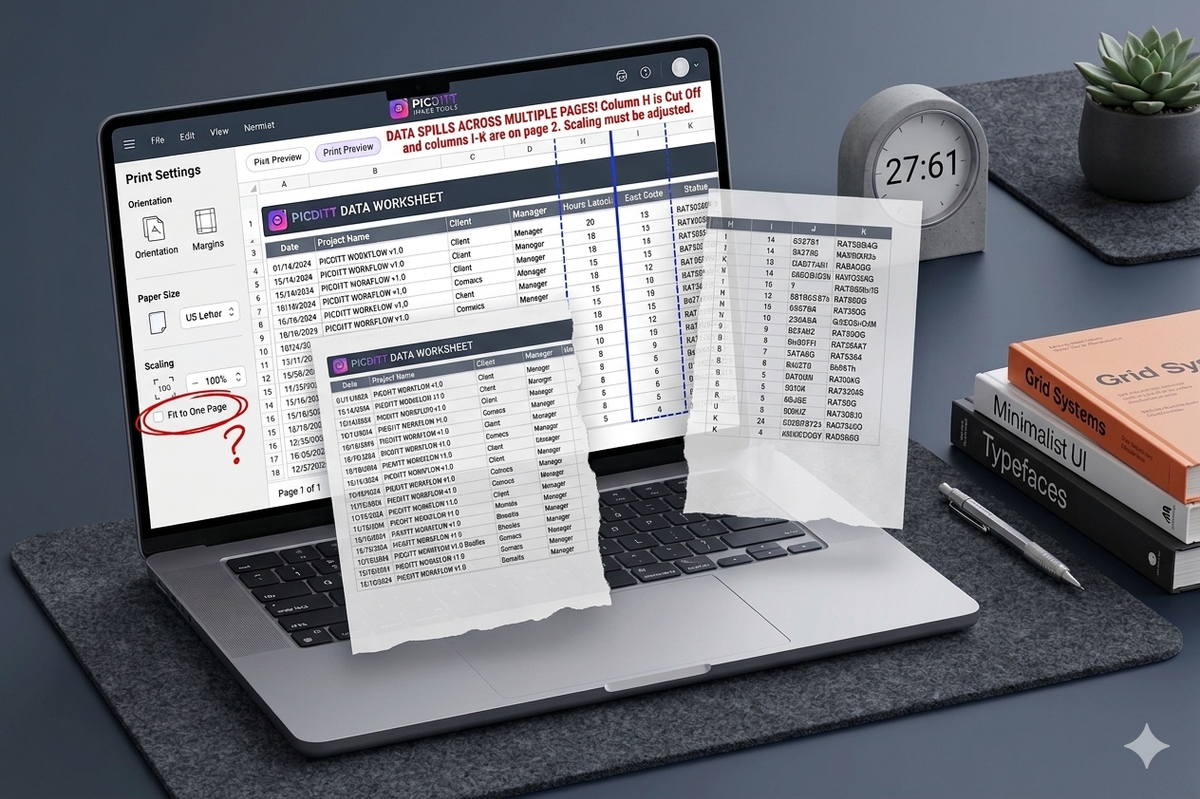
When your spreadsheet exceeds the printable width of a page, Excel automatically pushes content onto another page.
Common Excel Printing Problems
Before fixing the issue, it’s important to understand what typically goes wrong.
1. Columns Getting Cut Off
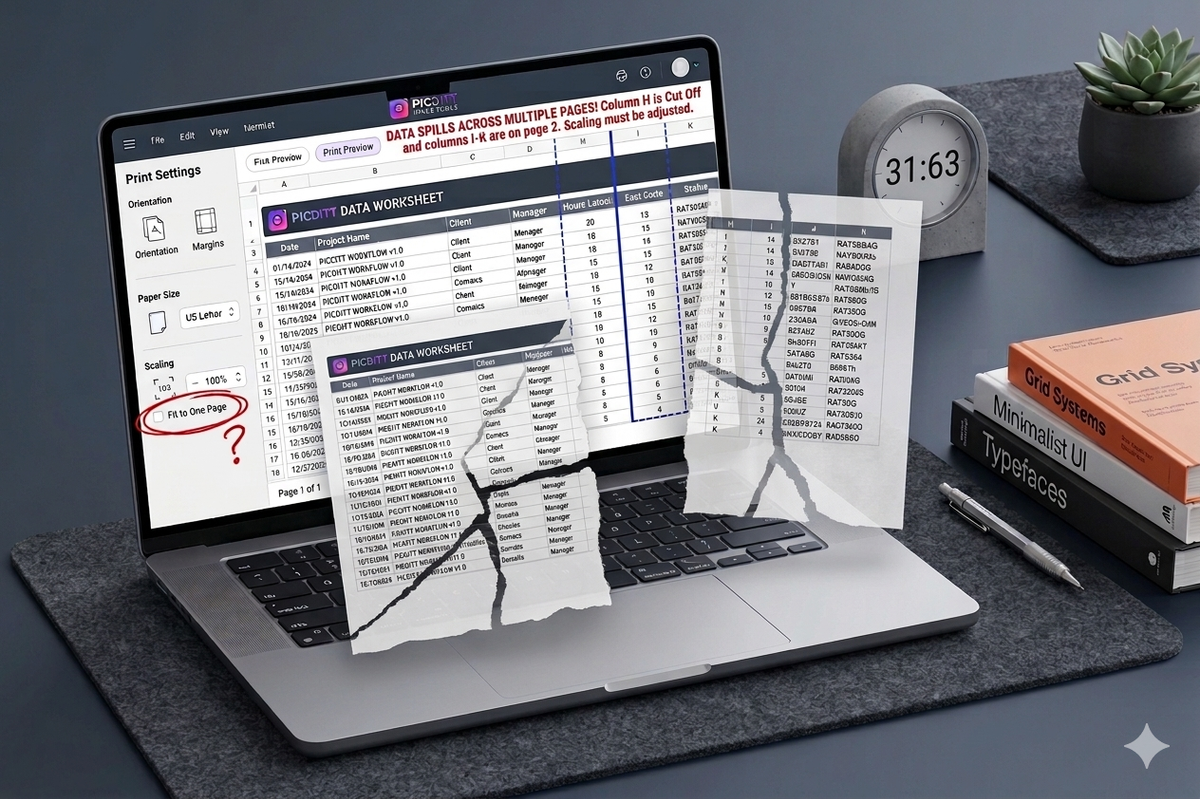
When your spreadsheet is too wide, Excel cuts off columns on the right side.
2. Data Split Across Pages
Rows or tables get divided between pages, making them hard to read.
3. Text Too Small
When using scaling, Excel shrinks everything—sometimes too much.
4. Wrong Orientation
Portrait mode is often used by default, even for wide spreadsheets.
5. Missing Headers
Headers don’t repeat on multiple pages, causing confusion.
6. Extra Blank Pages
Invisible formatting or incorrect print areas create unnecessary pages.
Manual Ways to Fix Excel Printing Issues
If you prefer to fix things manually in Excel, here are some common solutions.
Adjust Page Orientation
Switch to Landscape Mode if your sheet has many columns.
Use “Fit to Page” Option
Set scaling to:
- Fit Sheet on One Page
- Fit All Columns on One Page
Reduce Margins
Narrow margins allow more content to fit.
Adjust Column Width
Manually resize columns to fit within page boundaries.
Set Print Area
Select only the data you want to print.
Why Manual Fixing is Frustrating
- Takes time
- Requires trial and error
- Results are inconsistent
- Not beginner-friendly
This is why automated tools are becoming popular.
The Easiest Solution: Excel Print Fixer Tool
Instead of spending time adjusting settings, you can use:
👉 https://picditt.com/conversion/excel-print-fixer
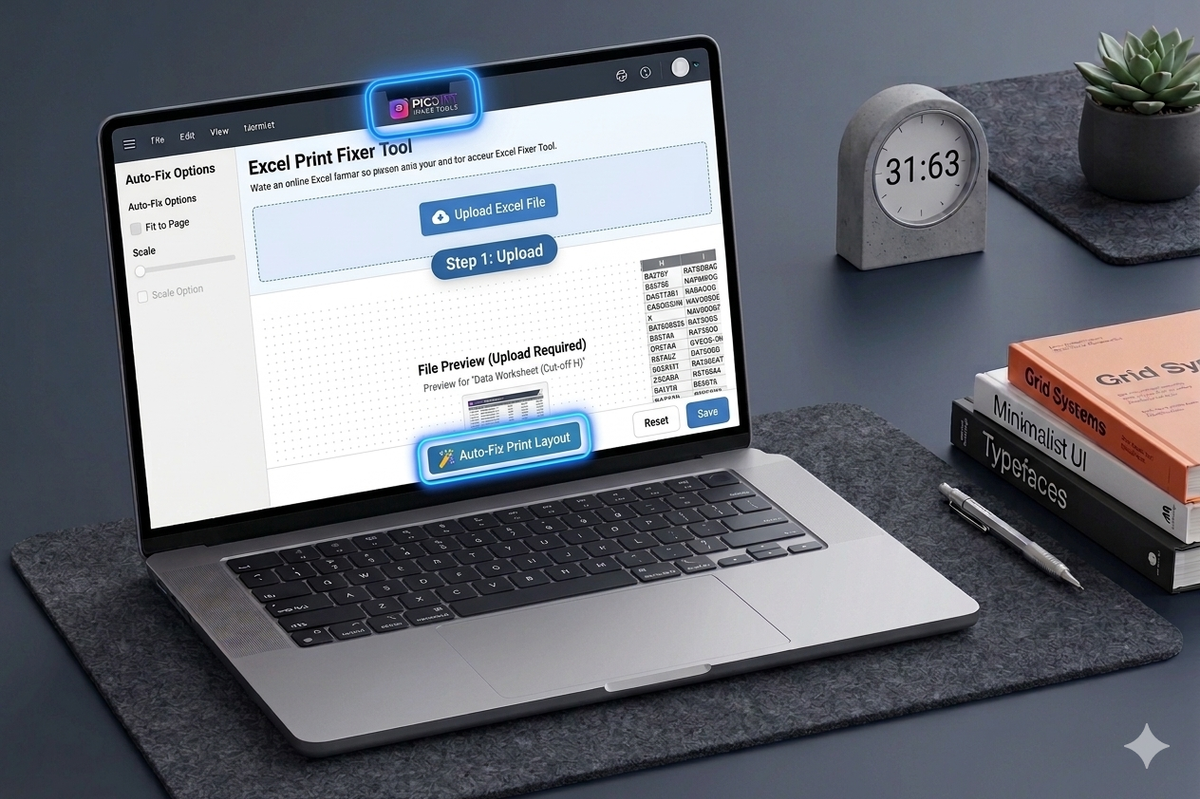
The Excel Print Fixer & PDF Converter automatically detects and fixes all printing issues in one click.
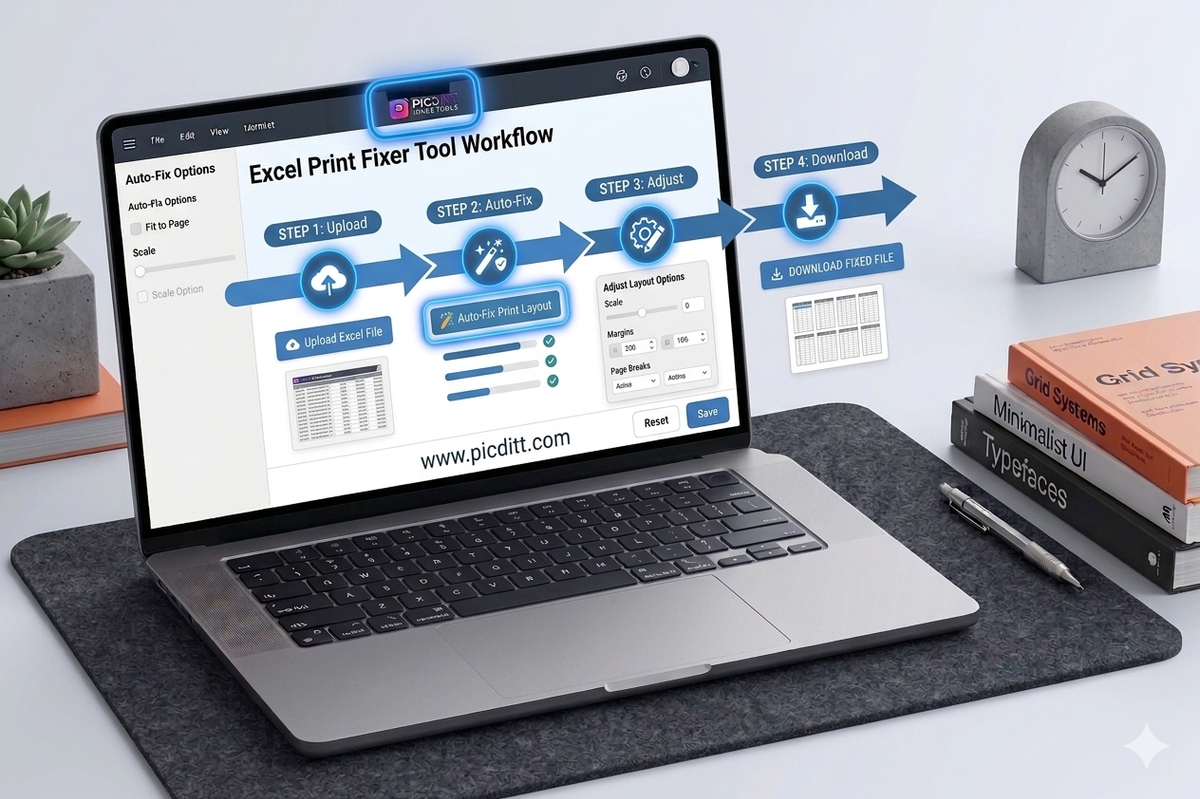
How to Fix Excel Printing in One Click
Using this tool is incredibly simple.
Step 1: Upload Your File
- Drag & drop your Excel or CSV file
- Supports .xlsx, .xls, .csv
Step 2: Auto-Fix Issues
Click the Auto-Fix button.
The tool will:
- Adjust scaling
- Fix orientation
- Optimize margins
- Resize columns
Step 3: Customize Settings
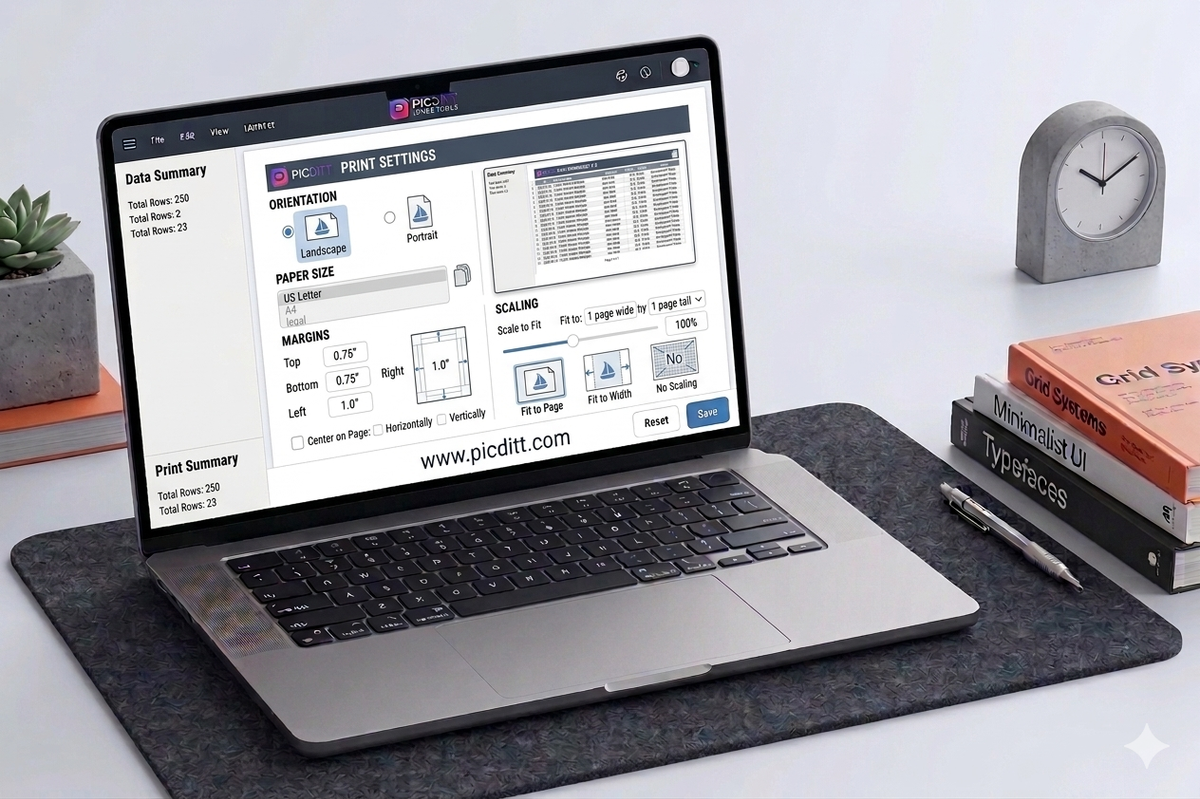
You can fine-tune:
- Page size (A4, Letter, etc.)
- Orientation (portrait/landscape)
- Margins
- Scaling
Step 4: Export or Print
Download your file as a perfectly formatted PDF or print directly.
Key Features of Excel Print Fixer
One-Click Auto Fix
Automatically resolves all common print issues instantly.
Fit to One Page
Ensures your spreadsheet fits perfectly on a single page.
Auto-Fit Columns
Prevents text from being cut off.
Live Preview
See exactly how your sheet will print before downloading.
PDF Export
Get consistent print results across all devices.
100% Private
Your files never leave your browser.
Benefits of Using PicDitt Tools
Using tools from www.picditt.com gives you several advantages:
- No installation required
- Fast processing
- Works on all devices
- Completely free
- Secure and private
You can also explore related tools:
- Universal Image Converter: https://picditt.com/conversion
- Join Images Online: https://picditt.com/misc/join-images
- Zoom & Resize Images: https://picditt.com/social/zoom-image
These tools help improve your productivity and workflow.
Best Print Settings Explained
Understanding print settings can help you get better results.
Fit to Page
Scales your content to fit within one page.
Landscape Mode
Best for wide spreadsheets (6+ columns).
Repeat Headers
Ensures headers appear on every page.
Narrow Margins
Maximizes printable area.
Gridlines
Improves readability in printed sheets.
Pro Tips for Perfect Excel Printing
Use Fit Sheet on One Page
Ideal for spreadsheets with fewer rows.
Switch to Landscape
Always use landscape for wide data.
Enable Header Repetition
Important for multi-page documents.
Use PDF Export First
Preview your document before printing.
Avoid Over Scaling
Too much scaling makes text unreadable.
Real-World Use Cases
Business Reports
Print clean, professional reports.
Financial Sheets
Avoid errors caused by split data.
Invoices
Ensure all information appears on one page.
Academic Work
Submit neat and readable spreadsheets.
Office Workflows
Save time and reduce printing errors.
Why PDF Export is Better for Printing
Exporting to PDF ensures:
- Consistent formatting
- No layout changes
- Easy sharing
- Better compatibility
That’s why the Excel Print Fixer includes PDF export.
Advanced Workflow Tip
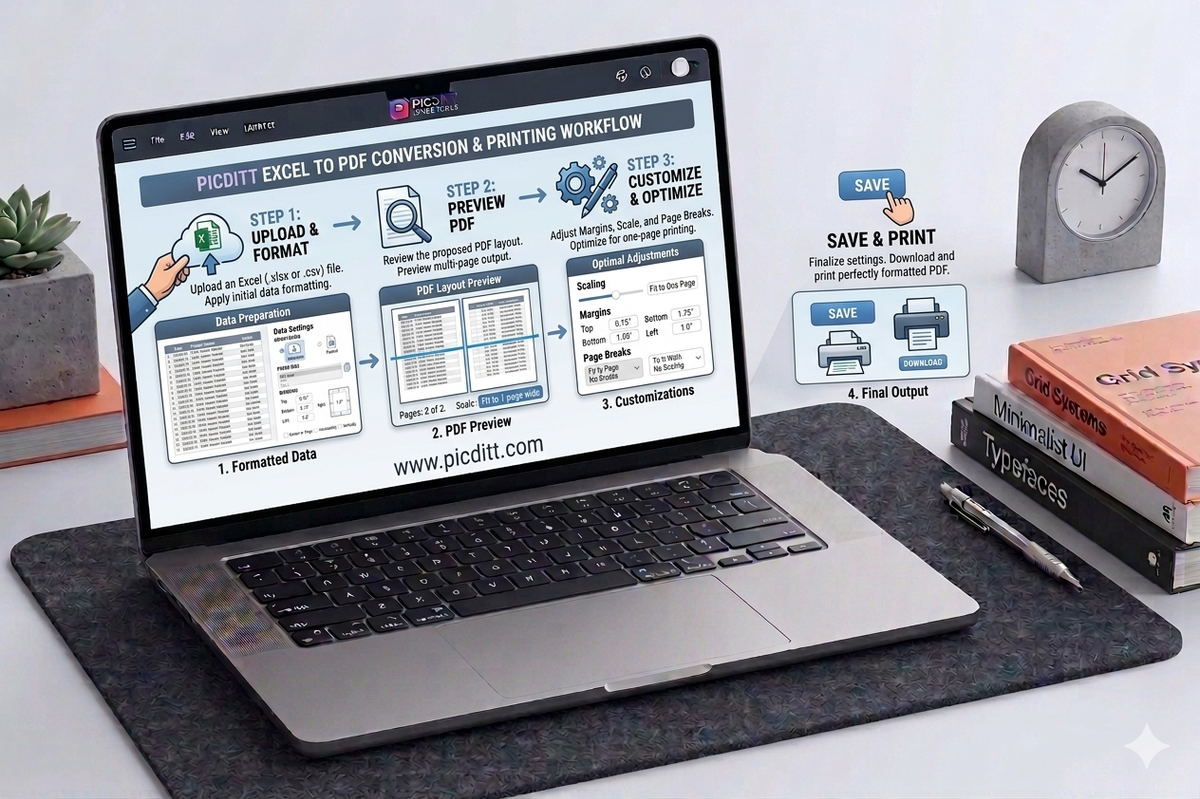
Here’s a smart workflow:
- Fix Excel using Print Fixer
- Export to PDF
- Share or print
For visual workflows, combine with:
- Image tools
- Document converters
- Resizing tools
Common Mistakes to Avoid
- Printing without preview
- Using portrait for wide sheets
- Ignoring margins
- Not setting print area
- Over-scaling content
FAQs
Why does Excel print on two pages?
Because your content exceeds the printable width of one page.
How do I fit Excel on one page?
Use “Fit to Page” or an automatic tool like Excel Print Fixer.
Is the tool free?
Yes, it is completely free with no signup required.
Is my file (safe)?
Yes, all processing happens in your browser.
Can I use it on mobile?
Yes, it works on all devices including smartphones.
What formats are supported?
.xlsx, .xls, and .csv files.
Conclusion
Printing Excel spreadsheets doesn’t have to be frustrating.
Instead of wasting time adjusting settings manually, you can use the Excel Print Fixer & PDF Converter on www.picditt.com to solve everything in seconds.
With one-click optimization, automatic scaling, and PDF export, you’ll never deal with messy prints again.
Start using the tool today and make your spreadsheets look clean, professional, and perfectly formatted—every time.
Ready to Try It Yourself?
Use this tool for free — no signup, no download, no watermarks.
Open Free ToolYou Might Also Like
Make Your Photos Pop: Free Aesthetic Filters Online (A VSCO Alternative)
Enhance your photos instantly with free online filters. Apply effects, adjust colors, and download high-quality images in seconds.
Read More →
YouTube Banner Maker with Safe Zone Guides: Design Channel Art That Looks Perfect on Every Device
Your YouTube banner looks different on every device. Learn how to design a 2560×1440 channel banner that works perfectly on TV, desktop, tablet, and mobile using PicDitt's free YouTube Banner Maker with built-in safe zone guides.
Read More →