Stop Excel From Ruining Your CSV Data: The Ultimate “CSV to XLSX” Conversion Guide
Advertisement
Introduction
If you work with data, you’ve experienced the “double-click disaster.” You download a CSV, open it in Excel, and suddenly your clean data is wrecked. Dates are reformatted, long numbers turn into scientific notation (5.43E+15), and ZIP codes lose their leading zeros.
Excel treats CSVs like an invitation to "interpret" your data, and it often guesses wrong.
That’s why PicDitt CSV to XLSX exists. It converts your CSV into a real Excel file before you open it, preserving your data perfectly.
The Problem: How Excel Breaks Data
1. Scientific Notation on Long Numbers
Excel stores numbers with limited precision. Identifiers like credit card numbers or Order IDs get converted (e.g., 5432109876543210 → 5.43E+15). Once saved, the original digits are often lost forever.
2. Leading Zeros Disappear
Excel treats 01234 as the number 1234. If you are working with ZIP codes or Product IDs, your dataset is now corrupted.
3. Column Chaos
Sometimes Excel fails to split columns properly, dumping everything into Column A. This forces you to manually use the "Text to Columns" wizard every time.
The Solution: Convert to XLSX First
Instead of letting Excel guess, convert the file to a workbook first.
Tool: https://picditt.com/misc/csv-to-xlsx
Step 1: Upload your CSV
Choose the export file from Shopify, Stripe, or your database.
Step 2: Auto-Format
PicDitt reads the CSV structure and handles column parsing automatically. It preserves text fields so IDs don't turn into math problems.
Step 3: Download XLSX
Download the clean file and open it in Excel safely.
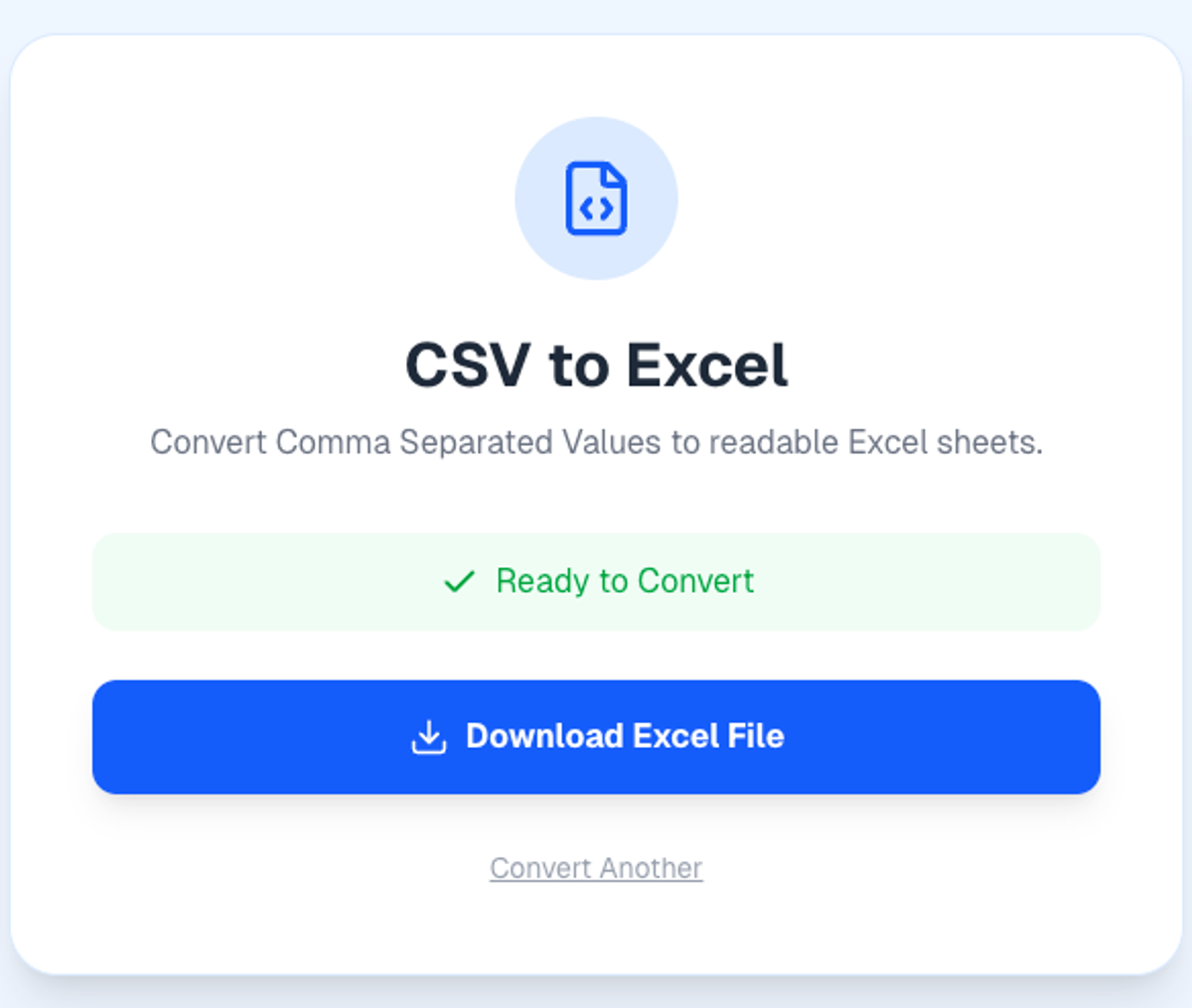
Instantly convert CSV data into a clean, formatted Excel spreadsheet.
Important: UTF-8 Encoding (Special Characters)
If your data contains accents (José, Beyoncé) or emojis, Excel often mangles them into garbage text (Beyoncé).
PicDitt handles UTF-8 encoding properly, ensuring international characters are preserved.
Privacy: Client-Side Processing
CSVs often contain sensitive info like customer emails or phone numbers.
PicDitt processes data in the browser. The conversion happens locally on your device. Your file is never uploaded to a cloud server.
Conclusion
If you’re spending time repairing what Excel broke, you’re not doing data work. You’re undoing Excel’s guesses.
Use PicDitt CSV to Excel to keep your IDs intact, your dates consistent, and your sanity protected.