Protect Your Privacy: How to Blur Faces and Sensitive Info in Photos (Free Online)

Advertisement
Introduction
Sharing photos online is normal now. But a single photo can accidentally reveal a lot: a child’s face, a license plate, or a credit card on the table.
You don’t need to be paranoid to take privacy seriously. You just need a quick way to remove identifying details before you hit “post.”
That’s what PicDitt Blur/Pixelate is for. It lets you hide faces and sensitive areas in seconds—no Photoshop, no complicated software.
The Privacy Problem
People often think privacy issues only happen to “big accounts.” In reality, small details create risk. An Instagram story can be screenshotted. A marketplace listing can be copied.
Privacy isn’t about hiding everything. It’s about controlling what’s identifiable:
- Faces (especially children).
- IDs, addresses, and account numbers.
- License plates.
- Private messages in screenshots.
Common Use Cases
1. Parenting: Hide kids’ faces
A lot of parents want to share family moments without making their child’s face searchable online. Blurring is a simple boundary: post the memory without posting the identity.
2. Street Photography: Blur strangers
Street photos often include random people. Even if your intent is artistic, strangers may not want their face posted online. Blurring faces is a respectful compromise.
3. Documentation: Hide passwords/emails
Screenshots are common privacy leaks. People share support chats or order confirmations and forget the image includes an email address or tracking number.
How to Blur Faces Using PicDitt
Open the tool here: https://picditt.com/editing/pixelate
Step 1: Upload your photo
Choose a photo from your phone or computer.
Step 2: Choose “Blur” or “Pixelate”
- Blur: Soft, smooth concealment. Blends the area so details are hard to see. Great for aesthetics.
- Pixelate: Blocky mosaic concealment. A classic "censored" look.
Step 3: Select the Area
Drag a rectangle over what you want to hide (a face, a license plate, a credit card). You can do multiple areas if needed.
Step 4: Adjust Intensity
Increase intensity until faces are not recognizable and text cannot be read. Once satisfied, hit Download.
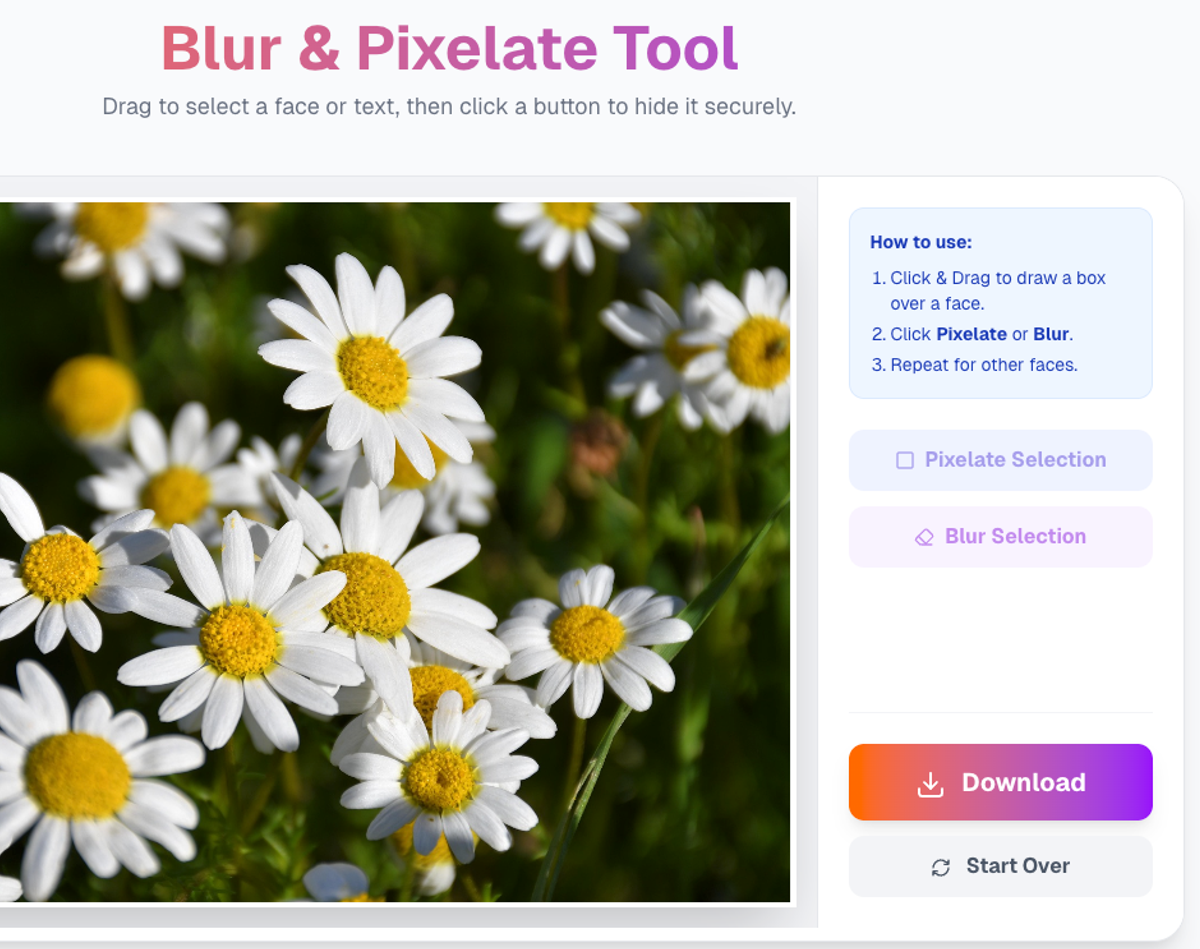
Select areas to blur or pixelate instantly to protect sensitive information.
The Privacy Advantage: No Uploads
If you’re blurring a child’s face or a credit card, the last thing you want is to upload the unedited image to a random server.
PicDitt runs in your browser. The blurring happens locally using client-side code. The un-blurred original photo is not sent to a server. That’s exactly what you want when the content is sensitive.
Conclusion
You don’t have to stop posting photos to protect privacy. Just make it a habit: before you share, cover the details that shouldn’t be public.
Use PicDitt Blur Tool to blur or pixelate faces and sensitive info in seconds. It’s simple, fast, and keeps your private details private.