How to Make a Giant Instagram Grid Layout (Split One Image into 3, 6, or 9 Posts)
Advertisement
Introduction
You’ve seen it on Instagram: a profile grid where the top nine posts aren’t random selfies—they’re one big, clean visual. A product shot that spans the entire top of the profile. A travel photo split into a 3x3 “giant square.”
That’s an Instagram grid layout (or “puzzle feed”). And it works because it hits people in the exact place Instagram is most visual: the profile grid.
The problem: doing this manually is a pain. In Photoshop, you’re setting guides, slicing, and hoping you didn’t misalign anything. PicDitt Split Image makes it easy: upload one image, choose your grid size, and download all pieces in one ZIP.
The Types of Instagram Grids You Can Make
Before you split anything, decide what kind of grid effect you want.
1. The Panoramic Row (3x1)
One image split into three posts that form a single horizontal strip. Great for announcements ("New drop", "Coming soon").
2. The 6-Post Block (3x2)
A six-tile grid is a nice middle ground. It can feel like a mini-campaign or product launch sequence.
How to Create a Grid with PicDitt
Open it here: https://picditt.com/editing/split-image
Step 1: Upload your high-res image
Use a high-quality photo to avoid pixelation. If it has text, ensure it's large enough to be readable after splitting.
Step 2: Choose your grid size
- Columns: Keep this at 3 (standard Instagram width).
- Rows: Choose 1, 2, or 3 depending on how tall you want the design to be.
Step 3: Preview and Download
Once the grid lines look right, click Download. PicDitt packages all the tiles into one ZIP file, so you don’t have to save each piece one-by-one.
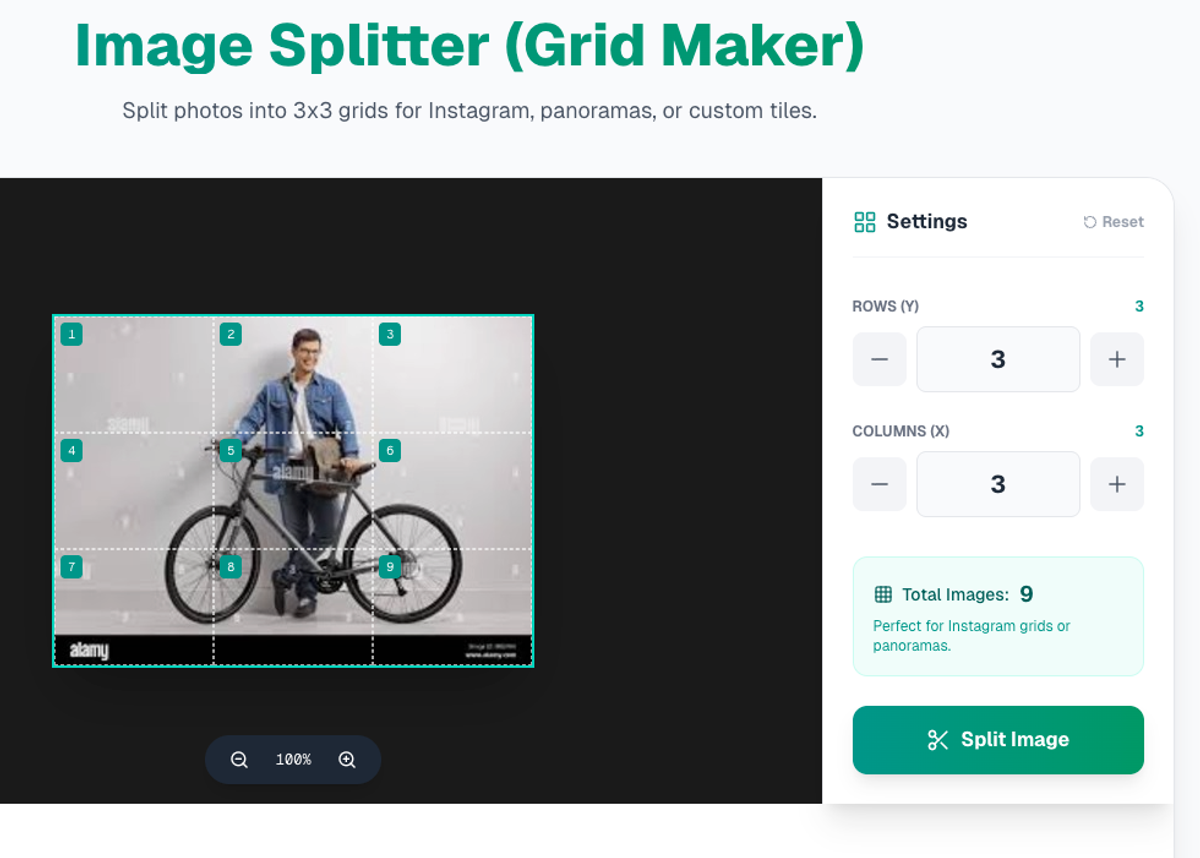
Easily split one image into multiple tiles for Instagram.
Posting Strategy: The Reverse Order Rule
This is the part that trips people up. Instagram shows your newest posts at the top-left. But when you’re building a grid image, you need the tiles to land in the correct positions.
You must post them in reverse order.
Start from the Bottom-Right tile and work backwards until the Top-Left tile is posted last. If you post in normal order, your grid will appear scrambled.
Privacy: Browser-Based Processing
Creators often build grid layouts for unreleased content. PicDitt processes the split in-browser, meaning the work happens locally on your device. Your unreleased images are not uploaded to a cloud server.
Conclusion
Instagram grid layouts are the easiest way to make your profile look intentional and premium. You don’t need Photoshop.
Use PicDitt Split Image to upload, split, and download your grid in seconds. Just remember: post in reverse order!